Elastic Compute Service
Elastic Compute Service
Elastic Compute Service


Document
Elastic Compute Service
What's New
Announcement
OpenAPI related
Pricing and quotas are related
About products and plugins
Feature discontinuation
Overview
Billing
Billable items
Billing methods
Billing methods change
Getting Started
User Guide
Instances
Instance types
X86 Computing
Elastic Bare Metal Server
Heterogeneous Computing
Select instance billing method
Spot instance
Elastic Scheduled Instance
Offsetting Resources
Reserved Instances
Buying ECS instances
Logging in to an instance
Logging in to a Linux instance
Managing instance status
Modifying instance types
Using instance user data and metadata
Instance metadata
Images
Public images
veLinux images
Custom images
Importing custom images
Creating custom images
Image detection
End of life (EOL) of image
Elastic Block Storage
Basic volume operations
Partitioning and formatting a volume
Extending a volume
EBS Agent
Snapshots
Basic snapshot operations
Auto snapshot policies
DataInsights
Network
Network interface and IP address
IP Address
IPv4 address
Security group
Security
Passwords and key pairs
Deployment and scaling
Monitoring
Monitoring metrics
Event monitoring
Local volume event O&M
Method 1: Solve the local volume failure by replacing the faulty volume
O&M
Cloud assistant
Managing agents
Process choreography
Common operation and maintenance tasks
Batch operations on instances
Batch operations on EBS Volumes
Batch operations on images
Temporary upgrade of bandwidth
Managing application updates
orchestration plan
Patch management
Managing patch plans
Managing patch baselines
IAM
Tags and projects
Best Practices
AI applications
OpenClaw (formerly Moltbot)
Quickly deploying OpenClaw via application templates
Quickly deploying OpenClaw via marketplace images
Manually deploying OpenClaw
Self-service website creation
Building environments
Building a Web environment (Windows)
Building applications
Building FTP site
Deploying databases
Building game servers
Building websites
Building a WordPress blog
Building multiple websites
Manage software sources for Linux instances
AIGC practices
Performance test
Network performance test
Instance configuration
Setting up AD Domain Services on Windows OS
Windows Multi - User Login
Changing screen resolution
Instance data
Uploading or downloading files
Data restoration
ECS instance local time synchronization
Volume
Monitoring
Security
Images
Kernel fine-tuning
O&M
Troubleshooting
Remote log in issue
Linux operating system issue
Windows operating system issue
SSH log in issue
Operating system issue
veLinux operating system issue
Linux operating system issue
Windows operating system issue
Instance status issue
Instance unable to start issue
High instance load issue
GPU instances issue
Network connection issue
Network configuration issue
Storage classes issue
EBS Volume issue
Local Disk issue
Logs and monitoring issue
Third - party software issue
API Reference
Regions and availability zones
Instances
Images
HPC clusters
Key pairs
Tags
Volumes
Reserved storage capacity
Snapshot
Auto snapshot policy
Monitoring
Deployment sets
Launch templates
Cloud assistant
Patch management
SDK reference
CLI Reference
FAQ
Dedicated Host DDH
What's New
Billing
User Guide
Manage Dedicated Host
Manage Dedicated Host Cluster
Manage ECS instances
Monitoring and O&M
API reference
proprietary host
- Documentation
 Elastic Compute ServiceElastic Compute ServiceBest PracticesPerformance testTesting Nginx performance
 Copy page
 Download PDF
Performance test
Testing Nginx performance
Copy pageDownload PDFTesting Nginx performance
To learn the network performance of your ECS instance, you may typically analyze requests completed per second of the Nginx service (for long and short connections). This topic describes a test plan to obtain the optimal Nginx performance of ECS instances.
Testing tools and versions
In this topic, the Nginx service is deployed on the Server, and the Wrk pressure testing tool is deployed on the Client.
- Nginx: A high-performance, lightweight web server for HTTP services and reverse proxy. This topic uses Nginx 1.18.0 as an example.
- Wrk: A lightweight HTTP benchmarking tool. This topic uses wrk [epoll] Copyright (C) 2012 Will Glozer as an example.
Test metric
Requests/sec: The average number of requests completed per second. The higher this value, the better the Nginx performance.
Test environment
Two ECS instances with the same specifications are used, which serve as the service side (Server) and client side (Client), respectively. The specific configuration is shown in the table below.
Sample configuration | Server | Client |
Sample configuration | Server | Client |
Instance type | ecs.g3i.2xlarge | ecs.g3i.2xlarge |
Image type | Ubuntu 22.04 | Ubuntu 22.04 |
Instance quantity | 1 | 1 |
Procedure
Step 1: Deploy and start the Nginx service on the Server
- Deploy the Nginx service.
- Execute the following command to create an Nginx deployment file.
- vim nginx_install.sh
- Press i key to enter edit mode, and then enter the following content.
- #!/bin/bash# install nginxif which yum; thenrpm -Uvh https://dl.fedoraproject.org/pub/epel/epel-release-latest-7.noarch.rpmyum -y install nginxelif which apt; thenapt updateapt -y install nginxfi# close accesslogmv /etc/nginx/nginx.conf /etc/nginx/nginx.conf.originsed "/ *access_log.*/c\access_log off;" /etc/nginx/nginx.conf.origin > /etc/nginx/nginx.conf# prepare demo filehtml_dir=$(grep root /etc/nginx/nginx.conf |grep -v "#"|awk '{print $2}'|sed "s/;//")if [ ! ${html_dir} ];thenhtml_dir=$(grep root /etc/nginx/sites-available/default|grep -v "#"|awk '{print $2}'|sed "s/;//")fiecho "nginx html dir is ${html_dir}"cd ${html_dir}dd if=/dev/urandom of=1k bs=1k count=1dd if=/dev/urandom of=4k bs=4k count=1dd if=/dev/urandom of=1M bs=1M count=1echo "hello">helloecho "install and prepare nginx finish"nginx -v
- Press the Esc key to exit edit mode, enter :wq, and then press Enter to save and exit the file.
- Execute the following command to install Nginx.
- bash nginx_install.sh
- Start the Nginx service on the Server.
- Execute the following command to create a run file "nginx_run.sh".
- vim nginx_run.sh
- Press i key to enter edit mode, and then enter the following content.
- #!/bin/bash# run # change ulimitulimit -n 65535ulimit -n# start nginx servicesystemctl stop nginxsystemctl start nginxsystemctl status nginxecho "start nginx finish"
- Execute the following command to start the Nginx service.
- bash nginx_run.sh
Step 2: Optimize instance configurations for optimal Nginx performance (optional)
Step 3: Deploy Wrk on the Client and create a test script
- Deploy Wrk.
- Execute the following command to create a Wrk deployment file.
- vim wrk_install.sh
- Press i key to enter edit mode, and then enter the following content.
- #!/bin/bashif which wrk; then echo 'wrk is already installed' && exit; fiif which yum;then yum install -y unzip python3; elif which apt ; then apt update && apt -y install unzip python3; ficd $(dirname $0)#install wrkwhile truedowget https://github.com/wg/wrk/archive/refs/heads/master.zip && breakdoneunzip master.zipcd wrk-master/makecp wrk /usr/bin/whereis wrk
- Press the Esc key to exit edit mode, enter :wq, and then press Enter to save and exit the file.
- Execute the following command to install Wrk.
- bash wrk_install.sh
- Create the test script wrk_run.sh.
- Execute the following command to create the test script.
- vim wrk_run.sh
- Press i key to enter edit mode, and then enter the following content.
- #!/bin/bashulimit -n 65535if [ $# -lt 1 ]; thenecho 'Usage: bash wrk_run.sh $serverIP [$threadNums] [$connNums]'exitelif [ $# -gt 3 ]; thenecho 'Usage: bash wrk_run.sh $serverIP [$threadNums] [$connNums]'echo "Error: The number of parameters must be between 1-3"exitfidest_host=$1if [ $# -eq 2 ]; thenwrk_thread=$2elif [ $# -eq 3 ]; thenwrk_thread=$2wrk_conn=$3fiif [ ! ${wrk_thread} ];then wrk_thread=128; fiif [ ! ${wrk_conn} ];then wrk_conn=1024; fifor data in hellodo# long connectionecho "$(date) BENCHMARK STATR to stress nginx_long_ops[$data] with wrk ${dest_host} ${wrk_thread} ${wrk_conn} "wrk -t ${wrk_thread} -c ${wrk_conn} -d 60 http://${dest_host}/$dataecho ""# short connectionecho "$(date) BENCHMARK STATR to stress nginx_short_ops[$data] with wrk ${dest_host} ${wrk_thread} ${wrk_conn} "wrk -t ${wrk_thread} -c ${wrk_conn} -d 60 -H "Connection: close" http://${dest_host}/$datadone;
- Press the Esc key to exit edit mode, enter :wq, and then press Enter to save and exit the file.
Step 4: Run the test script on the Client and obtain results
- Obtain the private IP address of the Server, and then execute the following command on the Client to run the test.
- bash wrk_run.sh <serverIP> <threadNums> <connNums>
- serverIP (required): Indicates the private IP address of the Server. To obtain the private IP address, go to the Instances page in the ECS console, and then view it in the "Primary IPv4 address" column.
- threadNums (optional): Indicates the number of threads to be created. Default value: 128.
- connNums (optional): Indicates the number of connections to be created. Default value: 1,024.
- The test results are as follows. Pay attention to the Requests/sec metric, because it indicates the average number of requests completed per second. The higher this value, the better the Nginx performance.
-
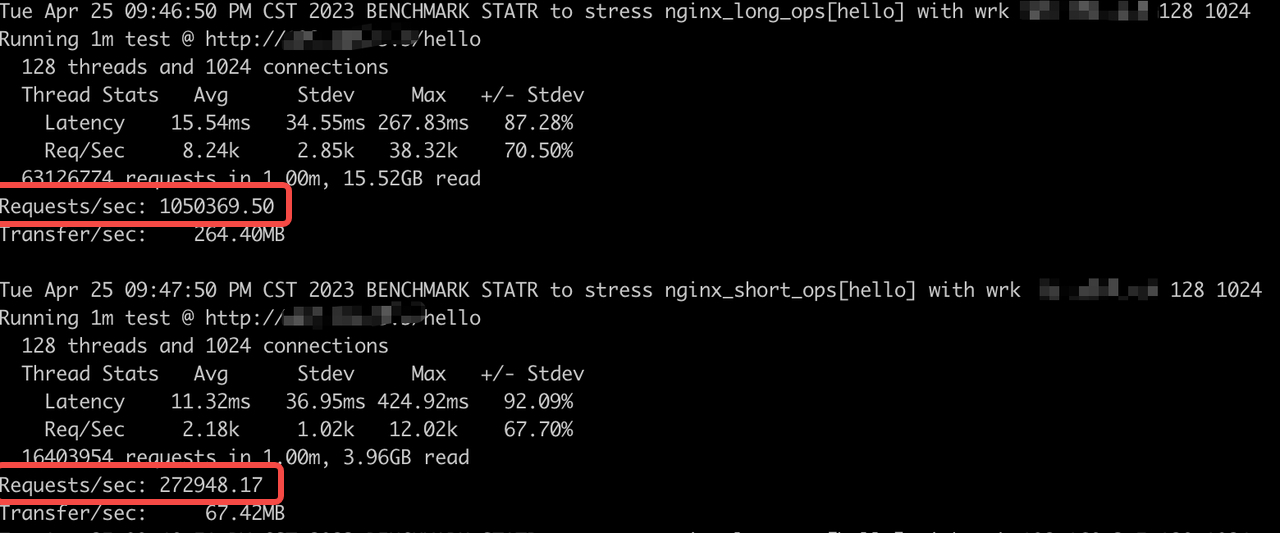
- Detailed result descriptions are as follows.
- Tue Apr 25 02:50:05 PM CST 2023 BENCHMARK STATR to stress nginx_long_ops[hello] with wrk $serverIP 128 1024Running 1m test @ http://$serverIP/hello128 threads and 1024 connections (Total 128 threads, 1024 connections)Thread Stats Avg Stdev Max +/- Stdev(Mean) (Standard Deviation) (Maximum Value) (Proportion within Standard Deviation)Latency 1.03ms 182.06us 19.56ms 95.21%(Latency)Req/Sec 7.83k 550.46 37.53k 99.67%(Requests per Second)59976763 requests in 1.00m, 14.74GB read (Total runtime 1 minute, completed 59,976,763 requests, read 14.74GB of data)Requests/sec: 997958.48(Average requests completed per second)Transfer/sec: 251.21MB(Average bytes transferred per second)
Optimal configuration
Multiple factors can impact Nginx performance, such as parameter configurations of the Nginx service, kernel parameters, and network card queues. To optimize your ECS instance configurations for optimal Nginx performance, refer to the instructions below.
Disable napi_tx
Disabling napi_tx can reduce the number of hardware and software interrupts when the network interface transmits packets. As a result, Nginx performance can be improved.
This feature is enabled by default only when the Linux kernel version is ≥ 5.3. You can execute the uname -r command to check the kernel version, and then disable napi_tx as follows.
- Ubuntu
- # Disable napi_tx:rmmod virtio_net && modprobe virtio_net napi_tx=0 && systemctl restart systemd-networkd.service# Enable napi_tx:rmmod virtio_net && modprobe virtio_net napi_tx=1 && systemctl restart systemd-networkd.service
- Debian
- # Disable napi_tx:rmmod virtio_net && modprobe virtio_net napi_tx=0 && systemctl restart networking.service# Enable napi_tx:rmmod virtio_net && modprobe virtio_net napi_tx=1 && systemctl restart networking.service
- CentOS
- # Disable napi_tx:rmmod virtio_net && modprobe virtio_net napi_tx=0 && systemctl restart nmcli c reload# Enable napi_tx:rmmod virtio_net && modprobe virtio_net napi_tx=1 && systemctl restart nmcli c reload
Execute the cat /sys/module/virtio_net/parameters/napi_tx command. If N is returned, napi_tx is disabled successfully.

Mitigate contention issues
For large-specification instances, contention issues may occur due to the increased number of CPU cores and thereby impact Nginx performance. These mainly include contention for HTML files and socket contention. Below are solutions for these two types of contention to improve Nginx performance.
Solution 1: Modify the number of Nginx worker processes and enable reuseport
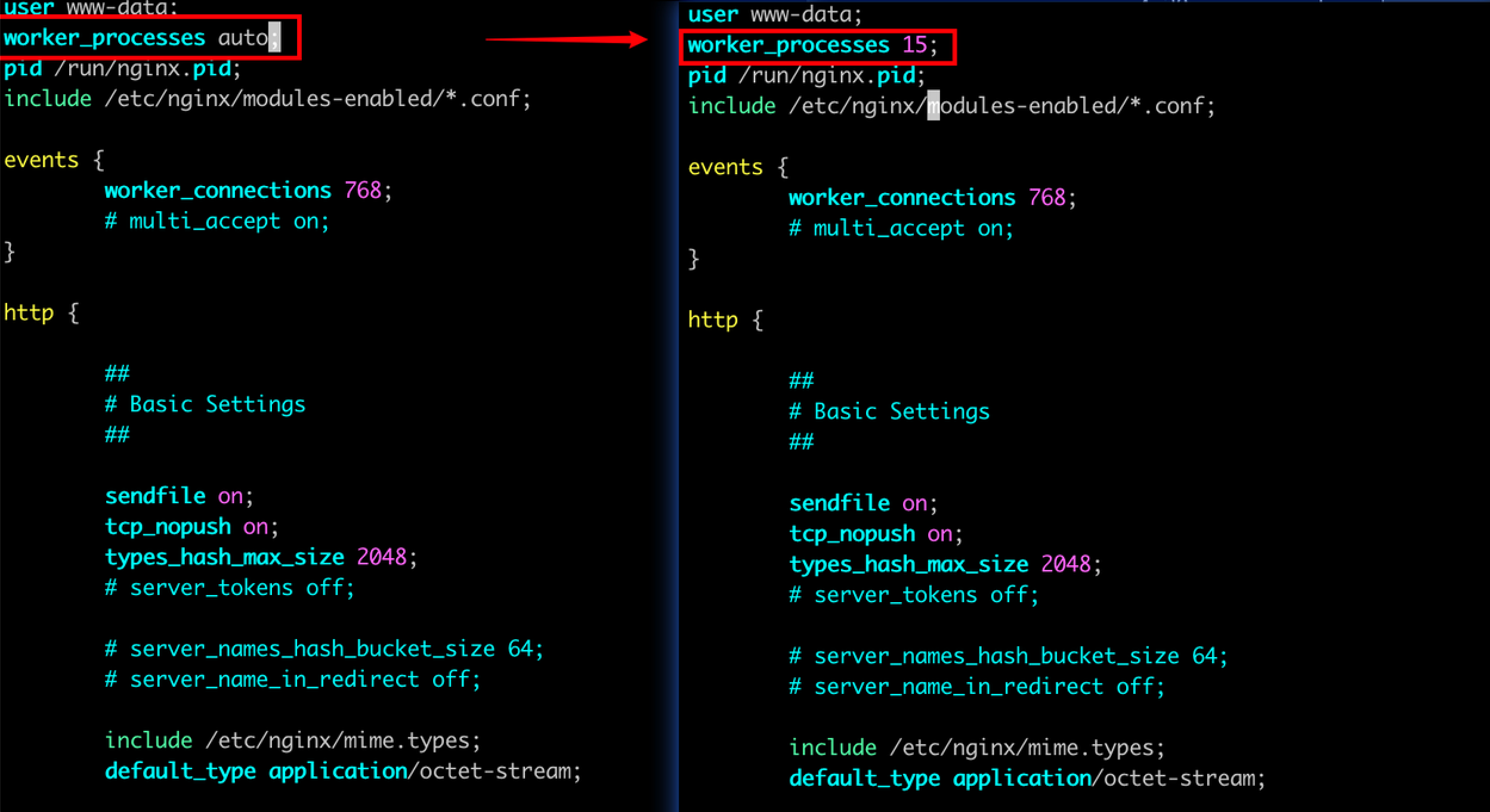
After deploying the Nginx service on the Server, you can enable the Nginx reuseport option to allow multiple sockets to listen on the same port to mitigate contention. Or, specify an appropriate number of Nginx worker processes when HTML files are being accessed to improve Nginx performance. The optimal number of Nginx worker processes varies by instance specification, with details shown below.
Instance type | Optimal number of Nginx worker processes for long connections | Optimal number of Nginx worker processes for short connections |
Instance type | Optimal number of Nginx worker processes for long connections | Optimal number of Nginx worker processes for short connections |
ecs.g3i.2xlarge (8 vCPU) | 8 | 8 |
ecs.g3i.8xlarge (32 vCPU) | 12 | 6 |
ecs.g3i.16xlarge (64 vCPU) | 13 | 13 |
To modify the number of Nginx worker processes and enable reuseport, follow these steps:
- Execute the following command to open the /etc/nginx/nginx.conf configuration file.
- vim /etc/nginx/nginx.conf
- Press i to enter the edit mode.
- Modify the number of Nginx worker processes and enable reuseport.
- Modify the value of worker_processes based on the specification.
-
- Add the following content to the end of the configuration file to enable reuseport.
- http{server{listen 80 reuseport;listen [::]:80 reuseport;}}
- Press the Esc key to exit edit mode, enter :wq, and then press Enter to save and exit the file.
- Execute the following command to restart the Nginx service and apply the configuration.
- systemctl restart nginx.service
Solution 2: Install irqbalance-ng
You can follow the guide in network interface interrupt binding to install irqbalance-ng, which automatically configures interrupts for physical network interfaces. This enables interrupt load balancing and thereby enhances network performance.
Disable sniffer
- Execute the following command to check whether sniffer is enabled.
- cat /proc/net/ptype
- If the following output is displayed, the sniffer is not enabled. Then, skip this step.
-

- If the following output is displayed, sniffer is enabled. Proceed to the next step.
-

- Execute the following command to check if the dhclient process is present.
- ps aux | grep dhclient
- The output is displayed below, which indicates that the dhclient process is present. Execute the following command to terminate the dhclient process and thus disable the sniffer.
- kill -9 <process_id>
-

Last updated: 2026.10.14 17:31:17
All rights reserved © Beijing Volcano Engine Technology Co., Ltd2024
