Elastic Compute Service
Elastic Compute Service


Document

- Documentation
 Elastic Compute ServiceElastic Compute ServiceBest PracticesPerformance testNetwork performance testUsing Pktgen to test network performance
 Copy page
 Download PDF
Network performance test
Using Pktgen to test network performance
Copy pageDownload PDFUsing Pktgen to test network performance
This topic describes how to use Pktgen to test the network performance of ECS instances.
Test tools
- To test Packets Per Second (PPS) for the performance of network small-packet transmission, Linux pktgen or DPDK-based applications are typically used as packet generators.
- To test Bits Per Second (BPS) for the performance of network bulk data transmission, the large-packet transmission bandwidth of TCP and UDP is typically involved.
- ToolTest metricDownload linkLinux pktgenUDP PPS, UDP BPSiperf2TCP BPSPktgen-DPDKUDP PPS, UDP BPS
Procedure
tip
Test results provided in this topic are for reference only and do not represent the actual optimal performance of an ECS instance.
Step 1: Prepare the environment
Refer to the practice of purchasing an ECS instance to create a Device Under Test (DUT) and an Auxiliary test machine (Tester). Before the Pktgen-DPDK test, associate two network interfaces with each ECS instance. One network interface is for logging in and executing commands, and the other is for DPDK testing.
The test environment provided in this topic is shown in the table below:
Step 2: Install software
On the DUT and the Tester, perform the following steps in sequence to install the test software.
Install dependencies
- Connect to the ECS instance remotely. For more information, see Logging in to instances.
- Execute the following commands to install dependencies.
-
Note: Install Python 3.6 or a later version. Otherwise, an incompatibility occurs between Python 3 and certain packages.
Install test software
Select the test tool as needed, and then install it based on the steps below accordingly.
- Download pktgen script.
- Make sure that the Linux kernel includes the pktgen module, and then execute the modprobe pktgen command to load the module.
Install iperf from the software repository or use the following commands to download and compile the source code.
Before the Pktgen-DPDK test, associate two network interfaces with each instance. One network interface is for logging in and executing commands, and the other is for DPDK testing.
- Create the build.sh script to download and compile the source code for DPDK and pktgen.
- Execute the vim build.sh command to create the build.sh file.
- Press i to enter the edit mode.
- In the build.sh file, enter the following content.
-
- Press Esc to exit the edit mode, input :wq and press Enter.
- Execute the chmod +x build.sh command to grant execution permission to the build.sh file.
- Execute the bash build.sh command to run the script.
tip
If the number of queues for the test network ports exceeds 16, modify the value of the NUM_Q constant in the source file app/pktgen-constants.h before compilation for matching.
- Execute the following commands to add the DPDK dynamic libraries to the system configuration.
-
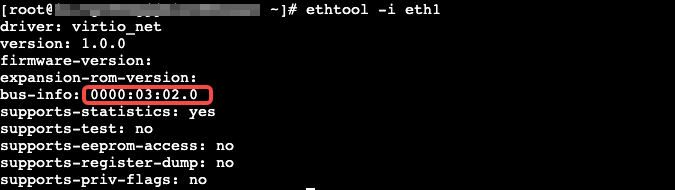
- Execute the ethtool -i eth1 command to obtain the PCI address of the network interface used for DPDK testing. In the example provided in this topic, the network interface "eth1" is used for DPDK testing.
- The following output is returned:
-
- Create the bind-igbuio.sh script to associate the network interface used for testing with igb_uio.
- Execute the vim bind-igbuio.sh command to create the bind-igbuio.sh file.
- Press i to enter the edit mode.
- In the bind-igbuio.sh file, enter the following content.
-
- Press Esc to exit the edit mode, input :wq and press Enter.
- Execute the chmod +x bind-igbuio.sh command to grant execution permission to the bind-igbuio.sh file.
- Execute the bash bind-igbuio.sh command to run the script.
- Execute the following commands to configure large-page memory. In the example provided in this topic, the instances have 2 NUMA nodes.
-
Step 3: Run performance tests
Test small-packet transmission performance (PPS)
- On the Tester, execute the following command to transmit packets.
- bash .sh -i [eth_dev] -d [dut_ip] -s 64 -m [dut_mac] -c 10 -p 40000-40003 -n 0 -t [queue_num]
- [eth_dev]: Network interface name
- [dut_ip]: DUT private IP address
- [dut_mac]: DUT MAC address
- [queue_num]: Queue number
- Based on the following configuration in the script, the total number of flows generated at this time is calculated as: (109 - 9 + 1) * (40003 - 40000 + 1) = 101 * 4 = 404.
-
- On the DUT, execute the sar -n DEV 1 command to observe the network throughput.
- The following output is displayed:
-

tip
Before the Pktgen-DPDK test, associate the network interfaces used for testing with igb_uio on the DUT and the Tester, respectively. Then, configure large-page memory for the machines. For detailed instructions, refer to the steps above for installing Pktgen-DPDK.
- On the DUT and the Tester, perform the following steps to run pktgen.
- Execute the vim run.sh command to create the run.sh file.
- Press i to enter the edit mode.
- In the run.sh file, enter the following content.
-
- 0xffff1: Indicates the CPU mask used by the process. The lowest BIT CPU is for shell control, and other CPUs are for port packet reception and transmission.
- [1-32:1-32].0: Indicates the CPU number. This CPU number can not exceed the range of CPUs used for packet reception and transmission in the mask.
- 1-32 (before the colon): For packet reception
- 1-32 (after the colon): For packet transmission
- .0: Indicates port 0
- Press Esc to exit the edit mode, input :wq and press Enter.
- Execute the chmod +x run.sh command to grant execution permission to the run.sh file.
- Execute the bash run.sh command to run the script.
- On the Tester, execute the following commands in pktgen to transmit packets.
-
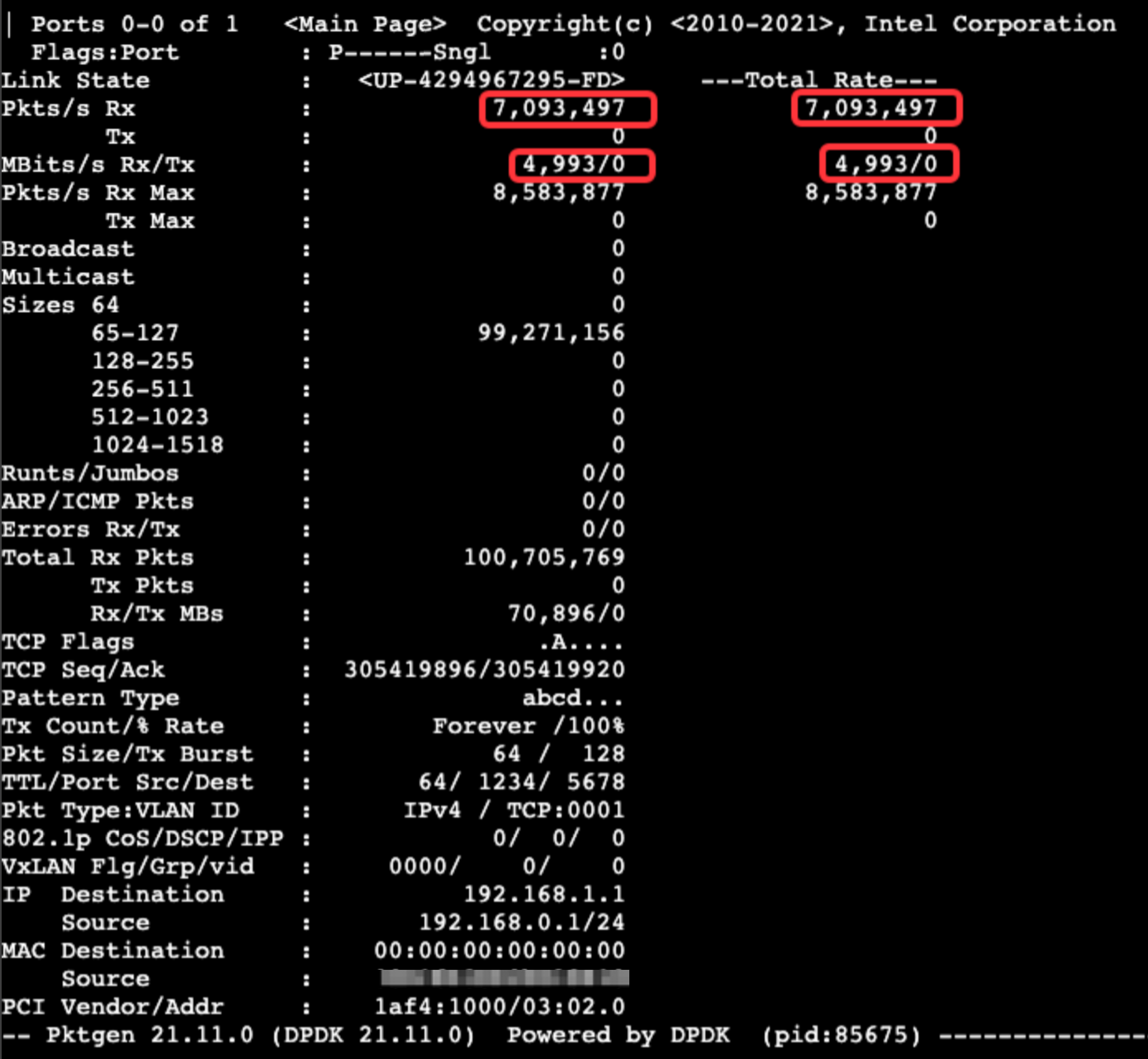
- On the DUT, observe the PPS of received packets and the corresponding BPS in pktgen.
-
Test bulk data transmission performance (BPS)
- On the DUT, execute the following command to run the iperf server.
- iperf -s -i 1
- On the Tester, execute the following command to run the iperf client.
- iperf -c [dut_ip] -P 32 -t 60 -i 1
[dut_ip]: DUT private IP
- On the DUT, execute the sar -n DEV 1 command to observe the network throughput. Unit conversion: [rxkB/s] * 8 / 1000000 = Gbps.
-

tip
Before the Pktgen-DPDK test, associate the network interfaces used for testing with igb_uio on the DUT and the Tester, respectively. Then, configure large-page memory for the machines. For detailed instructions, refer to the steps above for installing Pktgen-DPDK.
- On the DUT and the Tester, perform the following steps to run pktgen.
- Execute the vim run.sh command to create the run.sh file.
- Press i to enter the edit mode.
- In the run.sh file, enter the following content.
-
- 0xffff1: Indicates the CPU mask used by the process. The lowest BIT CPU is for shell control, and other CPUs are for port packet reception and transmission.
- [1-32:1-32].0: Indicates the CPU number. This number can not exceed the range of CPUs used for packet reception and transmission in the mask.
- 1-32 (before the colon): For packet reception
- 1-32 (after the colon): For packet transmission
- .0: Indicates port 0
- Press Esc to exit the edit mode, input :wq and press Enter.
- Execute the chmod +x run.sh command to grant execution permission to the run.sh file.
- Execute the bash run.sh command to run the script.
- On the Tester, execute the following commands to transmit packets.
-
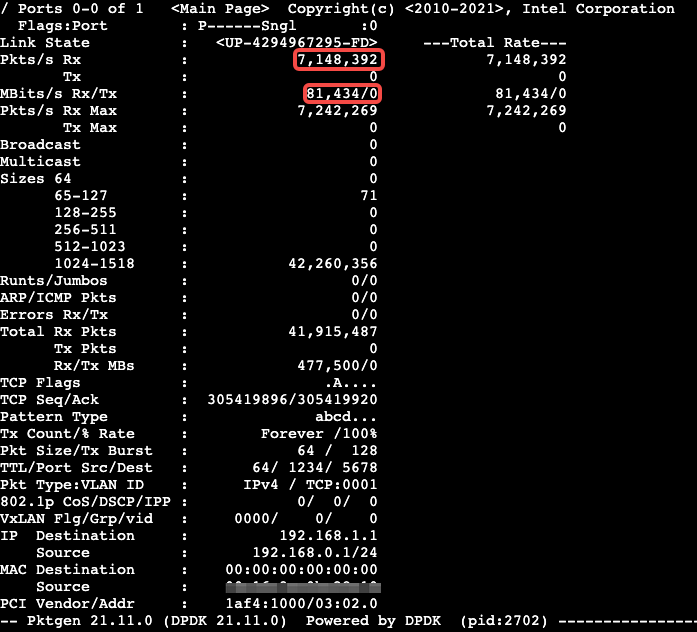
- On the DUT, observe the PPS of received packets and the corresponding BPS in pktgen. Unit conversion: [MBit/s] /1000 = Gbps.
-
Subsequent operations
After the Pktgen-DPDK test, you can associate the network interfaces used for testing with their original drivers as needed. In the example provided in this topic, the network interface is associated with virito-pci.
- Create the script bind-virtio.sh to associate the network interface used for testing with igb_uio.
- Execute the vim bind-virtio.sh command to create the bind-virtio.sh file.
- Press i to enter the edit mode.
- In the bind-virtio.sh file, enter the following content.
-
- Press Esc to exit the edit mode, input :wq and press Enter.
- Execute the chmod +x bind-virtio.sh command to grant execution permission to the bind-virtio.sh file.
- Execute the bash bind-virtio.sh command to execute the script.
Last updated: 2026.06.18 17:49:49
All rights reserved © Beijing Volcano Engine Technology Co., Ltd2024
