Elastic Compute Service
Elastic Compute Service


Document

- Documentation
 Elastic Compute ServiceElastic Compute ServiceBest PracticesSelf-service website creationBuilding environmentsSetting up an LNMP environment (CentOS 7)
 Copy page
 Download PDF
Building environments
Setting up an LNMP environment (CentOS 7)
Copy pageDownload PDFSetting up an LNMP environment (CentOS 7)
An LNMP environment refers to a web application platform built on a Linux system, consisting of Linux, Nginx, MySQL or MariaDB, and PHP. This topic describes how to deploy an LNMP environment on a CentOS 7.6 instance.
Software versions
- Operating system: In the example provided in this topic, CentOS 7.6 is used. You can also use CentOS 7.9, veLinux 1.0 (CentOS compatible version), or other CentOS 7 series images.
- Nginx: A high-performance, lightweight web server that supports HTTP and reverse proxy. In the example provided in this topic, Nginx 1.22.0 is used.
- MySQL/MariaDB: A database management system. In the example provided in this topic, MariaDB 15.1 and MySQL Community Edition 8.4.3 are used.
- PHP: A server-side scripting language embedded in HTML documents. In the example provided in this topic, PHP 7.0.33 is used.
Prerequisites
- A Linux instance is purchased. For more information, see Purchasing ECS instances.
- An EIP is associated with the Linux instance, enabling the instance to connect to the Internet. For information about how to associate an EIP with an ECS instance, see Associating EIPs.
Step 1: Install and configure Nginx
- Remotely connect to and log in to the ECS instance. For more information, see Logging in to Linux instances.
- Execute the following command to install Nginx.
-
- Execute the following command to view the Nginx version.
-
- If the following output is displayed, Nginx is installed.
-
- Execute the following command to view the path of the Nginx configuration file.
-
- In the following output, the include configuration item indicates the path of the file.
-
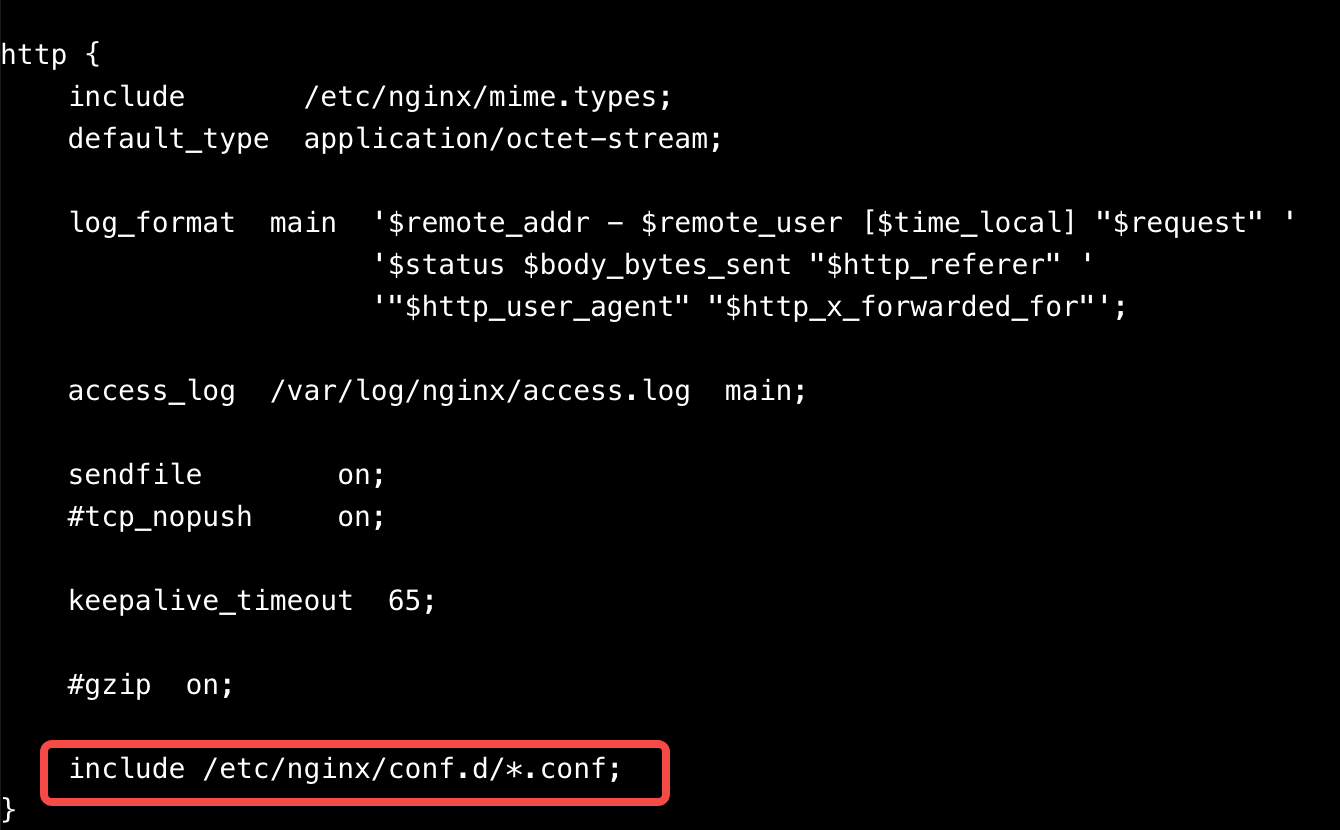
- Execute the following command to back up the configuration file in the configuration file directory.
-
- Execute the following command to modify the original configuration file.
-
- Press the i key to enter edit mode and modify the following content in location.
-
- Remove the comment markers at the beginning of the lines inside the curly braces of location ~ \.php$, #and modify the following content.
-
- Press the Esc key, enter :wq, and then press Enter to save the modifications and close the file.
- Execute the following command to start the Nginx service.
-
- Execute the following command to specify that the Nginx service automatically starts upon instance startup.
-
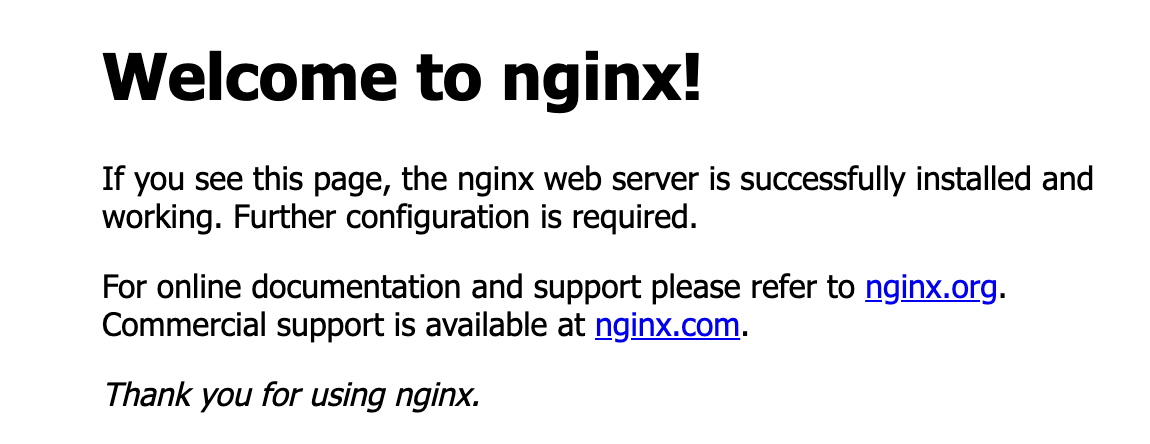
- In the local browser, enter http://<ECS instance EIP>/ to access Nginx.
- The following output indicates that Nginx is set up successfully.
-
Step 2: Install and configure MariaDB/MySQL
Install and configure MariaDB
- Execute the following command to install MariaDB.
-
- Execute the following command to view the MariaDB version.
-
- If the following output is displayed, MariaDB is installed.
-
- Execute the following command to start the MariaDB service and specify that the MariaDB service automatically starts upon instance startup.
-
- Execute the following command to check whether the MariaDB service is started.
-
- If Active: active (running) is displayed in the output, the MariaDB service is started.
- Execute the following command to perform MariaDB security operations and specify the password.
-
- Press the Enter key to confirm the password.
- Enter y and press the Enter key to confirm modification of the database password for the root user.
- Specify the MariaDB password and press the Enter key. The password you enter is not displayed by default.
- Enter the new password again and press the Enter key to confirm your new password.
tip
Enter a password that meets the strength requirements of the password verification policy.
- Enter y and press the Enter key to remove the anonymous user.
- Enter y and press the Enter key to prohibit remote login by the root account.
- Enter y and press the Enter key to delete the test database and its access permission.
- Enter y and press the Enter key to reload the authorization table.
Install and configure MySQL
- Execute the following command to download the RPM package for the MySQL Community Edition repository configuration file.
-
- Execute the following command to install the MySQL 8.4 Community Edition software repository configuration file.
-
- Execute the following command to install MySQL 8.4.
-
tip
If the Failing package is: mysql-community-libs-compat-8.4.3-1.el7.x86_64 error occurs, the GPG key for MySQL is upgraded and needs to be retrieved again. In this case, execute the following commands in sequence: rpm --import https://repo.mysql.com/RPM-GPG-KEY-mysql-2022 and yum -y install mysql-server.
- Execute the following command to view the MySQL version.
-
- If the following output is displayed, MySQL is installed.
-
- Execute the following command to start the MySQL service and specify that the MySQL service automatically starts upon instance startup.
-
- Execute the following command to check whether the MySQL service is started.
-
- If Active: active (running) is displayed in the output, the MySQL service is started.
- Execute the following command to view the initial password that was automatically specified during MySQL installation.
-
- Output similar to the following is displayed. In this example, the initial password is 0zNwvmpr:fOd.
-
- Execute the following command to perform MySQL security operations and specify the password.
-
- Enter the initial password obtained in the previous step and press the Enter key.
- Specify the new MySQL password and press the Enter key. The password you enter is not displayed by default.
- Enter the new password again and press y to confirm your new password.
tip
Enter a password that meets the strength requirements of the password verification policy.
- Repeat the preceding steps to specify the new password, and then enter y to confirm the new password.
- Enter y and press the Enter key to remove the anonymous user.
- Enter y and press the Enter key to prohibit remote login by the root account.
- Enter y and press the Enter key to delete the test database and its access permission.
- Enter y and press the Enter key to reload the authorization table.
Step 3: Install and configure PHP
- Execute the following command to add and update the EPEL repository.
-
- Execute the following command to add the Remi repository.
-
- Execute the following command to install the yum-config-manager repository management tool.
-
- Execute the following command to enable the specified Remi PHP 7.0 repository by using yum-config-manager.
-
- Execute the following command to install PHP 7.0 and common modules.
-
- Execute the following command to start the PHP-FPM service.
-
- Execute the following command to specify that the PHP-FPM service automatically starts upon instance startup.
-
- Execute the following command to view the PHP version.
-
- If the following output is displayed, PHP is installed.
-
Step 4: Access LNMP
- Execute the following command to create a test file.
-
- Replace <website root directory> in the command with the website root directory that you configured in the Nginx configuration file default.conf. In the example provided in this topic, /usr/share/nginx/html is used. The command used in this topic is vim /usr/share/nginx/html/phpinfo.php.
- Press the i key to enter edit mode, and then enter the following content.
-
- Press Esc, enter :wq, and then press the Enter key to save the file and return to the CLI interface.
- In your local browser, enter http://<ECS instance EIP>/phpinfo.php to access LNMP.
Last updated: 2026.06.18 17:48:25
All rights reserved © Beijing Volcano Engine Technology Co., Ltd2024
