Elastic Compute Service
Elastic Compute Service


Document

- Documentation
 Elastic Compute ServiceElastic Compute ServiceBest PracticesSelf-service website creationBuilding environmentsSetting up a Python environment
 Copy page
 Download PDF
Building environments
Setting up a Python environment
Copy pageDownload PDFSetting up a Python environment
You can install or upgrade the Python 3 environment on an ECS instance. This way, you can leverage the powerful features of the Python language and manage the development environment in a flexible manner.
Prerequisites
Set up a Python environment in Linux
Install/Upgrade Python
You can use the Advanced Packaging Tools (APT) or manually download and compile the source code to install the required Python version.
tip
- If you use the APT, you can quickly install Python. However, the Python version provided in the software repository may not be the latest version or the specific version you need. For example, you might require Python 3.9.22. Under such circumstances, we recommend that you manually compile the source code and install the required Python version.
- Many system tools, such as yum, apt, cloud-init, systemd, and netplan depend on the default Python version of the operating system. Therefore, when you upgrade the Python version, we recommend that you manually compile the code and install the new version of Python. We recommend that you do not uninstall the old Python version or replace the /usr/bin/pythonor /usr/bin/python3 symbolic link. Otherwise, system exceptions may occur or the instance may fail to start. After the upgrade, you can use the new version of Python by referring to the instructions in this topic.
In the examples in this section, Python 3 is installed on Ubuntu 20.04 and CentOS Stream 8 operating systems by using the package manager. For other image versions, install the Python version based on your business requirements.
- Execute the following command to update the local software package index. This ensures that the package information in the system is up-to-date.
-
- Execute the following command to query installable Python packages in the software repository.
-
- When the following output appears, Python 3.8 and 3.9 can be installed.
-

- Execute the following command to install the Python package corresponding to the instance architecture.
-
- Execute the following command to check whether Python 3.9 has been installed successfully.
-
- When the following output appears, Python 3.9.5 has been successfully installed.
-

- Execute the following command to update the local software package index. This ensures that the package information in the system is up-to-date.
-
- Execute the following command to query installable Python packages in the software repository.
-
- When the following output appears, Python 3.8.17 and 3.9.19 can be installed.
-

- Execute the following command to install the Python package corresponding to the instance architecture.
-
- Execute the following command to check whether Python 3.9 has been installed successfully.
-
- When the following output appears, Python 3.9.19 has been successfully installed.
-

In the examples in this section, Python 3.9.22 is installed on Ubuntu 20.04 and CentOS Stream 8 operating systems. For other image versions, install dependency libraries based on your business requirements to ensure system compatibility.
- Install various dependency libraries and tools required for Python compilation, including compilers, development libraries, and other necessary packages.
-
- Execute the following command to update the local software package index. This ensures that the package information in the system is up-to-date.
-
- Execute the following command to install various dependency libraries and tools required for Python compilation, including compilers, development libraries, and other necessary packages.
-
Execute the following command to install various dependency libraries and tools required for Python compilation, including compilers, development libraries, and other necessary packages.
- Execute the following command to download the source code package of Python 3.9.22 from the official Python website.
-
tip
- In the example in this section, Python 3.9.22 is installed. Replace the download link with the download link of the Python version that you want to install. Learn more.
- Since cross-border data downloads are involved, the download might take a long time. You can also download the source code package to your local environment and then upload the package to the ECS instance. Learn more.
- Execute the following command to decompress the downloaded Python 3.9.22 source code package.
-
- Execute the following command to switch the current working directory to the Python 3.9.22 source code directory.
-
- Execute the following command to execute the Python configuration script, configure the compilation environment for the Python interpreter, and enable performance optimization options.
-
- Execute the following command to compile Python source code based on the configuration file (Makefile) by using the Make tool.
-
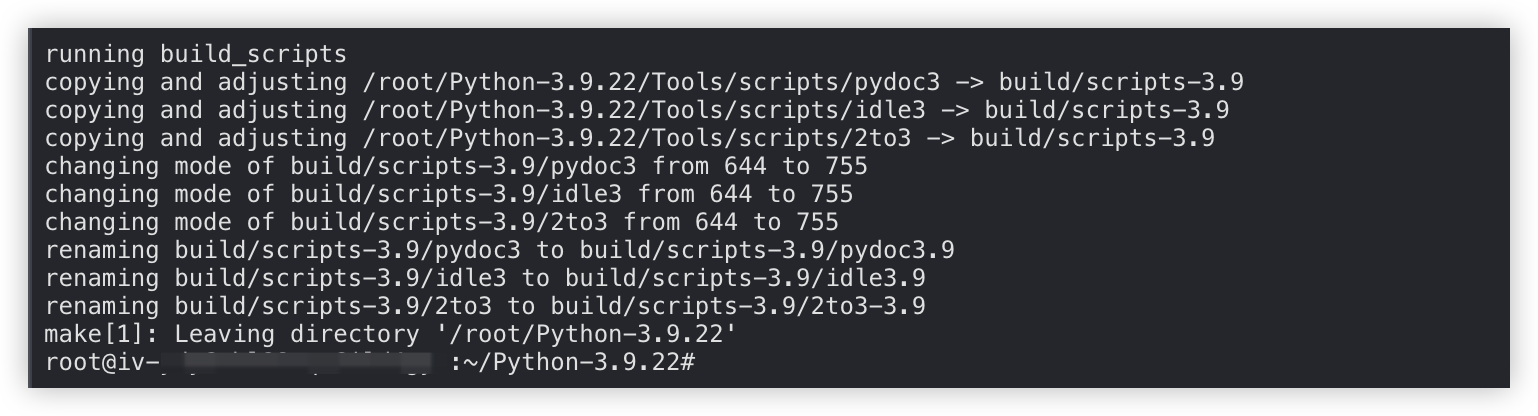
- Compilation success example:
-
- Execute the following command to install the compiled Python interpreter in the /usr/local/bin/ directory.
-
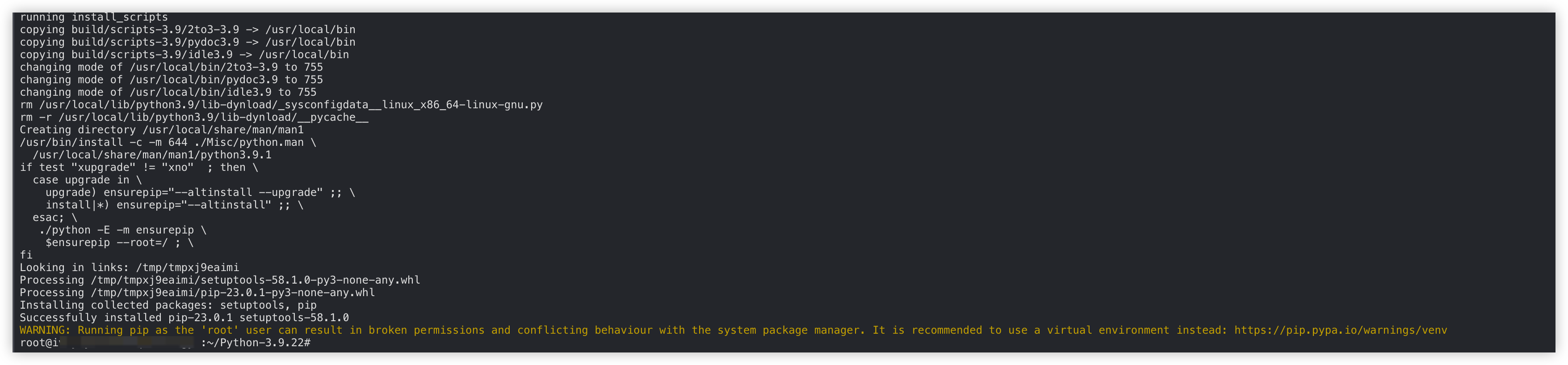
- Installation complete example:
-
- Execute the following command to view the Python version and verify whether Python 3.9.22 has been successfully installed.
-
- Successful installation example:
-

- Execute the following command to install PyPI.
-
- Successful installation example:
-

Use the specified version of Python
If multiple versions of Python are installed on your ECS instance, you can use the specified version of Python based on your business requirements by using the following methods.
warning
- After you install the new version of Python, we recommend that you use the specified version of Python by using the Python interpreter with a version number, specifying the default Python version for the current user, or using a virtual environment.
- If you want to specify the default Python version for the system, make sure that this action will not affect the operating system components and business operations.
- Use Python 3 interpreters with version numbers in locations, such as the command line and code. Example:
- View the Python version
-
- Sample output:
-

- View the PyPI version
-
- Sample output:
-

- Switch to the target user.
tip
You can separately specify a Python version for users, such as the root user.
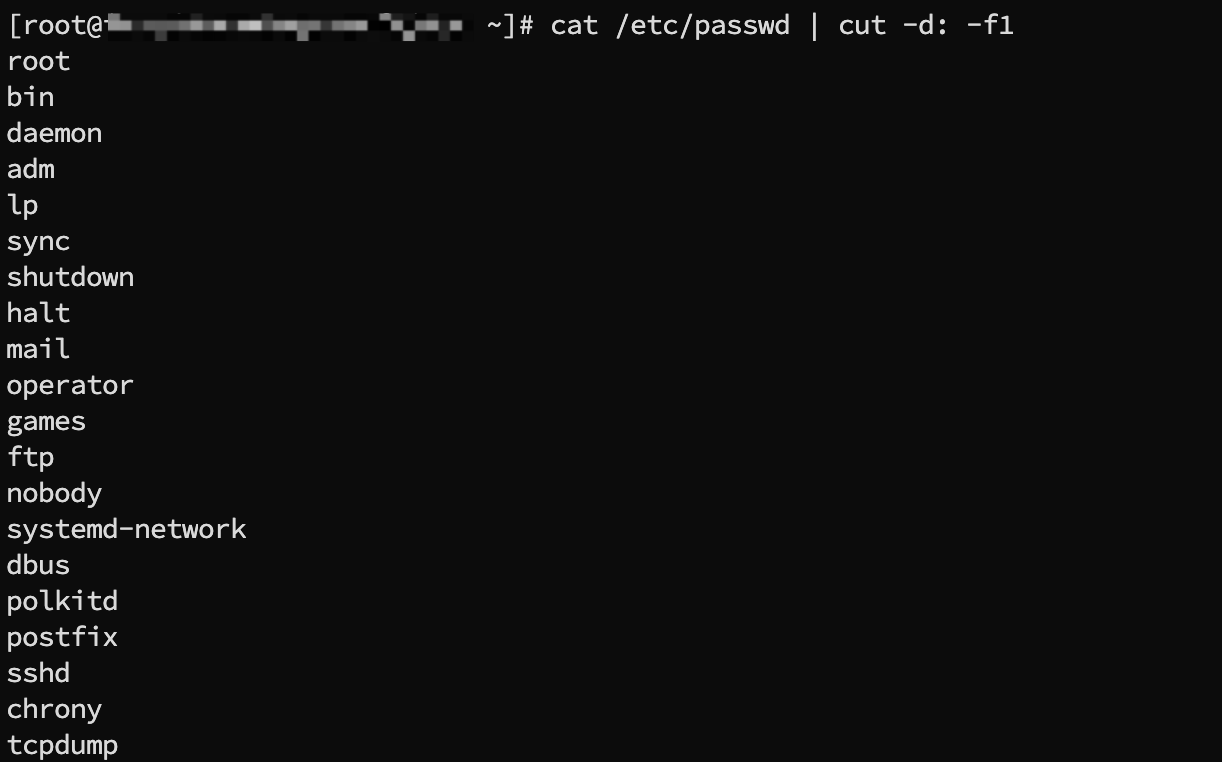
- Execute the following command to view existing users.
-
- Sample output:
-
- Execute the following command to switch to the target user.
-
tip
Replace pytest with the name of the target user.
- Edit the corresponding configuration file based on the Shell interpreter you use.
- Execute the following command to open the configuration file.
- Bash
-
- ZSH
-
- Press the ikey to enter the edit mode, and copy the following content to the file.
-
tip
Replace /usr/local/bin/python3.9 and /usr/local/bin/pip3.9 with the actual paths of Python and PyPI versions, respectively.
- Press the Esc key to exit the edit mode, enter :wq, and then press Enter to save the changes and close the file.
- Execute the following command to make the configuration take effect.
- Bash
-
- ZSH
-
- Execute the following command to check whether the Python version used by the current user has been successfully changed.
- View the Python 3 version
-
- When the following output appears, Python 3.9.22 is specified for the current user.
-

- View the PyPI version
-
- When the following output appears, the 25.1.1 version is specified for PyPI 3 for the current user.
-

- Execute the following command to create a virtual environment.
-
tip
Replace /usr/local/bin/python3.9 with the path of the target Python version.
- Execute the following command to enter the virtual environment.
-
- Sample output:
-

- Execute the following command to confirm the Python version used in the current environment.
-
- Sample output:
-

- You can also execute the following command to exit the virtual environment. For more Python virtual environment actions, view the official venv documentation.
-
- Execute the following command to view the current default Python 3 version.
-
- Sample output:
-

- Execute the following command to view configurable Python 3 versions.
-
- When the following output appears, you can select Python 3.8 or Python 3.9 as the default Python 3 version.
-

- (Optional) If the configurable Python 3 versions do not include the version you want to use, execute the following command to add the desired Python version as an option.
-
tip
Replace /usr/local/bin/python3.9 with the actual path to your Python version.
- Sample output:
-

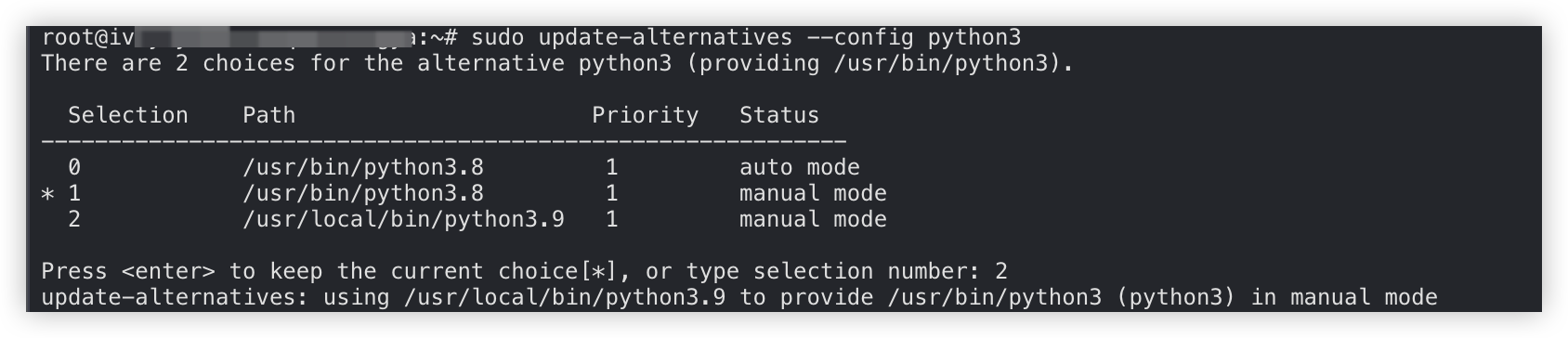
- Select the default version.
- Execute the following command to view the Python versions that you can select.
-
- Sample output:
-
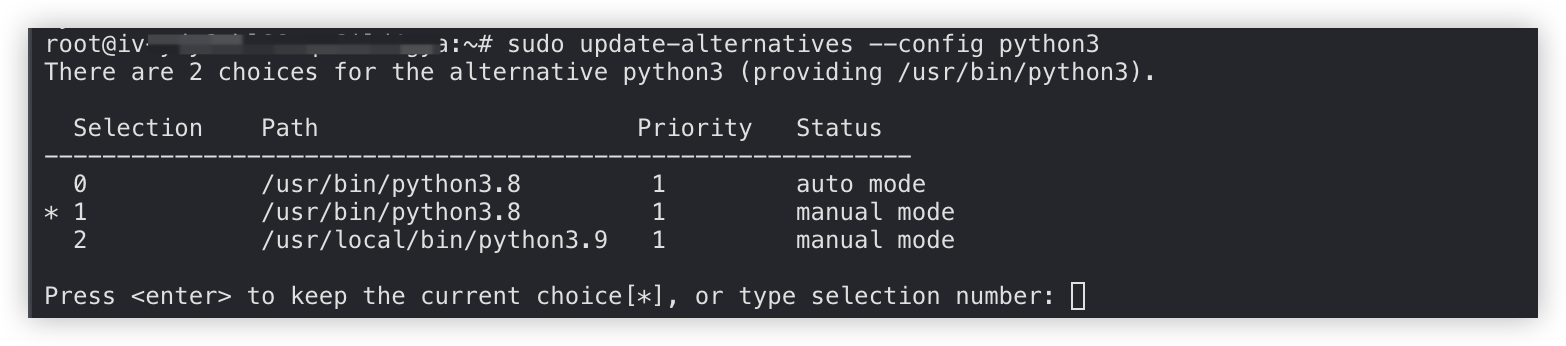
- Enter the serial number of the file that you want to use as the default Python version based on your business requirements. In the example in this topic, Python 3.9 is specified as the default version.
- Sample output:
-
- Execute the following command to confirm the current default version of Python 3.
-
- When the following output appears, you have successfully switched the default version of Python 3 to 3.9.22.
-

Set up a Python environment in Windows
In this example, Python 3 is installed on the English version of the 64-bit Windows Server 2022 operating system.
Step 1: Install Python
- Visit the official Python website in your browser.
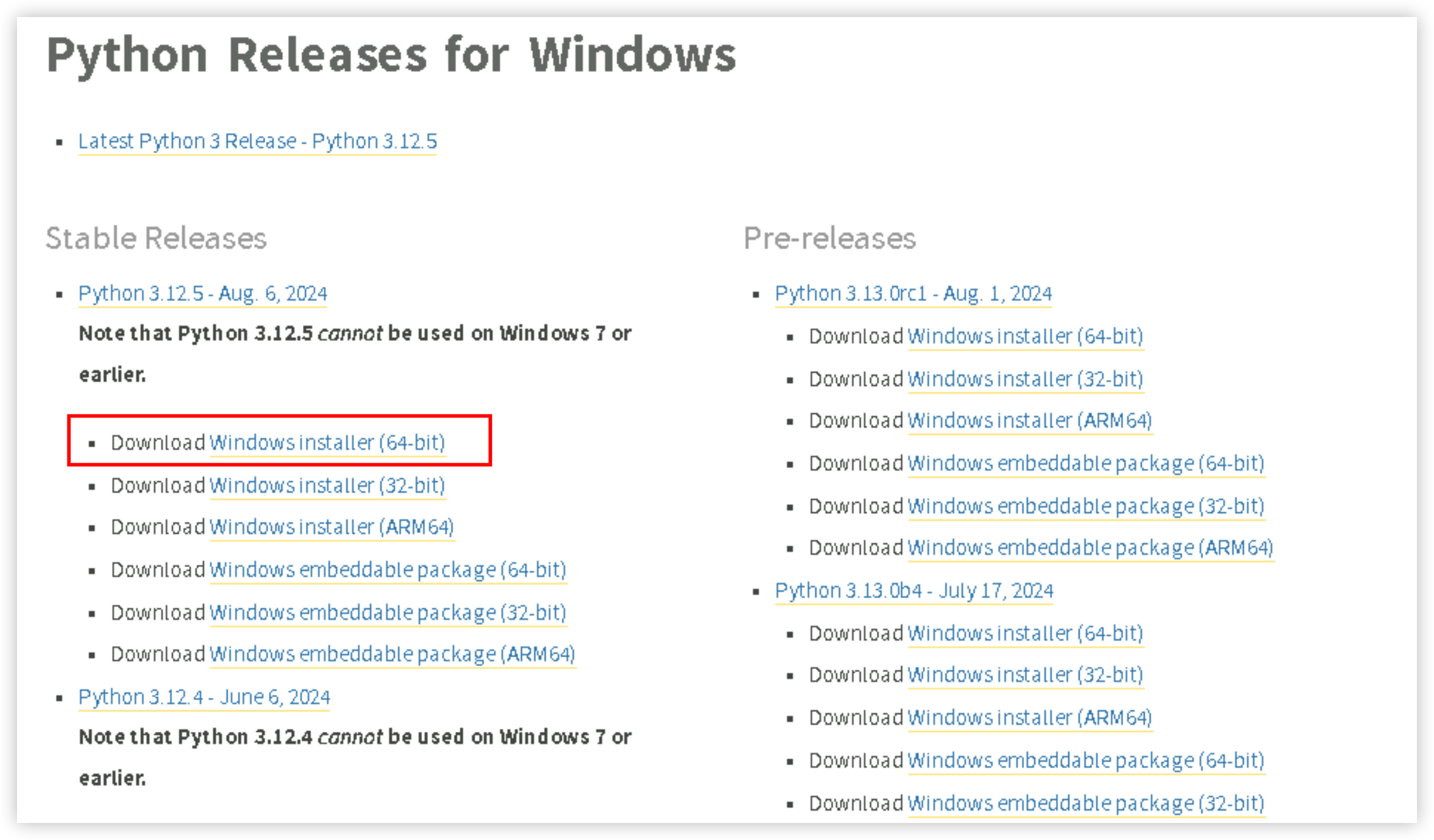
- Select the Python version installer you want to install and download the installer.
-
tip
- In this example, 64-bit Python 3.12.5 is installed. Download the Python version installer you want to use.
- Since cross-border data downloads are involved, the download might take a long time. You can also download the Python version installer to your local environment and then upload the installer to the ECS instance. Learn more.
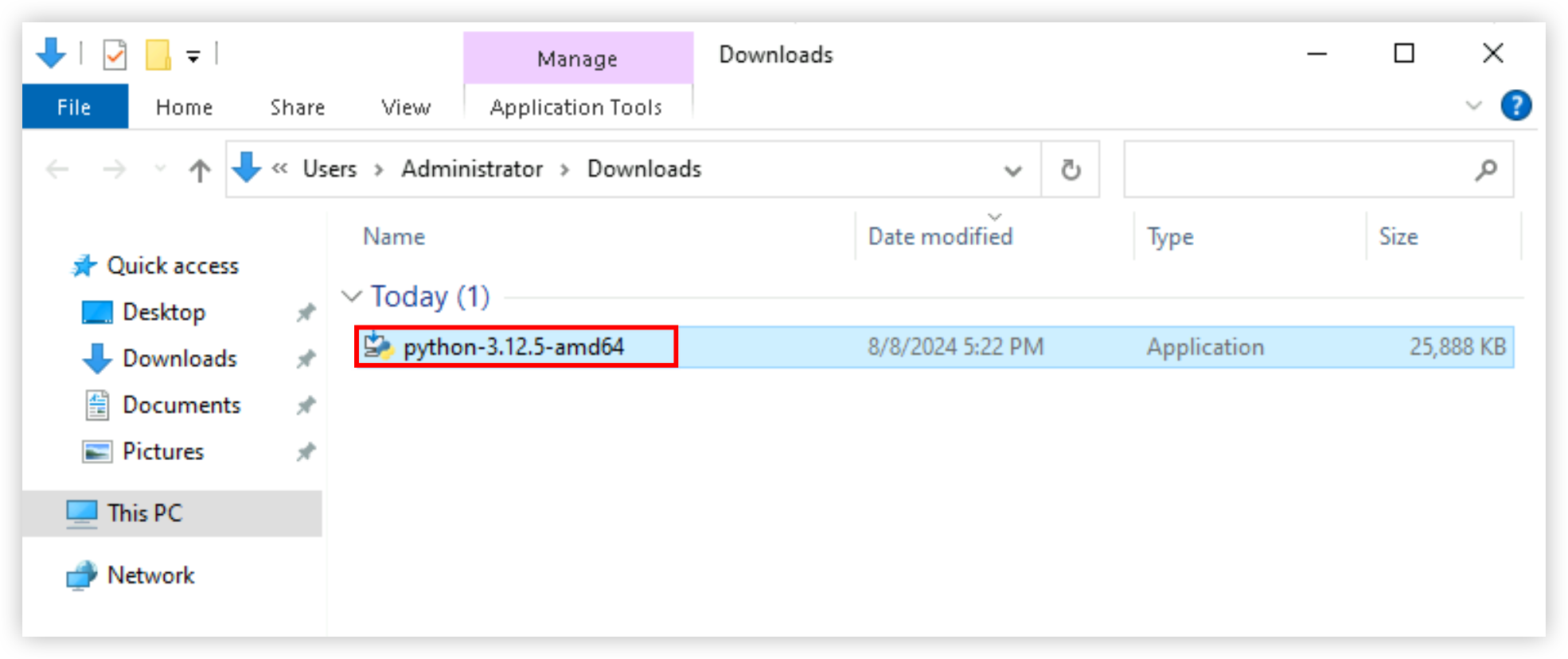
- After the download is complete, double-click the downloaded Python executable file to start the installation process.
-
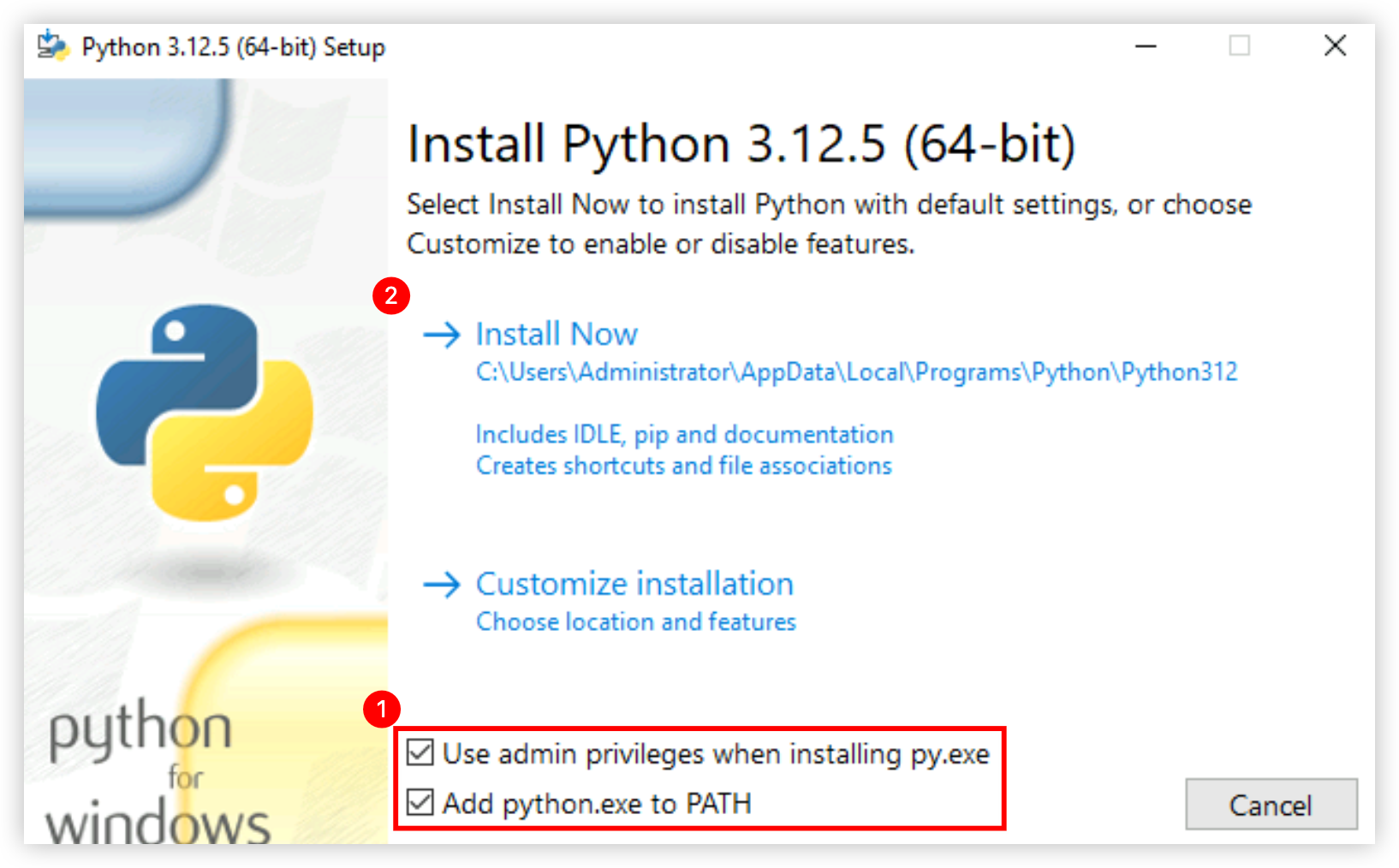
- Select "Use admin privileges when installing py.exe" and "Add python.exe to PATH" and then click the "Install Now" button.
-
tip
In this example, all components in the Python executable file are installed. This is the best practice for developers who want to use Python for any type of project. You can also click "Customize installation" to manually select the components you want to install. Learn more.
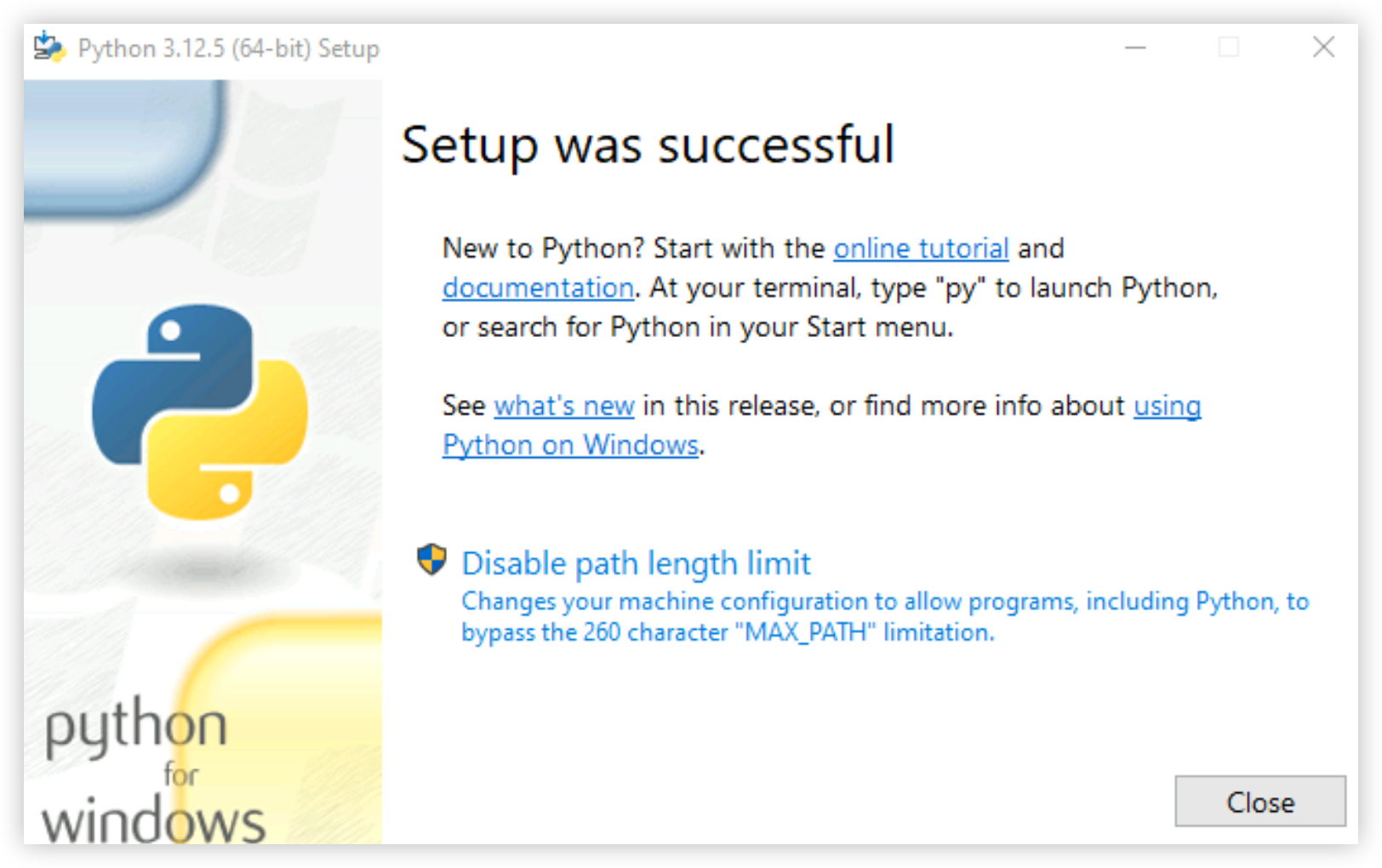
- After the installation is complete, click the "Close" button to close the installation page.
-
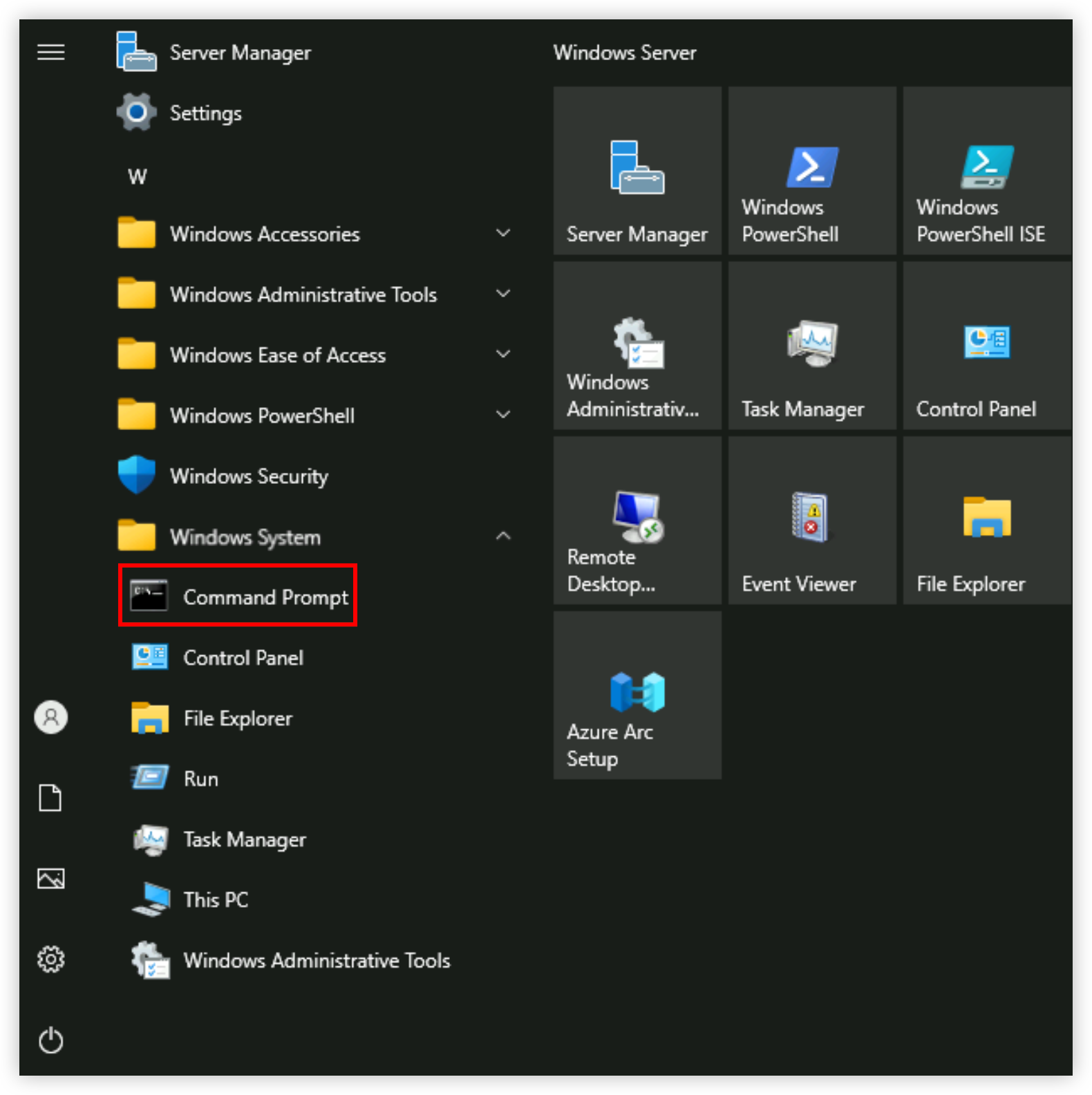
- Click the Windows icon, and click "Windows System > Command Prompt".
-
- Execute the following command to check whether Python has been successfully installed and configured.
-
- Sample output:
- As shown in the figure below, you have successfully installed Python 3.12.5 on the instance.
-

Step 2: Specify the default Python version of the system (optional)
If multiple versions of Python are installed on your ECS instance, you can modify the default Python version of the system.
- Click the Windows icon and click "Windows System > Run".
-
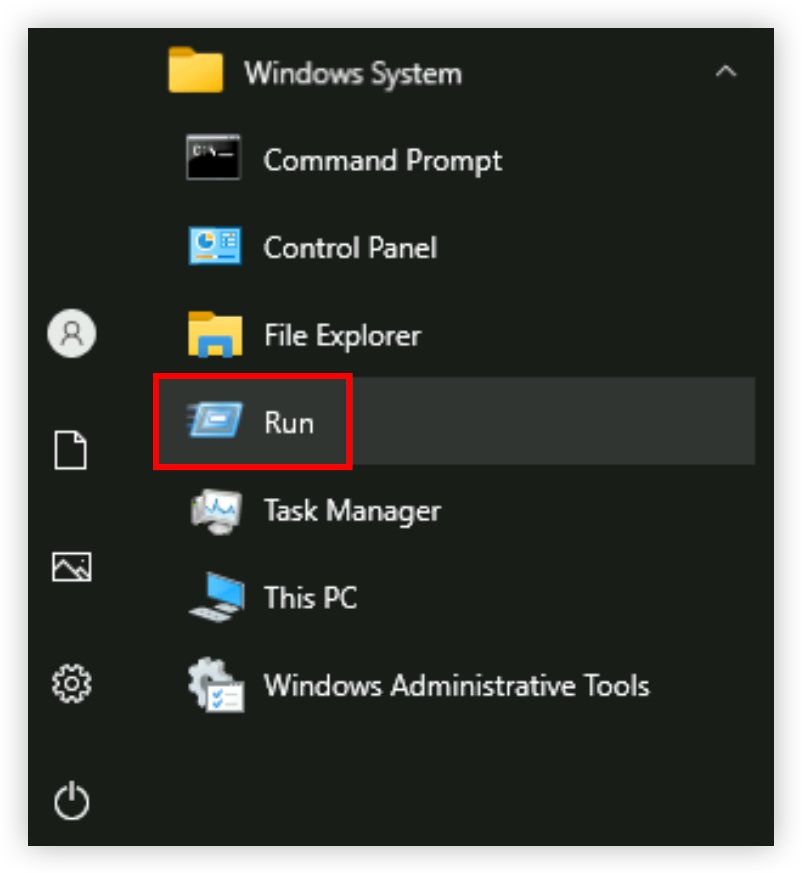
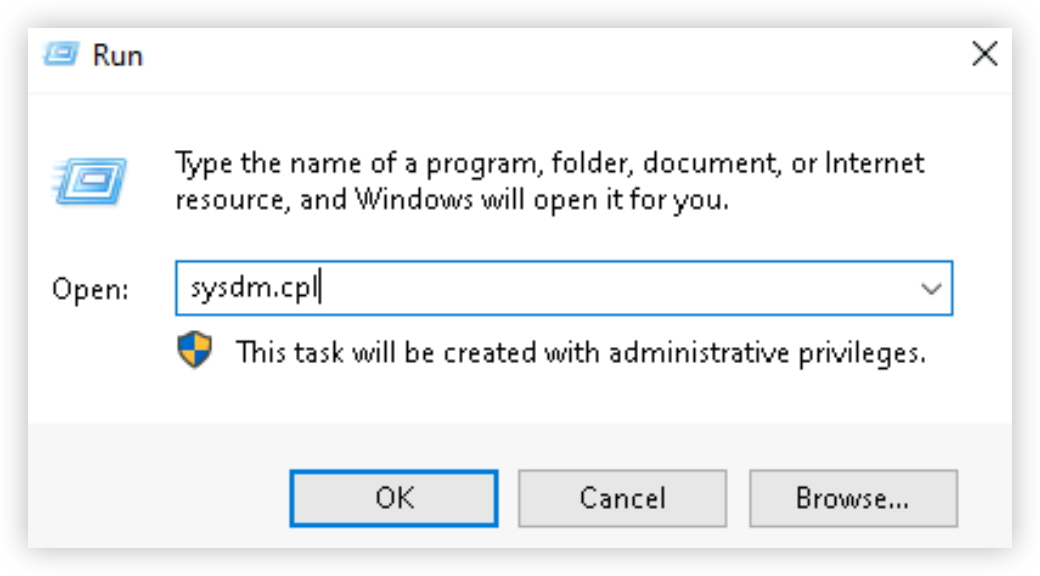
- Enter the following content in the dialog box, and click the "OK" button to open the system attribute dialog box.
-
-
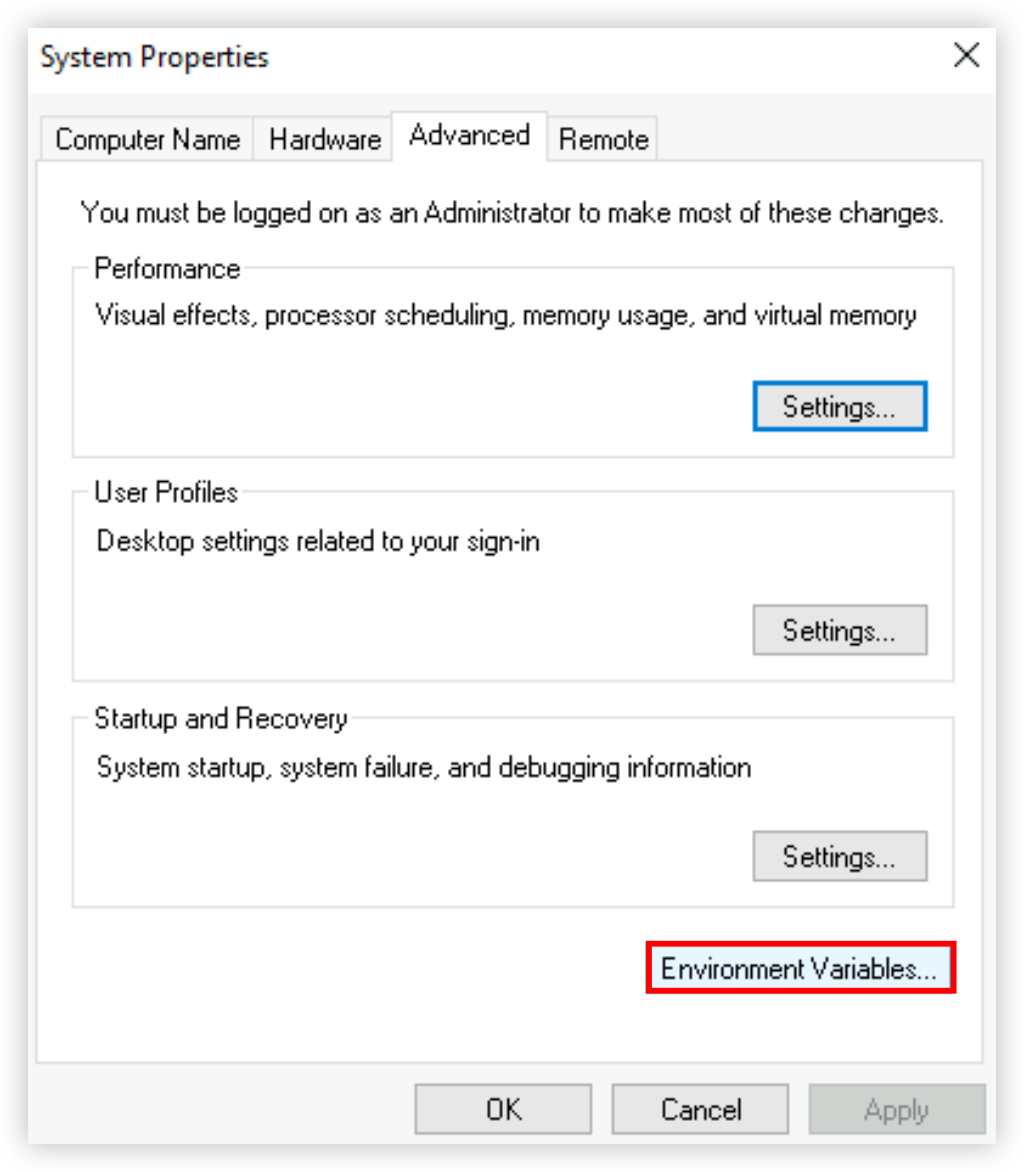
- Select the "Advanced" tab, and click the "Environment Variables" button.
-
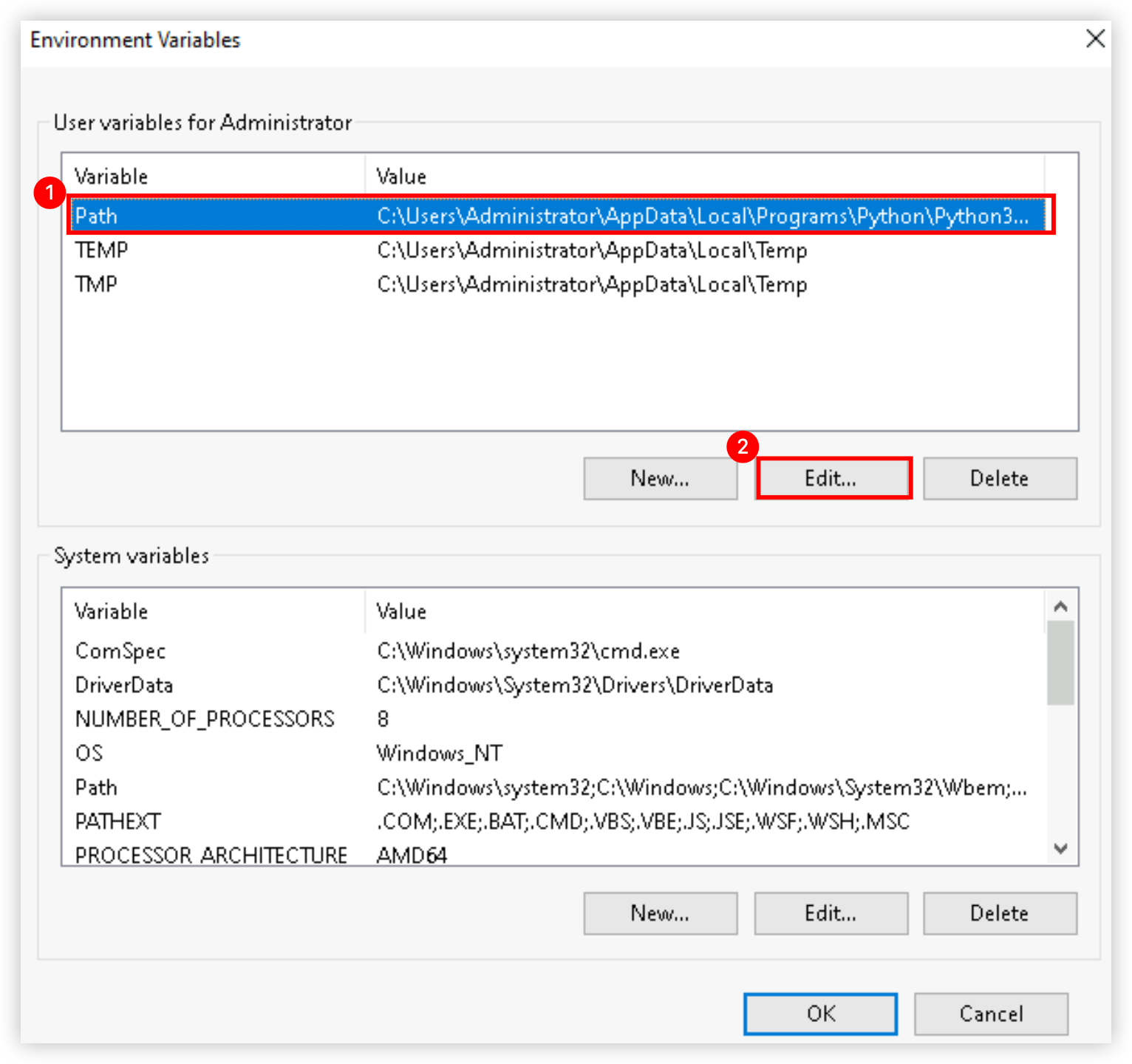
- Select the "Path" parameter in the "User variables for Administrator" area, and click the "Edit..." button.
-
tip
The path information of the Python versions installed in this topic is configured in the "User variables for Administrator" area, rather than the "System variables" area. Select the "Path" parameter where the Python path information is located based on actual conditions.
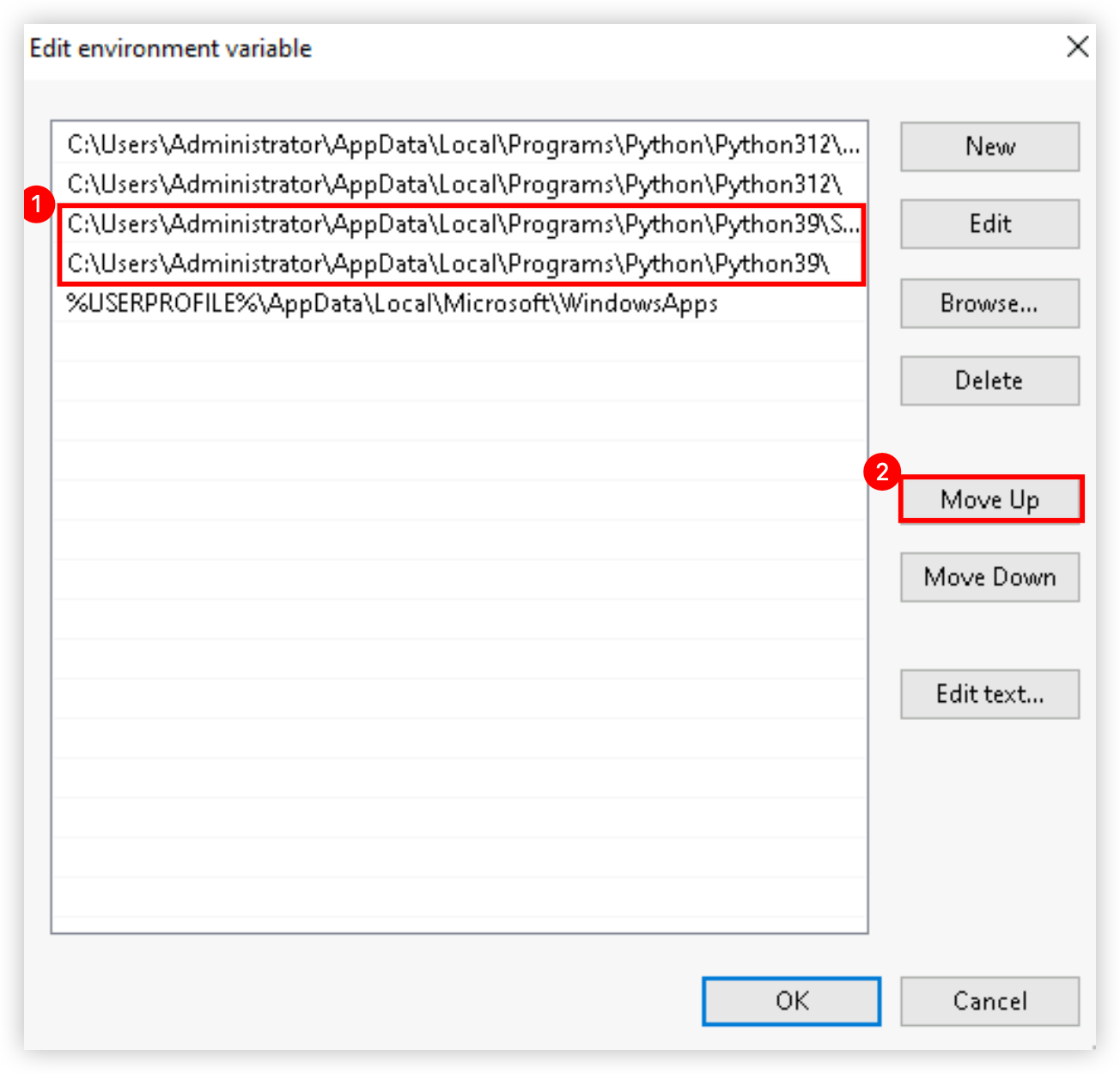
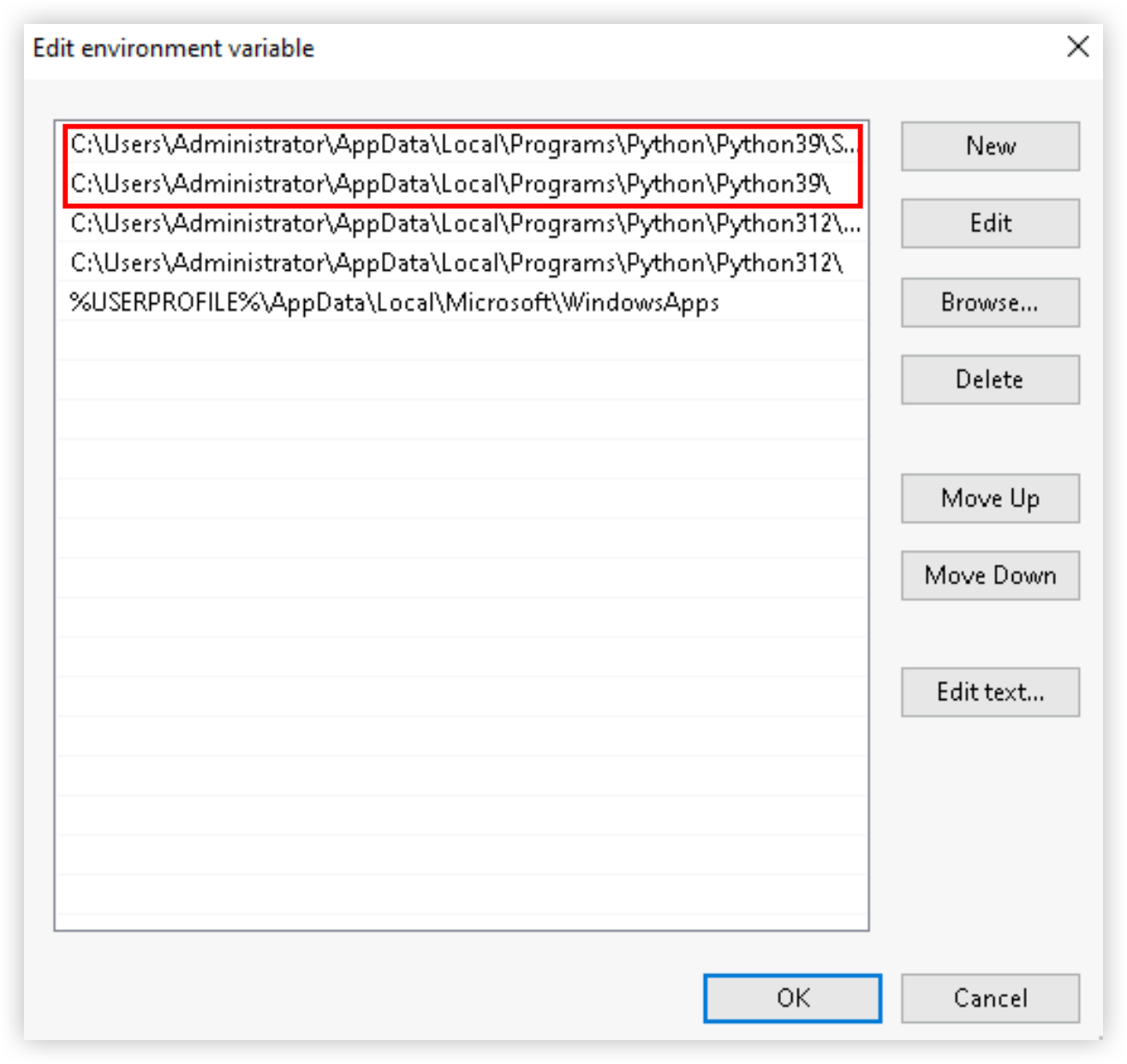
- Select the Python version you want to use by default, and click the "Move Up" button to move it to the top.
warning
You need to move both paths of the target Python version to the top.
- Example before adjustment:
-
- Example after adjustment:
-
- Click the "OK" button in sequence to save the changes and close the "System Properties" dialog box.
- Click the Windows icon and click "Windows System > Command Prompt".
-
- Execute the following command to check whether the default Python version has been successfully changed.
-
- Sample output:
-

Last updated: 2025.09.28 10:31:44
All rights reserved © Beijing Volcano Engine Technology Co., Ltd2024
