Elastic Compute Service
Elastic Compute Service


Document

- Documentation
 Elastic Compute ServiceElastic Compute ServiceBest PracticesImagesChanging boot mode from BIOS to UEFI for custom Linux images
 Copy page
 Download PDF
Images
Changing boot mode from BIOS to UEFI for custom Linux images
Copy pageDownload PDFChanging boot mode from BIOS to UEFI for custom Linux images
This topic describes how to change the boot mode of the operating system from BIOS to UEFI in a cloud environment.
Applicable scenario
Some ECS instance types provided by the Volcano Engine platform only support the UEFI boot mode. You cannot select such instance types if the custom image you want to use is in BIOS mode. You can follow the instructions provided in this topic to change the boot mode of the target custom image to UEFI.
Prerequisites
- You have imported a Linux image that uses BIOS boot mode into the Volcano Engine platform. For more information, see Importing custom images.
- This operation may compromise data security. We recommend that you back up your data in advance to ensure data security by performing operations such as copying images.
Procedure
- Log in to the Image console.
- In the top navigation bar, select the region and project where the target custom image is located.
- Click the "Create Instances" button in the "Actions" column to the right of the target image to create a temporary instance by using the image.
You can use the image to create an instance with the lowest-specification instance type, such as ecs.g2i.large.
- Execute the following command in the temporary instance to check whether the system volume of the instance has free space for creating an efi partition.
-
- If the following output is displayed, the system volume has no free space or less than 1 GB of free space. In this case, you need to scale up the system volume by approximately 1 GB. For more information, see Scaling up volumes (Linux).
-
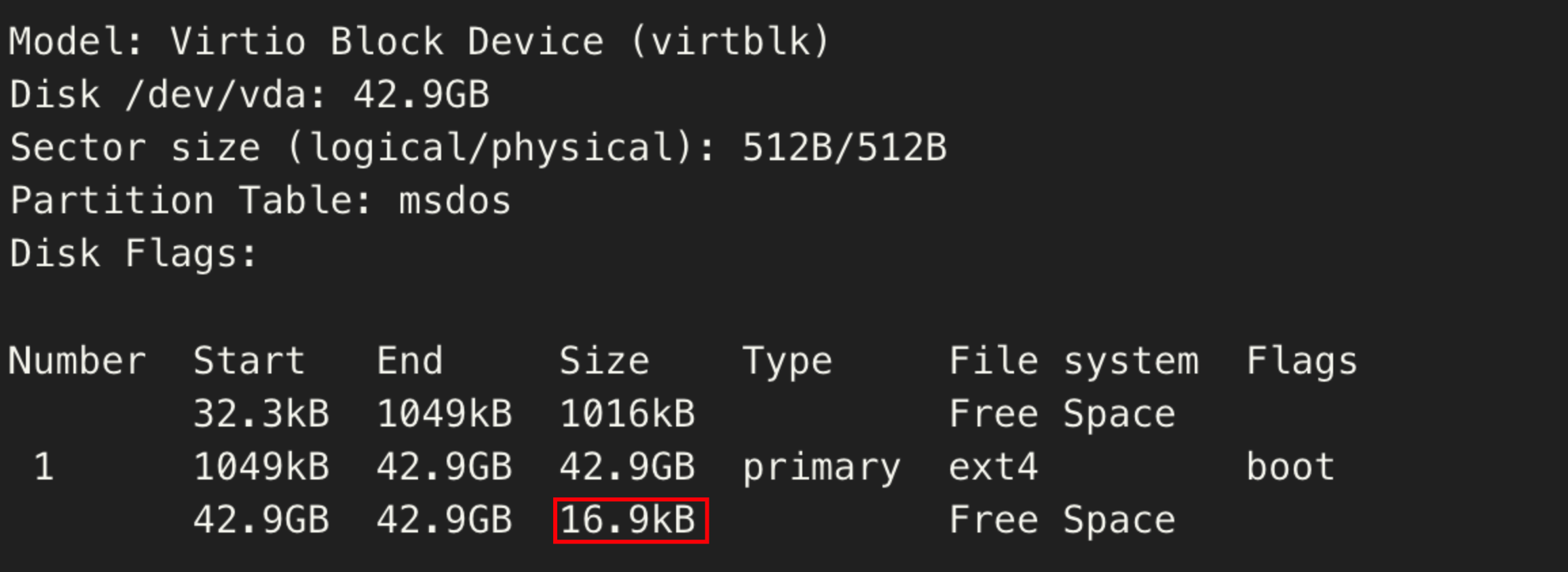
- If the following output is displayed, the system volume has at least 1 GB of free space. In this case, skip this step.
-
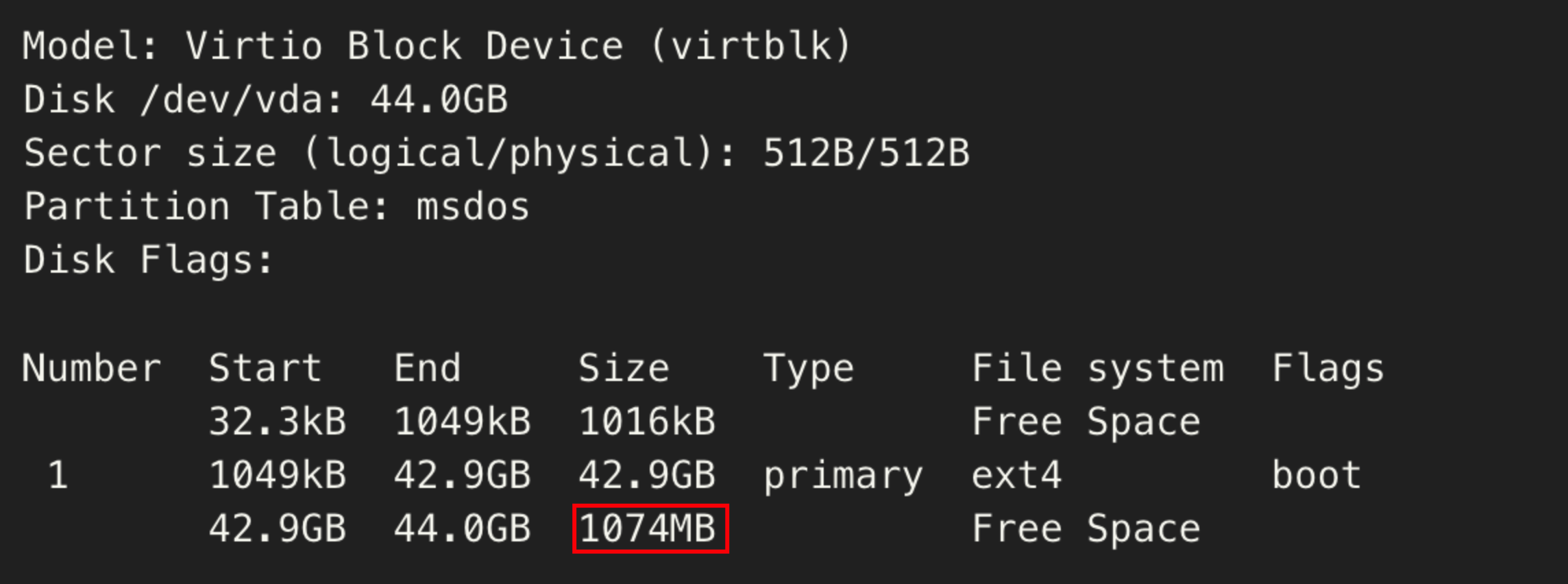
- Use the GPT fdisk tool to partition the free space.
- Execute the gdisk /dev/vda command to add two partitions: BIOS boot partition and EFI System.
-
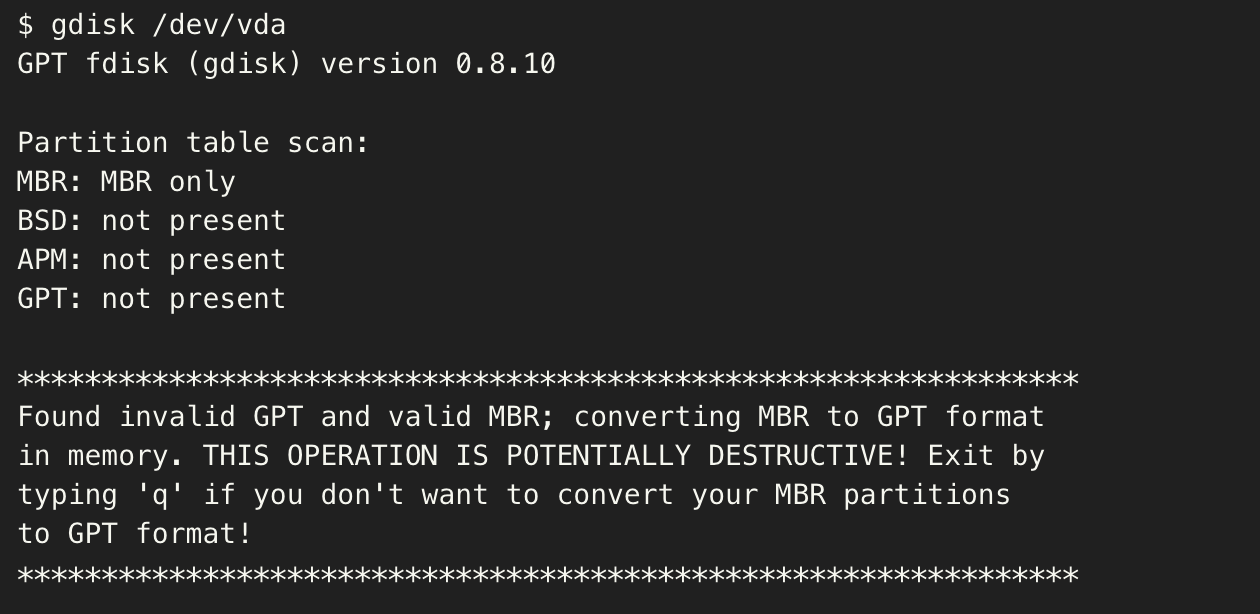
- Enter n and follow the prompts to add the BIOS boot partition, and then press Enter.
warning
The value of first sector must be 34.
-
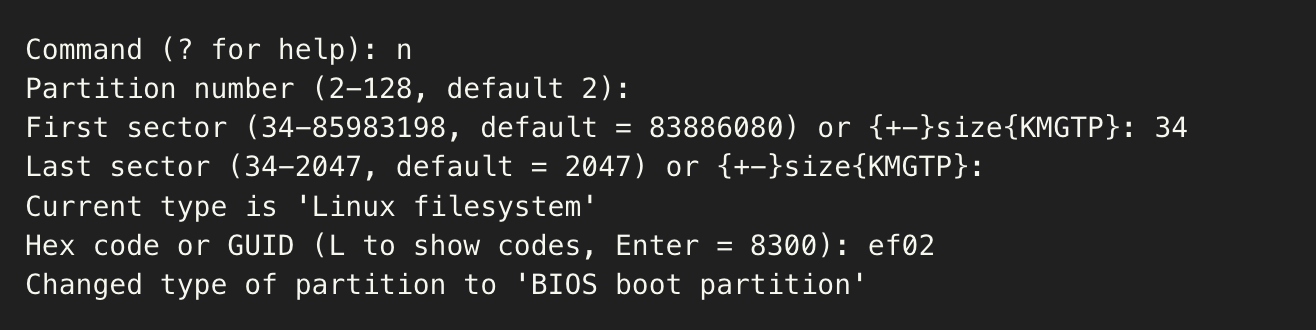
- Enter n , and add an EFI System partition and press Enter.
tip
A partition size of 200 MB is required.
-
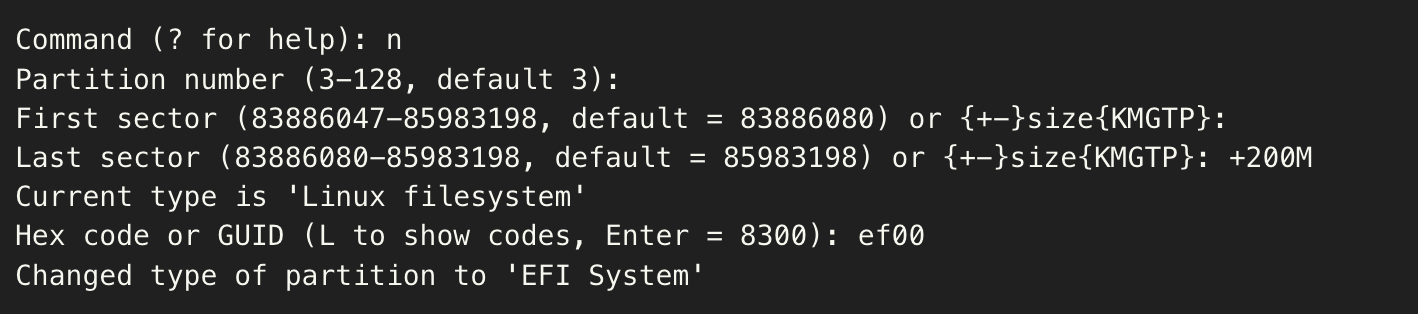
- Enter w , and enter y to confirm and complete the partitioning.
-
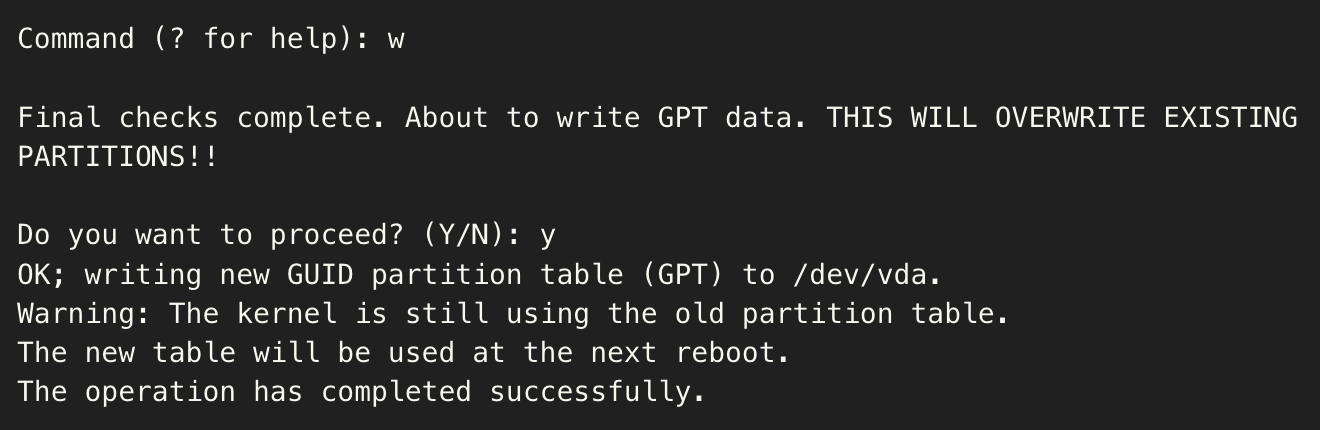
- Execute the following command to read the partition table and update partition information.
-
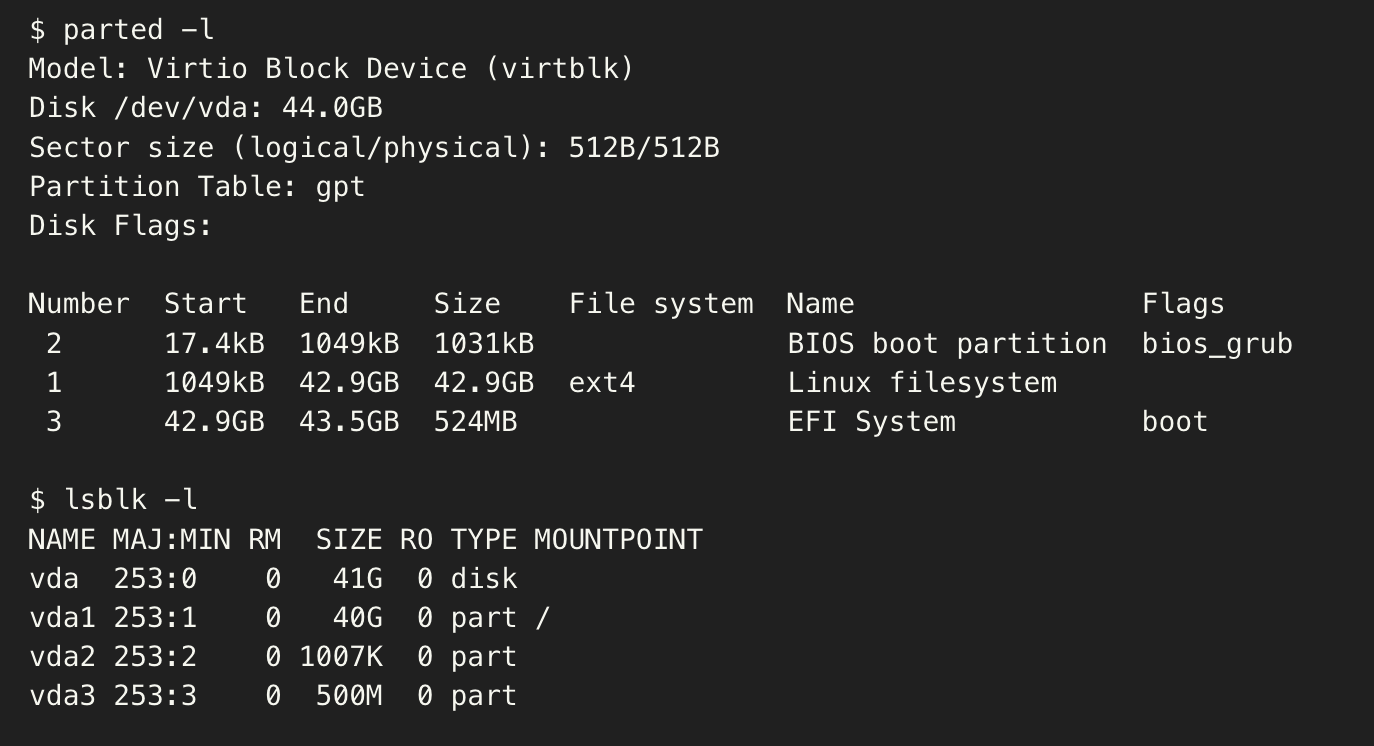
- Execute the following command to view information about the BIOS boot partition and EFI System partitions.
-
- Sample output:
-
- Mount the UEFI partition.
- Execute the following command to format the ESP.
tip
- If the command cannot be found during execution, execute the yum install dosfstools command to install the tool.
- Replace the digit 3 in vda3 with the Partition number of the EFI partition in Step 6.2.
-
- Sample output:
-

- Execute the following command to mount the UEFI partition to the /boot/efi directory.
If the /boot/efi directory does not exist, execute the mkdir /boot/efi command to create it.
-
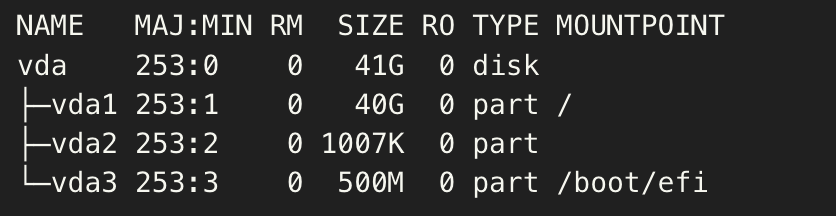
- Execute the following command to check whether the mount is successful.
-
- Sample output:
-
- Write the mount information of the UEFI partition to the fstab file.
- Execute the following command to view the UUID of the UEFI partition.
In this practice, the UUID of the /dev/vda3 partition is F6BA-62E7.
-
- Sample output:
-

- Execute the following command to edit the fstab file.
-
- Press the i key to enter insert mode, and add the UUID of the UEFI partition to the file.
-
- Press the Esc key to exit edit mode, enter :wq, and then press Enter to save the changes and exit the file.
- Reinstall BootLoader
- Execute the following command to update the software package list.
- CentOS image
-
- Debian/Ubuntu image
-
- Execute the following command to install efibootmgr.
- CentOS image
-
- Debian/Ubuntu image
-
- Execute the following command to install shim.
- CentOS image
-
- Debian/Ubuntu image
-
- Execute the following command to install grub2-efi.
- CentOS image
-
- Debian/Ubuntu image
-
- Execute the following command to reinstall grub with UEFI specified as the bootloader.
- CentOS image
-
- Debian/Ubuntu image
-
- Execute the following command to regenerate the grub2-config file.
warning
The grub2-config file that is regenerated overwrites the original configurations. We recommend that you back up data in advance.
- CentOS image
-
- Debian/Ubuntu image
-
- Execute the following command to modify the configuration of the grub2-mkconfig file.
If you are using a Debian or Ubuntu image, skip this step.
-
- To ensure you can properly use the instance types provided by the Volcano Engine platform, follow the instructions provided in the Install the Virtio1.1 driver section to install the Virtio1.1 driver.
- Create a custom image from the operating system of the temporary instance. For more information, see Creating custom image based on instance (Linux).
- At this point, you obtain a custom image in UEFI boot mode. Subsequently, you can release cloud resources such as the temporary instance, volumes, and EIPs based on your needs. You can also use the new custom image to purchase instances or change the operating systems for existing instances. For more information, see Purchasing instances based on custom images and Changing operating systems.
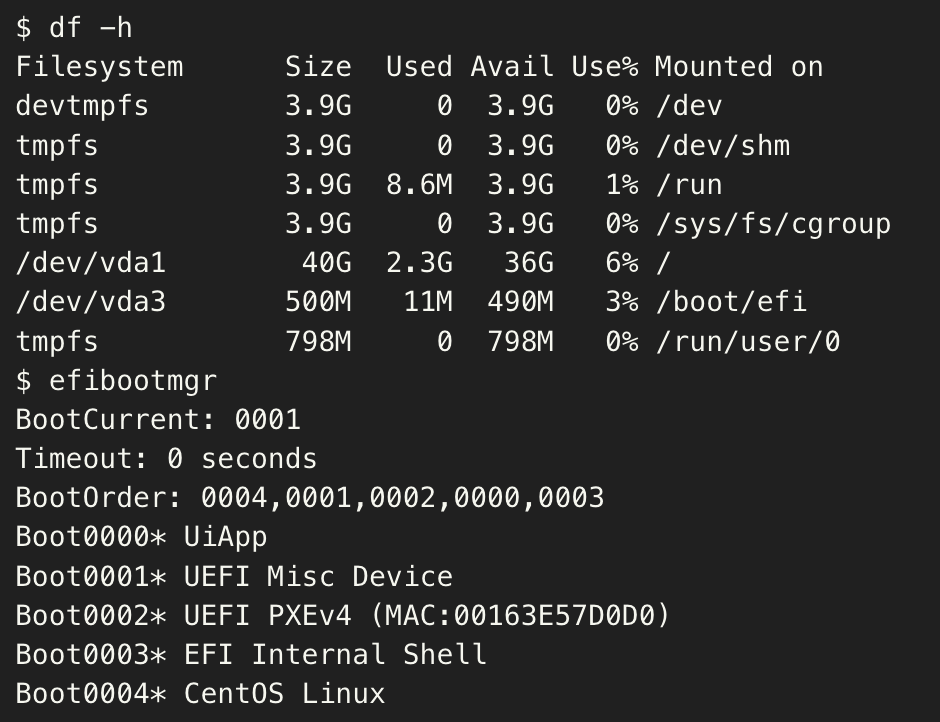
- You can also execute the following commands in an instance created by using this image to verify whether the modification is successful.
-
- Sample output:
If the following output is displayed, the new image uses UEFI boot mode.
-
FAQ
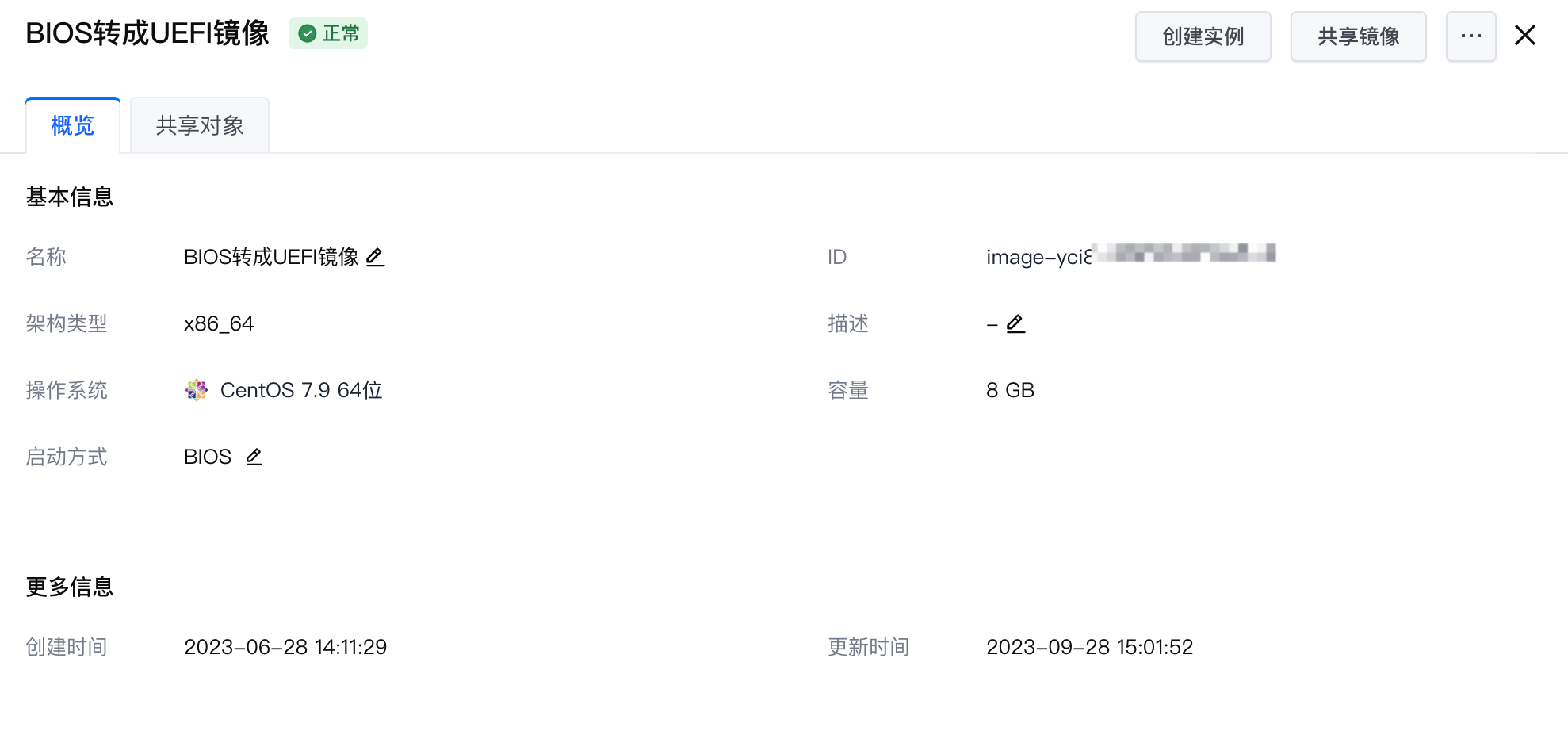
Why does the "Boot mode" value of a newly created image still show as BIOS when I check its information in the Image console?
- Cause:
- The boot mode of the image in the console inherits the boot mode (BIOS) of the temporary instance used to create the image. Therefore, the displayed boot mode of the new image in the console is BIOS. You need to change the boot mode displayed in the console to UEFI to ensure proper image usage.
- Solution:
- You can use the console or call the ModifyImageAttribute operation to change the boot mode of the target custom image to UEFI.
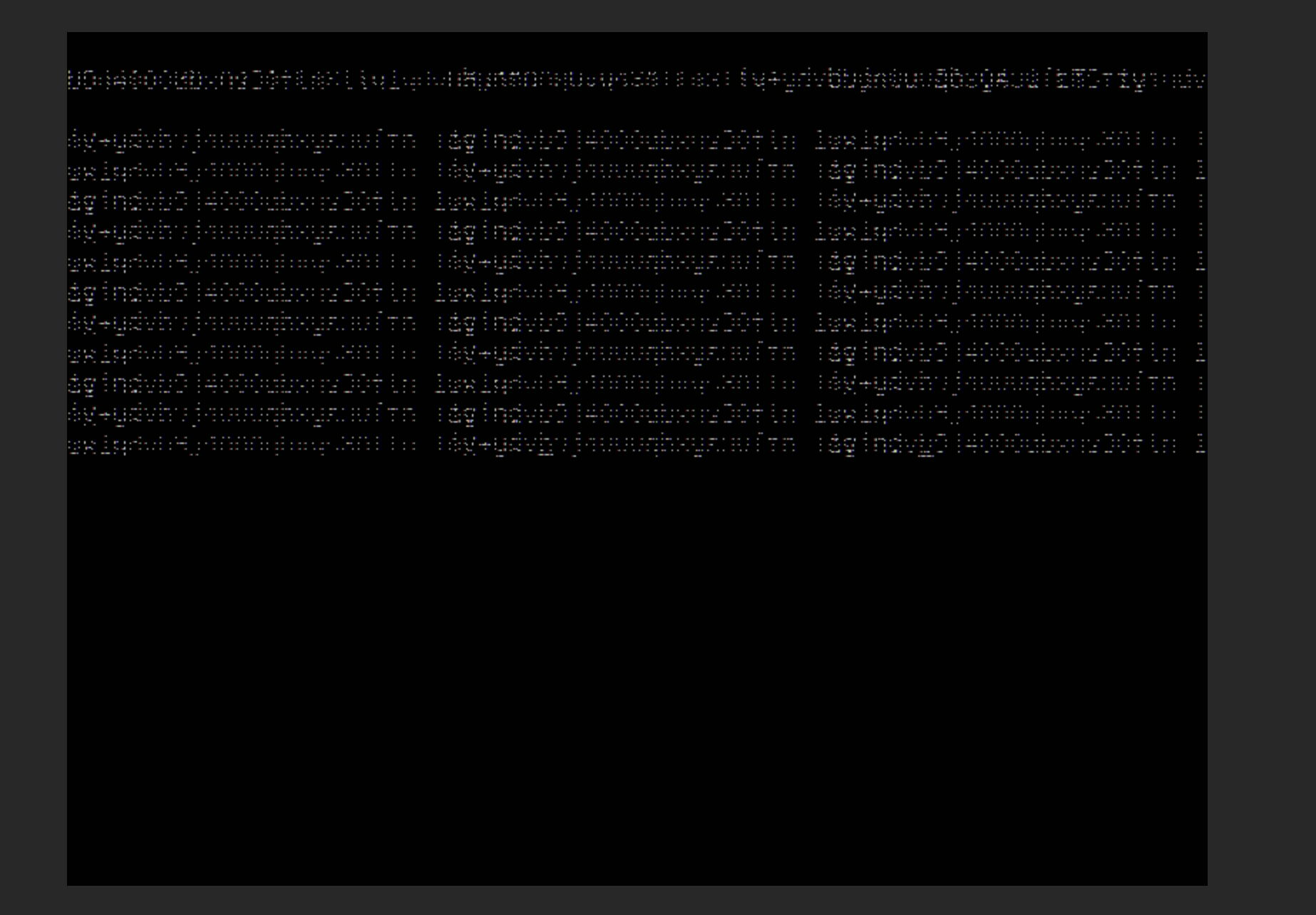
Why does the screen display garbled characters when I log in via VNC to an instance created from the new image?
- Cause:
- This issue may occur because the image lacks the Cirrus graphics card driver for the corresponding kernel version, leading to display anomalies when you log in via VNC.
- Solution:
- Log in to the target instance by using SSH.
- Execute the following command to check whether the Cirrus graphics card driver is installed in the operating system.
-
- If the driver is already installed, submit a ticket to obtain technical support.
- If not installed, execute the following command to install the Cirrus graphics driver for the corresponding kernel version.
- CentOS image
-
- Debian/Ubuntu image
-
Last updated: 2026.06.18 17:49:52
All rights reserved © Beijing Volcano Engine Technology Co., Ltd2024
