Elastic Compute Service
Elastic Compute Service
Elastic Compute Service


Document
Elastic Compute Service
What's New
Announcement
OpenAPI related
Pricing and quotas are related
About products and plugins
Feature discontinuation
Overview
Billing
Billable items
Billing methods
Billing methods change
Getting Started
User Guide
Instances
Instance types
X86 Computing
Elastic Bare Metal Server
Heterogeneous Computing
Select instance billing method
Spot instance
Elastic Scheduled Instance
Offsetting Resources
Reserved Instances
Buying ECS instances
Logging in to an instance
Logging in to a Linux instance
Managing instance status
Modifying instance types
Using instance user data and metadata
Instance metadata
Images
Public images
veLinux images
Custom images
Importing custom images
Creating custom images
Image detection
End of life (EOL) of image
Elastic Block Storage
Basic volume operations
Partitioning and formatting a volume
Extending a volume
EBS Agent
Snapshots
Basic snapshot operations
Auto snapshot policies
DataInsights
Network
Network interface and IP address
IP Address
IPv4 address
Security group
Security
Passwords and key pairs
Deployment and scaling
Monitoring
Monitoring metrics
Event monitoring
Local volume event O&M
Method 1: Solve the local volume failure by replacing the faulty volume
O&M
Cloud assistant
Managing agents
Process choreography
Common operation and maintenance tasks
Batch operations on instances
Batch operations on EBS Volumes
Batch operations on images
Temporary upgrade of bandwidth
Managing application updates
orchestration plan
Patch management
Managing patch plans
Managing patch baselines
IAM
Tags and projects
Best Practices
AI applications
OpenClaw (formerly Moltbot)
Quickly deploying OpenClaw via application templates
Quickly deploying OpenClaw via marketplace images
Manually deploying OpenClaw
Self-service website creation
Building environments
Building a Web environment (Windows)
Building applications
Building FTP site
Deploying databases
Building game servers
Building websites
Building a WordPress blog
Building multiple websites
Manage software sources for Linux instances
AIGC practices
Performance test
Network performance test
Instance configuration
Setting up AD Domain Services on Windows OS
Windows Multi - User Login
Changing screen resolution
Instance data
Uploading or downloading files
Data restoration
ECS instance local time synchronization
Volume
Monitoring
Security
Images
Kernel fine-tuning
O&M
Troubleshooting
Remote log in issue
Linux operating system issue
Windows operating system issue
SSH log in issue
Operating system issue
veLinux operating system issue
Linux operating system issue
Windows operating system issue
Instance status issue
Instance unable to start issue
High instance load issue
GPU instances issue
Network connection issue
Network configuration issue
Storage classes issue
EBS Volume issue
Local Disk issue
Logs and monitoring issue
Third - party software issue
API Reference
Regions and availability zones
Instances
Images
HPC clusters
Key pairs
Tags
Volumes
Reserved storage capacity
Snapshot
Auto snapshot policy
Monitoring
Deployment sets
Launch templates
Cloud assistant
Patch management
SDK reference
CLI Reference
FAQ
Dedicated Host DDH
What's New
Billing
User Guide
Manage Dedicated Host
Manage Dedicated Host Cluster
Manage ECS instances
Monitoring and O&M
API reference
proprietary host
- Documentation
 Elastic Compute ServiceElastic Compute ServiceBest PracticesAI applicationsOpenClaw (formerly Moltbot)Quickly deploying OpenClaw via application templatesQuickly deploying OpenClaw and integrating WeCom AI assistant
 Copy page
 Download PDF
Quickly deploying OpenClaw via application templates
Quickly deploying OpenClaw and integrating WeCom AI assistant
Copy pageDownload PDFQuickly deploying OpenClaw and integrating WeCom AI assistant
OpenClaw is an open-source, local-first AI agent and automation platform. With OpenClaw, you can deeply integrate multi-channel communication capabilities with large language models to build a customized AI assistant with persistent memory and proactive execution capabilities.
Change history
warning
- You cannot integrate a WeCom bot with OpenClaw deployed on an ECS instance purchased before 24:00 on February 3, 2026. Reinstall the instance operating system by creating an OpenClaw application update task, and then perform the integration by referring to "Configure the model and integrate a WeCom bot after ECS instance purchase".
- To upgrade or reset OpenClaw deployed on the ECS instance, you can create an OpenClaw application update task to complete the operation.
Update time | Description |
Update time | Description |
April 29, 2026 | Added support for integrating WeCom bots with "Use persistent connection" as the connection method. |
March 5, 2026 | Added support for the latest features of the Community Edition released on March 2, 2026, as well as compatibility with the Feishu plugin released on March 4, 2026. tip For ECS instances created using the old version of the application template, you can upgrade OpenClaw and the Feishu plugin to their latest versions by following the solution guide. After the upgrade, you will have access to the new features of the updated Feishu plugin. |
February 27, 2026 | Added support for the latest features of the Community Edition released on February 23, 2026. |
February 12, 2026 | Integrated the AI Assistant Security feature. Once the feature is enabled, enterprise-grade security protection is provided for OpenClaw. tip For newly purchased or existing instances for which this feature is not enabled in the console, you can manually enable it by following the instructions provided in the solution. |
February 10, 2026 | Fixed the conflict issue with the Feishu plugin and aligned with the latest features of the Community Edition up to February 6, 2026. |
February 3, 2026 | Added support for integrating WeCom bots. |
Features
Volcano Engine provides an out-of-the-box application template for rapid OpenClaw deployment. This template not only helps you quickly deploy OpenClaw and integrate it with a WeCom bot, but also comes with pre-integrated common Skills from AgentKit. In addition, it natively supports multimodal capabilities for image and video generation.
- For developers, especially for individual development scenarios, ModelArk offers a Coding Plan solution that supports the use and free switching of mainstream code models (the latest versions of Doubao-Seed-Code, GLM, Kimi, DeepSeek, and more). This facilitates coding tasks such as personal project development, learning and practice, and tool building.
- For enterprise-level development needs, you can select any large language model from "Foundation models" of ModelArk. Multiple model services, including Doubao-Seed-Code, GLM-4.7, DeepSeek-V3.2, and Kimi-K2-Thinking are now fully compatible with the OpenClaw technical ecosystem.
warning
To use the natively supported multimodal capabilities for image and video generation, go to the Model activation page, and then select either doubao-seedream-4-5 (251128) or doubao-seedance-1-5-pro (251215) for OpenClaw.
Prerequisites
- You have subscribed to ModelArk Coding Plan, or have activated ModelArk.
- You have created a WeCom bot with "Use persistent connection" as the connection method, and obtained its Bot ID and Secret. Learn more.
Procedure
Step 1: Create an ECS instance
- Click here to log in to the ECS console.
- Quickly purchase an ECS instance pre-installed with OpenClaw by using an application template, and configure the following parameters.
- ParameterDescriptionParameterDescriptionInstance configurationApplication templateSelect "OpenClaw".Billing methodSelect the billing method of the instance. In this topic, "Subscription" is selected as an example. Learn more.RegionSelect the region where the instance is located. In this topic, China (Shanghai) is used as an example.tipCurrently, only China (Guangzhou), China (Beijing), China (Shanghai), and Asia Pacific (Jakarta) are supported. Learn more.Package specificationSelect the instance type. Select 2 vCPU, 2 GiB memory or higher. This topic uses the "e-c1m1, 2 vCPU, 2 GiB" type as an example.Login passwordConfigure the instance login password.Confirm passwordRe-enter the instance login password for confirmation.Security protectionSelect whether to enable the AI Assistant Security feature.
- (Recommended) Enable: Read the AI Assistant Security SDK Protocol and check to enable the AI Assistant Security feature.
tip- Once enabled, the AI Assistant Security feature monitors and defends against three core risks in real time without affecting the normal operation of OpenClaw: prompt injection, PII leakage, and risky operations. Learn more.
- For newly purchased or existing instances for which this feature is not enabled in the console, we recommend that you manually enable it by following the instructions provided in the solution. This helps reduce risks such as data leakage, system damage, and financial loss.
- Not enable: Do not use the related services.
Role authorizedSelect whether to complete the required role authorization for the cloud assistant.- (Recommended) Authorize: Check the "Confirm authorized Cloud assistant roles" option. You can perform version upgrades, data synchronization, and other related operations only after the authorization is complete.
tipAfter authorization, you can use the application management feature to view your Coding Plan quota usage, upgrade OpenClaw versions, and manage its associated models and message channels. Learn more.- Do not authorize: You cannot use the related services.
Advanced configurationModel configurationSelect and configure a model on the ModelArk platform. OpenClaw will use this model for inference after your ECS instance starts.- Configuration method:
- Foundation models: Supports LLMs from "Foundation models" of ModelArk. Multiple model services, including Doubao-Seed-Code, GLM-4.7, DeepSeek-V3.2, and Kimi-K2-Thinking, are now fully compatible with the OpenClaw technical ecosystem.
tip- If you have not activated the ModelArk service, after you select a model and create an instance, the platform will automatically activate the selected model service for you. After that, the model will be billed by token.
- OpenClaw deployed via the "OpenClaw" application template is integrated with common Skills from AgentKit. It natively supports multimodal capabilities like image and video generation. To use related capabilities, first enable the corresponding models, and select the target models such as doubao-seedream-4-5 (251128) or doubao-seedance-1-5-pro (251215).
- Coding Plan: ModelArk Coding Plan is a subscription service tailored for developers for AI coding scenarios. It supports the use and free switching of mainstream code models.
tipYou can click the "Subscribe now" button to go to the ModelArk Coding Plan campaign page and subscribe to a package as needed.- Model selection: Select the model that provides inference services for OpenClaw.
- API Key: Select the API Key you want to use from the drop-down list.
warningKeep your ModelArk API Key secure. If leaked, it could allow third parties to impersonate you for unauthorized use, causing unexpected token fees.Message channel integrationSelect WeCom. After the ECS instance starts, OpenClaw will automatically use WeCom as the message notification channel.- Bot ID: The ID of the target WeCom bot.
- Secret: The encryption key of the target WeCom bot.
tip- Log in to the WeCom official website using an account with enterprise administrator permissions. Click the "Details" button next to the target bot to obtain its Bot ID and Secret on the details page.
- Caution: The Bot ID and Secret are important identity credentials for accessing the WeCom bot. Keep them secure to prevent disclosure.
- In the "Configuration details" section on the right, confirm the instance configuration and fee, and check "I have read and agree with Elastic Compute Service Terms of Service".
- Click the "Buy now" button to complete the purchase.
- Click the "Go to console" button, and log in to the instance in the console.
Step 2: Modify the security group configuration
Allow inbound traffic on port 18789 in the security group of the instance.
- Log in to the Instances console, and click the name of the target instance to enter its details page.
- Select the "Security Group" tab, and click the "Configure rule" button to the right of the target security group (Default is used as an example in this topic).
- Select the "Access rules > Inbound rule" tab, and click the "Add rule" button.
- Allow access to port 18789 via the TCP protocol.
Step 3: Pair with the WeCom bot
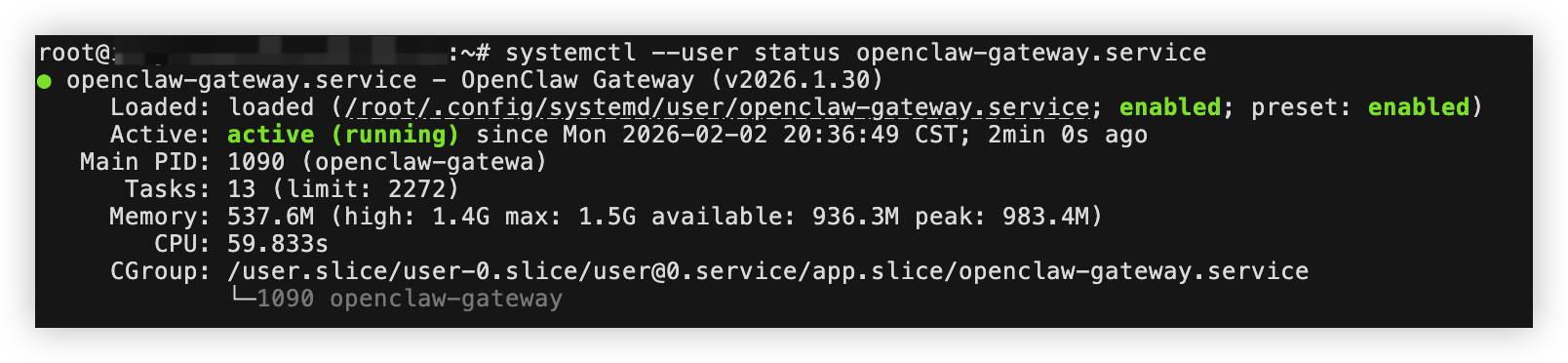
- Execute the following command to check the running status of the OpenClaw service and check whether it started as expected.
- systemctl --user status openclaw-gateway.service
- If the service status in the output is active (running), the OpenClaw service has started as expected. You can refer to the subsequent steps to use the AI assistant in WeCom.
-
- Pair with the WeCom bot.
- Send any message to the bot (for example: Are you there) to obtain the pairing command.
- Return to the target instance terminal page, execute the openclaw pairing approve wecom <the pairing code you obtained> command for pairing.
- You can now chat with ArkClaw through the WeCom bot.
Use the AI assistant
After the configuration is complete, you can have a private chat with the AI assistant on WeCom to assign tasks, or add it to a group chat and @mention it to assign tasks.
This section demonstrates the workflow of the AI assistant through examples of assigning the following two tasks via private chat with the bot.
- Task 1: Generate Spring Festival-themed images
- Prompt used:
- Spring Festival theme. Use the image_generate tool to create four storyboard images in sequence. Create four independent tasks at once. If no style is specified, use "Shanghai fine arts cartoon style" by default. Send me all four images after generation.
- Task 2: Create a video from the images generated in "Task 1"
- Prompt used:
- Use these 4 images (with the first and last frames retained) to generate 3 video clips with voiceover. Use the video-generate tool with 480P resolution configuration. The size of a single file should not exceed 5 MB. Compress the generated MP4 files and send them to me.
Appendix
Activate ModelArk and obtained configuration
Activate ModelArk and obtain the API Key by following the instructions in this section.
- Log in to the Model activation page, and select the model family to provide inference services for OpenClaw.
- In the directory tree on the left, select "Configure > API keys" to create and obtain an API Key.
- In the directory tree on the left, select "GenAI studio > Foundation models", and click the specific model you want OpenClaw to use to enter its details page. In this topic, "Doubao-Seed-Code" is used.
- Click the copy button to obtain the "Model ID".
tip
The obtained model ID will be used to configure OpenClaw. Keep it secure.
Create a WeCom bot
If you do not have a WeCom bot, please refer to this section to create one.
- Use an account with enterprise administrator permissions to log in to the WeCom official website.
- In the directory tree on the left, select "Security and management > Management tools", and click the "Create bot" button.
- In the pop-up window, click the "Create manually" button.
- Scroll directly to the bottom of the bot creation page and click the "Create in API mode" button to switch the creation mode.
- Configure the following parameters as needed, and click the "Save" button to complete the operation.
- ParameterDescriptionParameterDescriptionAvatar/Name/OverviewClick the edit button to the right of "Unnamed bot" to configure the avatar, name, and overview information of the bot as needed.Visibility scopeConfigure the visibility scope of the bot.Connection methodSelect "Use persistent connection".Bot IDThe ID of the bot you created.tipThis value will be used later for configuring the ArkClaw message channel. Keep it secure.SecretThis parameter is used for content encryption during message transmission. Click the "Click to obtain" button to generate the value.tipThis value will be used later for configuring the ArkClaw message channel. Keep it secure.
- Share the bot.
- After the bot is created, click the "More" button in the upper right corner of the page, and select "Get bot QR code" or "Get bot link" as needed.
- Send the bot QR code or link you obtained to WeCom users within the "visible range".
- Target users can scan the QR code or open the link via WeCom on their mobile devices to chat with the bot or add it to a WeCom group chat.
Last updated: 2026.06.02 15:52:32
All rights reserved © Beijing Volcano Engine Technology Co., Ltd2024
