Elastic Compute Service
Elastic Compute Service


Document

- Documentation
 Elastic Compute ServiceElastic Compute ServiceBest PracticesVolumeSetting up logical volumes with LVM (Linux)
 Copy page
 Download PDF
Volume
Setting up logical volumes with LVM (Linux)
Copy pageDownload PDFSetting up logical volumes with LVM (Linux)
This topic explains how to set up logical volumes with Logical Volume Manager on Linux instances.
Background information
Logical Volume Manager (LVM) is a mechanism for managing volume partitions in Linux environments. It abstracts physical storage, such as EBS volumes, into one or more logical volumes. This allows users to create file systems and store data on these volumes. Once EBS volumes are managed with LVM, file systems are no longer limited by the size of a single volume. File systems can span multiple volumes and expand dynamically without the need for repartitioning or reformatting entire volumes.
LVM architecture
The architecture diagram illustrates how to use LVM to manage volumes.
Terminology
Term | Description |
Physical volume (PV) | The basic storage unit in LVM that typically corresponds to a physical hard disk or disk partition. LVM can directly recognize and manage it. |
Volume group (VG) | A logical collection of one or more physical volumes. A volume group provides a unified storage pool for logical volumes and serves as a logical structure for managing physical volumes. |
Logical volume (LV) | A logical storage space allocated from a volume group. This is where file systems are created and data is stored. Logical volumes can be formatted and mounted like traditional disk partitions. |
Prerequisites
You have an ECS instance with the following basic settings. For instructions on how to purchase an instance, see Purchasing an instance by following the wizard.
- Instance type: ecs.g3il.large.
- Image: CentOS Stream 9.
- Network: An Elastic IP Address (EIP) associated with the instance.
Steps
This section explains how to create a 35-GiB logical volume using two 20-GiB data volumes.
Step 1: Create physical volumes on your data volumes
- Create two 20-GiB data volumes and attach them to your instance. No initialization is required. For more information, see Creating a volume and Attaching a volume.
- Run this command to get information about the data volumes. Then, record their device names.
-
-

- The example output shows two data volumes with device names "/dev/vdb" and "/dev/vdc". These two data volumes will be used to create elastic, expandable logical volumes with LVM.
- Run this command to install LVM.
-
- The installation is finished when the output shows "Complete!".
- Run the command sudo pvcreate <device name 1> <device name 2> ... to create physical volumes from your data volumes. Example command:
-
- The example output indicates that the physical volumes have been successfully created.
-

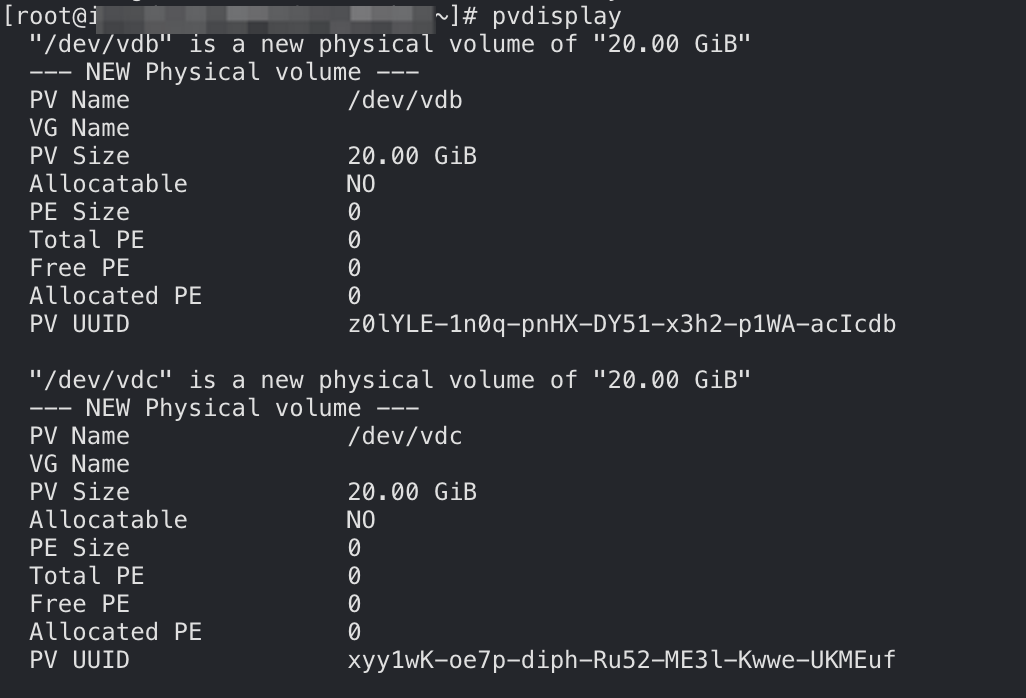
- Run this command to view the physical volume details.
-
- The example output shows two new physical volumes, "/dev/vdb" and "/dev/vdc".
-
Step 2: Create a volume group and add the physical volumes to it
- Run the command sudo vgcreate <volume group name> <physical volume name 1> <physical volume name 2> ... command to create a volume group. The following command creates a volume group named "vg_01":
-
- The example output indicates that the volume group has been successfully created.
-

- (Optional) Use this command to add existing physical volumes to the volume group.
-
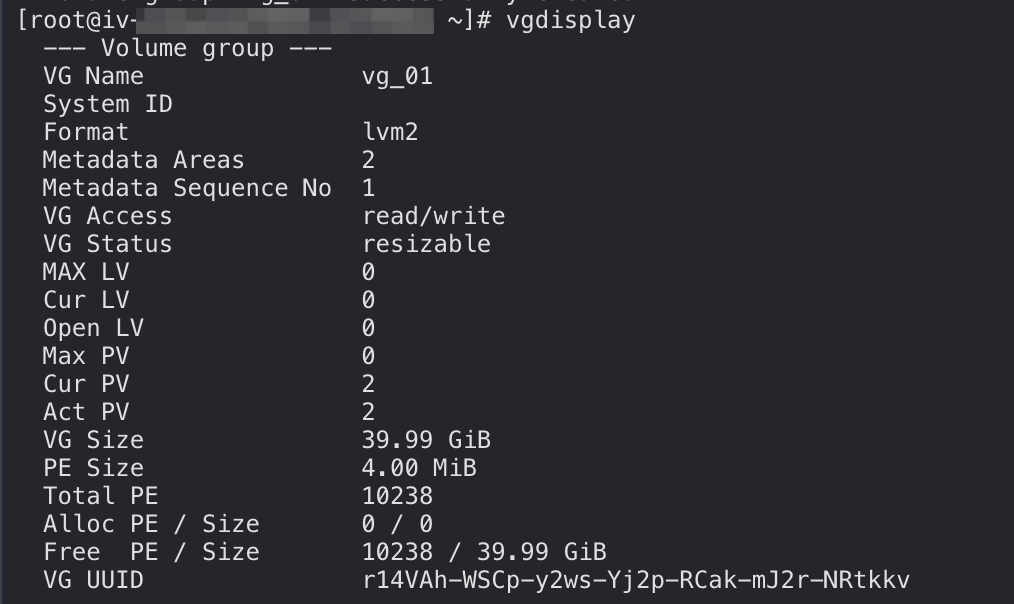
- Run this command to view the volume group details.
-
- The example output shows that the volume group "vg_01" has been created with a capacity of approximately 40 GiB. Note that the file system itself occupies some storage space.
-
Step 3: Create a logical volume from the volume group
- Run the command sudo lvcreate -L <logical volume size> -n <logical volume name> <volume group name> to create a logical volume. The following command creates a logical volume named "lv_01" with a size of 35 GiB.
-
- The example output indicates that the logical volume has been successfully created.
-

- (Optional) To create multiple logical volumes from the volume group, repeat Step 1.
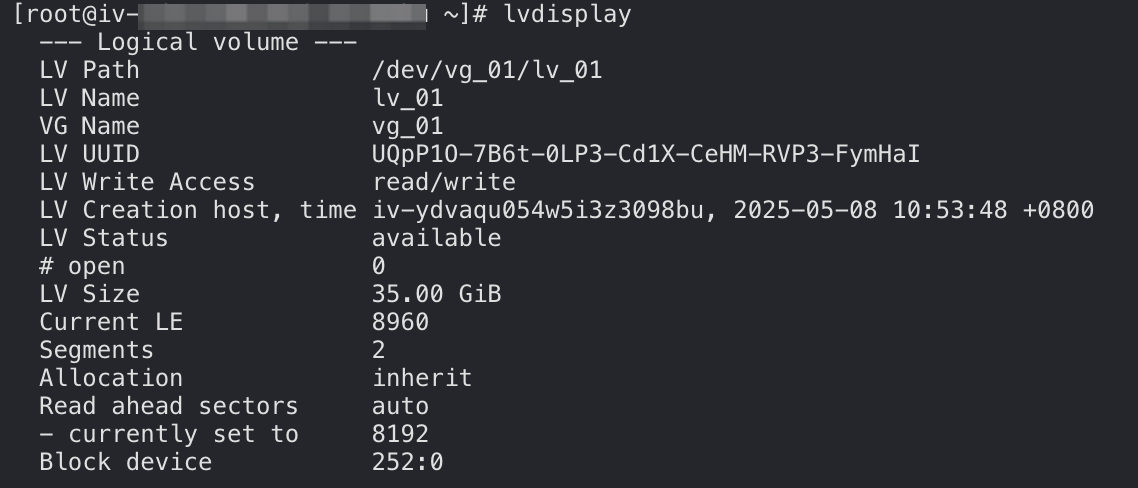
- Run this command to view the logical volume details, including its path, name, and volume group. You will need this information later.
-
-
Step 4: Create and mount a file system
- Run the command sudo mkfs.<file system format> <logical volume path> to create a file system on the logical volume. The following command creates an ext4 file system.
-
- (Optional) Create a new mount point. For example, /mnt/lv_01.
Skip this step if you are using an existing mount point.
-
- Run the command sudo mount <logical volume path> <mount point> to mount the file system on the mount point. The following command mounts the logical volume (located at /dev/vg_01/lv_01) to /mnt/lv_01.
-
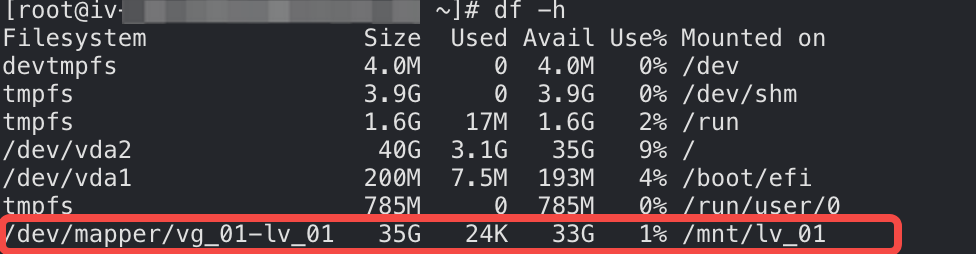
- Run this command to verify the mount result.
-
- If successful, the command returns output containing text similar to the following:
-
- Set up automatic mounting upon boot.
- Run the blkid /dev/vg_01/lv_01 command to get the logical volume's UUID. Then, add a mount entry to the "/etc/fstab" file to ensure that the mount persists after your instance restarts. For more information, see Setting up automatic mounting of volume partitions upon boot.
Step 5: Extend the logical volume
Suppose that the 35-GiB logical volume you created can no longer meet your needs and you want to increase its capacity by 4 GiB.
tip
When using this method to extend a logical volume, make sure that the volume group containing the logical volume has sufficient free space. If there is not enough free space, refer to Method 2 or Method 3.
- Extend the logical volume and its file system.
- Run the lvextend -L +<capacity increase> <logical volume path> command to extend the logical volume.
-
-

- Extend the file system.
- Run this command to view the file system format.
-
-
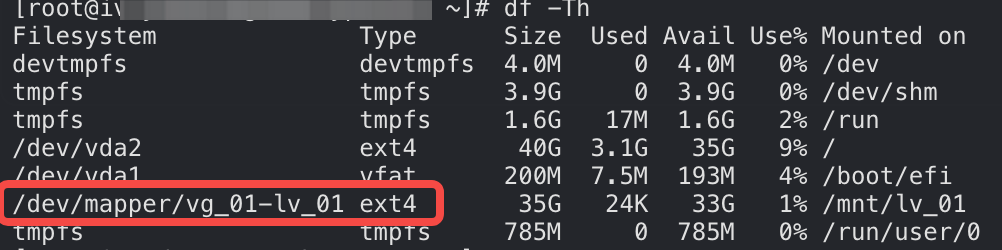
- To extend an ext4 file system, run the resize2fs <logical volume path> command.
-
-

tip
To extend an xfs file system, run the sudo xfs_growfs <logical volume mount point> command.
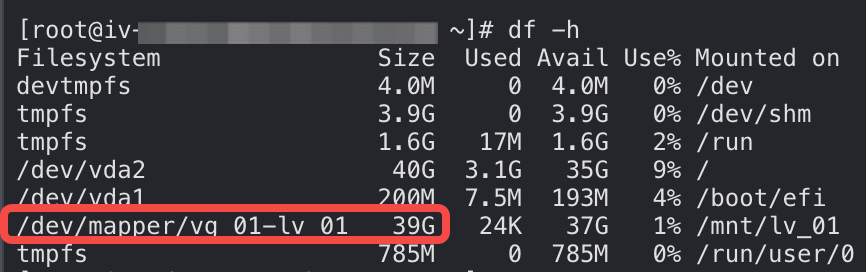
- Run this command to see if the file system capacity has increased.
-
- The example output shows that the capacity of the logical volume has increased from 35 GiB to 39 GiB.
-
Suppose that the 39-GiB logical volume you created can no longer meet your needs, and you want to increase its capacity by 10 GiB by extending one of the underlying volumes.
- Extend a volume.
- Follow the steps in Extending a single volume to add 10 GiB of capacity to a data volume. This example expands "/dev/vdc".
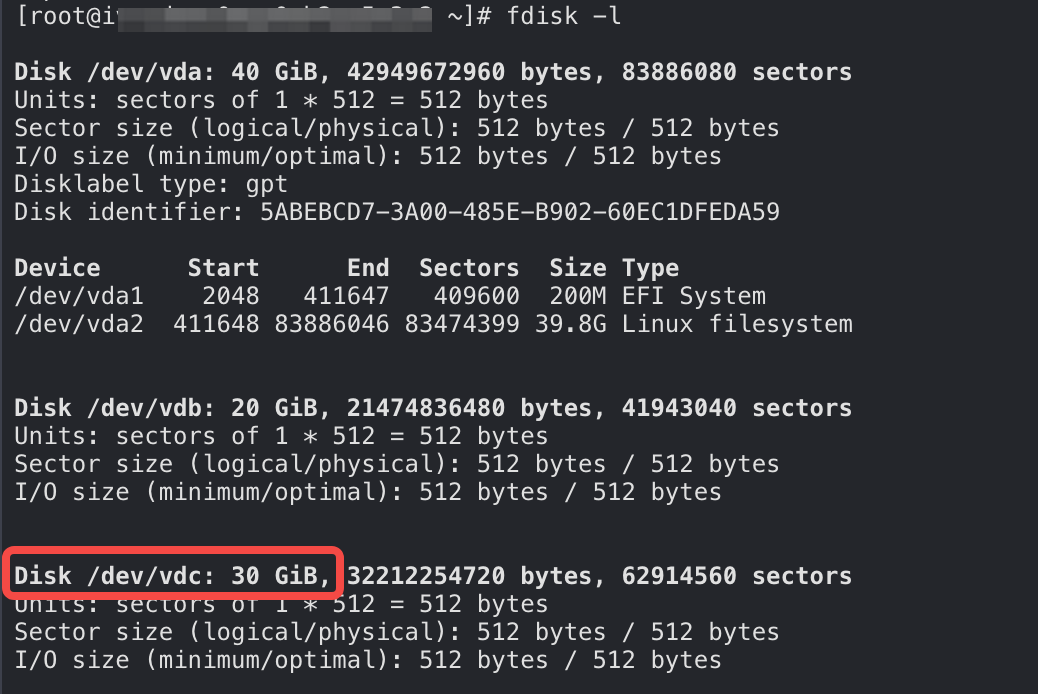
- Run this command to check if the system recognizes the extended volume properly.
-
- The example output shows that the capacity of "/dev/vdc" has increased from 20 GiB to 30 GiB.
-
- Extend the physical volume (dev/vdc) corresponding to the extended volume.
- Run this command to view information about the physical volume prior to extension.
-
-
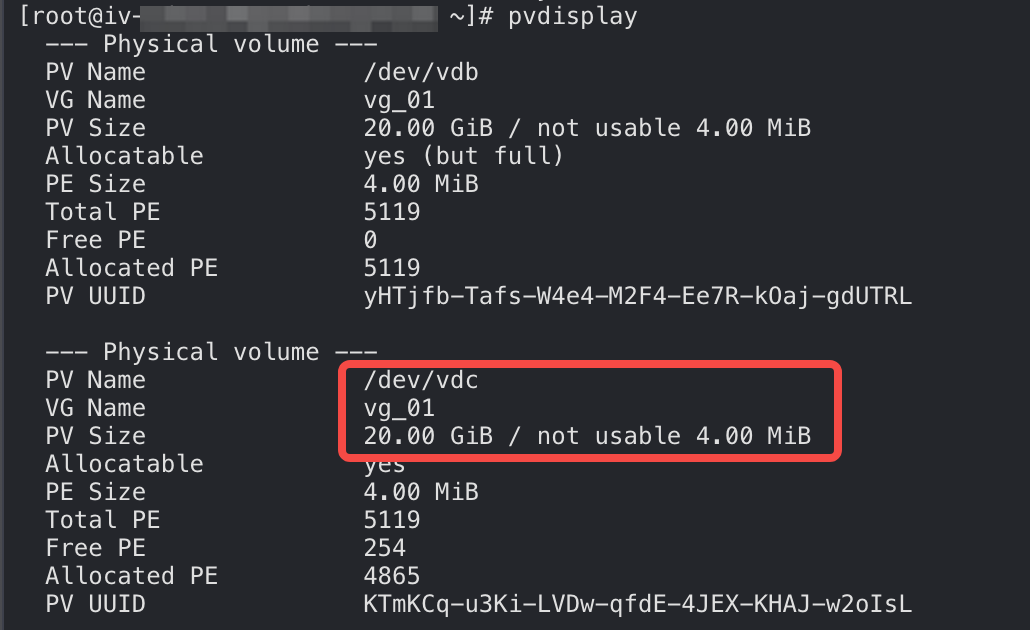
- The example output shows that the capacity of "/dev/vdc" is still 20 GiB. This indicates that the physical volume capacity has not yet increased.
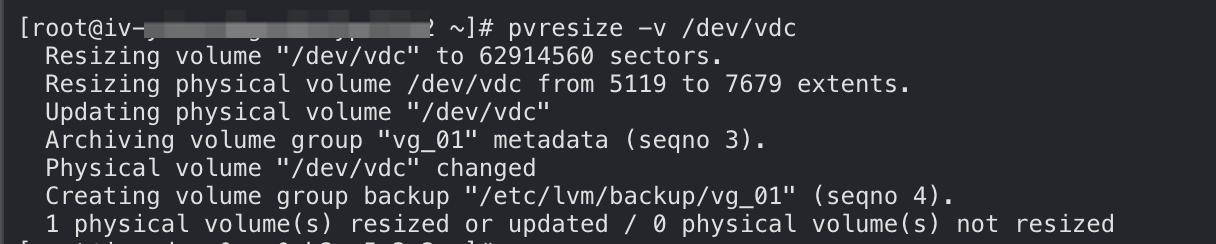
- Run the pvresize -v <physical volume name> command to extend the physical volume.
-
- The example output indicates that the physical volume has been successfully extended. You can use the pvdisplay command to verify the new capacity.
-
- Extend the logical volume and its file system.
- Run the command sudo lvextend -L +<logical volume size> <logical volume path> to extend the logical volume.
-
- The example output indicates that 10 GiB of space has been added to the logical volume.
-

- Run the resize2fs <logical volume path> command to extend the file system. This example extends an ext4 file system.
-
tip
To extend an xfs file system, run the sudo xfs_growfs <logical volume mount point> command.
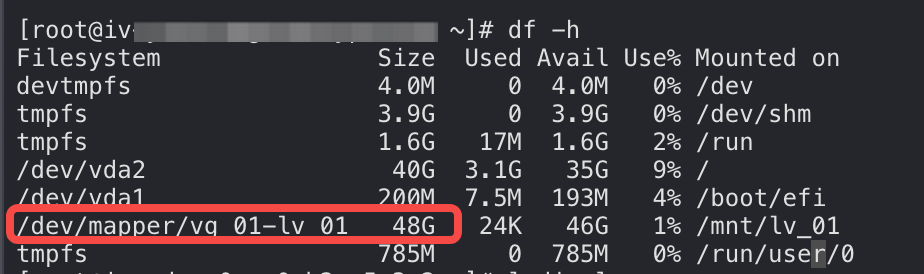
- Run this command to verify the extension result.
-
- The example output indicates that 10 GiB of space has been added to the logical volume. Note that the file system itself occupies some storage space.
-
- Create a volume.
- Create a 20-GiB data volume and attach it to your instance. No initialization is required. For more information, see Creating a volume and Attaching a volume.
- Run this command to get information about the data volume. Then, record its device name.
-
- The example output shows that the device name of the newly attached data volume is "/dev/vdd".
-

- Create a physical volume on the new volume.
-
- Extend the volume group.
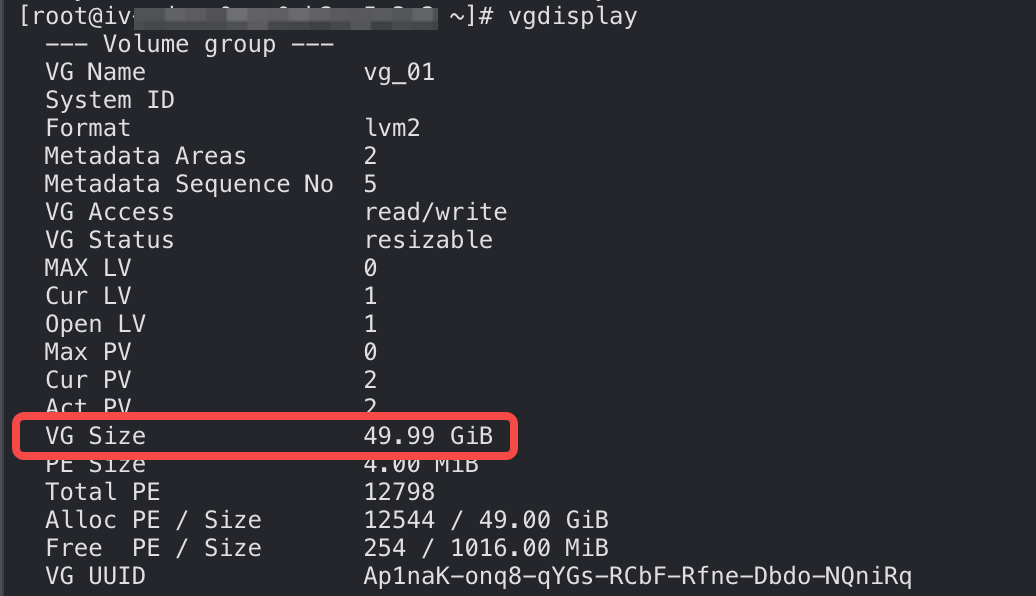
- Run this command to view the volume group details.
-
- The example output displays the name of the volume group, "vg_01", and its current capacity, 49.99 GiB.
-
- Run the command sudo vgextend <volume group name> <physical volume name> to extend the volume group.
-
- The example output indicates that the volume group has been successfully extended.
-

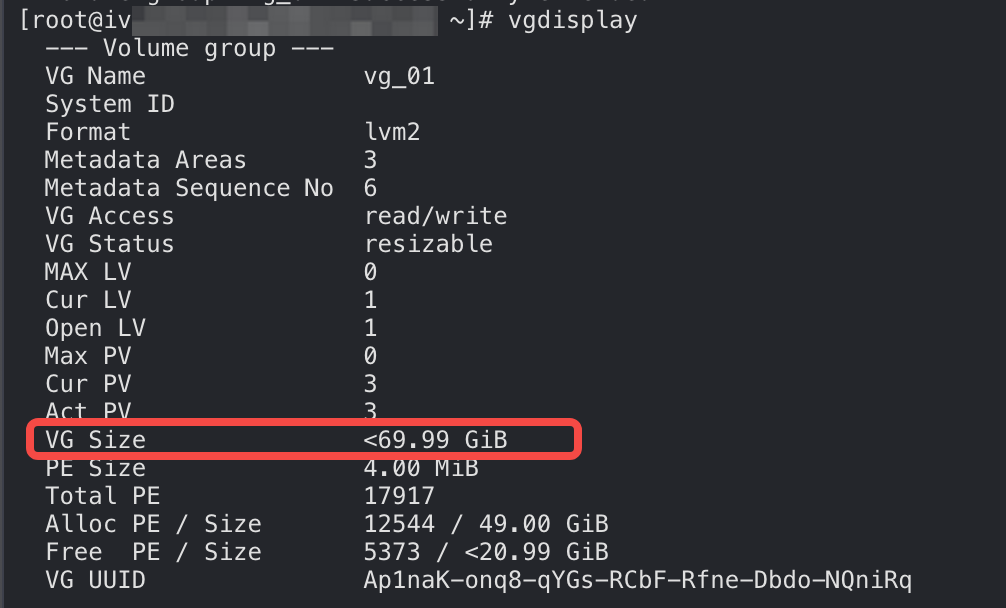
- Run this command to view the volume group details.
-
- The example output shows that the volume group "vg_01" now has a capacity of approximately 69.99 GiB. This indicates that the extension was successful.
-
- Extend the logical volume and its file system.
- Run the command sudo lvextend -L +<logical volume size> <logical volume path> to extend the logical volume.
-
- The example output indicates that 20 GiB of space has been added to the logical volume.
-

- Run the sudo resize2fs <logical volume path> command to extend the file system. This example extends an ext4 file system.
-
Description
To extend an xfs file system, run the sudo xfs_growfs <logical volume mount point> command.
- Run this command to verify the extension result.
-
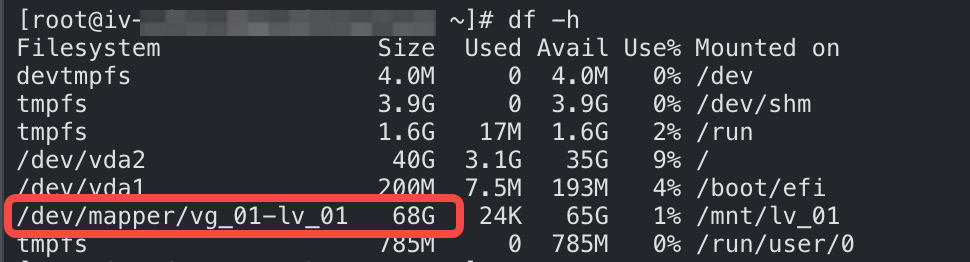
- The example output indicates that 20 GiB of space has been added to the logical volume. Note that the file system itself occupies some storage space.
-
Last updated: 2026.06.11 16:26:02
All rights reserved © Beijing Volcano Engine Technology Co., Ltd2024
