Elastic Compute Service
Elastic Compute Service


Document

- Documentation
 Elastic Compute ServiceElastic Compute ServiceBest PracticesSelf-service website creationBuilding websitesSetting up a Magento website
 Copy page
 Download PDF
Building websites
Setting up a Magento website
Copy pageDownload PDFSetting up a Magento website
Magento is a professional e-commerce platform developed with PHP and built on the Zend Framework. It offers a flexible design, modular architecture, and comprehensive feature set, while enabling seamless integration with third-party applications. It is well-suited for building online storefronts, including electronic payment platforms.
Software versions
- Operating system: In the example provided in this topic, CentOS 7.6 is used.
- Composer: A dependency management tool for PHP 5.3 and later. In the example provided in this topic, Composer 1.10.19 is used.
- Magento: In the example provided in this topic, Magento 2.1 is used.
Prerequisites
A Linux instance is purchased and a LAMP environment is set up. For more information, see Setting up a LAMP environment (CentOS 7).
Step 1: Configure Apache
- Execute the following command, and then press the i key to enter the edit mode.
-
- Change the parameter setting highlighted in the following figure from AllowOverride None to AllowOverride All.
-
- Add the following line at the end of the configuration file: LoadModule rewrite_module modules/ mod_rewrite.so, as shown in the following figure. Then, press Esc, enter :wq, and press Enter to exit edit mode.
-
Step 2: Configure PHP
- Execute the following command to open the PHP configuration file.
-
- Add the configuration for memory limit and time zone at the end of the file:
-
- The following figure shows the content of the configuration file after you add the preceding configuration. Press Esc, enter :wq, and press Enter to save and close the file.
-
- Execute the following command to install the PHP 7.0 modules required by Magento.
-
- Execute the following command to restart the Apache service.
-
Step 3: Configure a database for Megonto
- Remotely connect to and log in to the ECS instance. For more information, see Logging in to Linux instances.
- Execute the following command to access the MySQL database as the root user. The password of the root user is the one you specified during MySQL configuration.
-
- Execute the following command to create a database for Megonto.
-
- Create a user for the database created for Megonto.
-
- Grant all permissions to the user.
-
- Execute the following command to make the preceding commands take effect.
-
- Execute the following command to exit the MySQL database.
-
Step 4: Install and configure Composer
Composer is a dependency management tool for PHP. Composer allows you to declare the code libraries your project depends on and helps you install them into your project.
- Execute the following command to install the latest version of Composer.
-
- If the following output is displayed, the installation is successful.
-
- Execute the following command to configure Composer for global use.
-
- Execute the composer -v command to check whether Composer is installed successfully.
- If the following output is displayed, the installation is successful.
-

warning
Magento2 depends on Composer 1.x. Make sure that the installed Composer version is 1.x. You can execute the composer self-update 1.10.19 command to switch the Composer version. In the example provided in this topic, Composer 1.10.19 is used.
Step 5: Install and configure Magento
tip
You can install Magento by using different methods and specify whether to install example data.
- If you install Magento only for testing, you can install example data.
- If you install Magento for a production environment, we recommend that you perform a fresh installation of Magento and start the configuration from scratch.
- Execute the following command to install Git.
-
- Execute the following commands in sequence to download Magento by using Git.
-
- Execute the following command to switch Magento to the stable version.
By default, the command from the previous step installs the latest development version of Magento. We recommend that you switch to the stable version in the production environment. Otherwise, future upgrades cannot be performed.
-
- If the following output is displayed, the installation is successful.
-
- Execute the following command to move the installation files to the root directory of the web server.
-
- Execute the following commands in sequence to specify the permissions for Magento files.
-
- Execute the following commands separately to install Magento.
-
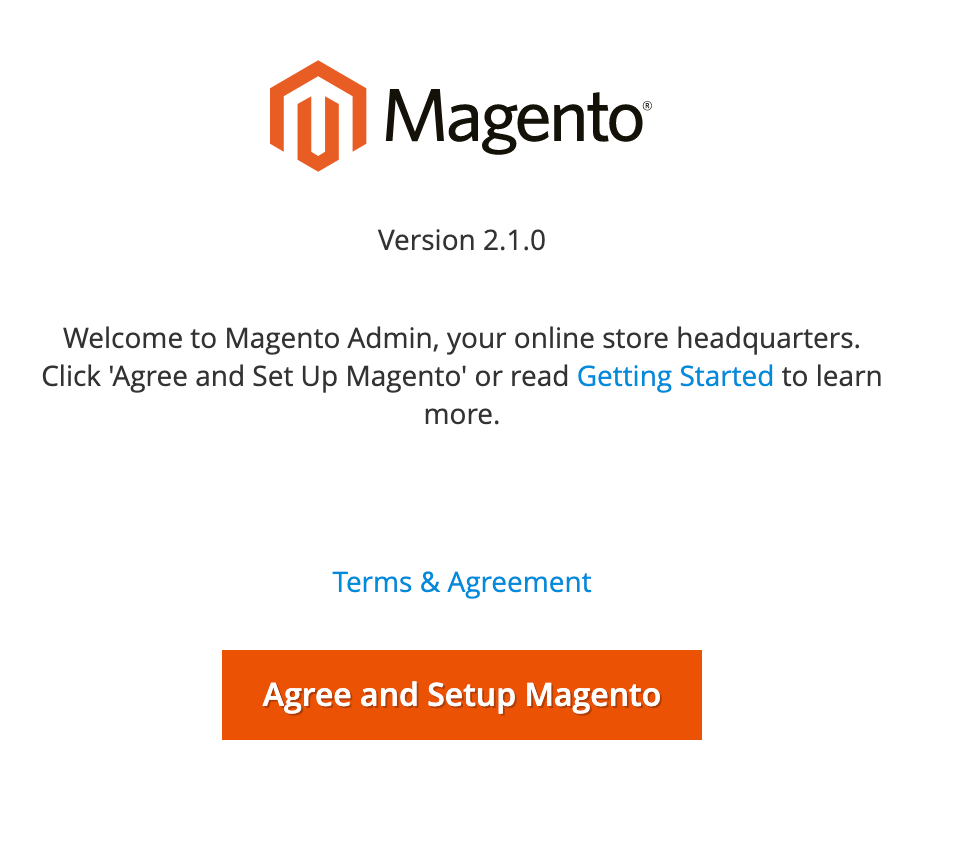
- Use a browser to access http://ECS instance EIP/setup, such as http://180.XX.XX.62/setup. If the following page is displayed, Magento is installed successfully.
-
- Configure Magento.
- Click the "Agree and Setup Magento" button to start the Magento configuration.
- Click the "Start Readiness Check" button to start the environment check. After the check passes, click "Next".
-
- Specify the MySQL database name, enter the password for the "root" account, and then click "Next".
The database name is the one created in the previous Configure a database for Megonto section. The password is the password for logging in to the MySQL database as the root account.
-
- Specify the website access address and the backend management address, such as http://180.XX.XX.62/admin_1h5z9s, and then click "Next".
-
- Specify the language, time zone, and currency type, and then click "Next".
-
- Create an administrator account, and then click "Next".
-
- Click "Install Now" to immediately install the system.
-
- If the following page is displayed, the system is installed successfully.
-
- Configure the cron utility to execute scheduled jobs.
- Run the crontab -u apache -e command to configure a cron job.
- Press the i key to enter edit mode, add the following content, press Esc, enter :wq, and then press Enter to exit edit mode.
-
- Use your browser to access http://ECS instance EIP, such as http://180.XX.XX.62. The following page is displayed.
-
- Use a browser to access the Magento backend management address specified in Step 8, such as http://180.XX.XX.62/admin_1h5z9s, and then log in with the admin account and password you configured. If the login is successful, the following page is displayed.
If "One or more indexers are invalid. Make sure your Magento cron job is running." is displayed after your login, you can execute the php bin/magento indexer:reindex command in the /var/www/html directory.
-
Step 6 (optional): Resolve the Magento domain name
You can configure a domain name for your website, eliminating the need to use a complex, less secure EIP to access it. You can perform the following steps to specify a domain name for the website.
- Purchase a domain name.
- If you do not have an available domain name, we recommend that you purchase one by using Volcano Engine Domain Service.
- Apply for an ICP filing for your domain name.
- If your domain name points to a server located in the Chinese mainland, you need to apply for an ICP filing for your domain name. Otherwise, the website is not accessible.
- Configure domain name resolution.
- You need to resolve your domain name to the EIP to access your website.
- After you complete the preceding steps, you can enter http://<domain name> in your local browser to access the WordPress website.
Step 7 (Optional): Enable HTTPS for the website
When a user accesses your website over the HTTP protocol, the browser warns the user that the connection is not secure. We recommend that you enable HTTPS secure communication for your website. This ensures encrypted data transmission between users and your website, effectively defending against network hijacking, information leakage, and other threats.
To enable HTTPS, you need to deploy an SSL certificate on your website. You can apply for a free SSL certificate in the Volcano Engine Certificate Center. For more information, see Applying for free certificate and Downloading and installing certificate.
Last updated: 2026.06.18 19:52:58
All rights reserved © Beijing Volcano Engine Technology Co., Ltd2024
