Elastic Compute Service
Elastic Compute Service


Document

- Documentation
 Elastic Compute ServiceElastic Compute ServiceBest PracticesMonitoringDelivering monitoring metrics of ECS instances to VMP
 Copy page
 Download PDF
Monitoring
Delivering monitoring metrics of ECS instances to VMP
Copy pageDownload PDFDelivering monitoring metrics of ECS instances to VMP
This topic mainly describes how to deliver the monitoring metric information of ECS instances to Volcengine Managed Service for Prometheus (VMP).
What is VMP
Volcengine Managed Service for Prometheus (VMP) is a cloud-native monitoring product of VolcanoEngine. It supports maintenance-free operation, high performance, high stability, and other features. You can quickly deliver the monitoring information of ECS instances into the VMP service to build your new-generation, cloud-native monitoring engine.
Prerequisites
- You have enabled VMP service. For details, see Quick start.
- You have purchased an ECS instance, which meets the following requirements:
- The ECS instance and VMP service reside in the same region.
- The ECS instance has the following plugins installed:
- Cloud Monitor plugin. If not installed, follow the guide for installing plugins to complete the installation.
- Cloud assistant plugin. If not installed, follow the guide for installing cloud assistant Agent to complete the installation.
- Security group: Allow inbound traffic for TCP port 9091. For detailed operations, see Configuring security groups.
Procedure
Step 1: Modify configurations of Cloud Monitor plugin
- Log in to the cloud assistant console.
- Select the "Job management" tab, and click the "Create a job" button to enter the job creation page.
- Enter the following job information as instructed.
This practice only describes necessary parameters. Other parameters remain at their default values. Adjust parameters based on your needs. For parameter details, refer to Creating jobs.
-
- Click the "Confirm" button to complete the job creation.
- After the job is created, the system automatically redirects you to the Job management page. The new job is then executed immediately.
- You can follow the guide for viewing job execution results to confirm whether the job has been successfully executed on each target instance.
Step 2: Install Grafana
You can install Grafana on a VolcanoEngine ECS instance and view monitoring information on that instance.
warning
To install Grafana, the instance is required to meet the following requirements:
- An EIP is associated with the instance. If not associated, follow the guide for associating EIPs to complete the operation.
- To install and use Grafana, certain conditions are required to be met. For details, see Installing Grafana.
- Since Grafana uses port 3000 for communication by default, make sure that the security group of the instance with Grafana installed has allowed inbound traffic on TCP port 3000. For detailed operations, see Modifying security group rules.
- Log in to the instance with Grafana to be installed. For more information, refer to Login overview.
- Execute the following commands to install Grafana.
tip
In the example provided in this practice, Grafana 10.2.1 is installed on an Ubuntu instance. For Grafana download links for more operating systems and more Grafana versions, see Downloading Grafana.
-
- After the installation is complete, you can execute the following command to check whether Grafana is started as expected.
-
-
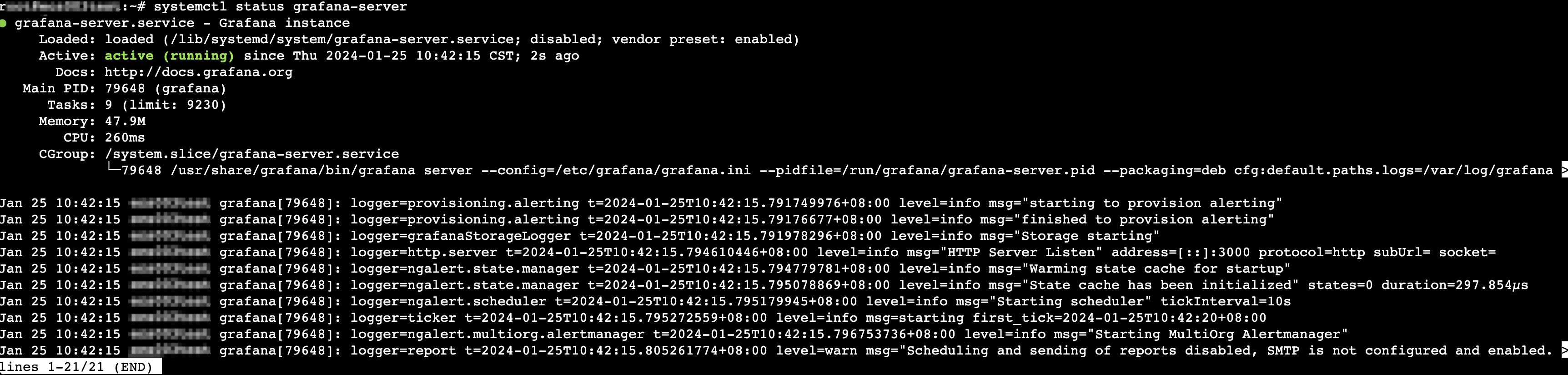
Step 3: Create a workspace
- Log in to the VMP console.
- In the left-side navigation pane, select "Workspace" to enter the workspace list page.
- In the top menu bar, select a target region.
- Click the "Create" button, and configure the workspace as follows.
This practice only describes necessary parameters. Other parameters remain at their default values. For detailed parameter descriptions, see Creating workspaces.
-
- After you confirm the configuration information, select the "I have read and agreed to Volcengine Managed Service for Prometheus Dedicated Service Terms" checkbox.
- Click the "Create Now" button to complete the creation.
Step 4: Create an integration task
- Log in to the VMP console.
- In the top menu bar, select a target region.
- In the left-side navigation pane, select "Integration Center", and select the "Product Service" tab.
- Click the "Create Integration Task" button in the "ECS instance" tab to enter the process for creating an integration task for the ECS instance.
- Based on the instructions, click the "To authorize" button.
- On the "Cross-service access request" page, click the "Authorize now" button to authorize VMP to use ECS instance metrics.
- After authorization is completed, on the Create Integration Task page, click the
 button on the right of the "To authorize" button to update the authorization result.
- Enter the following task information as instructed.
-
- Click the "Confirm" button to complete the integration task creation.
Step 5: Configure Grafana
- Enter the Grafana management page to log in.
- Log in via the target instance
- If the target instance has GUI installed, you can access the Grafana management page on the instance.
- Log in to the target instance. For more information, refer to Logging in to instances.
- Visit the following link in the instance browser.
-
- Enter the default username admin and password admin, and click the "Log in" button.
-
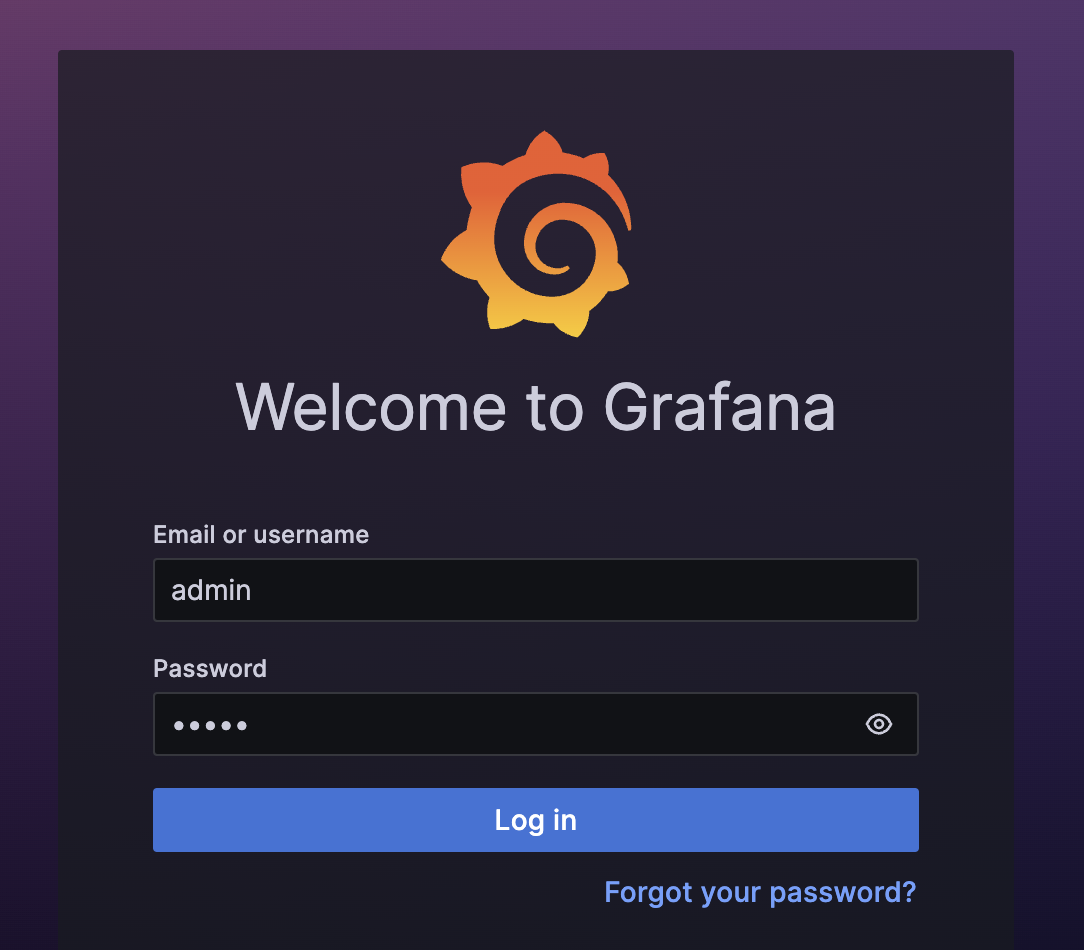
- Log in remotely
- If the target instance does not have GUI installed, you can log in remotely from a server that has GUI installed and can access the Internet.
- Log in to the remote server.
- Visit the following link in the browser on the remote server.
-
- Enter the default username admin and password admin, and click the "Log in" button for login.
-
- Enter the new login password and click the "Submit" button to complete the password change.
-
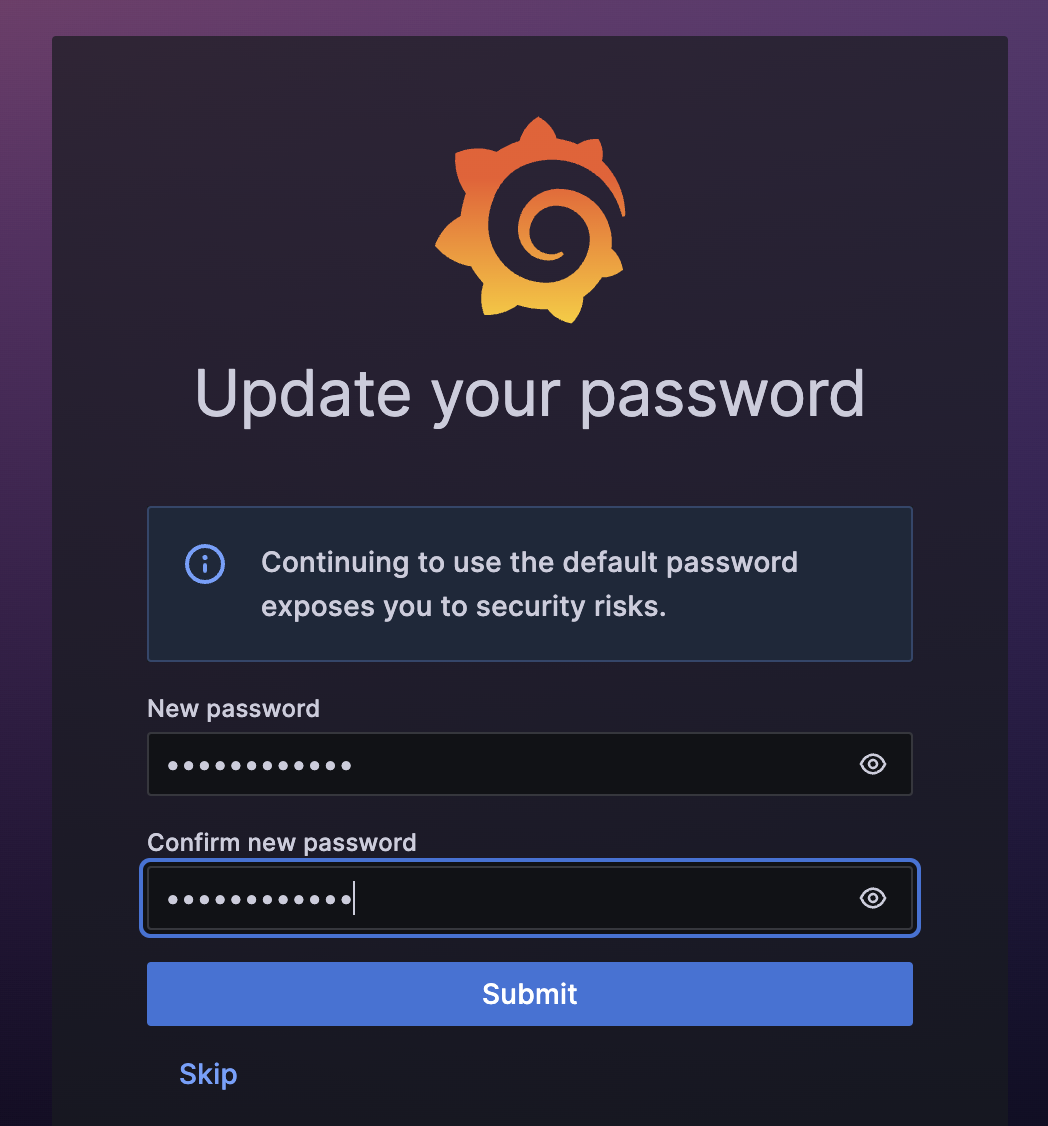
- In the left-side navigation pane of the Grafana home page, select "Connections > Data sources".
-
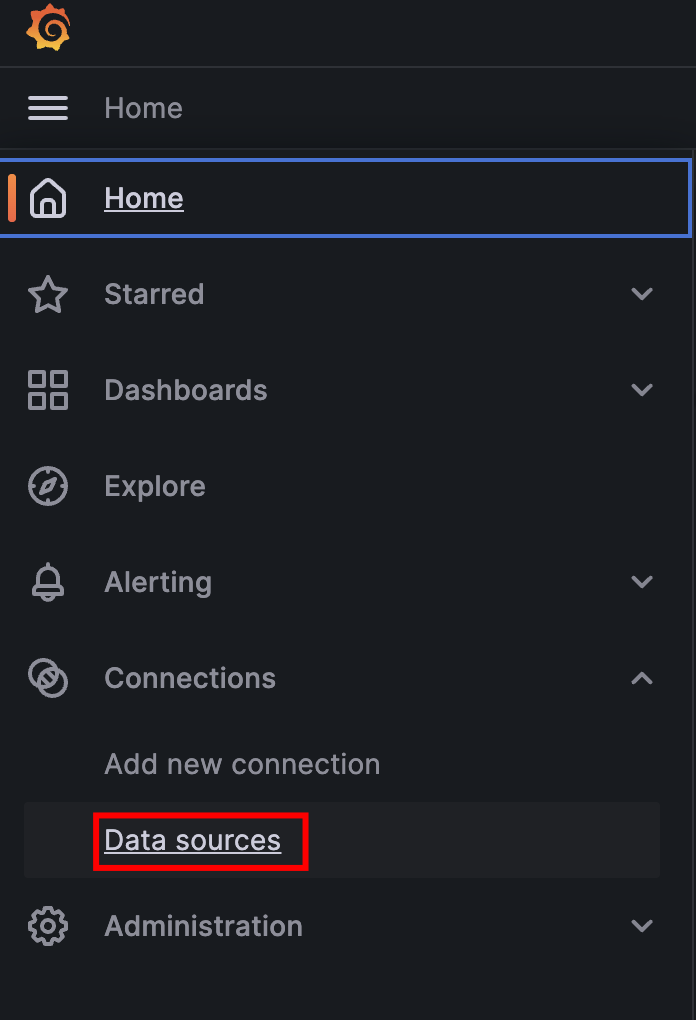
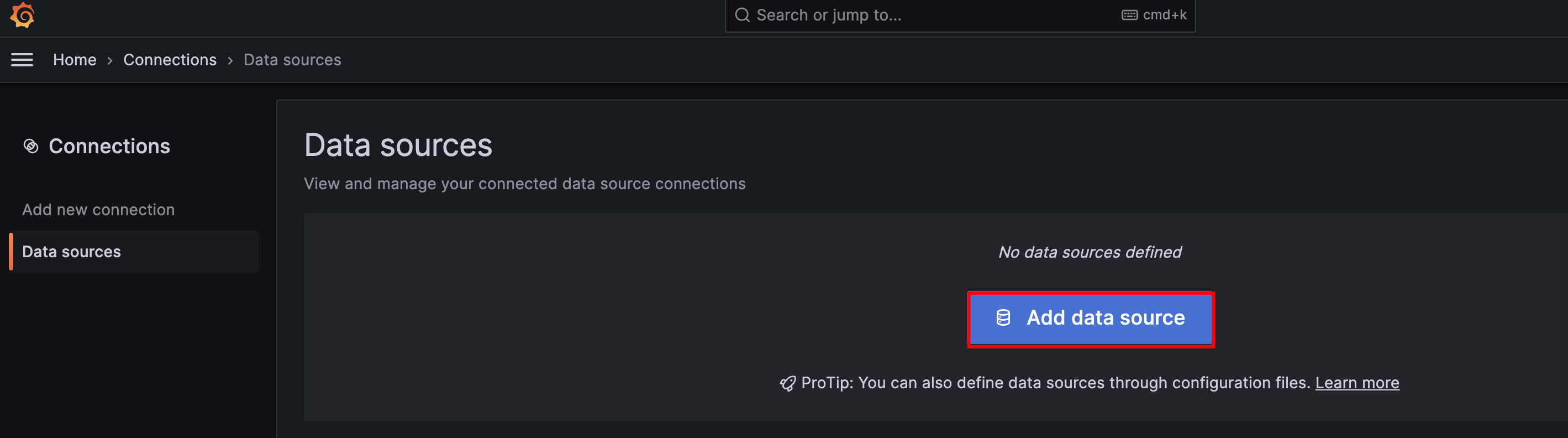
- On the "Data sources" page, click the "Add data source" button to add a data source.
-
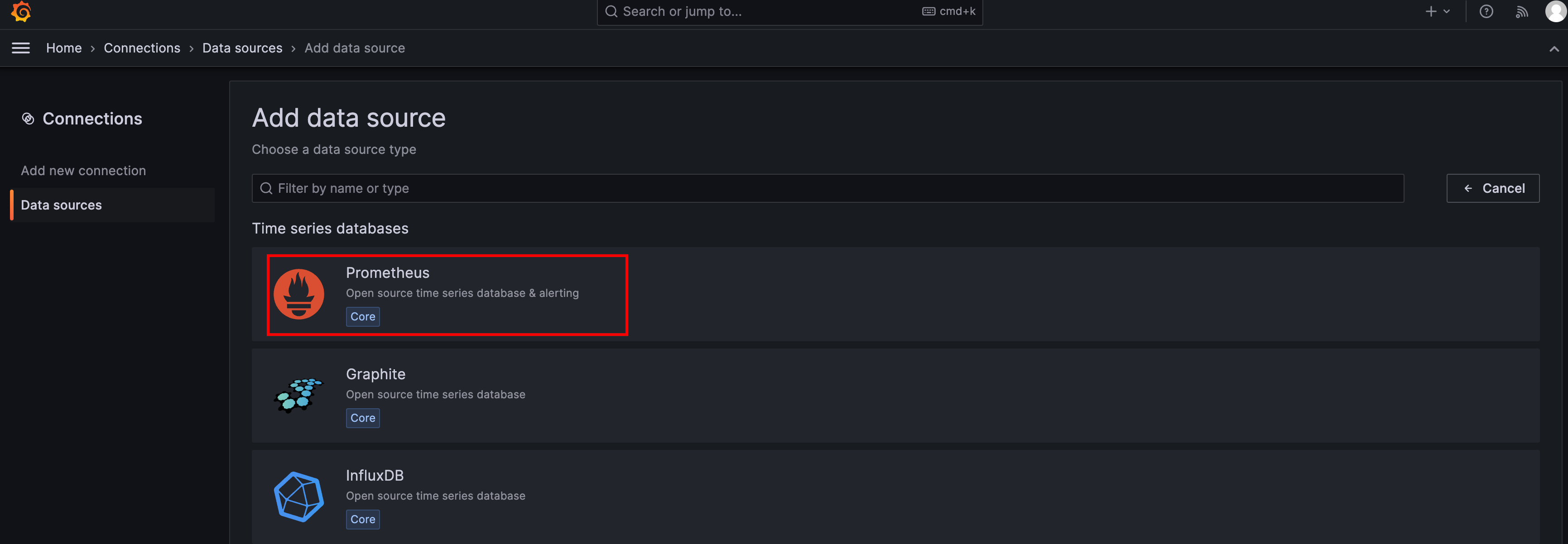
- On the "Add data source" page, click "Prometheus".
-
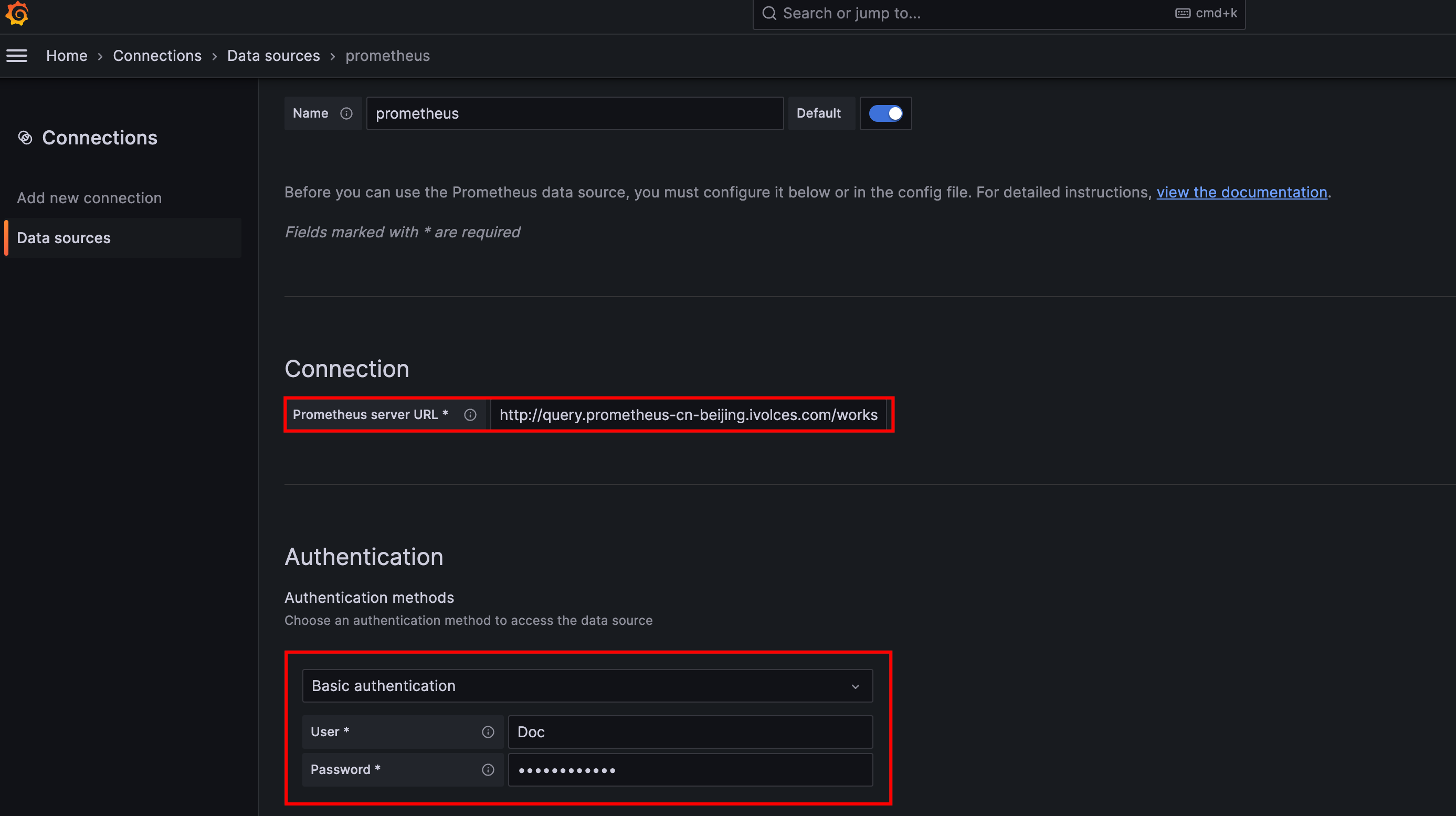
- After the data source is successfully added, on the "prometheus" page, configure information as follows.
-
-
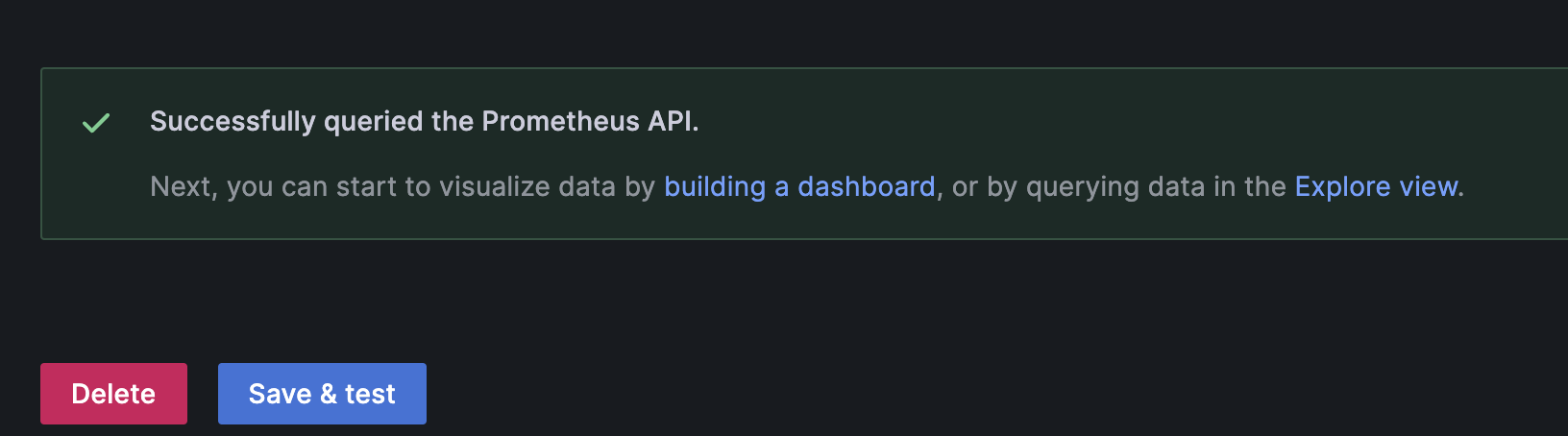
- Click the "Save & test" button at the bottom of the page.
- If the following output is displayed, the workspace is associated with Grafana.
-
- (Optional) Configure monitoring information panes (Panel).
tip
Panels used in this section are for reference only. You can use them or customize monitoring panels based on your needs.
- Download the file "ECS cluster monitoring dashboard - 20240120.json".
- In the left directory tree, select "Home" to return to the Grafana home page.
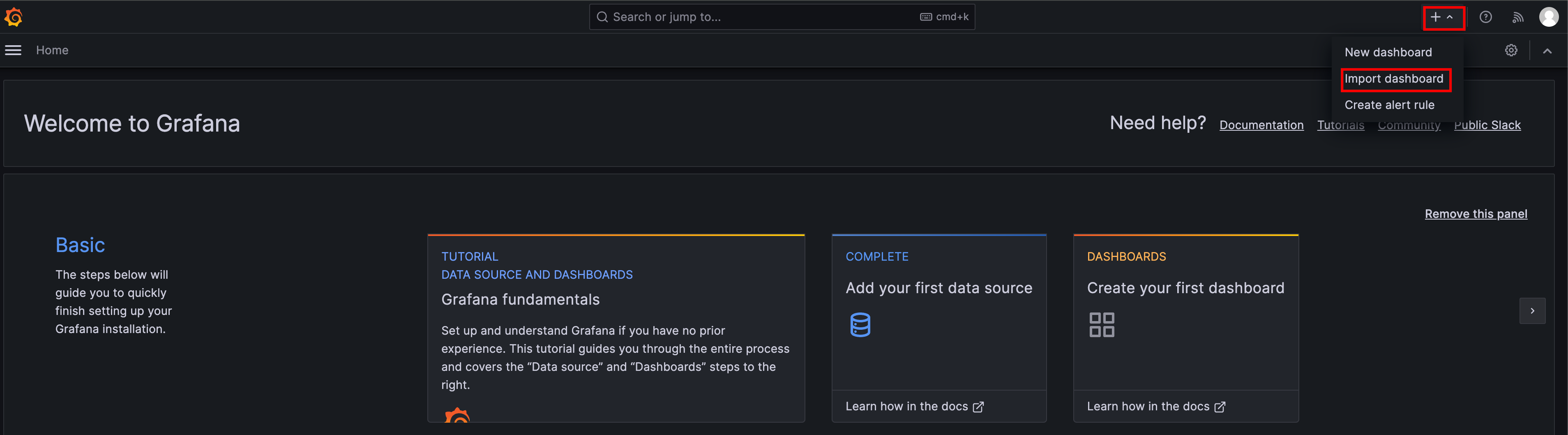
- Click the "+" button in the upper right corner, and then click the "Import dashboard" button.
-
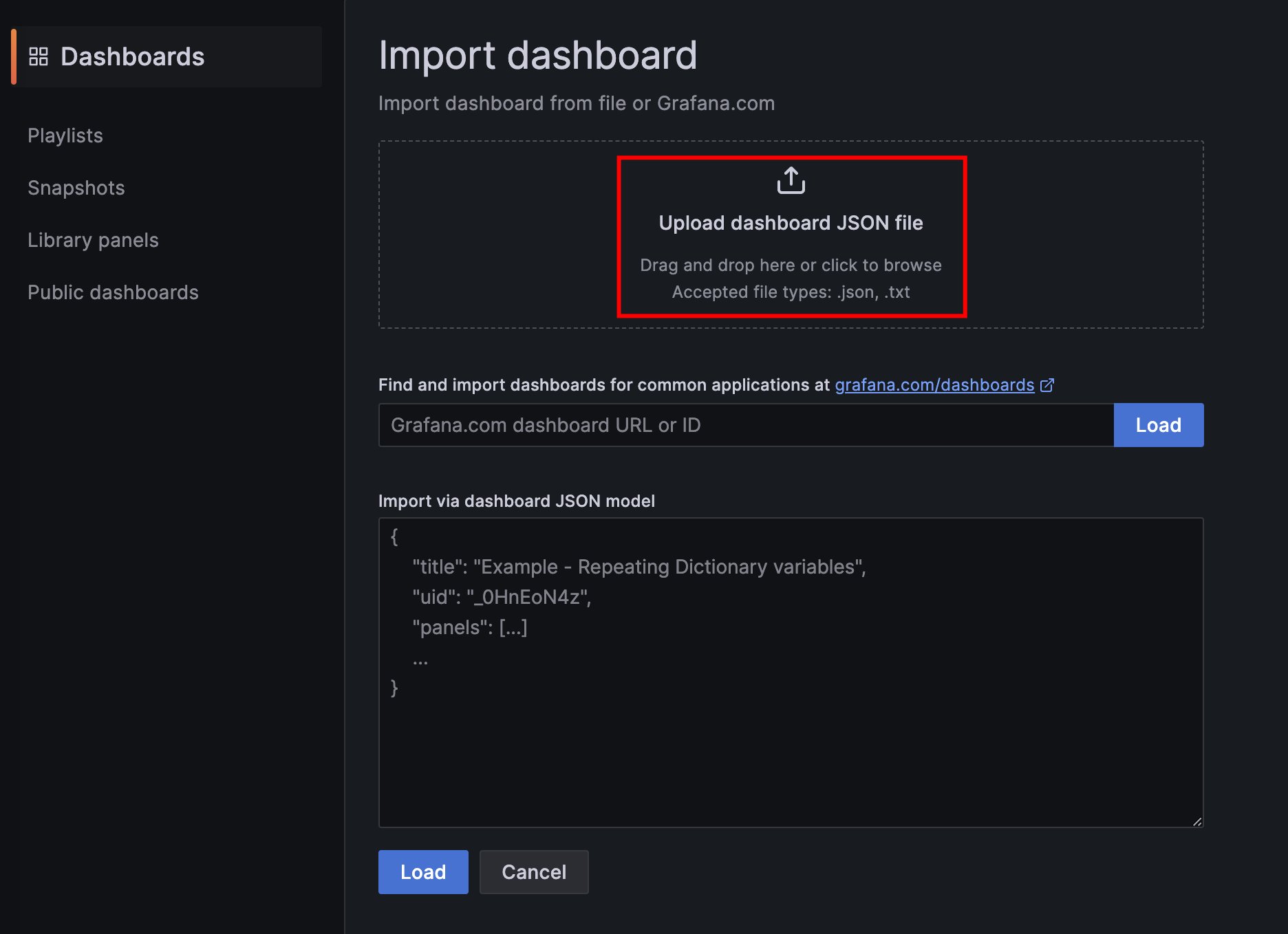
- On the "Import dashboard" page, click the "Upload dashboard JSON file" button, and select the downloaded JSON file of the ECS cluster monitoring dashboard from your local device.
-
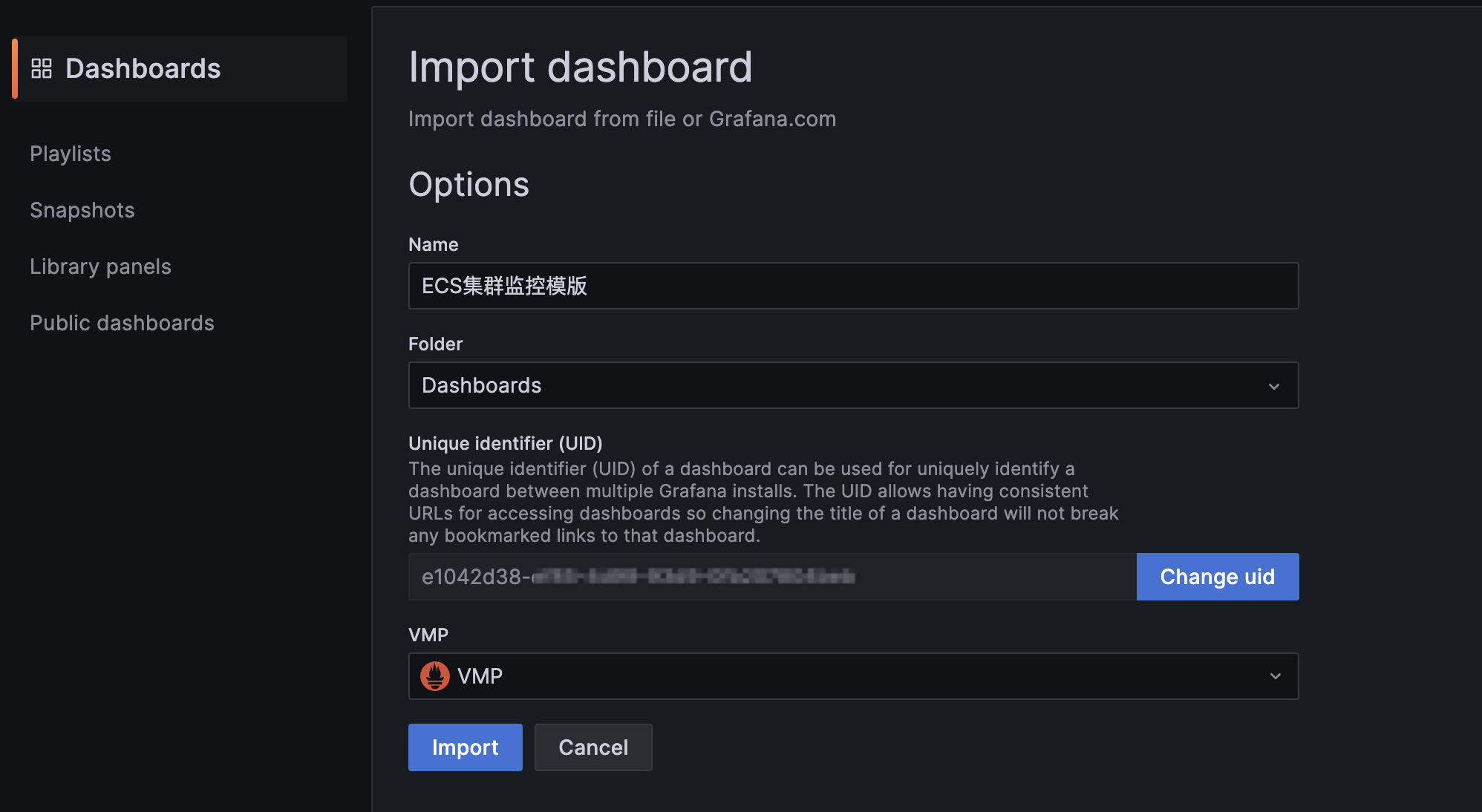
- In the "VMP" module, select the Prometheus data source you created, and then click the "Import" button.
-
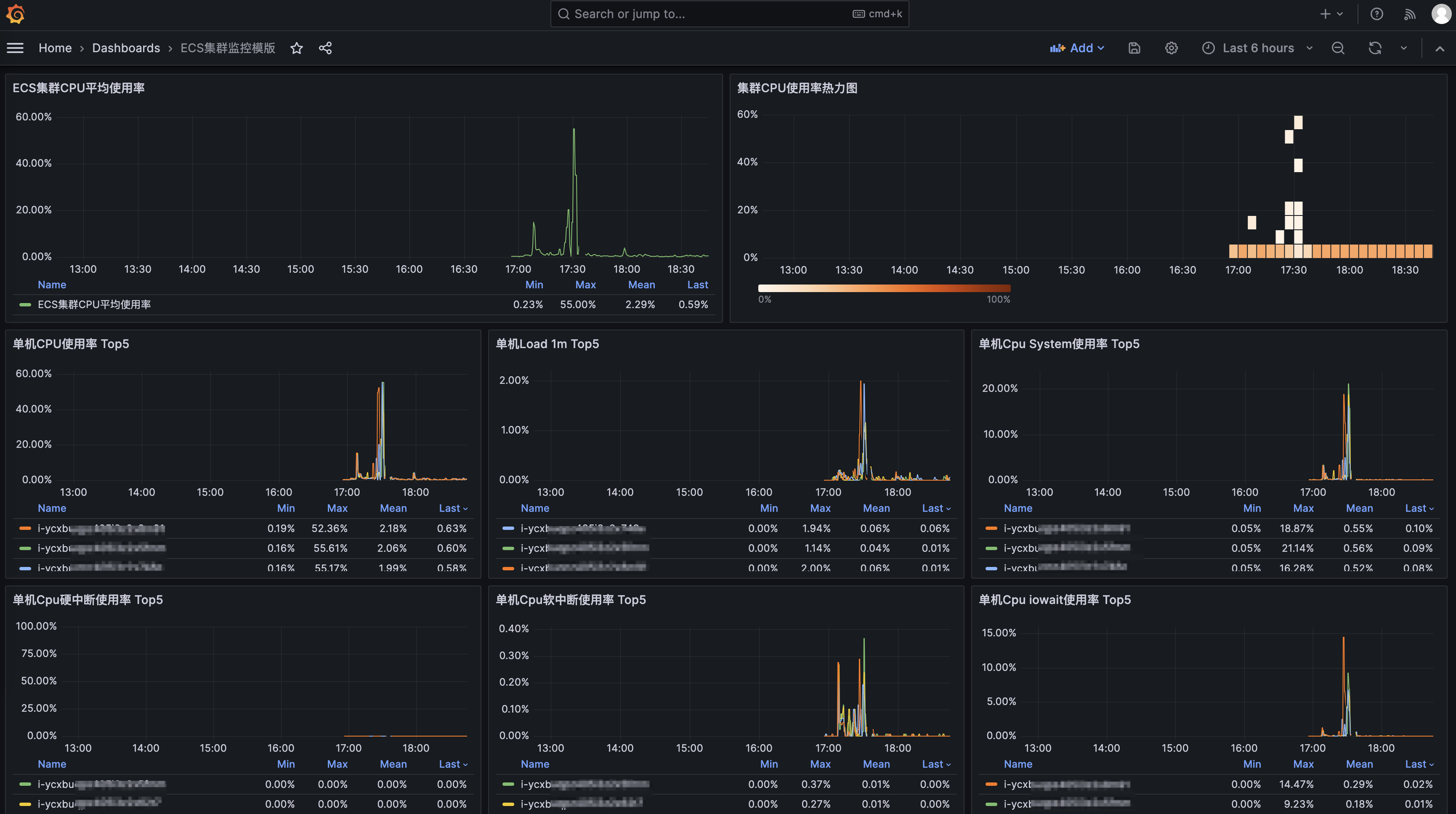
- You can check the operation result in Grafana.
-
Appendix
Command for modifying Cloud Monitor plugin configurations
You can execute this command to modify Cloud Monitor plugin configurations of ECS instances, enable the VMP monitoring port, and restart the plugin.
Last updated: 2026.06.18 17:49:51
All rights reserved © Beijing Volcano Engine Technology Co., Ltd2024
