Elastic Compute Service
Elastic Compute Service


Document

- Documentation
 Elastic Compute ServiceElastic Compute ServiceBest PracticesAI applicationsOpenClaw (formerly Moltbot)Manually deploying OpenClawManually deploying OpenClaw on Windows operating system
 Copy page
 Download PDF
Manually deploying OpenClaw
Manually deploying OpenClaw on Windows operating system
Copy pageDownload PDFManually deploying OpenClaw on Windows operating system
OpenClaw is an open-source, self-hosted AI agent tool designed with a local-first philosophy. It focuses on proactive execution and cross-platform interaction, with the core goal of enabling AI to complete real-world tasks through natural language instructions. This topic uses an ECS instance running the Windows 2022 Standard Edition 64 bit operating system as an example to describe how to manually deploy OpenClaw on a Windows operating system and build your personal AI assistant.
tip
- If you purchase a Windows ECS instance that uses the Subscription billing method, we recommend that you deploy OpenClaw quickly through a marketplace image.
- To balance the running requirements of OpenClaw and the overhead of the Windows operating system, and to prevent service interruptions and poor user experience caused by insufficient resources, we strongly recommend that you select an instance with 2 vCPU, 4 GiB memory or higher. If your instance configuration is lower than 2 vCPU and 4 GiB memory, you can change the instance type for a higher configuration.
Prerequisites
- You have purchased an ECS instance running the Windows operating system.
- A public IP address is associated with the ECS instance.
Procedure
Step 1: Install dependency tools
- Install Node.js.
- Visit the Node.js download site using the browser on the instance.
- Select and download the Windows installer for Windows x64.
- After the download is complete, double-click the installer to start the installation process.
-

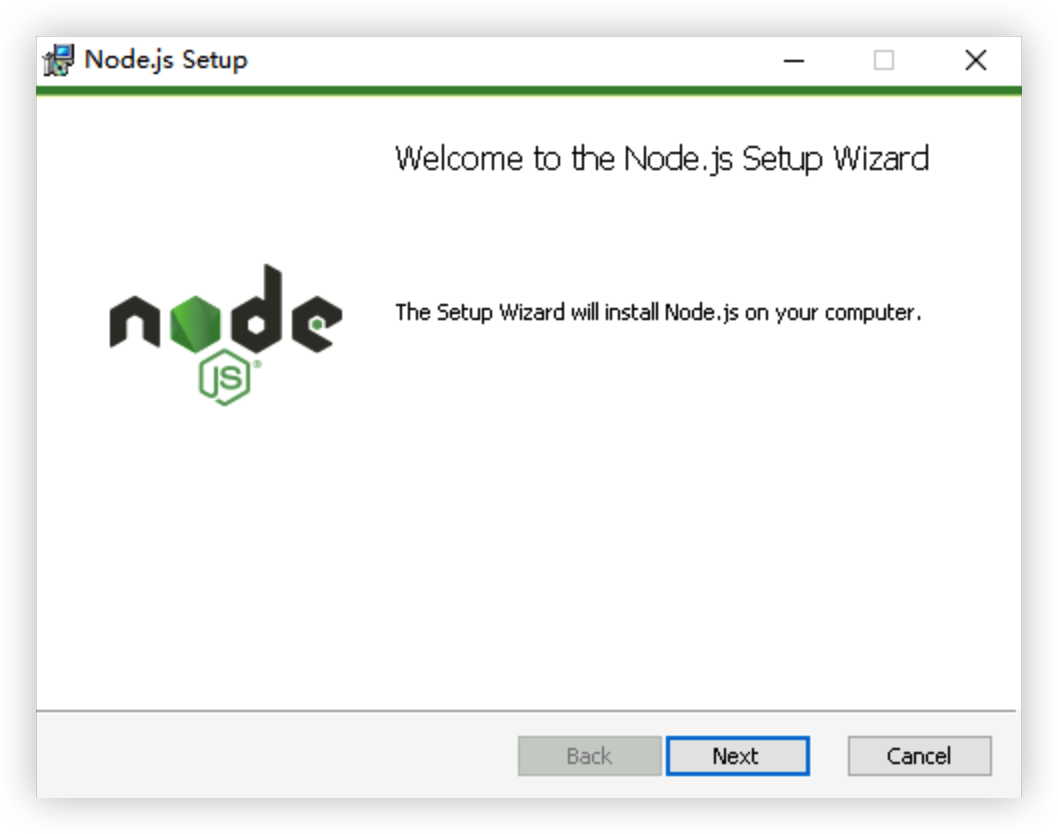
- On the welcome interface, click "Next" to proceed to the next step.
-
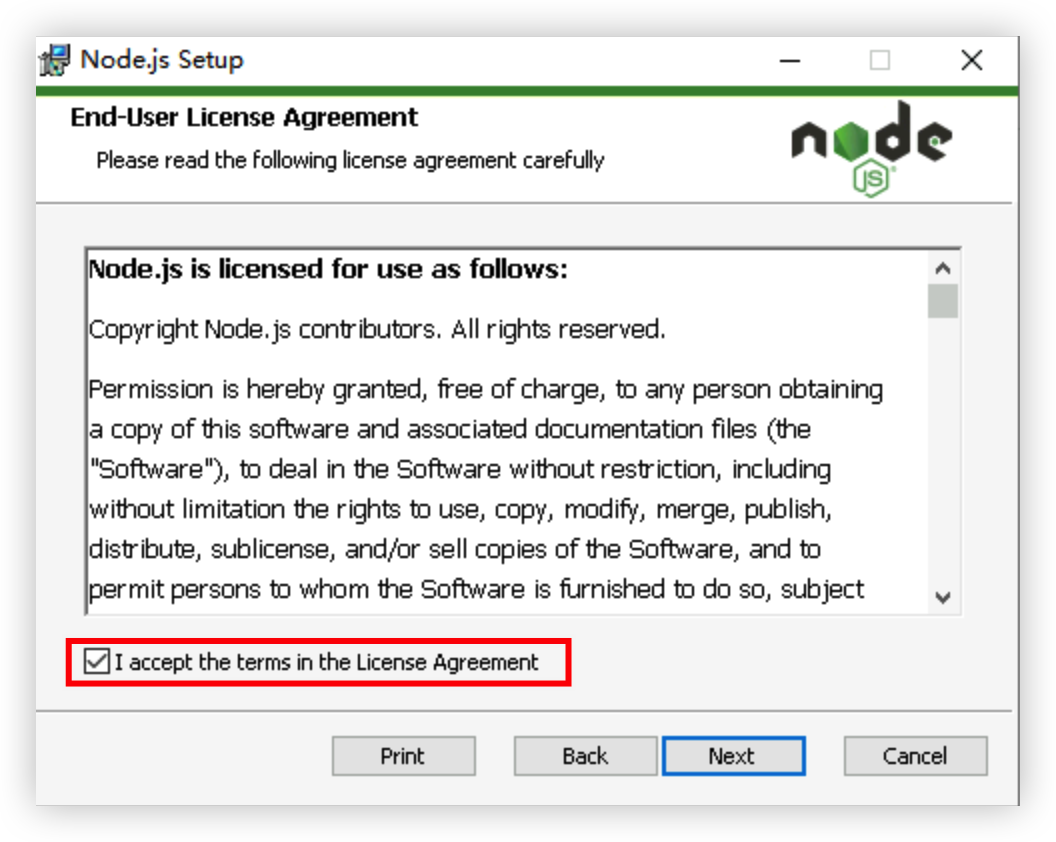
- Read and check the agreement to accept the terms, and click "Next" to proceed to the next step.
-
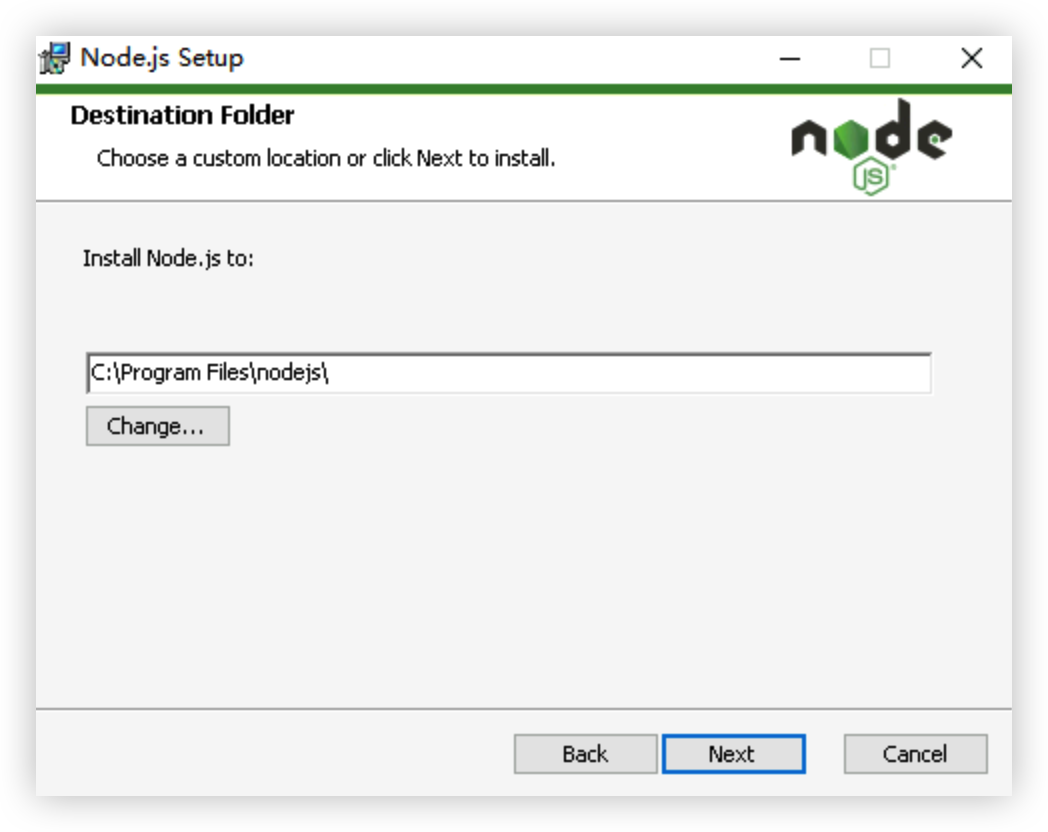
- Adjust the Node.js installation directory as needed (the default directory is used in this topic), and click "Next" to proceed to the next step.
-
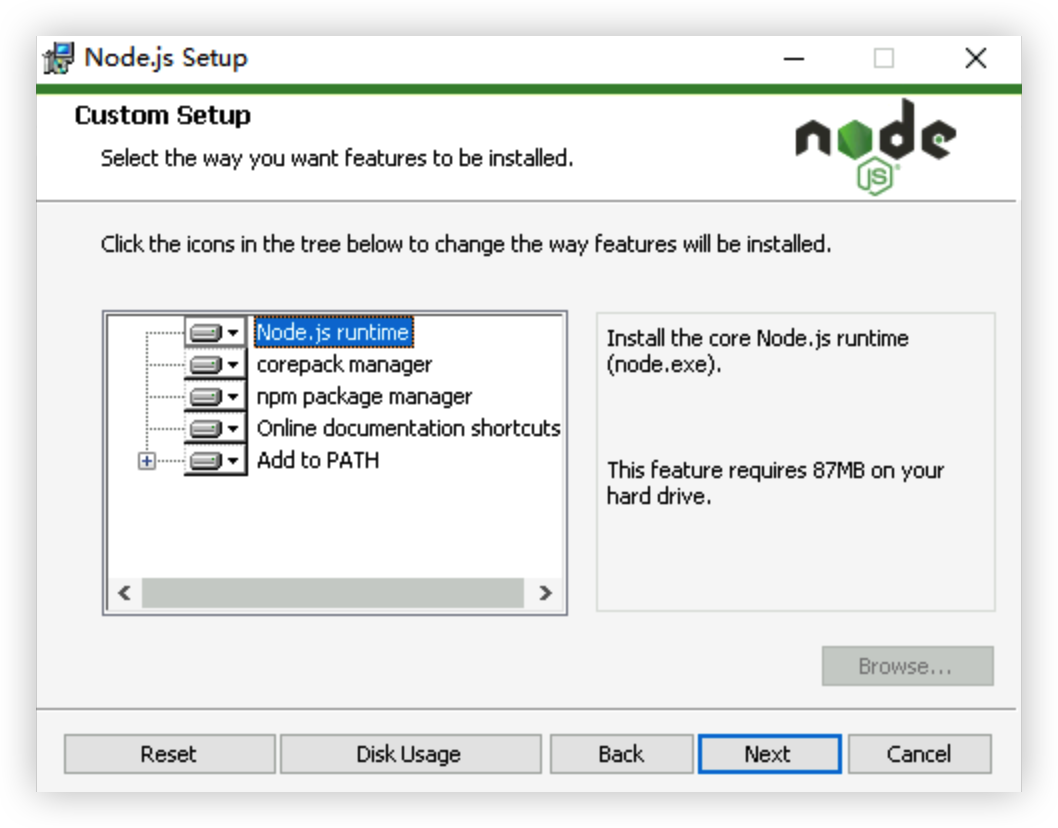
- On the "Custom Setup" page, retain the default settings and click "Next" to proceed to the next step.
-
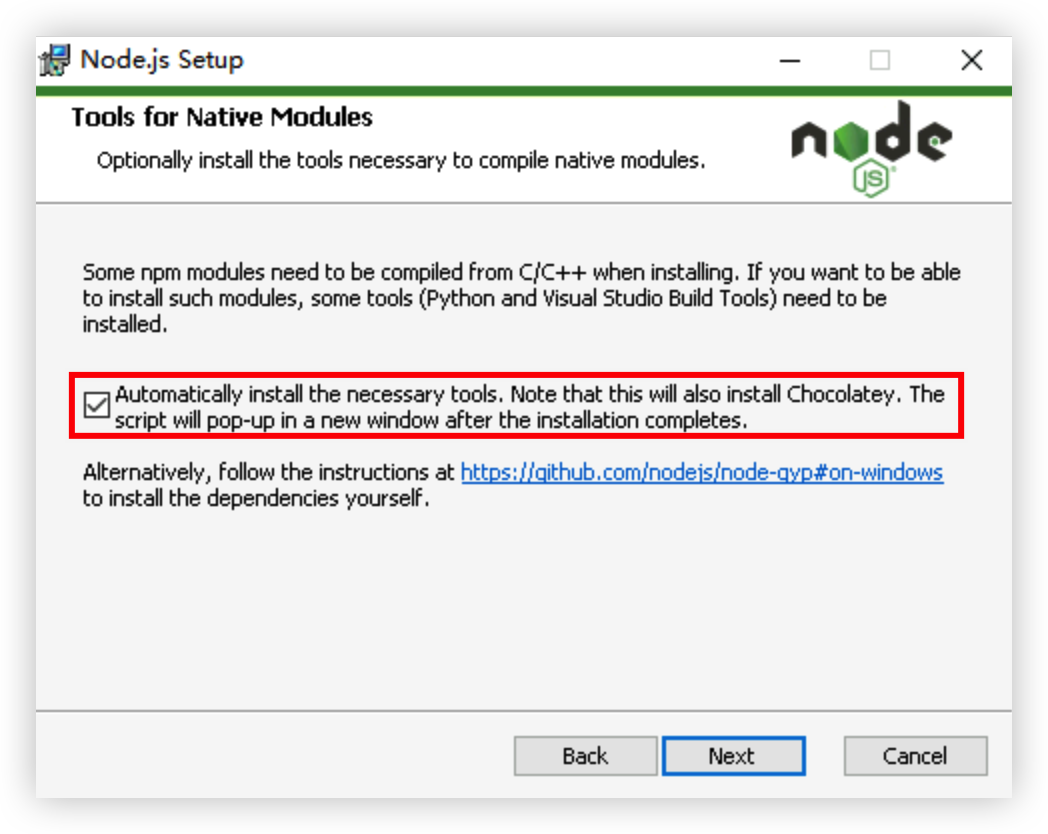
- Check the option to automatically install required tools, and click "Next" to proceed to the next step.
-
-
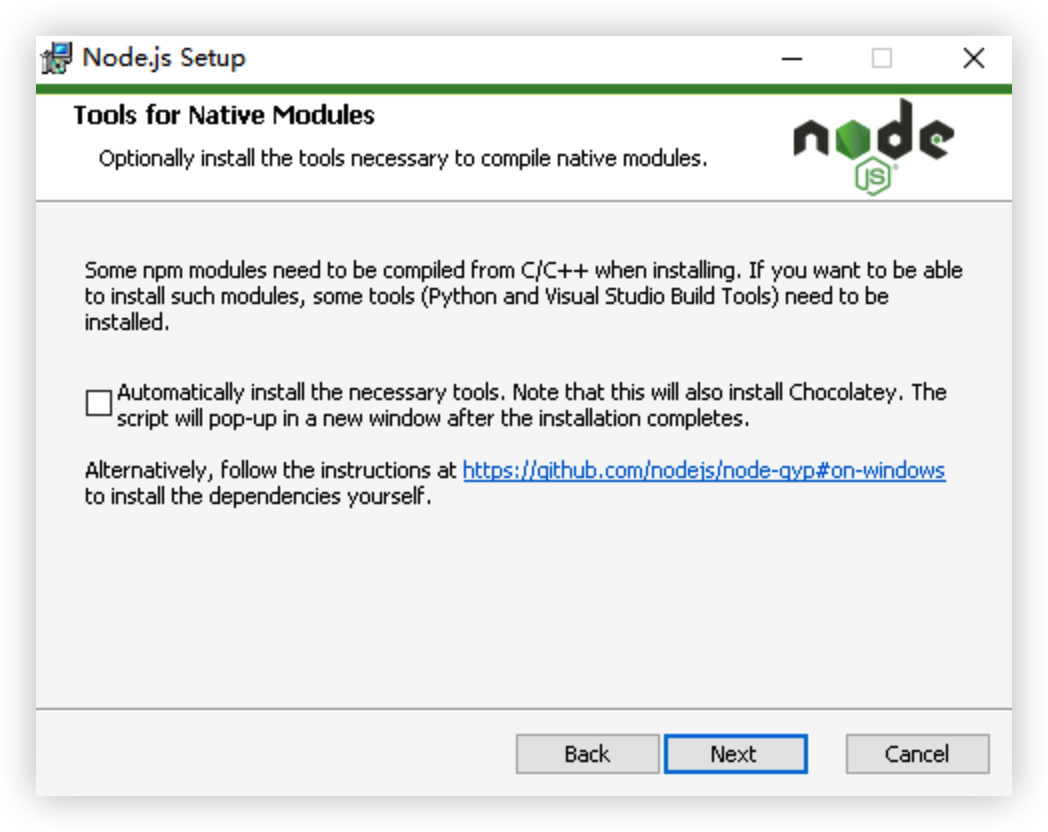
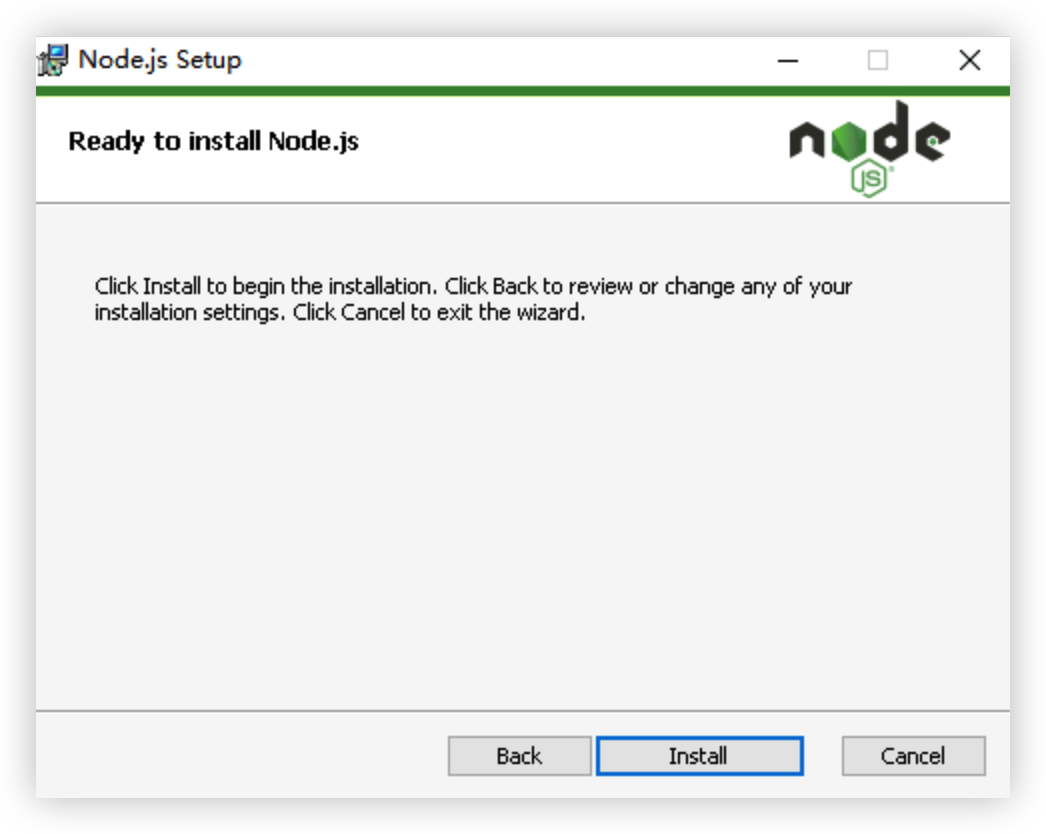
- Click the "Install" button to start installing Node.js.
-
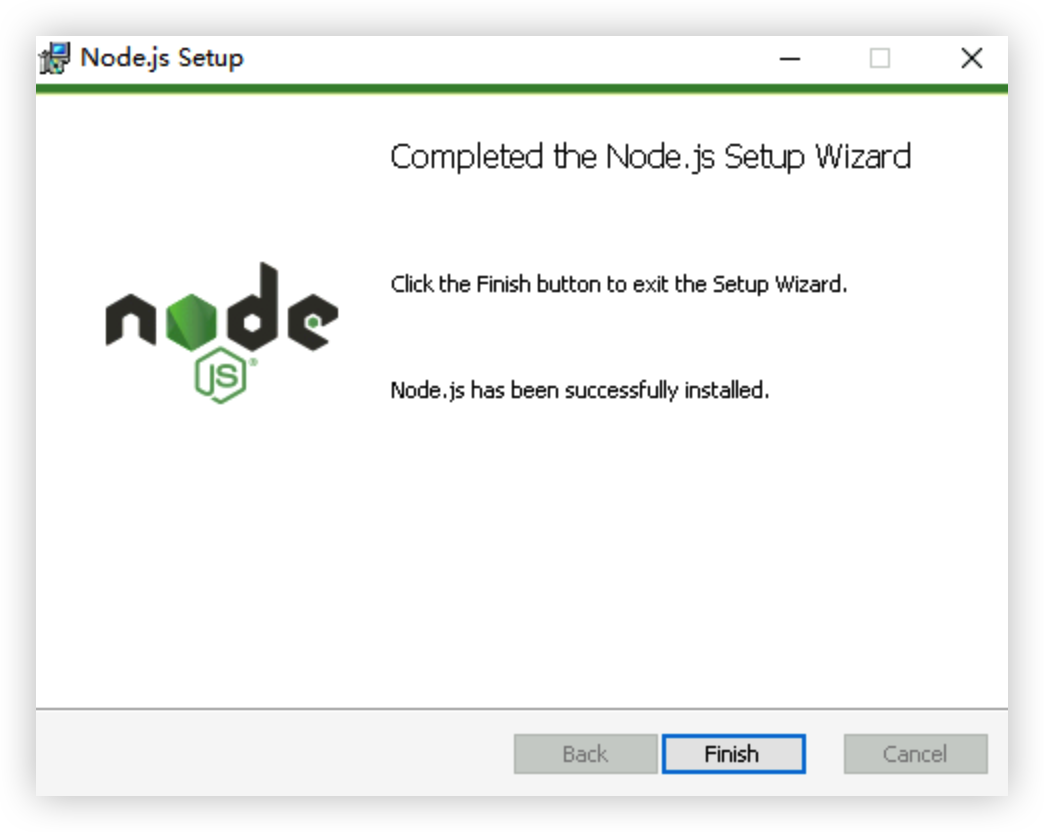
- After the installation is complete, click "Finish" to end the installation process.
-
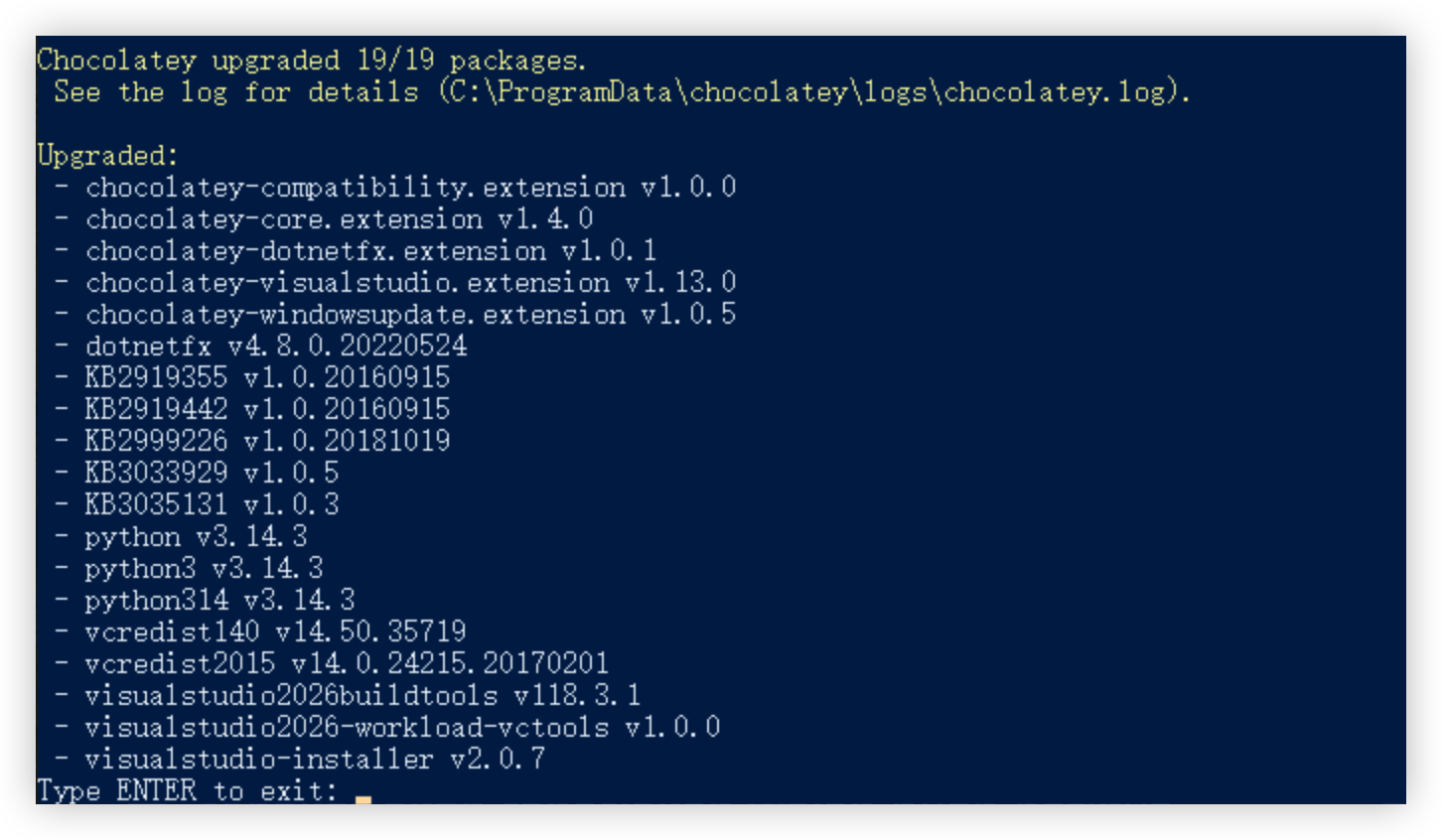
- In the pop-up Command Prompt window, press any key (such as Enter) to start installing required tools.
- Wait patiently for the installation in PowerShell to finish, and enter ENTER and press "Enter" to exit the installation process.
-
- Install Git.
- Visit the Git installer download address using the browser on the instance.
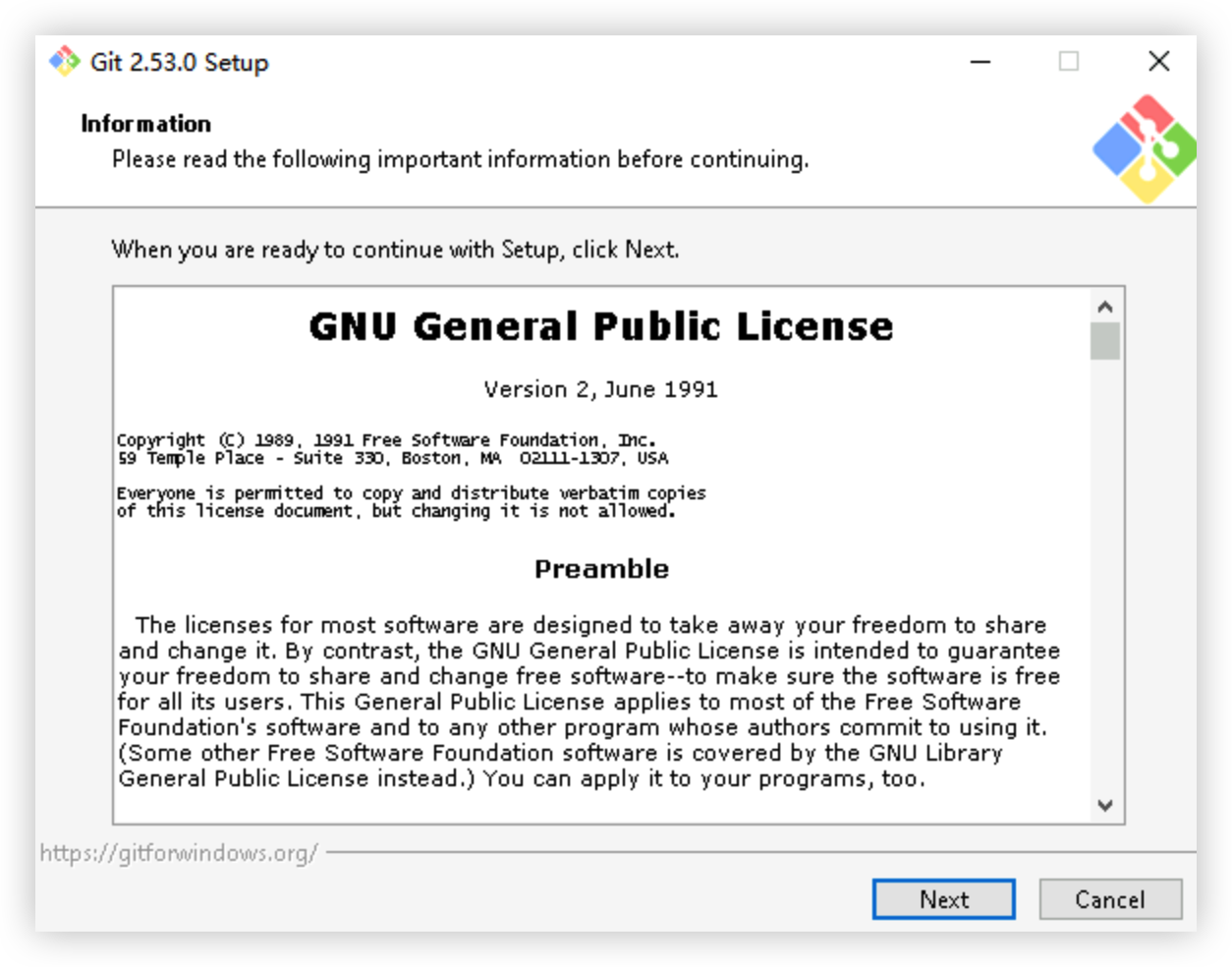
- Double-click to run the Git installer.
- Click "Next" to proceed to the next step.
-
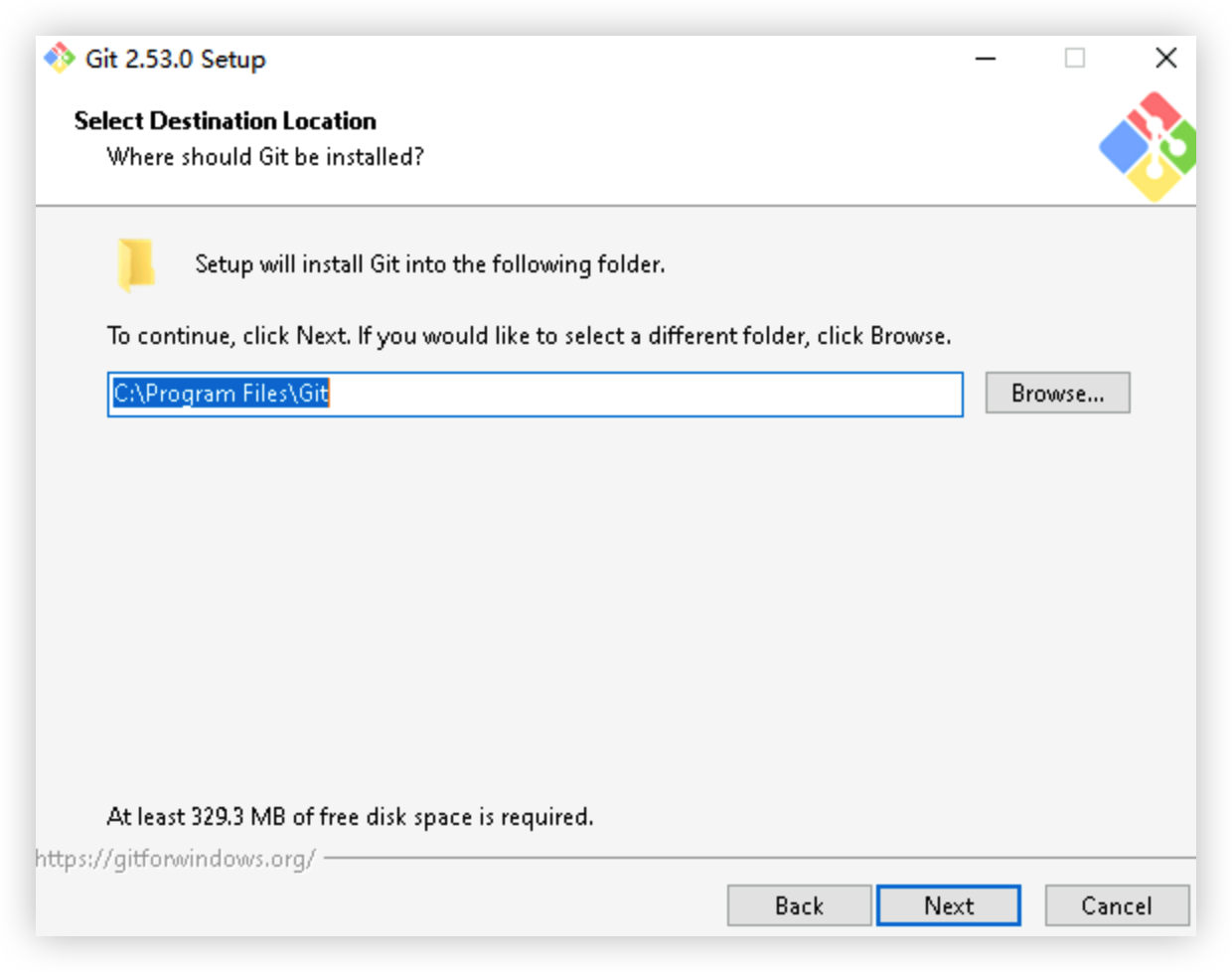
- Adjust the Git installation directory as needed (the default directory is used in this topic), and click "Next" to proceed to the next step.
-
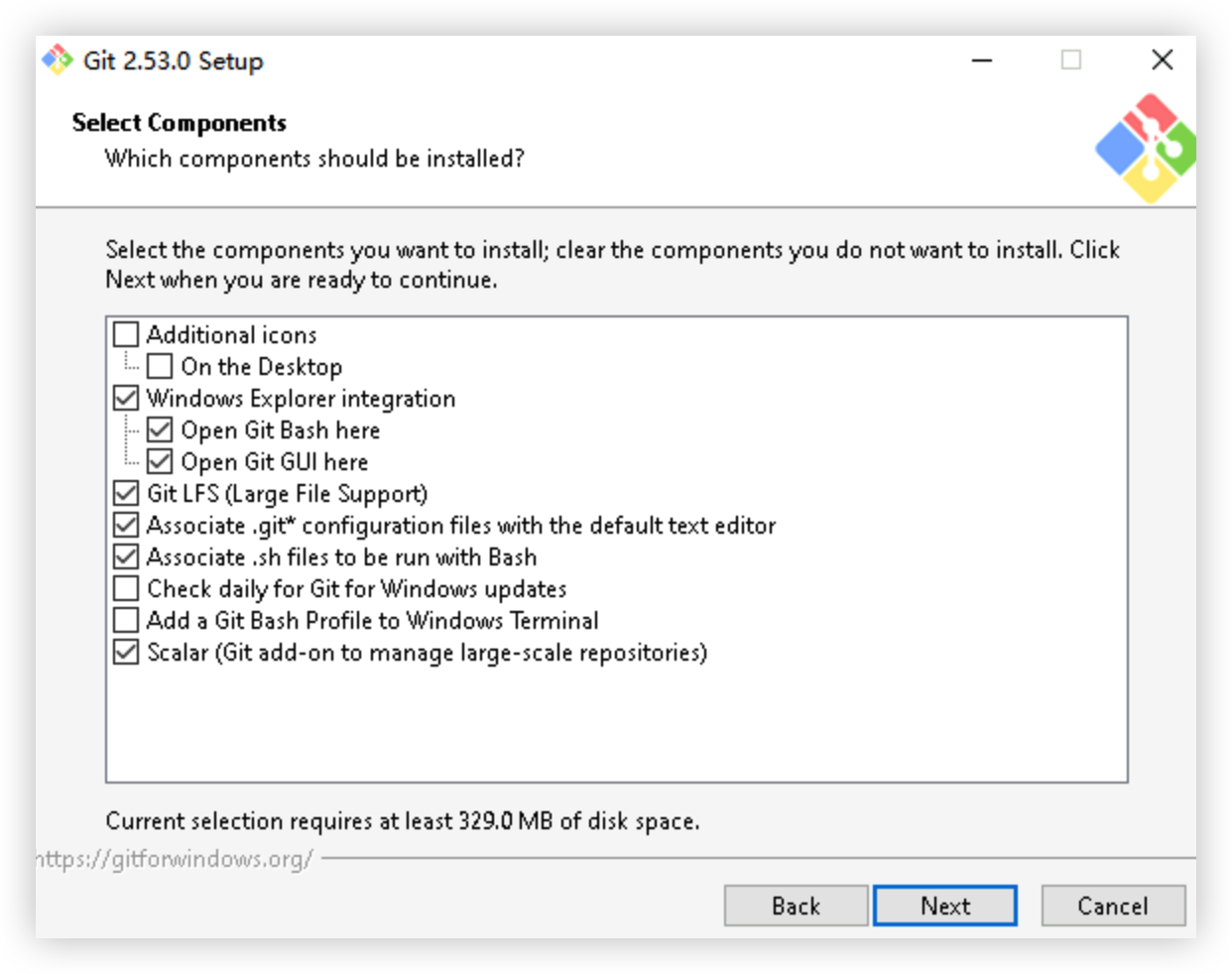
- Retain the default settings for all subsequent steps and click "Next" repeatedly to proceed.
-
- Click the "Install" button to start installing Git.
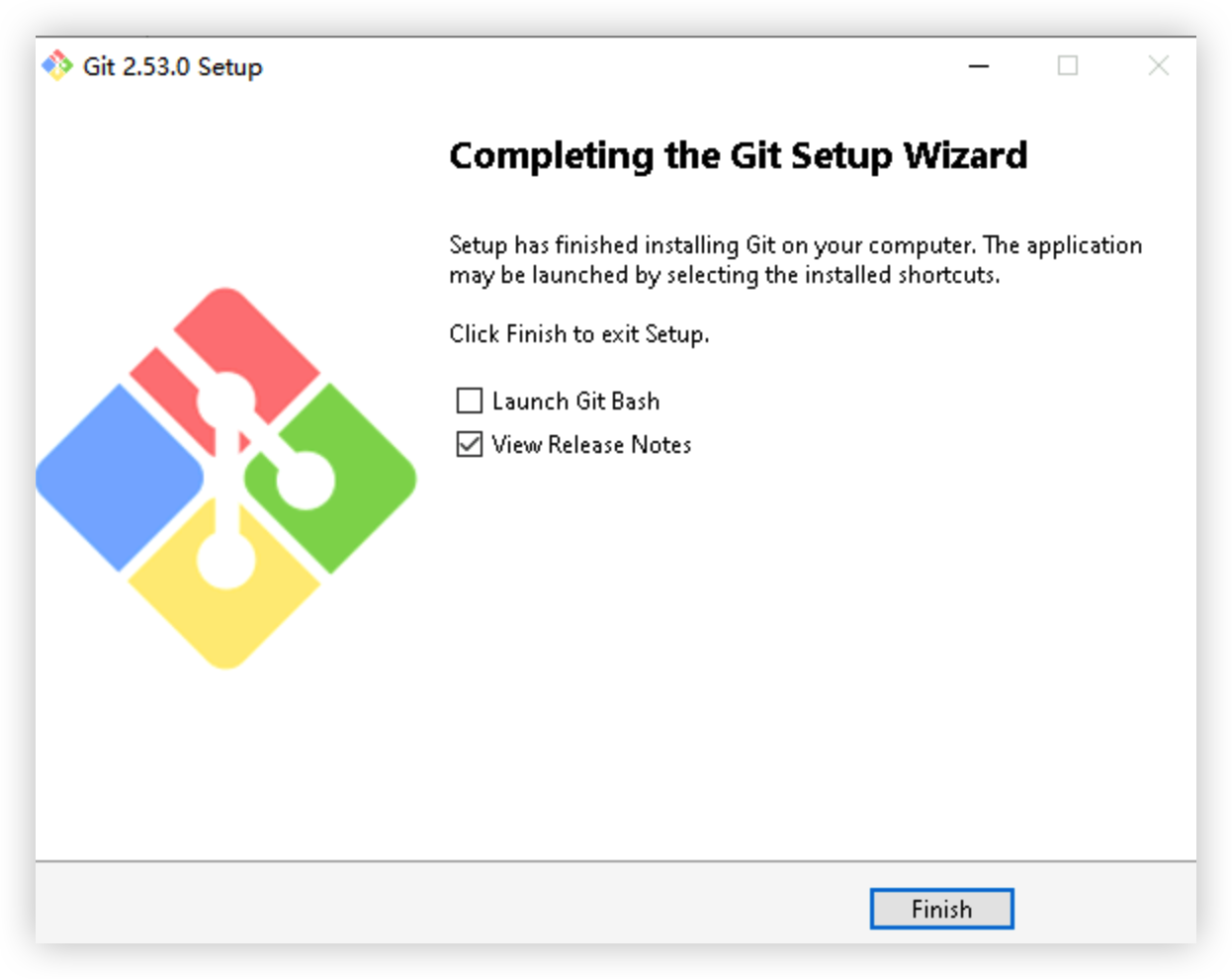
- After the installation is complete, click the "Finish" button to end the installation process.
-
- Log in to the restarted instance, click the Windows icon, right-click "Windows PowerShell", and then select "More > Run as administrator".
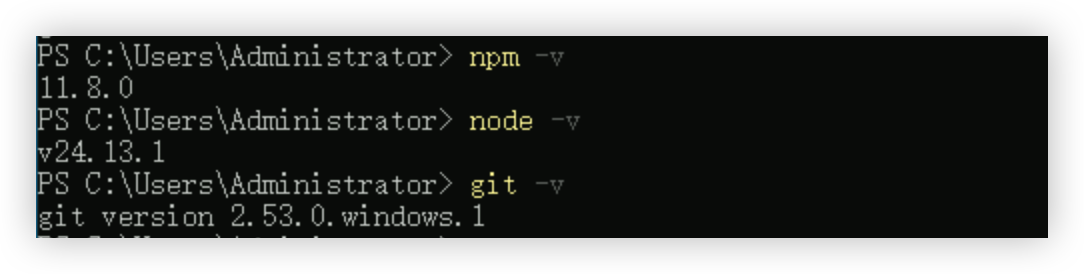
- Execute the following commands in PowerShell in sequence to confirm that NPM, Node.js, and Git have been installed as expected.
-
- If the output is as shown below, NPM, Node.js, and Git have been installed as expected.
-
Step 2: Install OpenClaw
- Click the Windows icon, right-click "Windows PowerShell", and select "More > Run as administrator".
- Install OpenClaw.
- Execute the following command in PowerShell to install the latest version of OpenClaw.Execute the following command in PowerShell to download the official script and install OpenClaw.
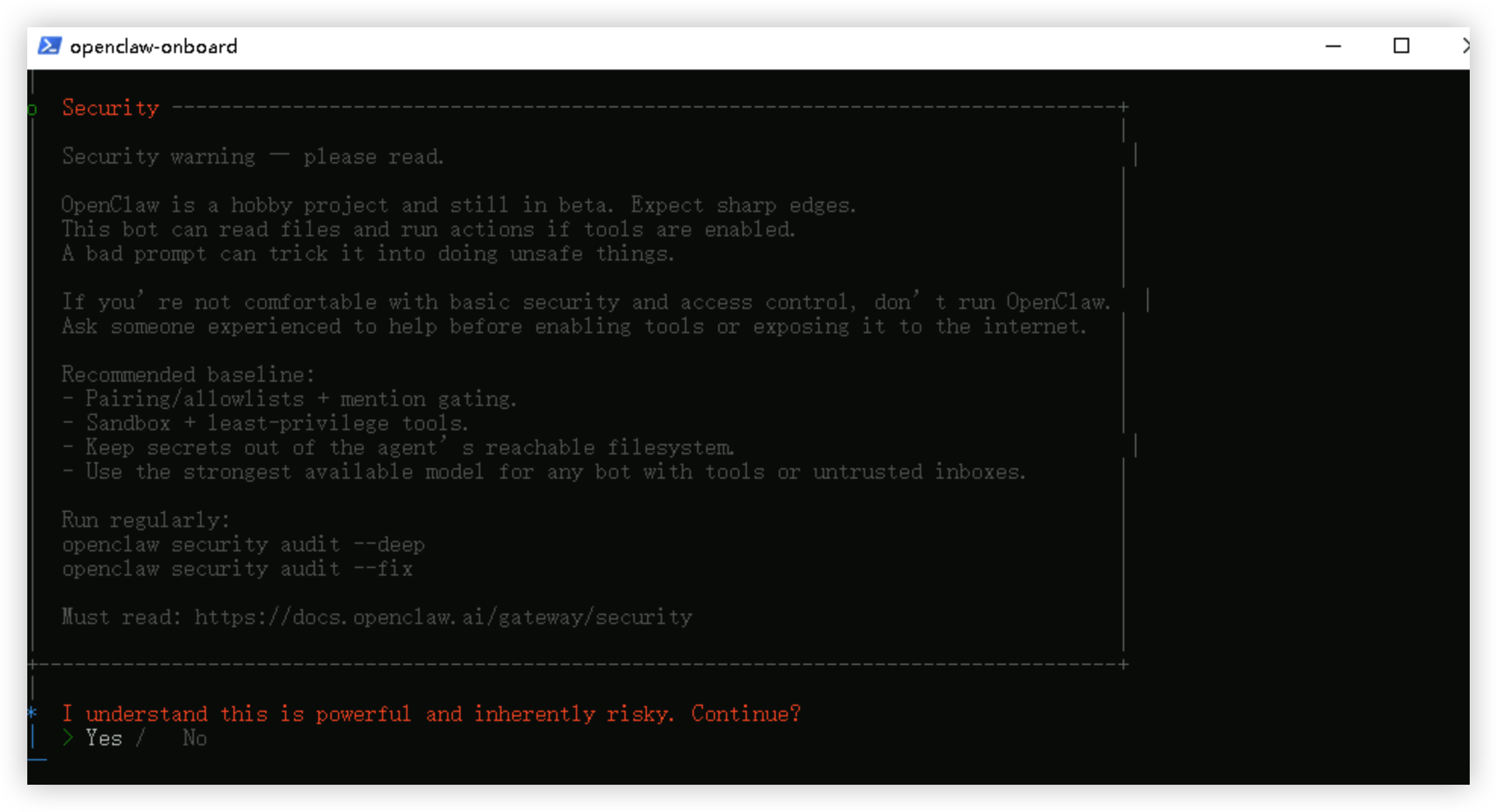
- Wait patiently for the installation to complete. Use the left and right arrow keys on the keyboard to select "Yes", and press "Enter" to confirm.
-
- Select "QuickStart" and press "Enter" to confirm.
-

- Retain the default settings and press "Enter" to confirm.
-
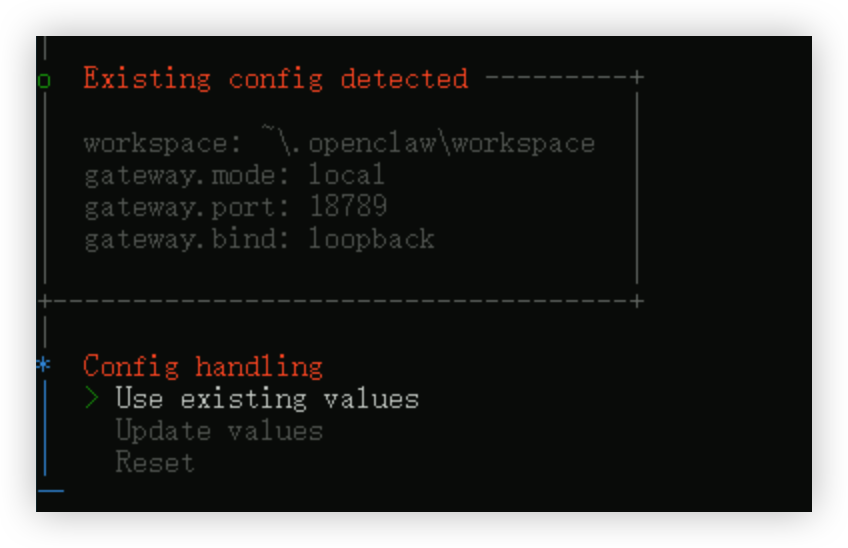
- Select "Skip for now" and press "Enter" to confirm.
-
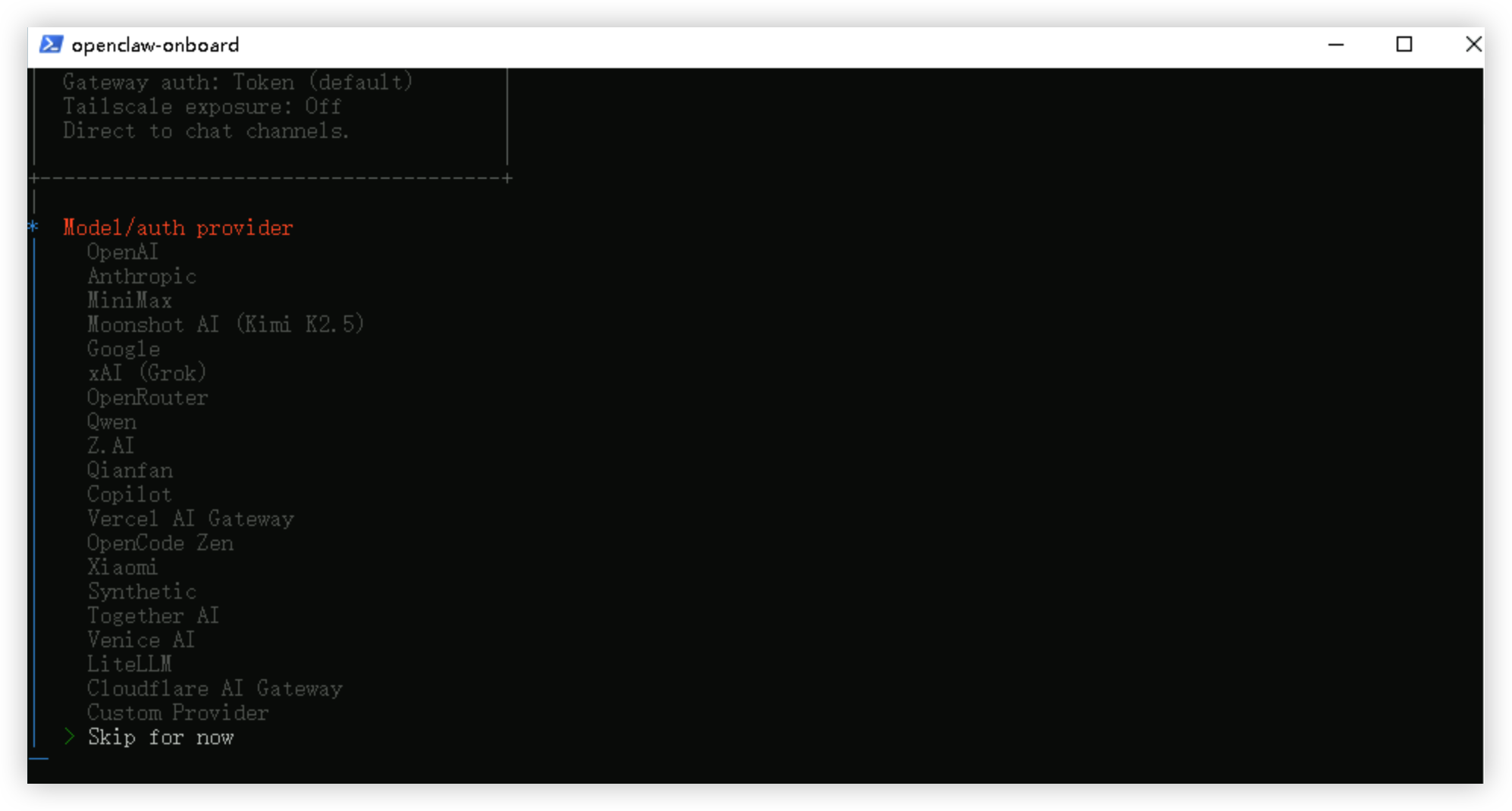
- Retain the default settings and press "Enter" to confirm.
-
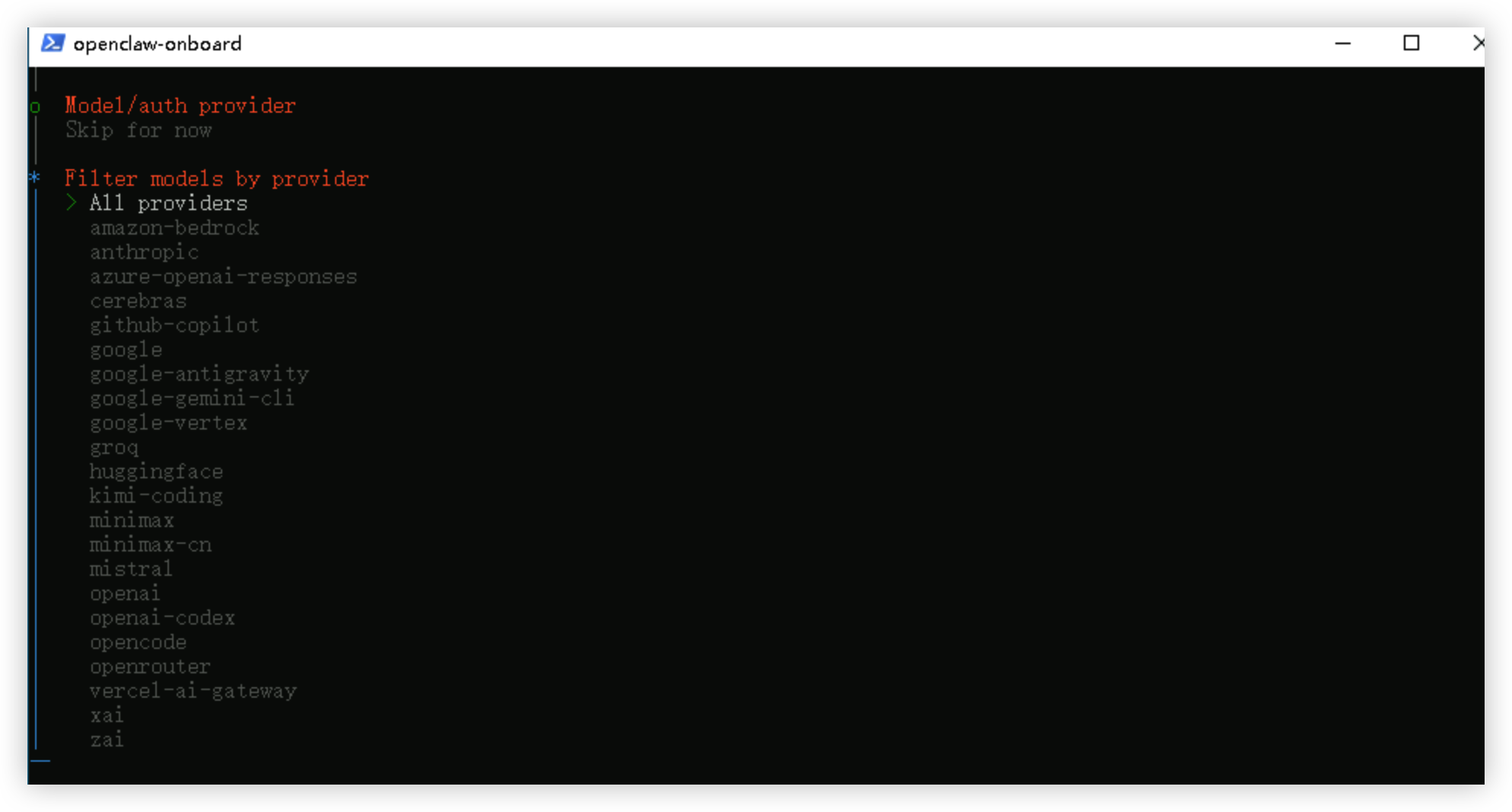
- Retain the default settings and press "Enter" to confirm.
-
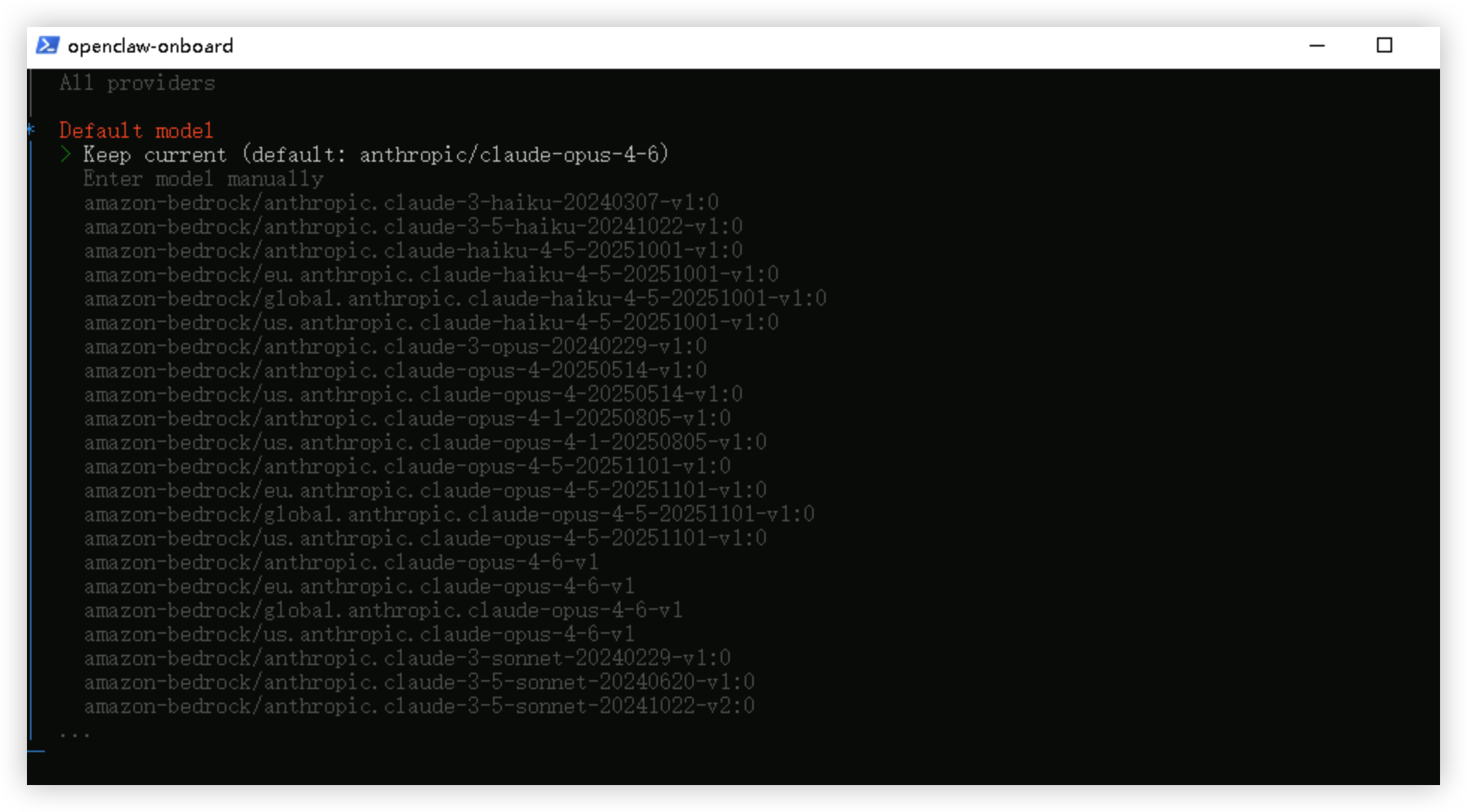
- Select "Skip for now" and press "Enter" to confirm.
-
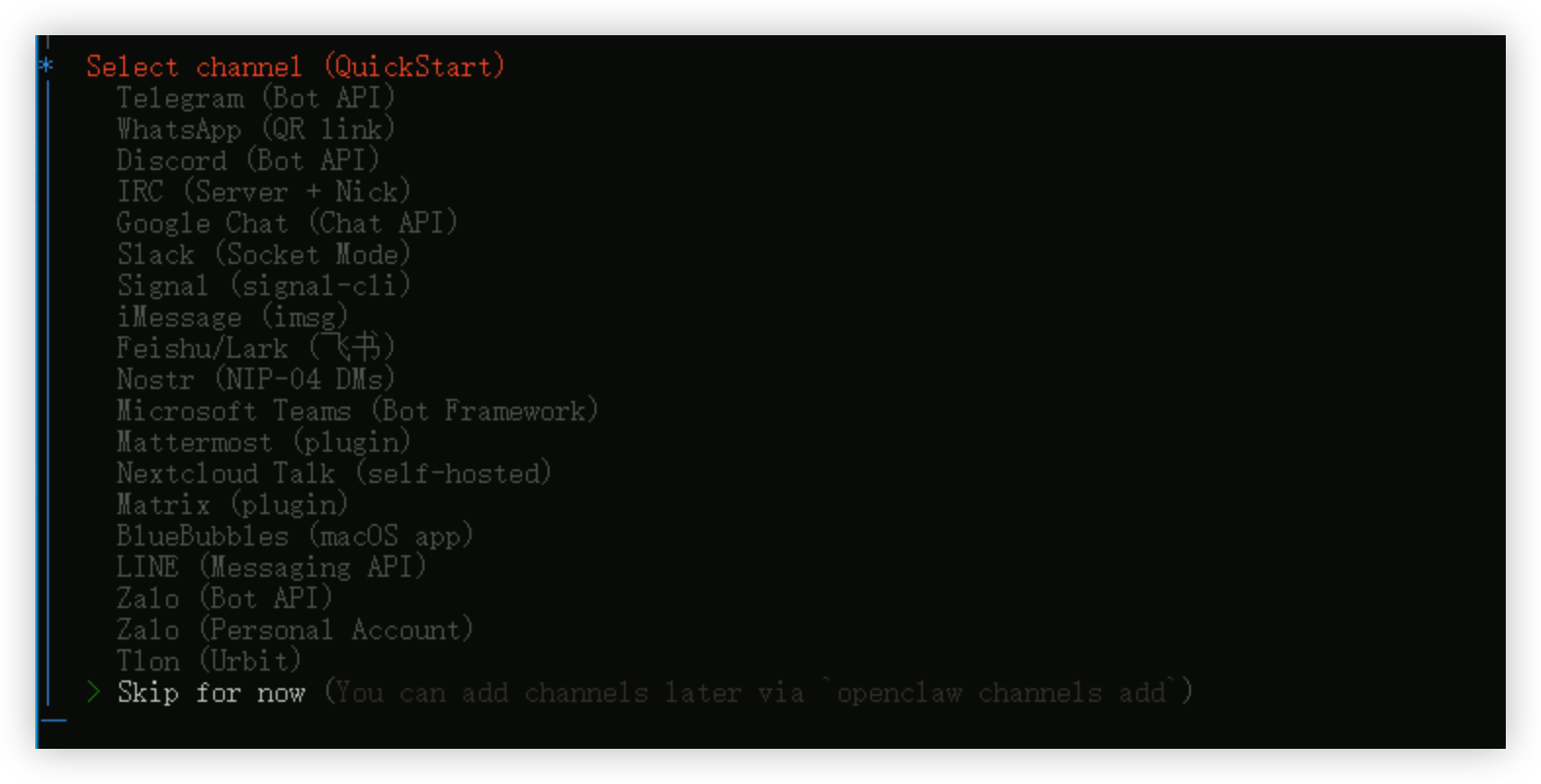
- Select "No" and press "Enter" to confirm.
-
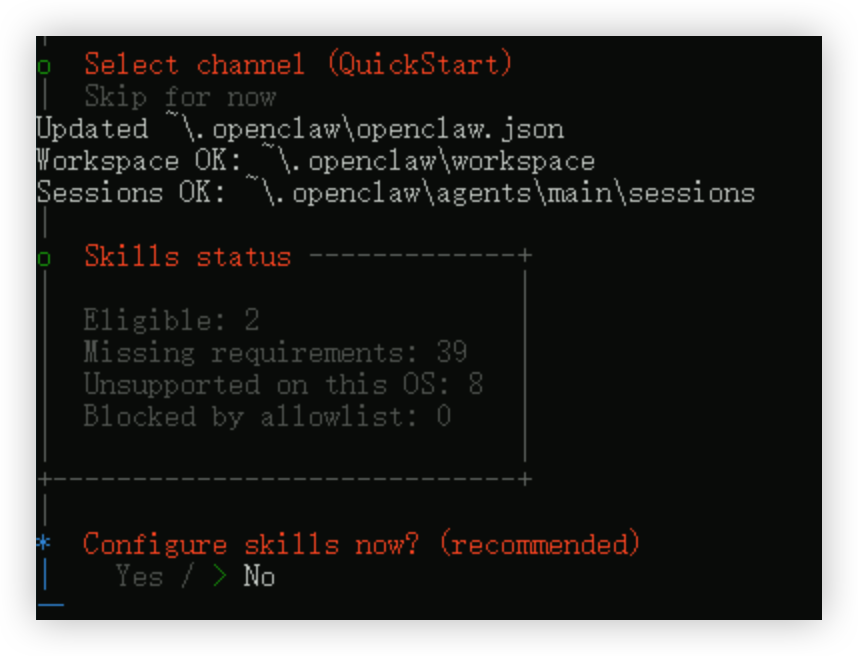
- Use the arrow keys to move the cursor, press the spacebar to select "boot-md", "bootstrap-extra-files", "command-logger", and "session-memory" one by one, and press "Enter" to confirm.
-

- Select "Open the Web UI" and press Enter to confirm.
-
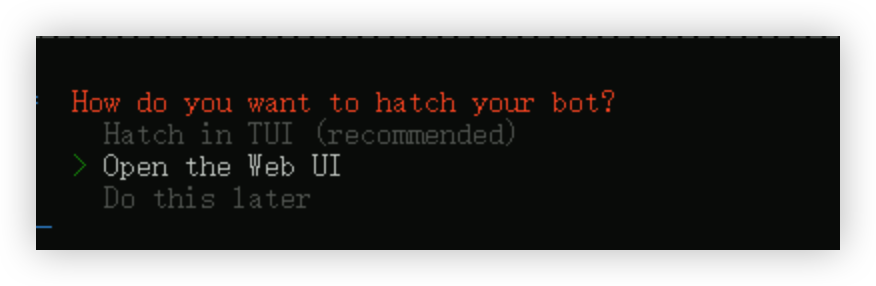
- If the output is as shown below and OpenClaw opens its Web UI page in your browser, OpenClaw has been installed as expected.
-

Step 3: Modify OpenClaw configuration.
- Open File Explorer.
- Go to the C:\Users\Administrator\.openclaw directory, right-click the openclaw.json file, select "Open with > More apps > Notepad", and click the "OK" button to open the configuration file.
- Record your token value.
-
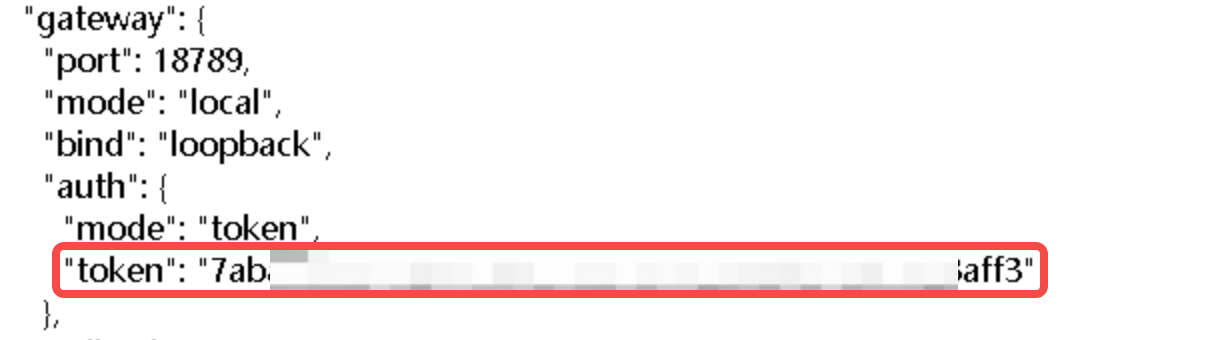
- Replace the original content in the configuration file with the following content.
- warning
- We recommend that you subscribe to the ModelArk Coding Plan, which costs as low as CNY 9.9 per month and enables flexible model calls.
- Adjust the parameters based on your actual situation:
- Replace <your_key> with the API Key you created in ModelArk.
- Replace <model_name> with the model name included in the Coding Plan. You can obtain the model name by referring to Configure the model name (specified in the configuration file).
- Replace <your_token> with the token value you recorded in the previous step.
- Replace <APP ID> and <APP Secret> with the APP ID and APP Secret of the Feishu application you want to integrate. If you do not want to integrate a Feishu application, you can delete <APP ID> and <APP Secret>.
- Replace <your_instanceId> with the ID of the instance where OpenClaw is deployed. You can log in to the ECS console to copy the ID.
warning- Replace <your_key> with the API Key you created in ModelArk.
- Replace all <model_id> with the ID of the model you want to use. Go to "VeArk console > Foundation models" to obtain the Model ID from the details page of the corresponding model.
- Replace <your_token> with the token value you recorded in the previous step.
- Replace <APP ID> and <APP Secret> with the APP ID and APP Secret of the Feishu application you want to integrate. If you do not want to integrate a Feishu application, you can delete <APP ID> and <APP Secret>.
- Replace <your_instanceId> with the ID of the instance where OpenClaw is deployed. You can log in to the ECS console to copy the ID.
- In PowerShell, execute the following command to restart OpenClaw Gateway.
-
warning
During the use of OpenClaw, do not close the openclaw-gateway window. If the window is mistakenly closed, execute the openclaw gateway restart command in a new PowerShell window to restart.
- (Optional) If you have specified Feishu application information in the configuration file, go to the Feishu Open Platform and make sure that your Feishu bot has persistent connection enabled, the required events added, and the corresponding permissions configured. For details, refer to "Configure the OpenClaw Feishu AI assistant > Steps 3-9".
- Once the configuration and integration are complete, you can interact with it through its Web UI or the integrated IM tool.
Last updated: 2026.06.18 17:48:27
All rights reserved © Beijing Volcano Engine Technology Co., Ltd2024
