Elastic Compute Service
Elastic Compute Service


Document

- Documentation
 Elastic Compute ServiceElastic Compute ServiceBest PracticesAI applicationsOpenClaw (formerly Moltbot)Quickly deploying OpenClaw via application templatesOpenClaw FAQ
 Copy page
 Download PDF
Quickly deploying OpenClaw via application templates
OpenClaw FAQ
Copy pageDownload PDFOpenClaw FAQ
This topic summarizes common issues encountered during the deployment of OpenClaw and integration of AI assistants on ECS instances, along with their corresponding solutions.
Integrate OpenClaw
How do I quickly integrate OpenClaw on an ECS instance I have already purchased?
To quickly deploy OpenClaw on an existing instance, reinstall the instance operating system by creating an OpenClaw application update task. Subsequently, you can integrate AI assistants for IM applications (such as Feishu, WeCom, and DingTalk). For more information, see Configure the model and integrate a Feishu application after ECS instance purchase.
warning
Reinstalling the operating system will clear all data on the system volume of the instance irreversibly. We strongly recommend that you back up system volume data in advance.
Use OpenClaw
An error "404 The model or endpoint xxx does not exist or you do not have access to it." is reported when OpenClaw deployed on an instance calls a model in the Coding Plan. How do I resolve it?
The 404 error indicating "the model does not exist or you do not have access" is usually caused by the following reasons:
- Incorrect model activation status
- The Coding Plan package must be subscribed to before the relevant models can be used. Log in to the Model activation page and verify whether the model specified in the error message has been activated.
- Incorrect model name
- Make sure that the used model name is completely accurate. You can obtain the model name by referring to Configure the model name (specified in the configuration file).
- Incorrect Base URL configuration
- As a Claude-like tool, OpenClaw should use the Base URL compatible with the Anthropic interface protocol:
-
- For tools compatible with the OpenAI interface, use the following URL:
-
- Invalid API key used
- Check whether the ARK_API_KEY parameter is configured correctly and the configured key has not expired.
tip
If the issue persists after the above checks, we recommend that you refer to the error code documentation for further troubleshooting guidance or contact technical support for assistance.
How do I open the WebUI after I deploy OpenClaw on an ECS instance?
- Allow inbound traffic on port 18789 in the security group of the instance.
- Log in to the Instances console, and click the name of the target instance to enter its details page.
- Select the "Security Group" tab, and click the "Configure rule" button to the right of the target security group (Default is used as an example in this topic).
- Select the "Access rules > Inbound rule" tab, and click the "Add rule" button.
- Allow access to port 18789 via the TCP protocol.
- Confirm the OpenClaw version.
- Execute the following command to confirm the currently deployed OpenClaw version.
-
- Open the WebUI.
- Remotely access the WebUI from a local PC.
- Execute the following command to obtain the OpenClaw authorization token.
-
warningSecurely keep the returned token. Leakage of the token may lead to serious security risks.-
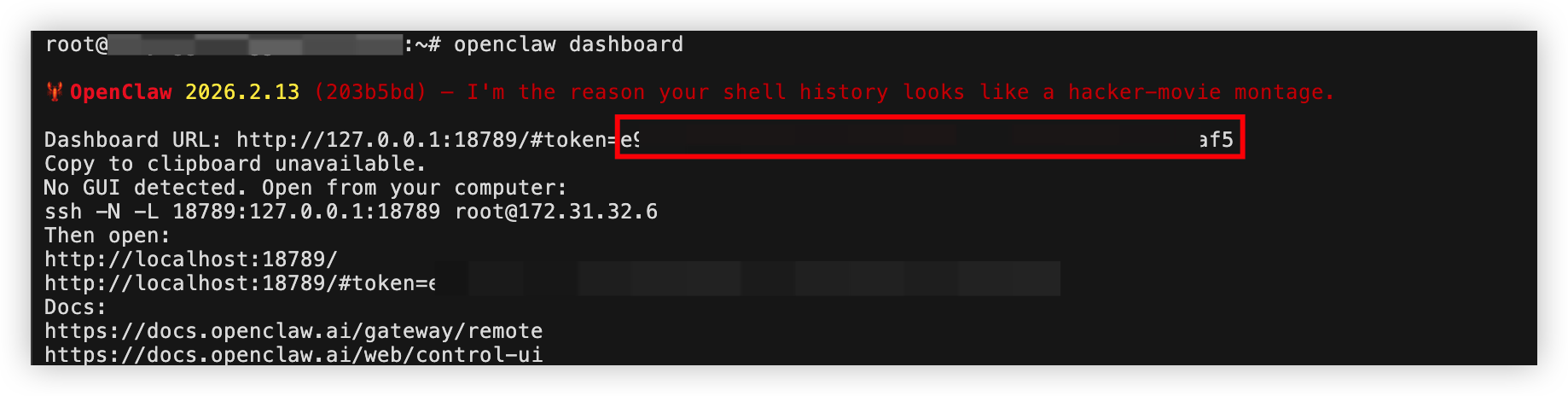
- Execute the following command to map port 18789 of the local PC to port 127.0.0.1:18789 of the OpenClaw server.
tipMake sure that the terminal window where the command is executed remains open during WebUI access.Adjust the parameters based on your actual situation:- Replace <user_name> with the login username of the instance where the OpenClaw service is deployed.
- Replace <public_ip> with the EIP of the instance where the OpenClaw service is deployed.
-
- In the browser on the current PC, visit http://127.0.0.1:18789?token=<your_token> to open the OpenClaw WebUI interface.
tipReplace <your_token> with the OpenClaw authorization token obtained in Step 1.Open the WebUI on the instance where OpenClaw is deployed.- Execute the following command in PowerShell to obtain the OpenClaw authorization token.
warningSecurely keep the returned token. Leakage of the token may lead to serious security risks.-
- Subsequently, you can open a browser on the current instance and visit http://127.0.0.1:18789?token=<your_token> to access the OpenClaw WebUI.
tipReplace <your_token> with the OpenClaw authorization token obtained in the previous step.
Why does the error "The requested model does not support function calling, please switch to a different model or contact with administrator if you believe this model should support function calling." occur when I make a function call?
This issue occurs because the model you are using does not support function calling. We recommend that you switch to a model that supports function calling. Click here to view the list of models supporting function calling.
After OpenClaw is integrated, the error "400 Input length xxxx exceeds the maximum length xxxx." occurs when I chat with the bot. How do I resolve this issue?
During conversational inference, the model incorporates the full context as input parameters into a single inference request to implement session memory. This error occurs and interrupts inference when the context length exceeds the maximum input limit of the model. We recommend that you reset the session regularly to avoid excessively long context:
- Clear via the IM dialog box
- If you have integrated OpenClaw with IM tools such as Feishu, enter the /new or /reset command in the OpenClaw bot chat window of the IM tool to start a new conversation and clear the context of the previous one.
- Clear via the WebUI
- If you chat with OpenClaw through its WebUI, open the WebUI, go to the Chat page, and click the "New session" button to start a new conversation and clear the context of the previous one.
How do I handle chat lag or situations where an ECS instance becomes unresponsive when I use OpenClaw?
When you interact with OpenClaw through multiple channels, or perform updates, restarts, log queries, and other operations, OpenClaw may create a new process for each task. If multiple processes compete for instance resources simultaneously, it may result in issues such as chat lag or instance unresponsiveness. In this case, you can:
- Optimize memory usage configuration.
- Tutorial video
-
Replay Play00:00 / 00:18 Live 00:00FullscreenCssfullscreenClick and hold to drag
- Procedure
- Execute the following command to create a script file.
-
- Press the i key to enter edit mode, and then copy and paste the following content into the file.
-
- Press the Esc key to exit edit mode, enter :wq, and then press Enter to save and exit the file.
- Execute the following command to run the script file and optimize memory usage configuration.
-
- If the output is as shown below, it indicates that memory usage optimization is completed.
-

- If the issue persists after you optimize memory usage configuration, we recommend that you:
- (Recommended) Upgrade the instance configuration and deploy OpenClaw on a higher-specification instance (such as 4 vCPUs, 8 GiB). Learn more.
- Restart the target instance in the ECS console. Learn more.
Can I directly copy the installation directory of the command-line tool to another computer for use?
No. Each time the tool sends a request, the server verifies whether the device fingerprint matches the AppID. If you directly copy the tool installation directory to another computer, the device fingerprint will not match. When you run the tool on that computer, the system will detect the environment change and mark it as unregistered. You need to rerun the installer on that computer to register and associate the new device.
Last updated: 2026.08.19 14:10:34
All rights reserved © Beijing Volcano Engine Technology Co., Ltd2024
