Elastic Compute Service
Elastic Compute Service


Document

- Documentation
 Elastic Compute ServiceElastic Compute ServiceTroubleshootingRemote log in issueSSH log in issueSolution for login failure due to SSH configuration
 Copy page
 Download PDF
SSH log in issue
Solution for login failure due to SSH configuration
Copy pageDownload PDFSolution for login failure due to SSH configuration
This topic describes how to troubleshoot and resolve SSH login failures on Linux instances caused by improper SSH configurations or system parameter settings. These issues include SSH access permission exceptions, missing critical SSH files or directories, SSH login errors, and unrunning service processes in the instance.
Prerequisites
Before you modify the configuration or data of an instance, we recommend that you create a snapshot first to improve fault tolerance and ensure data security.
SSH access permission exceptions
If you cannot log in to a Linux instance due to abnormal SSH access permission configurations such as insufficient access permissions, you can resolve the issue by performing the following operations.
- Enter the Linux operating system in single-user mode. For more information, see Entering single-user mode.
- Execute the following command to reset the permissions of the /var/empty/sshd directory.
-
- Restart the instance to make the configuration take effect.
Missing critical SSH files or directories
If critical files or directories required for SSH access are missing, such as the sshd_config configuration file, you may be unable to log in to the Linux instance. You can resolve the issue by performing the following operations.
- Enter the Linux operating system in single-user mode. For more information, see Entering single-user mode.
- Execute the following command to check whether the sshd_config configuration file exists.
-
- (Optional) If the sshd_config configuration file exists, skip this step. If the sshd_config configuration file does not exist, nor do you have a previously backed up sshd_config.bak file, perform the following operations:
- Execute the following command to reinstall the openssh-server service.
- Debian system: sudo apt-get install --reinstall openssh-server
- CentOS system: yum reinstall openssh-server
- Restart the instance to make the configuration take effect.
SSH login errors
When the root user attempts to log in to a Linux ECS instance with the correct password by using a local SSH client, the Permission denied, please try again error message is displayed. You can resolve the issue by performing the following operations.
Two possible causes for this issue exist. One is that root user login is disabled on the ECS instance, and the other is that the SELinux service is enabled on the Linux system, which prevents both root users and ordinary users from logging in.
Issue arising from prohibited root user login
- Log in to the target instance. For operation details, refer to Logging in to Linux instances.
- Execute the following command to view the PermitRootLogin or PasswordAuthentication configuration.
-
- If the PermitRootLogin and PasswordAuthentication parameters are set to no, root user login and password-based login are prohibited. Continue with the following operation. Otherwise, skip this subsection and follow the instructions in Issue caused by the SELinux service to troubleshoot and resolve the issue.
- Modify the PermitRootLogin and PasswordAuthentication parameters.
- Execute the following command to open the SSH configuration file.
-
- Modify the values for the PermitRootLogin and PasswordAuthentication parameters.
- To enable root user login, set the PermitRootLogin parameter to yes.
- To use password-based login, set the PasswordAuthentication parameter to yes.
- Press the "Esc" key and enter :wq to save the modifications.
- Execute the following command to restart the SSH service for the modifications to take effect.
-
Issue caused by the SELinux service
You can temporarily or permanently disable the SELinux service based on your needs to resolve SSH connection issues.
Step 1: Check SELinux service status
- Log in to the target instance. For operation details, refer to Logging in to Linux instances.
- Execute the following command to view the current SELinux service status.
-
- Information similar to the following is displayed:
-
-
- enabled: The SELinux service is enabled.
- disabled: The SELinux service is disabled.
Step 2: Disable the SELinux service
You can disable the SELinux service either temporarily or permanently based on your specific needs. A temporary disablement of SELinux is not persistent. The service will automatically re-enable itself once the instance restarts.
- Temporarily disable the SELinux service
- Execute the following command to temporarily disable SELinux.
-
- Permanently disable the SELinux service:
- Execute the following command to permanently disable the SELinux service.
-
- Enter :wq to save the modification.
- Restart the instance to make the configuration take effect.
Unrunning service processes
When the service process is not running (not in the listening state), you may be unable to access the Linux instance. This issue can be resolved by starting common services. In the example provided in this section, CentOS 7 is used.
Usage note
The following table lists common services in Linux instances and the impact when the services are not running.
Service name | Description | Default listening port | Impact when not running |
SSH | Remote connection | 22 | SSH remote connection failure |
Web | Website service | 80 (HTTP) and 443 (HTTPS) | Website access failure |
MySQL | MySQL database | 3306 | Database access failure |
Procedure
- Log in to the target instance. For operation details, refer to Logging in to Linux instances.
- Execute the following command to check the port listening status of the target service.
-
[$Port] refers to the port that the target service listens on. Use the port you are actually using. If you have modified the default port of the target service, replace it with the modified port number.
- If the target port information is returned and the listening status is LISTEN, the target service is running and there is no need to start it. Skip the following steps.
- If there is no response, that is, the port of the target service is not in listening state, perform the following operations.
- Execute the following command to start the target service.
-
tip
- [$Service] refers to the name of the target service. Use the name of the service you are actually using.
- If you want to start the SSH service, the service name is sshd.
- To start a third-party service, such as "Nginx", "Tomcat", or "MySQL", refer to the official website of the third-party service to obtain the corresponding start command.
- If there is no response, the command is executed as expected. In this case, skip the following steps.
- If an error is returned, resolve the issue by referring to the error message, and then continue with the following operations.
- Execute the following command to check the status of the target service.
-
- If information similar to the following is displayed, the target service is in running state.
-
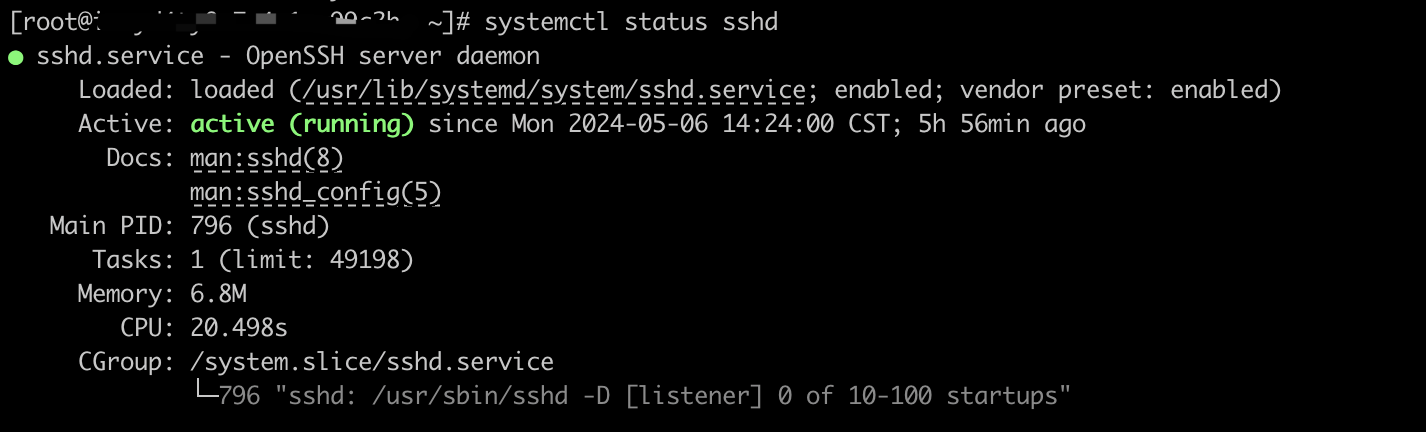
In the example provided in this section, the SSH service is used. Refer to your actual response.
- Execute the following command to check the port listening status of the target service.
-
- If information similar to the following is displayed, the port of the target service is in listening state, that is, the target service is running.
-

Last updated: 2026.06.18 17:49:51
All rights reserved © Beijing Volcano Engine Technology Co., Ltd2024
