Elastic Compute Service
Elastic Compute Service
Elastic Compute Service


Document
Elastic Compute Service
What's New
Announcement
OpenAPI related
Pricing and quotas are related
About products and plugins
Feature discontinuation
Overview
Billing
Billable items
Billing methods
Billing methods change
Getting Started
User Guide
Instances
Instance types
X86 Computing
Elastic Bare Metal Server
Heterogeneous Computing
Select instance billing method
Spot instance
Elastic Scheduled Instance
Offsetting Resources
Reserved Instances
Buying ECS instances
Logging in to an instance
Logging in to a Linux instance
Managing instance status
Modifying instance types
Using instance user data and metadata
Instance metadata
Images
Public images
veLinux images
Custom images
Importing custom images
Creating custom images
Image detection
End of life (EOL) of image
Elastic Block Storage
Basic volume operations
Partitioning and formatting a volume
Extending a volume
EBS Agent
Snapshots
Basic snapshot operations
Auto snapshot policies
DataInsights
Network
Network interface and IP address
IP Address
IPv4 address
Security group
Security
Passwords and key pairs
Deployment and scaling
Monitoring
Monitoring metrics
Event monitoring
Local volume event O&M
Method 1: Solve the local volume failure by replacing the faulty volume
O&M
Cloud assistant
Managing agents
Process choreography
Common operation and maintenance tasks
Batch operations on instances
Batch operations on EBS Volumes
Batch operations on images
Temporary upgrade of bandwidth
Managing application updates
orchestration plan
Patch management
Managing patch plans
Managing patch baselines
IAM
Tags and projects
Best Practices
AI applications
OpenClaw (formerly Moltbot)
Quickly deploying OpenClaw via application templates
Quickly deploying OpenClaw via marketplace images
Manually deploying OpenClaw
Self-service website creation
Building environments
Building a Web environment (Windows)
Building applications
Building FTP site
Deploying databases
Building game servers
Building websites
Building a WordPress blog
Building multiple websites
Manage software sources for Linux instances
AIGC practices
Performance test
Network performance test
Instance configuration
Setting up AD Domain Services on Windows OS
Windows Multi - User Login
Changing screen resolution
Instance data
Uploading or downloading files
Data restoration
ECS instance local time synchronization
Volume
Monitoring
Security
Images
Kernel fine-tuning
O&M
Troubleshooting
Remote log in issue
Linux operating system issue
Windows operating system issue
SSH log in issue
Operating system issue
veLinux operating system issue
Linux operating system issue
Windows operating system issue
Instance status issue
Instance unable to start issue
High instance load issue
GPU instances issue
Network connection issue
Network configuration issue
Storage classes issue
EBS Volume issue
Local Disk issue
Logs and monitoring issue
Third - party software issue
API Reference
Regions and availability zones
Instances
Images
HPC clusters
Key pairs
Tags
Volumes
Reserved storage capacity
Snapshot
Auto snapshot policy
Monitoring
Deployment sets
Launch templates
Cloud assistant
Patch management
SDK reference
CLI Reference
FAQ
Dedicated Host DDH
What's New
Billing
User Guide
Manage Dedicated Host
Manage Dedicated Host Cluster
Manage ECS instances
Monitoring and O&M
API reference
proprietary host
- Documentation
 Elastic Compute ServiceElastic Compute ServiceUser GuideO&MCloud assistantDescription of differences between cloud assistant command executions and in-instance command executions
 Copy page
 Download PDF
Cloud assistant
Description of differences between cloud assistant command executions and in-instance command executions
Copy pageDownload PDFDescription of differences between cloud assistant command executions and in-instance command executions
This topic mainly describes the differences in command output when you execute commands in Linux-based or Windows-based instances with the cloud assistant and when you execute commands inside the instance.
Linux-based instances
Differences in the output environment variable information
Differences in command execution results
Differences in the completeness of execution result outputs
Difference description
There are differences between the environment variable information output when you execute commands with the cloud assistant and when you execute them inside the instance.
Take the execution of the export command as an example:
- Output when executing inside the instance
-

- Output when executing inside the instance
-
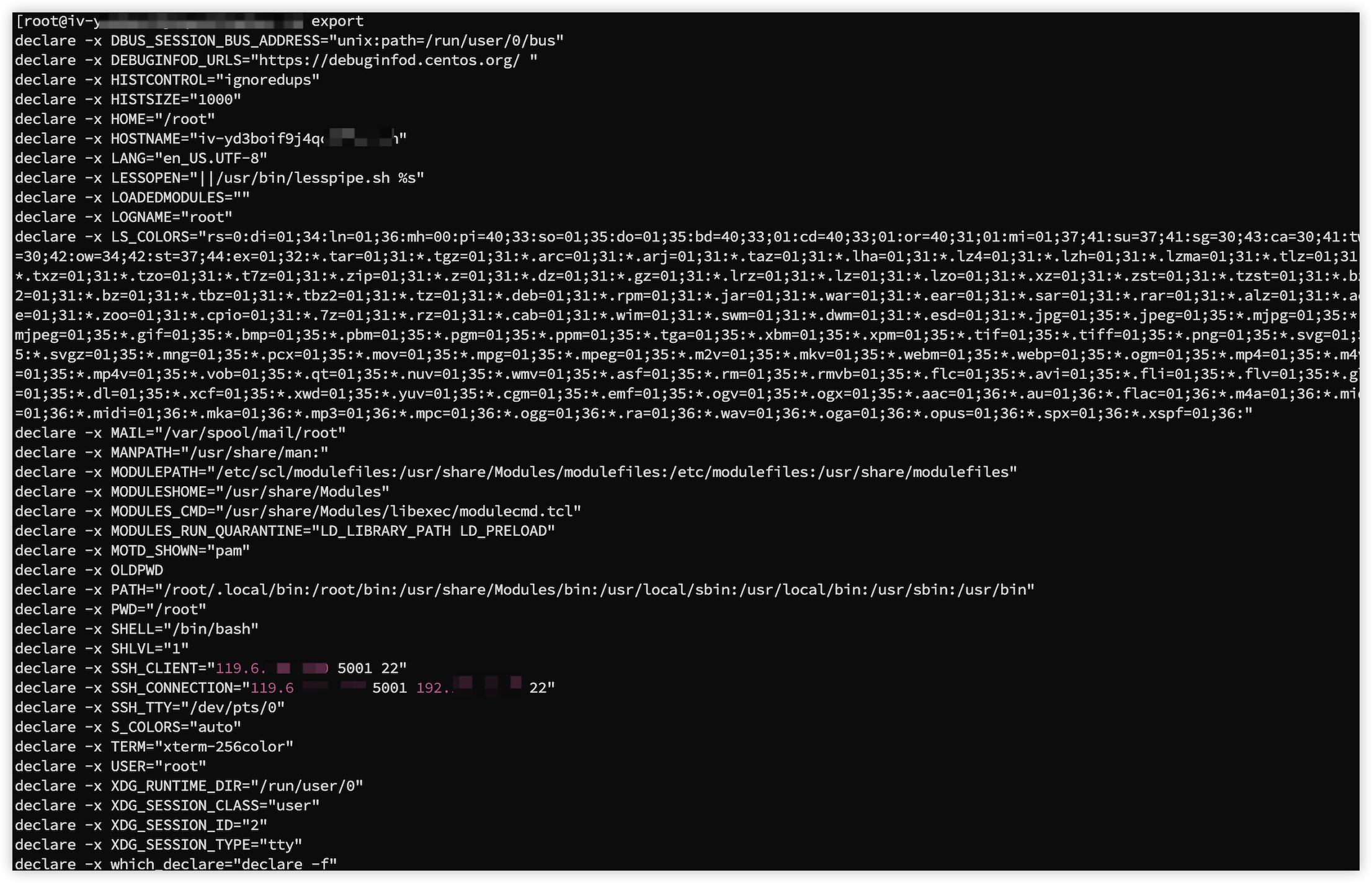
Possible causes
After you log in to the instance via the remote connection software (such as PuTTY and Xshell) or the ECS console remote connection, the system automatically enters an interactive login Shell environment. In this environment, the Shell interpreter (such as, /bin/bash) loads environment configuration and initialization-related startup files (such as /etc/profile, ~/.bash_profile, and ~/.bashrc). These startup files usually contain some environment variables.
When you execute Shell commands with the cloud assistant, the system does not enter an interactive login Shell environment. Therefore, startup files like /etc/profile, ~/.bash_profile, and ~/.bashrc are not loaded. This causes the cloud assistant to fail to obtain or use the environment variables defined in these startup files.
Solution
You can proactively load the required startup files in the cloud assistant.
- Log in to the Cloud Assistant console.
- Create the target cloud assistant command, and add a step to check if the target environment variable exists. For detailed operations, refer to Creating jobs.
tip
- Replace the $USER parameter in the command with the actual environment variable.
- Replace the /etc/profile file in the command with the actual startup file.
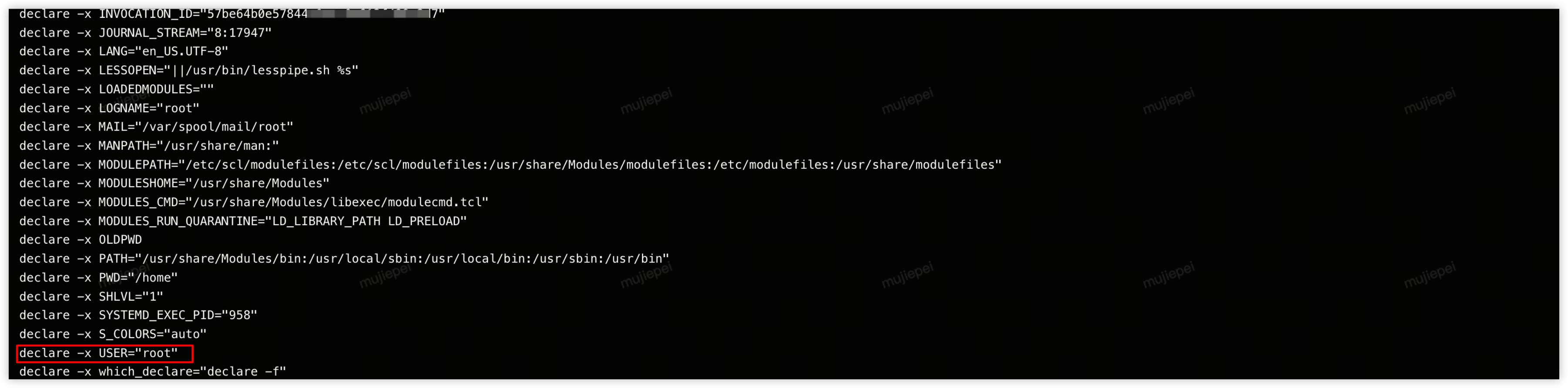
- #!/bin/bashif [ -z "$USER" ]; thenecho "\$USER is unavailable"source /etc/profileelseecho "\$USER is available"fiexport
- Sample output:
- As shown in the figure, the cloud assistant has returned details about the $USER parameter.
-
Difference description
When you execute the ulimit -n command with the cloud assistant, the output is 8192.
When you execute the ulimit -n command locally in an ECS instance, the output is 65535.

Possible causes
In the Linux image, the /etc/security/limits.conf file, a resource limit configuration file, sets the maximum number of open file descriptors to 65535. Therefore, when you execute the ulimit -n command in the ECS instance, the output is 65535.
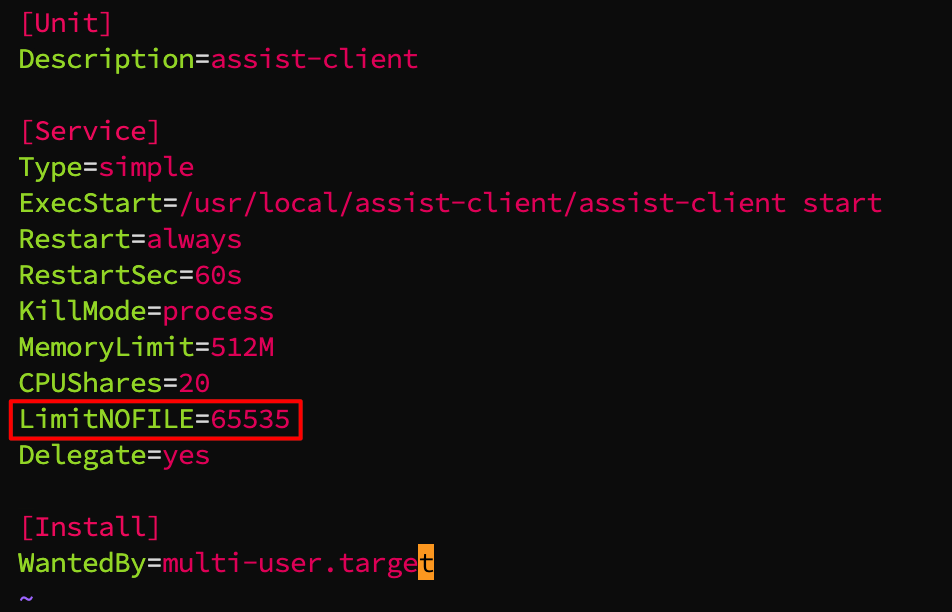
In the cloud assistant service unit file, the parameter LimitNOFILE restricts the maximum number of file descriptors that the cloud assistant processes can open to 8192. By contrast, the /etc/security/limits.conf file (a resource limit configuration file) does not have any limits on cloud assistant processes. Therefore, when you execute the ulimit -n command with the cloud assistant, the output is 8192.
Solution
Set the resource limit in the cloud assistant service unit file to 65535.
- Modify the cloud assistant service unit file.
- Execute the following command to open the file.
- vim /lib/systemd/system/assist-client.service
- Press i key to enter the edit mode.
- Set the value of the LimitNOFILE parameter to 65535.
-
- Press Esc, enter :wq, and then press Enter to save and exit the file.
- Execute the following command to reload the configuration files for the systemd daemon.
- systemctl daemon-reload
- Execute the following command to restart the cloud assistant service.
- systemctl restart assist-client
- Execute the ulimit -n command with the cloud assistant.
- Log in to the Cloud Assistant console.
- Create a cloud assistant command and specify the target instance(s) for execution. For detailed operations, refer to Creating jobs.
Difference description
After the same command is executed, the output of the cloud assistant is incomplete. For example, execute the command curl -s https://www.randomtext.me/api/lorem/p-1/17000-18000 > lorem.txt && head -c 17408 lorem.txt && rm lorem.txt via cloud assistant and inside the instance, respectively.
- Output when executing inside the instance
- term_string}"},"query-input":"required name=search_term_string"}],"inLanguage":"en-US"}]}</script><!-- / Yoast SEO plugin. --><link rel="alternate" type="application/rss+xml" title="Random Text & Name Generator » Feed" href="https://www.randomtext.me/feed/" /><script>window._wpemojiSettings = {"baseUrl":"https:\/\/s.w.org\/images\/core\/emoji\/15.0.3\/72x72\/","ext":".png","svgUrl":"https:\/\/s.w.org\/images\/core\/emoji\/15.0.3\/svg\/","svgExt":".svg","source":{"concatemoji":"https:\/\/www.randomtext.me\/wp-includes\/js\/wp-emoji-release.min.js?ver=6.5.2"}};/*! This file is auto-generated */!function(i,n){var o,s,e;function c(e){try{var t={supportTests:e,timestamp:(new Date).valueOf()};sessionStorage.setItem(o,JSON.stringify(t))}catch(e){}}function p(e,t,n){e.clearRect(0,0,e.canvas.width,e.canvas.height),e.fillText(t,0,0);var t=new Uint32Array(e.getImageData(0,0,e.canvas.width,e.canvas.height).data),r=(e.clearRect(0,0,e.canvas.width,e.canvas.height),e.fillText(n,0,0),new Uint32Array(e.getImageData(0,0,e.canvas.width,e.canvas.height).data));return t.every(function(e,t){return e===r[t]})}function u(e,t,n){switch(t){case"flag":return n(e,"\ud83c\udff3\ufe0f\u200d\u26a7\ufe0f","\ud83c\udff3\ufe0f\u200b\u26a7\ufe0f")?!1:!n(e,"\ud83c\uddfa\ud83c\uddf3","\ud83c\uddfa\u200b\ud83c\uddf3")&&!n(e,"\ud83c\udff4\udb40\udc67\udb40\udc62\udb40\udc65\udb40\udc6e\udb40\udc67\udb40\udc7f","\ud83c\udff4\u200b\udb40\udc67\u200b\udb40\udc62\u200b\udb40\udc65\u200b\udb40\udc6e\u200b\udb40\udc67\u200b\udb40\udc7f");case"emoji":return!n(e,"\ud83d\udc26\u200d\u2b1b","\ud83d\udc26\u200b\u2b1b")}return!1}function f(e,t,n){var r="undefined"!=typeof WorkerGlobalScope&&self instanceof WorkerGlobalScope?new OffscreenCanvas(300,150):i.createElement("canvas"),a=r.getContext("2d",{willReadFrequently:!0}),o=(a.textBaseline="top",a.font="600 32px Arial",{});return e.forEach(function(e){o[e]=t(a,e,n)}),o}function t(e){var t=i.createElement("script");t.src=e,t.defer=!0,i.head.appendChild(t)}"undefined"!=typeof Promise&&(o="wpEmojiSettingsSupports",s=["flag","emoji"],n.supports={everything:!0,everythingExceptFlag:!0},e=new Promise(function(e){i.addEventListener("DOMContentLoaded",e,{once:!0})}),new Promise(function(t){var n=function(){try{var e=JSON.parse(sessionStorage.getItem(o));if("object"==typeof e&&"number"==typeof e.timestamp&&(new Date).valueOf()<e.timestamp+604800&&"object"==typeof e.supportTests)return e.supportTests}catch(e){}return null}();if(!n){if("undefined"!=typeof Worker&&"undefined"!=typeof OffscreenCanvas&&"undefined"!=typeof URL&&URL.createObjectURL&&"undefined"!=typeof Blob)try{var e="postMessage("+f.toString()+"("+[JSON.stringify(s),u.toString(),p.toString()].join(",")+"));",r=new Blob([e],{type:"text/javascript"}),a=new Worker(URL.createObjectURL(r),{name:"wpTestEmojiSupports"});return void(a.onmessage=function(e){c(n=e.data),a.terminate(),t(n)})}catch(e){}c(n=f(s,u,p))}t(n)}).then(function(e){for(var t in e)n.supports[t]=e[t],n.supports.everything=n.supports.everything&&n.supports[t],"flag"!==t&&(n.supports.everythingExceptFlag=n.supports.everythingExceptFlag&&n.supports[t]);n.supports.everythingExceptFlag=n.supports.everythingExceptFlag&&!n.supports.flag,n.DOMReady=!1,n.readyCallback=function(){n.DOMReady=!0}}).then(function(){return e}).then(function(){var e;n.supports.everything||(n.readyCallback(),(e=n.source||{}).concatemoji?t(e.concatemoji):e.wpemoji&&e.twemoji&&(t(e.twemoji),t(e.wpemoji)))}))}((window,document),window._wpemojiSettings);</script><link rel='stylesheet' id='astra-theme-css-css' href='https://www.randomtext.me/wp-content/themes/astra/assets/css/minified/main.min.css?ver=4.6.12' media='all' /><style id='astra-theme-css-inline-css'>:root{--ast-post-nav-space:0;--ast-container-default-xlg-padding:3em;--ast-container-default-lg-padding:3em;--ast-container-default-slg-padding:2em;--ast-container-default-md-padding:3em;--ast-container-default-sm-padding:3em;--ast-container-default-xs-padding:2.4em;--ast-container-default-xxs-padding:1.8em;--ast-code-block-background:#ECEFF3;--ast-comment-inputs-background:#F9FAFB;--ast-normal-container-width:1200px;--ast-narrow-container-width:750px;--ast-blog-title-font-weight:normal;--ast-blog-meta-weight:inherit;}html{font-size:100%;}a{color:var(--ast-global-color-0);}a:hover,a:focus{color:var(--ast-global-color-1);}body,button,input,select,textarea,.ast-button,.ast-custom-button{font-family:-apple-system,BlinkMacSystemFont,Segoe UI,Roboto,Oxygen-Sans,Ubuntu,Cantarell,Helvetica Neue,sans-serif;font-weight:400;font-size:16px;font-size:1rem;line-height:var(--ast-body-line-height,1.65em);}blockquote{color:var(--ast-global-color-3);}h1,.entry-content h1,h2,.entry-content h2,h3,.entry-content h3,h4,.entry-content h4,h5,.entry-content h5,h6,.entry-content h6,.site-title,.site-title a{font-weight:600;}.site-title{font-size:26px;font-size:1.625rem;display:block;}.site-header .site-description{font-size:15px;font-size:0.9375rem;display:none;}.entry-title{font-size:26px;font-size:1.625rem;}.archive .ast-article-post .ast-article-inner,.blog .ast-article-post .ast-article-inner,.archive .ast-article-post .ast-article-inner:hover,.blog .ast-article-post .ast-article-inner:hover{overflow:hidden;}h1,.entry-content h1{font-size:40px;font-size:2.5rem;font-weight:600;line-height:1.4em;}h2,.entry-content h2{font-size:32px;font-size:2rem;font-weight:600;line-height:1.3em;}h3,.entry-content h3{font-size:26px;font-size:1.625rem;font-weight:600;line-height:1.3em;}h4,.entry-content h4{font-size:24px;font-size:1.5rem;line-height:1.2em;font-weight:600;}h5,.entry-content h5{font-size:20px;font-size:1.25rem;line-height:1.2em;font-weight:600;}h6,.entry-content h6{font-size:16px;font-size:1rem;line-height:1.25em;font-weight:600;}::selection{background-color:var(--ast-global-color-0);color:#ffffff;}body,h1,.entry-title a,.entry-content h1,h2,.entry-content h2,h3,.entry-content h3,h4,.entry-content h4,h5,.entry-content h5,h6,.entry-content h6{color:var(--ast-global-color-3);}.tagcloud a:hover,.tagcloud a:focus,.tagcloud a.current-item{color:#ffffff;border-color:var(--ast-global-color-0);background-color:var(--ast-global-color-0);}input:focus,input[type="text"]:focus,input[type="email"]:focus,input[type="url"]:focus,input[type="password"]:focus,input[type="reset"]:focus,input[type="search"]:focus,textarea:focus{border-color:var(--ast-global-color-0);}input[type="radio"]:checked,input[type=reset],input[type="checkbox"]:checked,input[type="checkbox"]:hover:checked,input[type="checkbox"]:focus:checked,input[type=range]::-webkit-slider-thumb{border-color:var(--ast-global-color-0);background-color:var(--ast-global-color-0);box-shadow:none;}.site-footer a:hover + .post-count,.site-footer a:focus + .post-count{background:var(--ast-global-color-0);border-color:var(--ast-global-color-0);}.single .nav-links .nav-previous,.single .nav-links .nav-next{color:var(--ast-global-color-0);}.entry-meta,.entry-meta *{line-height:1.45;color:var(--ast-global-color-0);}.entry-meta a:not(.ast-button):hover,.entry-meta a:not(.ast-button):hover *,.entry-meta a:not(.ast-button):focus,.entry-meta a:not(.ast-button):focus *,.page-links > .page-link,.page-links .page-link:hover,.post-navigation a:hover{color:var(--ast-global-color-1);}#cat option,.secondary .calendar_wrap thead a,.secondary .calendar_wrap thead a:visited{color:var(--ast-global-color-0);}.secondary .calendar_wrap #today,.ast-progress-val span{background:var(--ast-global-color-0);}.secondary a:hover + .post-count,.secondary a:focus + .post-count{background:var(--ast-global-color-0);border-color:var(--ast-global-color-0);}.calendar_wrap #today > a{color:#ffffff;}.page-links .page-link,.single .post-navigation a{color:var(--ast-global-color-0);}.ast-search-menu-icon .search-form button.search-submit{padding:0 4px;}.ast-search-menu-icon form.search-form{padding-right:0;}.ast-search-menu-icon.slide-search input.search-field{width:0;}.ast-header-search .ast-search-menu-icon.ast-dropdown-active .search-form,.ast-header-search .ast-search-menu-icon.ast-dropdown-active .search-field:focus{transition:all 0.2s;}.search-form input.search-field:focus{outline:none;}.ast-archive-title{color:var(--ast-global-color-2);}.widget-title,.widget .wp-block-heading{font-size:22px;font-size:1.375rem;color:var(--ast-global-color-2);}.ast-single-post .entry-content a,.ast-comment-content a:not(.ast-comment-edit-reply-wrap a){text-decoration:underline;}.ast-single-post .wp-block-button .wp-block-button__link,.ast-single-post .elementor-button-wrapper .elementor-button,.ast-single-post .entry-content .uagb-tab a,.ast-single-post .entry-content .uagb-ifb-cta a,.ast-single-post .entry-content .wp-block-uagb-buttons a,.ast-single-post .entry-content .uabb-module-content a,.ast-single-post .entry-content .uagb-post-grid a,.ast-single-post .entry-content .uagb-timeline a,.ast-single-post .entry-content .uagb-toc__wrap a,.ast-single-post .entry-content .uagb-taxomony-box a,.ast-single-post .entry-content .woocommerce a,.entry-content .wp-block-latest-posts > li > a,.ast-single-post .entry-content .wp-block-file__button,li.ast-post-filter-single,.ast-single-post .wp-block-buttons .wp-block-button.is-style-outline .wp-block-button__link,.ast-single-post .ast-comment-content .comment-reply-link,.ast-single-post .ast-comment-content .comment-edit-link{text-decoration:none;}.ast-search-menu-icon.slide-search a:focus-visible:focus-visible,.astra-search-icon:focus-visible,#close:focus-visible,a:focus-visible,.ast-menu-toggle:focus-visible,.site .skip-link:focus-visible,.wp-block-loginout input:focus-visible,.wp-block-search.wp-block-search__button-inside .wp-block-search__inside-wrapper,.ast-header-navigation-arrow:focus-visible,.woocommerce .wc-proceed-to-checkout > .checkout-button:focus-visible,.woocommerce .woocommerce-MyAccount-navigation ul li a:focus-visible,.ast-orders-table__row .ast-orders-table__cell:focus-visible,.woocommerce .woocommerce-order-details .order-again > .button:focus-visible,.woocommerce .woocommerce-message a.button.wc-forward:focus-visible,.woocommerce #minus_qty:focus-visible,.woocommerce #plus_qty:focus-visible,a#ast-apply-coupon:focus-visible,.woocommerce .woocommerce-info a:focus-visible,.woocommerce .astra-shop-summary-wrap a:focus-visible,.woocommerce a.wc-forward:focus-visible,#ast-apply-coupon:focus-visible,.woocommerce-js .woocommerce-mini-cart-item a.remove:focus-visible,#close:focus-visible,.button.search-submit:focus-visible,#search_submit:focus,.normal-search:focus-visible{outline-style:dotted;outline-color:inherit;outline-width:thin;}input:focus,input[type="text"]:focus,input[type="email"]:focus,input[type="url"]:focus,input[type="password"]:focus,input[type="reset"]:focus,input[type="search"]:focus,input[type="number"]:focus,textarea:focus,.wp-block-search__input:focus,[data-section="section-header-mobile-trigger"] .ast-button-wrap .ast-mobile-menu-trigger-minimal:focus,.ast-mobile-popup-drawer.active .menu-toggle-close:focus,.woocommerce-ordering select.orderby:focus,#ast-scroll-top:focus,#coupon_code:focus,.woocommerce-page #comment:focus,.woocommerce #reviews #respond input#submit:focus,.woocommerce a.add_to_cart_button:focus,.woocommerce .button.single_add_to_cart_button:focus,.woocommerce .woocommerce-cart-form button:focus,.woocommerce .woocommerce-cart-form__cart-item .quantity .qty:focus,.woocommerce .woocommerce-billing-fields .woocommerce-billing-fields__field-wrapper .woocommerce-input-wrapper > .input-text:focus,.woocommerce #order_comments:focus,.woocommerce #place_order:focus,.woocommerce .woocommerce-address-fields .woocommerce-address-fields__field-wrapper .woocommerce-input-wrapper > .input-text:focus,.woocommerce .woocommerce-MyAccount-content form button:focus,.woocommerce .woocommerce-MyAccount-content .woocommerce-EditAccountForm .woocommerce-form-row .woocommerce-Input.input-text:focus,.woocommerce .ast-woocommerce-container .woocommerce-pagination ul.page-numbers li a:focus,body #content .woocommerce form .form-row .select2-container--default .select2-selection--single:focus,#ast-coupon-code:focus,.woocommerce.woocommerce-js .quantity input[type=number]:focus,.woocommerce-js .woocommerce-mini-cart-item .quantity input[type=number]:focus,.woocommerce p#ast-coupon-trigger:focus{border-style:dotted;border-color:inherit;border-width:thin;}input{outline:none;}.ast-logo-title-inline .site-logo-img{padding-right:1em;}body .ast-oembed-container *{position:absolute;top:0;width:100%;height:100%;left:0;}body .wp-block-embed-pocket-casts .ast-oembed-container *{position:unset;}.ast-single-post-featured-section + article {margin-top: 2em;}.site-content .ast-single-post-featured-section img {width: 100%;overflow: hidden;object-fit: cover;}.site > .ast-single-related-posts-container {margin-top: 0;}@media (min-width: 922px) {.ast-desktop .ast-container--narrow {max-width: var(--ast-narrow-container-width);margin: 0 auto;}}@media (max-width:921px){#ast-desktop-header{display:none;}}@media (min-width:922px){#ast-mobile-header{display:none;}}.wp-block-buttons.aligncenter{justify-content:center;}.wp-block-button.is-style-outline .wp-block-button__link{border-color:var(--ast-global-color-0);}div.wp-block-button.is-style-outline > .wp-block-button__link:not(.has-text-color),div.wp-block-button.wp-block-button__link.is-style-outline:not(.has-text-color){color:var(--ast-global-color-0);}.wp-block-button.is-style-outline .wp-block-button__link:hover,.wp-block-buttons .wp-block-button.is-style-outline .wp-block-button__link:focus,.wp-block-buttons .wp-block-button.is-style-outline > .wp-block-button__link:not(.has-text-color):hover,.wp-block-buttons .wp-block-button.wp-block-button__link.is-style-outline:not(.has-text-color):hover{color:#ffffff;background-color:var(--ast-global-color-1);border-color:var(--ast-global-color-1);}.post-page-numbers.current .page-link,.ast-pagination .page-numbers.current{color:#ffffff;border-color:var(--ast-global-color-0);background-color:var(--ast-global-color-0);}.wp-block-button.is-style-outline .wp-block-button__link.wp-element-button,.ast-outline-button{border-color:var(--ast-global-color-0);font-family:inherit;font-weight:500;font-size:16px;font-size:1rem;line-height:1em;}.wp-block-buttons .wp-block-button.is-style-outline > .wp-block-button__link:not(.has-text-color),.wp-block-buttons .wp-block-button.wp-block-button__link.is-style-outline:not(.has-text-color),.ast-outline-button{color:var(--ast-global-color-0);}.wp-block-button.is-style-outline .wp-block-button__link:hover,.wp-block-buttons .wp-block-button.is-style-outline .wp-block-button__link:focus,.wp-block-buttons .wp-block-button.is-style-outline > .wp-block-button__link:not(.has-text-color):hover,.wp-block-buttons .wp-block-button.wp-block-button__link.is-style-outline:not(.has-text-color):hover,.ast-outline-button:hover,.ast-outline-button:focus,.wp-block-uagb-buttons-child .uagb-buttons-repeater.ast-outline-button:hover,.wp-block-uagb-buttons-child .uagb-buttons-repeater.ast-outline-button:focus{color:#ffffff;background-color:var(--ast-global-color-1);border-color:var(--ast-global-color-1);}.entry-content[ast-blocks-layout] > figure{margin-bottom:1em;}h1.widget-title{font-weight:600;}h2.widget-title{font-weight:600;}h3.widget-title{font-weight:600;}#page{display:flex;flex-direction:column;min-height:100vh;}.ast-404-layout-1 h1.page-title{color:var(--ast-global-color-2);}.single .post-navigation a{line-height:1em;height:inherit;}.error-404 .page-sub-title{font-size:1.5rem;font-weight:inherit;}.search .site-content .content-area .search-form{margin-bottom:0;}#page .site-content{flex-grow:1;}.widget{margin-bottom:1.25em;}#secondary li{line-height:1.5em;}#secondary .wp-block-group h2{margin-bottom:0.7em;}#secondary h2{font-size:1.7rem;}.ast-separate-container .ast-article-post,.ast-separate-container .ast-article-single,.ast-separate-container .comment-respond{padding:3em;}.ast-separate-container .ast-article-single .ast-article-single{padding:0;}.ast-article-single .wp-block-post-template-is-layout-grid{padding-left:0;}.ast-separate-container .comments-title,.ast-narrow-container .comments-title{padding:1.5em 2em;}.ast-page-builder-template .comment-form-textarea,.ast-comment-formwrap .ast-grid-common-col{padding:0;}.ast-comment-formwrap{padding:0;display:inline-flex;column-gap:20px;width:100%;margin-left:0;ma
- Output when executing inside the instance
- <!DOCTYPE html><html lang="en-US"><head><meta charset="UTF-8"><meta name="viewport" content="width=device-width, initial-scale=1"><link rel="profile" href="https://gmpg.org/xfn/11"><meta name='robots' content='noindex, follow' /><!-- This site is optimized with the Yoast SEO plugin v22.5 - https://yoast.com/wordpress/plugins/seo/ --><title>Page not found - Random Text & Name Generator</title><meta property="og:locale" content="en_US" /><meta property="og:title" content="Page not found - Random Text & Name Generator" /><meta property="og:site_name" content="Random Text & Name Generator" /><script type="application/ld+json" class="yoast-schema-graph">{"@context":"https://schema.org","@graph":[{"@type":"WebSite","@id":"https://www.randomtext.me/#website","url":"https://www.randomtext.me/","name":"Random Text & Name Generator","description":"","potentialAction":[{"@type":"SearchAction","target":{"@type":"EntryPoint","urlTemplate":"https://www.randomtext.me/?s={search_term_string}"},"query-input":"required name=search_term_string"}],"inLanguage":"en-US"}]}</script><!-- / Yoast SEO plugin. --><link rel="alternate" type="application/rss+xml" title="Random Text & Name Generator » Feed" href="https://www.randomtext.me/feed/" /><script>window._wpemojiSettings = {"baseUrl":"https:\/\/s.w.org\/images\/core\/emoji\/15.0.3\/72x72\/","ext":".png","svgUrl":"https:\/\/s.w.org\/images\/core\/emoji\/15.0.3\/svg\/","svgExt":".svg","source":{"concatemoji":"https:\/\/www.randomtext.me\/wp-includes\/js\/wp-emoji-release.min.js?ver=6.5.2"}};/*! This file is auto-generated */!function(i,n){var o,s,e;function c(e){try{var t={supportTests:e,timestamp:(new Date).valueOf()};sessionStorage.setItem(o,JSON.stringify(t))}catch(e){}}function p(e,t,n){e.clearRect(0,0,e.canvas.width,e.canvas.height),e.fillText(t,0,0);var t=new Uint32Array(e.getImageData(0,0,e.canvas.width,e.canvas.height).data),r=(e.clearRect(0,0,e.canvas.width,e.canvas.height),e.fillText(n,0,0),new Uint32Array(e.getImageData(0,0,e.canvas.width,e.canvas.height).data));return t.every(function(e,t){return e===r[t]})}function u(e,t,n){switch(t){case"flag":return n(e,"\ud83c\udff3\ufe0f\u200d\u26a7\ufe0f","\ud83c\udff3\ufe0f\u200b\u26a7\ufe0f")?!1:!n(e,"\ud83c\uddfa\ud83c\uddf3","\ud83c\uddfa\u200b\ud83c\uddf3")&&!n(e,"\ud83c\udff4\udb40\udc67\udb40\udc62\udb40\udc65\udb40\udc6e\udb40\udc67\udb40\udc7f","\ud83c\udff4\u200b\udb40\udc67\u200b\udb40\udc62\u200b\udb40\udc65\u200b\udb40\udc6e\u200b\udb40\udc67\u200b\udb40\udc7f");case"emoji":return!n(e,"\ud83d\udc26\u200d⬛","\ud83d\udc26\u200b\u2b1b")}return!1}function f(e,t,n){var r="undefined"!=typeof WorkerGlobalScope&&self instanceof WorkerGlobalScope?new OffscreenCanvas(300,150):i.createElement("canvas"),a=r.getContext("2d",{willReadFrequently:!0}),o=(a.textBaseline="top",a.font="600 32px Arial",{});return e.forEach(function(e){o[e]=t(a,e,n)}),o}function t(e){var t=i.createElement("script");t.src=e,t.defer=!0,i.head.appendChild(t)}"undefined"!=typeof Promise&&(o="wpEmojiSettingsSupports",s=["flag","emoji"],n.supports={everything:!0,everythingExceptFlag:!0},e=new Promise(function(e){i.addEventListener("DOMContentLoaded",e,{once:!0})}),new Promise(function(t){var n=function(){try{var e=JSON.parse(sessionStorage.getItem(o));if("object"==typeof e&&"number"==typeof e.timestamp&&(new Date).valueOf()<e.timestamp+604800&&"object"==typeof e.supportTests)return e.supportTests}catch(e){}return null}();if(!n){if("undefined"!=typeof Worker&&"undefined"!=typeof OffscreenCanvas&&"undefined"!=typeof URL&&URL.createObjectURL&&"undefined"!=typeof Blob)try{var e="postMessage("+f.toString()+"("+[JSON.stringify(s),u.toString(),p.toString()].join(",")+"));",r=new Blob([e],{type:"text/javascript"}),a=new Worker(URL.createObjectURL(r),{name:"wpTestEmojiSupports"});return void(a.onmessage=function(e){c(n=e.data),a.terminate(),t(n)})}catch(e){}c(n=f(s,u,p))}t(n)}).then(function(e){for(var t in e)n.supports[t]=e[t],n.supports.everything=n.supports.everything&&n.supports[t],"flag"!==t&&(n.supports.everythingExceptFlag=n.supports.everythingExceptFlag&&n.supports[t]);n.supports.everythingExceptFlag=n.supports.everythingExceptFlag&&!n.supports.flag,n.DOMReady=!1,n.readyCallback=function(){n.DOMReady=!0}}).then(function(){return e}).then(function(){var e;n.supports.everything||(n.readyCallback(),(e=n.source||{}).concatemoji?t(e.concatemoji):e.wpemoji&&e.twemoji&&(t(e.twemoji),t(e.wpemoji)))}))}((window,document),window._wpemojiSettings);</script><link rel='stylesheet' id='astra-theme-css-css' href='https://www.randomtext.me/wp-content/themes/astra/assets/css/minified/main.min.css?ver=4.6.12' media='all' /><style id='astra-theme-css-inline-css'>:root{--ast-post-nav-space:0;--ast-container-default-xlg-padding:3em;--ast-container-default-lg-padding:3em;--ast-container-default-slg-padding:2em;--ast-container-default-md-padding:3em;--ast-container-default-sm-padding:3em;--ast-container-default-xs-padding:2.4em;--ast-container-default-xxs-padding:1.8em;--ast-code-block-background:#ECEFF3;--ast-comment-inputs-background:#F9FAFB;--ast-normal-container-width:1200px;--ast-narrow-container-width:750px;--ast-blog-title-font-weight:normal;--ast-blog-meta-weight:inherit;}html{font-size:100%;}a{color:var(--ast-global-color-0);}a:hover,a:focus{color:var(--ast-global-color-1);}body,button,input,select,textarea,.ast-button,.ast-custom-button{font-family:-apple-system,BlinkMacSystemFont,Segoe UI,Roboto,Oxygen-Sans,Ubuntu,Cantarell,Helvetica Neue,sans-serif;font-weight:400;font-size:16px;font-size:1rem;line-height:var(--ast-body-line-height,1.65em);}blockquote{color:var(--ast-global-color-3);}h1,.entry-content h1,h2,.entry-content h2,h3,.entry-content h3,h4,.entry-content h4,h5,.entry-content h5,h6,.entry-content h6,.site-title,.site-title a{font-weight:600;}.site-title{font-size:26px;font-size:1.625rem;display:block;}.site-header .site-description{font-size:15px;font-size:0.9375rem;display:none;}.entry-title{font-size:26px;font-size:1.625rem;}.archive .ast-article-post .ast-article-inner,.blog .ast-article-post .ast-article-inner,.archive .ast-article-post .ast-article-inner:hover,.blog .ast-article-post .ast-article-inner:hover{overflow:hidden;}h1,.entry-content h1{font-size:40px;font-size:2.5rem;font-weight:600;line-height:1.4em;}h2,.entry-content h2{font-size:32px;font-size:2rem;font-weight:600;line-height:1.3em;}h3,.entry-content h3{font-size:26px;font-size:1.625rem;font-weight:600;line-height:1.3em;}h4,.entry-content h4{font-size:24px;font-size:1.5rem;line-height:1.2em;font-weight:600;}h5,.entry-content h5{font-size:20px;font-size:1.25rem;line-height:1.2em;font-weight:600;}h6,.entry-content h6{font-size:16px;font-size:1rem;line-height:1.25em;font-weight:600;}::selection{background-color:var(--ast-global-color-0);color:#ffffff;}body,h1,.entry-title a,.entry-content h1,h2,.entry-content h2,h3,.entry-content h3,h4,.entry-content h4,h5,.entry-content h5,h6,.entry-content h6{color:var(--ast-global-color-3);}.tagcloud a:hover,.tagcloud a:focus,.tagcloud a.current-item{color:#ffffff;border-color:var(--ast-global-color-0);background-color:var(--ast-global-color-0);}input:focus,input[type="text"]:focus,input[type="email"]:focus,input[type="url"]:focus,input[type="password"]:focus,input[type="reset"]:focus,input[type="search"]:focus,textarea:focus{border-color:var(--ast-global-color-0);}input[type="radio"]:checked,input[type=reset],input[type="checkbox"]:checked,input[type="checkbox"]:hover:checked,input[type="checkbox"]:focus:checked,input[type=range]::-webkit-slider-thumb{border-color:var(--ast-global-color-0);background-color:var(--ast-global-color-0);box-shadow:none;}.site-footer a:hover + .post-count,.site-footer a:focus + .post-count{background:var(--ast-global-color-0);border-color:var(--ast-global-color-0);}.single .nav-links .nav-previous,.single .nav-links .nav-next{color:var(--ast-global-color-0);}.entry-meta,.entry-meta *{line-height:1.45;color:var(--ast-global-color-0);}.entry-meta a:not(.ast-button):hover,.entry-meta a:not(.ast-button):hover *,.entry-meta a:not(.ast-button):focus,.entry-meta a:not(.ast-button):focus *,.page-links > .page-link,.page-links .page-link:hover,.post-navigation a:hover{color:var(--ast-global-color-1);}#cat option,.secondary .calendar_wrap thead a,.secondary .calendar_wrap thead a:visited{color:var(--ast-global-color-0);}.secondary .calendar_wrap #today,.ast-progress-val span{background:var(--ast-global-color-0);}.secondary a:hover + .post-count,.secondary a:focus + .post-count{background:var(--ast-global-color-0);border-color:var(--ast-global-color-0);}.calendar_wrap #today > a{color:#ffffff;}.page-links .page-link,.single .post-navigation a{color:var(--ast-global-color-0);}.ast-search-menu-icon .search-form button.search-submit{padding:0 4px;}.ast-search-menu-icon form.search-form{padding-right:0;}.ast-search-menu-icon.slide-search input.search-field{width:0;}.ast-header-search .ast-search-menu-icon.ast-dropdown-active .search-form,.ast-header-search .ast-search-menu-icon.ast-dropdown-active .search-field:focus{transition:all 0.2s;}.search-form input.search-field:focus{outline:none;}.ast-archive-title{color:var(--ast-global-color-2);}.widget-title,.widget .wp-block-heading{font-size:22px;font-size:1.375rem;color:var(--ast-global-color-2);}.ast-single-post .entry-content a,.ast-comment-content a:not(.ast-comment-edit-reply-wrap a){text-decoration:underline;}.ast-single-post .wp-block-button .wp-block-button__link,.ast-single-post .elementor-button-wrapper .elementor-button,.ast-single-post .entry-content .uagb-tab a,.ast-single-post .entry-content .uagb-ifb-cta a,.ast-single-post .entry-content .wp-block-uagb-buttons a,.ast-single-post .entry-content .uabb-module-content a,.ast-single-post .entry-content .uagb-post-grid a,.ast-single-post .entry-content .uagb-timeline a,.ast-single-post .entry-content .uagb-toc__wrap a,.ast-single-post .entry-content .uagb-taxomony-box a,.ast-single-post .entry-content .woocommerce a,.entry-content .wp-block-latest-posts > li > a,.ast-single-post .entry-content .wp-block-file__button,li.ast-post-filter-single,.ast-single-post .wp-block-buttons .wp-block-button.is-style-outline .wp-block-button__link,.ast-single-post .ast-comment-content .comment-reply-link,.ast-single-post .ast-comment-content .comment-edit-link{text-decoration:none;}.ast-search-menu-icon.slide-search a:focus-visible:focus-visible,.astra-search-icon:focus-visible,#close:focus-visible,a:focus-visible,.ast-menu-toggle:focus-visible,.site .skip-link:focus-visible,.wp-block-loginout input:focus-visible,.wp-block-search.wp-block-search__button-inside .wp-block-search__inside-wrapper,.ast-header-navigation-arrow:focus-visible,.woocommerce .wc-proceed-to-checkout > .checkout-button:focus-visible,.woocommerce .woocommerce-MyAccount-navigation ul li a:focus-visible,.ast-orders-table__row .ast-orders-table__cell:focus-visible,.woocommerce .woocommerce-order-details .order-again > .button:focus-visible,.woocommerce .woocommerce-message a.button.wc-forward:focus-visible,.woocommerce #minus_qty:focus-visible,.woocommerce #plus_qty:focus-visible,a#ast-apply-coupon:focus-visible,.woocommerce .woocommerce-info a:focus-visible,.woocommerce .astra-shop-summary-wrap a:focus-visible,.woocommerce a.wc-forward:focus-visible,#ast-apply-coupon:focus-visible,.woocommerce-js .woocommerce-mini-cart-item a.remove:focus-visible,#close:focus-visible,.button.search-submit:focus-visible,#search_submit:focus,.normal-search:focus-visible{outline-style:dotted;outline-color:inherit;outline-width:thin;}input:focus,input[type="text"]:focus,input[type="email"]:focus,input[type="url"]:focus,input[type="password"]:focus,input[type="reset"]:focus,input[type="search"]:focus,input[type="number"]:focus,textarea:focus,.wp-block-search__input:focus,[data-section="section-header-mobile-trigger"] .ast-button-wrap .ast-mobile-menu-trigger-minimal:focus,.ast-mobile-popup-drawer.active .menu-toggle-close:focus,.woocommerce-ordering select.orderby:focus,#ast-scroll-top:focus,#coupon_code:focus,.woocommerce-page #comment:focus,.woocommerce #reviews #respond input#submit:focus,.woocommerce a.add_to_cart_button:focus,.woocommerce .button.single_add_to_cart_button:focus,.woocommerce .woocommerce-cart-form button:focus,.woocommerce .woocommerce-cart-form__cart-item .quantity .qty:focus,.woocommerce .woocommerce-billing-fields .woocommerce-billing-fields__field-wrapper .woocommerce-input-wrapper > .input-text:focus,.woocommerce #order_comments:focus,.woocommerce #place_order:focus,.woocommerce .woocommerce-address-fields .woocommerce-address-fields__field-wrapper .woocommerce-input-wrapper > .input-text:focus,.woocommerce .woocommerce-MyAccount-content form button:focus,.woocommerce .woocommerce-MyAccount-content .woocommerce-EditAccountForm .woocommerce-form-row .woocommerce-Input.input-text:focus,.woocommerce .ast-woocommerce-container .woocommerce-pagination ul.page-numbers li a:focus,body #content .woocommerce form .form-row .select2-container--default .select2-selection--single:focus,#ast-coupon-code:focus,.woocommerce.woocommerce-js .quantity input[type=number]:focus,.woocommerce-js .woocommerce-mini-cart-item .quantity input[type=number]:focus,.woocommerce p#ast-coupon-trigger:focus{border-style:dotted;border-color:inherit;border-width:thin;}input{outline:none;}.ast-logo-title-inline .site-logo-img{padding-right:1em;}body .ast-oembed-container *{position:absolute;top:0;width:100%;height:100%;left:0;}body .wp-block-embed-pocket-casts .ast-oembed-container *{position:unset;}.ast-single-post-featured-section + article {margin-top: 2em;}.site-content .ast-single-post-featured-section img {width: 100%;overflow: hidden;object-fit: cover;}.site > .ast-single-related-posts-container {margin-top: 0;}@media (min-width: 922px) {.ast-desktop .ast-container--narrow {max-width: var(--ast-narrow-container-width);margin: 0 auto;}}@media (max-width:921px){#ast-desktop-header{display:none;}}@media (min-width:922px){#ast-mobile-header{display:none;}}.wp-block-buttons.aligncenter{justify-content:center;}.wp-block-button.is-style-outline .wp-block-button__link{border-color:var(--ast-global-color-0);}div.wp-block-button.is-style-outline > .wp-block-button__link:not(.has-text-color),div.wp-block-button.wp-block-button__link.is-style-outline:not(.has-text-color){color:var(--ast-global-color-0);}.wp-block-button.is-style-outline .wp-block-button__link:hover,.wp-block-buttons .wp-block-button.is-style-outline .wp-block-button__link:focus,.wp-block-buttons .wp-block-button.is-style-outline > .wp-block-button__link:not(.has-text-color):hover,.wp-block-buttons .wp-block-button.wp-block-button__link.is-style-outline:not(.has-text-color):hover{color:#ffffff;background-color:var(--ast-global-color-1);border-color:var(--ast-global-color-1);}.post-page-numbers.current .page-link,.ast-pagination .page-numbers.current{color:#ffffff;border-color:var(--ast-global-color-0);background-color:var(--ast-global-color-0);}.wp-block-button.is-style-outline .wp-block-button__link.wp-element-button,.ast-outline-button{border-color:var(--ast-global-color-0);font-family:inherit;font-weight:500;font-size:16px;font-size:1rem;line-height:1em;}.wp-block-buttons .wp-block-button.is-style-outline > .wp-block-button__link:not(.has-text-color),.wp-block-buttons .wp-block-button.wp-block-button__link.is-style-outline:not(.has-text-color),.ast-outline-button{color:var(--ast-global-color-0);}.wp-block-button.is-style-outline .wp-block-button__link:hover,.wp-block-buttons .wp-block-button.is-style-outline .wp-block-button__link:focus,.wp-block-buttons .wp-block-button.is-style-outline > .wp-block-button__link:not(.has-text-color):hover,.wp-block-buttons .wp-block-button.wp-block-button__link.is-style-outline:not(.has-text-color):hover,.ast-outline-button:hover,.ast-outline-button:focus,.wp-block-uagb-buttons-child .uagb-buttons-repeater.ast-outline-button:hover,.wp-block-uagb-buttons-child .uagb-buttons-repeater.ast-outline-button:focus{color:#ffffff;background-color:var(--ast-global-color-1);border-color:var(--ast-global-color-1);}.entry-content[ast-blocks-layout] > figure{margin-bottom:1em;}h1.widget-title{font-weight:600;}h2.widget-title{font-weight:600;}h3.widget-title{font-weight:600;}#page{display:flex;flex-direction:column;min-height:100vh;}.ast-404-layout-1 h1.page-title{color:var(--ast-global-color-2);}.single .post-navigation a{line-height:1em;height:inherit;}.error-404 .page-sub-title{font-size:1.5rem;font-weight:inherit;}.search .site-content .content-area .search-form{margin-bottom:0;}#page .site-content{flex-grow:1;}.widget{margin-bottom:1.25em;}#secondary li{line-height:1.5em;}#secondary .wp-block-group h2{margin-bottom:0.7em;}#secondary h2{font-size:1.7rem;}.ast-separate-container .ast-article-post,.ast-separate-container .ast-article-single,.ast-separate-container .comment-respond{padding:3em;}.ast-separate-container .ast-article-single .ast-article-single{padding:0;}.ast-article-single .wp-block-post-template-is-layout-grid{padding-left:0;}.ast-separate-container .comments-title,.ast-narrow-container .comments-title{padding:1.5em 2em;}.ast-page-builder-template .comment-form-textarea,.ast-comment-formwrap .ast-grid-common-col{padding:0;}.ast-comment-formwrap{padding:0;display:inline-flex;column-gap:20px;width:100%;margin-left:0;ma
Possible causes
After the cloud assistant executes a command, it outputs a maximum of 16 KB of content, which starts from the last line of the command output and moves backward to the beginning. When the command output exceeds this limit, the cloud assistant can not display the full result.
Solution
If the output size of a command executed via cloud assistant exceeds 16 KB, we recommend that you record the command output in other formats.
Windows-based instances
Difference in NAS mounting
Difference description
In a Windows instance, if you execute the net use L:\\test.nas.com\share command in PowerShell to mount the NAS (Network Attached Storage), you can use the NAS normally after mounting.
However, if you execute the net use K:\\test.nas.com\share command with the cloud assistant to mount the NAS, you can not use it normally after logging in to the instance. Additionally, the NAS will disappear after the instance restarts.
Possible causes
The net use command may run as the System user (a system account). However, the user logs in to the instance remotely as the Administrator user (an admin account) and has no permissions to access the mounted NAS. After the instance restarts, the context (Context) of the cloud assistant Agent, which operates under the System user identity, expires. Therefore, all resources associated with this context are cleared.
Solution
Log in to the instance to mount NAS.
Last updated: 2026.01.26 11:12:36
All rights reserved © Beijing Volcano Engine Technology Co., Ltd2024
