Elastic Compute Service
Elastic Compute Service


Document

- Documentation
 Elastic Compute ServiceElastic Compute ServiceBest PracticesInstance configurationWindows Multi - User LoginConfiguring multi-user login in Windows 2019 instances
 Copy page
 Download PDF
Windows Multi - User Login
Configuring multi-user login in Windows 2019 instances
Copy pageDownload PDFConfiguring multi-user login in Windows 2019 instances
Windows Server operating system supports the multi-user login feature, which allows multiple users to simultaneously connect to a server through Remote Desktop Protocol (RDP). Each user has a separate session environment, enabling them to run different applications and tasks without mutual interference.
Applicable scenarios
- Remote office and collaboration
- Team members can simultaneously log in to the server remotely to access resources, applications, or development environments within it. This facilitates teams in different cities handling tasks on the same server.
- Virtual Desktop Infrastructure (VDI)
- Provides a unified desktop experience for multiple users while reducing virtualization solution costs.
- Testing and training environments
- Developers and testers can log in to the server simultaneously for project development, debugging, and other tasks.
Usage notes
- The security group of the ECS instance has allowed the TCP protocol port 3389. Learn more.
- The ECS has associated an Elastic IP (EIP).
- Please ensure sufficient bandwidth resources for the ECS to prevent lagging or login exceptions caused by high load from simultaneous actions by multiple users.
Procedure
Taking Windows Server 2019 as an example, this section introduces the procedure for configuring multi-user login. Please refer to the actual operating system path for your setup.
Step 1: Install the Remote Desktop Services (RDS) role
- Click the Windows icon and select "Server Manager".
- In the left directory tree, select "Dashboard" and click the "Quick Start > Add Roles and Features" button.
- Read the precautions and click the "Next Page" button.
- Select "Role-based or feature-based installation" and click the "Next Page" button.
- Select "Select server from server pool" and check the current server, then click the "Next Page" button.
- In the "Roles" list, check "Remote Desktop Services," keep the other content unchanged, and click the "Next Page" button.
- In "Remote Desktop Services," click the "Next Page" button.
- Keep the configuration in the "Features" list unchanged and click the "Next Page" button.
- In the left directory tree, select "Role Services," and then check "Remote Desktop Session Host" (Remote Desktop Session Host) and "Remote Desktop Authorization" in its list.
If a Pop-up window appears when checking the service to add features, click the "Add Features" button.
- After confirming that the installation content is correct, click the "Install" button.
- After completing the installation, please click the "Disable" button and restart the instance.
Step two: enable multi-user logins
- Click the Windows icon, and then select "Windows System > Run".
- Input gpedit.msc in the dialog box, press Enter to open the Local Group Policy Editor.
- In the left directory tree, select "Computer Configuration > Administrative Templates > Windows Components > Remote Desktop Services > Remote Desktop Session Host > Connections" and complete the following configuration.
- Allow users to remotely connect via the Remote Desktop Services image
- Right-click "Allow users to remotely connect by using Remote Desktop Services," and select "Edit".
- Select "Enabled".
- Click "Apply" and then "Confirm" to complete the configuration.
- Limit the number of connections
- Right-click "Limit the number of connections" and select "edit".
- Select "enable" and configure the maximum number of remote connections allowed.
- Click the "Apply" button, then click "OK" to complete the configuration.
- Restrict Remote Desktop Service users to individual remote desktops
- Right-click "Restrict Remote Desktop Service users to individual remote desktops" and select "edit".
- Select "enable" or "Disable" as required.
- Enable: Users can only have one active remote desktop session. Example:
- User A has already logged in to the server via Remote Desktop. When attempting to log in from another device, the system will not create a new session.
- Disabled: Users can establish multiple independent Remote Desktop Protocol (RDP) sessions simultaneously through multiple clients, with each session having its own desktop environment and processes.
- User A has already logged into the server via Remote Desktop. When logging in again from another device, the system will create a new session.
- Click the "Apply" button, then click "OK" to complete the configuration.
- Restart the instance to make the policy take effect.
Step 3: Configure the firewall
- Click the Windows icon, right-click "Windows PowerShell" in the "Windows PowerShell" directory, and select "More > Run as administrator."
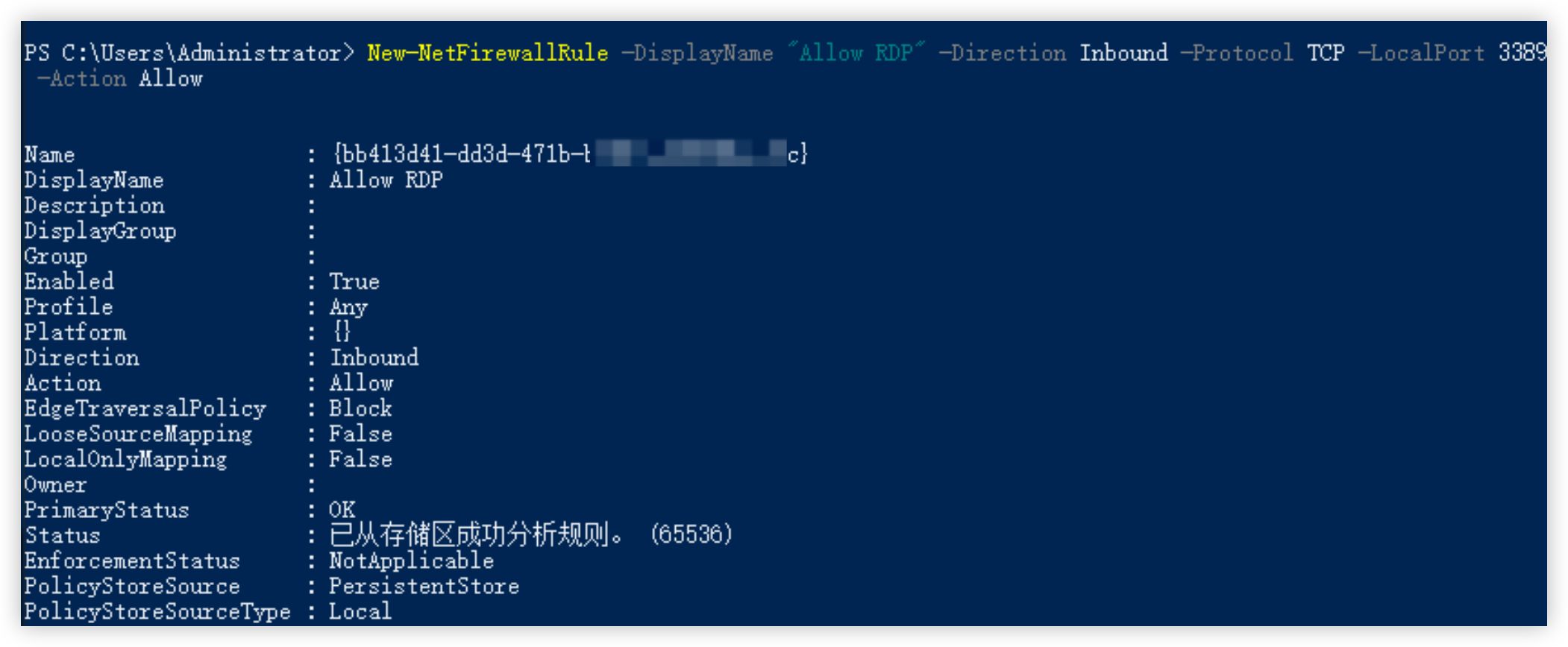
- Run the following command in PowerShell to ensure that the instance's internal firewall opens port 3389 for RDP traffic.
-
- Sample output:
-
Step 4: Assign user permissions
You need to add the users who log in to the server via Remote Desktop to the Remote Desktop user group.
- Click the Windows icon, and then select "Windows System > Run".
- In the dialog box, input lusrmgr.msc, and press Enter to open the Local Group Policy Editor.
- (Optional) You can create a new user as needed for remote server login.
- Select "User" in the directory tree on the left.
- Click on the blank area of the user module, and select "New User".
- After filling in the new user's name, login password, and other configurations, click the "Create" button to complete the actions.
- Assign user permissions.
- Select "Group" in the directory tree on the left.
- Right-click "Remote Desktop Users" and select "Add to Group".
- Click the "Add..." button.
- Click the "Advanced" button.
- Click the "Find Now" button, select the target user who needs to remotely log in to this server, and click the "OK" button.
- Click the "OK" button to save the selection.
- Click "Apply" and then the "OK" button in sequence to complete the actions.
Subsequent operations
Remotely log in to the ECS instance
On a local PC that can connect to the internet, you can access the ECS instance using various tools with the added remote login user. Learn more.
Manage Remote Desktop permission
The grace period of remote desktop authorization is 120 days. During this period, if you have not activated the corresponding instance with an authorized license (License), you can not use the multi-user login feature normally. Accordingly, you can:
- Apply for a Remote Desktop license, and activate the ECS to continue using the multi-user login feature.
- Delete Remote Desktop service, and stop using the multi-user login feature.
Last updated: 2025.10.21 11:27:51
All rights reserved © Beijing Volcano Engine Technology Co., Ltd2024
