Elastic Compute Service
Elastic Compute Service


Document

- Documentation
 Elastic Compute ServiceElastic Compute ServiceUser GuideNetworkNetwork interface and IP addressIP AddressIPv4 addressConfiguring secondary private IPv4 addresses for ECS instances
 Copy page
 Download PDF
IPv4 address
Configuring secondary private IPv4 addresses for ECS instances
Copy pageDownload PDFConfiguring secondary private IPv4 addresses for ECS instances
Applicable scenarios
After you assign a secondary private IPv4 address to the primary or secondary network interface of an ECS instance, the ECS image cannot identify the secondary private IPv4 address. You need to log in to the ECS instance and configure the secondary private IPv4 address manually.
Prerequisites
- A secondary private IPv4 address is assigned to the primary or secondary Network Interface of the ECS instance. Otherwise, assign a secondary private IPv4 address. For more information, see Assigning IPv4 addresses.
- If a secondary private IPv4 address has been assigned to the secondary network interface, refer to Configuring secondary network interfaces for ECS instances to determine whether configuration is needed. If so, complete the configuration.
- ECS images cannot recognize the private IPv4 address of the secondary network interface. You can log in to the ECS instance and execute the command to view the private IP address of the secondary network interface.
tip
Commands for viewing IP addresses:
- Linux: Execute the ip address show command in the command line.
- Windows: Execute the ipconfig command in the command line.
Procedure
- Log in to the ECS instance. For more information, see Logging in to instances.
- View the subnet mask and default gateway of the instance.
- On the Windows desktop, click "Start > Windows PowerShell" to open the Windows PowerShell tool.
- Execute the ipconfig command to view the subnet mask and default gateway.
- On the Windows desktop, open Network and Sharing Center.
- Click "Change adapter settings" to open the Network Connections window.
- Double-click the network connection name, such as Ethernet 3. In the pop-up network connection status window, click "Properties".
- In the properties dialog box, double-click "Internet Protocol Version 4 (TCP/IPv4)".
- In the Internet Protocol Version 4 (TCP/IPv4) Properties dialog box, select "Use the following IP address", and then click "Advanced".
- In the Advanced TCP/IP Settings dialog box, configure the IP address.
- In the IP addresses field, click "Add". In the pop-up window, enter the assigned IP address and the subnet mask retrieved from the query. You can add multiple IP addresses to the same network interface.
- In the Default gateways field, click "Add". In the pop-up window, enter the default gateway obtained from the query.
- Click "OK" in each window to save the configuration.
- In Windows PowerShell, execute the ipconfig command to view the updated IP configuration.
CentOS 7.x
- Log in to the ECS instance. For more information, see Logging in to instances.
- Execute the ip address command to view the subnet mask of the ECS instance.
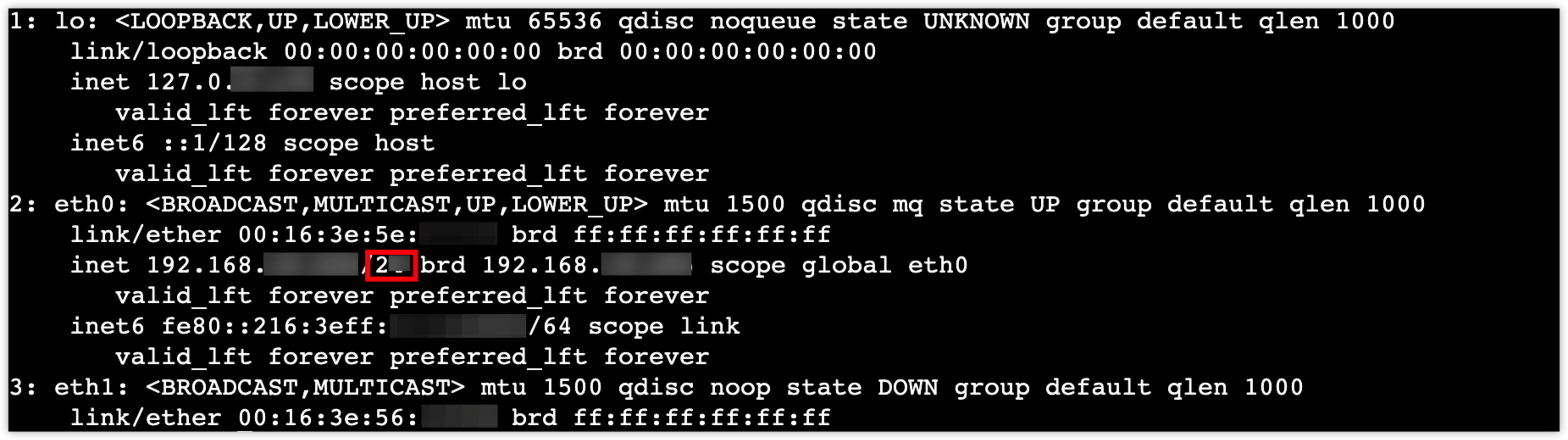
- As shown in the following figure, the number following the primary private IP address of the eth0 network interface indicates the prefix length, which needs to be converted to the corresponding subnet mask. For example, if the prefix length is 24, the subnet mask is 255.255.255.0.
-
- Modify the network configuration file and configure the IPv4 address. In the example provided in this section, the network configuration file of the eth0 network interface is modified.
- Configure a single private IPv4 address
- Execute the vim /etc/sysconfig/network-scripts/ifcfg-eth0:0 command to open the network configuration file.
- Press the i key to enter the edit mode and enter the following content:
-
- Press Esc to exit the edit mode, input :wq and press Enter.
- To add more private IPv4 addresses, increment the DEVICE number and configure private IPv4 addresses accordingly.
- Execute the vim /etc/sysconfig/network-scripts/ifcfg-eth0:1 command to open the network configuration file.
- Press the i key to enter the edit mode and enter the following content:
-
- Press Esc to exit the edit mode, input :wq and press Enter.
- Execute the service network restart command to restart the network service.
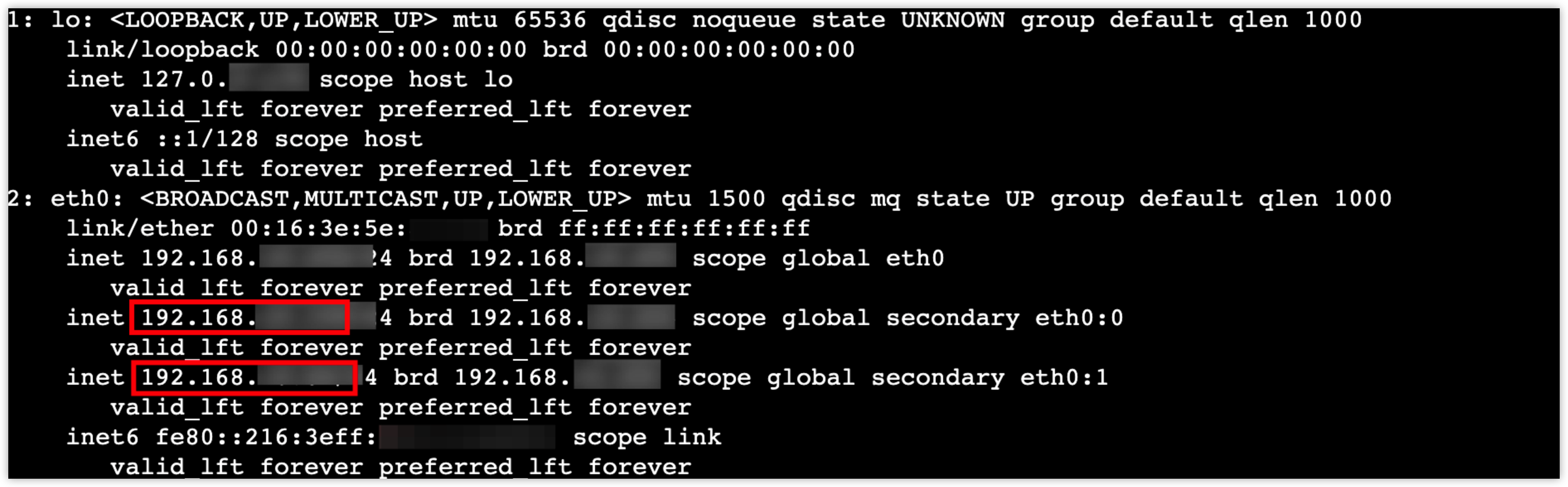
- Execute the ip address show command to view the configuration updates.
- As shown in the following figure, two secondary private IPv4 addresses have been configured.
-
CentOS 8.x/Stream
- Log in to the ECS instance. For more information, see Logging in to instances.
- Execute the ip address command to view the subnet mask of the ECS instance.
- As shown in the following figure, the number following the primary private IP address of the eth1 network interface indicates the prefix length, which needs to be converted to the corresponding subnet mask. For example, if the prefix length is 24, the subnet mask is 255.255.255.0.
-

- Execute the following command to open the configuration file for the eth1 network interface.
-
- Press i to enter the edit mode, and add configuration information to the configuration file for the eth1 network interface.
- After you complete the configuration, press the Esc key, enter :wq, and then press Enter to save the changes and exit the file.
-
- Modify the network configuration file and configure the IPv4 address.
- Configure a single private IPv4 address
- Execute the vim /etc/sysconfig/network-scripts/ifcfg-eth1:0 command to open the network configuration file.
- Press the i key to enter the edit mode and enter the following content:
-
- Press Esc to exit the edit mode, input :wq and press Enter.
- To add more private IPv4 addresses, increment the DEVICE number and configure private IPv4 addresses accordingly.
- Execute the vim /etc/sysconfig/network-scripts/ifcfg-eth1:1 command to open the network configuration file.
- Press the i key to enter the edit mode and enter the following content:
-
- Press Esc to exit the edit mode, input :wq and press Enter.
- Execute the reboot command to restart the ECS instance.
- Execute the ip address show command to view the configuration updates.
- As shown in the following figure, two secondary private IPv4 addresses have been configured.
-

- Log in to the ECS instance. For more information, see Logging in to instances.
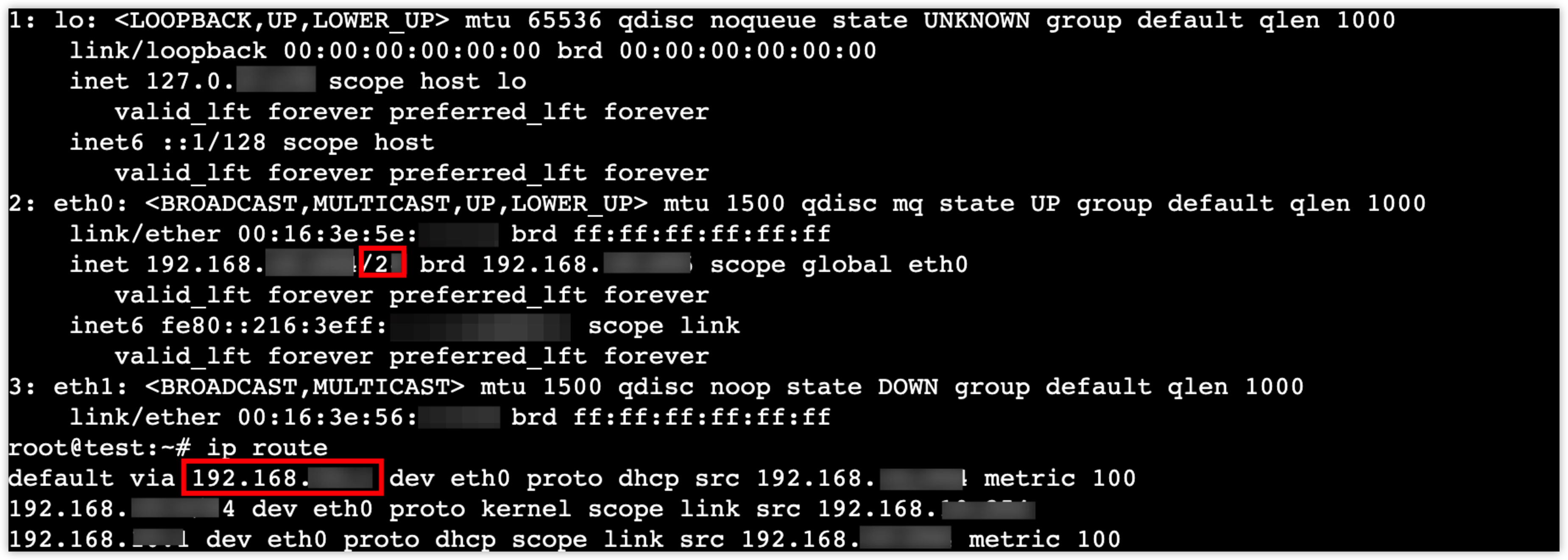
- Execute the following command to view the subnet mask and default gateway of the instance.
-
If default gateway information is not required in the network configuration, you can skip the default gateway query step.
- As shown in the following figure, the number following the primary private IP address of the eth0 network interface indicates the prefix length, which needs to be converted to the corresponding subnet mask. For example, if the prefix length is 24, the subnet mask is 255.255.255.0. The IP address following "default" is the default gateway address for the eth0 network interface.
-
- Select the method for configuring a secondary private IP address based on the instance operating system. In the example provided in this section, a secondary private IP address is configured for the eth0 network interface.
- Ubuntu 18.04.6 LTS, Ubuntu 20.04.5 LTS, and Ubuntu 22.04.1 LTS are used as examples:
- Disable Cloud-init network configuration. Execute the vim /etc/cloud/cloud.cfg.d/99-disable-network-config.cfg command, press i to enter the edit mode, enter the following configuration content, press Esc to exit the edit mode, and then enter :wq and press Enter.
-
- Modify the network configuration. Execute the vim /etc/netplan/50-cloud-init.yaml command, press i to enter the edit mode, enter the following configuration content, press Esc to exit the edit mode, and then enter :wq and press Enter.
- Ubuntu 18.04.6 LTS and Ubuntu 20.04.5 LTS are used as examples:
-
In the above configuration, the <prefix length> is converted from the subnet mask. For example, the mask bits for the subnet mask 255.255.255.0 is 24.
- Ubuntu 22.04.1 LTS is used as an example:
-
In the above configuration, the <prefix length> is converted from the subnet mask. For example, the mask bits for the subnet mask 255.255.255.0 is 24.
- Execute the netplan apply command to restart the network service for the configuration to take effect.
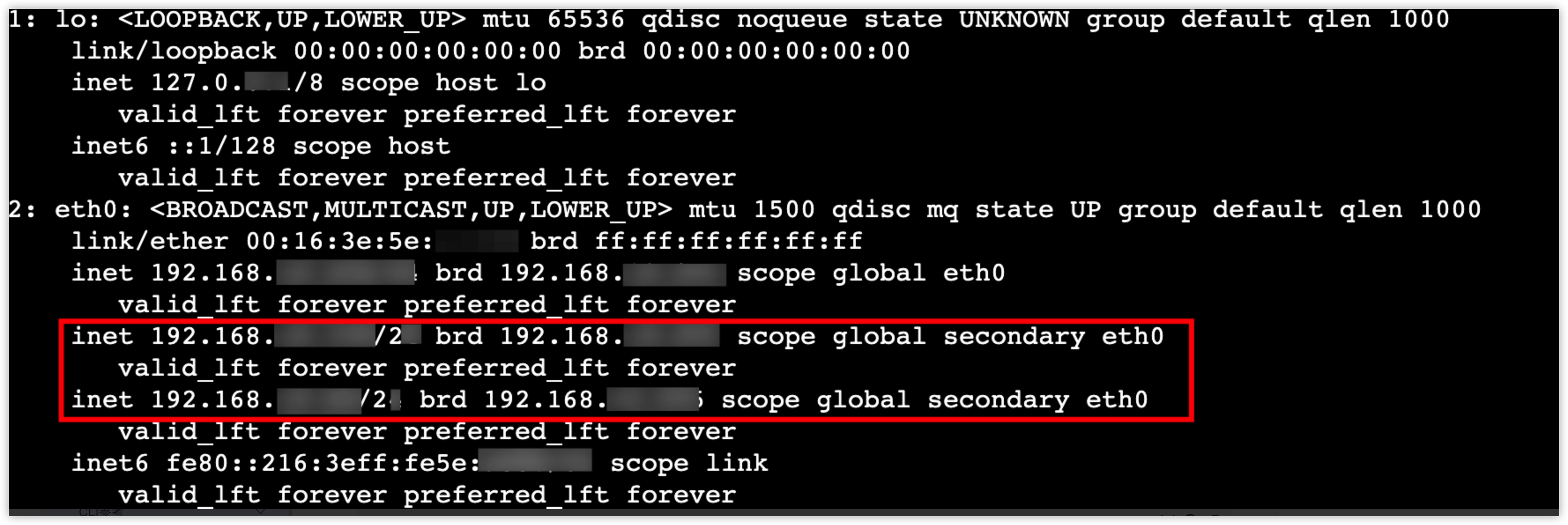
- Execute the ip address show command to view the configuration updates.
- As shown in the following figure, two secondary private IPv4 addresses have been configured.
-
- Ubuntu 16.04.7 LTS, Debian 9/10/11, and veLinux are used as examples:
- Modify the network configuration. Execute the vim /etc/network/interfaces command, press i to enter the edit mode, enter the following configuration content, press Esc to exit the edit mode, and then enter :wq and press Enter.
-
- Execute the reboot command to restart the ECS instance.
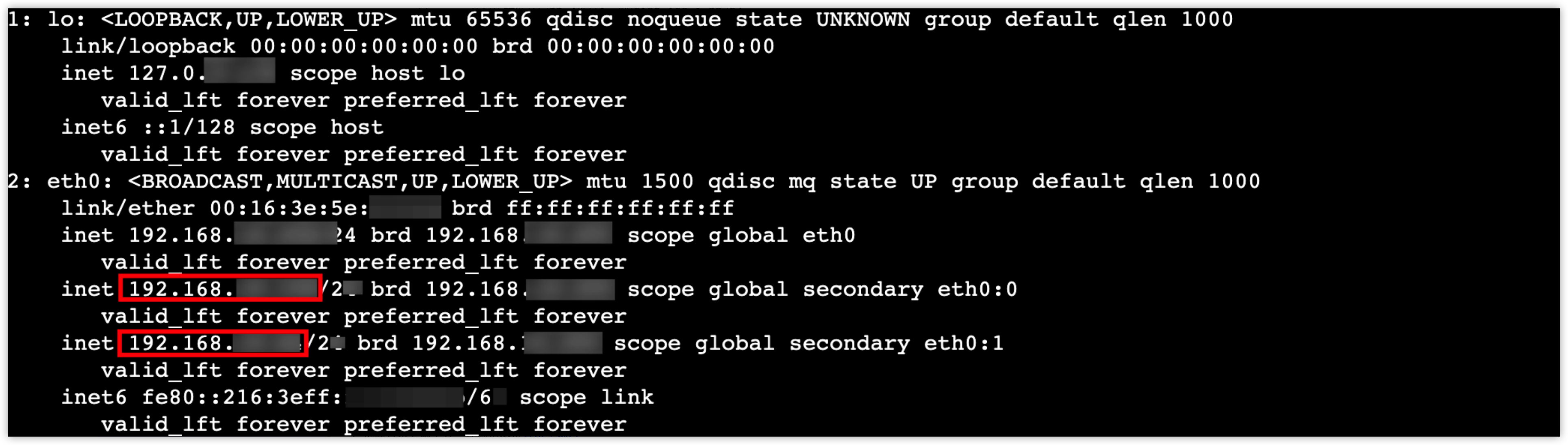
- Execute the ip address command to view the configuration updates.
- As shown in the following figure, two secondary private IPv4 addresses have been configured.
-
- Log in to the ECS instance. For more information, see Logging in to instances.
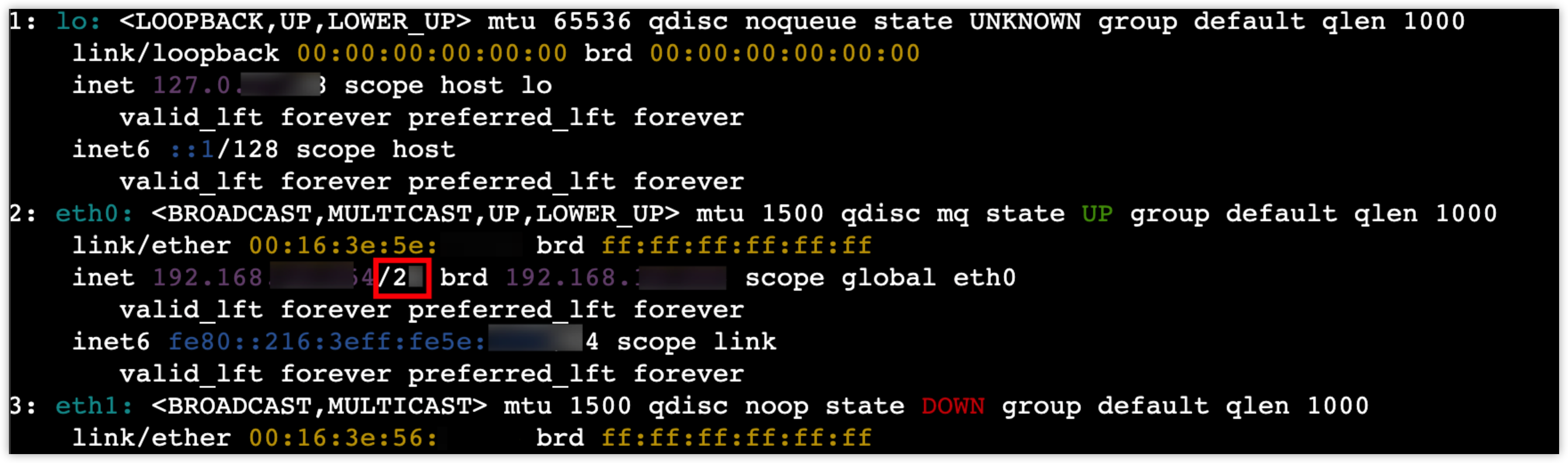
- Execute the ip address command to view the subnet mask of the ECS instance.
- As shown in the following figure, the number following the primary private IP address of the eth0 network interface indicates the prefix length, which needs to be converted to the corresponding subnet mask. For example, if the prefix length is 24, the subnet mask is 255.255.255.0.
-
- Modify the network configuration. In the example provided in this section, the network configuration of the eht0 network interface is modified.
- Execute the vim /etc/sysconfig/network/ifcfg-eth0 command to open the network configuration file.
- Press the i key to enter the edit mode and enter the following content:
-
- Press Esc to exit the edit mode, input :wq and press Enter.
- Execute the service network restart command to restart the network service to apply the configuration.
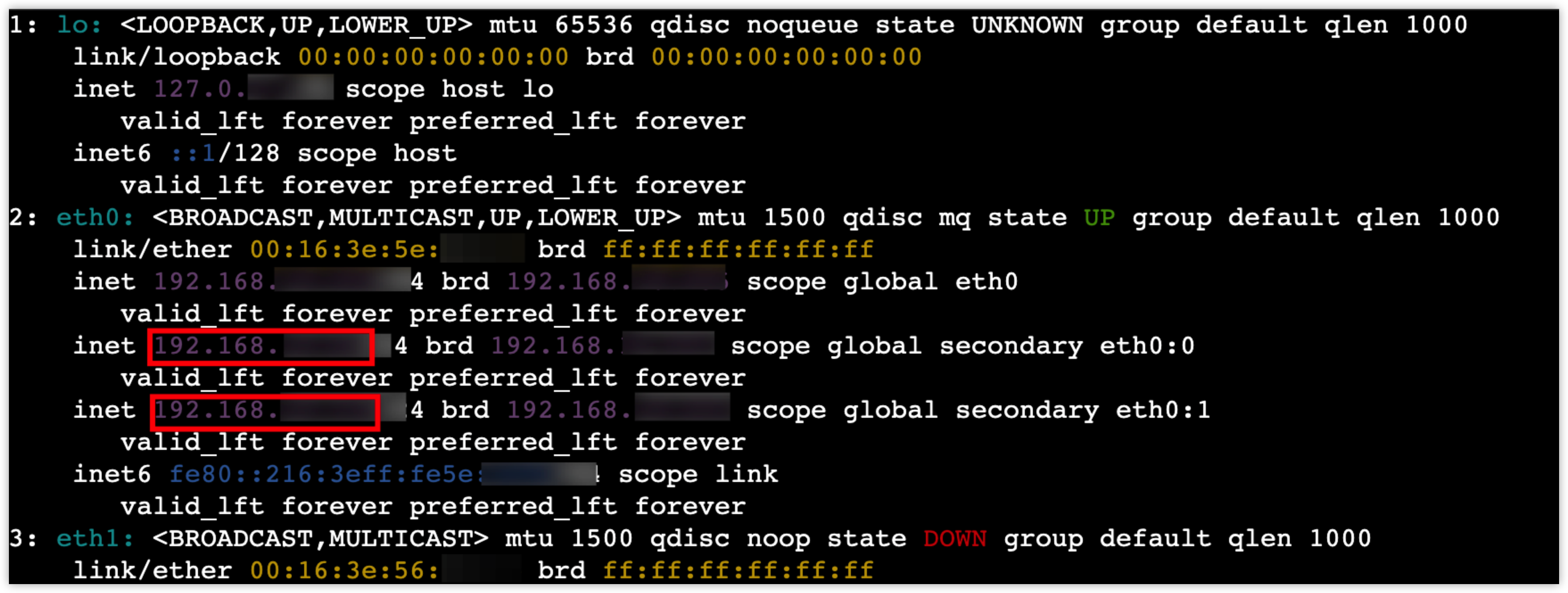
- Execute the ip address show command to view the configuration updates.
- As shown in the following figure, two secondary private IPv4 addresses have been configured.
-
Last updated: 2026.06.18 17:49:50
All rights reserved © Beijing Volcano Engine Technology Co., Ltd2024
