Elastic Compute Service
Elastic Compute Service


Document

- Documentation
 Elastic Compute ServiceElastic Compute ServiceUser GuideImagesCustom imagesCreating custom imagesCreating custom images by using Tailor
 Copy page
 Download PDF
Creating custom images
Creating custom images by using Tailor
Copy pageDownload PDFCreating custom images by using Tailor
Tailor is a custom image building tool developed by the platform for the Linux and macOS operating systems. You can use Tailor to create a custom image based on a specific image.
This topic describes how to use Tailor to create a custom image.
Prerequisites
- An ECS instance is purchased and the snapshot service is enabled.
- The sum of your VolcanoEngine account balance (cash balance) and coupon values is greater than or equal to CNY 100. For information about how to check the sum, see Account description. If the sum is insufficient, refer to Recharge guide to top up your account.
Usage notes
- You cannot use Tailor to create Windows custom images.
- You can create a custom image only for your system volume. The time required to create a custom image varies based on the actual size of the system volume.
- When you create a custom image, pay-as-you-go cloud resources, such as temporary ECS instances and EIPs are automatically created. After the custom image is created, the cloud resources are automatically deleted. You are charged for the cloud resources that are automatically created when you create a custom image. For more information, see Pay-as-you-go billing method.
Procedure
Step 1: Install Tailor
- Log in to the instance where you want to run Tailor. For more information, see Logging in to Linux instances.
- Run the following command to install Tailor in the /usr/local/bin directory.
/usr/local/bin/ is a directory for environment variables. If you install Tailor in this directory, you can use Tailor from any directory without the need to specify the installation directory of Tailor.
- Installation on Linux:
-
- Installation on macOS:
-
- You can run the following command to view the Tailor usage instructions and verify whether Tailor is installed.
-
-
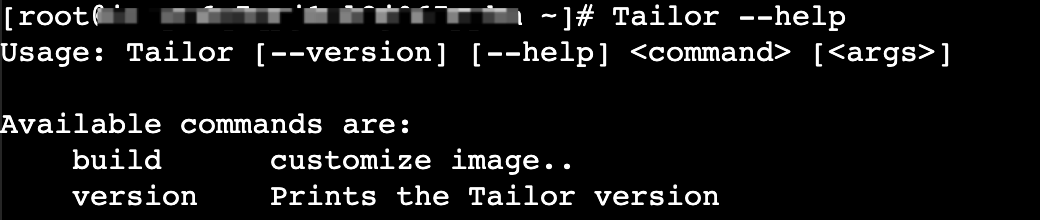
Step 2: Create a custom image script (optional)
You can write a Shell script that includes the operations you want to specify for a custom image, such as software and driver installation and CVE fixing. You can specify that the script is automatically executed when you use Tailor to create the custom image.
warning
- You can include the instance restart operation in each script file that is specified by the script parameter. Tailor continues to execute the script tasks after the instance is restarted.
- Tailor supports the following script path formats. You can specify script paths in the following formats based on your business requirements.
- Local directory. Example: /tmp/update/.
- Local script. Example: /tmp/a.sh.
- Network script. Example: http://install/a.sh.
- Script in compression format. Currently, the .tar, .gzip, and .zip formats are supported. Example: centos_shell.zip.
- For a collection of scripts in compression format or scripts in local directory format, the following requirements must be met:
- You need to specify buildx.sh script files, such as build1.sh and build3.sh as the entry points for executing the custom image script. Tailor automatically executes the buildx.sh scripts based on the value of x in ascending order. Each time a buildx.sh script is executed, Tailor restarts the instance.
- In the script collection, buildx.sh files cannot be stored in level-2 directories, such as temp/temp_1/build3.sh. There are no restrictions on the location of other scripts and files.
Example of a standard script collection
Example of the contents of the buildx.sh script:
- build1.sh
-
- build5.sh
-
Step 3: Create a parameter configuration file (optional)
When you use Tailor to create a custom image, you can specify the name and size of the custom image and the type of the temporary instance used during the creation process by using parameters in a YAML configuration file.
tip
- If you do not create a parameter configuration file, you need to pass in parameters and their values when you execute the commands.
- The temporary instance is automatically created by the platform and automatically deleted after the custom image is created.
- Run the following command to view the parameters supported by Tailor.
-
-
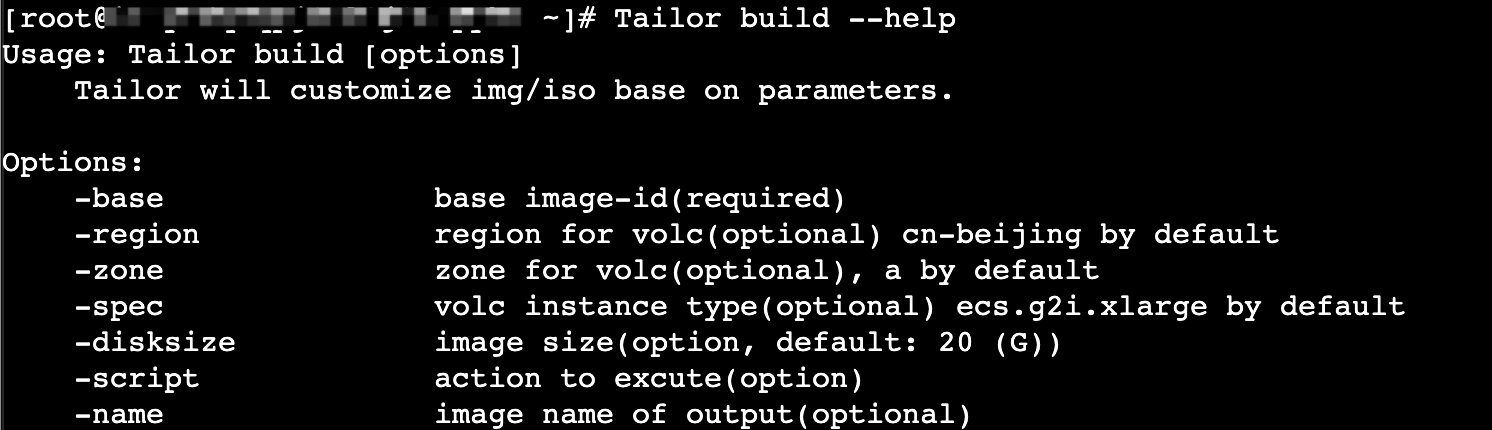
- Parameters:
-
- Create a YAML file that includes the parameters.
- Run the following command to create a configuration file.
-
tip
Replace config with the name of your configuration file.
- Press the i key and enter the parameter information that you want to specify in the following structure.
-
- Press the Esc key to exit the edit mode, enter :wq, and then press the Enter key to save and exit the file.
Step 4: Create a custom image
- When Tailor executes the custom image creation task, the task information and cache files are stored in the directory where you run the command. For more information, see Creation result.
- Run the following command to navigate to the directory where you want to store the relevant content.
-
tip
Replace /etc/Tailors/ with your directory path.
- Run the following command to import the AccessKey ID and AccessKey secret in the AccessKey pair. For more information, see User guide.
-
- Run the following command to create a custom image.
tip
When you create a custom image, Tailor automatically displays FATAL and ERROR severity logs in the console. For information about log description and how to adjust displayed log information, see Log description.
- Specify parameter values by using the parameter configuration file.
-
tip
For information about how to create a parameter configuration file, see Creating parameter configuration files.
- Specify parameter values in the command.
-
tip
- For information about the parameters that you can configure, see Creating parameter configuration files.
- You can use the script parameter multiple times to specify information about multiple scripts.
- After the custom image creation task is executed, Tailor displays the ID and name of the generated custom image. The custom image is automatically added to the region where the temporary instance resides.
-
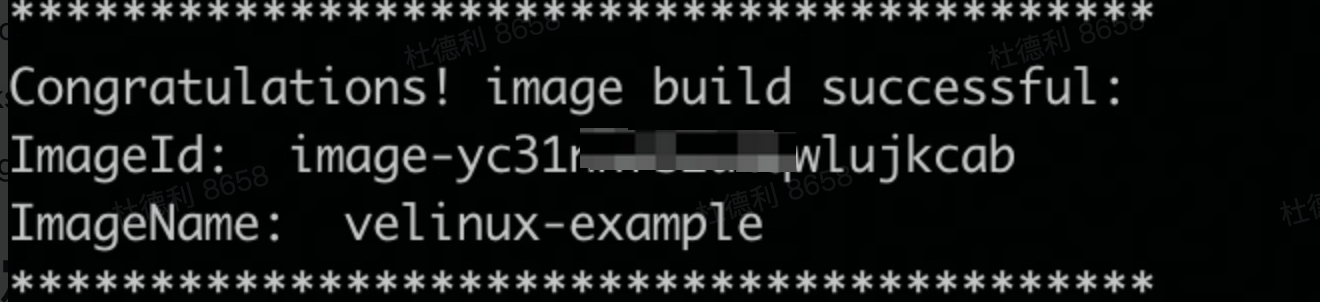
Step 5: View the creation result
View the custom image
- Log in to the Image console.
- In the top menu bar, select the region and project where the target custom image is located.
tip
The region of the image is the same as the region of the temporary instance. For more information, see Creating parameter configuration files.
- Select the "Custom Image" tab.
- If the status of the target image is Available in the "State" column, the custom image is created.
- You can also click the image name to go to the image details page, select the "Associative snapshot" tab, and view the IDs of the snapshots associated with the volumes in the image, the volume types, and the capacity of the volumes. For more information about snapshots, see Snapshot overview.
View the task
When you run the Tailor build command, Tailor creates a workspace directory in the current directory to store intermediate artifacts generated during the custom image creation task. This makes it easier for you to troubleshoot any issues that occur during the creation process.
For each custom image creation task, a task directory is created in the workspace directory in the "ImageName-Timestamp" format. The task directory stores the cache files and HTTP files related to the task.
tip
If a custom image creation task is executed as expected, no task information is stored in the task directory.
Sample structure of the workspace directory
File name | Description |
cache | The directory for cache files. |
http | The directory for intermediate files pulled over the network. Example: the directory for custom image scripts. |
log | The directory for log files. |
packer.json | The template file of the Packer builder. |
Log description
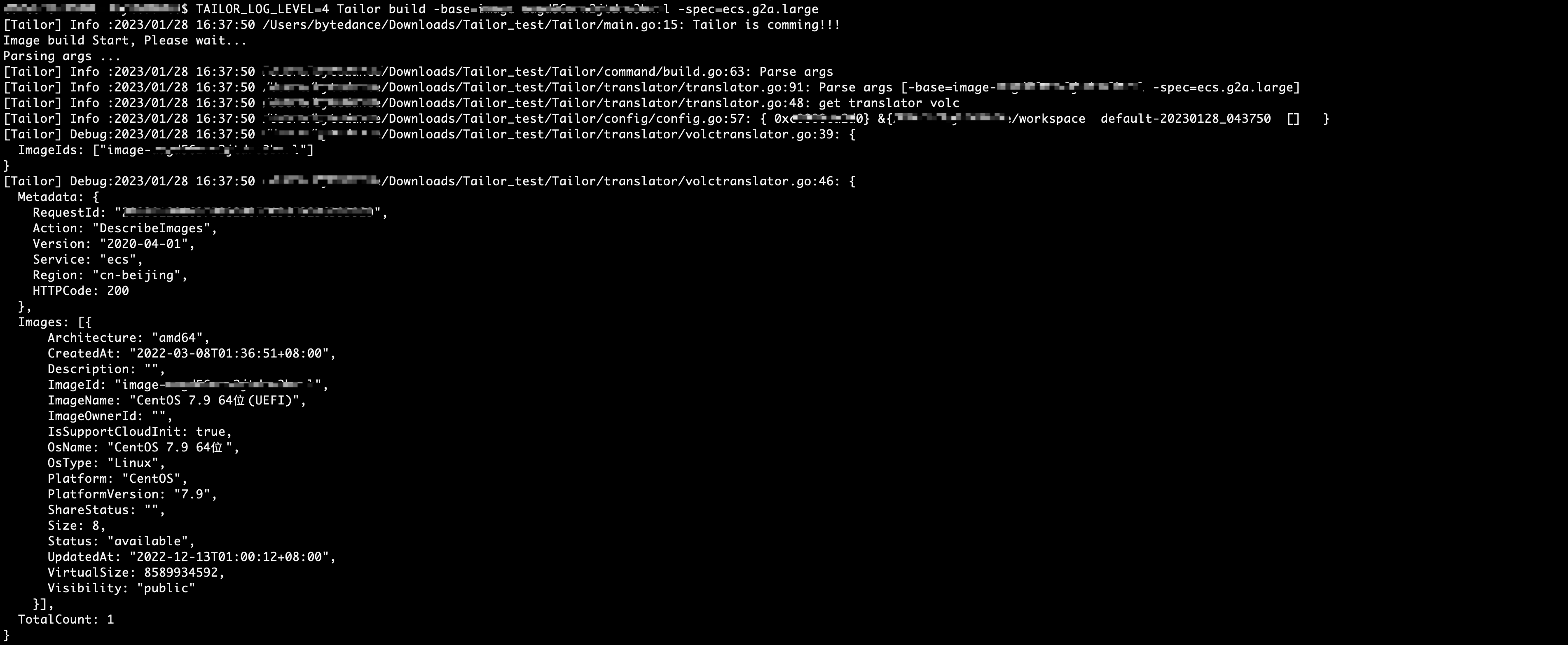
When you use Tailor to create a custom image, Tailor displays the task log information in the console. When you execute the image creation command, you can specify the log level based on your business requirements. This way, you can specify the level of detail for displayed logs.
Log level
The following items describe the log levels and the content displayed at specific log levels.
- 0: Display FATAL severity logs.
- 1: Display ERROR and lower severity logs. This is the default log level.
- 2: Display WARN and lower severity logs.
- 3: Display DEBUG and lower severity logs.
- 4: Display INFO and lower severity logs.
Configuration description
When you execute the Tailor build command to create a custom image, you can pass in the TAILOR_LOG_LEVEL parameter to specify the log level for the task. Example:
Last updated: 2025.09.01 18:20:45
All rights reserved © Beijing Volcano Engine Technology Co., Ltd2024
