Elastic Compute Service
Elastic Compute Service


Document

- Documentation
 Elastic Compute ServiceElastic Compute ServiceTroubleshootingOperating system issueLinux operating system issueHow to fix invalid software repository keys?
 Copy page
 Download PDF
Linux operating system issue
How to fix invalid software repository keys?
Copy pageDownload PDFHow to fix invalid software repository keys?
Issue description
When you install or update packages on a Linux system using a package manager (such as apt, yum, or dnf), the following signature verification errors occur.
- veLinux/Debian/Ubuntu
-
- CentOS/Rocky Linux/AlmaLinux
-
Causes
Software repository key is a GPG public key used to verify the legitimacy of software package sources. In Linux systems, package managers (for example, apt, yum, and dnf) use software repository keys to verify the digital signature of each package during installation or update to ensure that the package is signed by a trusted publisher and not tampered with in transit. If a software repository key is missing, expired, or mismatched, the package manager refuses to install or update the package and returns a signature verification error.
Solutions
This section describes common solutions for software repository key expiration. You can first update the software repository key within the affected instance. If the instance was created from a custom image, you can fix the issue within the image as needed to prevent new instances created from it from encountering the same key issue.
Step 1: Fix the affected instance
Solution 1: Update software repository key via cloud assistant
- Prerequisites
- Cloud assistant Agent has been installed on the target instance.
- Procedure
- Log in to the cloud assistant console.
- In the top menu bar, select the region where the target instance resides.
- Click the "Create a job" button and enter the following information.
warning
This section describes only the parameters required for issue solution. Keep other parameters with default values. For the complete parameter description, see Creating jobs.
- ParameterDescriptionExecute commandCommand sourceCommandSelect Update software repository key.Executing userSelect the root user.ObjectObjectSelect the ECS instances for which you want to update the software repository key.tipYou can select up to 200 ECS instances.
- Click the "Confirm" button. After the job is created, the system automatically redirects you to the Job management page and starts job execution.
- Verify whether the software repository key update succeeds.
- When the job status changes to Succeeded, click the "Execution result" button in the "Actions" column on the right.
- Click the "Runtime log" button in the "Actions" column on the right of the target instances in sequence. If the log contains keyring installed successfully, the software repository key of the corresponding instance is updated.
Solution 2: Manually update software repository key
- Execute the corresponding commands according to the instance operating system to update the key information.
-
- Execute the following commands to update the software repository key.
- veLinux 2.0
-
- veLinux 1.0
-
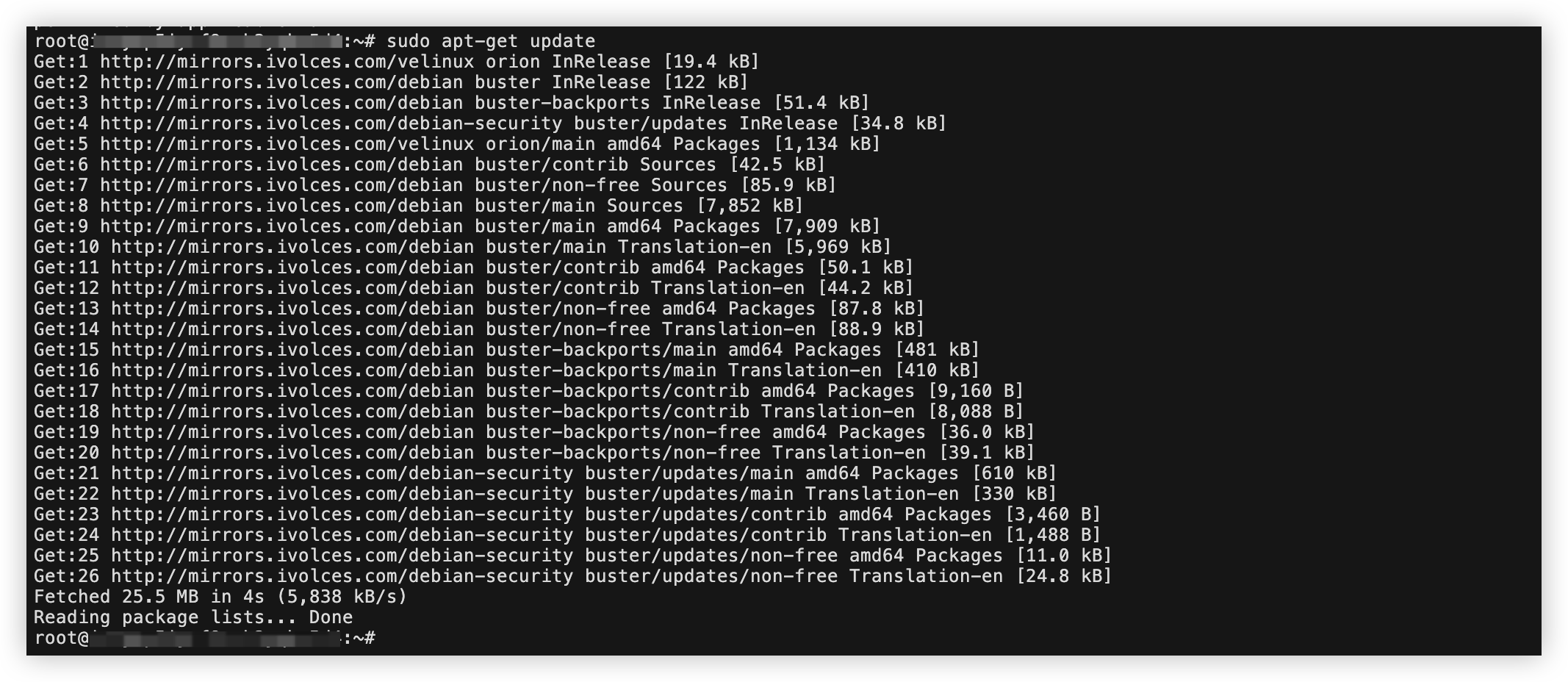
- Execute the following command to ensure that the key update succeeds and to refresh the apt software repository information.
-
- If the output does not contain The following signatures were invalid: EXPKEYSIG, the software repository key is updated.
-
- Execute the following commands to update the software repository key.
warningReplace <fingerprint> with the actual value contained in the error message when you execute the apt-get update command. For example, if the error message is The following signatures were invalid: EXPKEYSIG 3B4FE6ACC0B21F32, replace the value with 3B4FE6ACC0B21F32.-
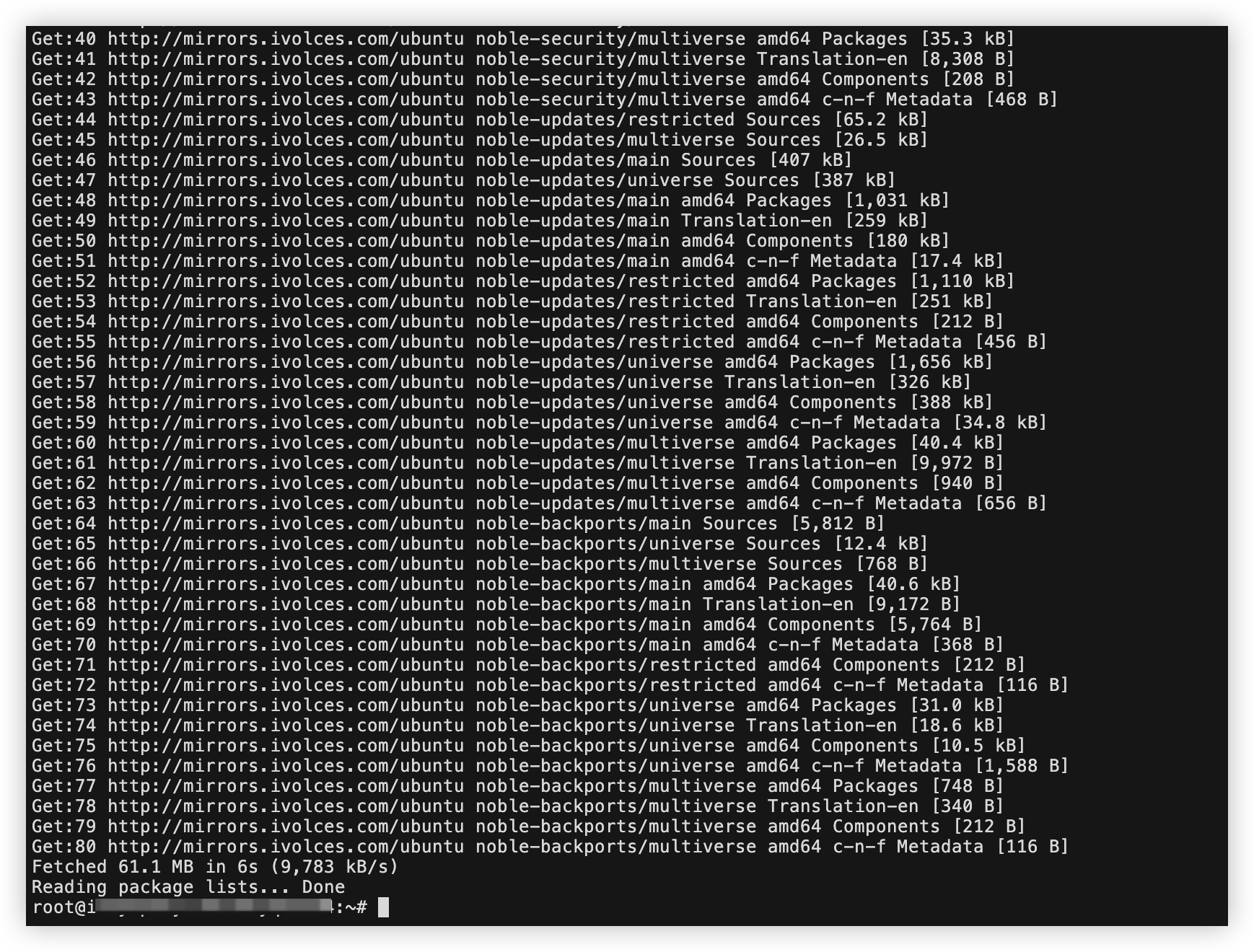
- Execute the following command to ensure that the key update succeeds and to refresh the apt software repository information.
-
- If the output does not contain The following signatures were invalid: EXPKEYSIG, the software repository key is updated.
-
- Obtain the repository key download URL for the update.
- From any device with internet access and a browser, visit the Debian official key release information page.
- Based on the OS release version number (for example, 12) or codename (for example, bookworm) of the target instance, find and obtain the download URLs for the corresponding Archive Signing Key and Security Archive Signing Key.
- On the target instance, execute the following commands to download the new keys.
warningThe Debian 12/bookworm commands are used as an example. Replace https://ftp-master.debian.org/keys/archive-key-12.asc and https://ftp-master.debian.org/keys/archive-key-12-security.asc with the actual key download URLs you obtain.-
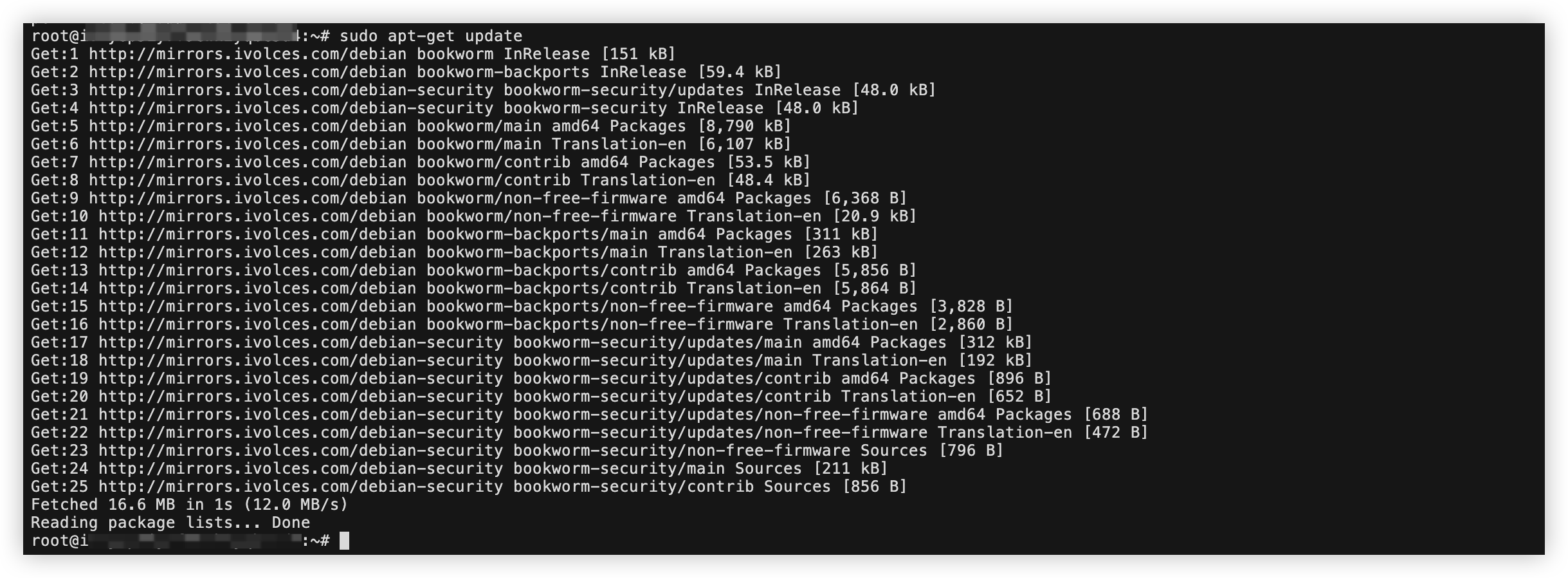
- Execute the following command to verify that the key update succeeds and to refresh the apt software repository information.
-
- If the output does not contain The following signatures were invalid: EXPKEYSIG, the software repository key is updated.
-
- Execute the following command to import the official software repository key.
-
- Execute the following command to import the EPEL software repository key.
- CentOS Stream 10.x/Rocky Linux 10.x/AlmaLinux 10.x
-
- CentOS Stream 9.x/Rocky Linux 9.x/AlmaLinux 9.x
-
- CentOS 8.x/Rocky Linux 8.x/AlmaLinux 8.x
-
- CentOS 7.x
-
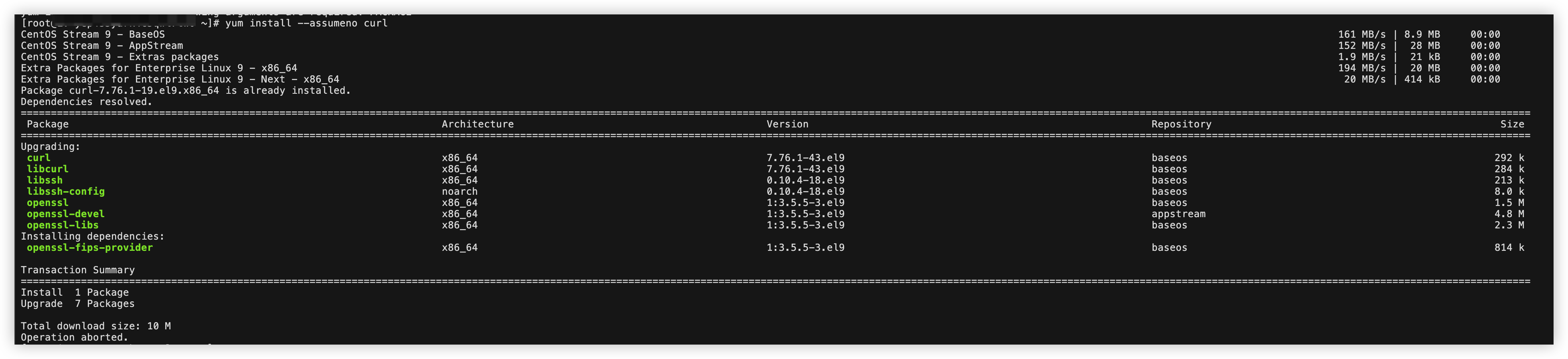
- Execute the following command to check whether the repository key is imported and updated.
-
- If the output does not contain NOKEY: Public key for package is not installed, the software repository key is updated.
-
- If the output displays Import of key(s) didn't help, wrong key(s)?, this error indicates that the imported key does not match the signature/data being verified. You need to manually import the GPG key from the official software package repository. For example, to import the AlmaLinux official repository key:
-
Step 2: (Optional) Fix the affected custom image
If your affected ECS instance was created from a custom image, updating the software repository key fixes only the current instance. The change is not automatically synchronized to the corresponding custom image. If you still need to use the custom image to create new instances, follow the instructions in this section to create a temporary instance first to complete the fix, and then recreate the custom image.
- Create a temporary instance from the affected custom image.
- Log in to the Custom Image console.
- In the top menu bar, select the region and project of the target image.
- Click the "Create Instances" in the "Actions" column to the right of the target image.
- On the instance creation page, refer to Purchasing an ECS instance to create an instance.
- Follow the instructions in Step 1 to update the software repository key in the temporary instance.
- Recreate the custom image based on the fixed temporary instance.
- After the update succeeds, click "... > Volumes & Image > Create custom image" in the "Actions" column on the right side of the target instance.
- Enter the name, project, and other information of the new image as needed. Learn more.
- Click the "Create" button and wait until the custom image is created.
- If the status of the new image is Available in the "State" column, the custom image is created.
- After the new image has been created, you can clear resources as needed, including the temporary instance used to repair the image and the custom images that still have software repository key issues. This helps avoid incurring additional charges or unnecessary resource usage.
Last updated: 2026.06.29 14:20:35
All rights reserved © Beijing Volcano Engine Technology Co., Ltd2024
