Elastic Compute Service
Elastic Compute Service
Elastic Compute Service


Document
Elastic Compute Service
What's New
Announcement
OpenAPI related
Pricing and quotas are related
About products and plugins
Feature discontinuation
Overview
Billing
Billable items
Billing methods
Billing methods change
Getting Started
User Guide
Instances
Instance types
X86 Computing
Elastic Bare Metal Server
Heterogeneous Computing
Select instance billing method
Spot instance
Elastic Scheduled Instance
Offsetting Resources
Reserved Instances
Buying ECS instances
Logging in to an instance
Logging in to a Linux instance
Managing instance status
Modifying instance types
Using instance user data and metadata
Instance metadata
Images
Public images
veLinux images
Custom images
Importing custom images
Creating custom images
Image detection
End of life (EOL) of image
Elastic Block Storage
Basic volume operations
Partitioning and formatting a volume
Extending a volume
EBS Agent
Snapshots
Basic snapshot operations
Auto snapshot policies
DataInsights
Network
Network interface and IP address
IP Address
IPv4 address
Security group
Security
Passwords and key pairs
Deployment and scaling
Monitoring
Monitoring metrics
Event monitoring
Local volume event O&M
Method 1: Solve the local volume failure by replacing the faulty volume
O&M
Cloud assistant
Managing agents
Process choreography
Common operation and maintenance tasks
Batch operations on instances
Batch operations on EBS Volumes
Batch operations on images
Temporary upgrade of bandwidth
Managing application updates
orchestration plan
Patch management
Managing patch plans
Managing patch baselines
IAM
Tags and projects
Best Practices
AI applications
OpenClaw (formerly Moltbot)
Quickly deploying OpenClaw via application templates
Quickly deploying OpenClaw via marketplace images
Manually deploying OpenClaw
Self-service website creation
Building environments
Building a Web environment (Windows)
Building applications
Building FTP site
Deploying databases
Building game servers
Building websites
Building a WordPress blog
Building multiple websites
Manage software sources for Linux instances
AIGC practices
Performance test
Network performance test
Instance configuration
Setting up AD Domain Services on Windows OS
Windows Multi - User Login
Changing screen resolution
Instance data
Uploading or downloading files
Data restoration
ECS instance local time synchronization
Volume
Monitoring
Security
Images
Kernel fine-tuning
O&M
Troubleshooting
Remote log in issue
Linux operating system issue
Windows operating system issue
SSH log in issue
Operating system issue
veLinux operating system issue
Linux operating system issue
Windows operating system issue
Instance status issue
Instance unable to start issue
High instance load issue
GPU instances issue
Network connection issue
Network configuration issue
Storage classes issue
EBS Volume issue
Local Disk issue
Logs and monitoring issue
Third - party software issue
API Reference
Regions and availability zones
Instances
Images
HPC clusters
Key pairs
Tags
Volumes
Reserved storage capacity
Snapshot
Auto snapshot policy
Monitoring
Deployment sets
Launch templates
Cloud assistant
Patch management
SDK reference
CLI Reference
FAQ
Dedicated Host DDH
What's New
Billing
User Guide
Manage Dedicated Host
Manage Dedicated Host Cluster
Manage ECS instances
Monitoring and O&M
API reference
proprietary host
- Documentation
 Elastic Compute ServiceElastic Compute ServiceTroubleshootingHigh instance load issueTroubleshooting and solution for high disk load of ECS instance with Linux system
 Copy page
 Download PDF
High instance load issue
Troubleshooting and solution for high disk load of ECS instance with Linux system
Copy pageDownload PDFTroubleshooting and solution for high disk load of ECS instance with Linux system
This topic describes how to troubleshoot and handle the No space left on device error that may occur due to high disk load (usage) when you create a file or application on a Linux instance.
Procedure
View details of current disk usage
- Log in to the target instance. For operation details, refer to Logging in to Linux instances.
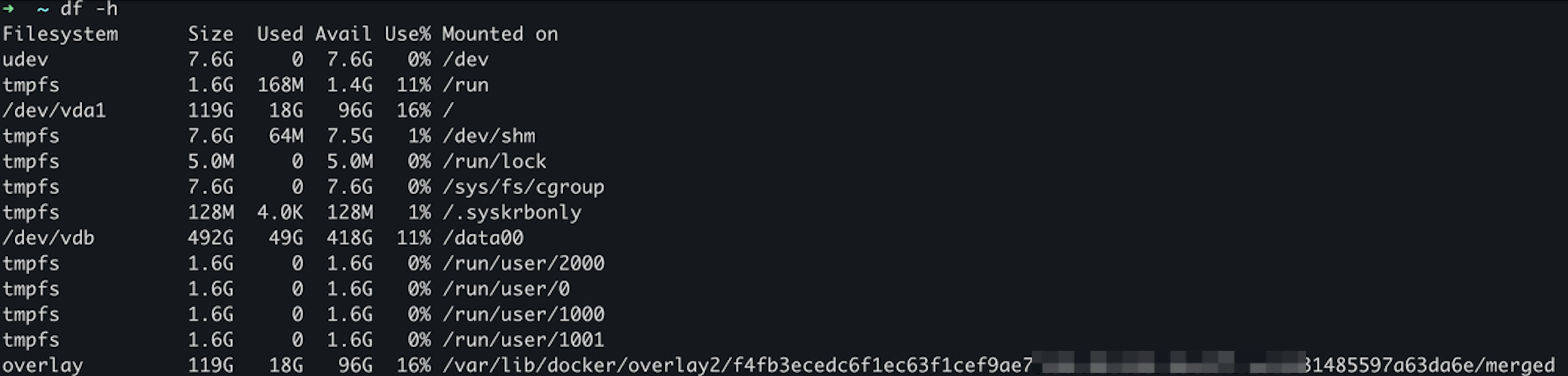
- Execute the following command to view the current disk usage.
- df -h
- Sample output
-
- View disk usage details for each directory level by level.
This topic starts from the root directory / as an example.
- Execute the following command to enter the root directory.
- cd /
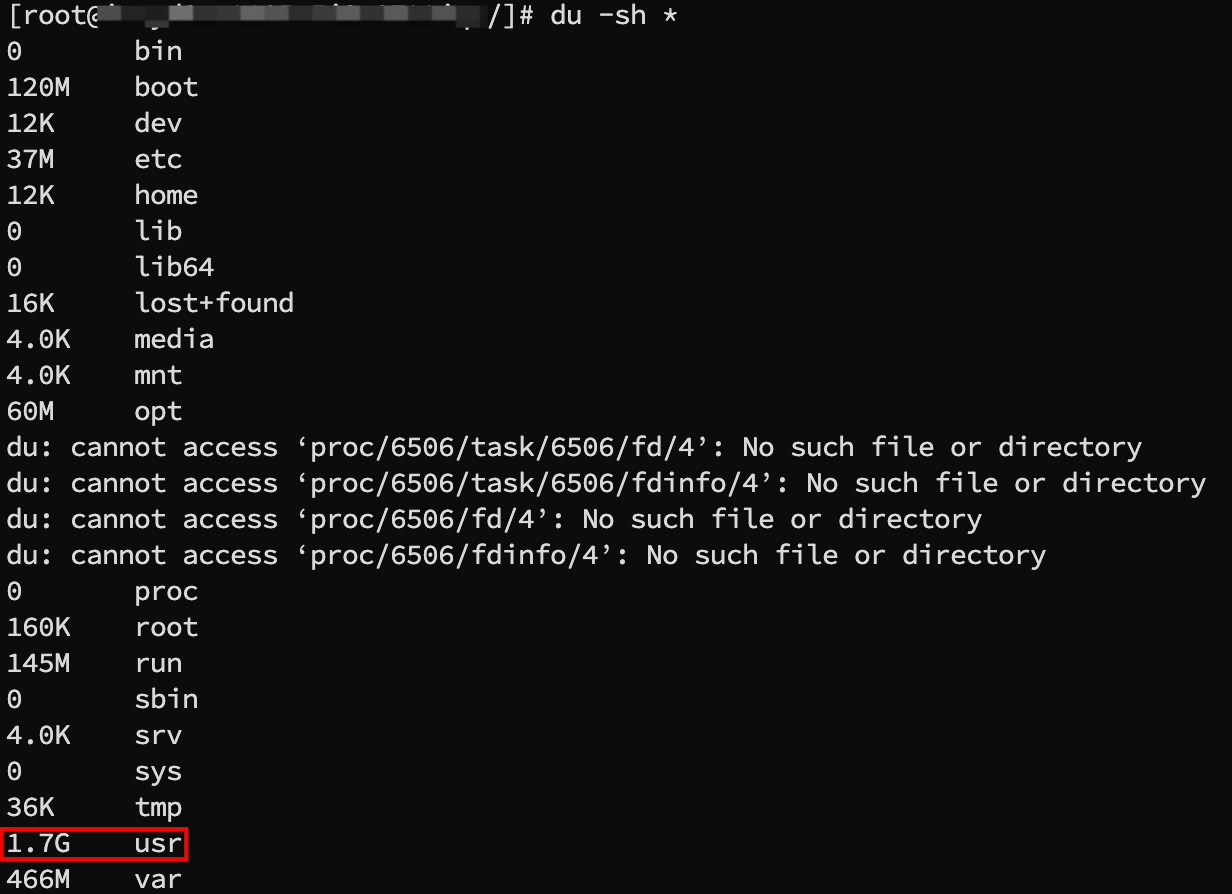
- Execute the following command to view the folder in the current directory that uses the most disk space.
- du -sh *
- Sample output
-
- Execute the following command to enter the usr directory.
In the example provided in this topic, the large file is in the usr directory. Replace it with the actual directory path.
- cd usr/
- Execute the following command to view the folder in the current directory that occupies the most disk space.
- du -sh *
- Sample output
-
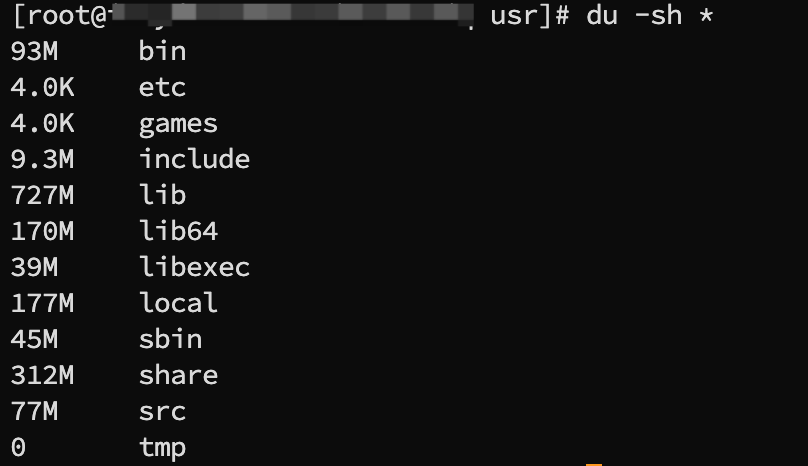
- Repeat steps c and d until you locate the file that uses a large amount of space. After this, confirm whether the target file is used by the system or for business purposes.
- File cleanup cannot be performed
- If the target large file is necessary for your business or system and cannot be cleaned up, you can upgrade your instance configuration, expand the volume capacity, or change the volume specification. This ensures that programs can run normally without being limited by the performance of the volume. For operation details, refer to Changing instance types, Expanding volumes, and Changing volume specifications.
- File cleanup can be performed
- If the target large file is not necessary, you can execute the following command to forcibly delete the file and free up disk space.
warning
- Deletion is irreversible. Please proceed with caution.
- Replace /usr/local/test_large_file in the command with the actual path of the target file.
- rm -rf /usr/local/test_large_file
View Inode usage of current disk
- Log in to the target instance. For operation details, refer to Logging in to Linux instances.
- Execute the following command to view the Inode usage.
- df -i
- Sample output
-
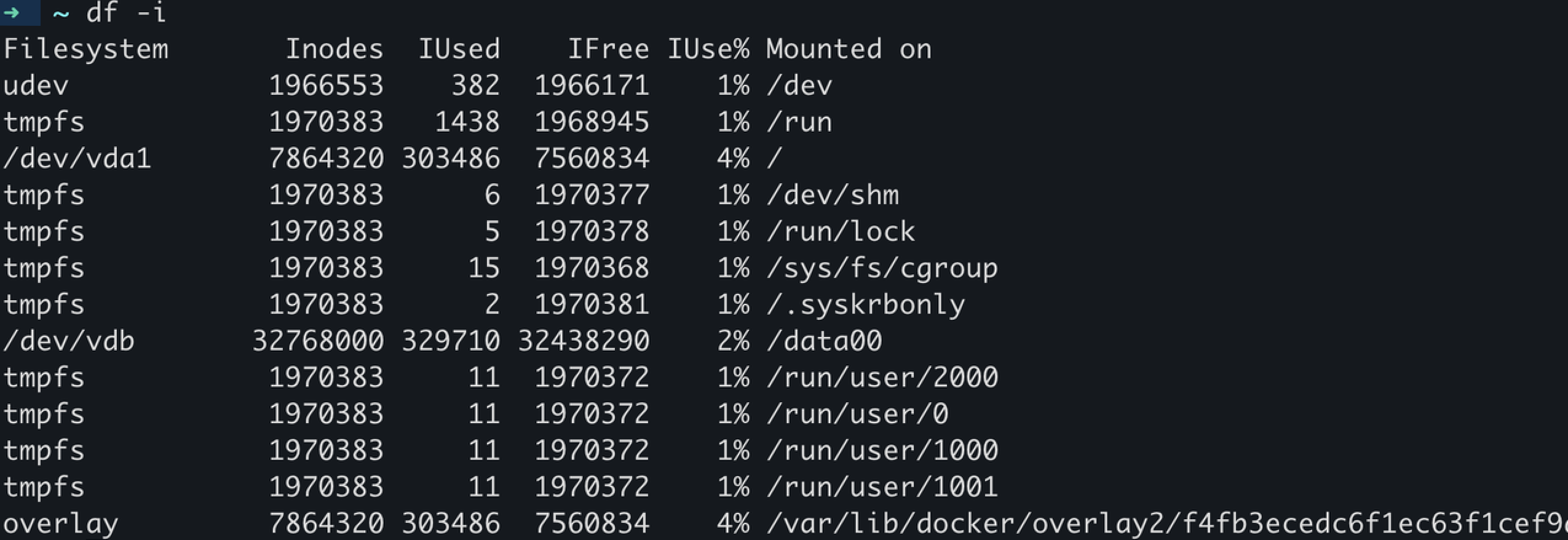
- If the Inode usage rate reaches or is close to 100%, you need to clean up files or directories with high Inode usage.
- Execute the following commands to confirm the number of files in the root directory / .
- cd /for i in ./*; do echo $i; find $i | wc -l; done
- Sample output
-
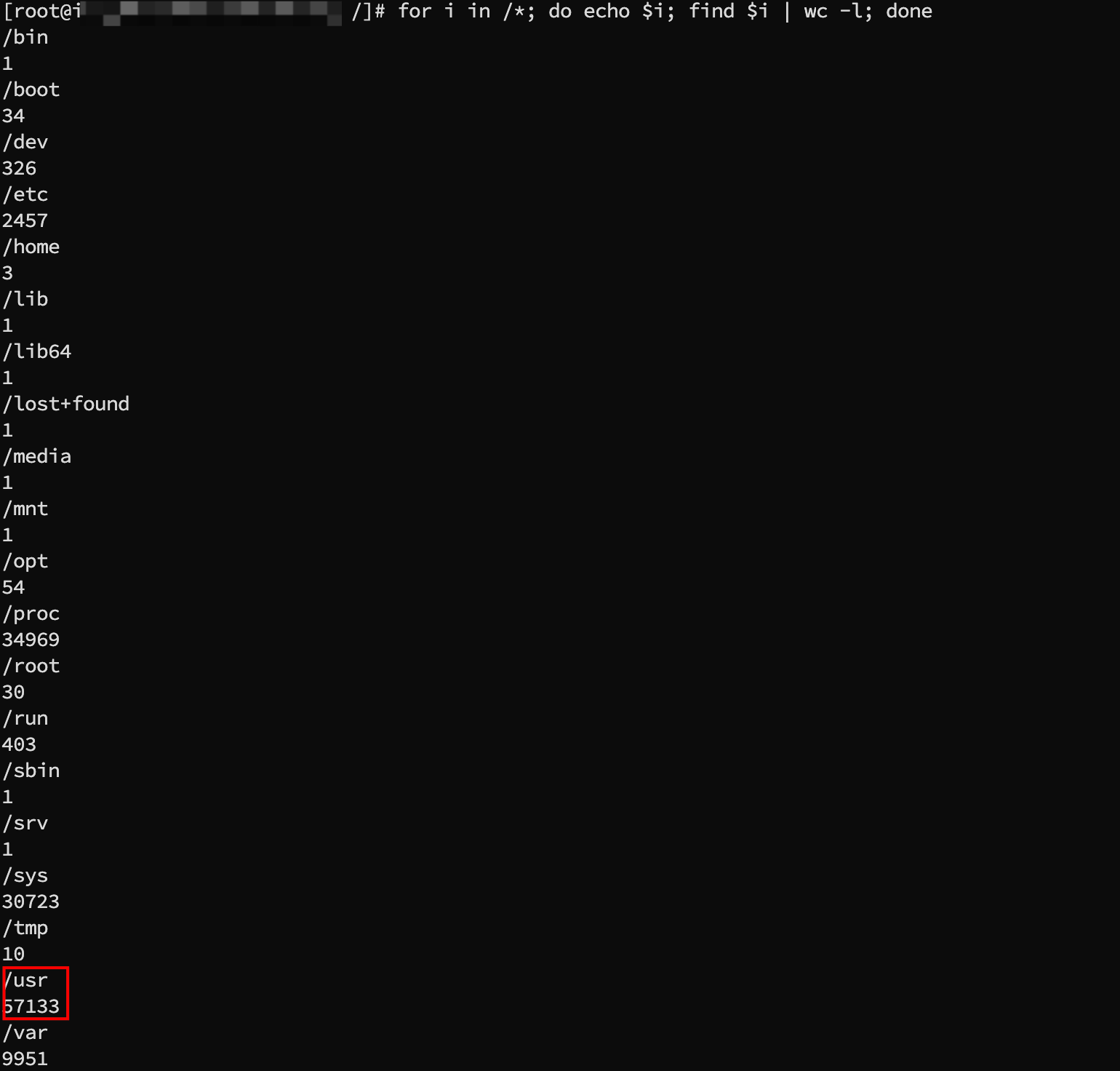
- Execute the following command to enter the directory with the largest number of files.
tip
- A greater number of files indicates higher Inode usage.
- In the example provided in this topic, the usr directory stores the largest number of files.
- cd usr/
- Execute the following command to view which directory in the current directory stores the largest number of files.
- for i in ./*; do echo $i; find $i | wc -l; done
- Sample output
-
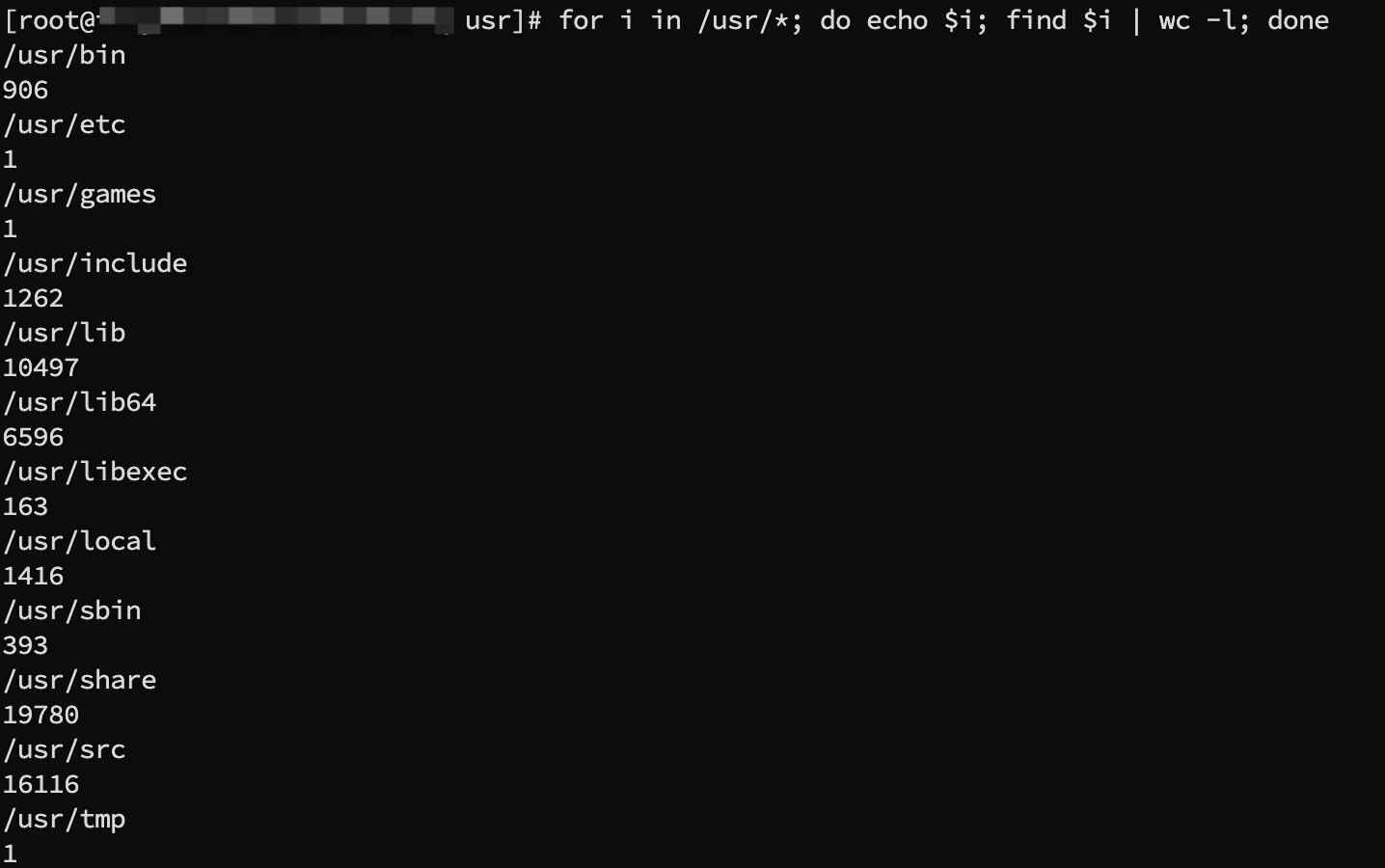
- Repeat steps b and c to enter the directory with the highest Inode usage (which indicates the largest number of files) level by level until you locate the files or directories with excessive space usage.
- Cleanup cannot be performed
- If the target file or directory is necessary for business or the system and cannot be cleaned up, you can expand the volume capacity or change the volume specification. This ensures that programs can run normally without being limited by the performance of the volume. For operation details, refer to Expanding volumes and Changing volume specifications.
- Cleanup can be performed
- If the target file or directory is not necessary, you can execute the following command to forcibly delete the target file and free up disk space.
warning
- Deletion is irreversible. Please proceed with caution.
- Replace /usr/local/test_large_file in the command with the actual path of the target file.
- rm -rf /usr/local/test_large_file
Last updated: 2026.06.18 17:49:51
All rights reserved © Beijing Volcano Engine Technology Co., Ltd2024
