Elastic Compute Service
Elastic Compute Service


Document

- Documentation
 Elastic Compute ServiceElastic Compute ServiceBest PracticesSelf-service website creationAIGC practicesDeploying Intel iVTAL dynamic library on g4i instances to improve FFmpeg decoding and transcoding performance
 Copy page
 Download PDF
AIGC practices
Deploying Intel iVTAL dynamic library on g4i instances to improve FFmpeg decoding and transcoding performance
Copy pageDownload PDFDeploying Intel iVTAL dynamic library on g4i instances to improve FFmpeg decoding and transcoding performance
This topic describes how to deploy the Intel iVTAL dynamic library on instances of the ecs.g4i type, and install FFmpeg optimized for the Intel iVTAL library and OpenVINO to improve FFmpeg decoding and transcoding efficiency.
Features
This practice uses the 4th-generation ECS instances of Volcano Engine, specifically the General-purpose g4i type. This instance type adopts the latest self-developed DPU architecture of Volcano Engine and is equipped with the 6th-generation Intel® Xeon® Scalable processor (Granite Rapids). This instance type also leverages next-generation hardware AI acceleration instructions: AMX-BF16 and AMX-FP16 (Intel Advanced Matrix Extensions). These features fully maximize the performance gains of FFmpeg optimized with the iVTAL library for streaming media processing.
Background
FFmpeg
FFmpeg is a multimedia framework capable of decoding, encoding, transcoding, muxing (packaging), demuxing, streaming, and filtering and playing almost all audio and video content. In streaming media processing pipelines, FFmpeg usually acts as a "building block". By integrating its features, such as stream capture/pulling, demuxing, and decoding, with orchestration controls, such as transcoding task scheduling and error handling and retry mechanisms, as required, you can implement streaming media processing capabilities for common scenarios. These scenarios include live transcoding, on-demand transcoding, ABR adaptive bitrate packaging, content moderation/effect filters, and pre-processing for video AI inference. Learn more.
The following figure shows the typical processing workflow.
- Input and capture: Pull streams from files, HTTP(S), RTMP/RTSP, SRT, and WebRTC, or read data from local capture cards/cameras.
After the data enters the service, libavformat is typically used for protocol processing and caching.
- Demuxing: Split container files (such as MP4/FLV/TS) into independent audio, video, and data streams.
This step is mostly I/O-bound, imposing minimal CPU load, but is sensitive to memory bandwidth and the number of memory copies.
- Decoding: Convert compressed bitstreams (such as H.264/H.265/AV1/VP9) back into pixel frames (YUV/RGB).
This step is compute-intensive and generates large amounts of pixel data (tens to hundreds of MB/s), consuming significant memory bandwidth.
- Pre/post-processing (Scaling/Color Space Conversion/Filters): Perform operations such as scaling, cropping, color space transformation, denoising, sharpening, subtitle/watermark overlay, and AI pre-processing.
Some operators in this step are limited by memory bandwidth (such as scaling and color space conversion), while others are limited by compute capacity (for example, complex filters and DNN).
- Encoding: Recompress pixel frames back into compressed bitstreams.
This step is compute-intensive in typical processing workflows (such as motion estimation and mode decision), and involves extensive memory read and write operations.
- Muxing and output: Package data into containers, write to files, or push streams (such as HLS/DASH segmentation and RTMP/SRT/WebRTC).
This step is mostly I/O-bound. Avoid unnecessary memory copies to optimize performance.
- Orchestration and control: Queue management, failure retry, ABR multi-bitrate parallel processing, and task splitting/merging.
iVTAL
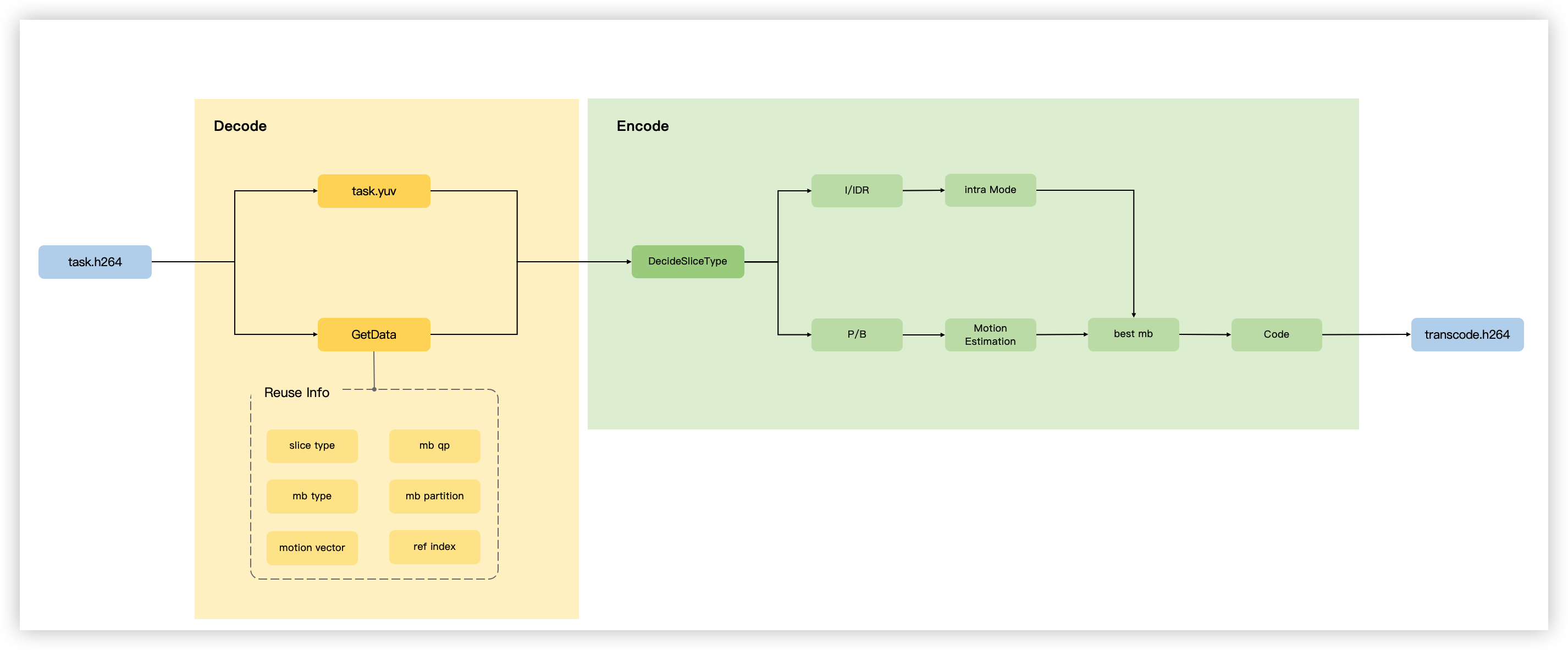
Intel Video Transcode Acceleration Library (iVTAL) introduces optimization strategies such as Motion Vector (MV) Reuse and JND-based Decode QP Guidance for FFmpeg. It collects frame-level and macroblock-level information (including motion data and QP values) during the decoding phase, then transmits such data downstream to the encoder as structured metadata along with the video frames. This enables the encoder to skip certain time-consuming search and estimation processes, thereby reducing CPU usage, increasing transcoding throughput, and lowering latency.
Procedure
Step 1: Prepare the environment
tip
Given that downloading relevant software packages directly from public repositories can be slow on ECS instances, Volcano Engine has pre-uploaded the x264 and x265 encoding libraries as well as FFmpeg to its Torch Object Storage. All required patches have been integrated into these software packages for your quick access.
- Purchase an ecs.g4i instance. In the example provided in this topic, the following instance configurations are used.
- Instance type: ecs.g4i.4xlarge
- Image: Ubuntu 22.04 64 bit
- Volume: The recommended volume capacity is at least 100 GiB.
- Network: an assigned EIP
- Execute the following command to install dependencies.
-
- Execute the following command to configure environment variables and download the dependent libraries and test video.
-
Step 2: Compile the video encoding libraries
- Execute the following command to download and compile the x264 video encoding library that supports iVTAL optimization.
-
- Execute the following command to download and compile the x265 video encoding library that supports iVTAL optimization.
-
Step 3: Deploy and verify the transcoding feature
- Execute the following command to compile the FFmpeg version integrated with Intel iVTAL library optimization.
-
- Check whether the video transcoding feature can be used as expected.
- Execute the following command to set the system dynamic library search path using environment variables.
-
- Execute the following command to transcode the test video Sony_4K_Camp.mp4 to out.mp4 in H.264 (CRF=22) encoding format.
-
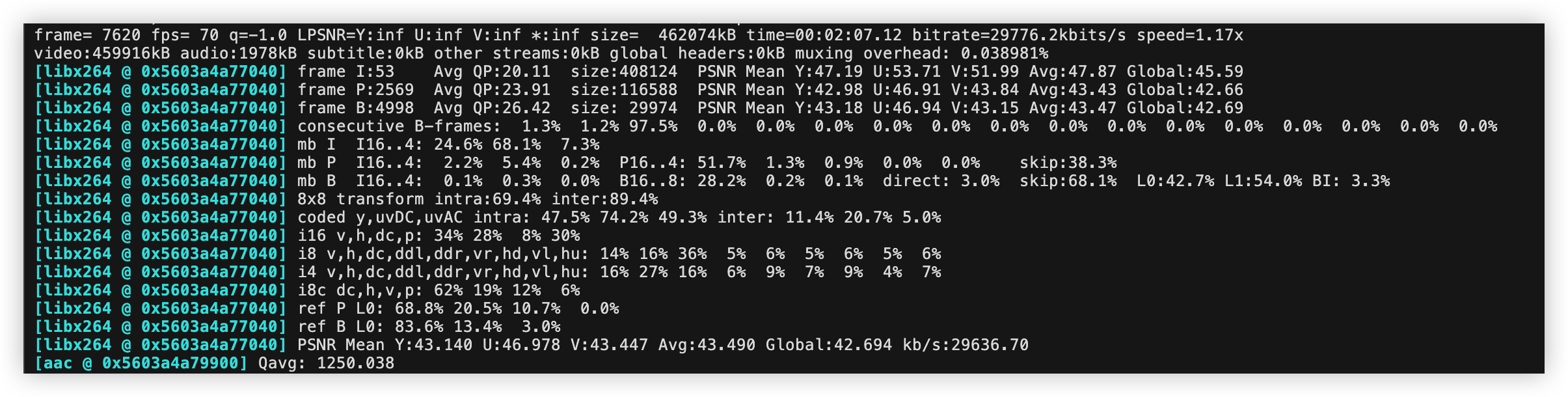
- When the following output is displayed, the transcoding has been completed successfully. You can also execute the ffprobe out.mp4 command to view information, such as the bitrate, resolution, and encoding format, of the transcoded video.
-
- Execute the following command to transcode the test video wall.mp4 to out.mp4 in H.265 (CRF=28) encoding format and store it in the current directory.
-
- When the following output is displayed, the transcoding has been completed successfully. You can execute the ffprobe out.mp4 command to view information, such as the bitrate, resolution, and encoding format, of the transcoded video.
-

- If all the above tests are passed, video transcoding can be performed as expected.
Step 4: Deploy and verify the preprocessing feature
- Install OpenVINO.
- Execute the following command to download and extract the OpenVINO installation package.
-
- Execute the following command to install dependencies.
-
- Execute the following command to download and extract the ESPCN installation package.
-
- Execute the following command to compile and install the FFmpeg version optimized for the Intel iVTAL library and OpenVINO.
-
- Execute the following command to verify whether the video preprocessing feature that combines iVTAL and OpenVINO for "low-resolution scaling and deep learning super-resolution" can work as expected.
-
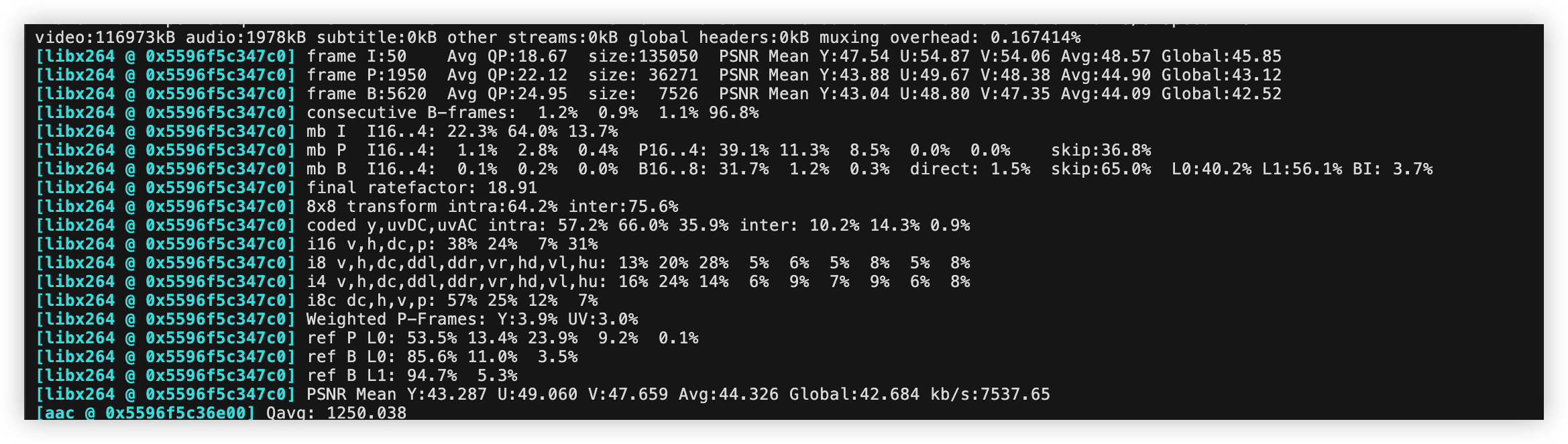
- When the following output is displayed, the video pre-processing has been completed successfully. You can execute the ffprobe espcn.mp4 command to view information, such as the bitrate, resolution, and encoding format, of the pre-processed video.
-
Step 5: Deploy and verify the decoding and frame extraction feature
- Execute the following command to download and install the video decoding and frame extraction feature.
-
- Execute the following command to verify whether the video decoding and frame extraction feature can be used as expected.
-
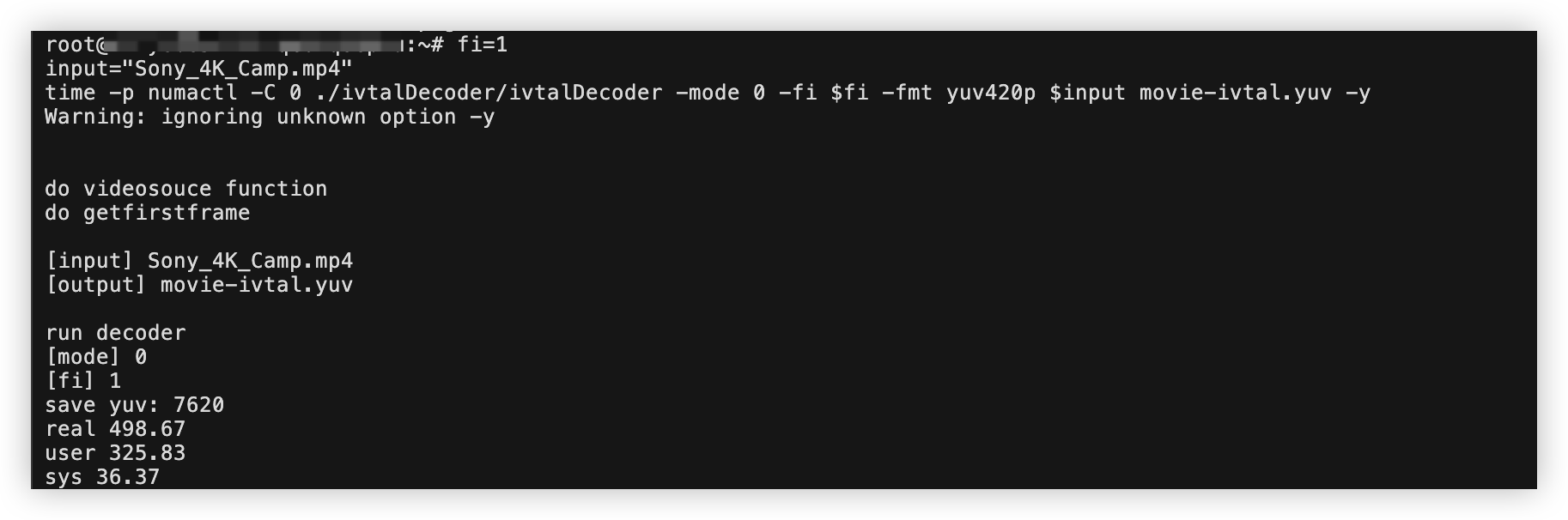
- When the following output is displayed, the video decoding and frame extraction has been completed successfully.
-
Optimization comparison
Performance data
This section presents the performance data of FFmpeg decoding and frame extraction, and transcoding before and after acceleration with the Intel iVTAL dynamic library, tested on an ecs.g4i.4xlarge instance.
The table below shows the time (in seconds) taken to extract a single frame at different frame extraction intervals when FFmpeg performs decoding and frame extraction on H.264-encoded videos, both before and after enabling acceleration with the Intel iVTAL dynamic library. This test was conducted with the test process restricted to run on a single CPU core.
Frame extraction interval | H.264-encoded video | |
| Before acceleration | After acceleration |
1 | 72.52 | 32.1 |
100 | 26.86 | 20.22 |
400 | 26.65 | 7.98 |
The table below presents the frames per second (FPS) of FFmpeg transcoding different source videos to H.264 and H.265 formats, both before and after enabling acceleration with the Intel iVTAL dynamic library. All the data was collected under the configuration where the number of hyper-threaded cores is 16HT.
Test conclusion
After Intel iVTAL dynamic library acceleration is enabled, the decoding and frame extraction operation can achieve a performance improvement of up to approximately 70%, while the transcoding operation can achieve a performance improvement of up to around 53%. Meanwhile, Advanced Matrix Extensions (AMX), the next-generation hardware AI acceleration instruction set of Intel, can significantly boost the performance of the image Super-Resolution (SR) pre-processing pipeline. This enables your SR models to run efficiently across a broader range of devices.
In scenarios where cost-effectiveness and abundant instance resources are prioritized, we recommend that you use instance types equipped with the 6th-generation Intel® Xeon® Scalable processor (Granite Rapids), such as the General-purpose g4i instances, as an alternative to GPU instances. This way, you can obtain the most cost-effective video data processing service by leveraging the Intel iVTAL dynamic library and system-level acceleration solutions.
Last updated: 2026.06.18 17:48:27
All rights reserved © Beijing Volcano Engine Technology Co., Ltd2024
