Elastic Compute Service
Elastic Compute Service


Document

- Documentation
 Elastic Compute ServiceElastic Compute ServiceBest PracticesSelf-service website creationAIGC practicesBuilding system environment based on RAG with Intel® TDX for text generation inference
 Copy page
 Download PDF
AIGC practices
Building system environment based on RAG with Intel® TDX for text generation inference
Copy pageDownload PDFBuilding system environment based on RAG with Intel® TDX for text generation inference
This topic describes how to build a Retrieval-Augmented Generation (RAG) framework and deploy an inference model on an instance with Intel® TDX capabilities. In this solution, a hardware-level trusted confidential environment is provided for inference data by using TDX, and the answers provided by the inference model are enriched by using RAG.
Background
Intel® TDX
Intel® Trust Domain Extensions (Intel® TDX) is a technology introduced by Intel to enhance the security of virtual machine environments. TDX leverages hardware-based features to establish an isolated trusted execution environment for virtual machines at the physical hardware layer. This delivers enhanced security protection to virtual machines and ensures sensitive data and critical applications are shielded from potential security threats within complex cloud computing environments. Learn more.
RAG
RAG is a technology that integrates information retrieval and text generation. It enhances the accuracy and reliability of generative AI models, such as large language models (LLMs), while mitigating model hallucinations.
- Information retrieval: Before generating an answer, RAG uses a retrieval system to search extensive text datasets, including local documents, Internet sources, and enterprise databases, for information relevant to the input question or prompt.
- Text generation: After obtaining the relevant retrieval results, RAG combines the retrieved document fragments with the user question as input to a generative AI model (for example, an LLM). The model incorporates this retrieved information as supplementary context, processes it alongside the input question or prompt, and then generates the corresponding answer or content.
Llama-2-7b-chat-hf model
Llama 2 is an open-source suite of pretrained and fine-tuned generative text models developed by Meta. In this practice, we use the Llama-2-7b-chat-hf model, a variant within the Llama 2 suite optimized specifically for dialogue tasks. This model enhances security and conversational fluency by using two key techniques: supervised fine-tuning (SFT) and reinforcement learning from human feedback (RLHF). These improvements make it well-suited for interactive scenarios such as customer service chatbots and virtual assistants. For more information, visit meta-llama/Llama-2-7b-chat-hf.
Procedure
Step 1: Prepare the environment
- Create an ECS instance with Intel® TDX capabilities. For more information, see Purchasing ECS instances.
When you create an instance, take note of the following configurations:
- Instance type: In the example provided in this topic, the Security Enhanced General-purpose g3ilt (ecs.g3ilt.8xlarge) type is used.
- Volume: The recommended system volume capacity is greater than or equal to 100 GiB.
- Image: In the example provided in this topic, an Ubuntu 24.04 64 bit image is used.
- Network: You need to associate an EIP with the instance. For more information, see Associating EIPs.
- Modify the security group configuration.
- Communication with the inference model requires port 8502, which must be allowed in the inbound rules of the security groups associated with the ECS instance.
- Log in to the instance console.
- In the top menu bar, select the region and project where the target instance resides.
- Click the name of the target instance to enter the instance details page.
- Select the "Security Group" tab.
- Click the "Configure rule" button.
- Add an inbound rule as shown in the following figure, and then click the "Confirm" button.
- Install required tools and software for the target instance.
- Execute the following command to update the APT package repository.
-
- Execute the following command to install the required tools and software.
-
- Execute the following command to download the confidential-computing-zoo code.
-
tip
If your instance cannot access Git, you can also download confidential-computing-zoo and then upload it to the target instance. After you upload the code, execute the unzip confidential-computing-zoo-main.zip command to decompress the package, and then execute the mv confidential-computing-zoo-main confidential-computing-zoo command to rename the directory.
- (Optional) Create an image proxy.
tip
In this practice, the Container Registry service provided by Volcano Engine and a remote proxy repository are used to enhance the efficiency of cross-border image pulling. If you can pull Docker images across borders by using other methods, you may skip this step.
- Log in to the Container Registry console.
- In the directory tree on the left, select "Instance list > Proxy cache".
- Select "Create Micro Edition".
- Click the "Create proxy cache registry" button and configure the following information.
tip
This practice only describes necessary parameters. Retain the default values for parameters not mentioned in this practice. For more information, see Create proxy cache registry.
-
- View the comparison of instance types and the fees. Then, click the "Confirm order" button.
- Carefully read and select "I have read and agree to Container Registry Product Terms of Service" and then click the "Confirm" button to submit the order and start creating the remote proxy repository.
- After the remote proxy repository is created, record the domain name of this remote proxy repository.
- Click the name of the proxy repository you created to go to the details page.
- In the directory tree on the left, select "Namespace".
- Click the "Create namespace" button and configure the following information.
tip
This practice only describes necessary parameters. Retain the default values for parameters not mentioned in this practice. For more information, see Create a namespace.
-
- Click "Confirm" to complete the operation.
Step 2: Build an image
You can use any method to build a Docker image for running the inference model based on your business requirements.
tip
If your ECS instance cannot access Git, use the official Docker image provided by Volcano Engine.
- Download the official Docker image provided by Volcano Engine.
- Execute the following command to download the backend image.
-
- Execute the following command to download the frontend image.
-
- Modify the image name and tags.
- Execute the following command to modify the backend image name and tags.
-
- Execute the following command to modify the frontend image name and tags.
-
- Execute the following command to delete unnecessary image tags.
-
- Execute the following command to enter the confidential-computing-zoo directory.
-
tip
Replace confidential-computing-zoo/cczoo/rag with the actual download path of confidential-computing-zoo.
- Modify the confidential-computing-zoo configuration file.
- Modify the backend/configs/etc/sgx_default_qcnl.conf file
- Execute the following command to open the backend/configs/etc/sgx_default_qcnl.conf file.
-
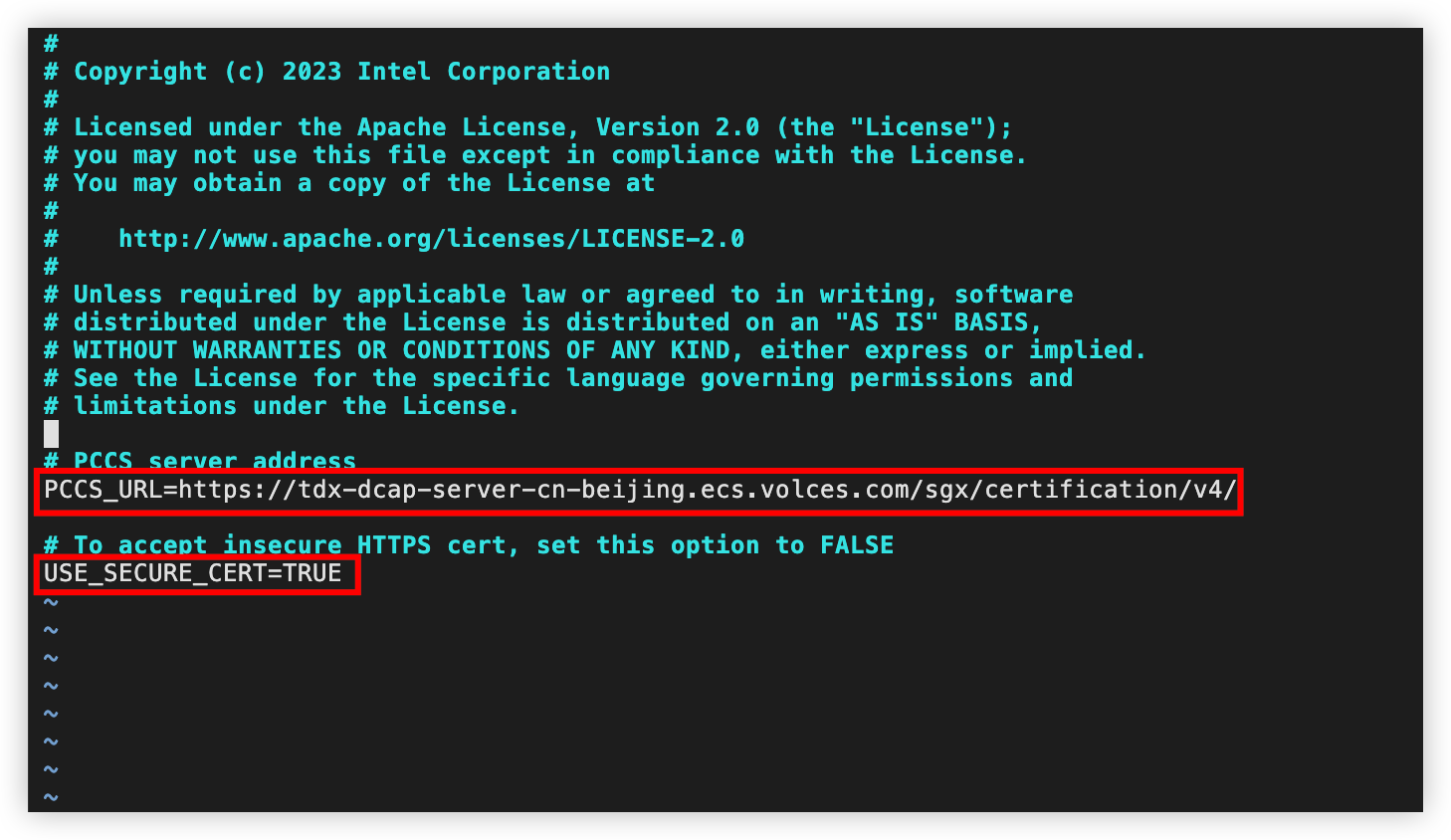
- Press the i key to enter edit mode. Modify the following parameter values:
- PCCS_URL: https://tdx-dcap-server-cn-beijing.ecs.volces.com/sgx/certification/v4/
- USE_SECURE_CERT: TRUE
- Example after modification:
-
- Press the Esc key to exit edit mode, enter :wq, and then press Enter to save and exit the file.
- Modify the frontend/chatbot-rag/ra_configs/etc/sgx_default_qcnl.conf file.
- Execute the following command to open the frontend/chatbot-rag/ra_configs/etc/sgx_default_qcnl.conf file.
-
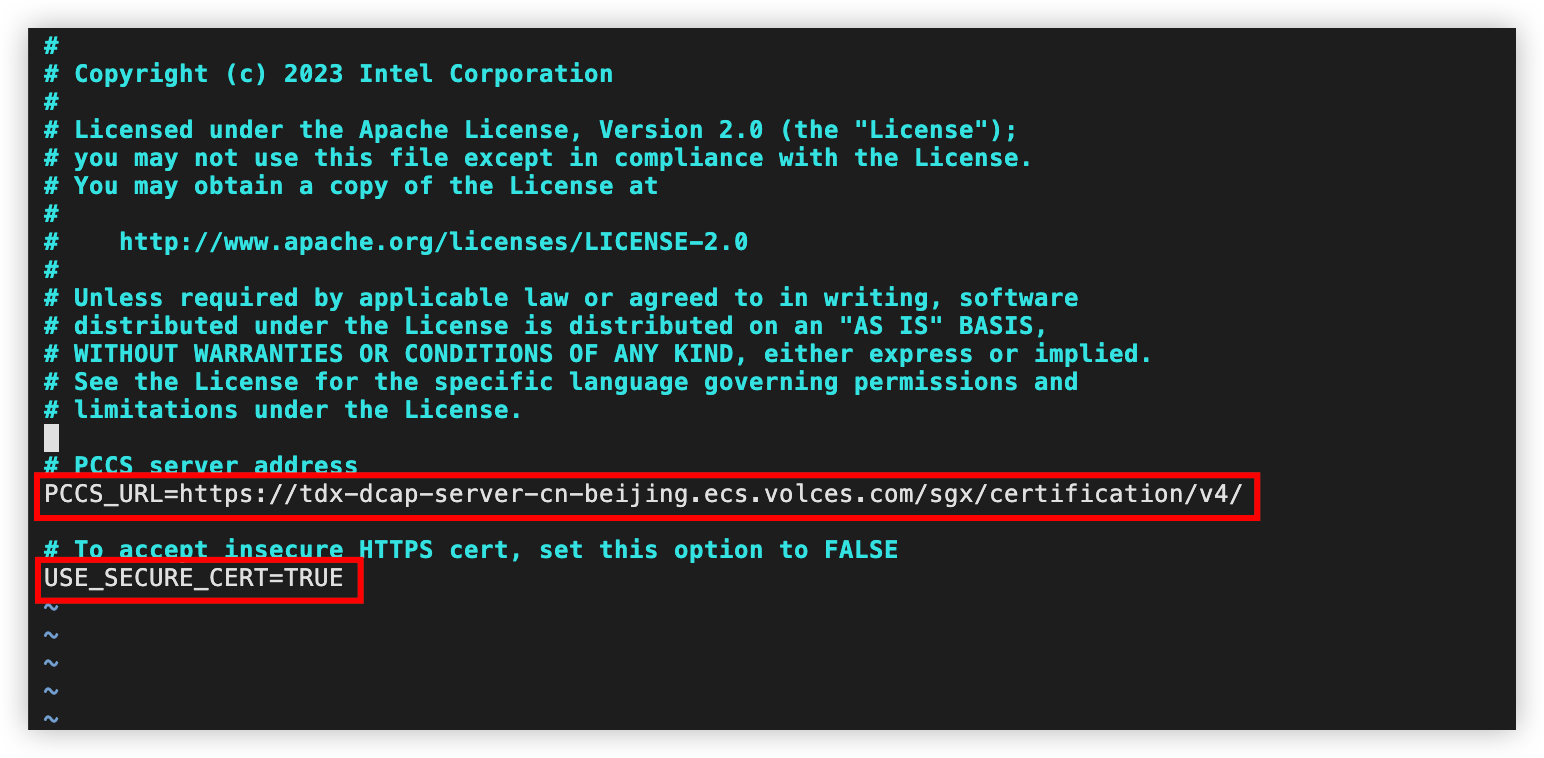
- Press the i key to enter edit mode. Modify the following parameter values:
- PCCS_URL: https://tdx-dcap-server-cn-beijing.ecs.volces.com/sgx/certification/v4/
- USE_SECURE_CERT: TRUE
- Example after modification:
-
- Press the Esc key to exit edit mode, enter :wq, and then press Enter to save and exit the file.
- Modify the Dockerfile.
- Execute the following command to delete existing files.
-
- Download the following files and upload them to the target instance. Learn more.
- Execute the following command to move the downloaded Dockerfile to the appropriate directory.
-
- (Optional) Modify proxy configuration.
- If you use the Container Registry service provided by Volcano Engine, and pull Docker images by using a remote proxy repository, you need to modify the proxy configuration by performing the following steps. Otherwise, skip this step.
- Modify the backend.dockerfile file
- Execute the following command to open the backend.dockerfile file.
-
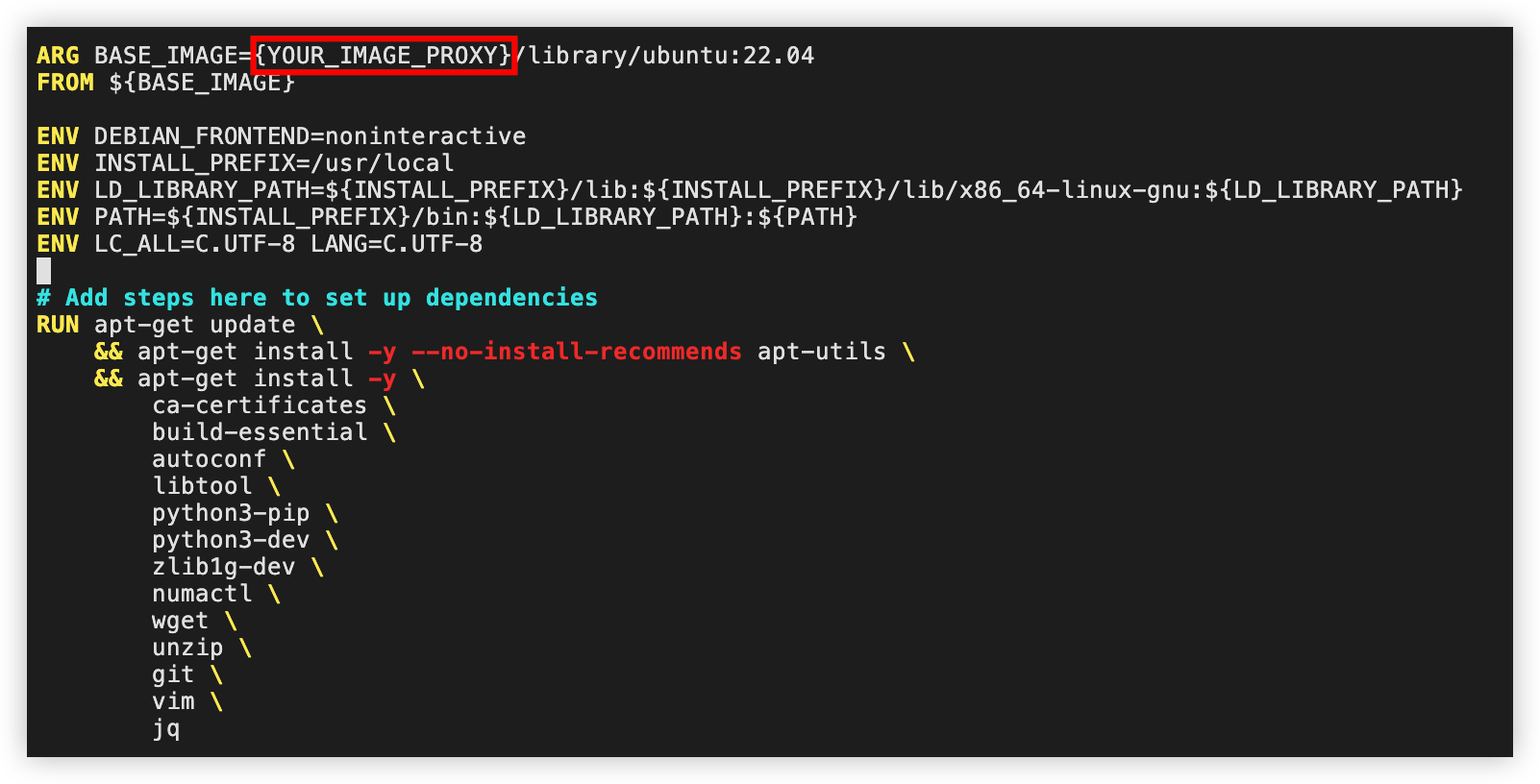
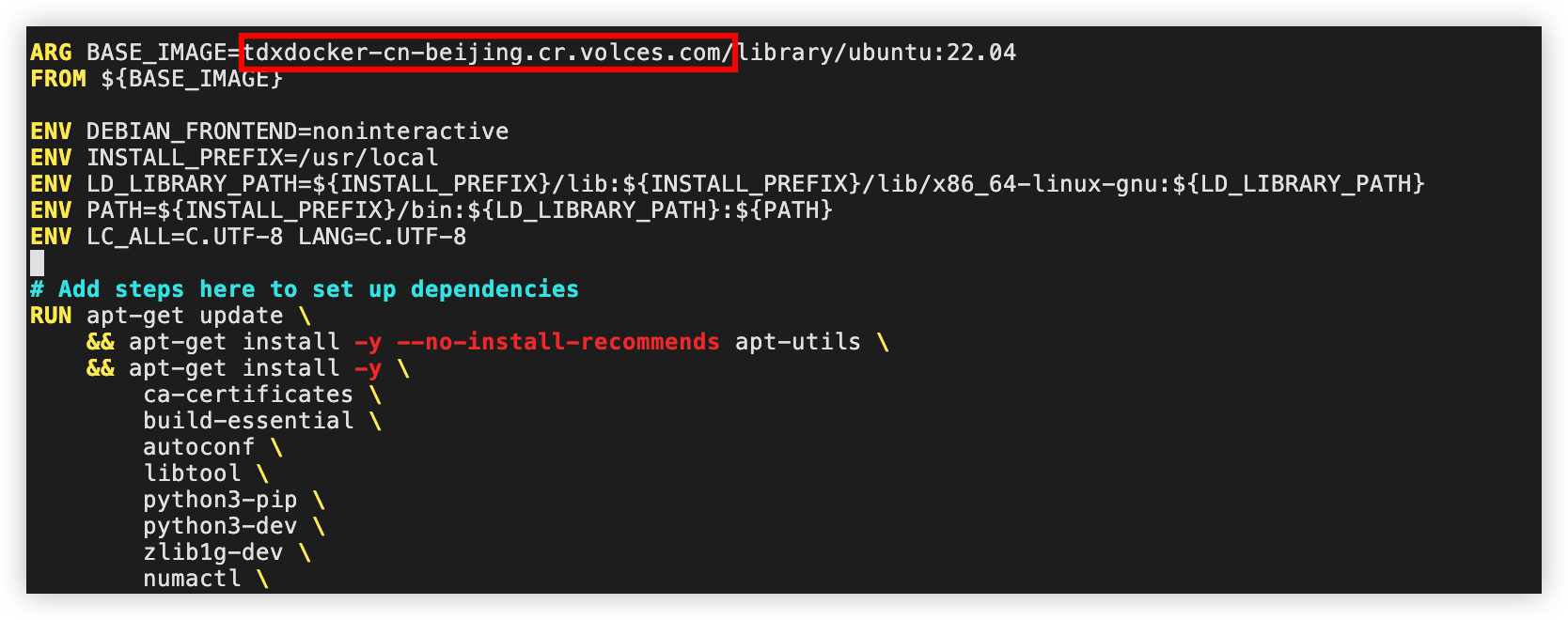
- Press the i key to enter edit mode. Change the value of the YOUR_IMAGE_PROXY parameter to the domain name for accessing the remote proxy repository you create.
Example before modification:
-
- Example after modification:
-
- Press the Esc key to exit edit mode, enter :wq, and then press Enter to save and exit the file.
- Modify the frontend.dockerfile file
- Execute the following command to open the frontend.dockerfile file.
-
- Press the i key to enter edit mode. Change the value of the YOUR_IMAGE_PROXY parameter to the domain name for accessing the remote proxy repository you create.
- Example before modification:
-
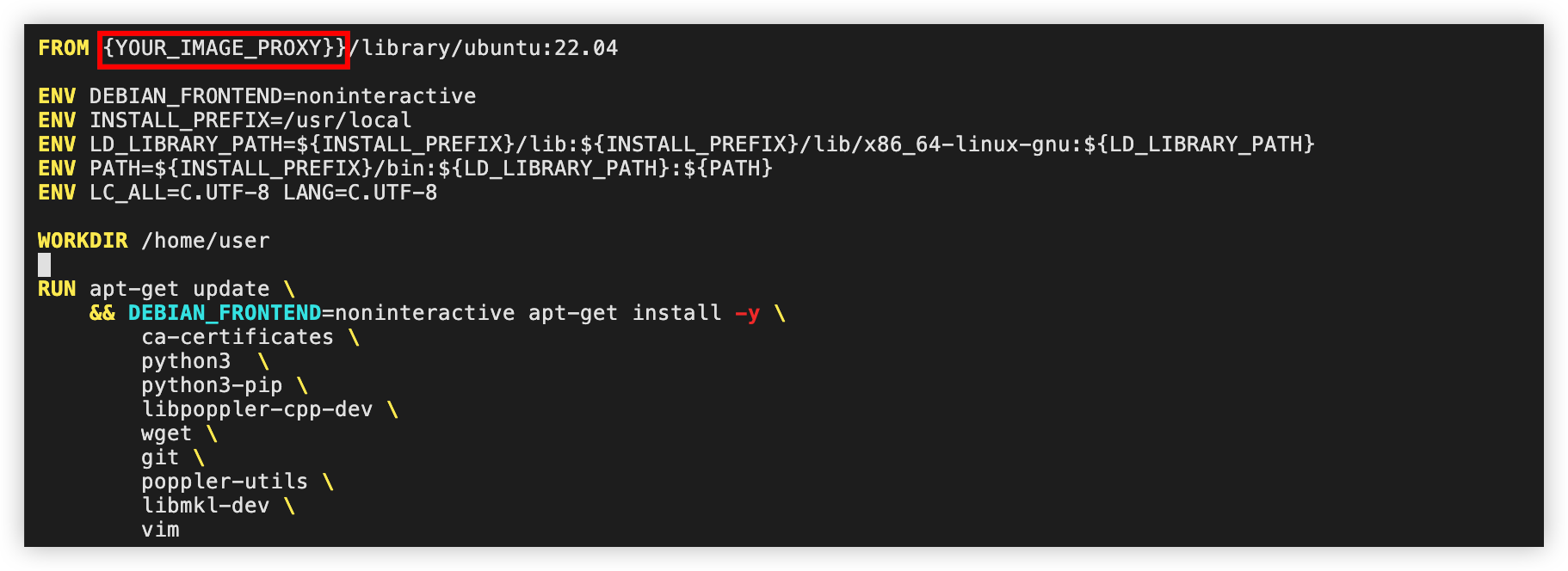
Example after modification:
-
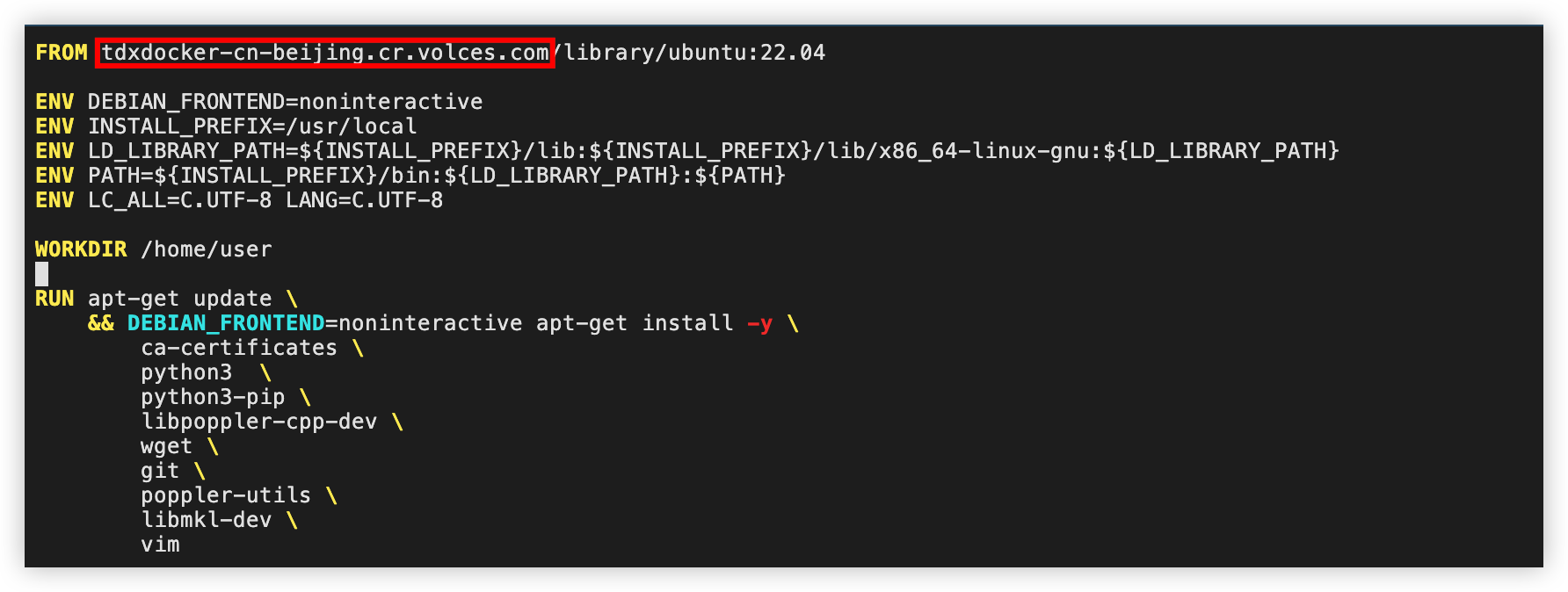
- Press the Esc key to exit edit mode, enter :wq, and then press Enter to save and exit the file.
- Build an image.
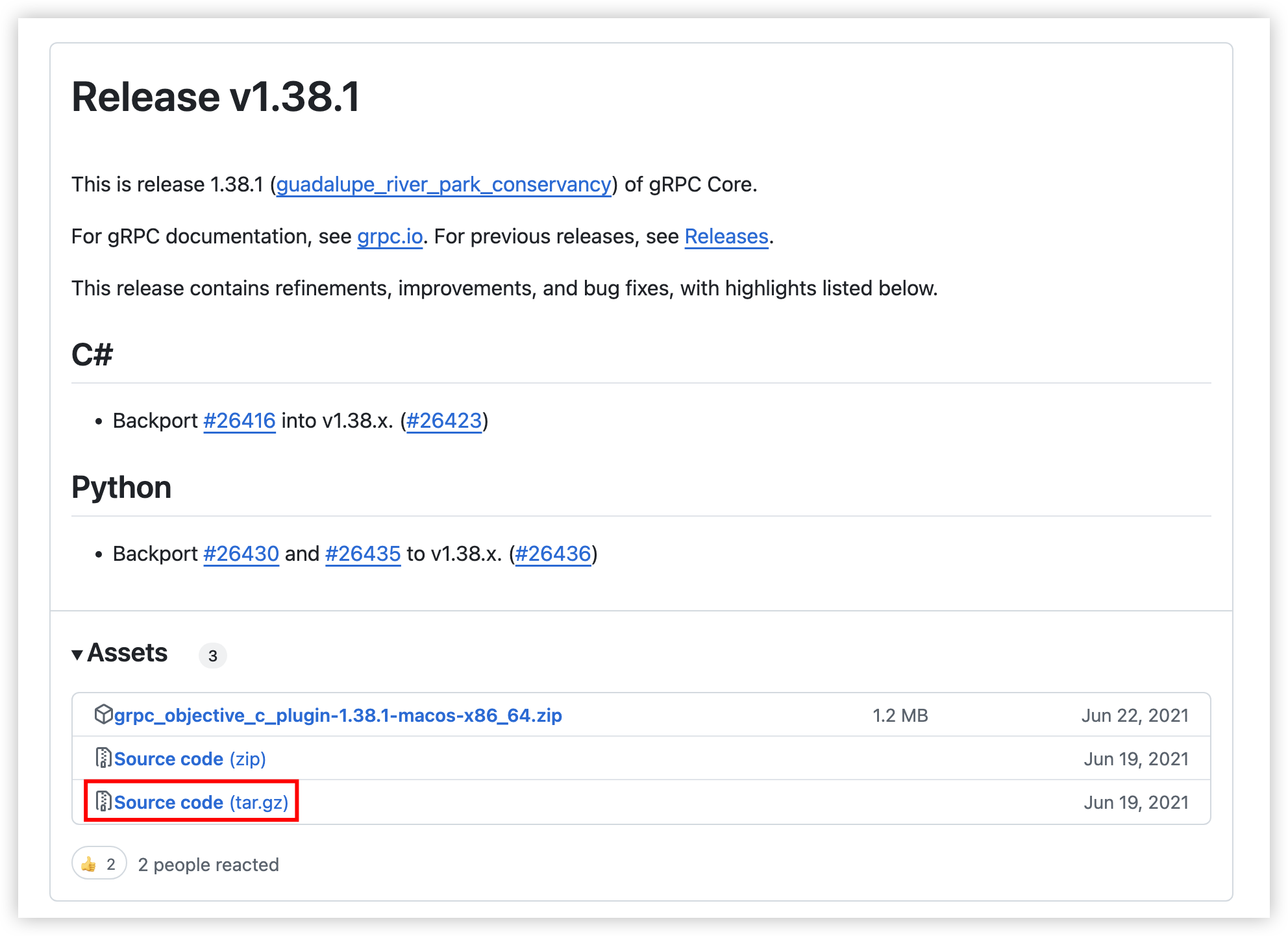
- Execute the following command to download Grpc.
-
tip
In the example provided in this topic, Grpc V1.38.1 is used. If your instance cannot access Git, you can download Grpc and then upload it to the target instance. Learn more.
After you upload Grpc, execute the tar -xzvf grpc-1.38.1.tar.gz command to decompress the package, and then execute the mv grpc-1.38.1 grpc command to rename the directory.
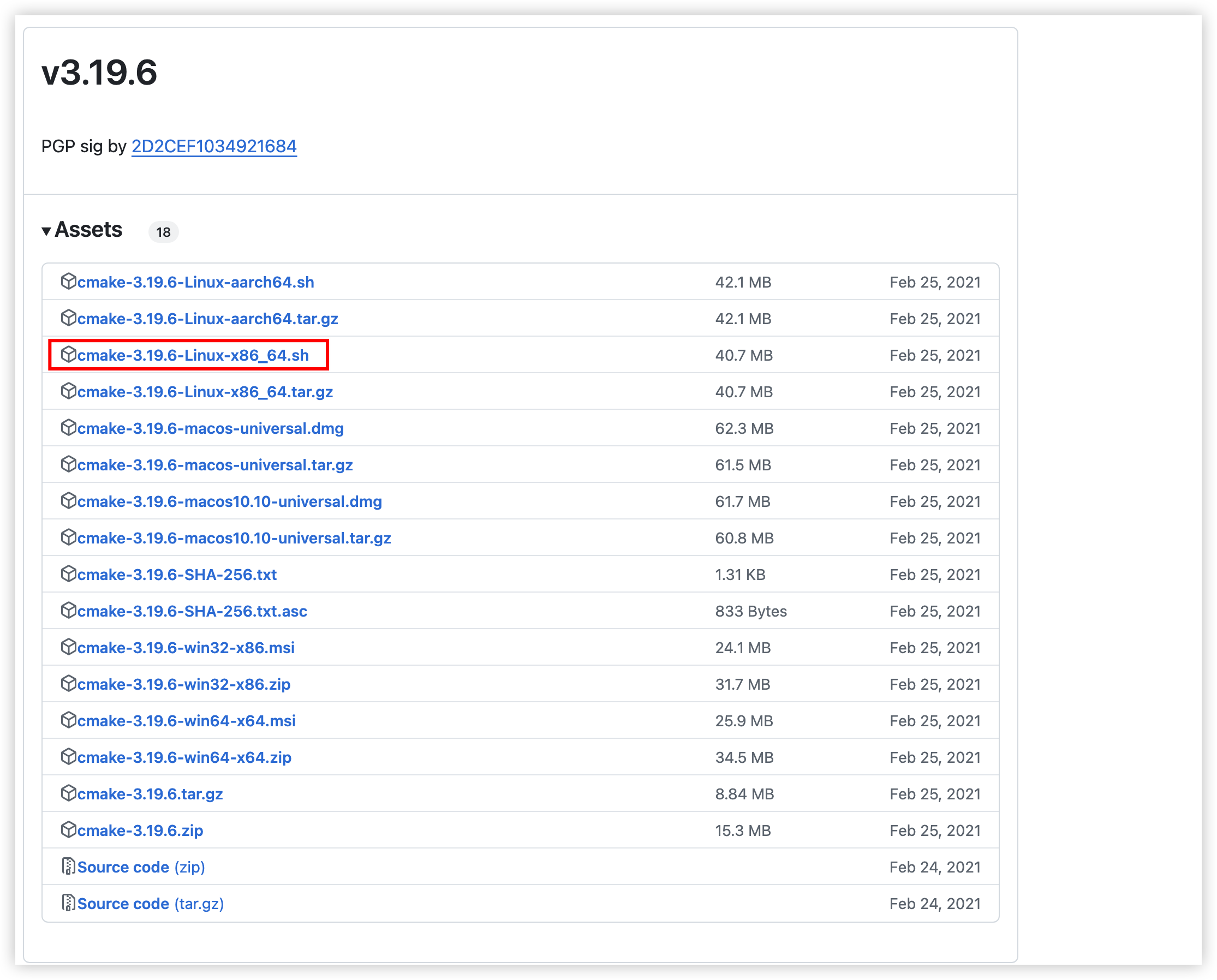
- Execute the following command to download the cmake-linux.sh script.
-
tip
In the example provided in this topic, CMake script V3.19.6 is used. If your instance cannot access Git, you can download the CMake script and upload it to the target instance. Learn more.
After you upload the CMake script, execute the mv cmake-3.19.6-Linux-x86_64.sh cmake-linux.sh command to rename the script.
- Execute the following command to move Grpc to the specified directory.
-
-
- Execute the following command to delete the existing confidential-computing-zoo directory.
-
-
- Execute the following command to copy confidential-computing-zoo to the specified directory.
-
- Execute the following command to move the CMake script to the specified directory.
-
-
- Execute the following command to confirm the instance DCAP version.
-
- Sample output:
- As shown in the following figure, the DCAP version of the instance used in this topic is 1.22.
-

- Execute the following command to build an image.
-
tip
Replace 1.22 with the actual DCAP version.
Step 3: Create an encrypted partition
- Execute the following command to enter the luks_tools directory.
-
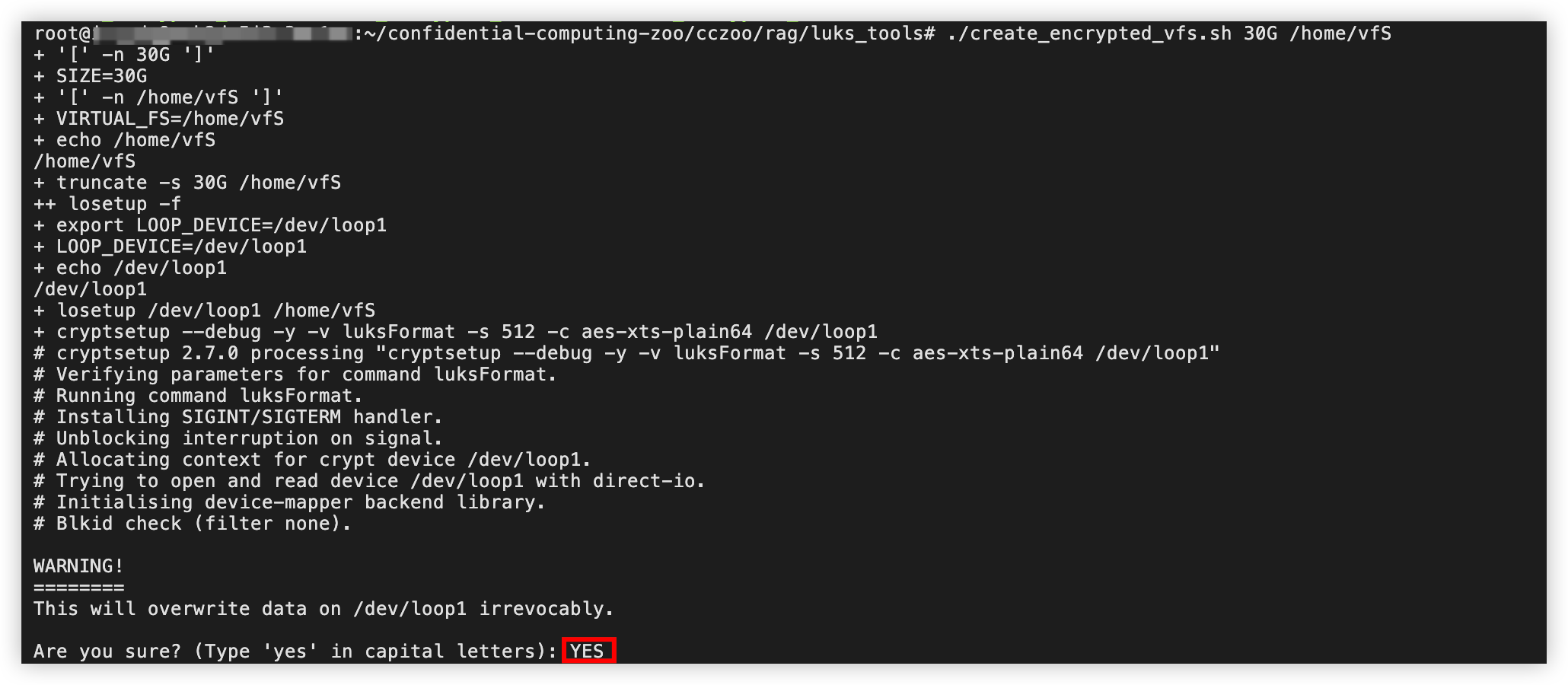
- Execute the following command to create an encrypted partition.
-
tip
The encrypted virtual file system created in this topic has a 50 GB capacity, and its mount point is set to /home/vfs. Modify the size and mount point based on your business requirements.
- Enter YES, and press Enter to confirm the creation.
-
- Enter the password for accessing the encrypted partition, and press Enter to confirm the password.
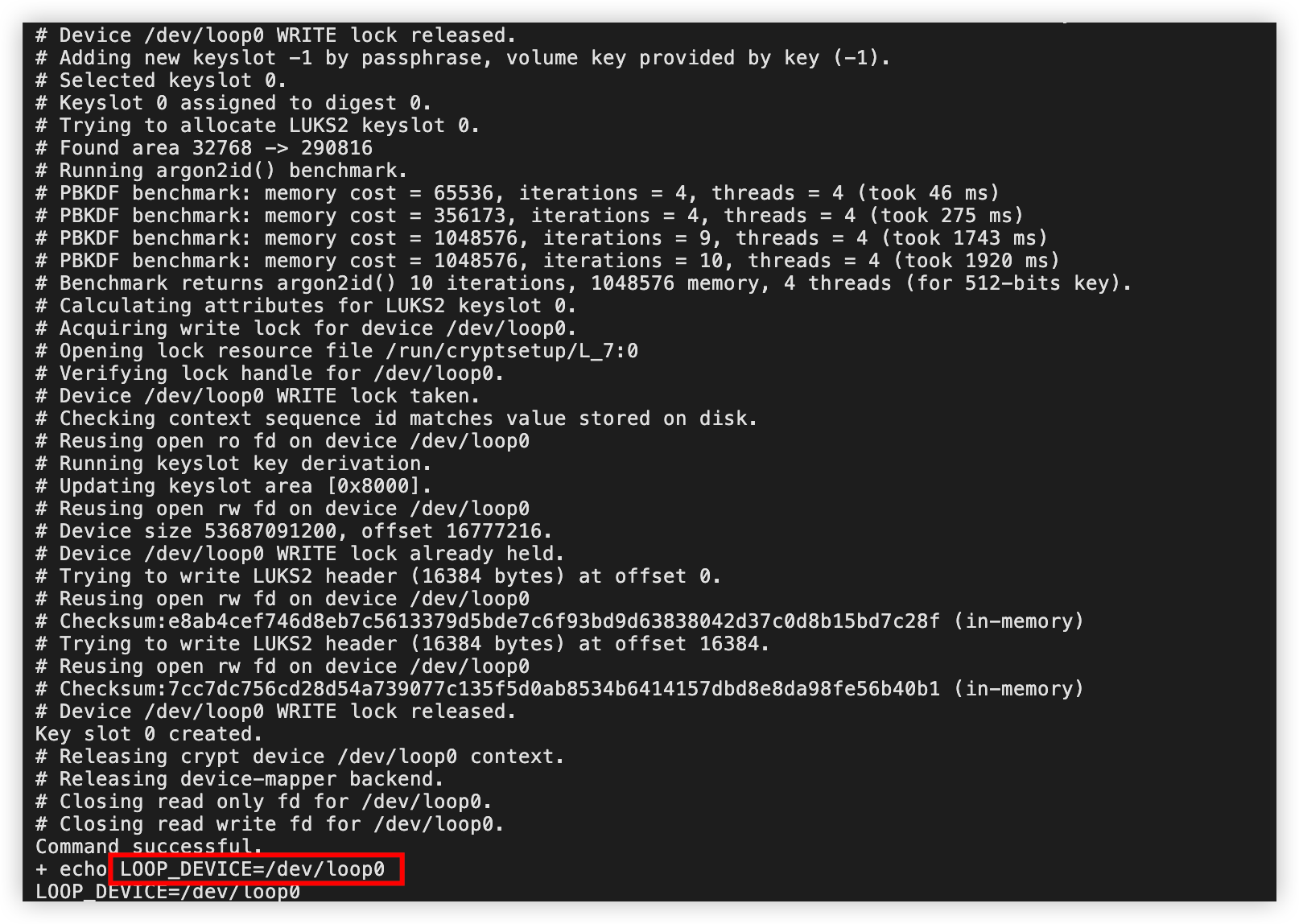
- Sample output:
- Obtain the loop device number from the output, which is LOOP_DEVICE=/dev/loop0 in the example provided in this topic, as shown in the following figure.
-
- Execute the following command to specify the environment variables for the loop device.
-
tip
Replace dev/loop0 with the actual loop device number.
- Execute the following command to create a directory for storing encrypted data.
-
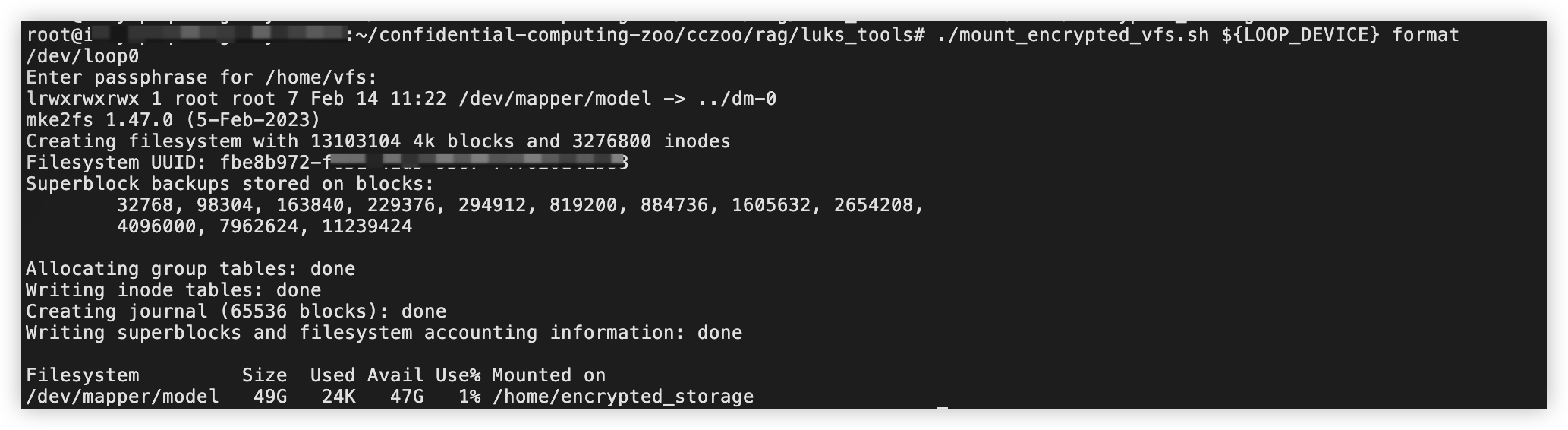
- Execute the following command to format the loop device with the ext4 file system.
-
- Enter the password for accessing the encrypted partition as instructed, and then press Enter to confirm the password.
- Sample output:
-
Step 4: Download the Llama-2-7b-chat-hf model
- Obtain download permission.
- Visit the official Hugging Face page for the meta-llama/Llama-2-7b-chat-hf model.
-
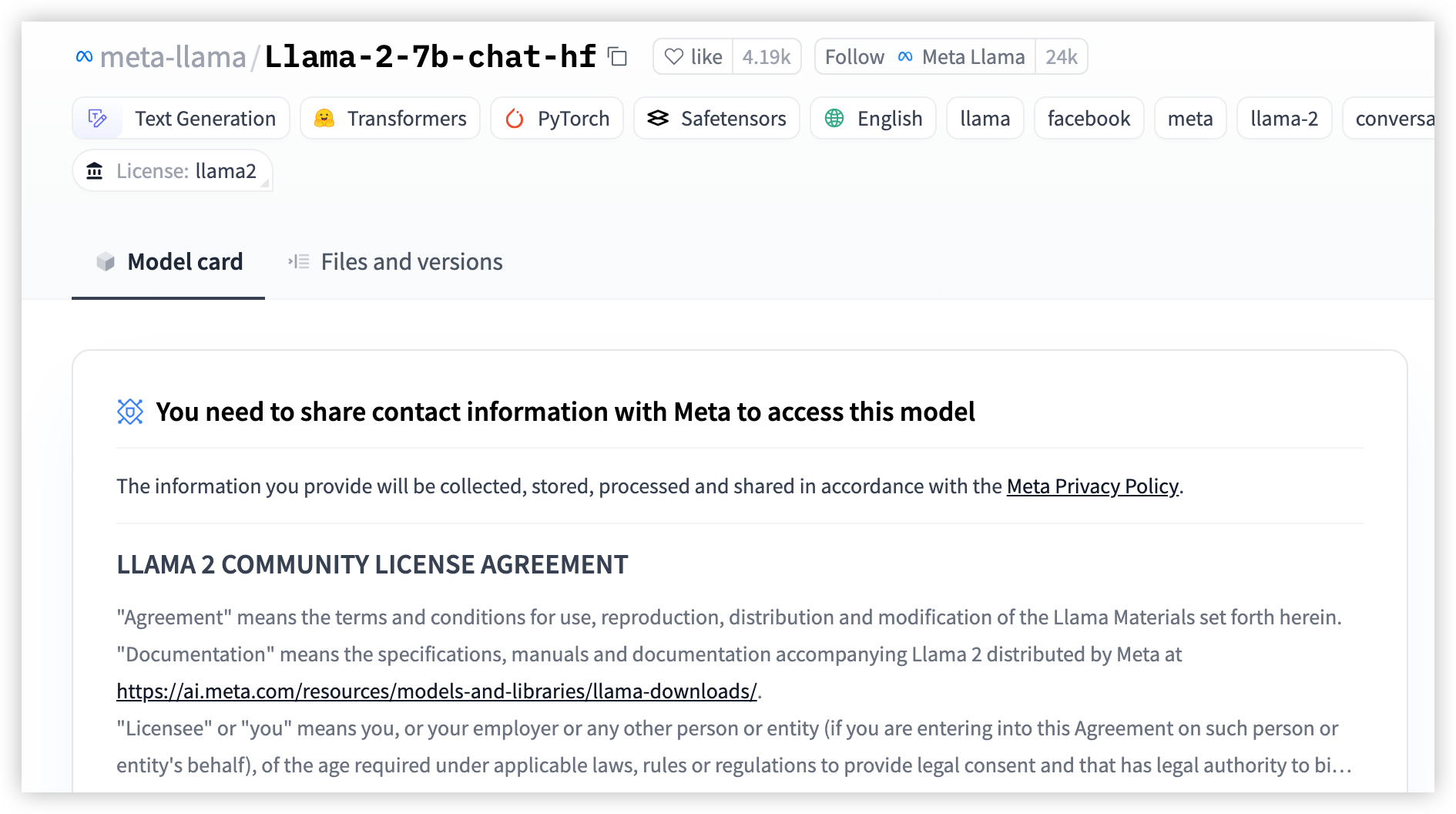
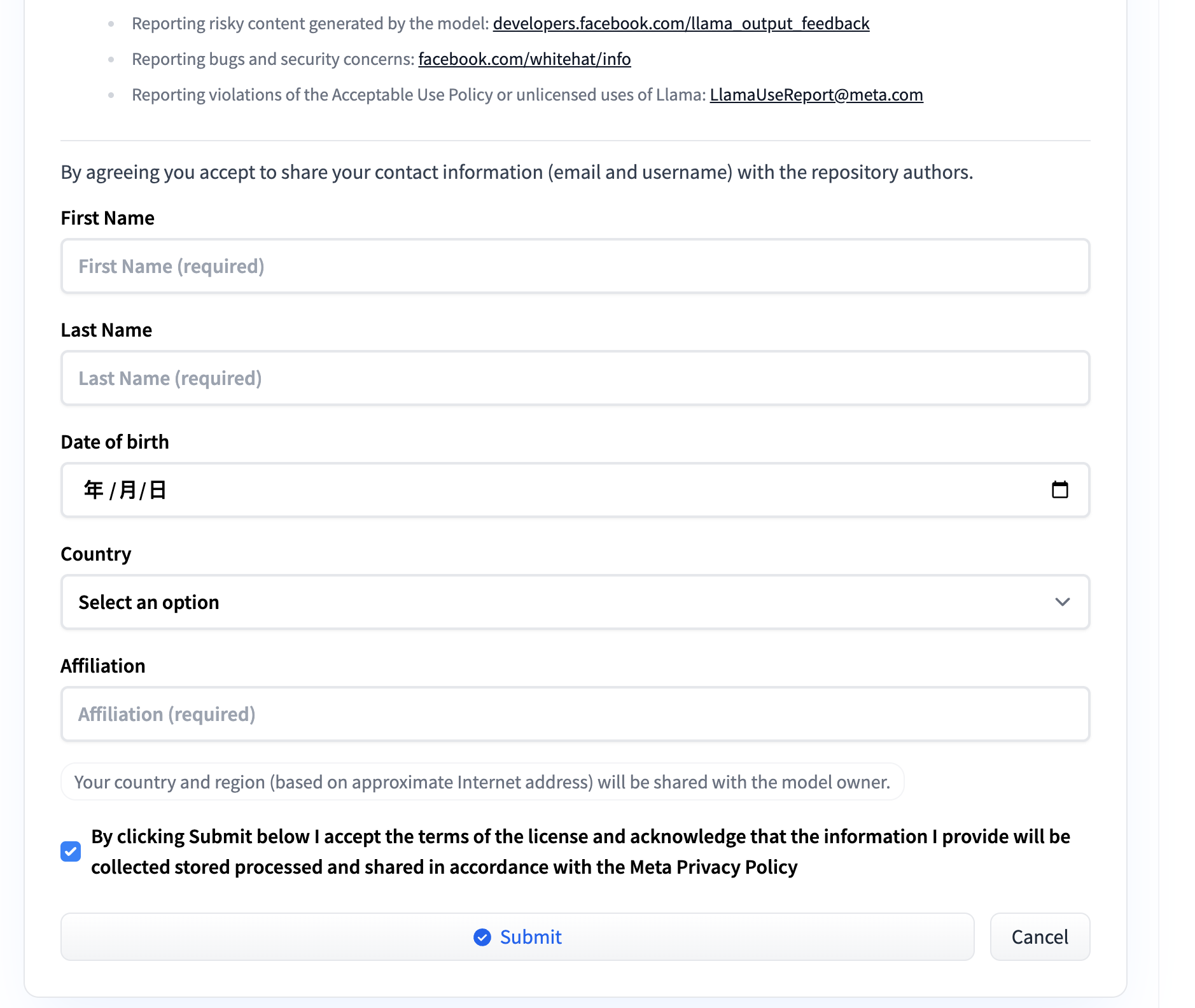
- Read the usage license agreement of the model, fill in the required information, and click the "Submit" button to submit your application.
-
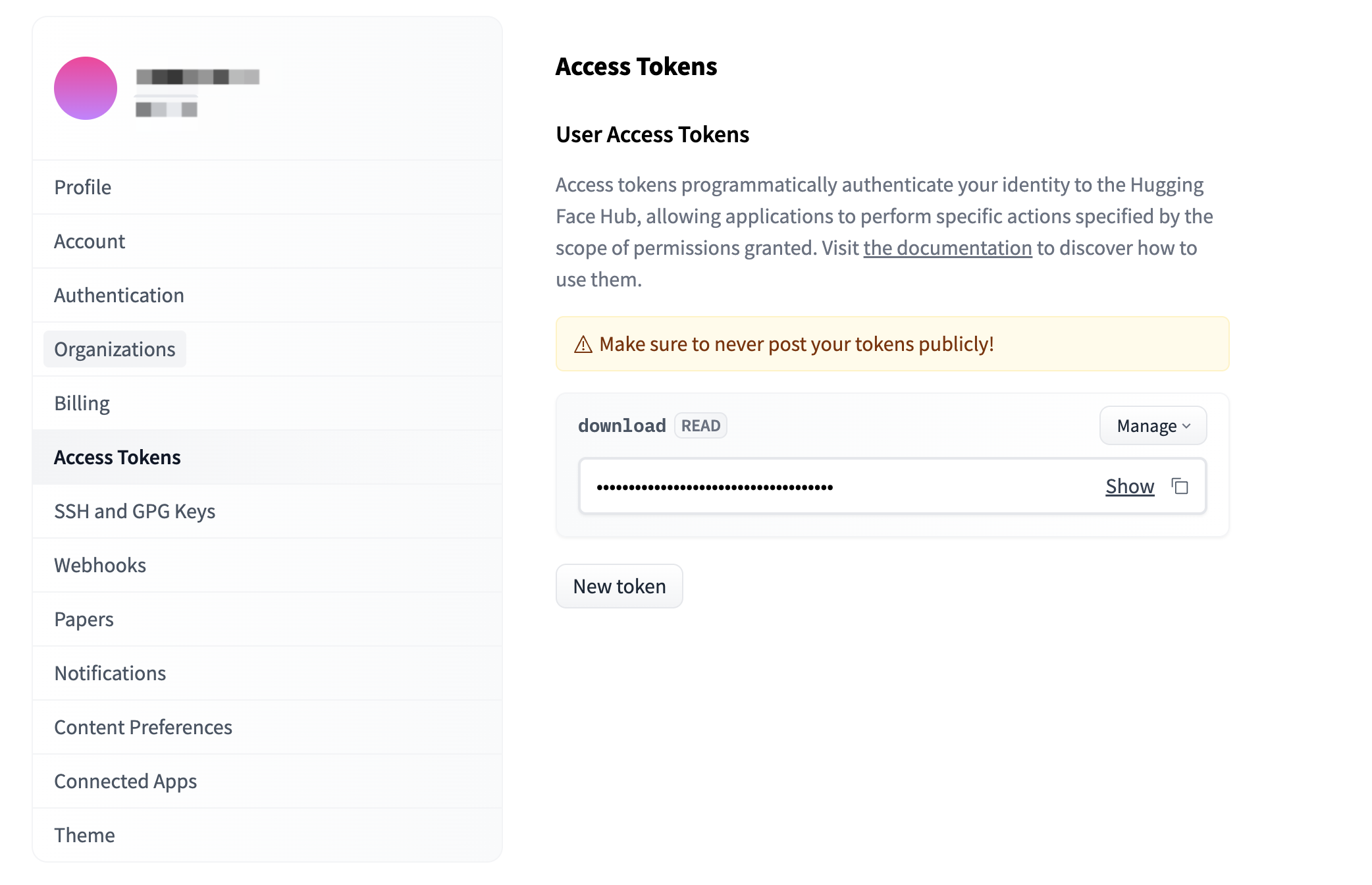
- After your application is approved, log in to the Hugging Face Token page to obtain tokens with download permissions. For more information, see User access tokens.
-
- Execute the following command to enter the encrypted partition.
-
- Execute the following command to install the Hugging Face download tool.
-
- Execute the following command to configure environment variables.
-
tip
In this topic, the model is downloaded from the Hugging Face mirror site. You can also go to the Hugging Face official website to download the model.
- Download the model file.
- Execute the following command to download the Llama-2-7b-chat-hf model.
-
tip
Replace <your_token> in the command with the token obtained in the previous step.
- Execute the following command to download the ms-marco-MiniLM-L-12-v2 model.
-
- Execute the following command to download the dpr-ctx_encoder-single-nq-base model.
-
- Execute the following command to download the dpr-question_encoder-single-nq-base model.
-
Step 5: Configure the database
- Execute the following command to pull the official MySQL database image.
-
tip
- Replace <your_remote_proxy> with the domain name for accessing the remote proxy repository.
- If you do not use the Volcano Engine remote proxy repository, execute the docker pull mysql command to pull the image.
- (Optional) Modify the startup script.
- If you use the Container Registry service provided by Volcano Engine, and pull Docker images by using a remote proxy repository, you need to modify the proxy configuration by performing the following steps. Otherwise, skip this step.
- Execute the following command to enter the rag directory.
-
tip
Replace /root/confidential-computing-zoo/cczoo/rag with the actual path.
- Execute the following command to open the startup script.
-
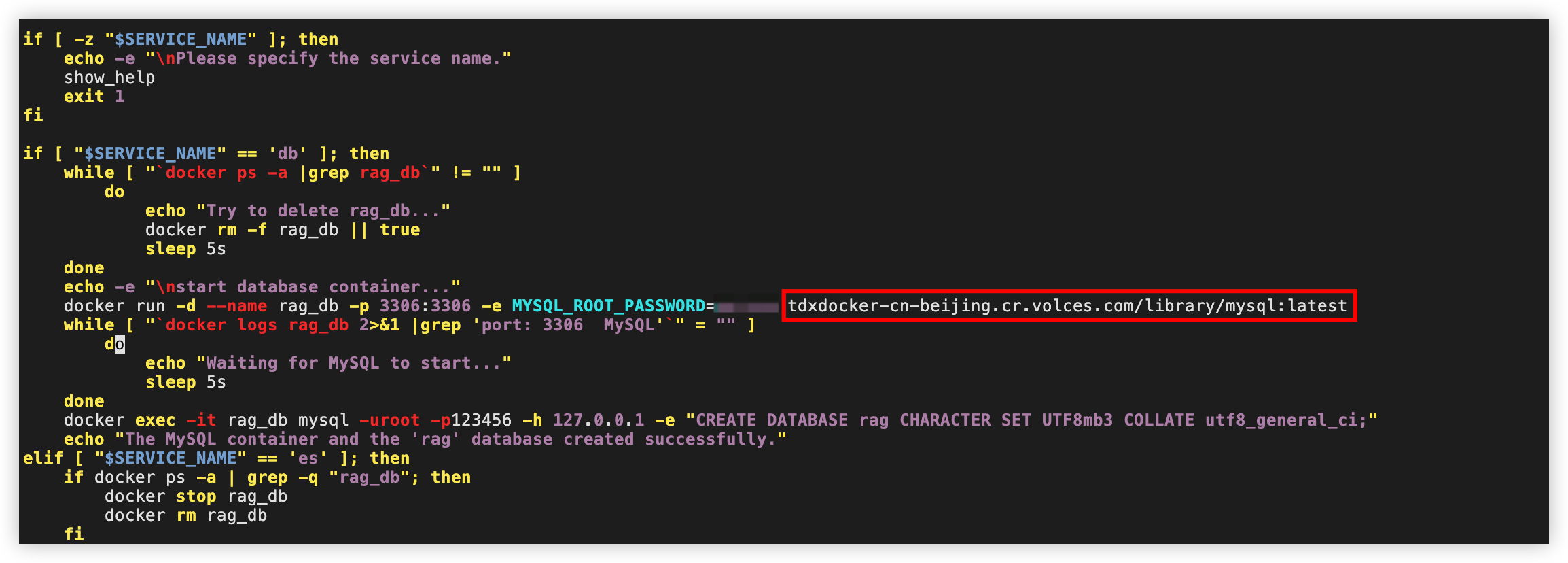
- Press the i key to enter edit mode, and change mysql:latest to <your_remote_proxy>/library/mysql:latest.
tip
Replace <your_remote_proxy> with the domain name for accessing the remote proxy repository.
-
- Press the Esc key to exit edit mode, enter :wq, and then press Enter to save and exit the file.
Step 6: Run the Llama-2-7b-chat-hf model
- Start the backend inference service.
- Execute the following command to enter the rag directory.
-
tip
Replace /root/confidential-computing-zoo/cczoo/rag with the actual path.
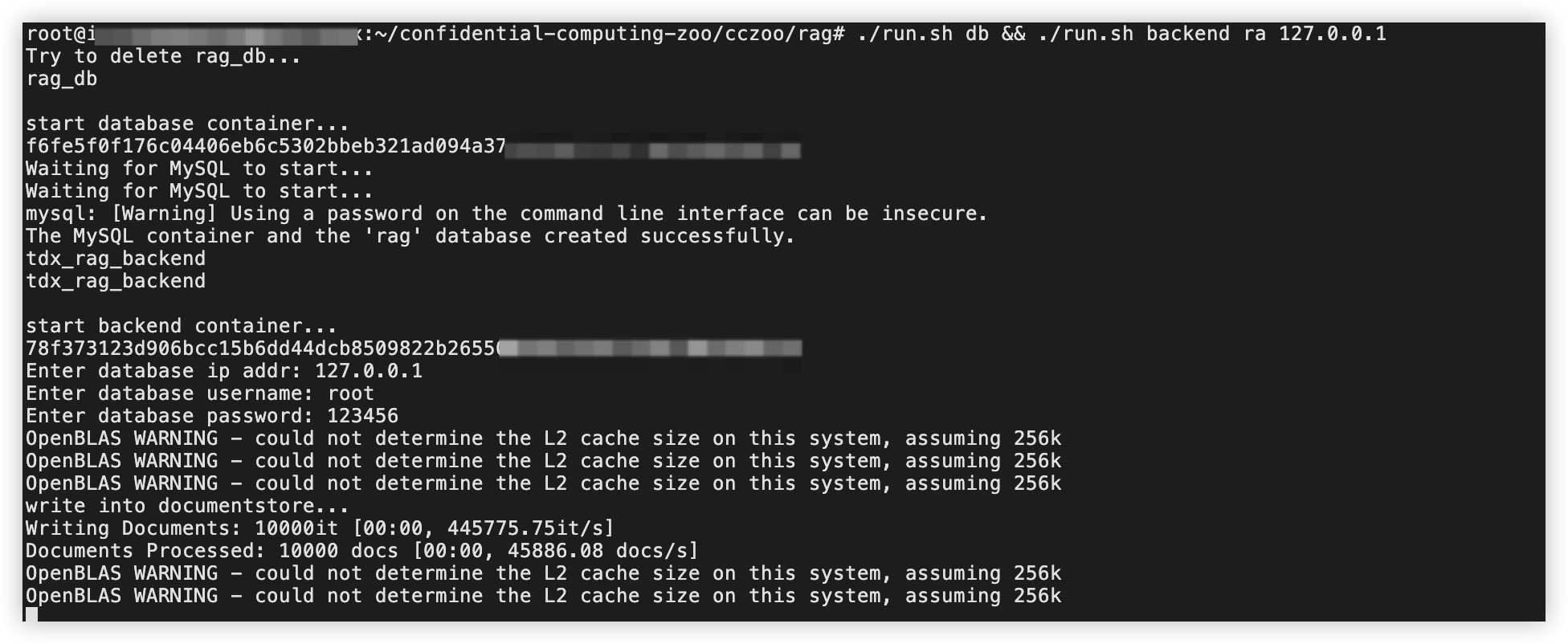
- Execute the following command to start the inference backend service.
-
- Enter 127.0.0.1 and press the Enter key.
-
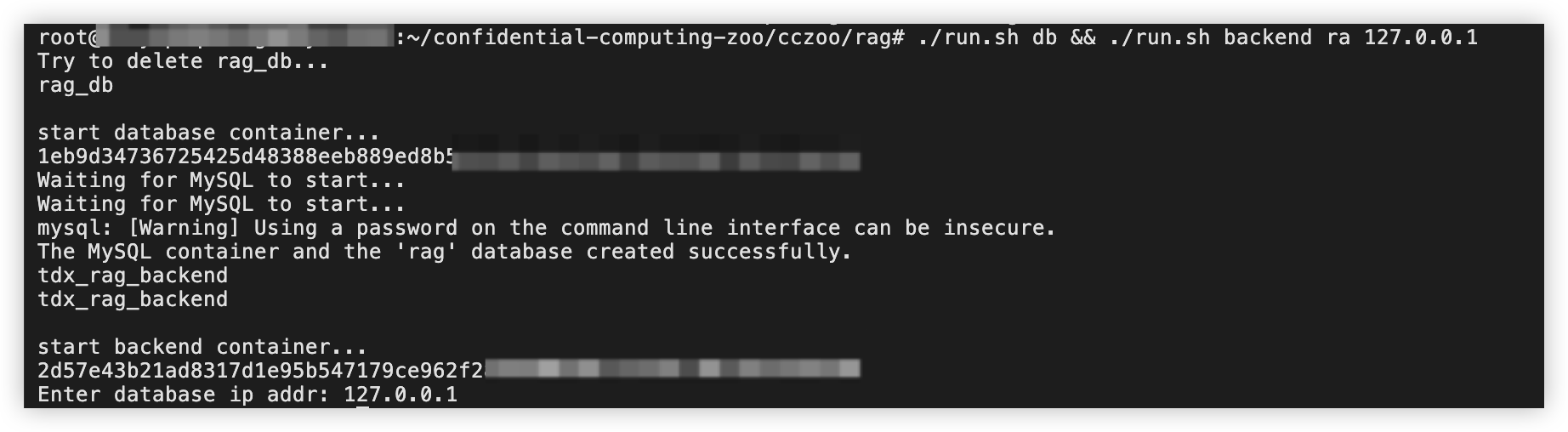
- Enter the MySQL database username and password you configured and press Enter. The default username is root and the default password is 123456.
-
- Start the inference frontend service.
- Keep the terminal that is running the backend service open. In the browser, open a new page and log in to the target instance again.
- In a new terminal, execute the following command to enter the rag directory.
-
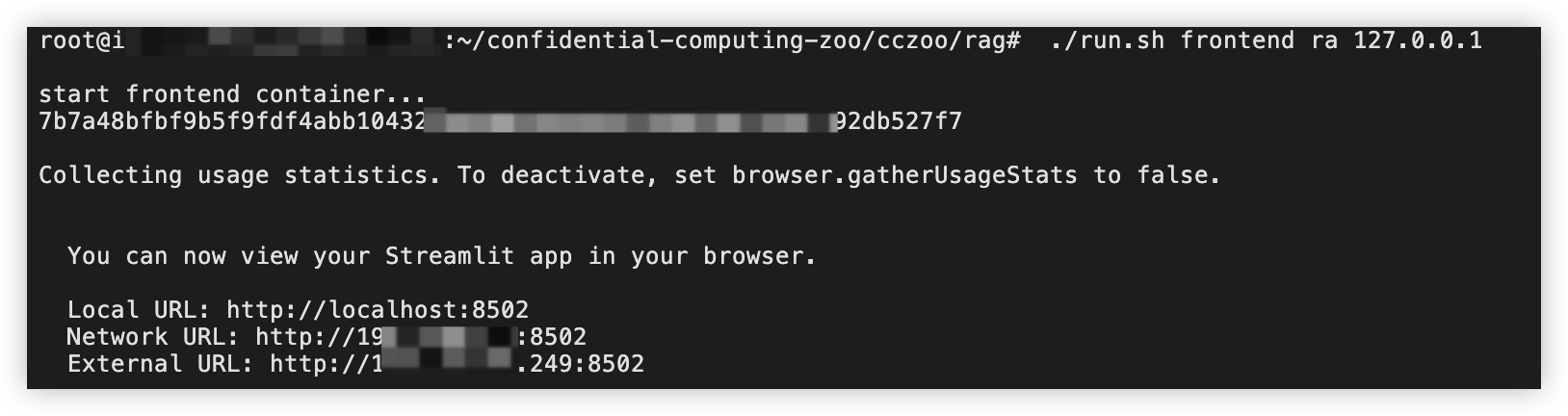
- In a new terminal, execute the following command to start the inference frontend service.
-
- After both the frontend and backend inference services are started, press ctrl +c in the terminals where the frontend and backend services are running, respectively, to stop service running.
- Frontend service startup completed
-
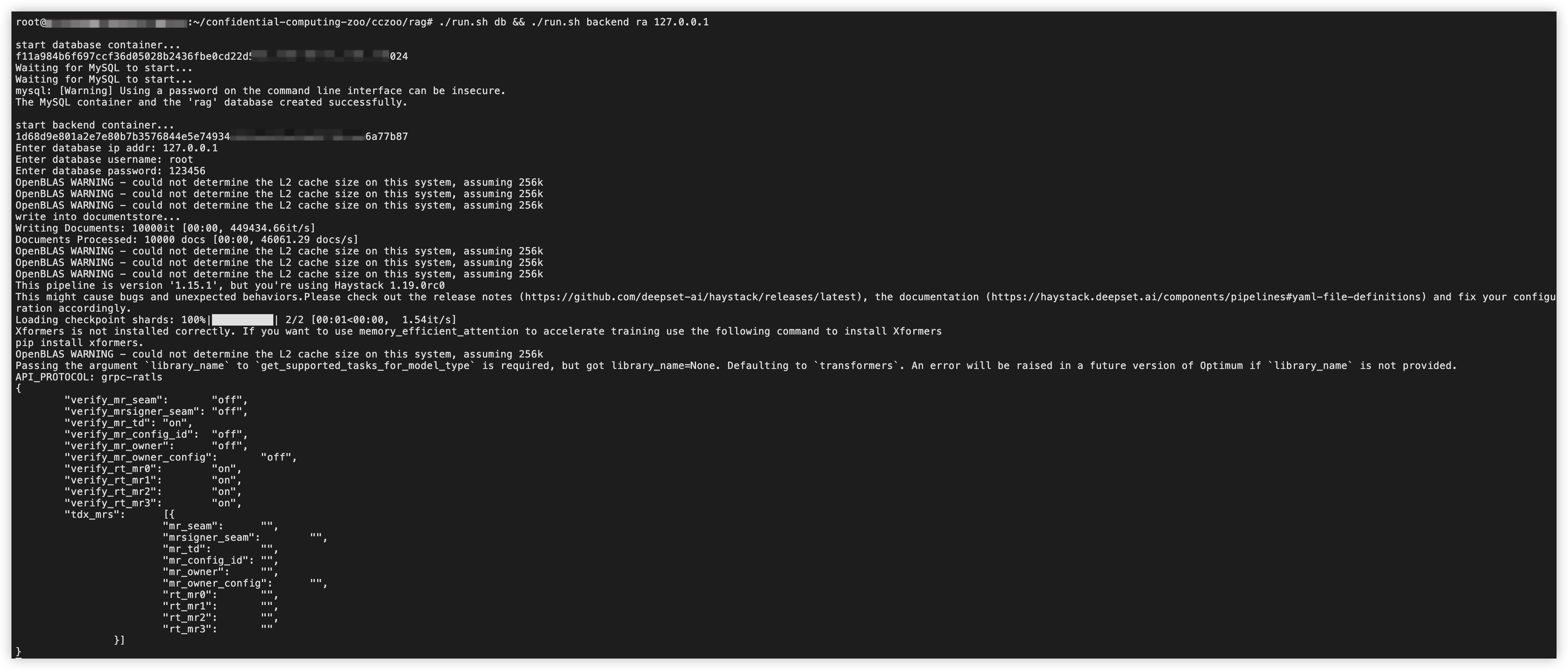
- Backend service startup completed
-
- On any terminal, configure the dynamic_config.json file by performing the following steps.
- Configure the frontend dynamic_config.json file.
- Execute the following command to obtain the parameter values.
-
- Sample output:
- Record the value of each parameter in the output.
-

- Execute the following command to open the frontend dynamic_config.json file.
-
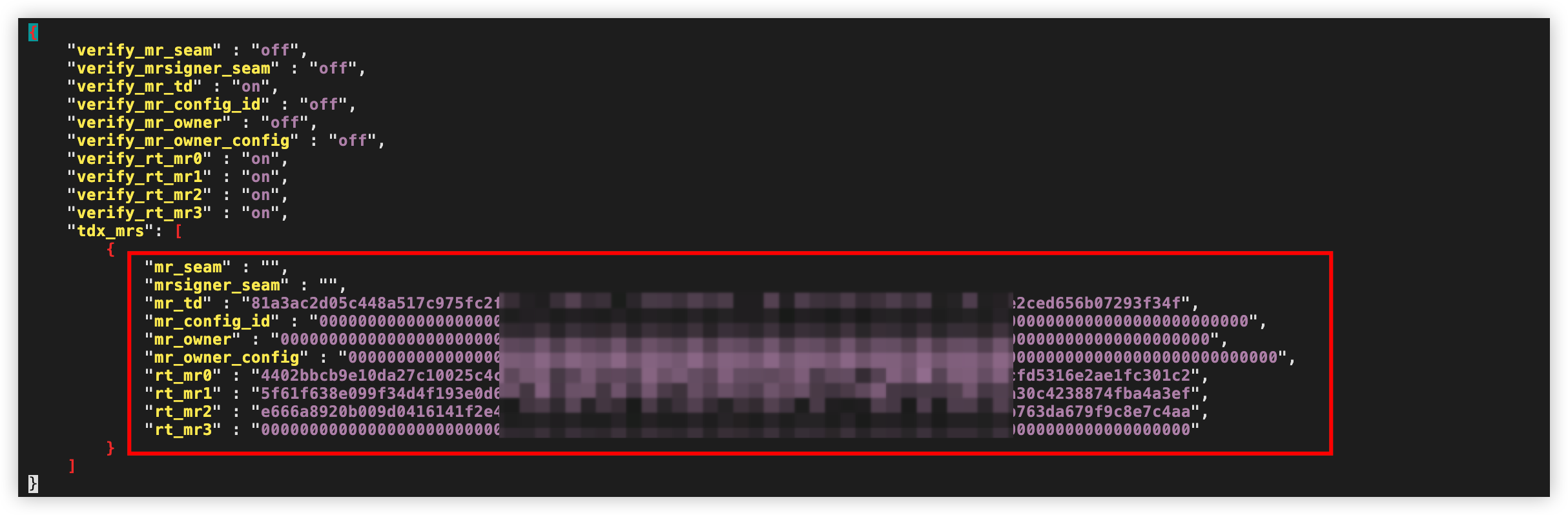
- Press the i key to enter edit mode, and fill in the parameter values obtained in Step 1 into their respective positions.
- Example before configuration:
-
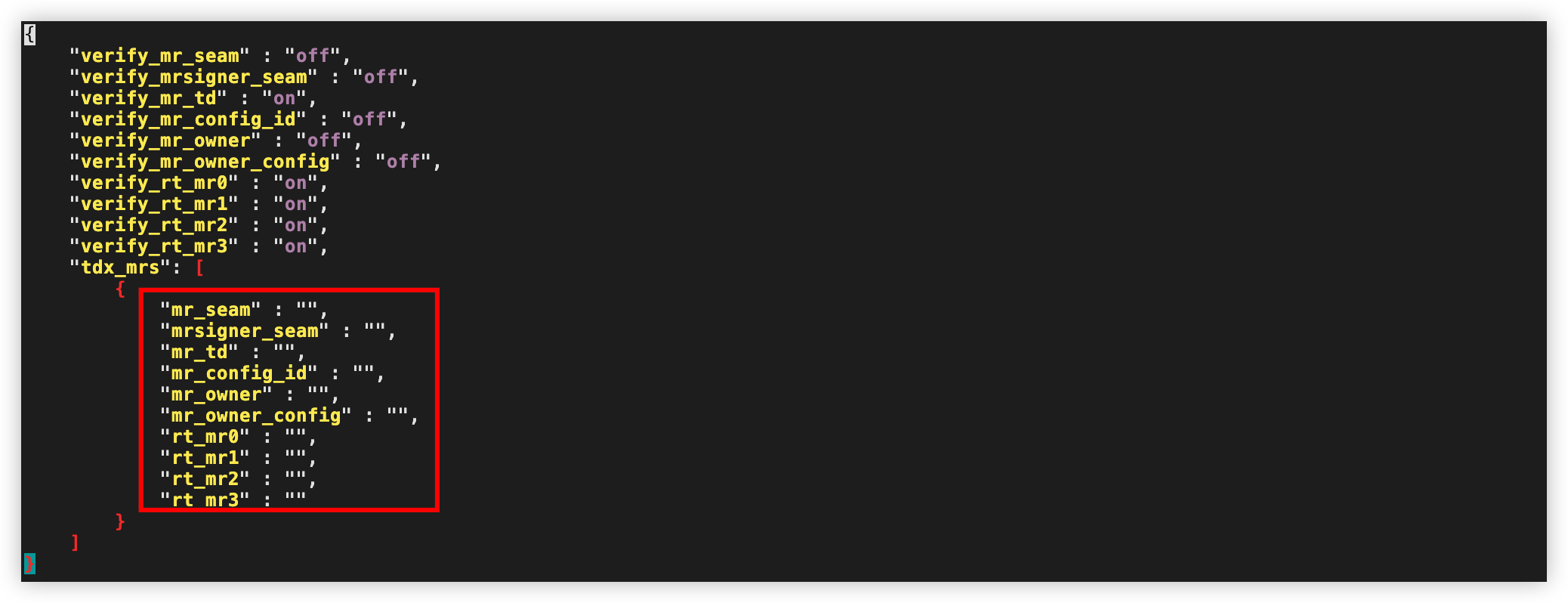
- Example after configuration:
-
- Press the Esc key to exit edit mode, enter :wq, and then press Enter to save the changes and exit the file.
- Configure the backend dynamic_config.json file.
- Execute the following command to obtain the parameter values.
-
- Sample output:
- Record the value of each parameter in the output.
-

- Execute the following command to open the frontend dynamic_config.json file.
-
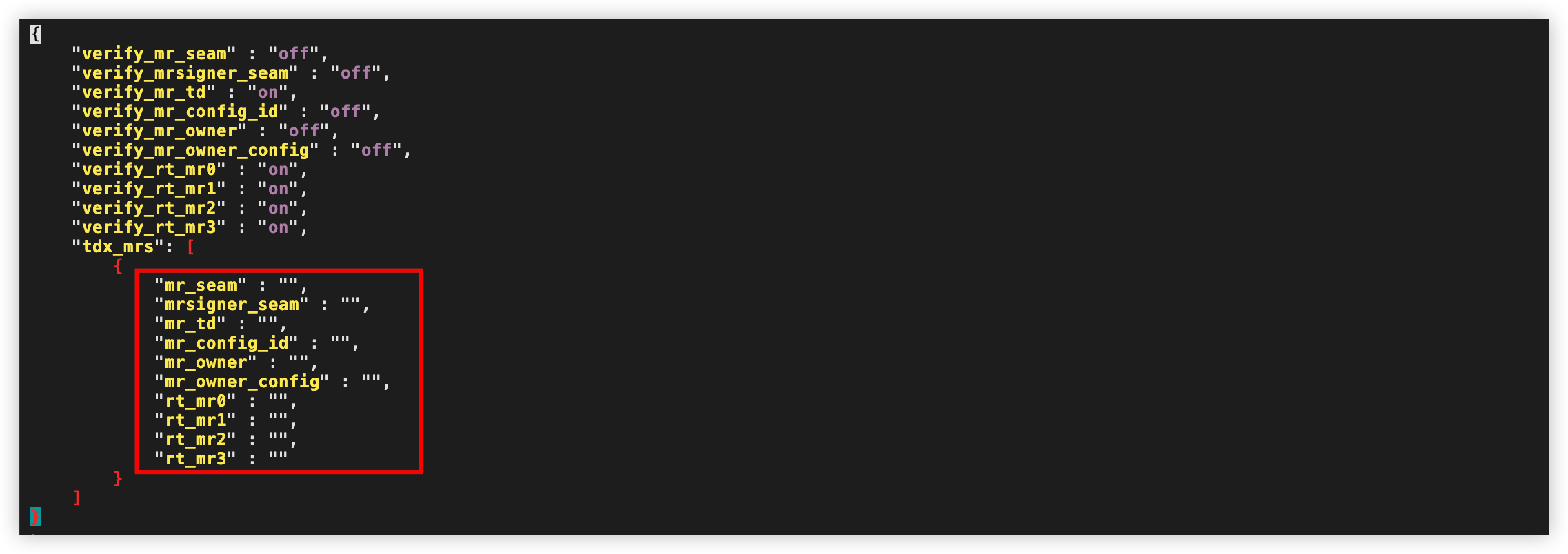
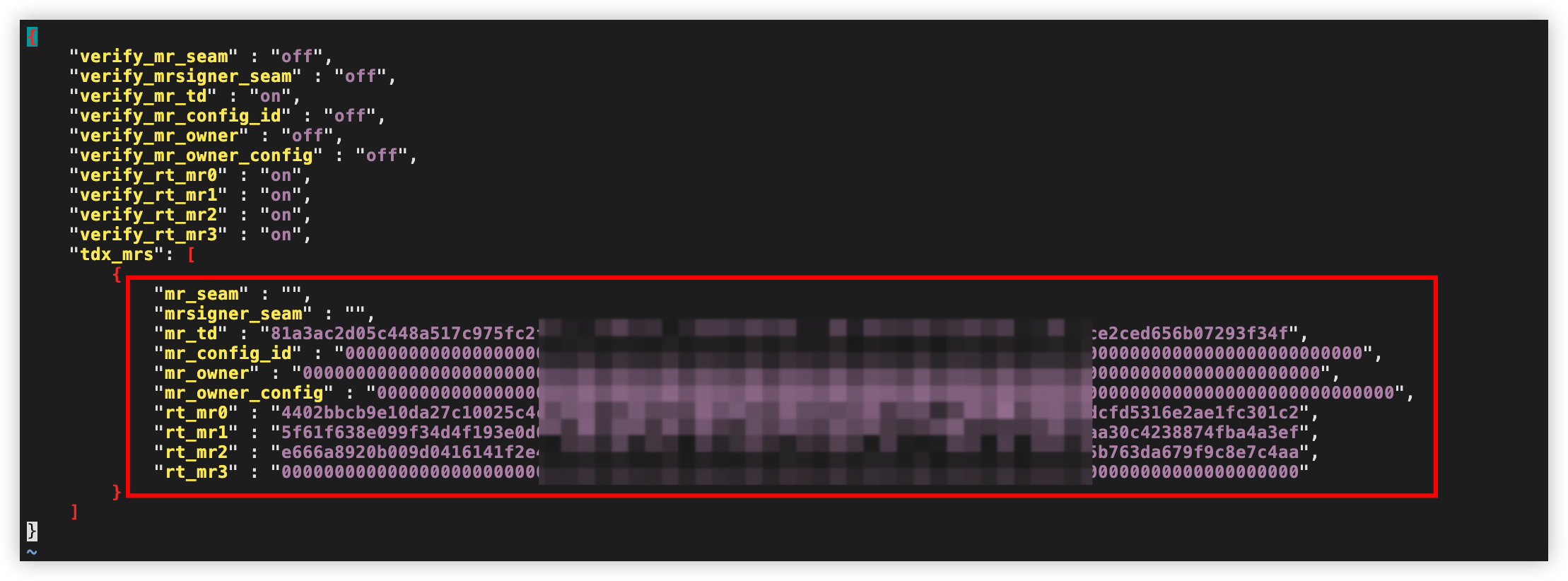
- Press the i key to enter edit mode, and fill in the parameter values obtained in Step 1 into their respective positions.
- Example before configuration:
-
- Example after configuration:
-
- Press the Esc key to exit edit mode, enter :wq, and then press Enter to save the changes and exit the file.
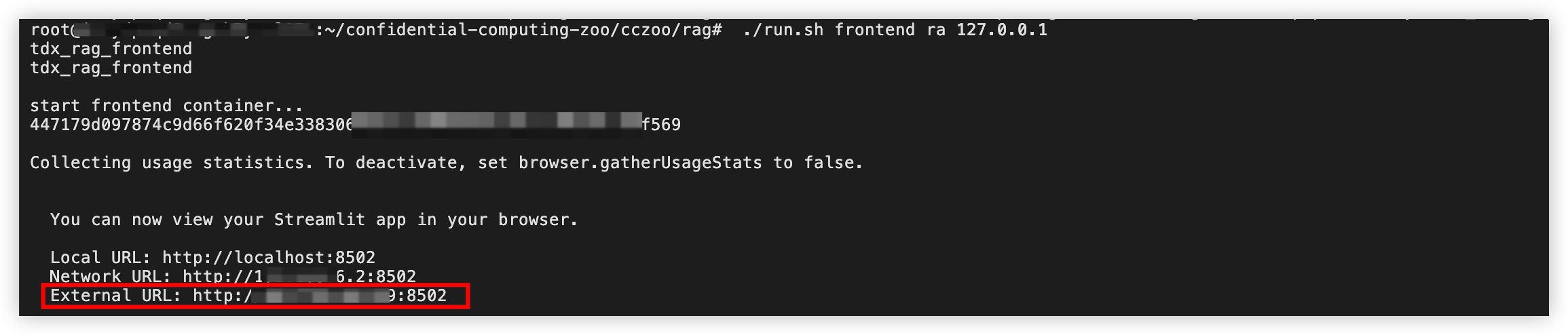
- Follow the previous steps 2 and 3 to start the inference backend and frontend services in sequence, and then retrieve the Internet access address for the inference page (corresponding to the External URL) from the terminal running the frontend inference service.
-
- On any local PC with access to the Internet, you can interact with the AI by visiting the Internet access address of the inference page in your browser.
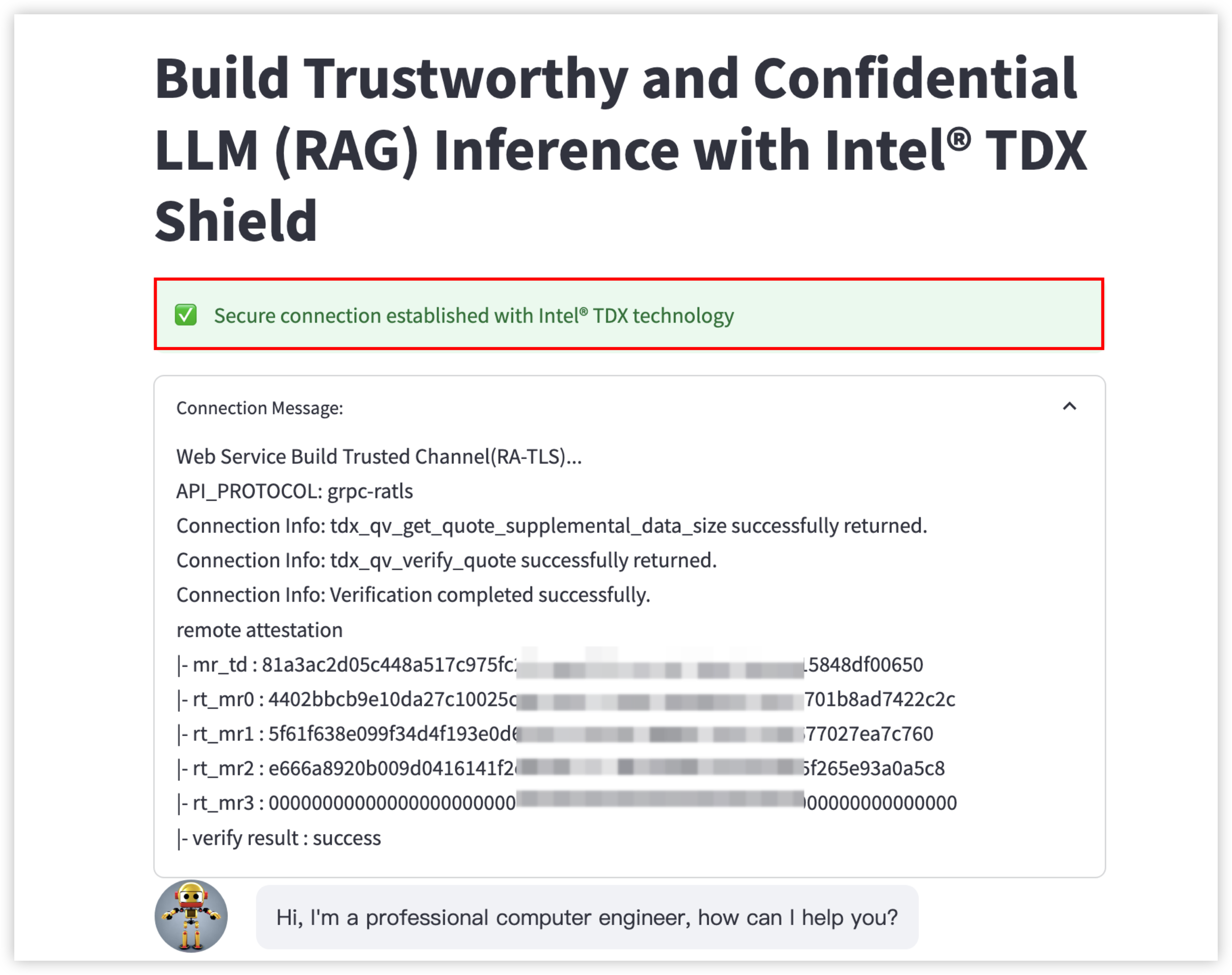
- If the web page displays the information shown in the red box in the following figure, a secure connection has been established between the frontend and backend inference services based on Intel® TDX.
-
Last updated: 2026.06.18 17:48:26
All rights reserved © Beijing Volcano Engine Technology Co., Ltd2024
