Elastic Compute Service
Elastic Compute Service


Document

- Documentation
 Elastic Compute ServiceElastic Compute ServiceBest PracticesRapidly deploying ECS instances by calling OpenAPI
 Copy page
 Download PDF
Best Practices
Rapidly deploying ECS instances by calling OpenAPI
Copy pageDownload PDFRapidly deploying ECS instances by calling OpenAPI
This topic describes how to rapidly deploy a large number of ECS instances by calling the OpenAPI, meeting user requirements for highly scalable computing power. For users in social media, online education, and other fields that stage online hot events, this solution can significantly enhance the user experience of their customers.
Applicable scope
This applies to application scenarios where a large number of ECS instances need to be delivered quickly in a short period. For example, customers in the interactive entertainment, social media, or online education sectors often need to acquire and use a large number of ECS resources in an extremely short time due to the occurrence of hot events or organized hot activities.
Software version
tip
This solution is provided only for demonstration purposes. You can configure your actual environment based on your needs.
- Operating system of the local computer: Windows 10
- Postman version: v9.31.0
Practice planning
This practice enables rapid deployment of a large number of ECS instances by calling the OpenAPI. Before you call the OpenAPI, you need to plan in advance for the following network configurations: VPC CIDR block, subnet CIDR block, security group, network interface, and route table. Additionally, you need to select the type and image of the ECS instance that you want to create. The security group, network interface, and route table are created by default by the system in this practice. The configuration of your actual environment must be determined based on your specific business requirements.
VPC CIDR block
You can use one of the following CIDR blocks or a subset of one of them as the CIDR block for the VPC:
- 192.168.0.0/16-24 (default)
- 10.0.0.0/8-24
- 172.16.0.0/12-24
In this practice, 192.168.0.0/16 is selected as the CIDR block for the VPC.
Subnet CIDR block
Subnet CIDR block requirements:
- The subnet CIDR block supports a mask length ranging from 16 to 29 bits.
- The subnet CIDR block must be contained within the CIDR block of the VPC.
- The subnet CIDR block cannot be the same as the destination CIDR block of any route entry in the VPC, but it can be a subset of the destination CIDR block.
- The first IP address and the last three IP addresses of each subnet are reserved by the system. For example, if the CIDR block of the subnet is 192.168.0.0/24, then the four IP addresses 192.168.0.0, 192.168.0.253, 192.168.0.254, and 192.168.0.255 are system-reserved IP addresses.
In this practice, 192.168.0.0/24 is selected as the subnet CIDR block.
ECS instance type
- Log in to the ECS console.
- In the left-side navigation pane, select "Instances & Images > Instances".
- Click "Create instance" and configure the parameters described in the following table to obtain all types of ECS instance that you can create.
- CategoryDescriptionBilling methodPay-as-you-goRegion and AZChina (Beijing) A
- In this practice, General-purpose and ecs.g2i.large are selected as the instance type. After you view the instance type information, click "Cancel" in the lower right corner.
ECS instance image
- In the left navigation pane, select "Images" to enter the image list page.
- On the image list page, you can view public images, or import custom images based on your needs.
- In this practice, an image running CentOS 7.6 64 bit with the ID image-ebgzajl1peeh8jc6**** is used.
Use Postman to call the OpenAPI
In this practice, Postman is used to construct OpenAPI requests. Compared with other methods, Postman features an easy-to-use graphical user interface (GUI), can save the history of API requests, and uses test suites (Collections) to manage and organize API operations more effectively. These features facilitate the synchronization of API data among teams.
Refer to the official documentation center to configure OpenAPI parameters. For more information, see VPC and ECS. For the API operations involved in this practice, refer to Related documents.
Install Postman
Download the installation package
On the Download Postman page, click "Download the App" and download the corresponding installation package according to the configuration of your computer.
Install Postman
- Double-click the downloaded installation package. The software will be automatically installed on the local computer.
- Start Postman. If the following page is displayed, Postman is installed.
-
Create a collection
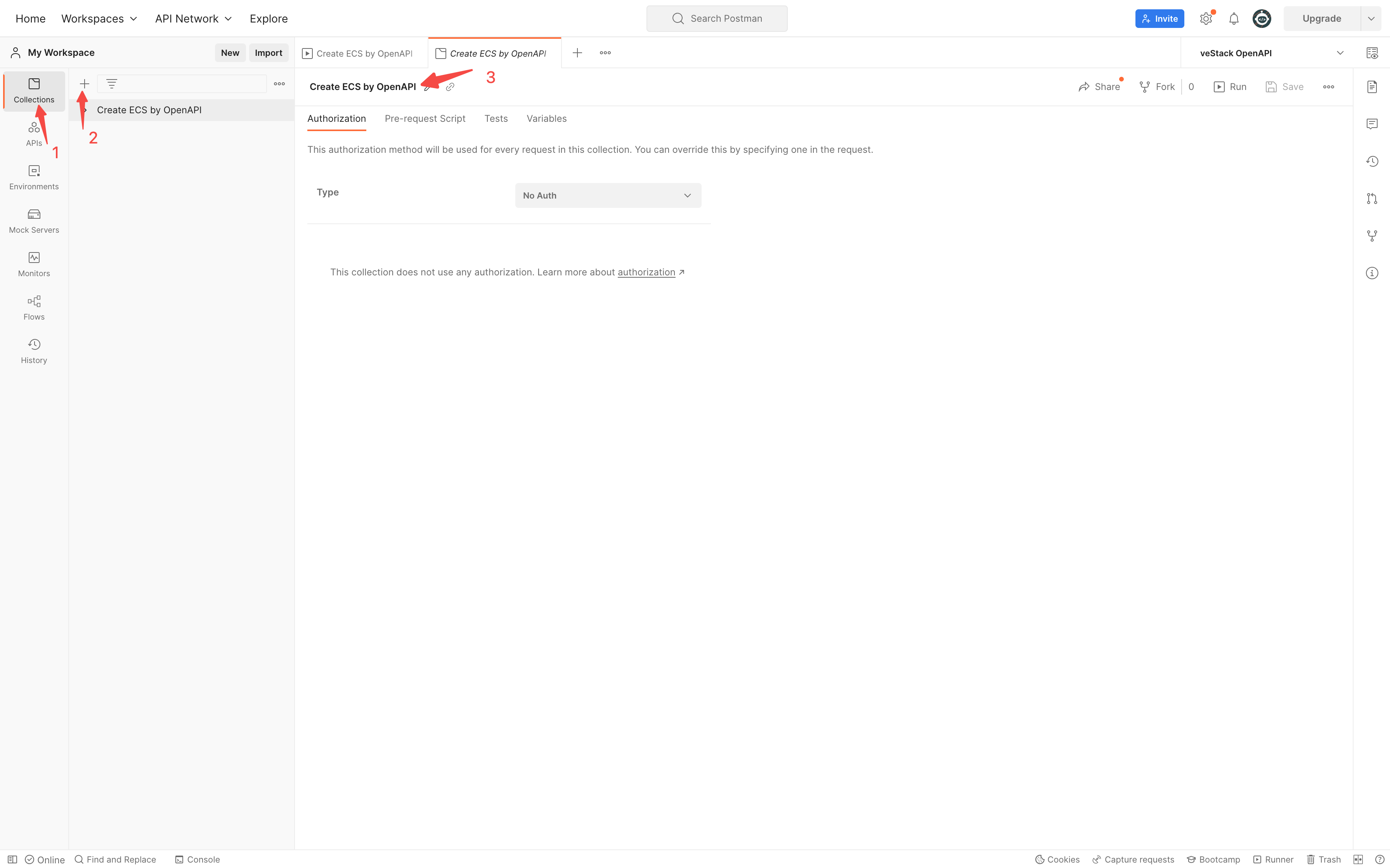
- In Postman, click "Collections > +" to create a collection, and rename it to "Create ECS by OpenAPI".
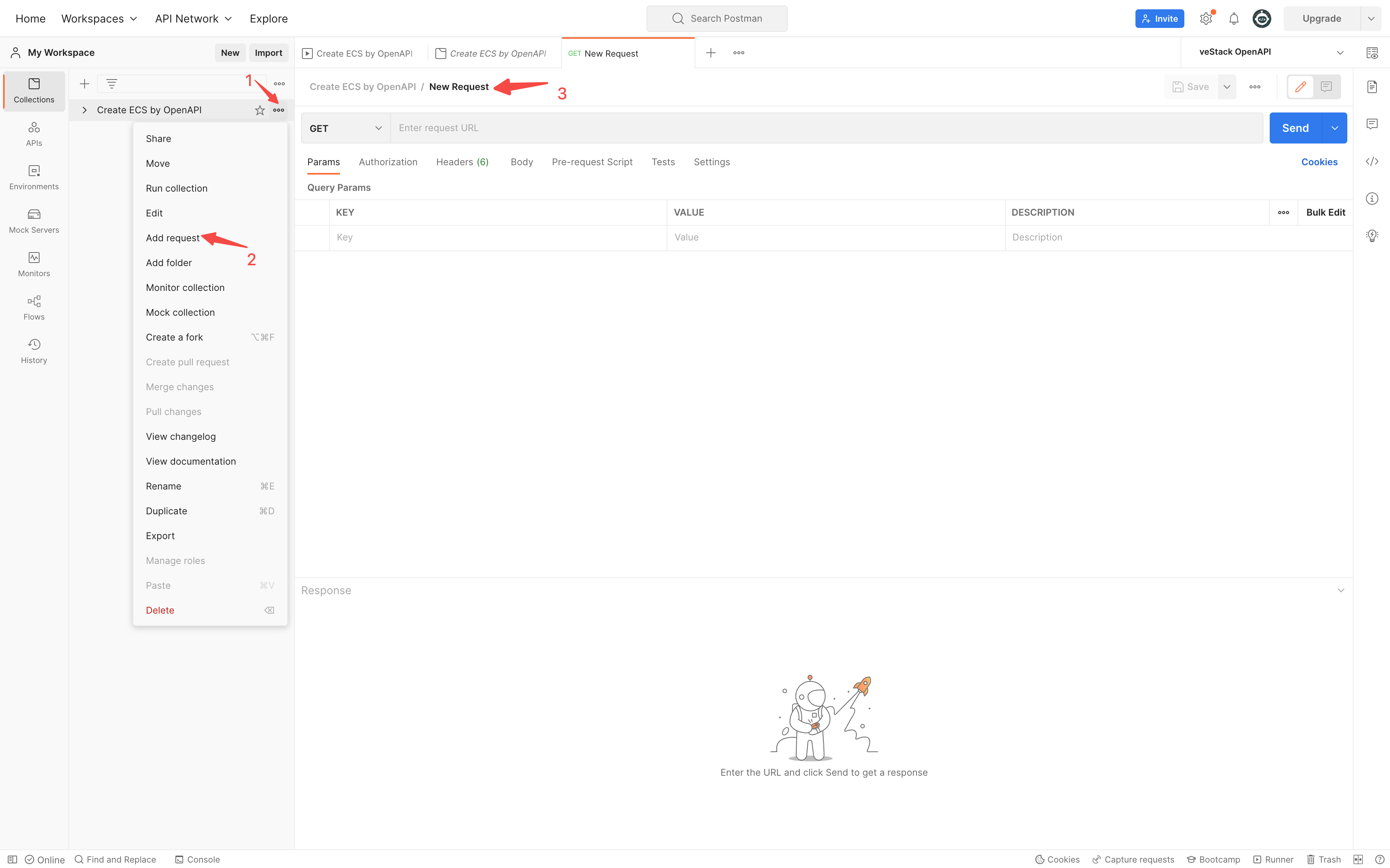
- In the collection, click "... > Add request" and sequentially add the five requests: "CreateVpc", "CreateSubnet", "DescribeSecurityGroups", "RunInstances", and "DescribeInstances".
-
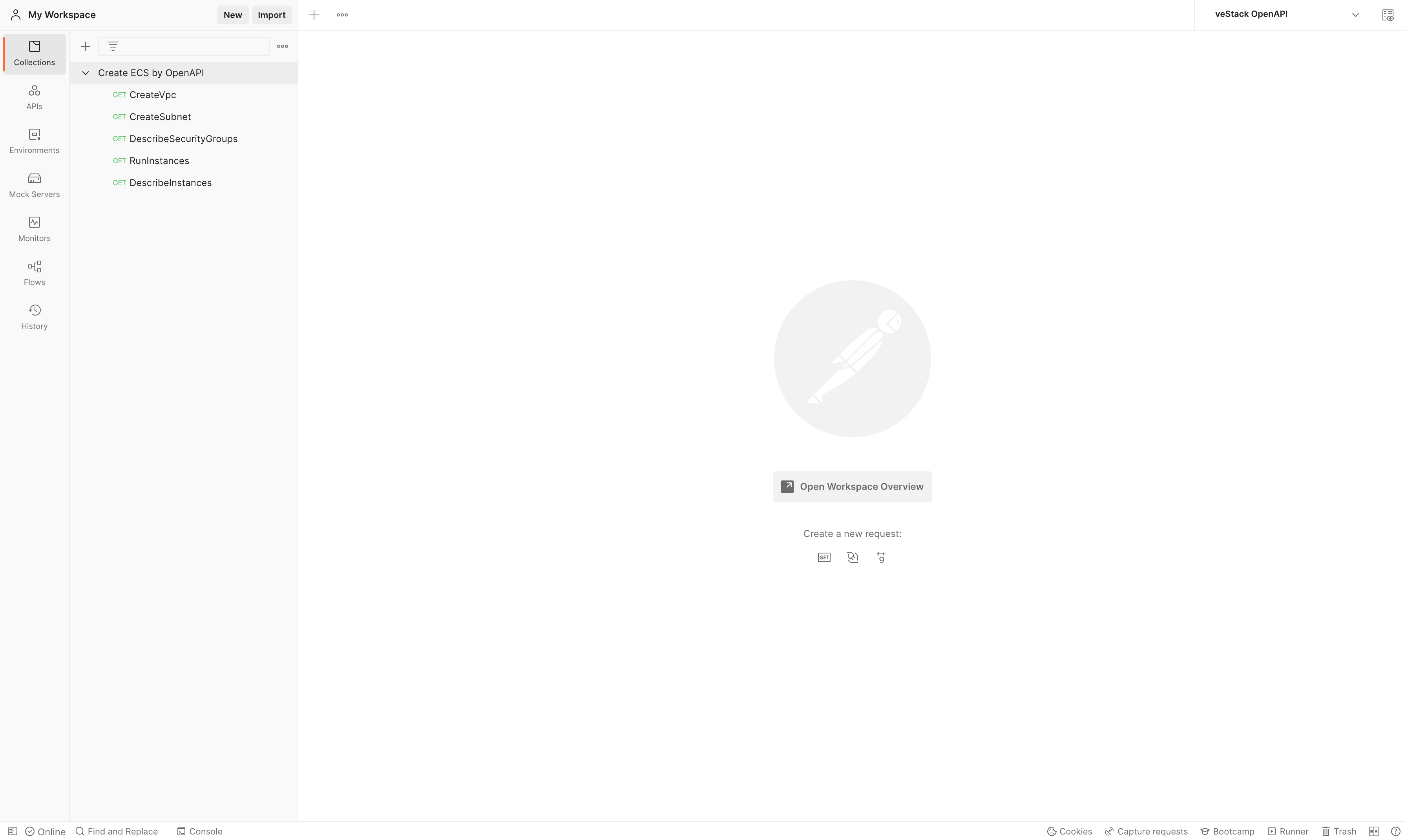
- After the requests are added, the following page is displayed.
-
Create an environment variable
Click "Environments > +" to create an environment variable, and rename it to "veStack OpenAPI" (as an example) to simplify parameter request operations.
Create a request
tip
When you create a request, after you configure the corresponding request parameters, you need to manually enter {{URL}} in the request parameter configuration field and save the configuration.
Create a CreateVpc request
- Select the "CreateVpc" request, configure the request parameters, and invoke the environment variable.
- The parameters.Example valueActionCreateVpcVersion2020-04-01X-Expires300CidrBlock192.168.0.0/16VpcNamevpc-testDescriptionCreate multiple ECS instances in a batch by using OpenAPI
- Click "Headers" and configure the request headers on the corresponding tab.
-
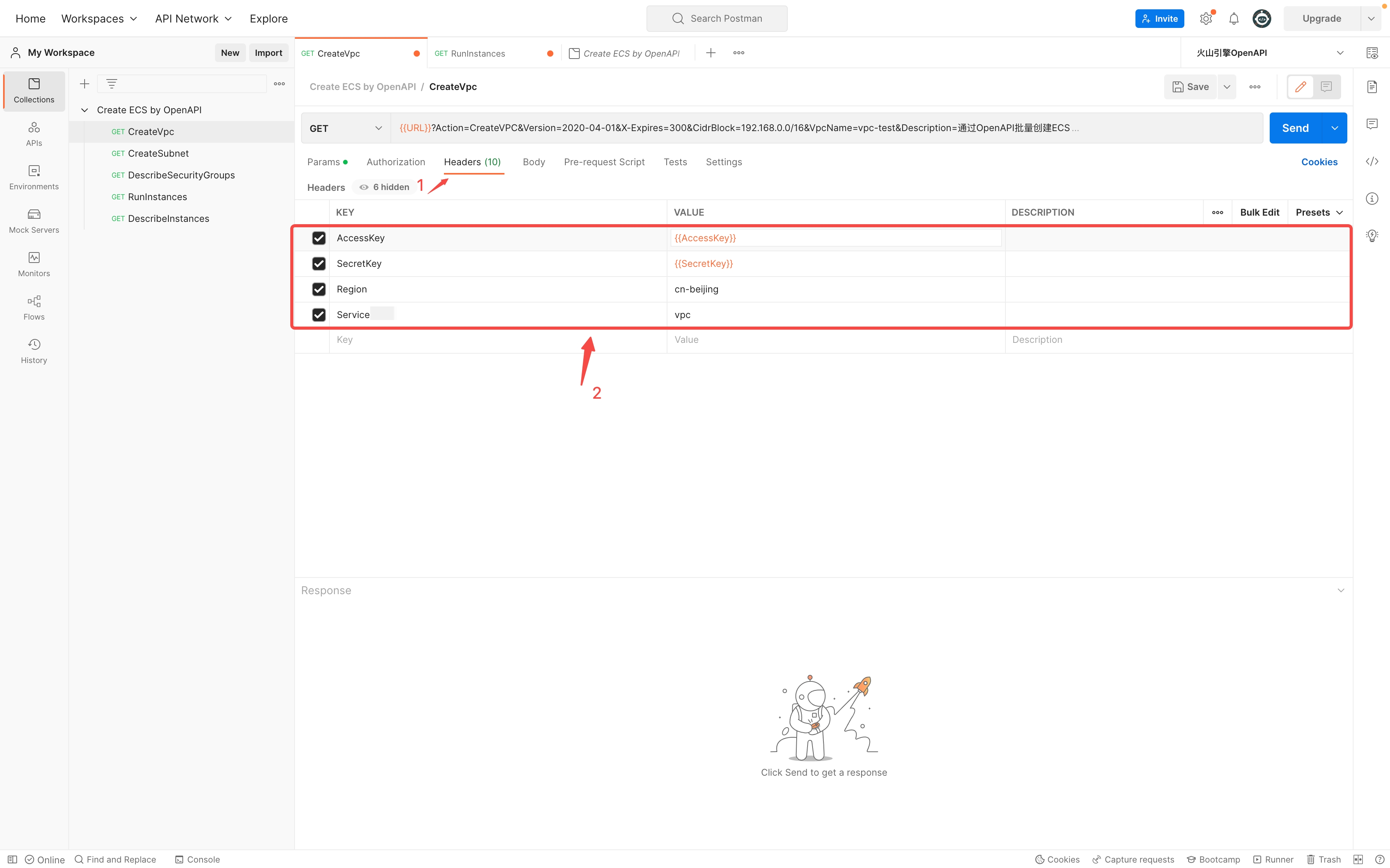
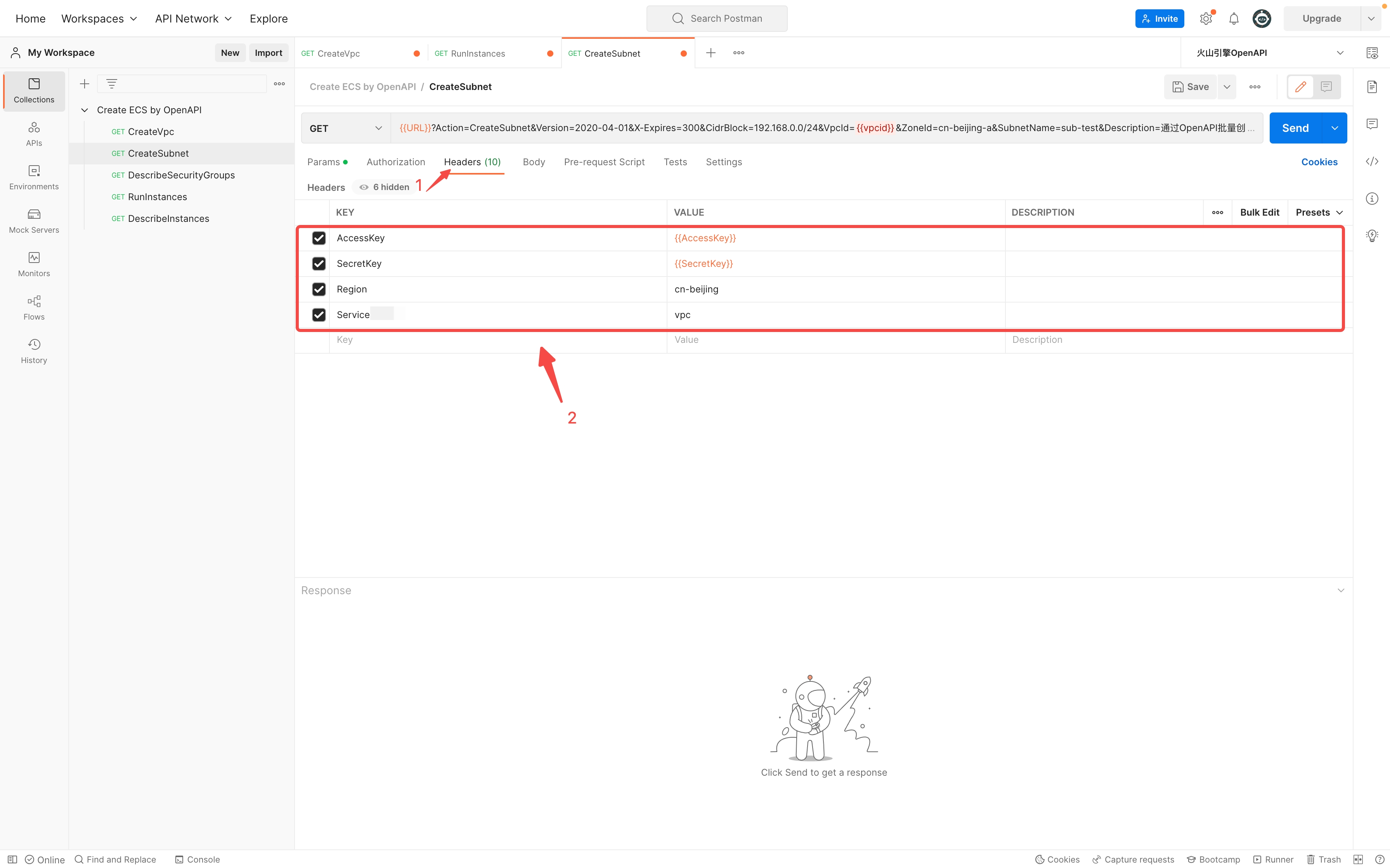
- The parameters.Example valueRemarksAccessKey{{AccessKey}}The environment variable that you want to invoke. This parameter is fixed to {{AccessKey}}.SecretKey{{SecretKey}}The environment variable that you want to invoke. This parameter is fixed to {{SecretKey}}.Regioncn-beijing-Servicevpc-
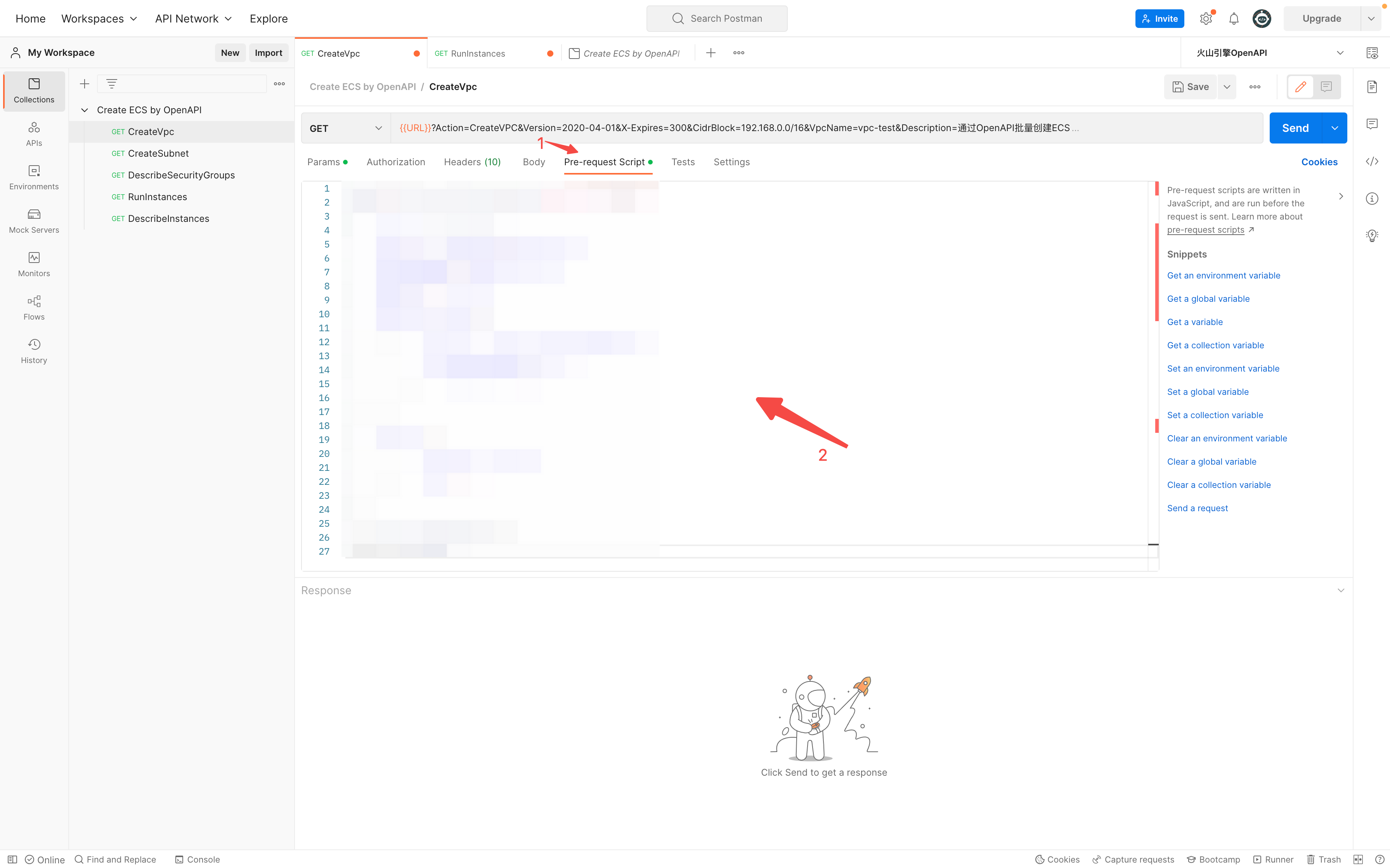
- Click "Pre-request Script". On the corresponding tab, write the script for the signature mechanism based on your actual needs. For the specific script, see Signature mechanism.
-
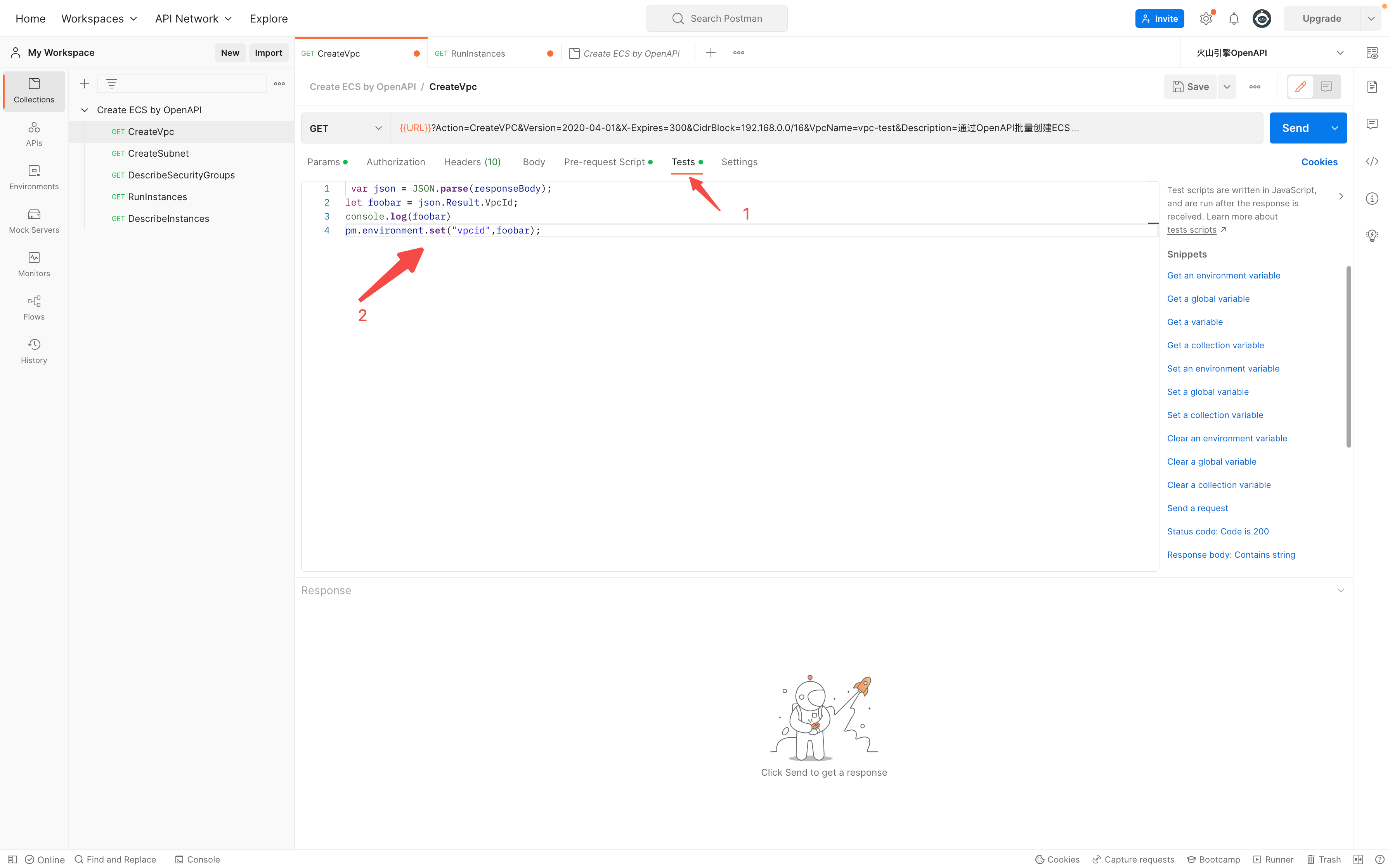
- Click "Tests", enter the following commands on the corresponding tab to extract the VpcId from the API response value and set it as an environment variable for use in subsequent requests.
-
-
Create a CreateSubnet request
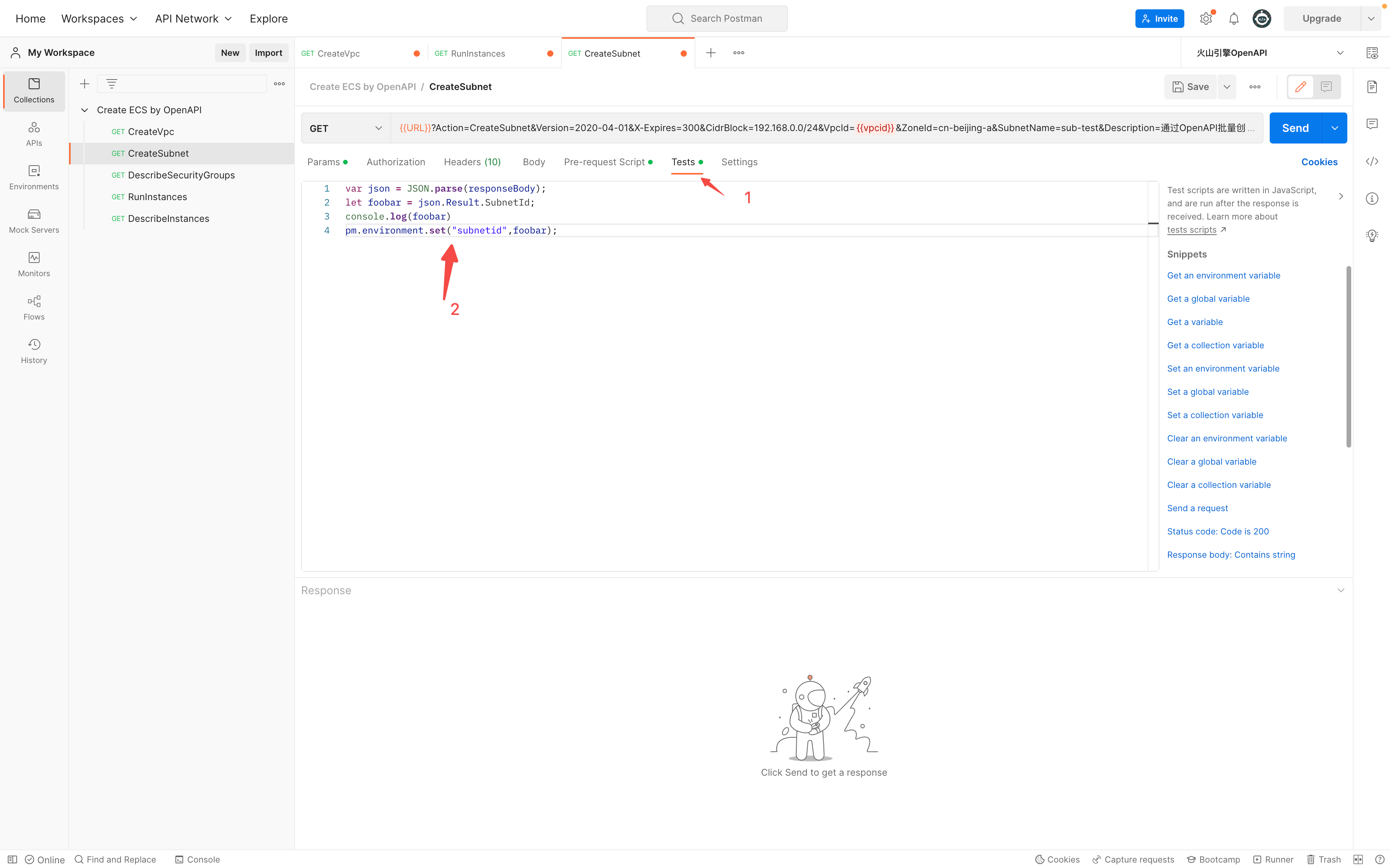
- Select the "CreateSubnet" request, configure the request parameters, and invoke the environment variable.
- The parameters.Example valueRemarksActionCreateSubnet-Version2020-04-01-X-Expires300-CidrBlock192.168.0.0/24-VpcId{{vpcid}}The environment variable that you want to invoke. This parameter is fixed to {{vpcid}}.ZoneIdcn-beijing-a-SubnetNamesub-test-DescriptionCreate multiple ECS instances in a batch by using OpenAPI-
- Click "Headers" and configure the request headers on the corresponding tab.
-
-
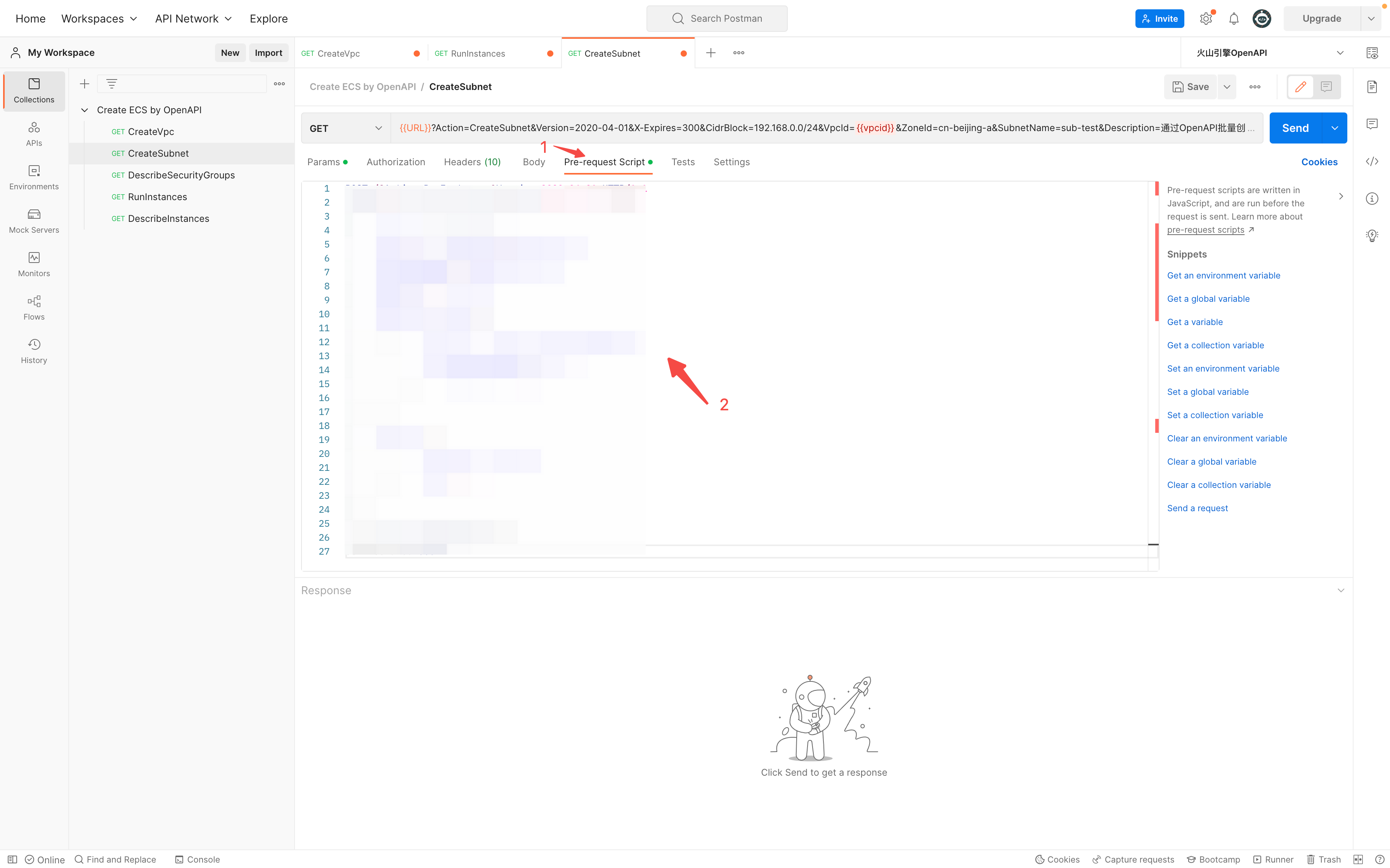
- Click "Pre-request Script". On the corresponding tab, write the script for the signature mechanism based on your actual needs. For the specific script, see Signature mechanism.
-
- Click "Tests", enter the following commands on the corresponding tab to extract the SubnetId from the API response value and set it as an environment variable for use in subsequent requests.
-
-
Create a DescribeSecurityGroups request
- Select the "DescribeSecurityGroups" request, configure the request parameters, and invoke the environment variable.
- The parameters.Example valueRemarksActionDescribeSecurityGroups-Version2020-04-01-X-Expires300-VpcId{{vpcid}}The environment variable that you want to invoke. This parameter is fixed to {{vpcid}}.
- Click "Headers" and configure the request headers on the corresponding tab.
-
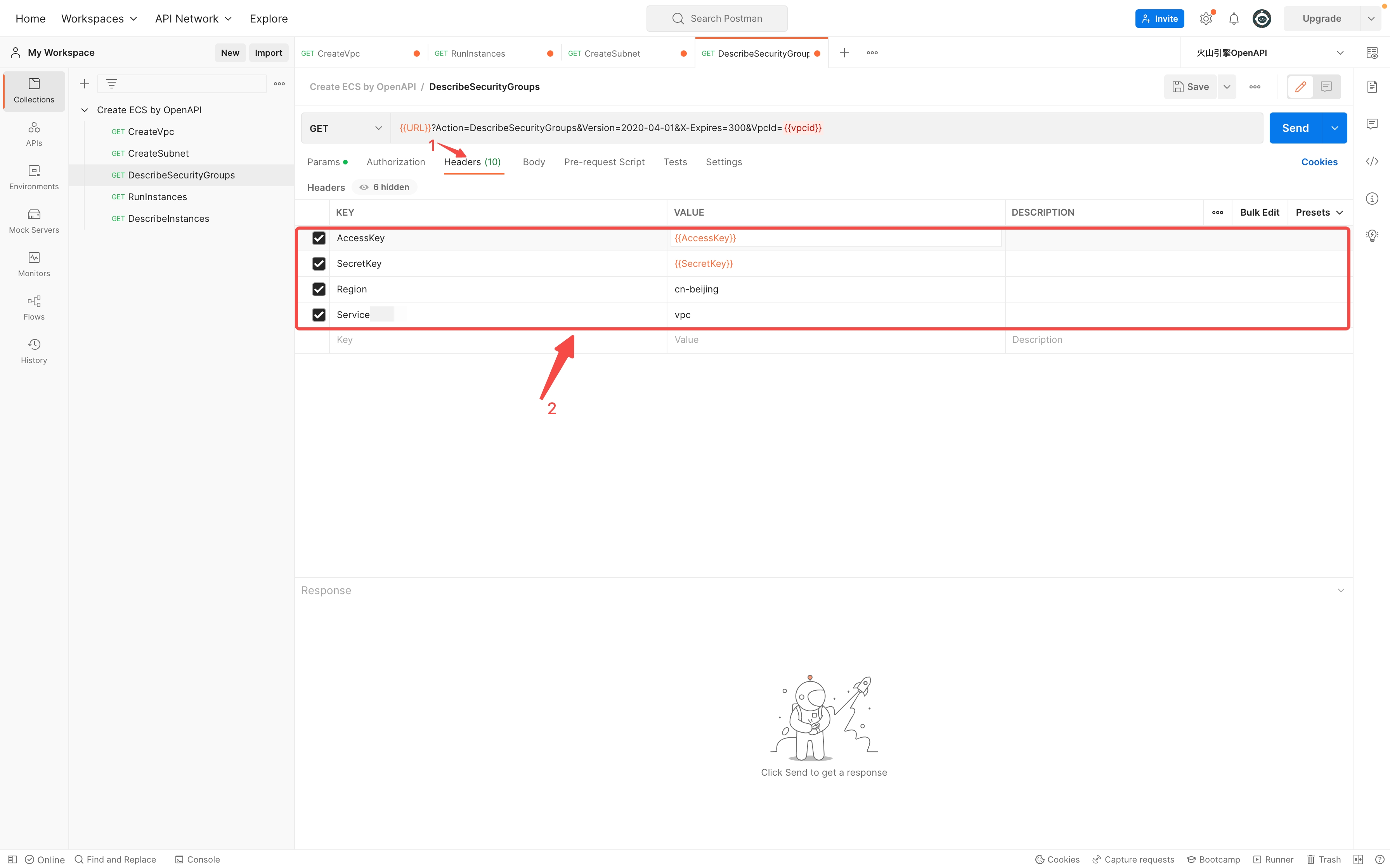
- The parameters.Example valueRemarksAccessKey{{AccessKey}}The environment variable that you want to invoke. This parameter is fixed to {{AccessKey}}.SecretKey{{SecretKey}}The environment variable that you want to invoke. This parameter is fixed to {{SecretKey}}.Regioncn-beijing-Servicevpc-
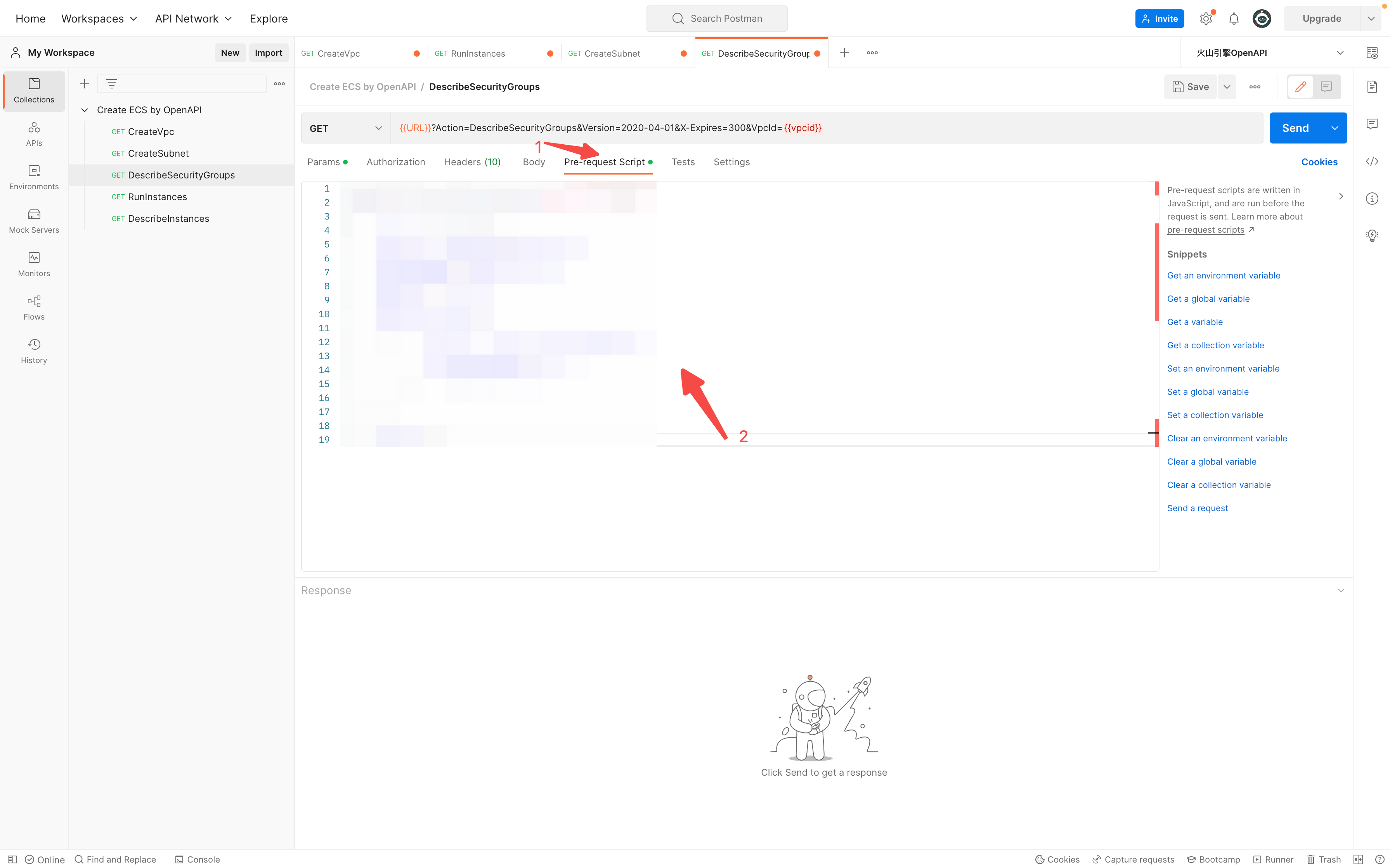
- Click "Pre-request Script". On the corresponding tab, write the script for the signature mechanism based on your actual needs. For the specific script, see Signature mechanism.
-
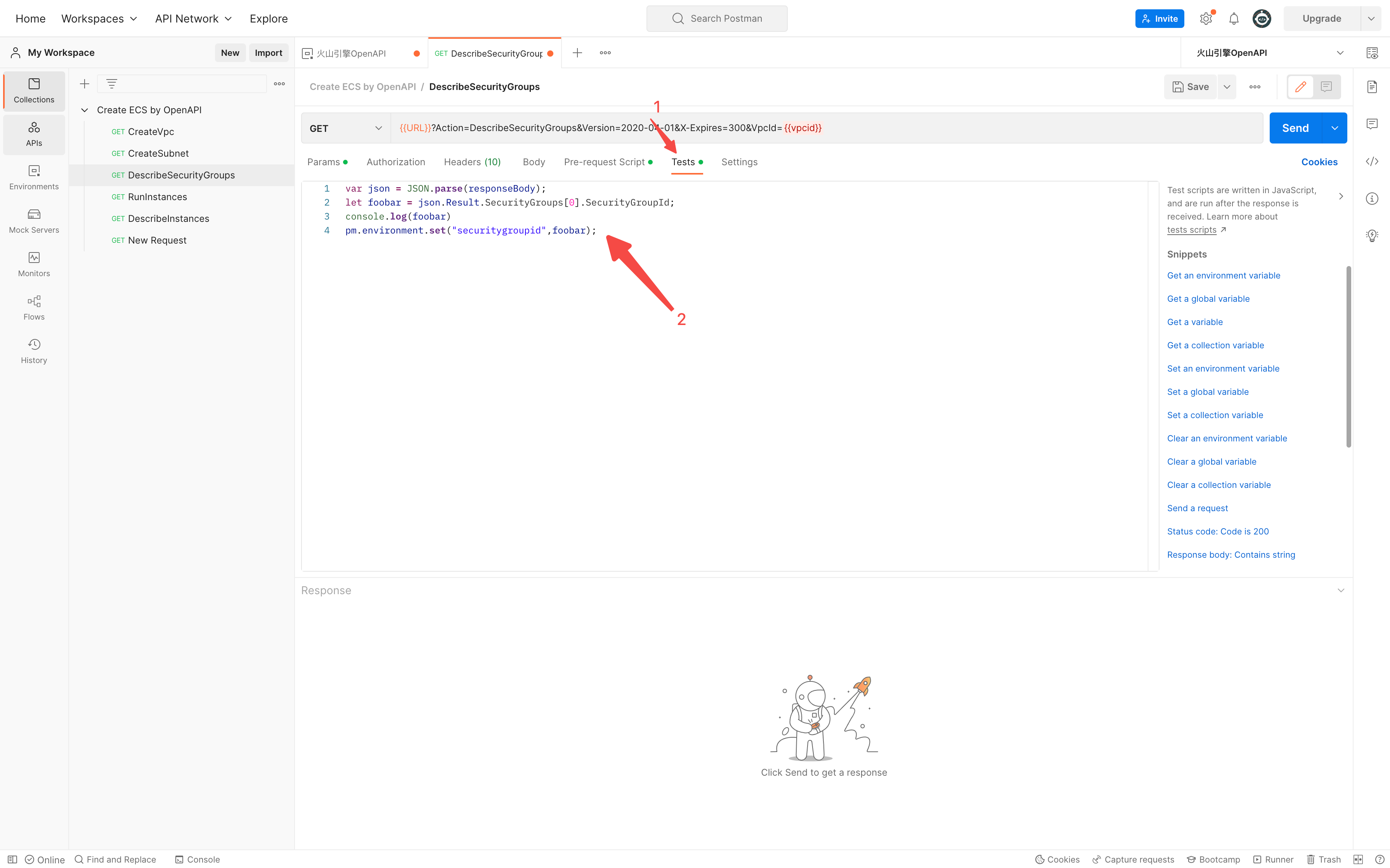
- Click "Tests", enter the following commands on the corresponding tab to extract the SecurityGroupId from the API response value and set it as an environment variable for use in subsequent requests.
-
-
Create a RunInstances request
- Select the "RunInstances" request, configure the request parameters, and invoke the environment variable.
- The parameters.Example valueRemarksActionRunInstances-Version2020-04-01-X-Expires300-ZoneIdcn-beijing-a-ImageIdimage-ebgzajl1peeh8jc6****CentOS 7.6 64 bitInstanceTypeecs.g2i.largeGeneral-purpose g2i (2 vCPU/8 GiB)InstanceNameinstance-test-Count10The number of ECS instances that you want to create.Passwordpassword@123-KeyPairNamekeypair
- Windows instances do not support the KeyPairName parameter.
- If the KeyPairName and Password parameters are configured at the same time, only the KeyPairName parameter takes effect.
Volumes.1.VolumeTypeESSD-Volumes.1.Size40-Volumes.2.VolumeTypeESSD-Volumes.2.Size40-NetworkInterfaces.1.SubnetId{{subnetid}}The environment variable that you want to invoke. This parameter is fixed to {{subnetid}}.NetworkInterfaces.1.SecurityGroupIds.1{{securitygroupid}}The environment variable that you want to invoke. This parameter is fixed to {{securitygroupid}}.InstanceChargeTypePostPaid-UniqueSuffixtrue-SuffixIndex1-SecurityEnhancementStrategyActiveHpcClusterIdhpcCluster-1When you create an HPC-optimized instance, specify the ID of the HPC cluster. In this practice, the HPC cluster ID is not selected.
- Click "Headers" and configure the request headers on the corresponding tab.
-
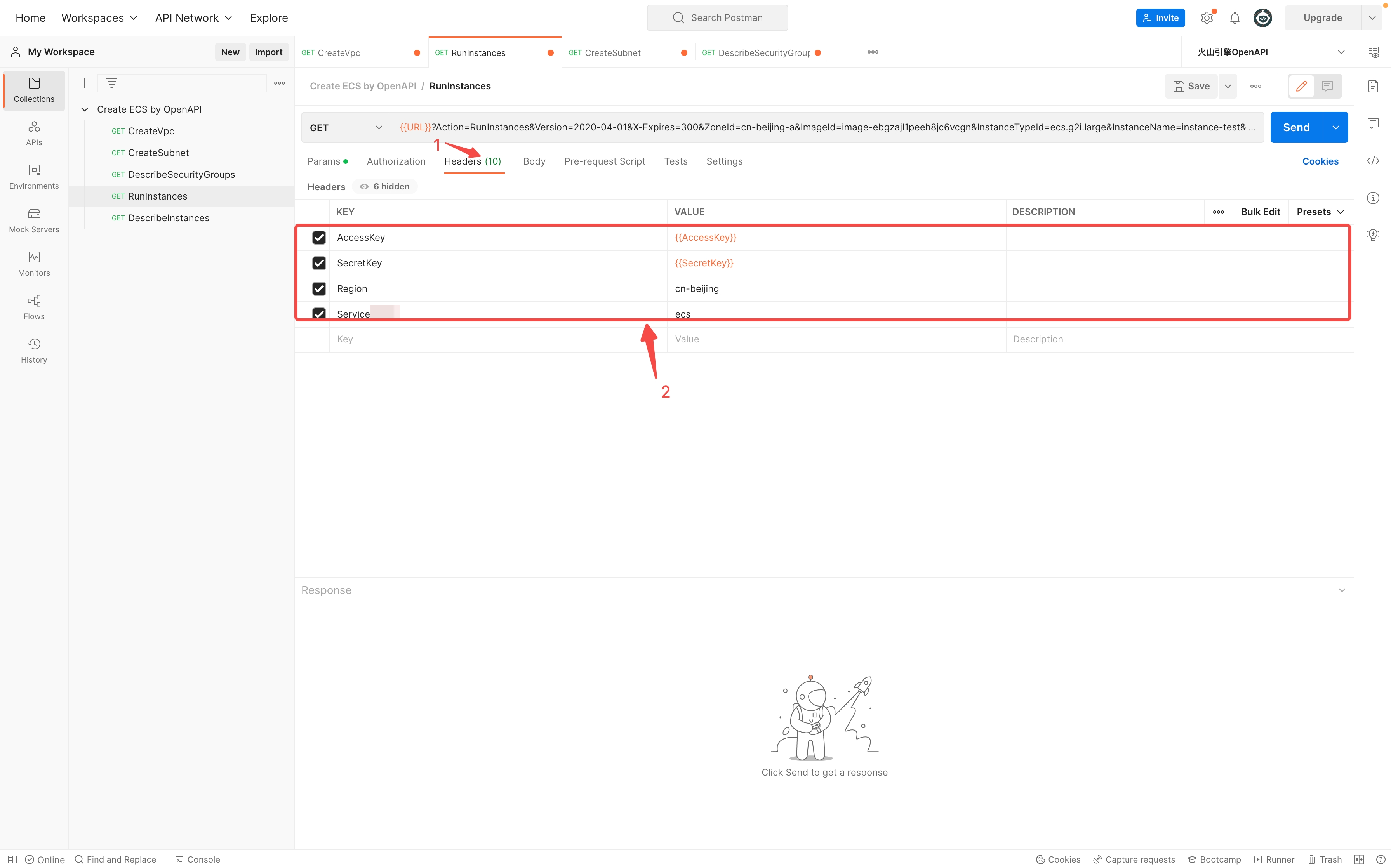
- The parameters.Example valueRemarksAccessKey{{AccessKey}}The environment variable that you want to invoke. This parameter is fixed to {{AccessKey}}.SecretKey{{SecretKey}}The environment variable that you want to invoke. This parameter is fixed to {{SecretKey}}.Regioncn-beijing-Serviceecs-
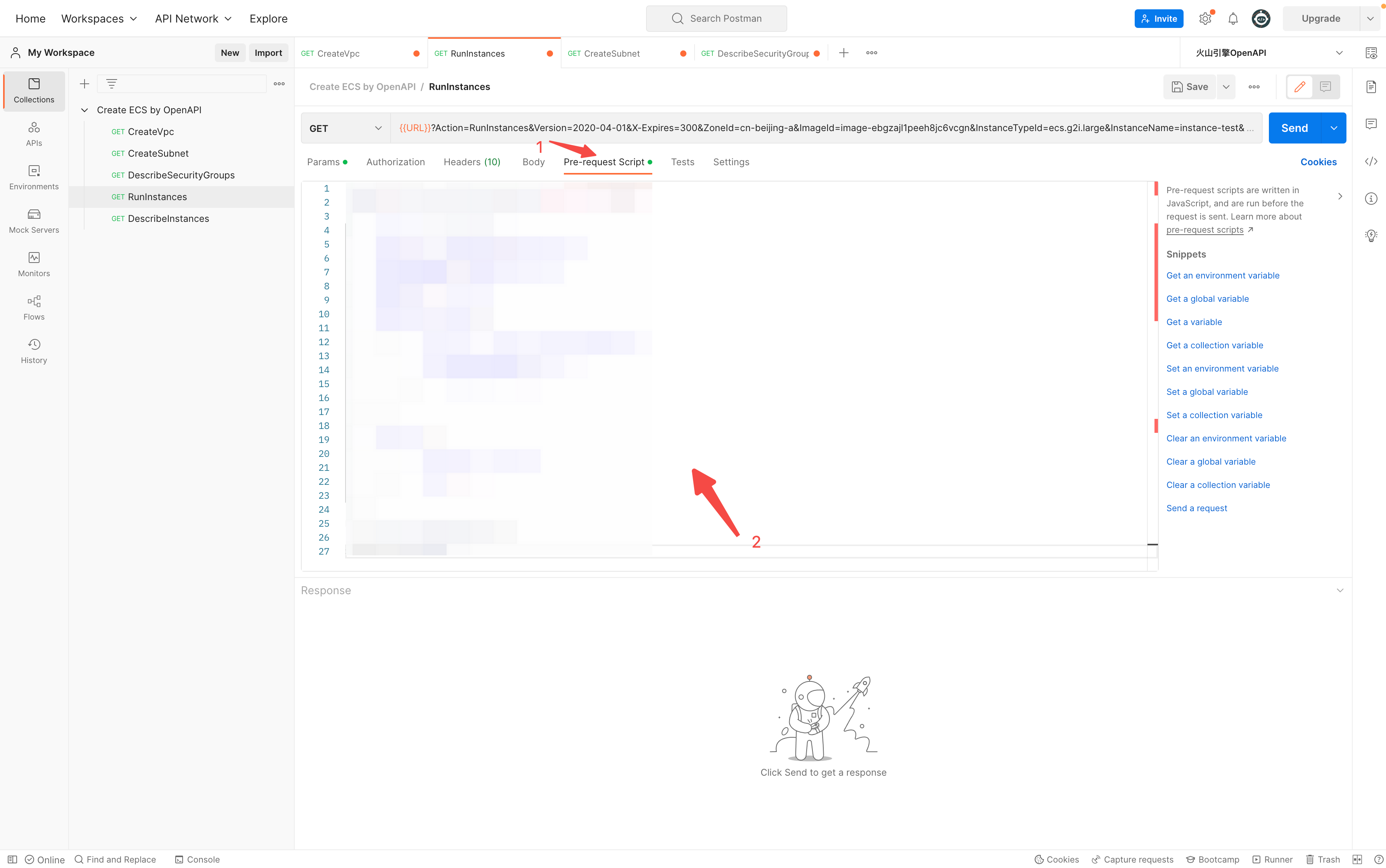
- Click "Pre-request Script". On the corresponding tab, write the script for the signature mechanism based on your actual needs. For the specific script, see Signature mechanism.
-
Create a DescribeInstances request
- Select the "DescribeInstances" request, configure the request parameters, and invoke the environment variable.
- The parameters.Example valueRemarksActionDescribeInstances-Version2020-04-01-X-Expires300-ZoneIdcn-beijing-a-VpcId{{vpcid}}The environment variable that you want to invoke. This parameter is fixed to {{vpcid}}.
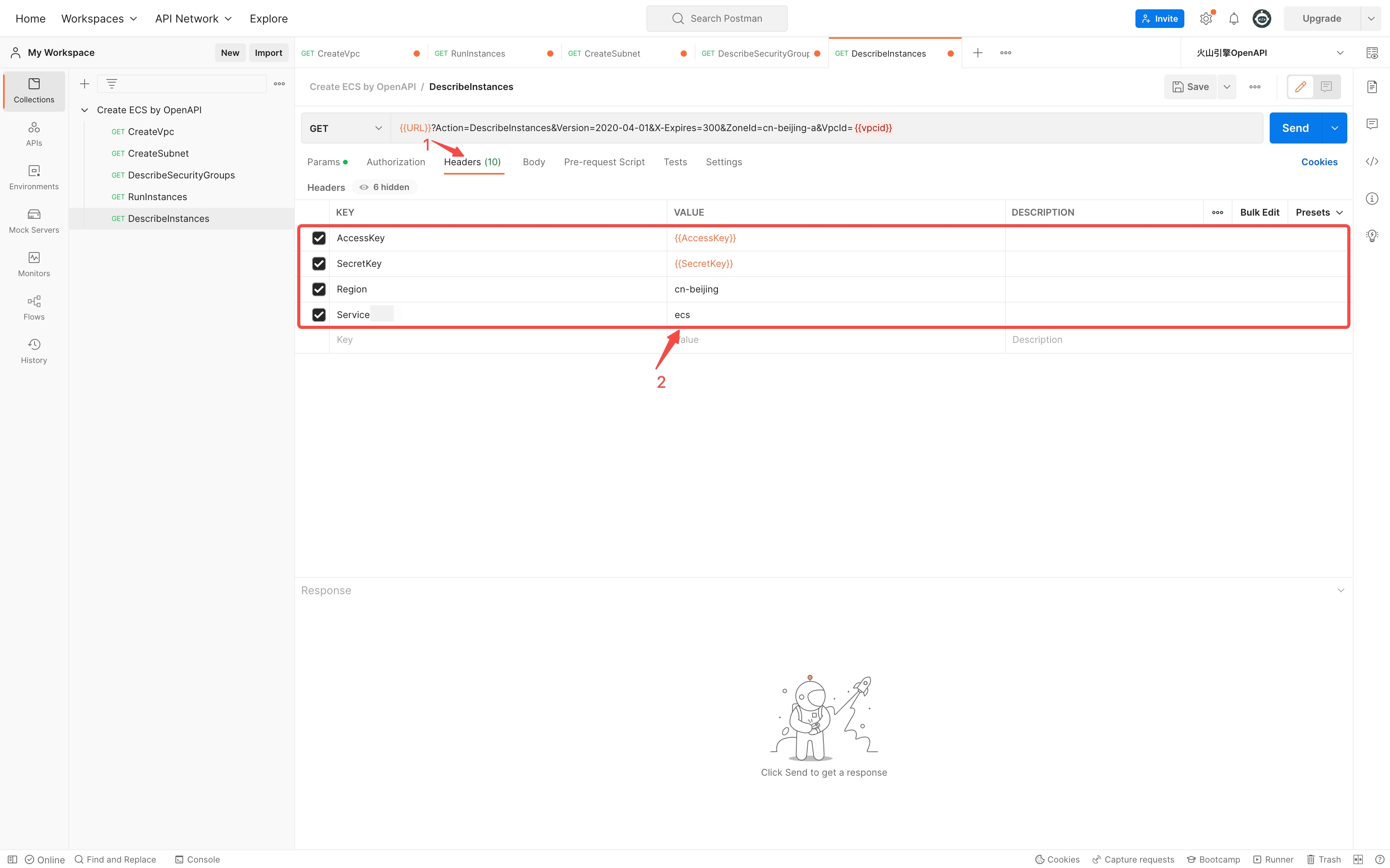
- Click "Headers" and configure the request headers on the corresponding tab.
-
-
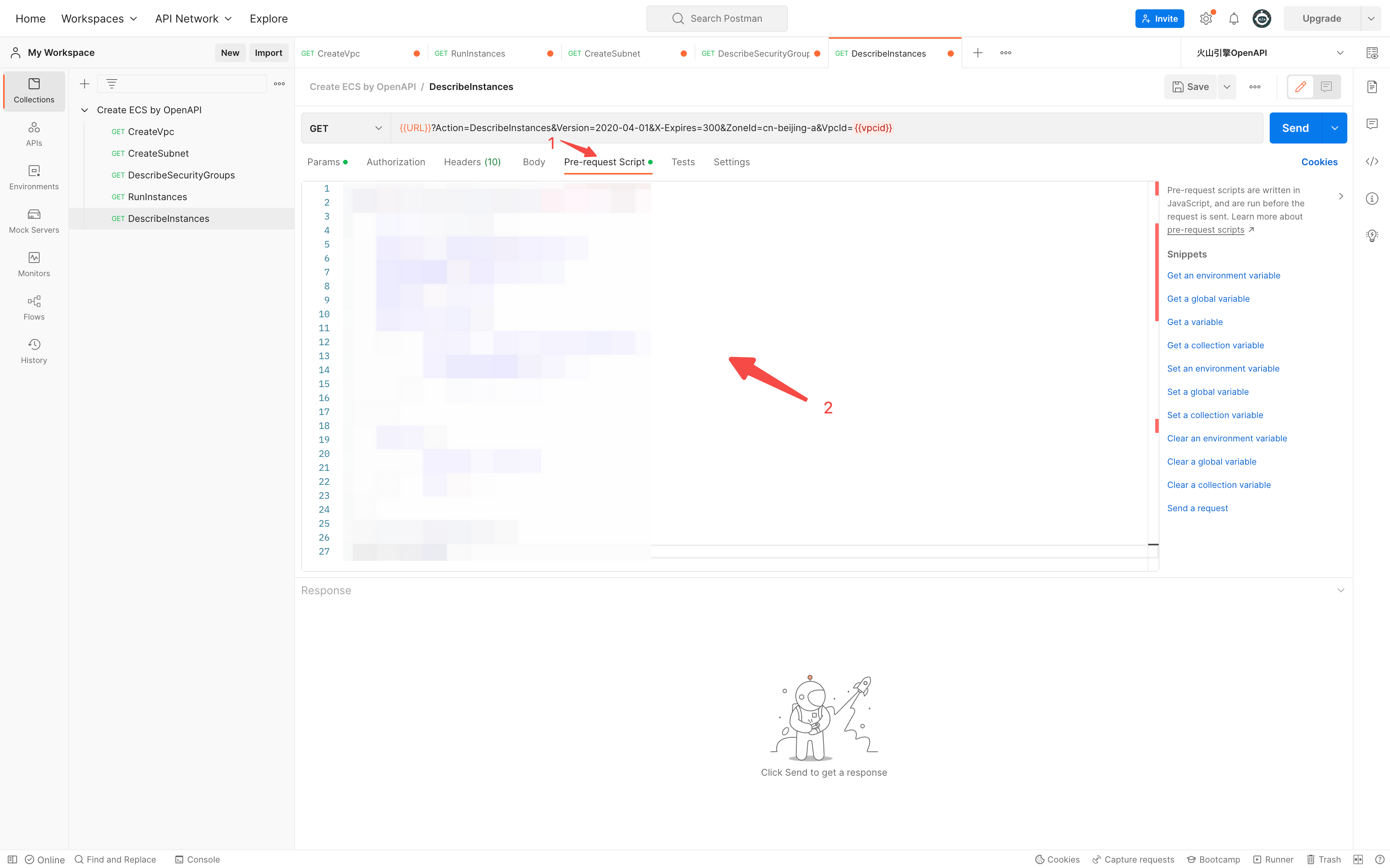
- Click "Pre-request Script". On the corresponding tab, write the script for the signature mechanism based on your actual needs. For the specific script, see Signature mechanism.
-
Run the collection
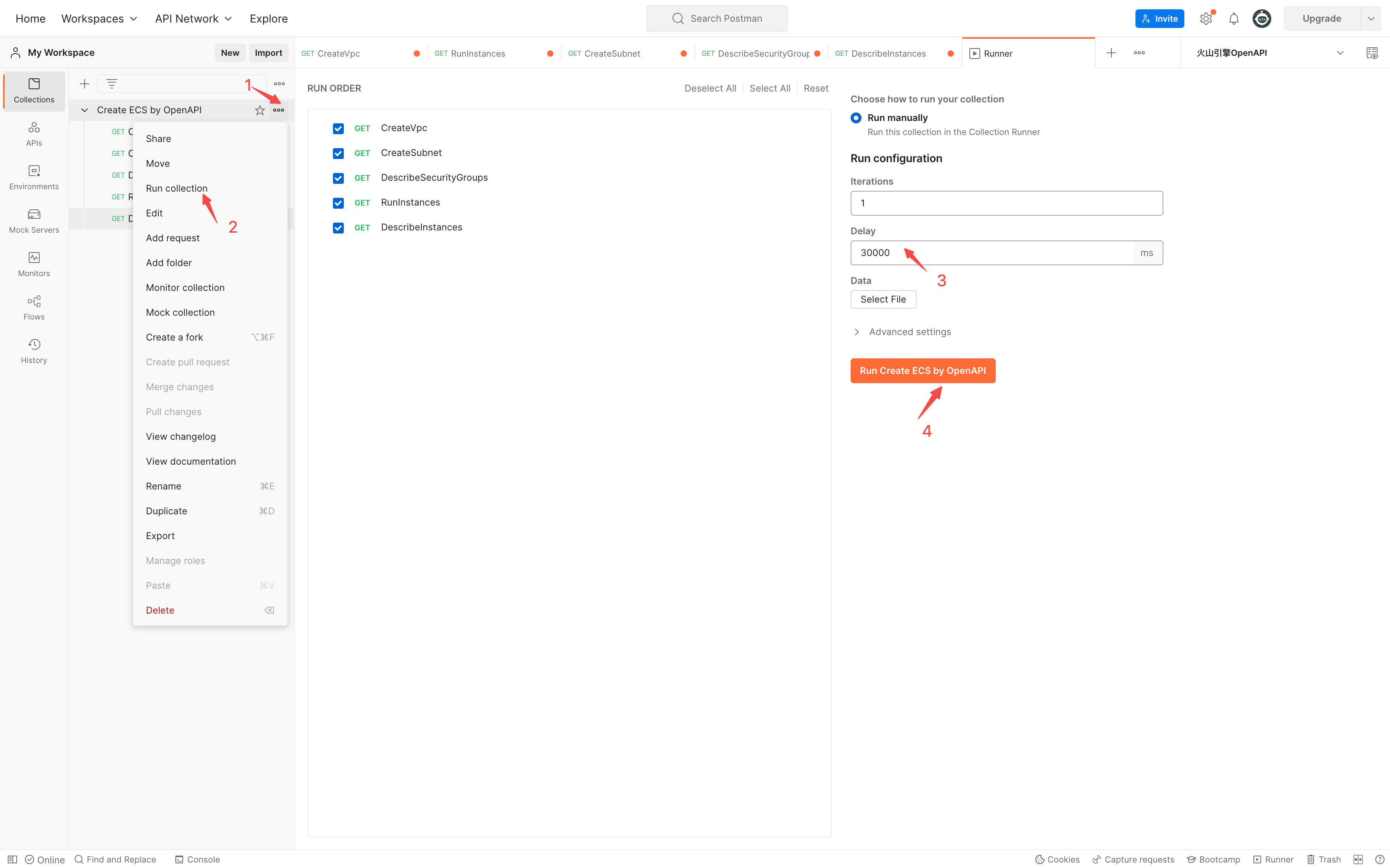
- Run the collection according to the procedure in the following figure.
-
- The running result shows that 10 ECS instances are created.
-
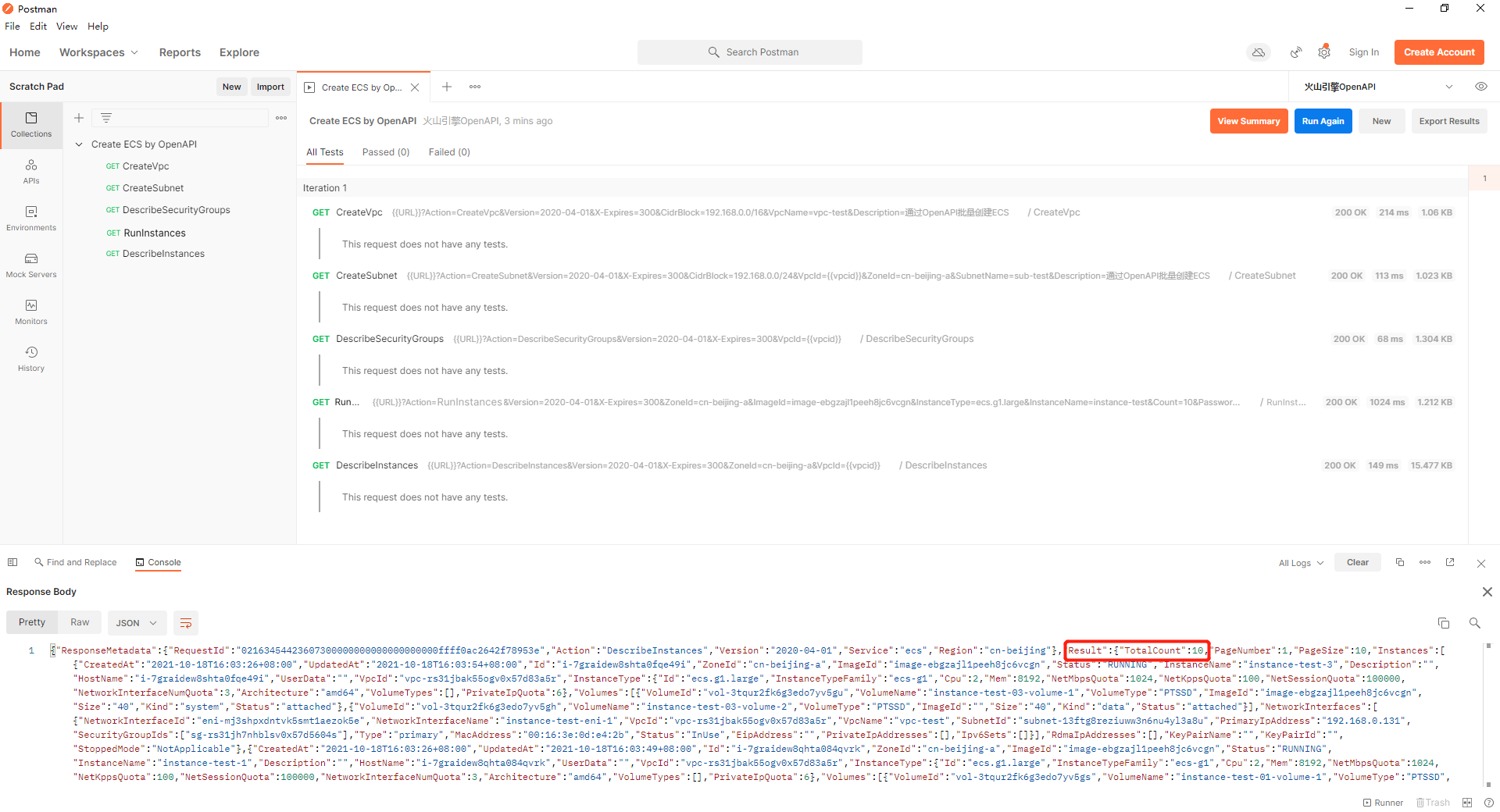
- After you run the collection for the first time, environment variables are automatically populated with the {{vpcid}}, {{subnetid}}, and {{securitygroupid}} for this practice. If you need to batch-create ECS instances again under the same VPC and subnet, you only need to perform two steps: RunInstances and DescribeInstances.
Verification in the console
Go to the ECS instances page. In the top menu bar, select the region to which the created instances belong. You can see that 10 ECS instances are running, which indicates that the ECS instances are created.
Related documents
Last updated: 2025.11.03 16:31:18
All rights reserved © Beijing Volcano Engine Technology Co., Ltd2024
