Elastic Compute Service
Elastic Compute Service


Document

- Documentation
 Elastic Compute ServiceElastic Compute ServiceBest PracticesSelf-service website creationBuilding environmentsBuilding a Web environment (Windows)Manually setting up a web environment
 Copy page
 Download PDF
Building a Web environment (Windows)
Manually setting up a web environment
Copy pageDownload PDFManually setting up a web environment
This topic describes how to quickly deploy a web environment on an ECS instance running the Windows operating system.
Software versions
- Operating system: In the example provided in this topic, Windows Server 2022 is used.
- Web server: In the example provided in this topic, Apache HTTP Server 2.4.58 is used.
- Database: In the example provided in this topic, MySQL 8.0.36 is used.
- Programming language: In the example provided in this topic, PHP 8.3.1 is used.
Prerequisites
- A Windows instance is purchased. For more information, see Purchasing ECS instances.
- An EIP is associated with the Windows instance, enabling the instance to connect to the Internet. For information about how to associate an EIP with an ECS instance, see Associating EIPs.
Procedure
Step 1: Install and configure Apache
- Log in to the target Windows instance. For more information, see Logging in to Windows instances.
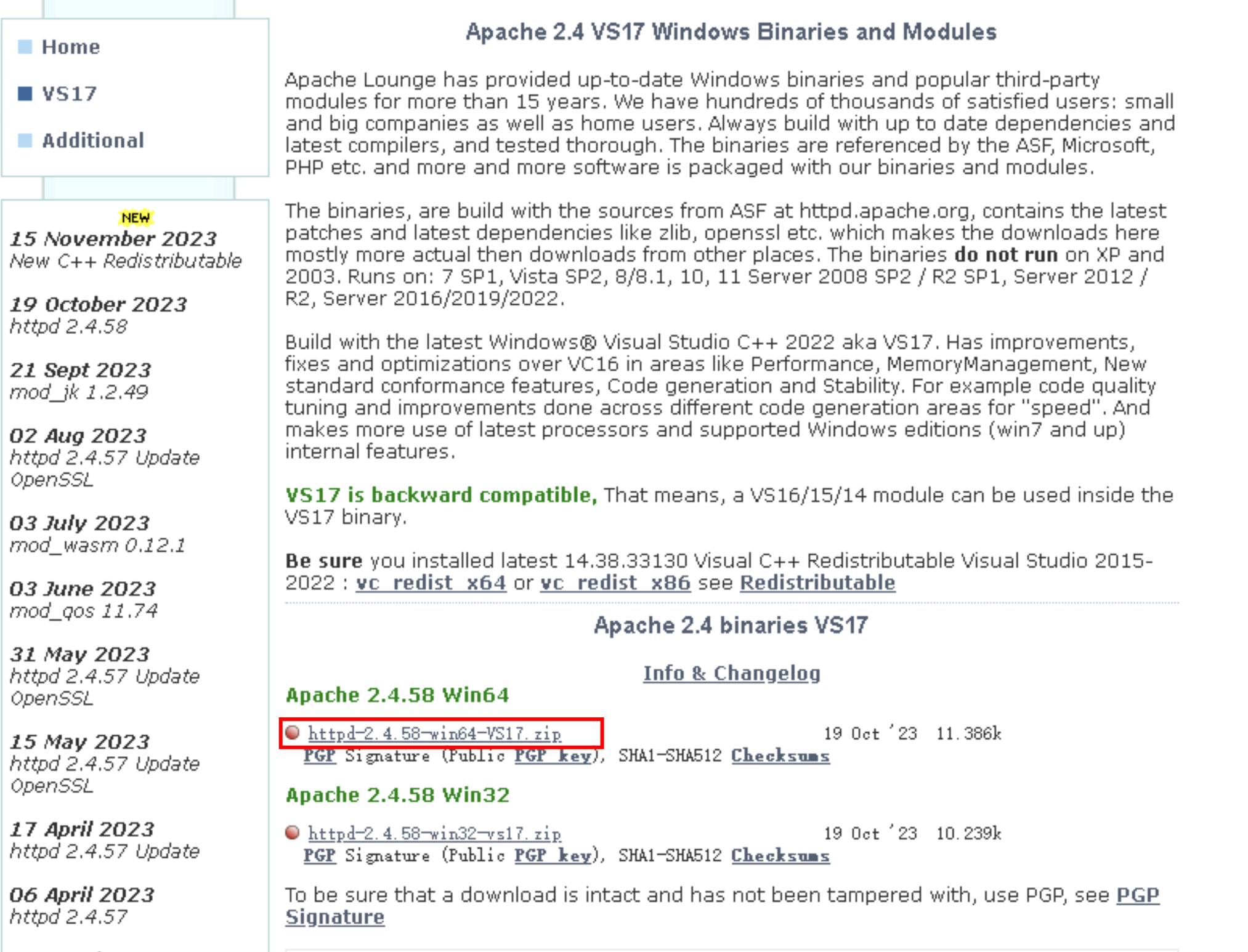
- In the example provided in this topic, Apache is installed by using the Apache HTTP Server 2.4.58 binary package compiled by Apache Lounge with VS17 (Windows® Visual Studio C++ 2022).
tip
The official Apache HTTP Server does not provide binary packages for Windows. You can use one of the following methods to obtain a binary package:
- Refer to this practice to obtain a third-party precompiled binary package. For more information, see Apache Lounge.
- Download and compile the source code. For more information, see Using Apache HTTP Server on Microsoft Windows.
- Access the Apache Lounge official website by using the instance browser.
- Select the required installation package, and click the package to download it.
-
- After the download is complete, right-click the package and select "Extract All(T)...".
- In the pop-up window, select the storage path and click the "Extract" button.
- Configure the server.
- Go to the folder you extracted. In the "Apache24 > conf" folder, right-click the httpd.conf file, select "Open with", and open this configuration file by using Notepad.
- Locate the Define SRVROOT configuration item in the configuration file.
-
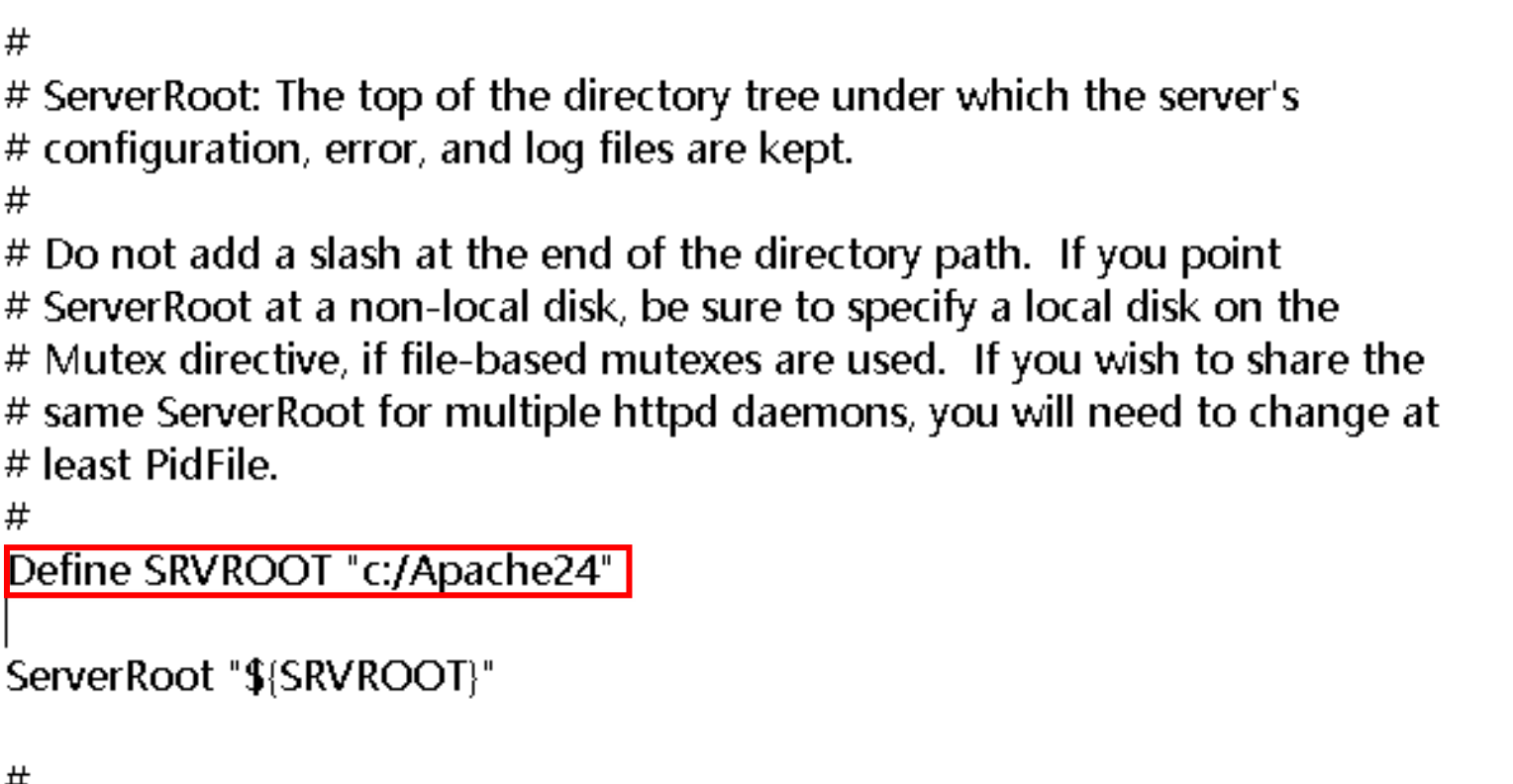
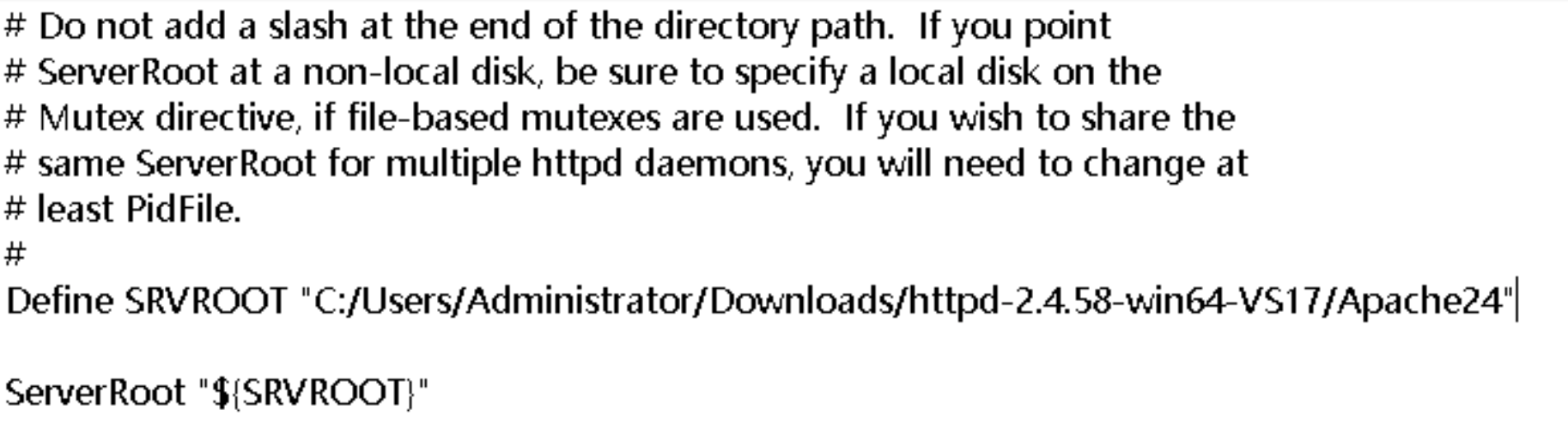
- Change the default value c:Apache24 to the path where you extracted the Apache24 files.
warning
Replace C:/Users/Administrator/Downloads/httpd-2.4.58-win64-VS17/Apache24 with the actual path, and replace backslashes (\) in the original Windows path with forward slashes (/).
-
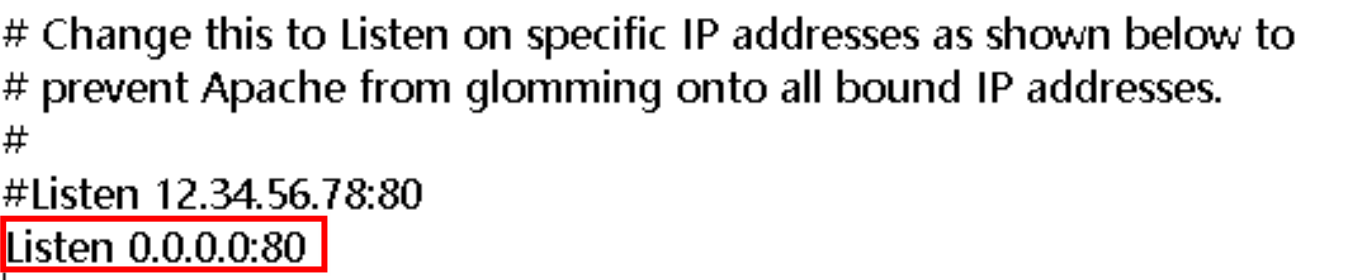
- Change the value of the Listen parameter to the following content, and press Ctrl+S to save the change.
-
-
- Click the Windows icon in the lower-left corner, then select "Windows Security".
- In the directory tree on the left, select "Firewall & network protection".
- Click the "Allow an app through firewall" button.
- In the "Allow apps to communicate through Windows Defender Firewall" dialog box, click the "Allow another app..." button.
- In the "Add an app" dialog box, click the "Browse" button.
- Go to the bin folder in the Apache installation directory, select the httpd.exe file, and click the "Open" button.
- In the "Add an app" dialog box, click the "Add" button.
- In the "Allow apps to communicate through Windows Defender Firewall" dialog box, select the checkbox in the "Public" column to the right of "Apache HTTP Server".
- Click "OK" to complete the operation.
- Start the server and check whether the server is running.
- Click the Windows icon in the lower-left corner, select "Windows System," right-click "Command Prompt", and then click "More > Run as administrator."
- In the Command Prompt dialog box, execute the following command to enter the directory where the Apache HTTP Server files are located.
Replace httpd-2.4.58-win64-VS17\Apache24\bin with the actual path to the Apache HTTP Server bin folder after extraction.
-
- Execute the following command to start the server.
-
- In the address bar of the instance browser, enter the following address and press the Enter key.
-
- If the following output is displayed, Apache HTTP Server is installed and started.
-

- In the Command Prompt window where you start the server, press Ctrl to +Cshut down the server.
Step 2: Install and configure MySQL
- Log in to the target Windows instance. For more information, see Logging in to Windows instances.
- Access the MySQL Installer for Windows page by using the instance browser.
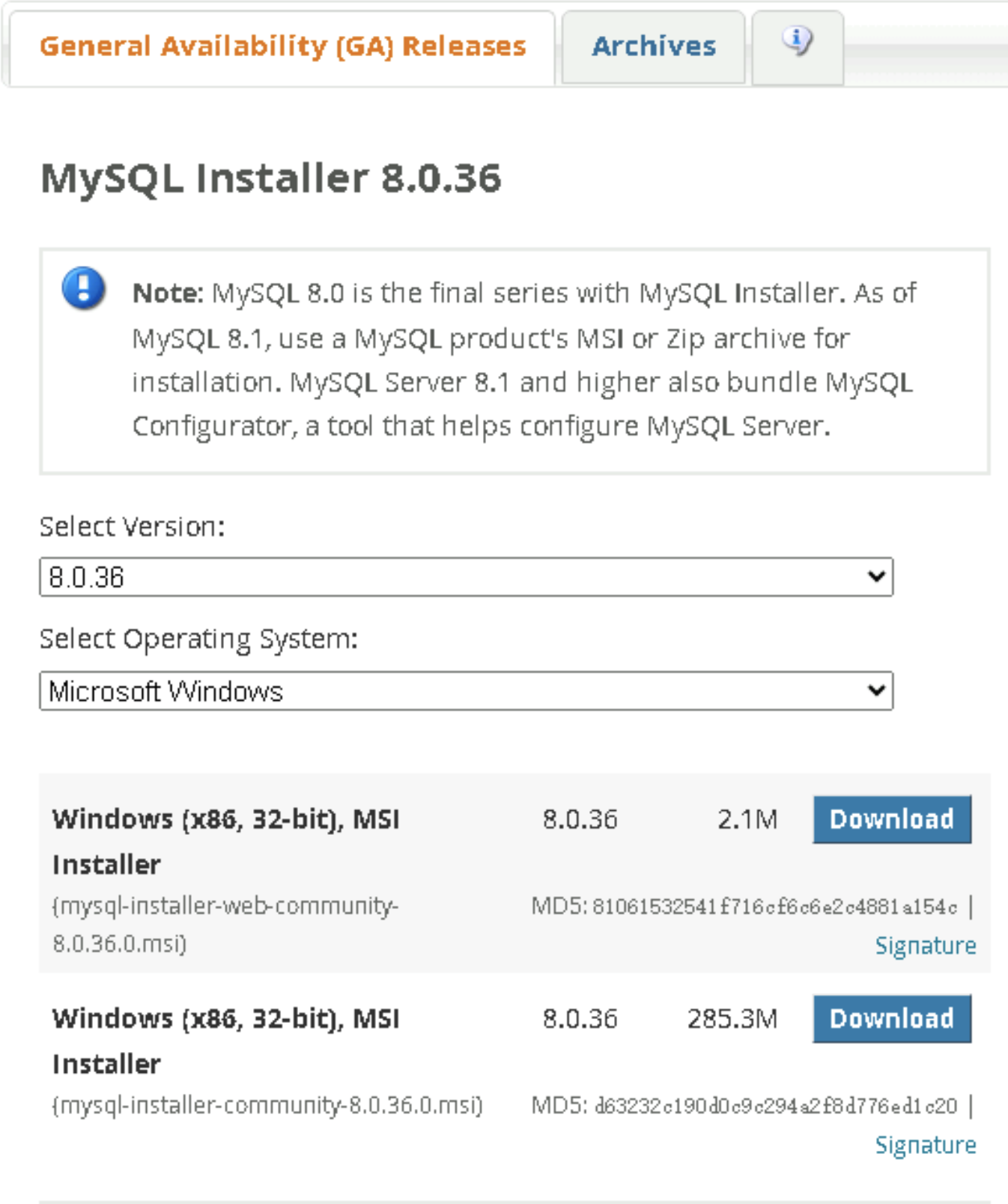
- Select the MySQL version and instance operating system for which you want to download the tool, and then click the "Download" button to download the MySQL installer.
This practice is used to deploy a web environment. We recommend that you use mysql-installer-web-community-8.0.36.0.msi. Select the version based on your business requirements.
-
- Double-click the downloaded installer to start the installation process.
- On the "Choosing a Setup Type" page:
- Select the content you want to install. In this practice, keep the default settings.
-
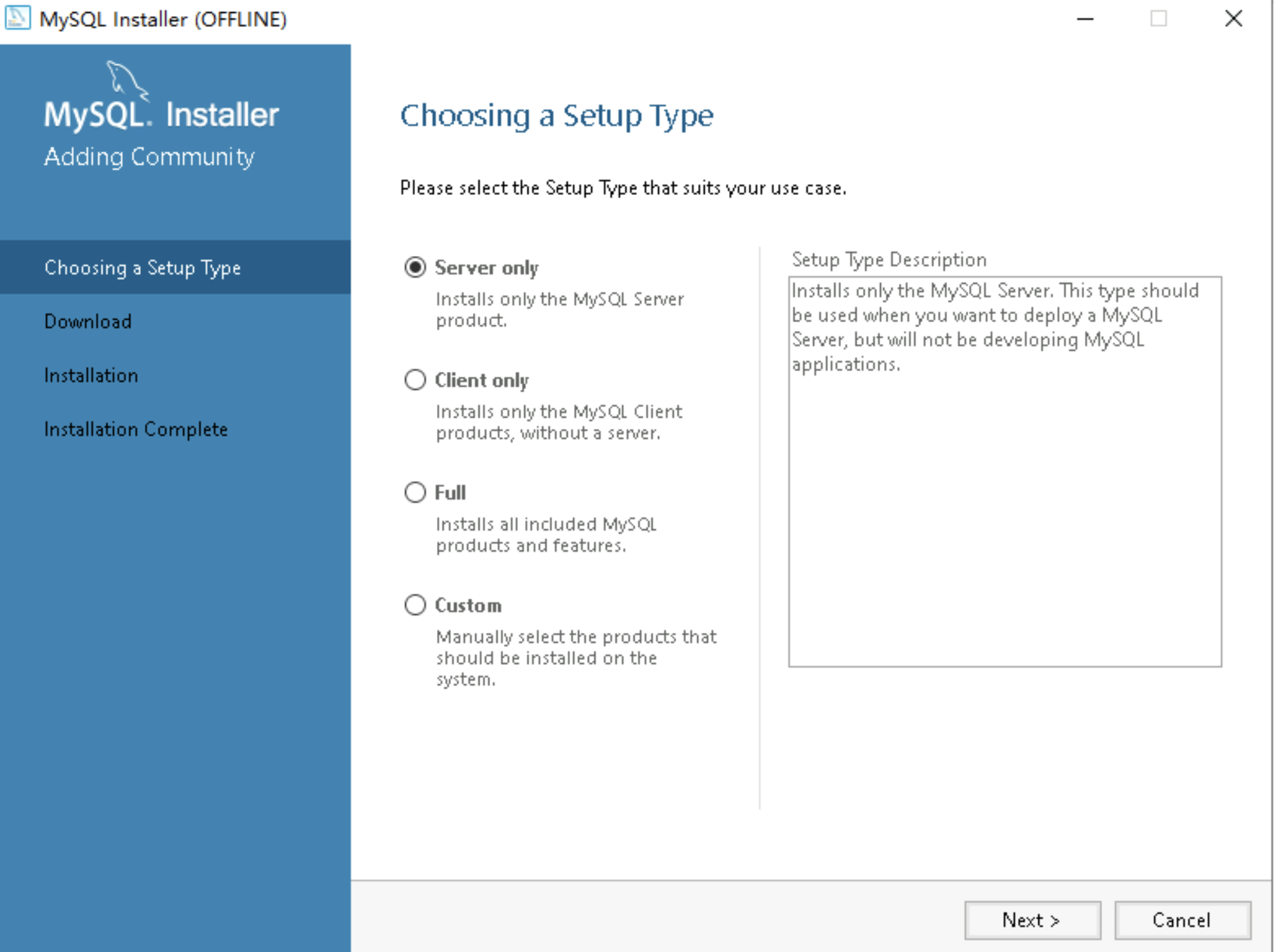
- Click the "Next" button to proceed to the next step.
- On the "Check Requirements" page, click the "Execute" button to check whether the conditions required to run MySQL are installed.
- If there are any toolkits or other components that are installed, follow the instructions to complete the installation.
-
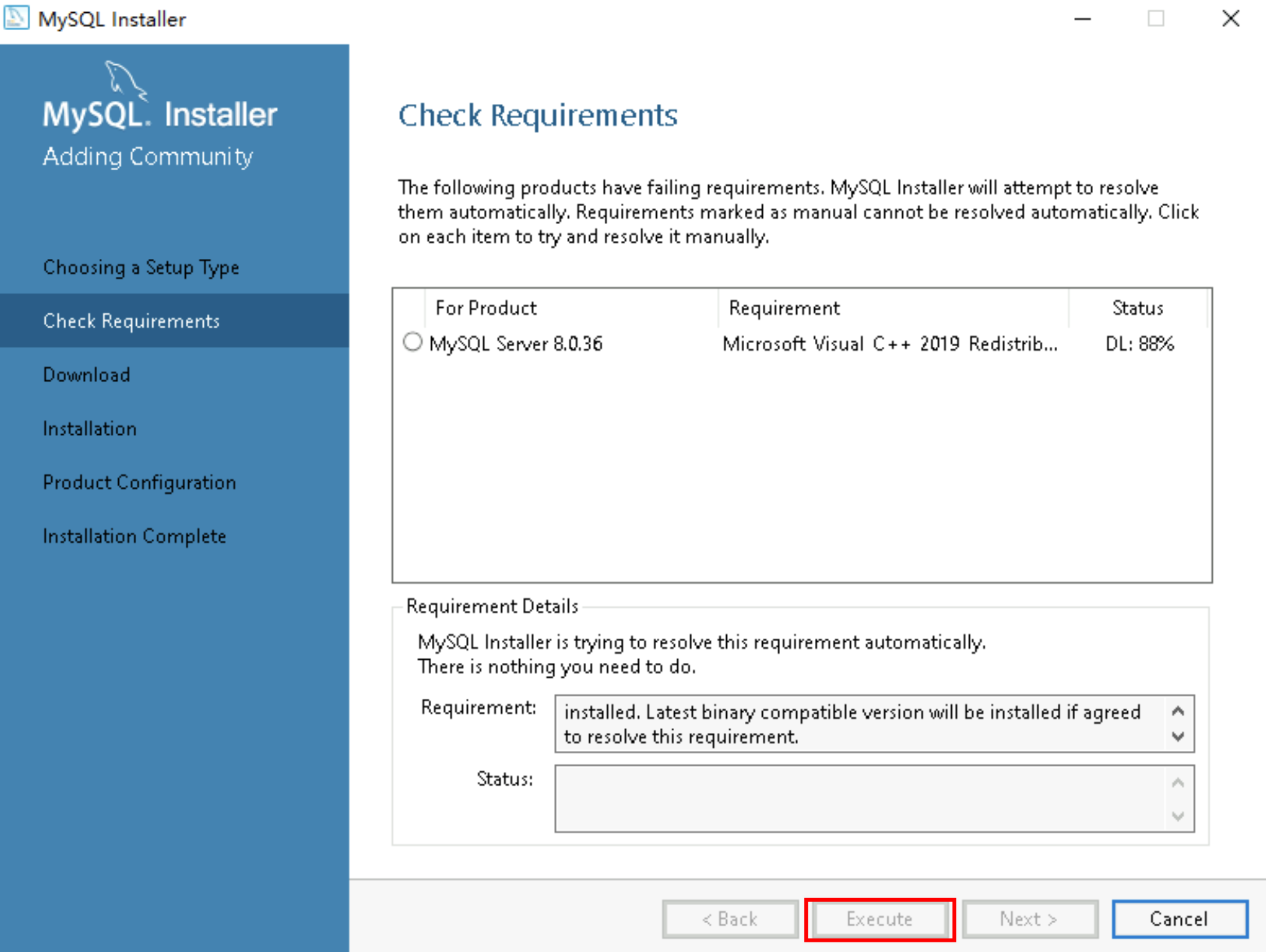
- After the check is passed, click the "Next" button to proceed to the next step.
- On the "Download" page:
- Click the "Execute" button to download MySQL Server.
-
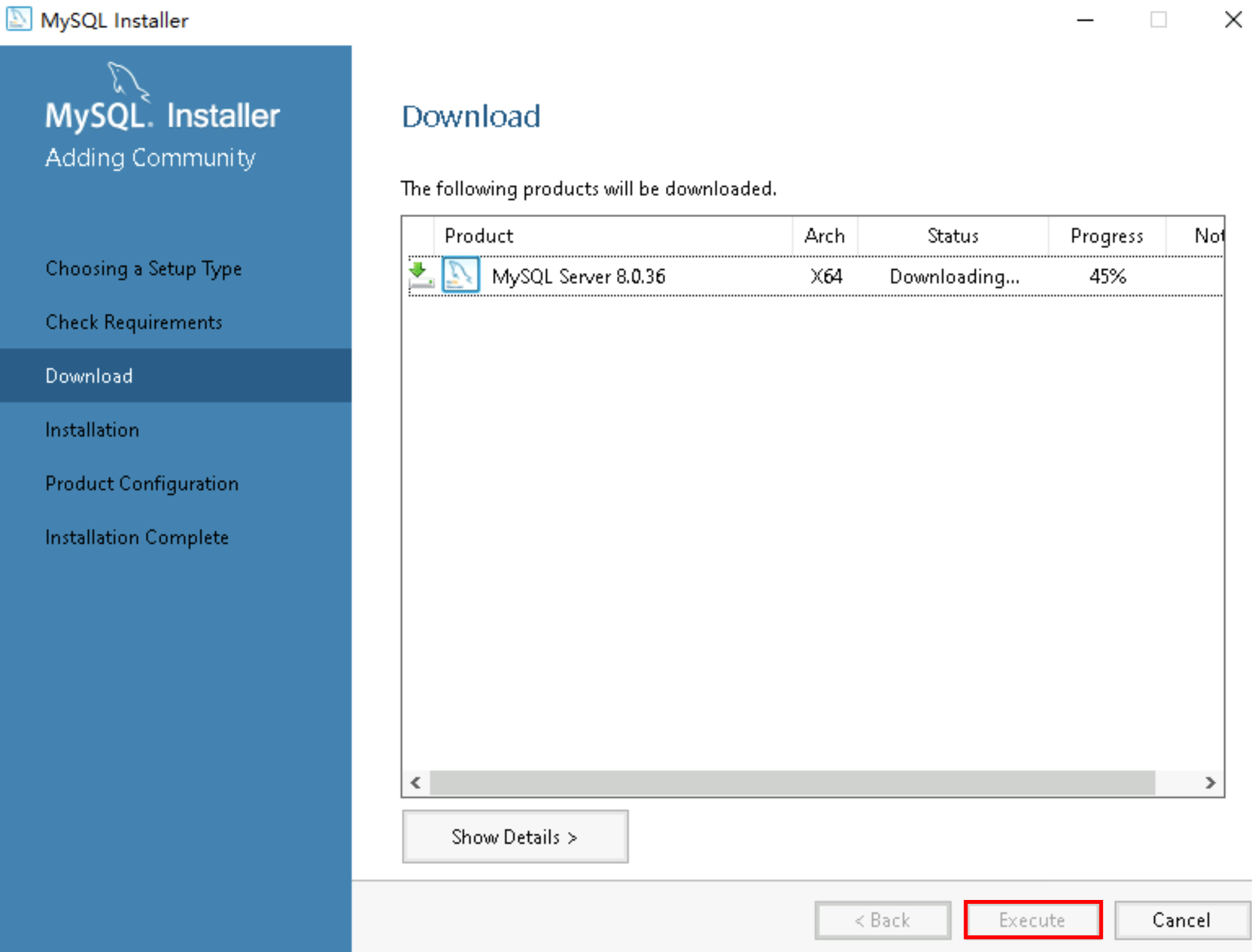
- After the download is complete, click the "Next" button to proceed to the next step.
- On the "Installation" page:
- Click the "Execute" button to install MySQL.
- After installation is complete, click the "Next" button to proceed to the next step.
- On the "Product Configuration" page, click the "Next" button to enter the configuration process.
- On the "Type and Networking" page:
- Configure the current instance type, the port used by MySQL, and other information.
In this practice, the default settings are used. Modify the settings based on your business requirements.
-
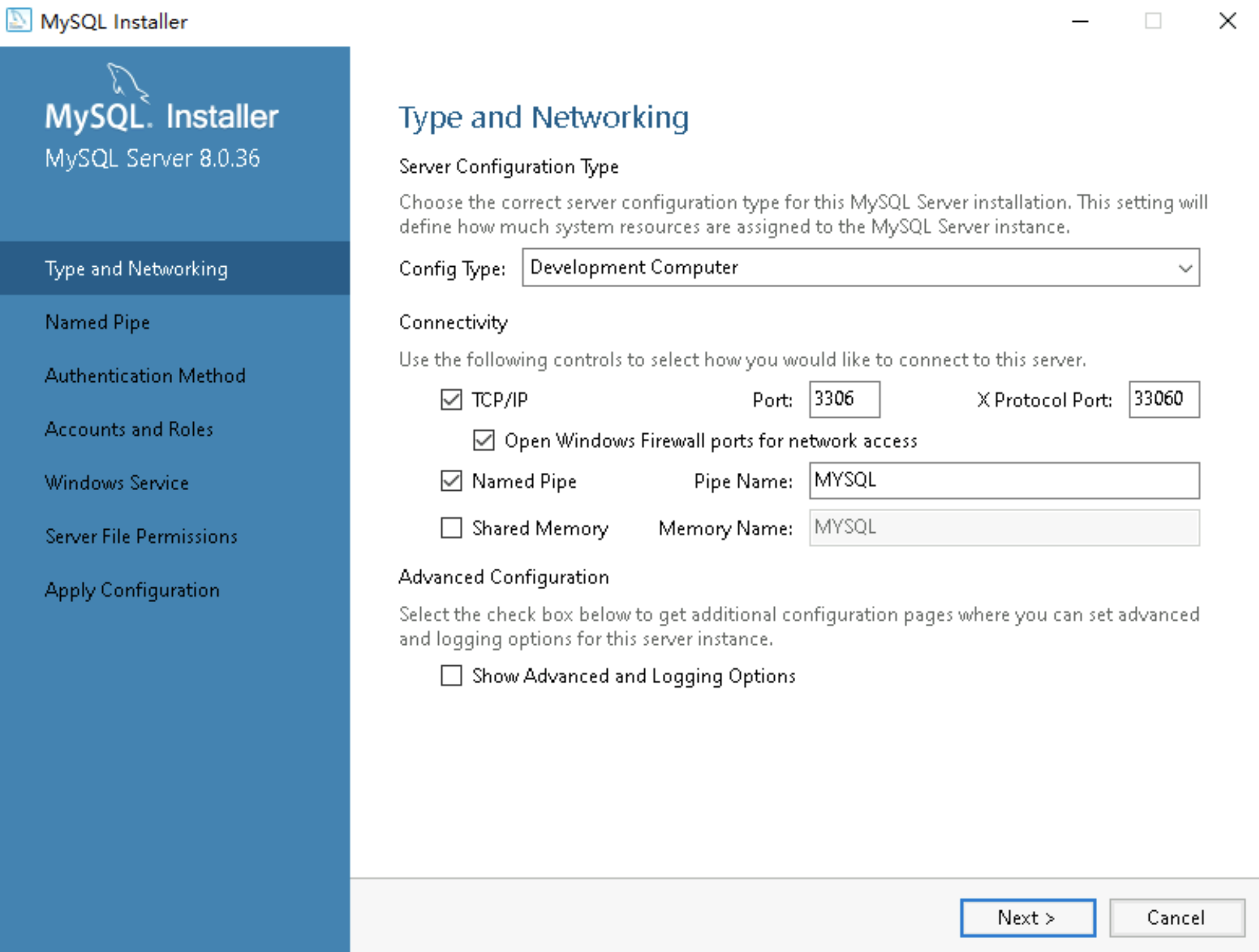
- Click the "Next" button to proceed to the next step.
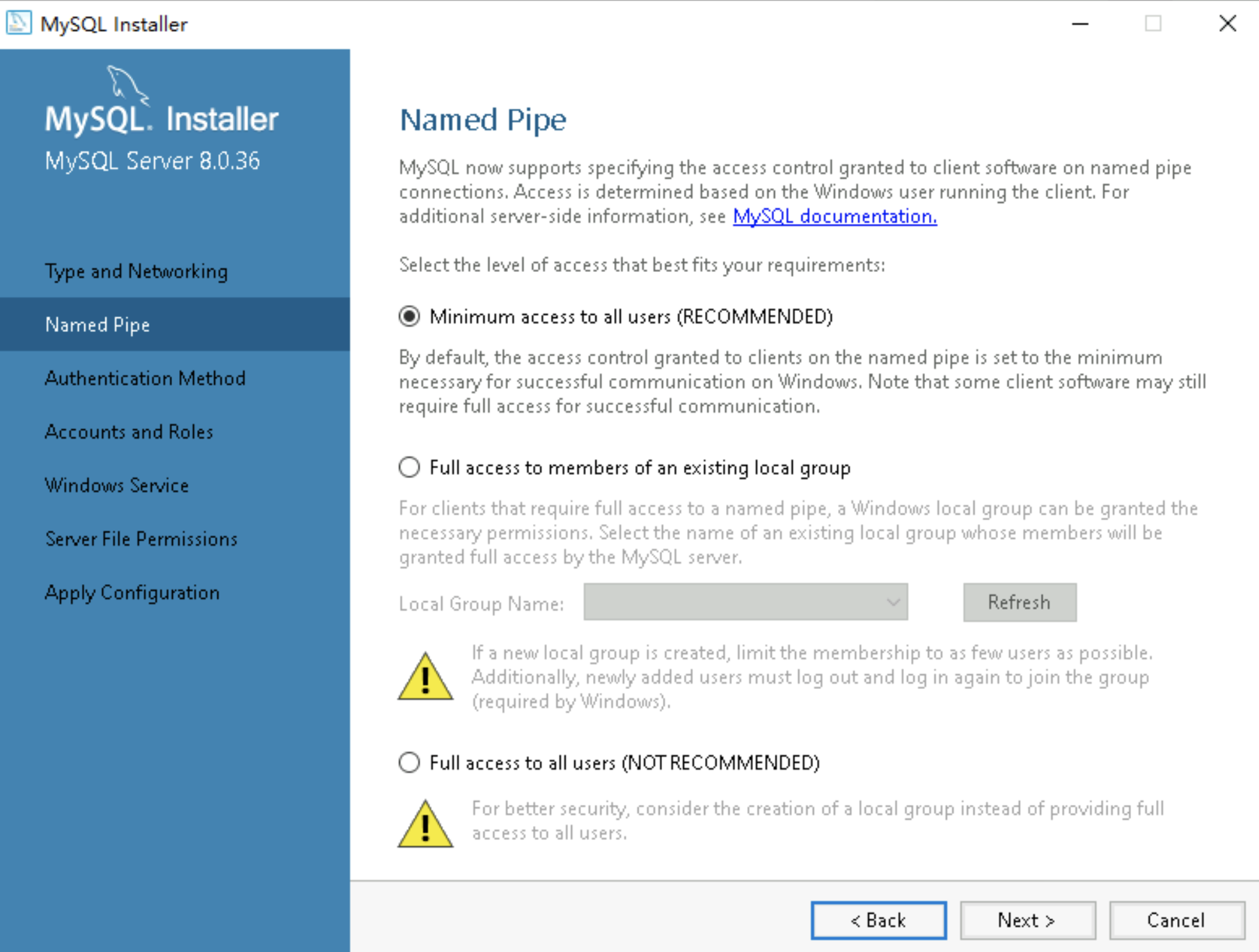
- On the "Named Pipe" page, retain the default settings, and click the "Next" button to proceed to the next step.
-
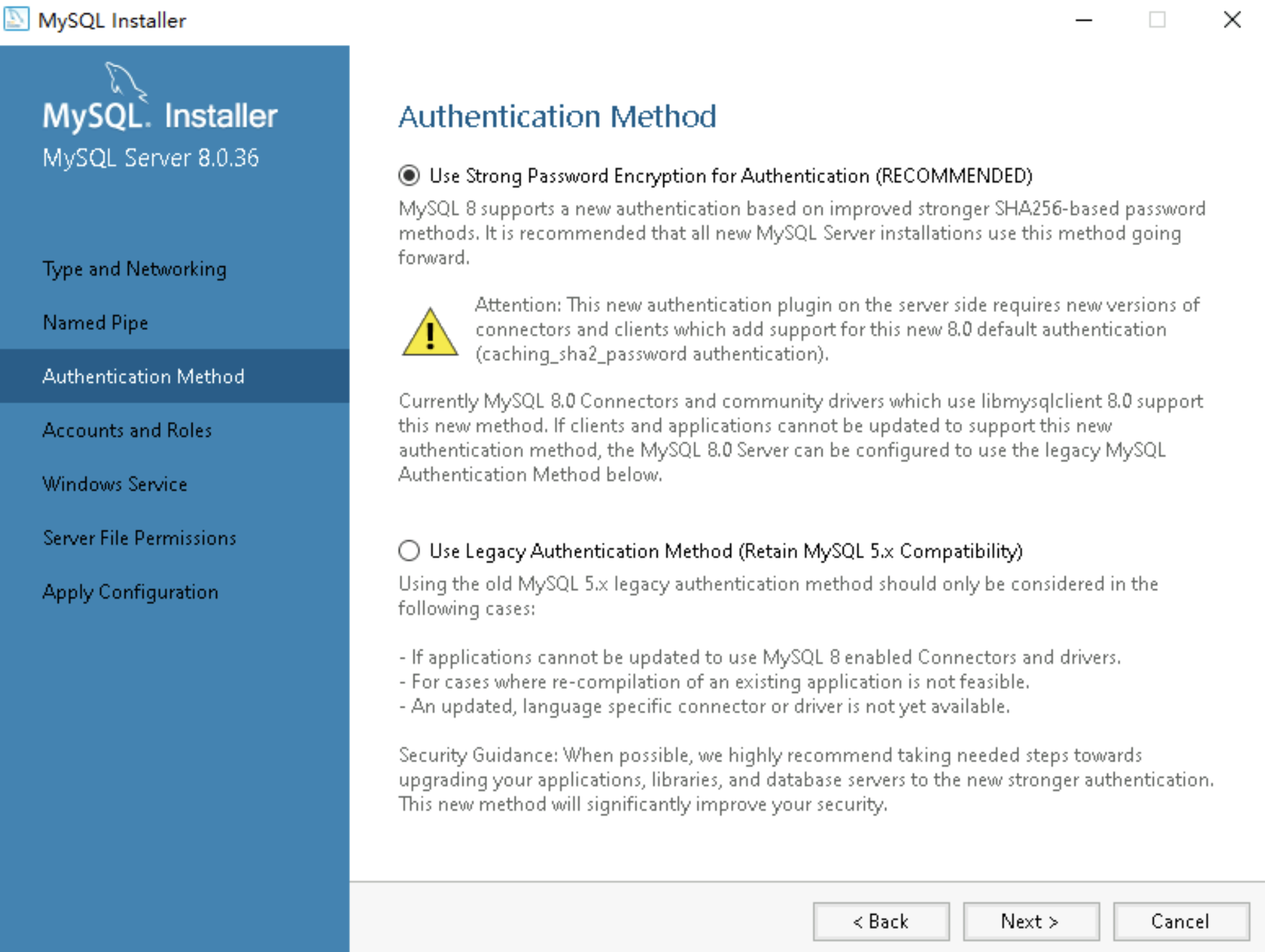
- On the "Authentication Method" page, retain the default settings, and click the "Next" button to proceed to the next step.
-
- On the "Accounts and Roles" page:
- Configure the login password for the root user, and add users based on your business requirements.
-
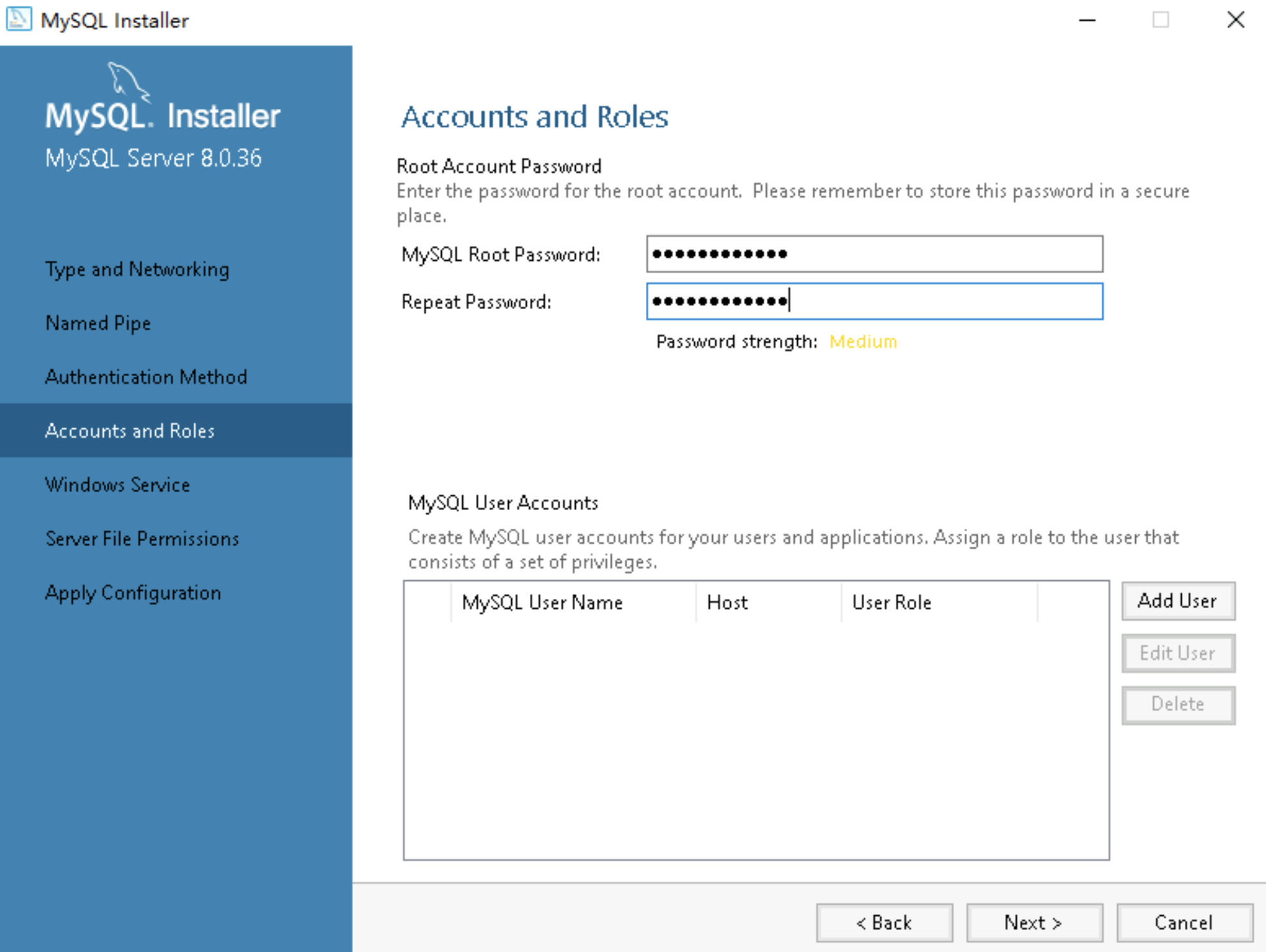
- Click the "Next" button to proceed to the next step.
- On the "Windows Service" page, retain the default settings, and click the "Next" button to proceed to the next step.
-
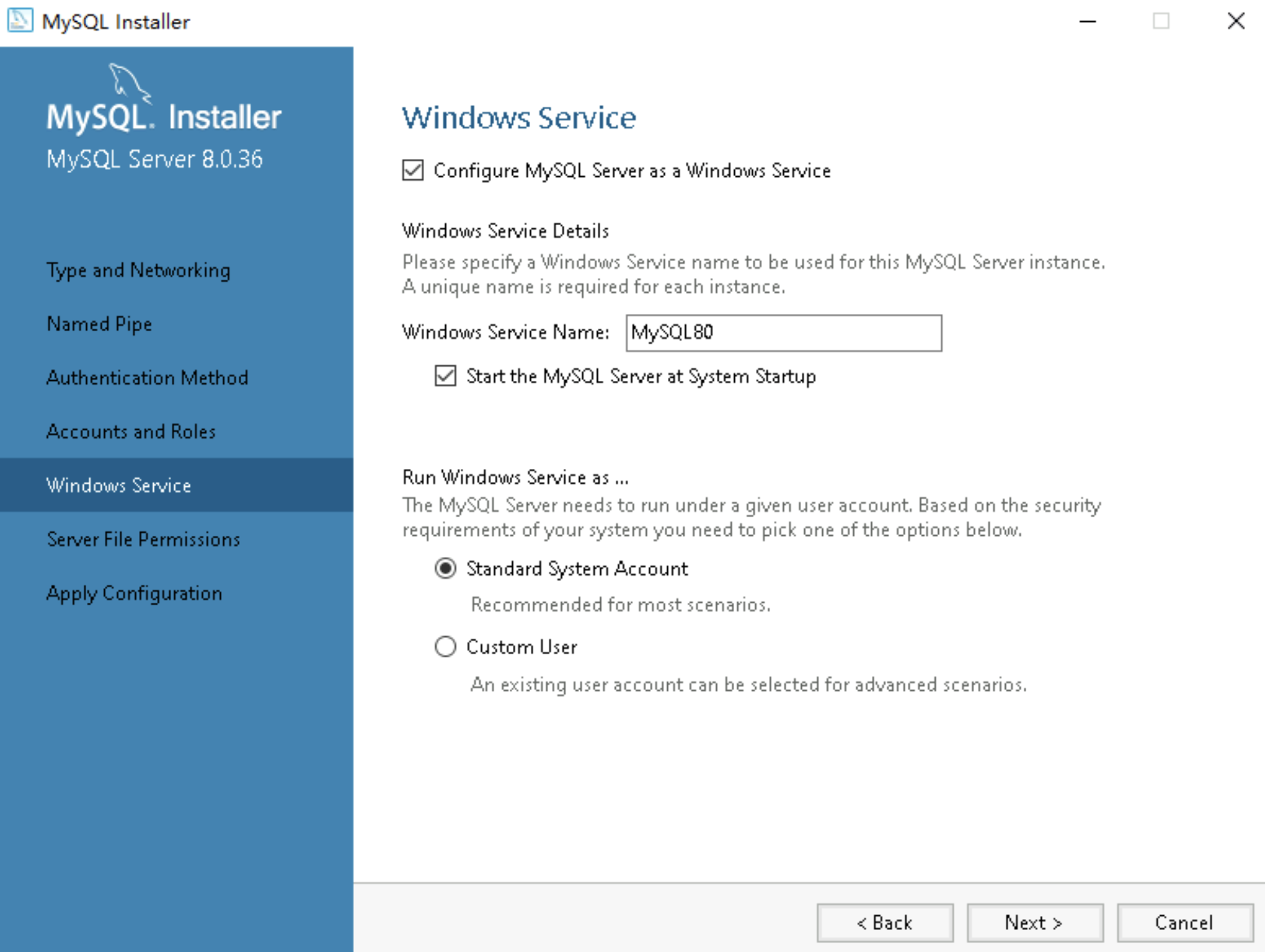
- On the "Server File Permission" page, retain the default settings, and click the "Next" button to proceed to the next step.
-
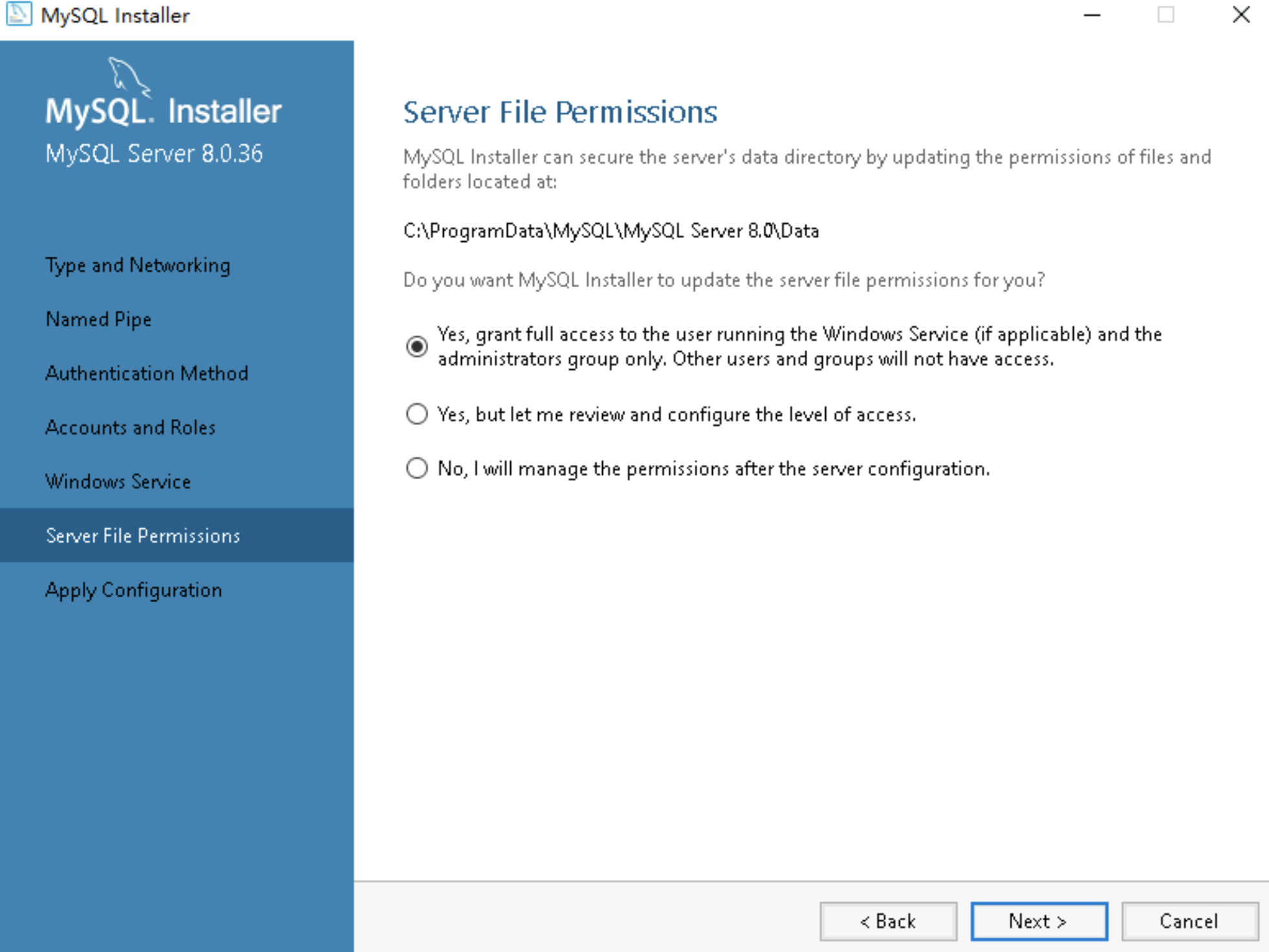
- On the "Apply Configuration" page, click the "Execute" button to make the configuration take effect.
-
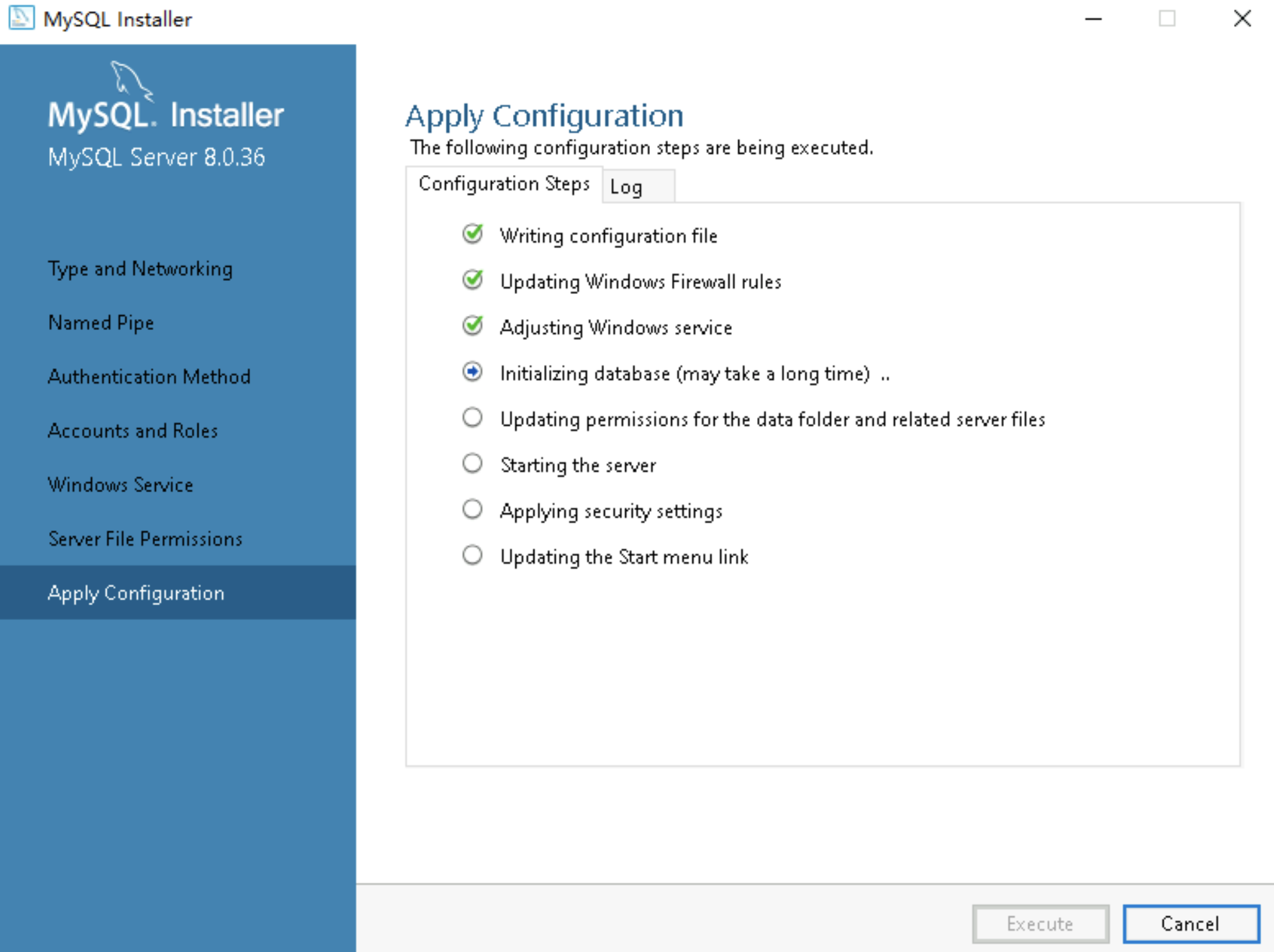
- Click the "Finish" button to complete the configuration process.
-
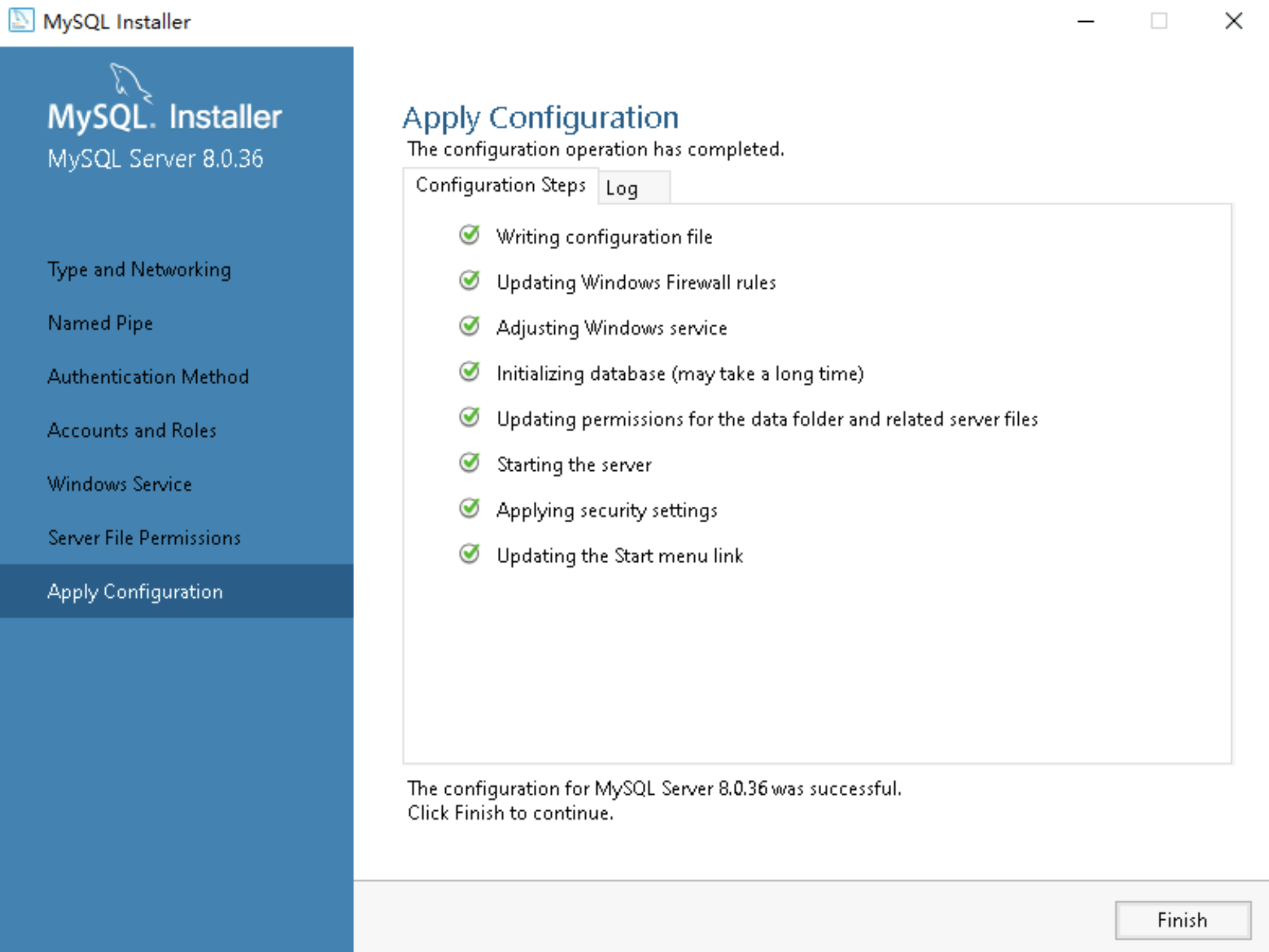
- After you return to the installation process, click the "Next" button to proceed to the next step.
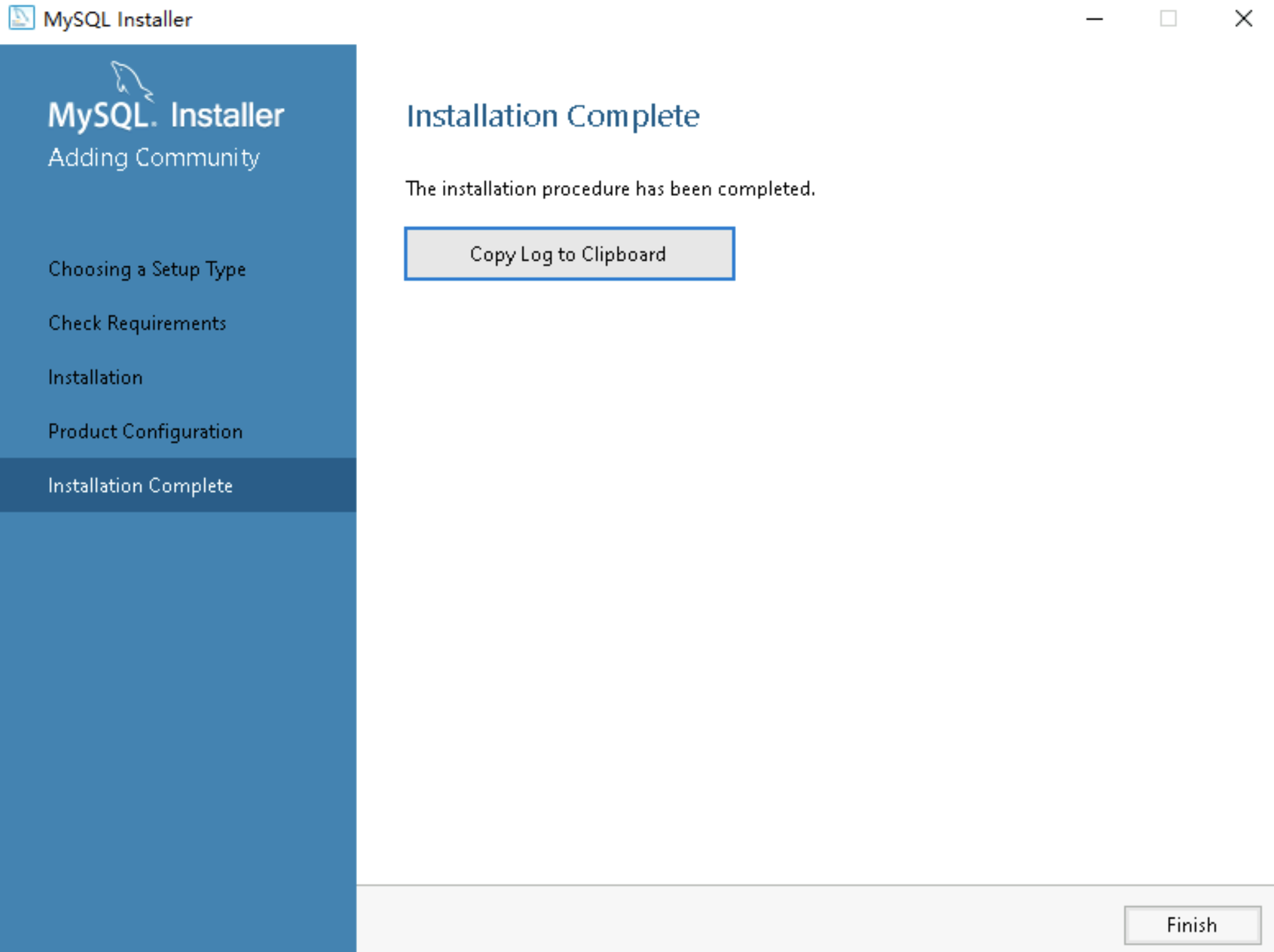
- On the "Installation Complete" page, click the "Finish" button to complete the installation process.
-
- Start the server and check whether the server is running.
- Click the Windows icon in the lower-left corner, and click "MySQL > MySQL 8.0 Command line Client".
- In the MySQL command line tool, enter the login password of the root account.
-
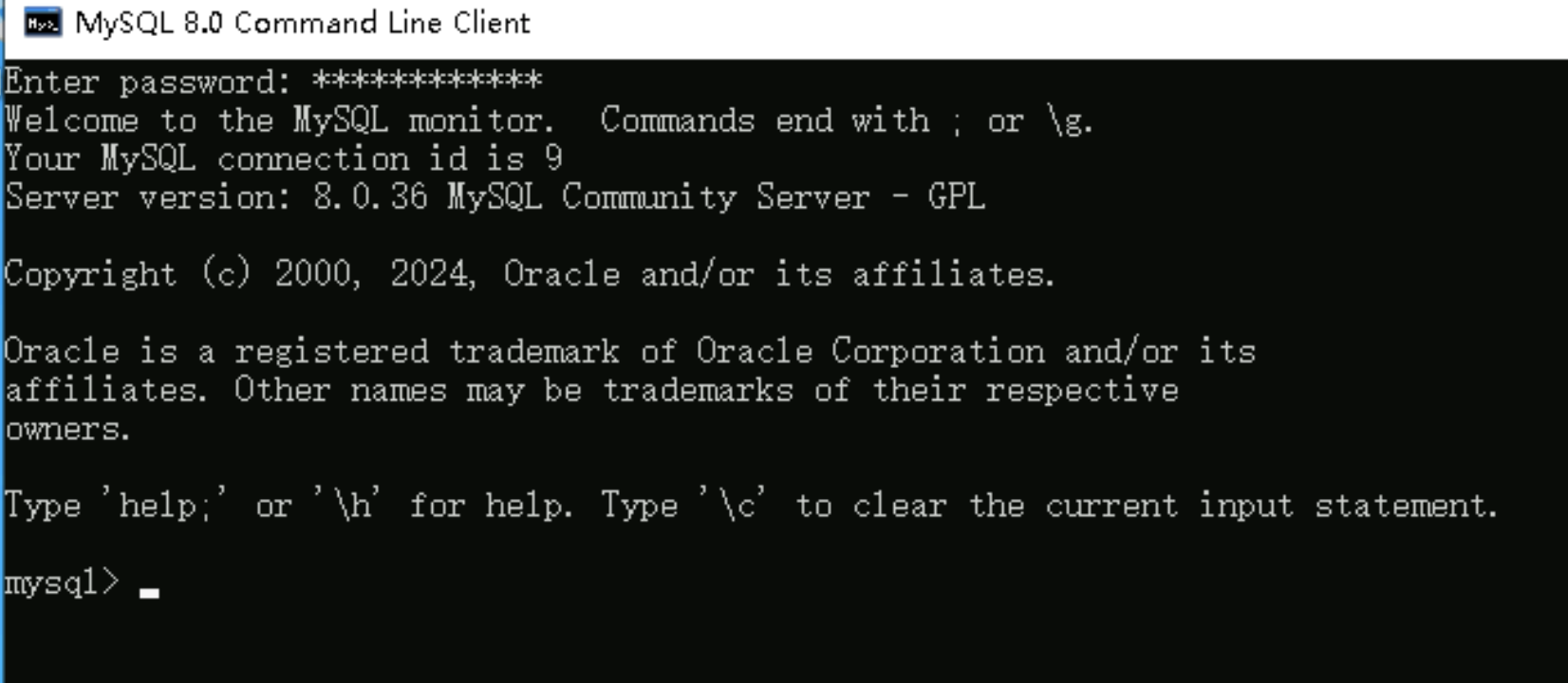
- You can use this command line tool to create and modify database tables and other related information.
Step 3: Install PHP
- Log in to the target Windows instance. For more information, see Logging in to Windows instances.
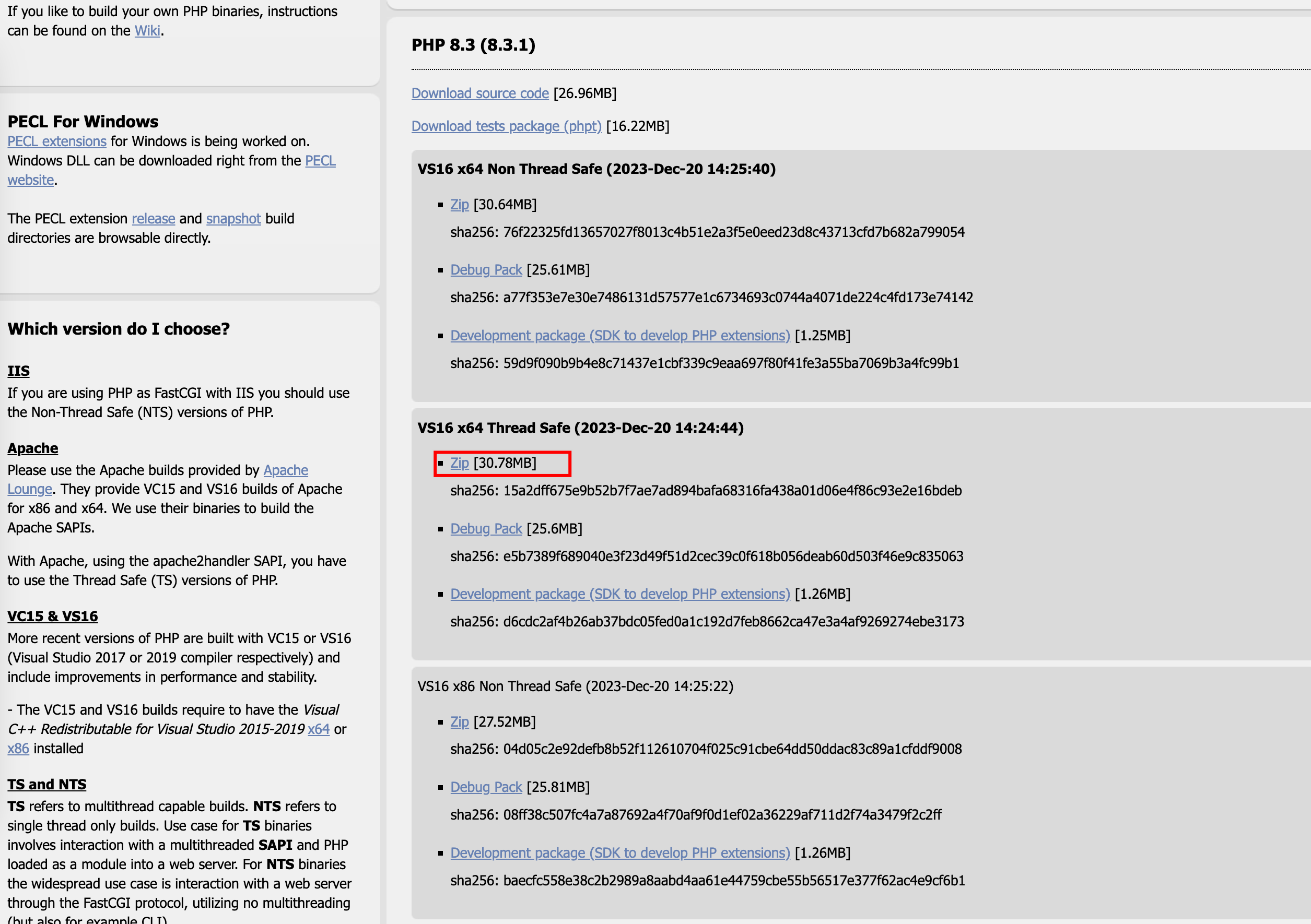
- Access the PHP For Windows page by using the instance browser and select the required installation package.
Select a thread-safe PHP version. In this practice, version 8.3.1 is used.
-
- After the download is complete, right-click the package and select "Extract All(T)...".
- In the pop-up window, select the storage path and click the "Extract" button.
- After extraction is complete, right-click the php.ini-production file in the folder obtained from the extraction and click the "Copy" button. Then, right-click any blank area in the current folder window and click the "Paste" button to create a copy of the file.
- Right-click the copied file, click the "Rename" button, and change the file name to php.ini.
- Right-click the php.ini file, select "Open with", and open the configuration file by using Notepad.
- In the configuration file, locate the extension_dir parameter and delete the ; symbol at the beginning of the line where the parameter resides, and change the value of the parameter to the actual path of the PHP ext folder.
Replace the backslash (\) in the path with the forward slash/.
-

- In the configuration file, locate the extension=curl, extension=mbstring, extension=mysqli, and extension=pdo_mysql parameters, and delete the ; symbol at the beginning of the lines where the parameters reside.
- Press Ctrl +Sto save the change.
- Add the PHP module to the Apache HTTP Server configuration file.
- Enter the Apache HTTP Server folder, right-click the httpd.conf file in the "Apache24 > conf" folder, select "Open with", and then select Notepad to open this configuration file.
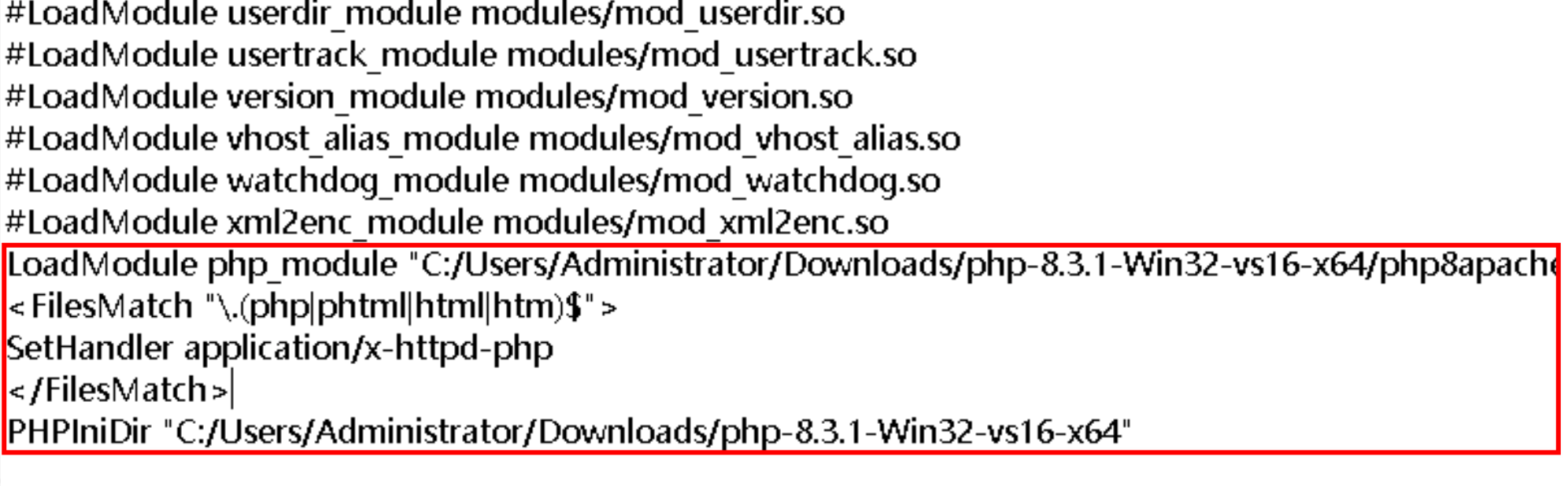
- Add the following content to the configuration file.
warning
- When you add a path value to the Apache configuration file on the Windows operating system, all backslashes (such as c:\php) should be converted to forward slashes (such as c:/php).
- Replace the sample path with the actual path for each PHP file.
- Add the following content to the LoadModule module.
-
-
- In the IfModule dir_module module, change the value of the DirectoryIndex parameter to the following content.
-
-
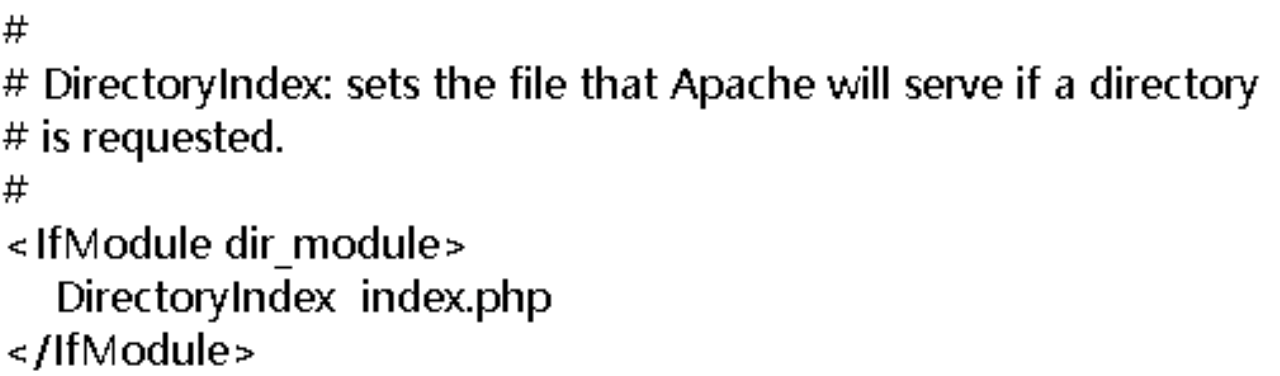
- Press Ctrl +Sto save the change and exit the file.
Verify the environment
- Log in to the target Windows instance. For more information, see Logging in to Windows instances.
- Enter the htdocs folder of Apache HTTP Server and create a new file named test.php.
- Right-click the test.php file, click "Open with > Notepad" to open the file, and enter the following content.
-
- Click the Windows icon in the lower-left corner, select "Windows System," right-click "Command Prompt", and then click "More > Run as administrator."
- In the Command Prompt dialog box, execute the following command to enter the directory where the Apache HTTP Server files are located.
Replace httpd-2.4.58-win64-VS17\Apache24\bin with the actual path to the Apache HTTP Server bin folder after extraction.
-
- Execute the following command to start the server.
-
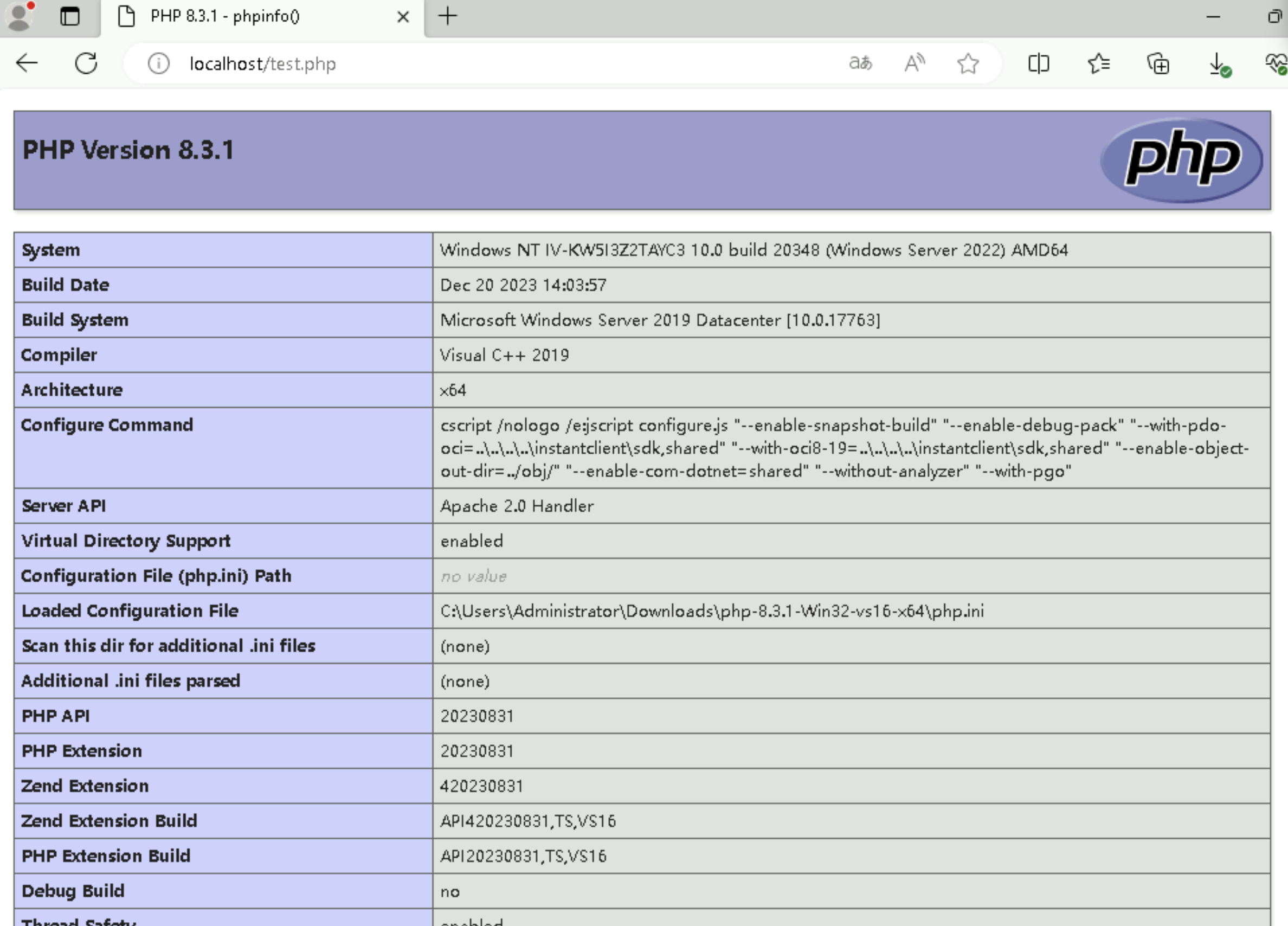
- In the address bar of the instance browser, enter the following address and press the Enter key.
-
- If the following output is displayed, the environment is set up successfully.
-
Last updated: 2026.06.18 17:48:25
All rights reserved © Beijing Volcano Engine Technology Co., Ltd2024
