Volcengine Kubernetes Engine
Volcengine Kubernetes Engine


Document

- Documentation
 Volcengine Kubernetes EngineVolcengine Kubernetes EngineUser guideAutoscaleNode autoscalerConfiguring node instant autoscaling (Karpenter)
 Copy page
 Download PDF
Node autoscaler
Configuring node instant autoscaling (Karpenter)
Copy pageDownload PDFConfiguring node instant autoscaling (Karpenter)
VKE clusters support node instant autoscaling by using Karpenter, which autoscales nodes of different specifications. This topic describes how to configure node instant autoscaling.
Background information
To improve the success rate of node pool scale-out, prevent scale-out failures caused by insufficient nodes of a single specification, and improve the efficiency of node scale-out in large-scale clusters, VKE clusters support node instant autoscaling based on Karpenter. Karpenter allows you to filter and select multiple specifications that meet pod scheduling requirements to scale out nodes of multiple specifications.
During multi-specification scale-out, Karpenter first simulates the scheduling of the pending pods and filters node specifications that meet the requirements based on the specification range specified in the node pool. Then, Karpenter scales out the instances based on the qualified node specifications and quantities.
Limit
- The cluster-autoscaler add-on and the karpenter add-on cannot both be installed.
- The karpenter add-on only supports clusters running on Kubernetes v1.26 or later.
- The autoscaling rule configured during add-on installation is the same as described in this topic. It is the autoscaling configuration. In other words, you can configure an autoscaling rule by using two configuration entries, and the rule from any entry will overwrite the other.
- Node autoscaling only applies to pay-as-you-go nodes.
Prerequisites
- The karpenter add-on has been installed. For details, see Installing add-ons.
- A node pool has been created, and the autoscaling feature has been enabled.
- You can directly enable autoscaling when you create a node pool. For details, see Creating node pools.
-
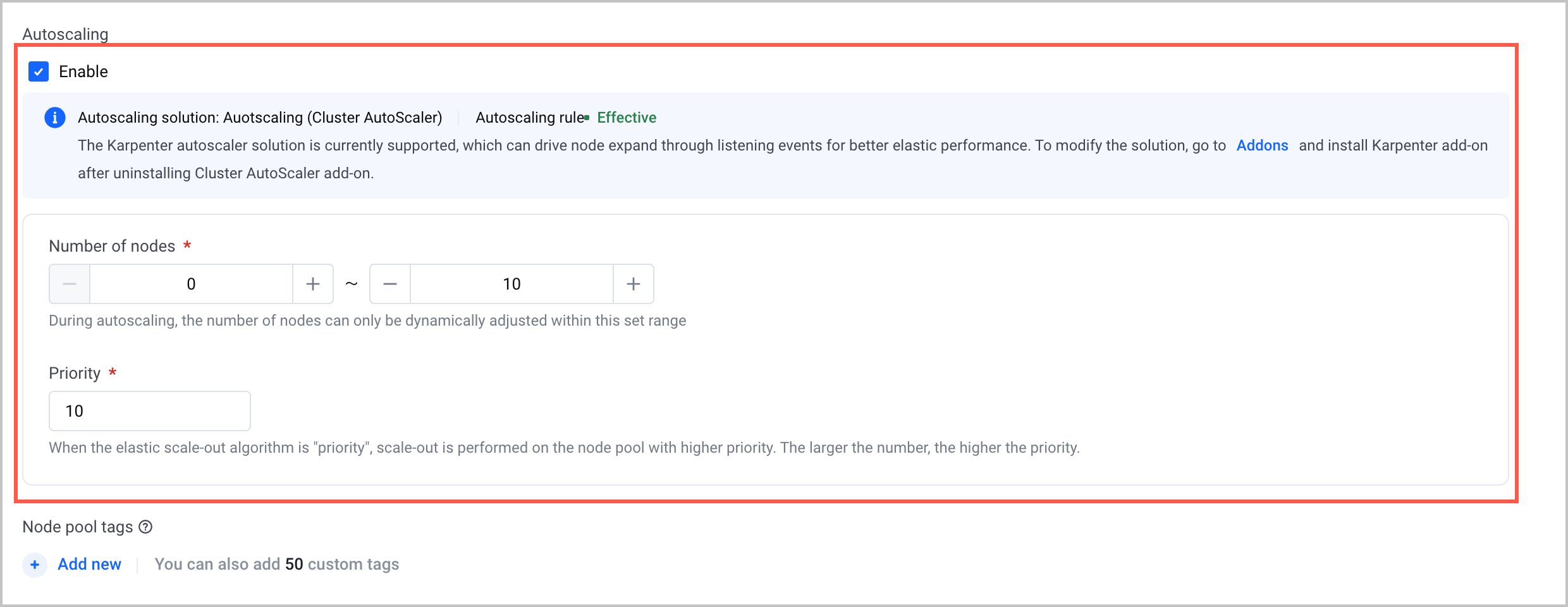
- You can edit an existing node pool to enable autoscaling. For detailed instructions, see Editing node pools.
Procedure
- Log in to VKE console.
- In the left navigation bar, click Cluster.
- On the Cluster page, click the name of the target cluster.
- In the left navigation bar of the cluster management page, click Node pool. On the page that appears, click Autoscaling configuration.
-
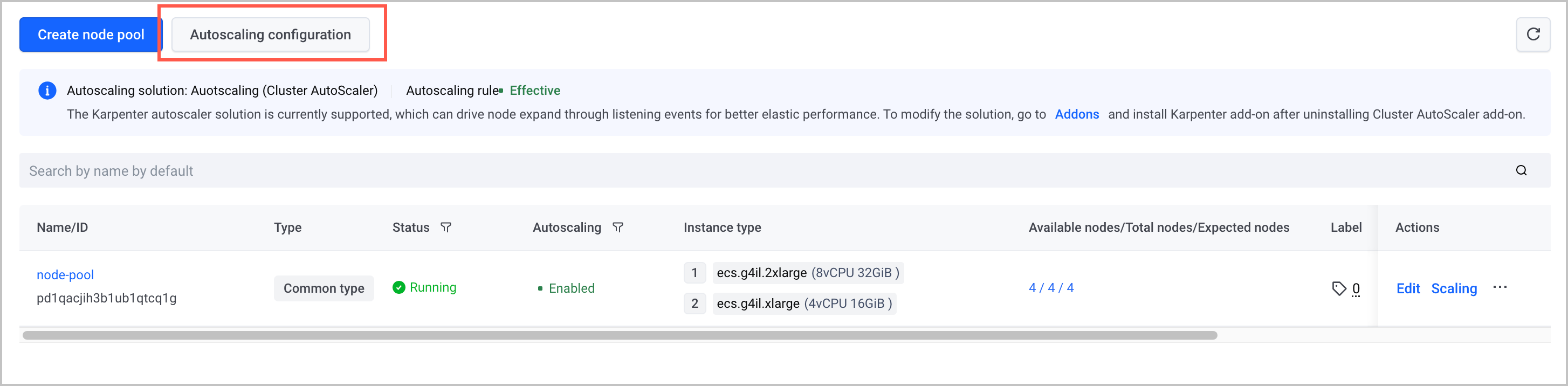
- On the Autoscaling configuration page, click Edit rules to specify the parameters of the autoscaling rule.
tip
The configurations displayed in the Autoscaling rule dialog box are the same as those displayed on the add-on installation page. Any changes made to the rule will overwrite the rule configured during add-on installation.
-
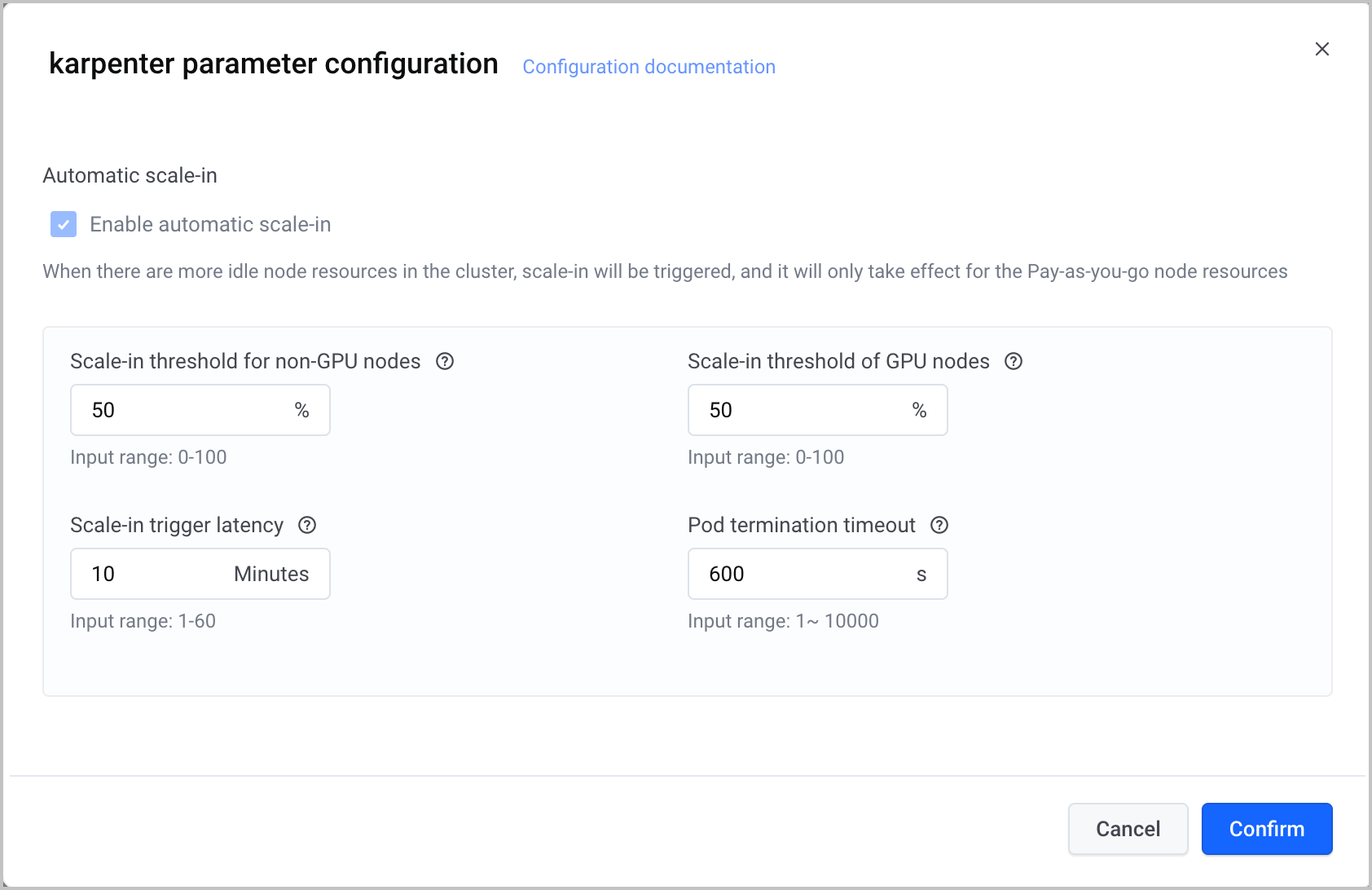
- ParameterDescriptionCluster nameThe name of the current cluster cannot be modified.Automatic scale-inAfter you enable this feature, automatic scale-in is triggered if a certain number of idle nodes exist. This feature only applies to pay-as-you-go nodes.
- Scale-in threshold for non-GPU nodes: Automatic scale-in may be triggered if the CPU or memory request rate of a non-GPU node is lower than the threshold. The request rate is calculated by using the following formula: single resource request amount/single resource total amount × 100%. The value is an integer. Valid values: 0 to 100. When the value is 0, it indicates that scale-in is not triggered.
DescriptionThis rule is triggered only if both the CPU and the memory of a non-GPU node reach the scale-in threshold.- Scale-in threshold of GPU nodes: The scale-in policies of GPU nodes vary based on whether the mGPU capability is enabled. The value is an integer. Valid values: 0 to 100. When the value is 0, it indicates that scale-in is not triggered.
- mGPU disabled: Automatic scale-in may be triggered if the GPU resource request rate of a node is lower than the threshold. The request rate is calculated by using the following formula: single resource request amount/single resource total amount × 100%.
- mGPU enabled: Automatic scale-in may be triggered if the request rate of any resources in mGPU, including GPU computing power, GPU video memory, system memory, and CPU, is lower than the threshold. The request rate is calculated by using the following formula: single resource request amount/single resource total amount × 100%.
- Scale-in trigger latency: Automatic scale-in is triggered if the node resource request rate remains lower than the threshold for the specified period. The value is an integer. Valid values: 1 to 60. Unit: minutes.
- Pod termination timeout: The maximum wait time for pod termination during node draining. The value is an integer. Valid values: 1 to 10000. Unit: seconds.
- Click Confirm to complete the configuration.
Result validation
Viewing settings
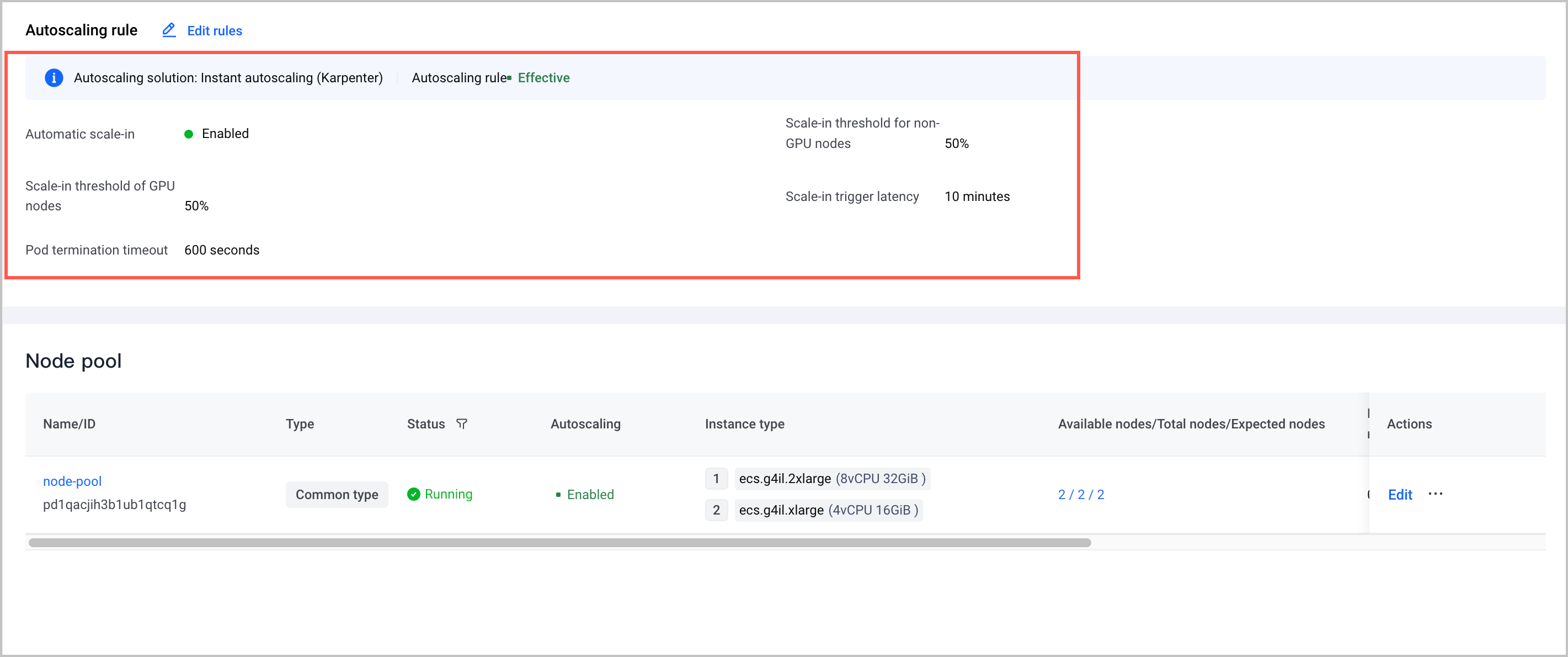
After the configuration is complete, you can view the autoscaling rule and node pools for which autoscaling is enabled.
Scale-out validation
When nodes in a cluster are insufficient, pods will be in the Pending status. In this case, the system will automatically scale nodes of different specifications in the cluster based on the resources required by the pending pods. Make sure that no additional resources are wasted when the scaled-out resources meet your business requirements.
For example, the pending pods request CPU resources of 3 cores and 5 cores. In addition, the node pool contains nodes of multiple specifications, which are 4 vCPU 16 GiB and 8 vCPU 32 GiB. After the scale-out is complete, click the node pool name to go to the details page of the node pool. Click the Scaling record tab, and view the autoscaling records of the node pool. On the tab, you can see that two nodes have been added.

In the left navigation bar of the cluster management page, click Node. In the node list, you can view the newly added nodes with specifications of 4vCPU and 16GiB, and 8vCPU and 32GiB. It indicates that the nodes of multiple specifications are added.
tip
In the same scenario, when you scale out nodes using Cluster Autoscaler (CA), the node pool follows a priority rule. It preferentially selects a node specification for scale-out from multiple options. When higher-priority specifications cannot be provisioned due to insufficient inventory or other failures, the system sequentially switches to lower-priority specifications for scale-out. This serial mechanism results in a long scale-out period and may lead to resource waste. For example, two nodes with the specification of 8 vCPUs and 32 GiB are added.
Scale-in validation
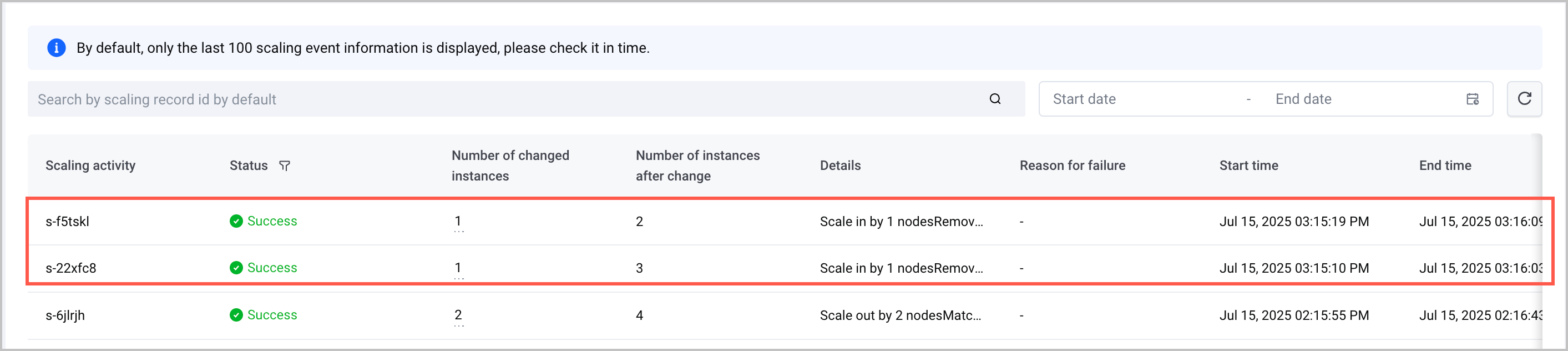
After the scale-out is complete, delete the pods that triggered the scale-out. The node resource request value falls below the threshold (default: 50%, configurable). Other pods on these nodes can be scheduled to other nodes. Therefore, after the scale-in trigger latency elapses, the system automatically scales in nodes. Click the Scaling records tab to view the node pool's autoscaling records. Here, you can see two nodes have been decreased.
Last updated: 2026.07.24 14:51:38
All rights reserved © Beijing Volcano Engine Technology Co., Ltd2024
