Volcengine Kubernetes Engine
Volcengine Kubernetes Engine


Document

- Documentation
 Volcengine Kubernetes EngineCloud-native AIServingKitBest practicesMiniMax model deploymentQuickly deploying the MiniMax-M2.5 model by using the LLM general-purpose template
 Copy page
 Download PDF
MiniMax model deployment
Quickly deploying the MiniMax-M2.5 model by using the LLM general-purpose template
Copy pageDownload PDFQuickly deploying the MiniMax-M2.5 model by using the LLM general-purpose template
This topic mainly describes how to quickly deploy the MiniMax-M2.5 model in a VKE cluster by using the ServingKit LLM general-purpose template.
Background
Launched by MiniMax, the MiniMax-M2.5 model has undergone extensive reinforcement learning training in hundreds of thousands of complex real environments, which has reached the state-of-the-art (SOTA) level in code writing, agent tool usage and search, office tasks, and a series of other economically valuable tasks. This topic describes how to quickly deploy the MiniMax-M2.5 model in a Kubernetes cluster by using the LLM general-purpose template.
Notes
- To ensure successful deployment, which involves multiple components depending on each other and a variety of configurations, you need to strictly follow the instructions in this document.
- To achieve the expected results and conform to the limits of VKE, you need to perform operations by following the solution described in this article or on the recommended resources. If you need to change your solution, you can consult the Account Manager of the Volcano Engine.
- Do not use mGPU on GPU resources.
Preparations
- Some resources of Volcano Engine at the beta stage are required to deploy AI services. To use the following resources, contact your account manager.
-
- this example, APIG is used to expose the service. Therefore, you need to prepare an APIG instance. You can create an APIG instance in advance, use an existing APIG instance, or leverage automatic instance creation during application deployment on ServingKit.
tip
If you In create an APIG instance in advance or use an existing one, ensure that the region of the instance matches the region of the VKE cluster. We recommend an instance with both Public network and Private network selected for Network type. For details about creating APIG instances, see Creating instances.
- You need to create a high-performance compute (HPC) cluster to achieve logical isolation of HPC GPU instances (compute nodes). Instances in the same cluster are interconnected by Remote Direct Memory Access (RDMA) networks. For details, see Creating HPC clusters.
tip
The HPC cluster must be deployed in the same region and availability zone as the VKE cluster.
Procedure
Step 1: Create a VKE heterogeneous computing cluster
Quickly create a heterogeneous computing cluster by using a VKE cluster template. Take note of the parameter configurations listed in the following table. For more details, see Using a cluster template to create managed clusters for heterogeneous computing.
Parameter | Description |
Cluster and node pool configuration | |
Region | The Region and Availability zone of the cluster must be consistent with those of the prepared HPC cluster. You can switch regions in the top navigation bar. |
Availability zone | |
Instance type | Select the ecs.hpcpni3ln.45xlarge specification of the High Performance Computing Optimized type. |
Number of nodes | Set the value to 1. |
Advanced settings | |
Data volume | Configure the following two data volumes:
warning
|
Observability configuration | We recommend that you enable this feature. After you enable this feature, you can view observability data for AI applications deployed in the cluster. tip To enable observability configuration, you need to create a VMP workspace. For detailed operations, see Creating common workspaces. |
Step 2: Deploy MiniMax-M2.5
- Download and deploy the model using the LLM General Template provided by ServingKit. During deployment, take note of the parameter configurations listed in the following table. For descriptions of other parameters and detailed procedures, see Deploying general-purpose LLM template applications.
- ParameterDescriptionSelect framework and orchestrationImageSelect Custom and select an appropriate image from the following image addresses based on the region where your business is deployed.
- China (Beijing): ai-containers-cn-beijing.cr.volces.com/deeplearning/sglang:v0.5.8.byted.202602120000
- China (Shanghai): ai-containers-cn-shanghai.cr.volces.com/deeplearning/sglang:v0.5.8.byted.202602120000
- Asia Pacific (Johor): ai-containers-ap-southeast-1.cr.volces.com/deeplearning/sglang:v0.5.8.byted.202602120000
Model configuration- StorageClass type: Select Data volume.
- Select Models: Click Add predefined model, select the MiniMax-M2.5 model, and set Mount path to /data01 and Container mounting path to /data/models. The path settings specify that the model data will be downloaded to the /data01 directory.
Inference modeSelect PD co-location.Instance specification- Number of instances: Set the value to 1.
- Single instance GPUs: Set the value to 4.
Resource configurationSelect the VKE heterogeneous computing cluster created in Step 1 and the node pool containing nodes with the ecs.hpcpni3ln.45xlarge specification in the cluster.Startup commandAdd the following startup command. For a detailed description of each field in the startup command, see the following table named Startup command descriptions.Set Port number to 8000.API GatewaySelect Enable and associate the prepared APIG instance.tipYou can also select Automatically create to have an automatically created APIG instance with a fixed instance specification and configuration specified by ServingKit. Creating an APIG instance will incur fees. For details, see APIG billing.
- Startup command descriptions
- ParameterTypeDescriptionSample valuepython -m sglang.launch_serverStartup commandStart the SGLang model server by using the Python method.This field is a command entry instead of a parameter.No--modelPath/Model IDThe loaded LLM model. You can set this field to the following values:
- Hugging Face model ID
- Local model path
/data/models/MiniMax-M2.5/--tpIntegerConfigure tensor parallelism. Default value: 4.4--hostIP addressThe host address bound to the service.0.0.0.0--portIntegerThe port number that the service listens on, which is used to connect to the client.8000--enable-metricsCommandNo
- After successful application deployment, model startup time varies depending on model size. After the application status changes to Running, view the logs of the corresponding instance on the Application details page. If the log contains the following message: The server is fired up and ready to roll!, the model in the application has started successfully and is accessible.
Step 3: Access the service
After you deploy the MiniMax-M2.5 model service, obtain the service domain name and access the service.
- Obtain the domain name of the MiniMax-M2.5 model service.
- Click ServingKit > List of AI applications in the left navigation bar of the VKE console. On the page that appears, find the deployed MiniMax-M2.5 model application.
- Click the → icon in the application section to go to the application details page and view Service domain names.
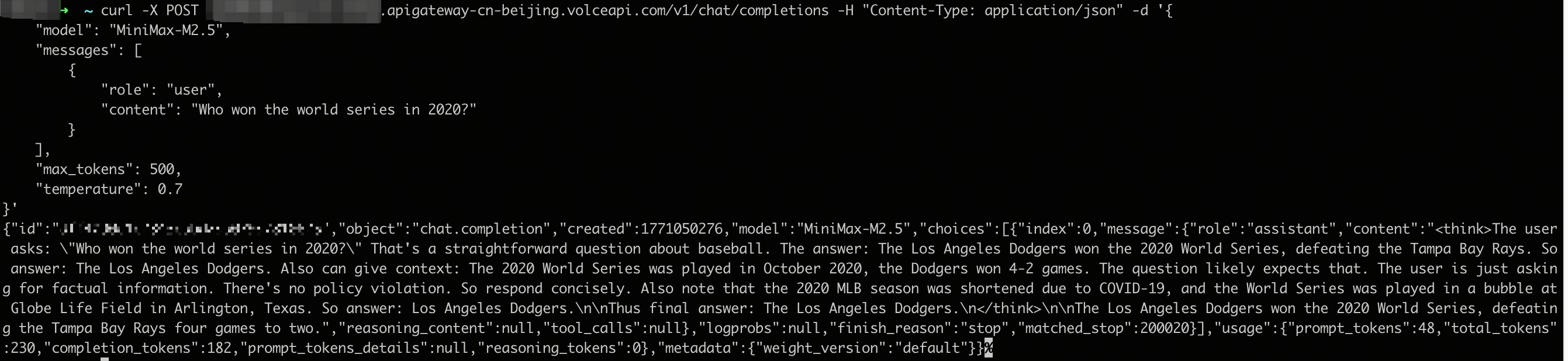
- In a terminal where the curl command is available, run the following command to access the MiniMax-M2.5 model service.
tip
- Replace ${your_service_domain_name} with the service domain name obtained in the previous step.
- If no terminal is available, you can log in to the node where the model is deployed by using the ECS Terminal method and use the curl command to access the service. For detailed operations, see ECS Terminal.
-
- The descriptions of parameters are as follows:
-
- The following figure displays the expected response after you run the command.
-
Subsequent operations
Enhance service security
You can enhance the security of the MiniMax-M2.5 service by using the API Key of APIG.
- Create a consumer for the APIG instance. For detailed operations, see Creating consumers.
- Generate the Key Auth plugin credential based on the consumer. For detailed operations, see Generating credentials.
- Enable the Key Auth plugin: In the left navigation bar, click Plugin Center. On the page that appears, click Key Auth in the Plugin Category section and then click Create Plugin. Specify the parameters of the plugin.
- Effective level: Select Routing level, and specify the instance, service, and route to which the plugin belongs.
- Authentication configuration: Select header, and specify Authorization as the source, which indicates that the API Key is carried in the Authorization header of the request.
- Consumer: Select the consumer created in Step 1 or select all, which indicates that the configuration also applies to newly created consumers.
- Keep the default values for other parameters.
- After you enable Key Auth plugin authentication, when you access the service by executing the corresponding command, credentials must be included. Otherwise, a message that indicates insufficient permissions will be returned.
-
Enable observability
ServingKit AI applications support basic cloud-native observability capabilities by default. You can view the application monitoring dashboard on the AI application details page.
- Click ServingKit > List of AI applications in the left navigation bar of the VKE console. On the page that appears, find the deployed MiniMax-M2.5 model application.
- Click the → icon in the application section to go to the application details page and view the dashboard on the Observability tab.
tip
If you have not enabled the observability capability of the relevant cluster, enable observability based on the prompts in the console. For operations related to cloud-native observability capabilities, see Enabling observability and VKE observability.
Last updated: 2026.08.03 21:49:40
All rights reserved © Beijing Volcano Engine Technology Co., Ltd2024
