Volcengine Kubernetes Engine
Volcengine Kubernetes Engine


Document

- Documentation
 Volcengine Kubernetes EngineCloud-native AITrainingKitPPO training on the GSM8K dataset with veRL
 Copy page
 Download PDF
TrainingKit
PPO training on the GSM8K dataset with veRL
Copy pageDownload PDFPPO training on the GSM8K dataset with veRL
Introduction
This topic provides the algorithm engineering team with a solution for deploying a multi-node training environment based on Volcengine Kubernetes Engine (VKE) clusters by using distributed reinforcement learning (RL) frameworks (veRL+Ray) in RL training scenarios. This topic describes how to configure clusters, create PersistentVolumes (PVs), and deploy KubeRay and Ray clusters in detail. This topic provides the complete workflow of performing Proximal Policy Optimization (PPO) training on the GSM8K dataset, including dataset processing, task submission, and monitoring. For more details, see Quickstart: PPO training on GSM8K dataset.
The training framework veRL used in this topic is short for Volcano Engine Reinforcement Learning for large language models (LLMs). It is an RL framework designed for LLMs on the cloud platform. It not only provides flexible, efficient, and scalable RL training, but also provides a framework named HybridEngine. This framework separates the control flow, which runs in a single process, from the computation flow, which runs in multiple distributed processes, and supports multiple computation backends, parallel policies for training and inference, and performance optimization technologies.
Prerequisites
Preparing materials
Prepare the dataset and model files. For more details, see Quickstart: PPO training on GSM8K dataset.
- Download the Qwen2.5-0.5B-Instruct model to your on-premises computer.
-
- You need to locally download and preprocess the GSM8k dataset file in the configured veRL environment. For details, see Installation.
-
Uploading the model and dataset files
- Create a Torch Object Storage (TOS) bucket.
- Log in to the TOS console.
- In the left navigation bar, click Buckets. On the page that appears, click Create bucket.
- Specify the parameters of the TOS bucket and click Confirm to create the TOS bucket. For more parameter descriptions, see the official documentation of TOS.
- Upload files. Go to the Objects page of the TOS bucket. Click Upload file and then click Select folder to upload the folders that contain the dataset and model files.
Creating a VKE cluster
When you create a cluster in VKE, take note of the configurations of the following parameters. For more details, see Creating clusters.
Parameter | Description |
Cluster configuration | |
Kubernetes version | Select v1.28 or later. |
Network model | Select VPC-CNI. |
Node pool configuration | |
Managed node pool | Select Enable to enable the managed node pool. |
Instance type | Select the GPU instance specification for the node pool based on task requirements. This topic takes ecs.gni3cl.11xlarge (44 vCPU, 240 GiB, NVIDIA L20*2) as an example. |
Number of nodes | 2 |
Data volume | Select ESSD and 1000 GiB. |
Addon configuration | |
Platform functional addons | Install the following add-ons in the cluster:
|
Creating a PV and a PVC
- Create a static TOS PV in the VKE cluster to achieve the TOS-based network storage capability for the VKE cluster. For details, see Using static TOS PVs.
- ParameterDescriptionStorageClass typeSelect TOS.Access keyClick Create key, and configure the key. Set the AccessKey ID and AccessKey Secret parameters to the AccessKey ID and AccessKey secret of your Volcano Engine root user. For information on how to obtain an API access key, see API access key management.Storage bucketSelect the created TOS bucket.SubdirectoryUse the default/.
- Create a PersistentVolumeClaim (PVC) and associate it with the PV created in the previous step.
Procedure
Deploy the kuberay-operator application
- Log in to the VKE console.
- In the left navigation bar, click Application center > Application template.
- On the Application template page, find the kuberay-operator application template section and click Deploy.
- On the Deploy application page, specify the parameters of kuberay-operator.
-
- Click Confirm to deploy the application. The deployed application will be displayed on the Helm page. You can go to the details page of the application to view the basic information, associated workloads, services, and other resources of the application.
Deploying a Ray cluster
- Modify the content of the following YAML file based on your business requirements.
- Modify the containers.image mirror addresses in headGroupSpec and workerGroupSpecs according to the business location.
-
- Modify resource configurations for head and worker instances in the YAML file based on the node specifications. Set the nvidia.com/gpu parameter to the number of GPUs on the node. We recommend that you allocate CPUs and memory as much as possible while reserving some resources for other system add-ons. For example, allocate 80% of the node resources. Set the requests and limits parameters to the same values.
- Set the persistentVolumeClaim.claimName parameter to the name of the created PVC.
- The tracing-startup-hook parameter of the rayStartParams parameter is required for starting in-depth observability. The startup script is already provided in /workspace/verl/tracing/setup_tracing.py. You only need to perform the following steps to start in-depth observability. The sample code already includes the following configurations and can be directly used.
- Add tracing-startup-hook: "tracing.setup_tracing:setup_tracing" to the startup command.
- Configure the environment variable PYTHONPATH=/workspace/verl to start in-depth observability. The data will be automatically reported to APMPlus.
- Add the annotation instrumentation.apmplus.volcengine.com/inject-python:"true" to worker and header instances.
- To reduce system consumption, you need to configure the environment variable OTEL_PYTHON_DISABLED_INSTRUMENTATIONS=system_metrics.
- For more information about parameters, see RayCluster Configuration.
- Log in to the VKE console. Click the name of the target cluster to go to the cluster management page.
- In the left navigation bar, click Workload > Resource Explorer.
- Click Create with Yaml. On the Create with Yaml page, select Custom from the Type list. Enter the content of the modified YAML file and then click Confirm. By default, the resource explorer is deployed in the namespace named default.
Checking running status
In the left navigation bar, click Workload > Pod to view the status of the head and worker pods, which are respectively named raycluster-kuberay-head-xxxx and raycluster-kuberay-workergroup-worker-xxxx. When Running is displayed in the Status column, it indicates that the pods are started, which takes a long period of time.
Running a training task
Submitting a training task
- In the left navigation bar, click Workload > Pod. Click the name of raycluster-kuberay-head-xxxx, and then click Console in the upper-right corner to go to the console of the pod.
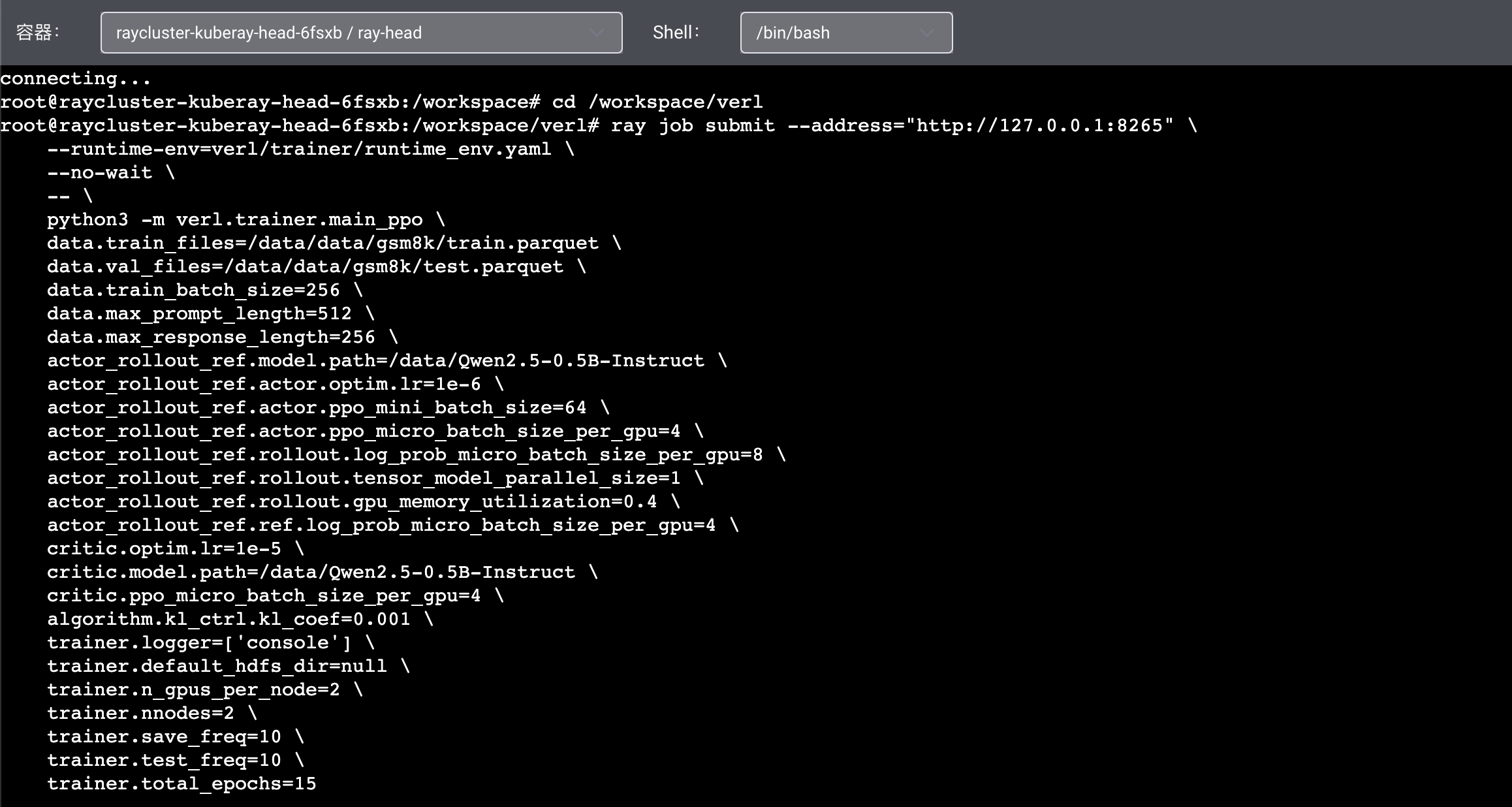
- Enter the following command in the console to navigate to the verl directory and submit the training task.
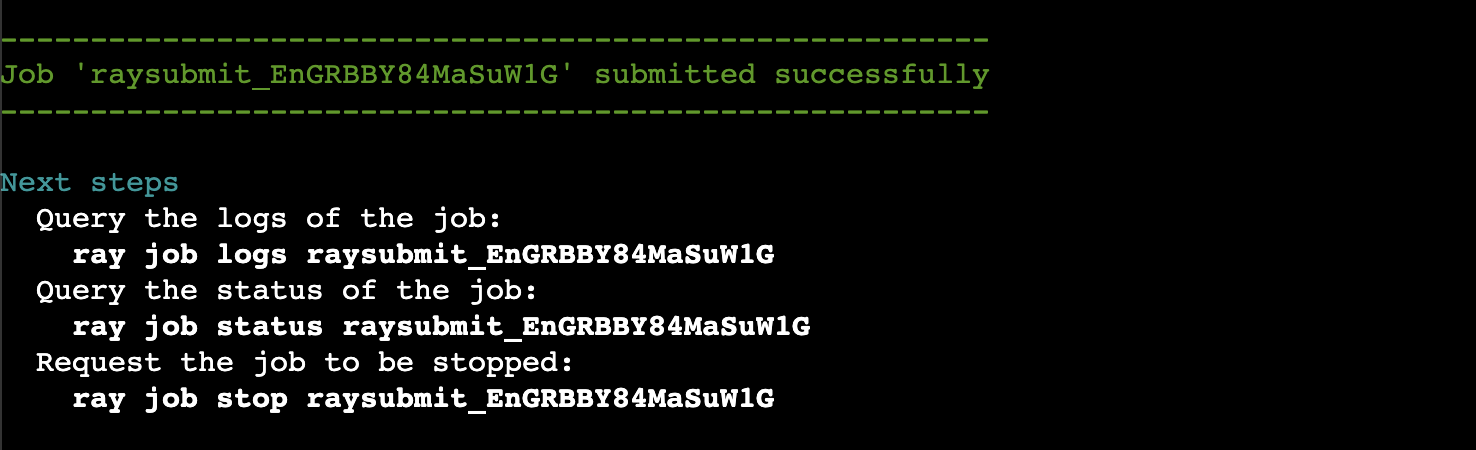
The following figure shows the expected output after the training task is submitted.
Viewing training job status
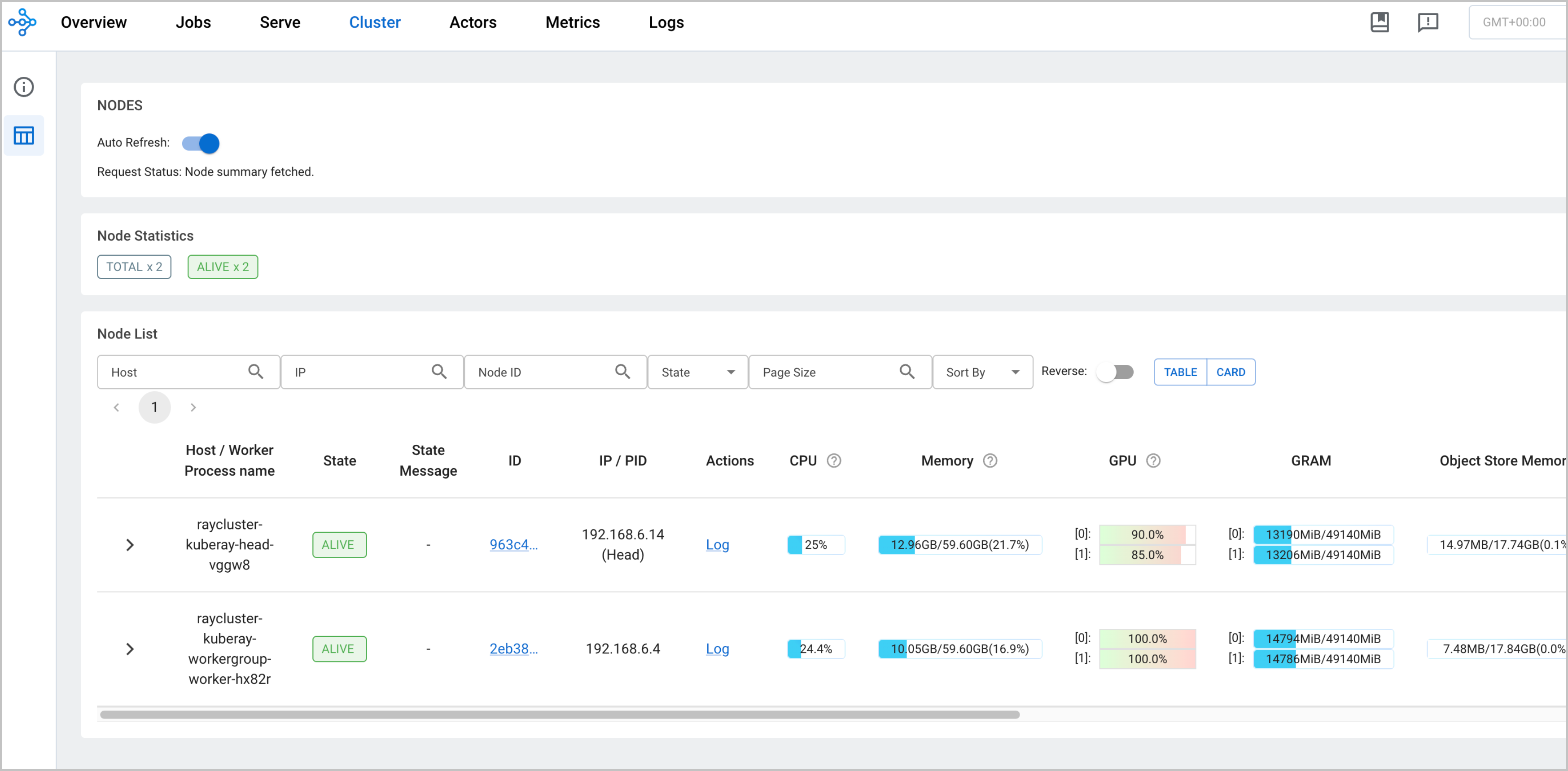
Create an Ingress to expose the Ray dashboard service.
- In the left navigation bar, click Services and Ingresses > Ingress, and click Create Ingress to configure an Ingress.
- Take note of the configurations of the following parameters. For more details, see Creating an ALB Ingress in the console.
- ParameterDescriptionIngress typeSelect Application Load Balancer (ALB).ProtocolSelect HTTP.PathEnter a slash (/).ServiceSelect raycluster-kuberay-head-xxxxxx and 8265.
- After the ALB Ingress is created, enter the virtual IP address (VIP) of the Ingress in the browser address bar to access the dashboard, on which you can view training task logs and cluster status.
-
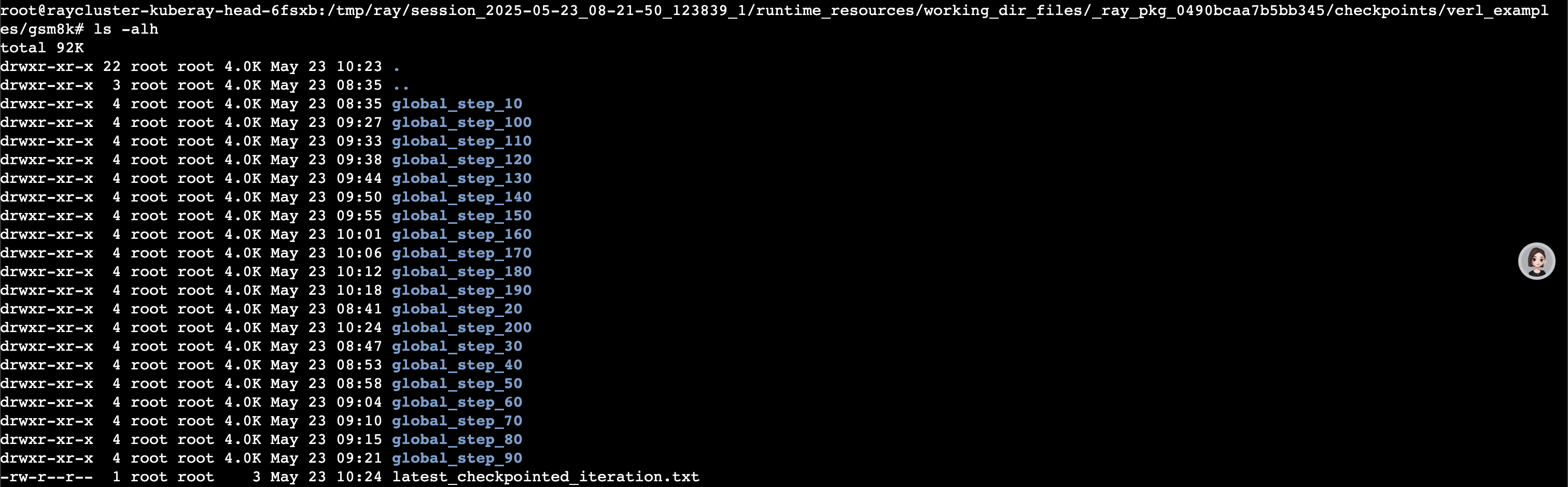
By default, the trained checkpoints are saved in the /tmp/ray/session_xxxxx/runtime_resources/working_dir_files/_ray_pkg_xxxxx/checkpoints/verl_examples/gsm8k directory of the raycluster-kuberay-head-xxxx pod.
Enabling observability
Basic observability
Enabling observability
- Log in to the VKE console.
- In the left navigation bar of the management page for the target cluster, click Cloud native observability > Overview, and then enable cloud native observability and container monitoring based on the prompt on the page. You need to perform the following steps:
- Enable cloud native observability.
- Bind a VMP workspace.
- Install the prometheus-agent add-on.
tip
- Create collection configurations.
First, check whether Ray PodMonitors are already created in the cluster. If not, create one.
Confirmation method: In the left navigation bar of the cluster management page, click Workload > Resource Explorer. On the page that appears, search for podmonitor. Click the name of the target PodMonitor to check whether Ray-related collection configurations exist.
tip
You still need to verify that the label volcengine.vmp: "true" is added to the preceding two PodMonitors resources even if you have created PodMonitors. If the label does not exist, prometheus-agent cannot identify the resources and thus cannot collect metrics.
If Ray PodMonitors are not created in the cluster, perform the following steps to create Ray PodMonitors.
- In the left navigation bar of the cluster management page, click Workload > Resource Explorer.
- Click Create with Yaml. Copy the following code to create the corresponding PodMonitor.
- PodMonitor configuration for collecting head node metrics
-
- PodMonitor configuration for collecting worker node metrics
-
tip
Take note of and modify the following parameters:
- namespace: The namespace where the PodMonitor resides. Theoretically, the PodMonitor can be created in any namespace.
- namespaceSelector: Select a namespace of which Ray cluster pods are to be matched. Enter the namespace where Ray is located.
Viewing the monitoring dashboard
After a collection rule is configured, metrics related to Ray will be collected and stored in VMP workspaces. You can use the Explore feature of VMP to query the corresponding metrics.
You can use the preset dashboard of VMP to view Ray metrics. To view Ray metrics, you need to apply to add your account to the allowlist.
- Log in to the VMP console.
- Click Monitor dashboard in the left navigation bar. Search for ray to view Ray-related dashboards.
You can also install Grafana to view Ray monitoring charts.
- Install the Grafana service in the VKE cluster. For details, see Deploying Grafana in a VKE cluster and integrating Grafana with a workspace.
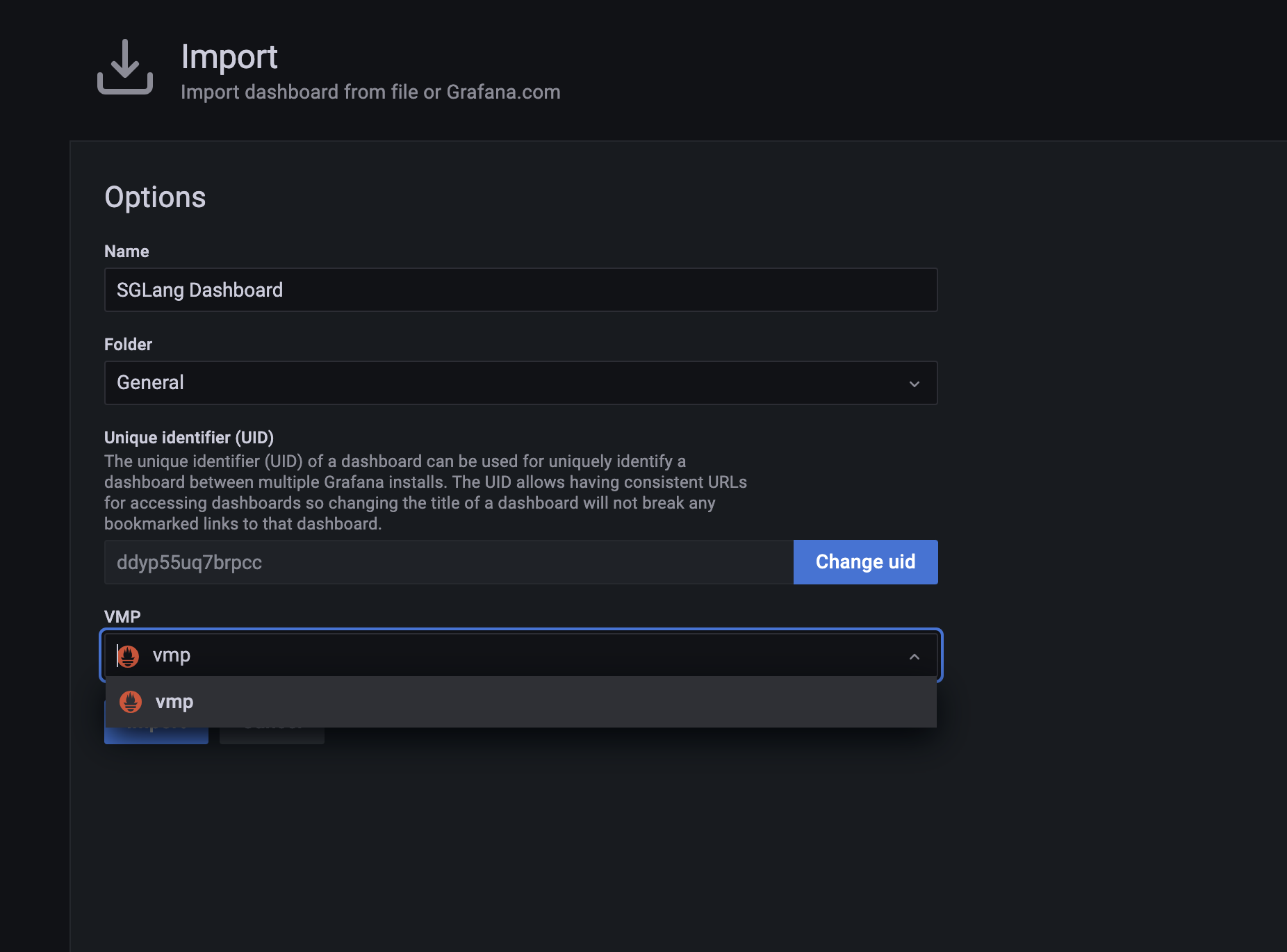
- Log in to your self-managed Grafana and import the following dashboard.
- Select VMP as the data source for importing.
-
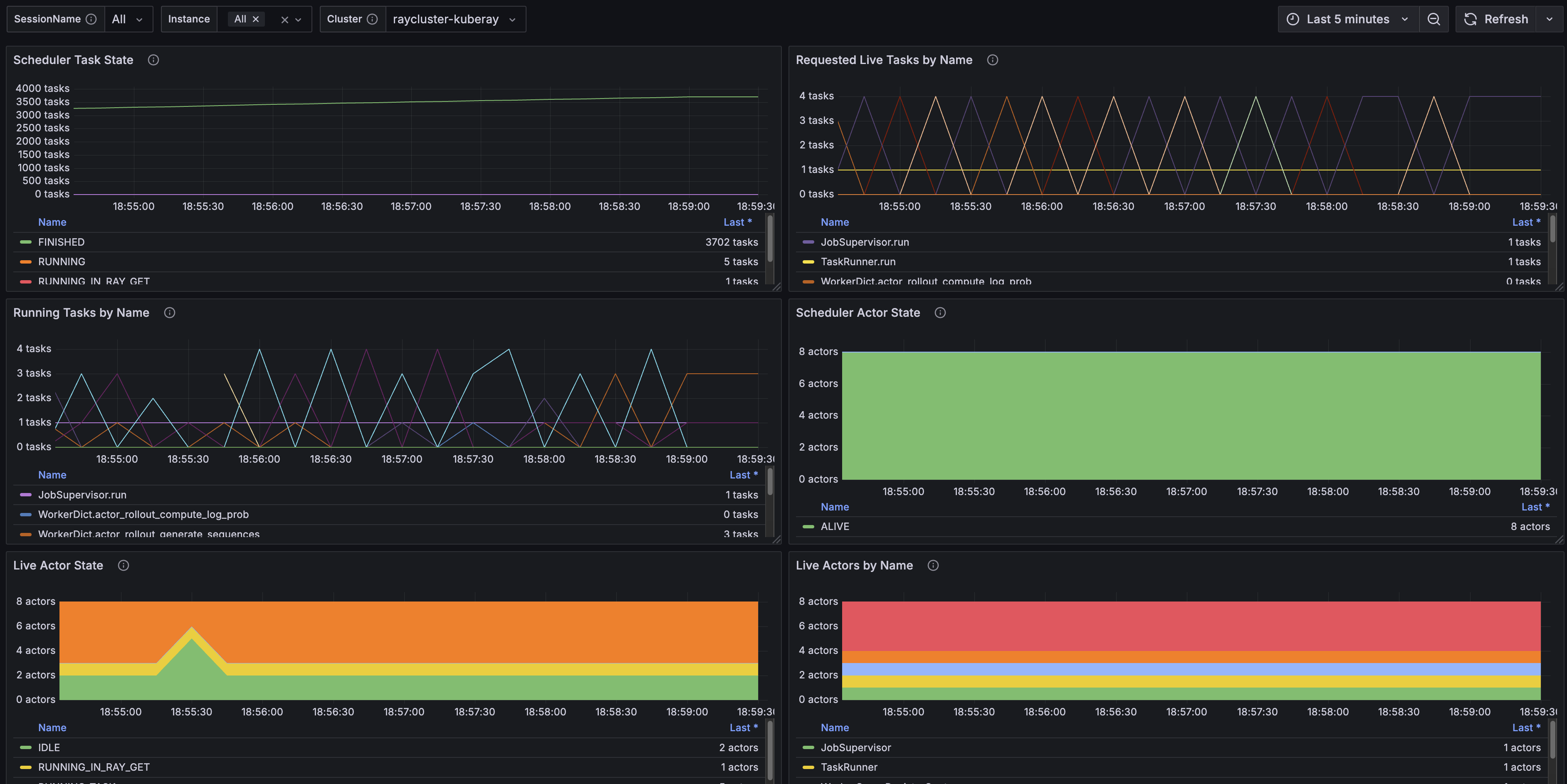
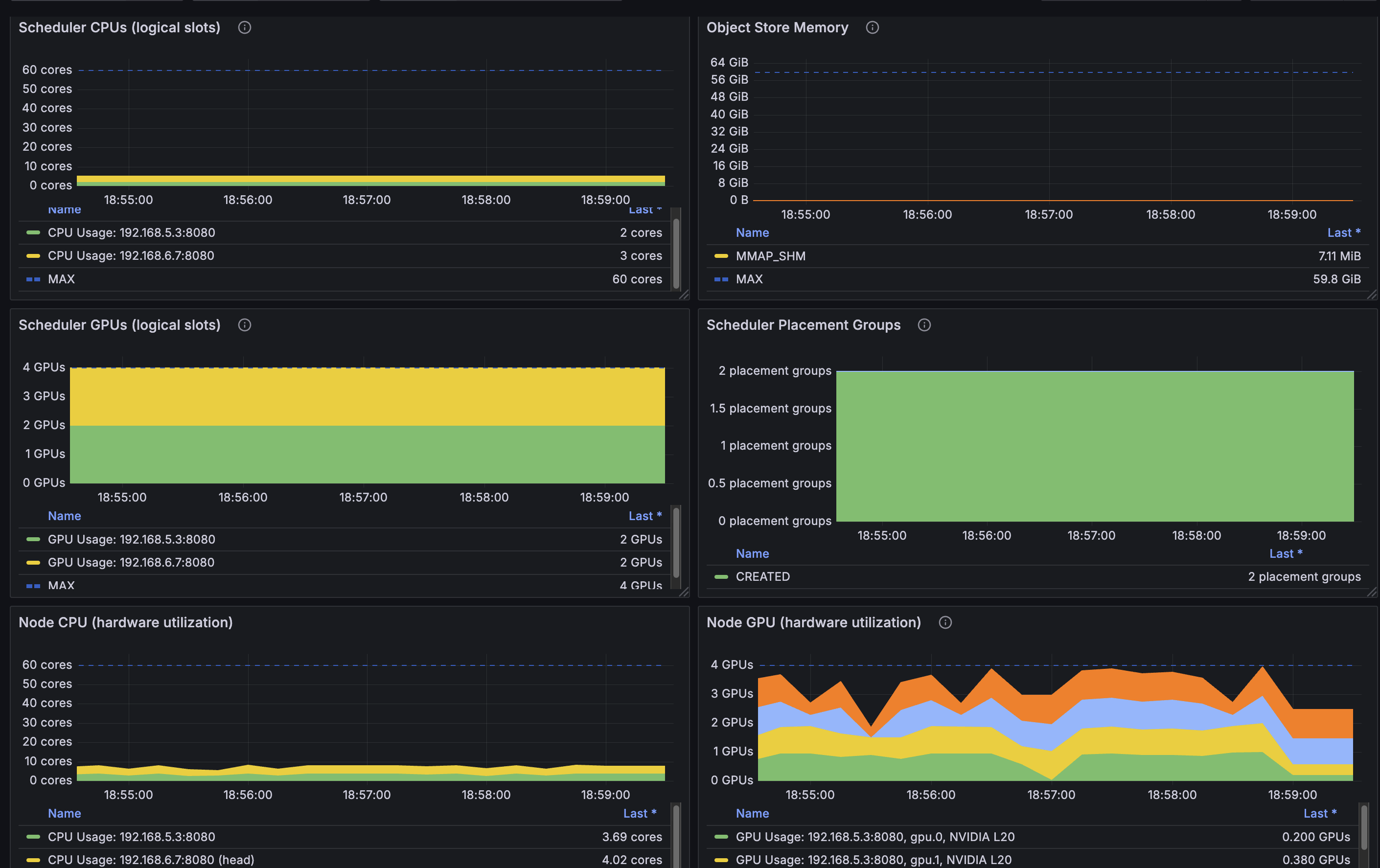
- The following figure shows the result after importing.
-
-
In-depth observability
Enabling observability configuration
- Deploy the APMPlus observability add-on.
- In the left navigation bar of the VKE cluster management page, click Addons. On the page that appears, click the Monitoring tab. Find the apmplus-opentelemetry-collector and apmplus-server-agent add-ons and install them. The following figure shows the result after the add-ons are installed. Verify that both add-ons are installed and that no error messages appear.
- Enable in-depth observability. Add the following annotation to Ray-related instances.
- keyvalueinstrumentation.apmplus.volcengine.com/inject-pythontrue
In the deployment YAML file of the Ray cluster, add the following configuration. The preceding sample one already includes the following configurations and can be directly used.
- Configure Ray tracing.
- To enable the tracing feature, you need to provide a tracing startup script that includes a function for configuring the tracing provider and span processor. This function has no input parameters and must be available in the Python environment of all worker processes.
- The following sample code shows how to send tracing data to the server based on environment variable configurations. After the apmplus-opentelemetry-collector and apmplus-server-agent add-ons are installed, the environment variable will be set to apmplus-opentelemetry-collector. The code is automatically included in the image.
Add the following parameters to rayStartParams in the YAML file of the Ray cluster.
Viewing Observability data
After you enable the observability configuration, the generated tracing data will be sent to APMPlus. In the left-side navigation bar in the APMPlus console, click Server-side Monitoring to view the ray-worker and ray-header services.
Click the service name to go to the observability dashboard page.
- On the Service overview tab, you can view the key metrics of the service, such as QPS and request error rate.
- On the Trace analysis tab, you can view the reported tracing data. Click the ID of the target trace to go to the details page of the trace. On the List tab, you can view the details of the trace.
Deploying and connecting to wandb
Weights & Biases (wandb) is a platform for tracking and managing machine learning experiments. It is designed to help data scientists and machine learning engineers develop, optimize, and deploy models more efficiently. It provides a set of streamlined tools. These tools automatically record key metrics during experiments, visualize results, manage code versions and datasets, and support team collaboration.
This section describes how to deploy the local version of wandb in the preceding clusters and how to push veRL training metrics to wandb.
Preparing an image
Prepare a wandb local image. Two solutions are provided in the Chinese mainland, where Docker Hub may be inaccessible.
- First, pull the image to your on-premises computer. Then, push the image to your Container Registry (CR) instance. For specific steps, see Pushing and Pulling Images Using Docker.
Creating a FileNAS file system
- Log in to FileNAS console.
- In the top navigation bar, select the region for which you want to create a file system.
- In the left navigation bar, click File System > File System list. On the File System list page, click Create File System. For detailed parameter descriptions, see Creating a file system.
- Click the name of the created file system to go to the details page of the file system. Click the Mount Target tab, and then click Create Mount Target. Select the Virtual Private Cloud (VPC) where the VKE cluster is located from the Private network list.
- Go to the management page of the VKE cluster. Create a PV for the cluster. When you create the PV, select the created FileNAS file system and mount point.
- Create a PVC and associate it with the created PV.
Deploying wandb local
- Deploy wandb local
- Modify the content of the following YAML file to modify the wandb local image address and PVC name based on your business requirements.
-
- Log in to the VKE console. In the left navigation bar, click Cluster. Then, click the name of the target cluster to go to the cluster management page.
- In the left navigation bar, click Workload > Resource Explorer.
- Click Create with Yaml. On the Create with Yaml page, select Custom from the Type list. Enter the content of the modified YAML file and then click Confirm in the lower-right corner of the page. By default, the resource explorer is deployed in the default namespace.
- Create an Ingress to expose the wandb service.
- In the left navigation bar of the cluster management page, click Services and Ingresses > Ingress. On the page that appears, click Create Ingress.
- Take note of the configurations of the following parameters. For more details, see Creating an ALB Ingress in the console.
- ParameterDescriptionIngress typeSelect Application Load Balancer (ALB).ProtocolSelect HTTP.PathEnter a slash (/).ServiceSelect wandb-service and 8080.
- After the Ingress is created, enter the VIP of the Ingress in the browser address bar to go to the wandb management page.
wandb configuration
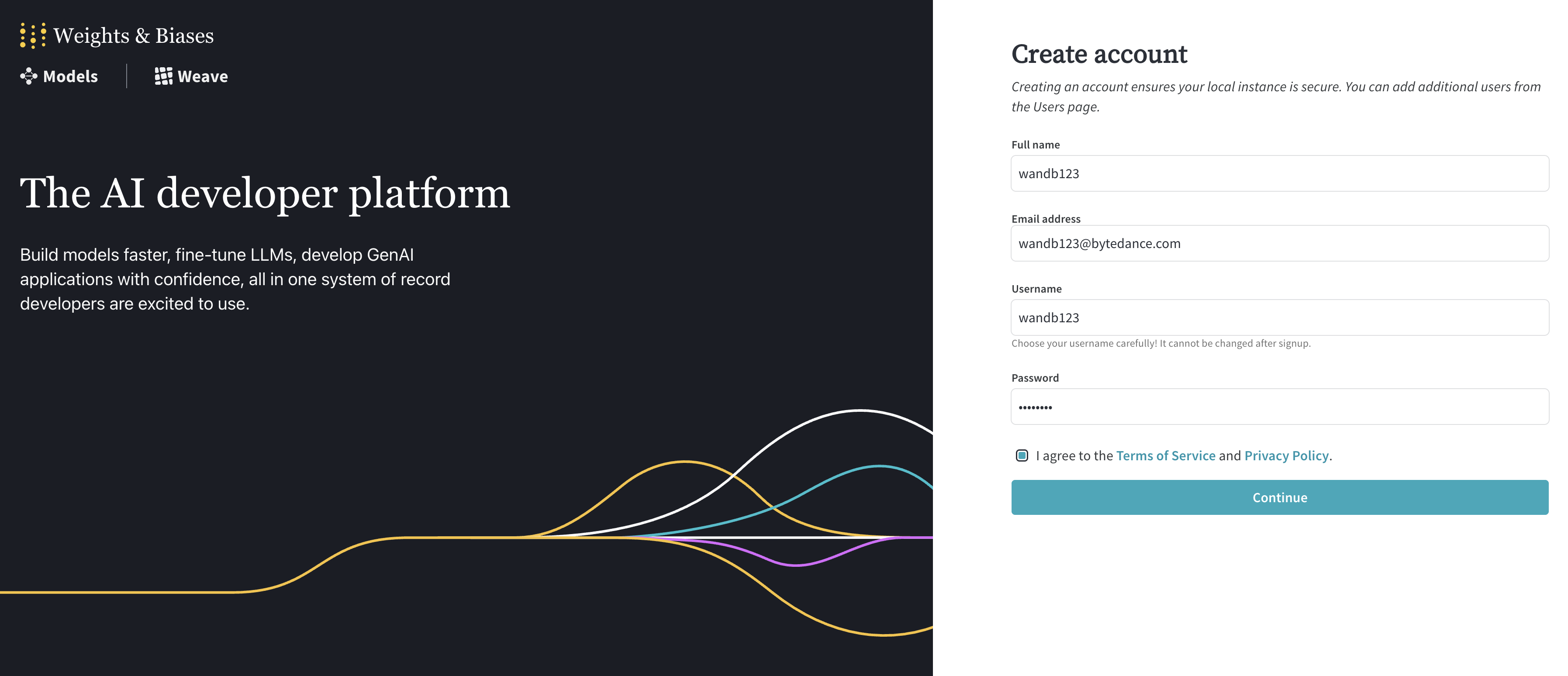
- Go to the wandb management page and create an account. You will need to use your email and password for login. Please remember them.
-
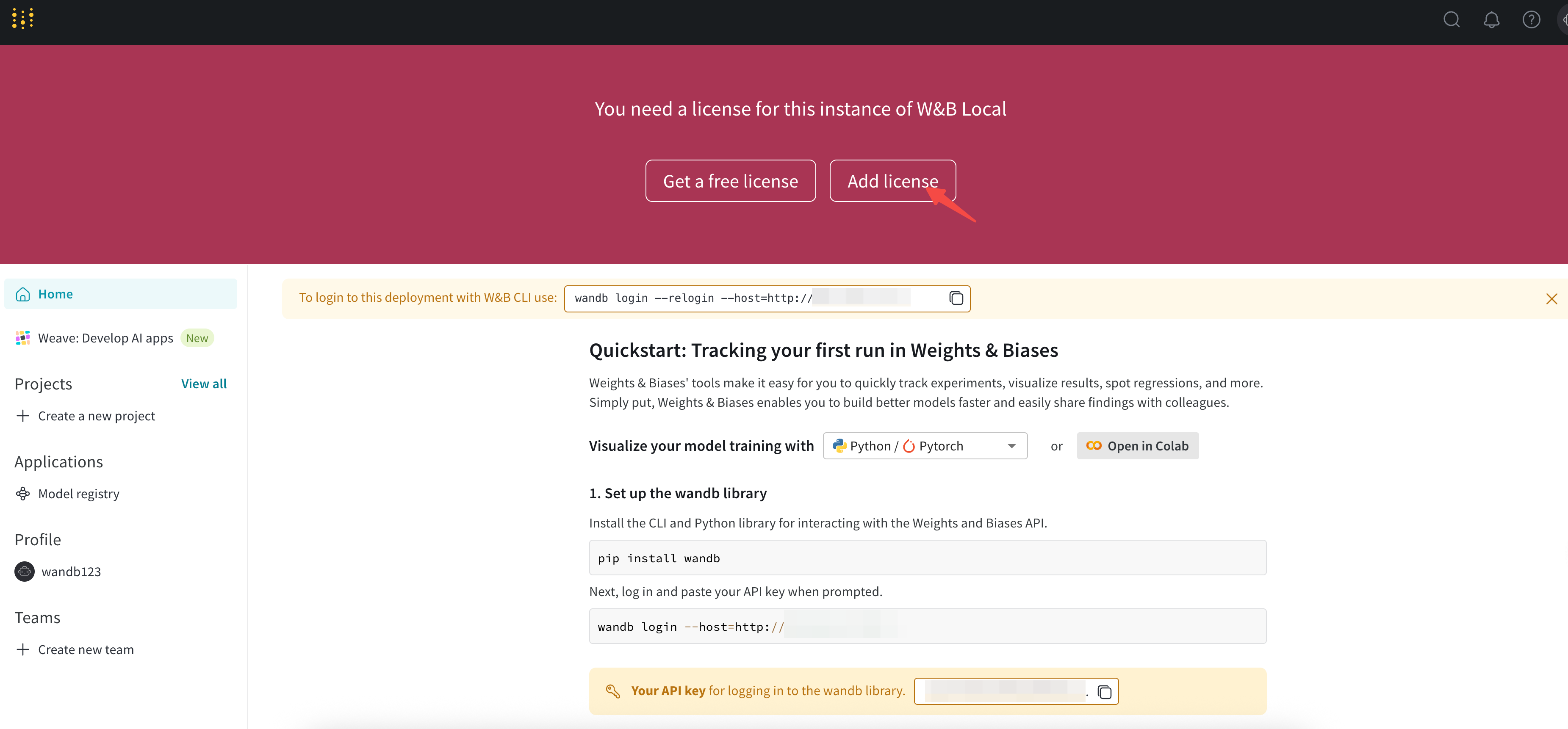
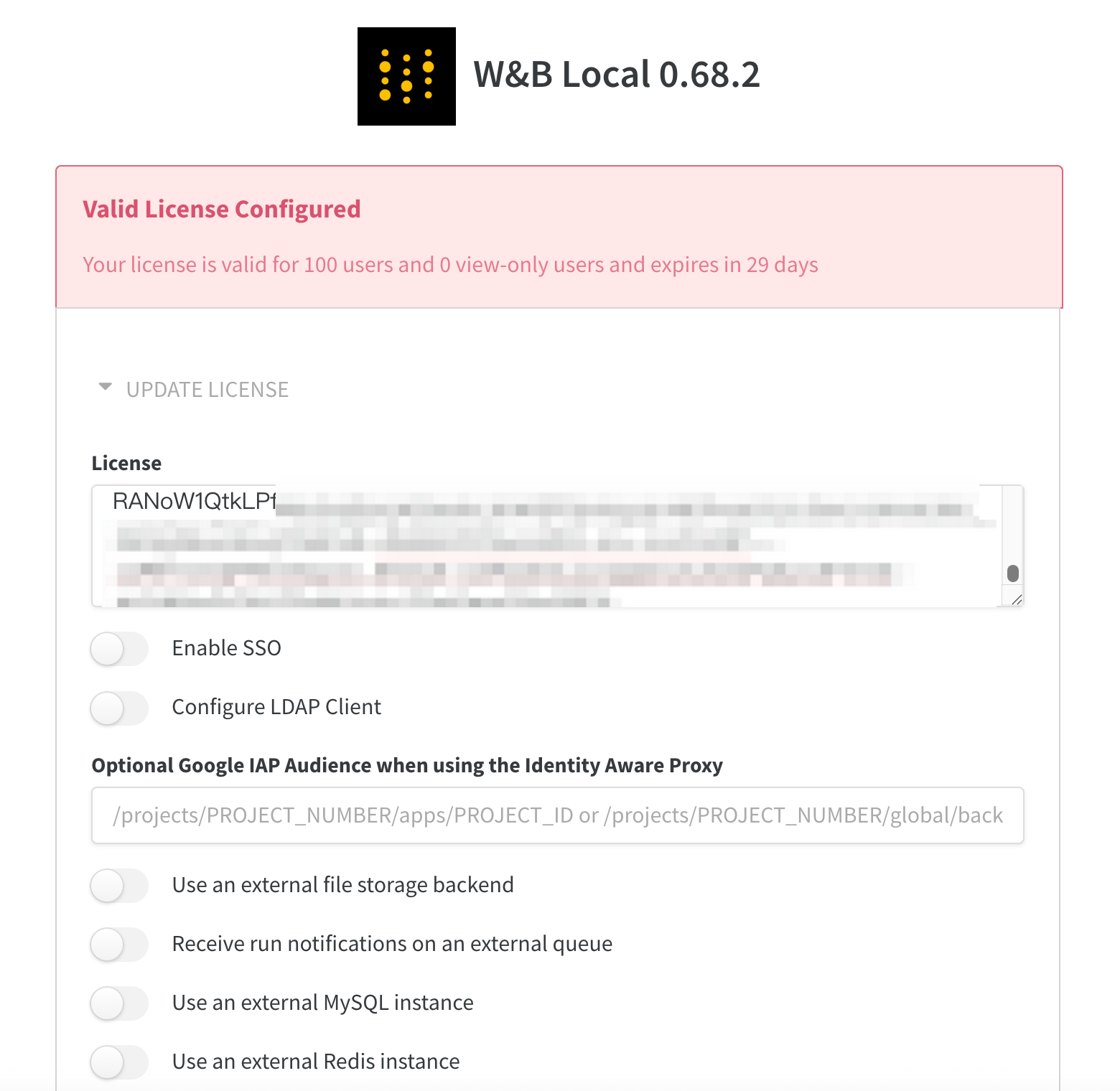
- Configure the license. If you do not have a license, you can apply for a free license based on prompts.
-
-
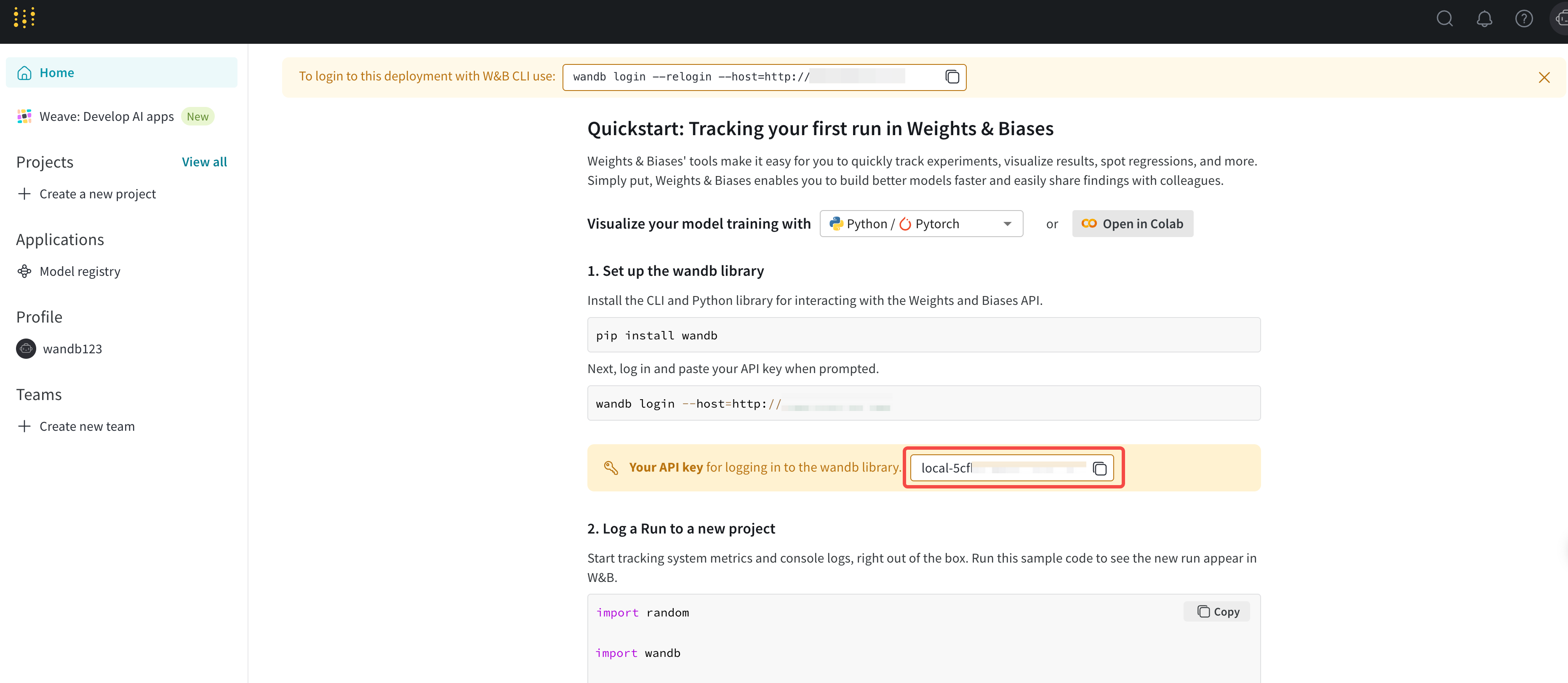
- Return to the Home page to view the API key.
-
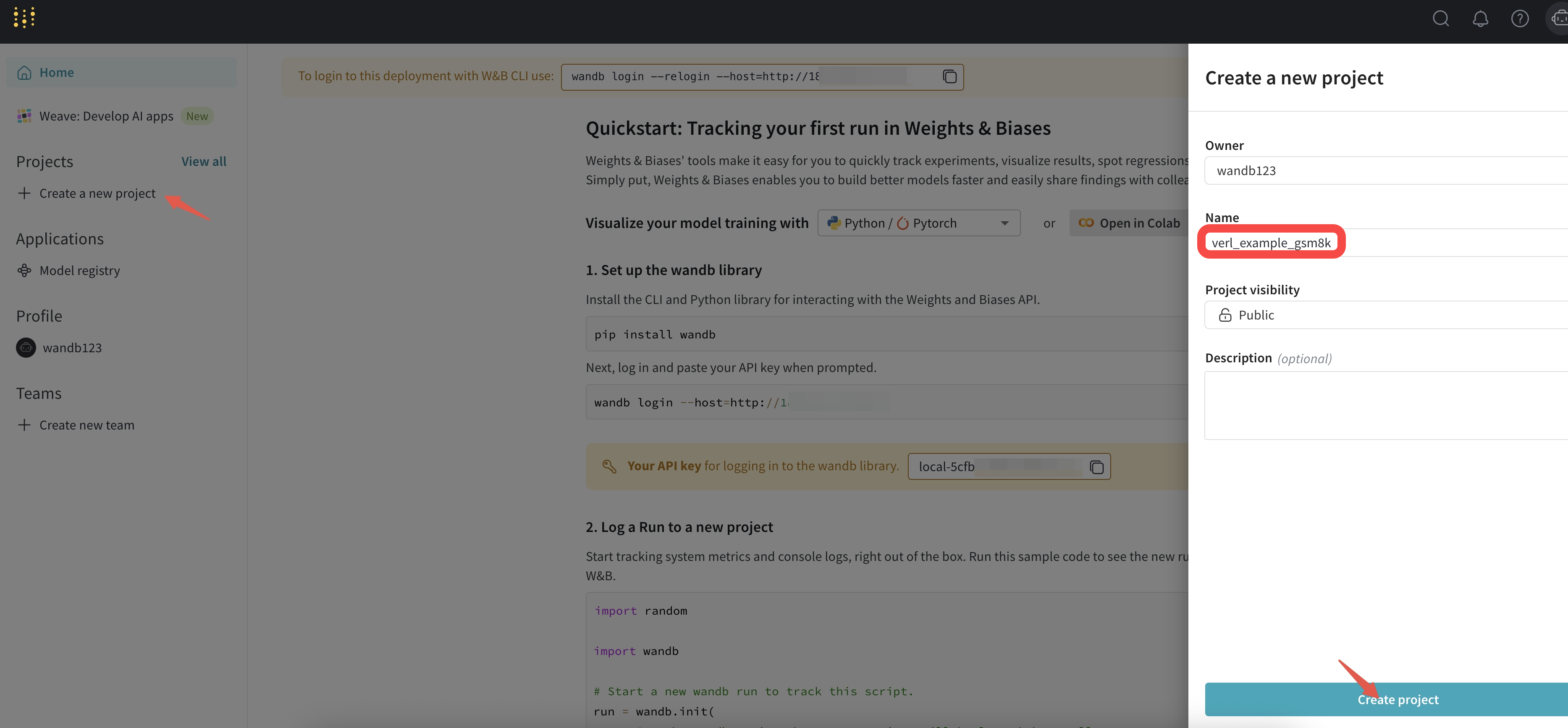
- Create a project.
-
veRL configuration
- Go to the head pod console based on the instructions in the Submit a training task section of this topic. Edit the content of the verl/trainer/runtime_env.yaml file by using vim or nano before you submit the task. Add the WANDB_BASE_URL and WANDB_API_KEY parameters. Set the WANDB_API_KEY parameter to your API key.
- Add or modify the following content for the task submission command, and then submit the task.
- Add 'wandb' to trainer.logger.
- Set trainer.project_name to the project name that was created in wandb.
- Set trainer.experiment_name to an experiment name.
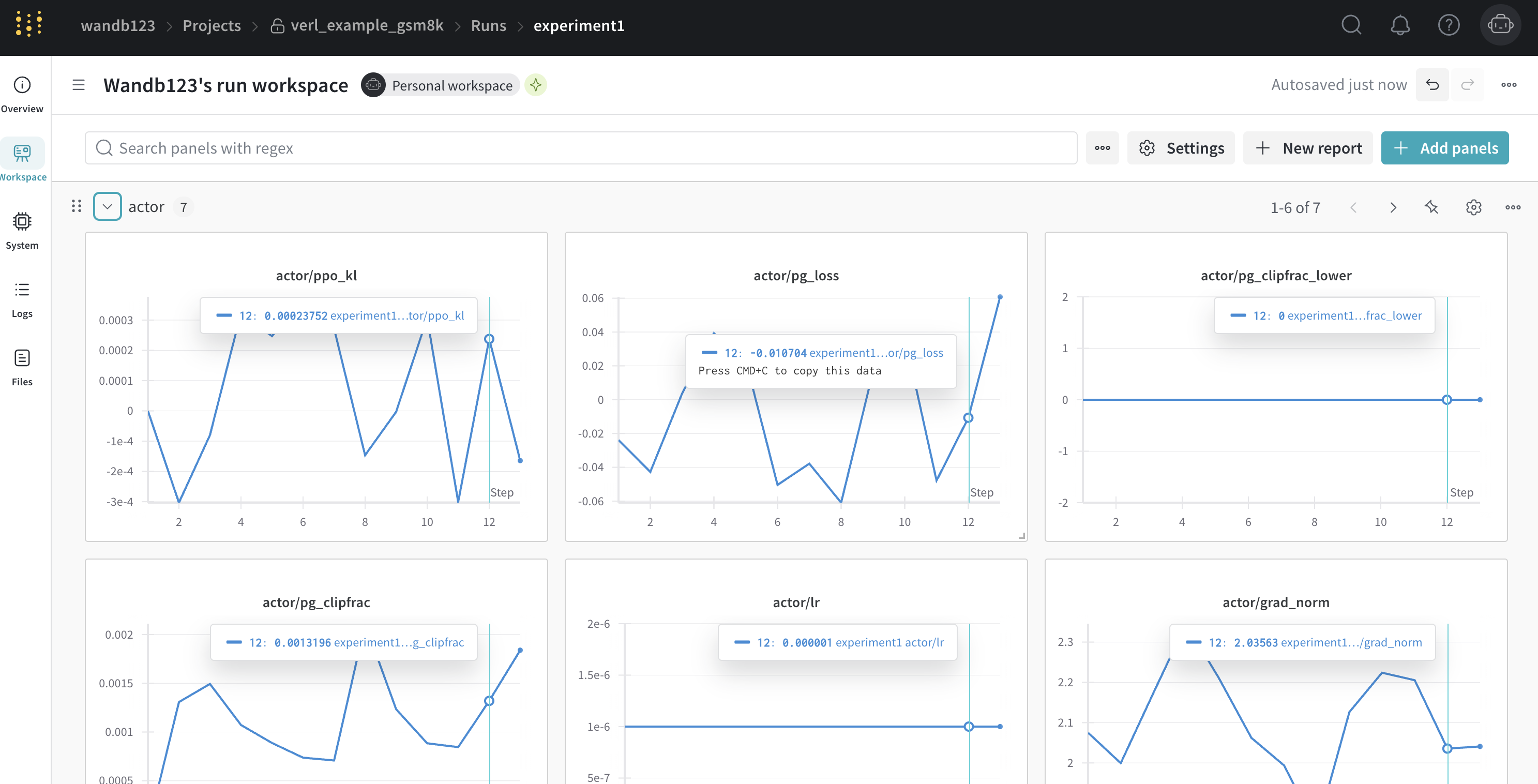
- After you complete the preceding configuration, you can view metric data during training on the wandb monitoring page.
Last updated: 2026.10.16 17:40:20
All rights reserved © Beijing Volcano Engine Technology Co., Ltd2024
