Volcengine Kubernetes Engine
Volcengine Kubernetes Engine
Volcengine Kubernetes Engine


Document
Volcengine Kubernetes Engine
What's New
History feature release notes
Kubernetes version release notes
Containerd runtime release notes
Add-on release notes
Monitoring add-ons
Scheduling add-ons
DNS add-ons
Security add-ons
GPU add-ons
Sandbox add-on
Security announcements
Product Announcement
Historical announcements
Overview
Getting started
User guide
Clusters
Creating clusters
Connecting to clusters
Upgrading clusters
Node pool
Creating node pools
Scaling out/in node pools
Nodes
Authorization management
Image
Namespaces
Networking
Cluster network
Container Network
Service
LoadBalancer
CLB
Ingress
APIG Ingress
ALB Ingress
Customize ALB Ingress forwarding rules
Certificate and security
CLB Ingress
Nginx Ingress
Gateway API
Workloads
Creating workloads
Configure workloads
Pods
Configuration management
Image acceleration
Storage
FSX client
EBS Volumes
TOS Volumes
NAS volumes
FSX access methods
NFS access methods
EFS volumes
vePFS volumes
FSX access methods
vePFS Client access methods
NFS access methods
CloudFS volumes
Local volumes
Autoscale
Node autoscaler
Workload autoscaler
Horizontal Pod Autoscaler (HPA)
Cron Horizontal Pod Autoscaler (CronHPA)
Intelligent Horizontal Pod Autoscaler (IHPA)
Horizontal Pod Autoscaler based on event-driven (KEDA)
Add-on management
Network add-ons
Storage add-ons
Monitoring add-ons
Scheduling add-ons
DNS add-ons
GPU add-ons
Core add-ons
Sandbox add-on
Upgrading add-ons
Heterogeneous computing
NVIDIA GPU
mGPU scheduling
RDMA high-performance computing
Scheduling management
Topology-aware scheduling
QoS-aware scheduling
Observability
Log management
Basic observation
Setup & Configuration
Cluster observation
Storage observation
Other observation
Using metrics
Full stack observation
Alert management
Diagnosis and inspection
Node check and self-healing
Application center
Backup center
Stability
Large-scale cluster management
Best practices
Authorization
Clusters
Nodes and node pools
Networking
Storage
Scheduling
Observability
Solution
Security and compliance
API reference
Cluster management
NodePool management
Node management
Virtual nodes management
Add-on management
Tag management
Access policy management
Instance images management
Cloud native observability
Inspection and diagnosis
Task management
Volcengine Container Instance
Appendix
SDK reference
Development guide
Terraform
FAQs
General FAQs
Cluster FAQ
cluster management
cluster network
cluster upgrade
Node and Node pool FAQs
Authorization FAQs
Workload FAQs
Service and Ingress FAQs
Storage FAQs
Heterogeneous computing FAQs
Observability FAQs
Quota FAQs
Add-on FAQs
Cloud-native AI
ServingKit
LLM applications
ComfyUI application
Deploying the Al inference application through Helm
Deepseek practices
Qwen practices
Kimi practice
Seed practices
Best practices
DeepSeek model deployment
GLM model deployment
MiniMax model deployment
Qwen model deployment
Kimi model deployment
Volcengine Container Instance
What's new
Historical feature release notes
Product Announcement
Overview
Billing
User guide
Integrating with VCI
Virtual node
VKE cluster uses virtual nodes
Self-managed/third-party cluster uses virtual node
Creating an instance
General purpose instance
GPU-accelerated computing instance
VCI Agent Sandbox
Startup acceleration
E2B-based management
Upgrade guide
Networking
Monitoring
Scheduling
Container configuration
VCI Image Cache
Best practices
Security and compliance
FAQs
- Documentation
 Volcengine Kubernetes EngineVolcengine Kubernetes EngineBest practicesNetworkingObtaining client IPs by using Ingresses
 Copy page
 Download PDF
Networking
Obtaining client IPs by using Ingresses
Copy pageDownload PDFObtaining client IPs by using Ingresses
This topic mainly describes how back-end pods of a workload obtain the IP address of external requests when those requests access the workload by using Ingresses.
warning
NGINX Ingress support will soon be discontinued. For details, see [Product announcement] NGINX Ingress EOM.
Flannel network cluster
- Log in to the VKE console.
- In the left navigation bar, click Cluster. In the right part of the page, click the target cluster name to open the management page of this cluster.
- Set the external traffic forwarding policy Spec.externalTrafficPolicy of the service that corresponds to ingress-nginx-controller to Local.
tip
- The ingress-nginx-controller is the service that corresponds to the Ingress controller generated after the ingress-nginx add-on is installed.
- In clusters that use the Flannel network model, to enable back-end pods to obtain client IP addresses, you need to set externalTrafficPolicy of the LoadBalancer service to Local. In this way, the IPVS of nodes can forward traffic only to the Nginx Ingress pods on the same nodes.
- Select Services and Ingresses > Service in the left navigation bar.
- Find ingress-nginx-controller under the kube-system namespace and in the Actions column, click ... > Edit Yaml.
- Change the value of Spec.externalTrafficPolicy to Local.
- Click Confirm to save the configuration.
- Configure the ConfigMap that corresponds to ingress-nginx-controller, and add the required fields for obtaining the client IP address.
- In the left navigation bar of the cluster management page, click Configurations > ConfigMap.
- Find ingress-nginx-controller under the kube-system namespace and in the Actions column, click ... > Edit Yaml.
- Add the following fields in the data block of the ConfigMap.
- data:use-forwarded-headers: "true"compute-full-forwarded-for: "true"forwarded-for-header: X-Forwarded-For...
- Click Confirm to save the configurations.
- After you complete the configuration, find ingress-nginx-controller in the Deployment list and redeploy it to make the new configurations take effect.
VPC-CNI network cluster
- Log in to the VKE console.
- In the left navigation bar, click Cluster. On the page that appears, click the name of the target cluster to go to the management page of the cluster.
- Configure the ConfigMap that corresponds to ingress-nginx-controller, and add the required fields for obtaining the client IP address.
- In the left navigation bar of the cluster management page, click Configurations > ConfigMap.
- Find ingress-nginx-controller under the kube-system namespace and in the Actions column, click ... > Edit Yaml.
- Add the following fields in the data block of the ConfigMap.
- data:use-forwarded-headers: "true"compute-full-forwarded-for: "true"forwarded-for-header: X-Forwarded-For...
- Click Confirm to save the configurations.
- After you complete the configuration, find ingress-nginx-controller in the Deployment list and redeploy it to make the new configurations take effect.
Validating results
Prerequisites
In this topic, a client is simulated through an Nginx image. Therefore, before you verify the result, you also need to perform the following preparations:
- Install the ingress-nginx add-on on the cluster. For details, see Installing add-ons.
- Upload an open source Nginx image to CR to simulate the back-end service when the operation results are being verified. For details, see Pushing and pulling images.
- Prepare a host that can access the public network to simulate an external client. This client must be deployed outside the cluster where the Ingress is located.
tip
You can create an ECS instance that can access the public network as the execution machine. For detailed operations, see Purchasing instances by using the wizard.
Step 1: Deploy an application and service
tip
In a cluster using the Flannel container network model, when the externalTrafficPolicy of a LoadBalancer Service is set to Local, the LoadBalancer IP becomes inaccessible if there are no Nginx Ingress Pods on the node. The IP address is mistakenly treated as an extended IP of the Service and is intercepted and forwarded by IPVS, leading to network connectivity failures. For more information about related issues, see Community documentation.
Therefore, the following content uses a Deployment to simulate the Nginx Ingress pod of the back-end service.
- Use an Nginx image to create a Deployment for simulating the back-end service. For details, see Creating Deployments.
- Create a service of the LoadBalancer type and associate it with the Deployment created in Step 1.
Step 2: Create an Ingress
Create an Ingress and associate it with the service of the LoadBalancer type created in Step 2. For detailed operations, see Creating Nginx Ingresses in the console.
warning
The namespace to which the Ingress belongs must be consistent with the namespace of the Deployment.
Step 3: Verify access
- Log in to the public network host.
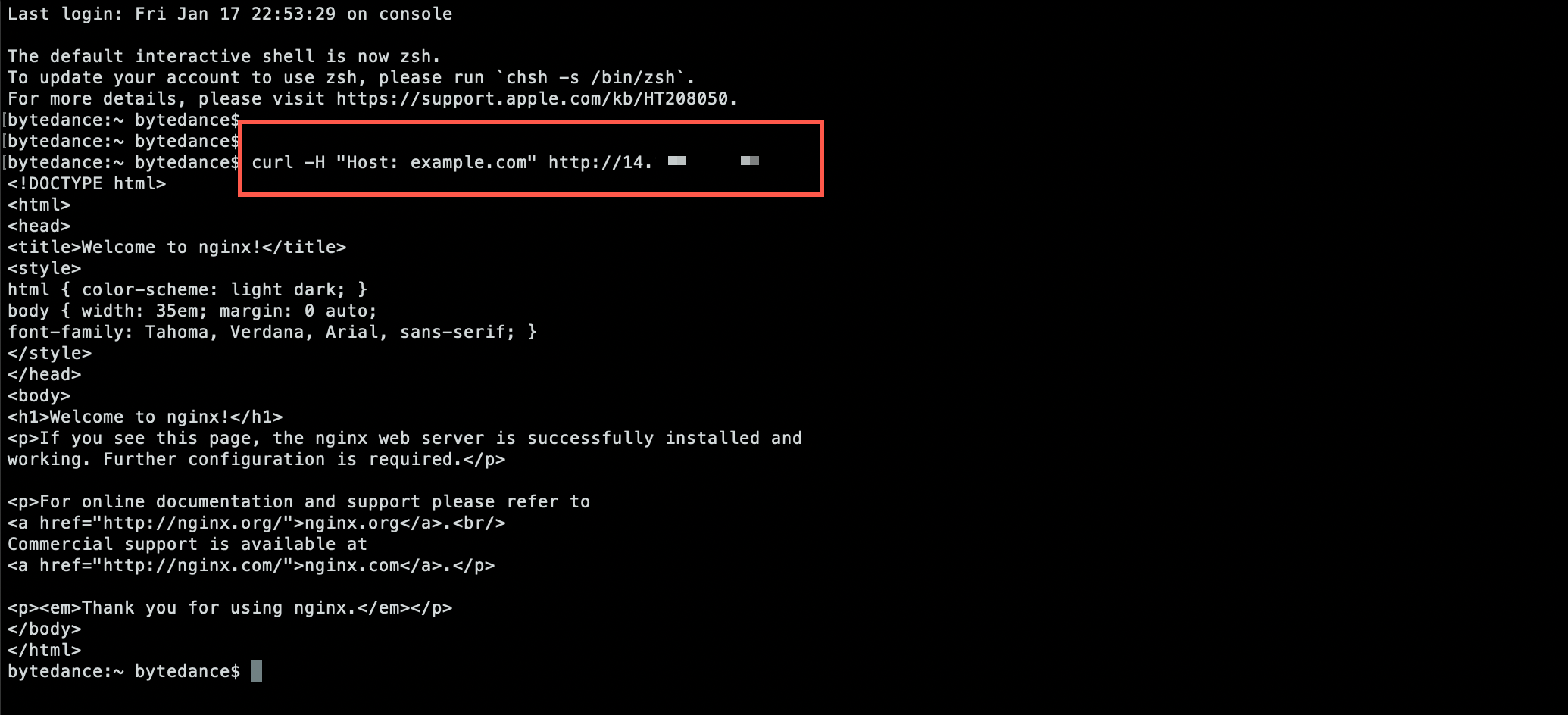
- Run the following command to access the domain name configured in the Ingress. 14.**.**.** is the public IP address of the Ingress.
- curl -H "Host: example.com" http://14.**.**.**
- The expected response result is as follows, in which the back-end service can be accessed as expected.
-
- Go to the details page of the back-end Deployment (nginx) created in Step 1. Click the Log tab, and view the pod logs of the back-end service. You can see that the X-Forwarded-For IP in the logs is the client IP address.
Last updated: 2026.07.23 11:53:56
All rights reserved © Beijing Volcano Engine Technology Co., Ltd2024
