Volcengine Kubernetes Engine
Volcengine Kubernetes Engine


Document

- Documentation
 Volcengine Kubernetes EngineVolcengine Kubernetes EngineUser guideNetworkingServiceLoadBalancerCLBCreating CLB services via the console
 Copy page
 Download PDF
CLB
Creating CLB services via the console
Copy pageDownload PDFCreating CLB services via the console
Volcengine Kubernetes Engine can provide LoadBalancer services. This topic describes how to create a LoadBalancer Service via the console.
warning
Before configuring a LoadBalancer Service, be sure to carefully read Considerations for using LoadBalancer services.
Limits
- We recommend configuring CLB parameters directly in the VKE console. For settings unavailable in the console, use annotations to complete the configuration. Configuring annotations by editing Yaml is recommended.
- Only the VPC-CNI network model supports the LB-to-pod direct access mode, which allows direct binding of the auxiliary Pod ENI to the backend of a CLB instance.
tip
In LB-to-pod direct access mode, the number of backend servers allowed by a CLB instance is limited and must be planned appropriately. For details about the limitations, see Constraints and limits of CLB.
Prerequisites
- A workload has been created. For details, see Creating Deployments, Creating StatefulSets, and Creating DaemonSets.
tip
Currently, only the following workloads can be associated: Deployment, StatefulSet, and DaemonSet.
Procedure
- Log in to the VKE console.
- In the left navigation bar, click Cluster.
- On the cluster list page, click the cluster you want to configure.
- In the left navigation pane of the cluster management page, click Services and Ingresses > Service. On the page that appears, click Create Service to configure a Service.
- Basic information
-
- Access configuration
- ParameterDescriptionAccess typeConfigure the access type for the Service. For this example, select LoadBalancer.Load balancing typeSpecify the load balancer type. In this example, select CLB.Communication protocol[Beta - apply for trial] For IPv4/IPv6 dual-stack clusters, you can configure the service communication protocol as needed to support scenarios in which services are accessed over IPv6 addresses. The options include:
- IPv4: IPv4 addresses only.
- IPv4&IPv6: Both protocols are allowed, but the IPv4 addresses will be used by default.
- IPv6&IPv4: Both protocols are allowed, but the IPv6 addresses will be used by default.
tipFor details about how to create IPv4/IPv6 dual-stack clusters, see Creating IPv4/IPv6 dual-stack clusters with VKE.LB-to-pod direct access modeThis parameter is shown only in clusters using the VPC-CNI network model. It is enabled by default. When it is enabled, the Pod ENI is directly bound to the backend of the load balancer. Note that the CLB cannot handle too many backend servers. Therefore, you need to make sure the number of servers is acceptable to the CLB in the topology. For details about the limitations, see Constraints and limits of CLB.Load balancerConfigure the load balancer instance for the Service. You can select an instance or have one automatically created as needed. There are two access modes: Public NAT for internet endpoint and Private network.tipA LoadBalancer service running with the protocol set to IPv4&IPv6 or IPv6&IPv4 can only be accessed within a private network by default. However, you can expose it on the Internet by:- If Internet access over IPv4 is required, you can bind a public IPv4 address to the service on the CLB console page.
- If Internet access over IPv6 is required, you can enable IPv6 Internet bandwidth for the service on the CLB console page.
- Use existing: Use an existing CLB instance that is not used by VKE. Using an existing CLB instance will not bring any changes to the existing listener rules of that instance.
- We recommend creating a new CLB instance unless it is required to use the existing ones.
- auto create: Automatically create a new CLB instance. You need to configure the following parameters. For detailed parameter descriptions, see Creating LoadBalancer instances.
warning- Do not use the CLB instances automatically created with other Ingress or Service resources. Otherwise incomplete reclamation of resources might happen.
- The CLB instances automatically created will be deleted if the service is removed. Do not manually modify the listeners of these CLB instances.
- Only the CLB instances of Pay-as-you-go will be created.
- In the case of using existing CLB instances, those created through the LoadBalancer console are the only instances supported, instead of the ones created through the Volcengine Kubernetes Engine console.
- The CLB created through Volcengine Kubernetes Engine console features multiple availability zones. If the CLB in the current region supports cross-availability zone fault tolerance, a primary and a standby availability zone will be attached to the CLB instance. It allows traffic to be switched to the standby zone as soon as the primary one fails.
- Name: Enter a name for the CLB instance.
- Availability zone: Select a primary availability zone and a standby availability zone for the CLB instance to ensure high availability. If you do not select any zone, the following logic will be applied:
- For a region that only has a single availability zone, a CLB instance with that zone is created.
- For a region that has more than one availability zone, a CLB instance with a primary and standby availability zone is created according to the zones available in that region.
- Billing type: Select a billing type for the CLB instance. Pay-as-you-go is supported.
- Billing method: Select a billing method for the CLB instance. Billing by specification is supported.
- Instance specification: the specification of the CLB instance. You can choose a specification according to the performance requirements of different business scenarios. For details, see Product types and specifications.
tip- To update configurations of CLB instances, you need to enable the option Updating instance first.
- Before updating the CLB in the console, ensure that the specification you are about to use is no lower than the current one to provide sufficient capacity for business traffic.
- Write protection: Specify whether to enable modification protection for the CLB instance. If enabled, the configurations of the CLB instance cannot be modified through the console or API.
- Subnet: Select a subnet in a private network to deploy the CLB instance and allocate a private IP. The private IP of a CLB instance cannot be changed after being created successfully.
- IP version: Select an IP version for the CLB instance. IPv4 is the only version currently supported. This setting cannot be modified.
- Line type: Select the line type of the public IP. Different line types vary in performance and billing. Supported line types include BGP (multi-line), BGP convergence, China Mobile, China Telecom, and China Unicom.
warningLine types except BGP (multi-line) are beta features of the EIP product. To apply for these types, please contact your account manager.- Billing method: billing methods for Internet access include:
- Pay-as-you-go - bandwidth limit: It will be charged based on usage duration with an upper limit on bandwidth.
- Pay-as-you-go - actual traffic: It will be charged based on the actual amount of traffic flowing to the Internet instead of usage duration.
- Bandwidth limit: Specify the maximum bandwidth for the public IP. Unit: mbit/s. The upper limit of bandwidth can be changed anytime as needed.
- Shared bandwidth package: disabled by default. You can enable Add to shared bandwidth package and select an existing shared bandwidth package if necessary.
tipA shared bandwidth package is a reusable cloud resource for sharing bandwidth. It aggregates multiple public IPs and IPv6 public bandwidths from the same region into a shared bandwidth pool, reducing public bandwidth costs through bandwidth sharing. For details, seeWhat is a shared bandwidth package.ListenersThe listener is responsible for monitoring the requests on the Load Balancer and distributing traffic. You need to select a scheduling algorithm for the listener and decide whether to enable health check:- Scheduling algorithm: These are the rules that the listener follows when forwarding requests.
- Weighted Round Robin: Traffic is forwarded based on weight values. The higher the weight of the backend server, the more frequently (probabilistically) it is selected as the forwarding destination.
- Weighted Least Connection: Traffic is forwarded first to the backend with the smallest real-time ratio of connections to weight.
- Source Hashing: Requests from the same source IP are forwarded to the same backend server based on consistent hashing on the source IP address.
- HTTPS listening: Select whether to enable HTTPS listening as needed. To enable HTTPS listening, you need to specify the following parameters:
- Certificate source: Select the certificate source. Volcano Engine Certificate Center and the certificate management module in the CLB console are supported.
tip- When you use a certificate from Volcano Engine Certificate Center for the first time, complete the authorization for cross-service access requests based on the on-screen prompts.
- To facilitate centralized certificate management, CLB is integrated with Volcano Engine Certificate Center. We recommend uploading certificates in the Certificate Center console. In the Certificate Center, you can perform all certificate-related operations, including purchasing, uploading, renewing, and deleting certificates.
- Select a server certificate: Select a server certificate from the drop-down list.
- TLS security policy: Select whether to enable the Transport Layer Security (TLS) security policy.
- Select policy: Select a TLS security policy. Valid values:
- tls_cipher_policy_1_0: Supports TLS v1.0, TLS v1.1, and TLS v1.2.
- tls_cipher_policy_1_1: Supports TLS v1.1 and TLS v1.2.
- tls_cipher_policy_1_2: supports TLS v1.2.
- tls_cipher_policy_1_2_strict: supports TLS v1.2.
- tls_cipher_policy_1_3: Supports TLS v1.3.
- tls_cipher_policy_1_2_strict_with_1_3: Supports TLS v1.2 and TLS v1.3.
tipThe tls_cipher_policy_1_3 and tls_cipher_policy_1_2_strict_with_1_3 policies are beta features of the CLB service. Contact your account manager for a trial. Make sure that these policies can be selected in the CLB console before use.- Two-way authentication: Select whether to enable two-way authentication. Two-way authentication means that both the client and the server verify the legitimacy of each other. If it is enabled, select a CA certificate from the CA certificate drop-down list. For more information about two-way authentication, see Two-way authentication.
- Health check: Set whether to enable health checking as needed. If enabled, the following parameters are available:
- Response timeout: The waiting time for a health check response. If the backend server does not respond correctly within the specified time, it is considered anomalous.
- Detection interval: the time interval between health check requests. The default interval is 2 seconds, which means the back-end server is checked every 2 seconds.
warningThe time interval of health check needs to be longer than the response timeout.- Health threshold: The number of health check requests required to determine that the backend server is running as expected. The default value is 3, meaning a backend server is marked "healthy" if all 3 requests return normal responses.
- Unhealthy threshold: The number of consecutive health check failures required to mark a backend server as unhealthy. The default value is 3, meaning a backend server is marked "unhealthy" if all 3 requests return abnormal responses.
Port mappingCreate the mapping between the Service port and the container port:- Name: Enter a name for the port mapping.
- Service level port: Enter a port used to access the Service. Duplicate ports are not allowed for Services using the same protocol.
- Protocol: select TCP or UDP.
- Container port: Specify the port of the container, which is a port number through which the workload provides services externally. e.g., the default port number for Nginx is 80.
External traffic policyThe policies that the service will use to forward inbound traffic: - Cluster: Traffic is forwarded evenly to each Pod of the workload.
- Local: Traffic can only be forwarded to the local pods on the current node, which may cause an unbalanced traffic distribution. However, the source IPs can be retained.
Label selectorServices are bound to backend pods through label selectors.- Add new: Specify the label on the workload to which the Service will be bound. You can find workload labels by clicking Workload in the left navigation pane of the cluster management page.
- Associated workload: Select the deployment with which the service will be associated. Currently, only Deployment, StatefulSet, and DaemonSet are supported.
warningWhen a LoadBalancer Service is associated with workloads deployed using VCI, only the LB-to-pod direct access mode is supported. In this case, the LB-to-pod direct access mode is enabled by default and cannot be disabled.Session persistenceWhether to enable session persistence.- Disabled by default.
- Check Configure timeout to enable session persistence and set its duration. The service will forward all requests from the same IP to a single back-end server. We recommend setting a timeout longer than 120 seconds.
tipWe recommend setting a session timeout for the LoadBalancer service to be the same as that for the CLB listener. For details, see FAQ.
- Click Confirm to finish.
Validate results
Viewing the services
The LoadBalancer service you created successfully can be found in the service list. The External endpoint column shows the public or private IP address of the CLB instance connected to this service.
The option Edit Yaml in the Actions column allows you to view the detailed configurations of the LoadBalancer service, including the CLB instance ID mapped to the service. You can use the ID to find the corresponding CLB instance in the LoadBalancer console.
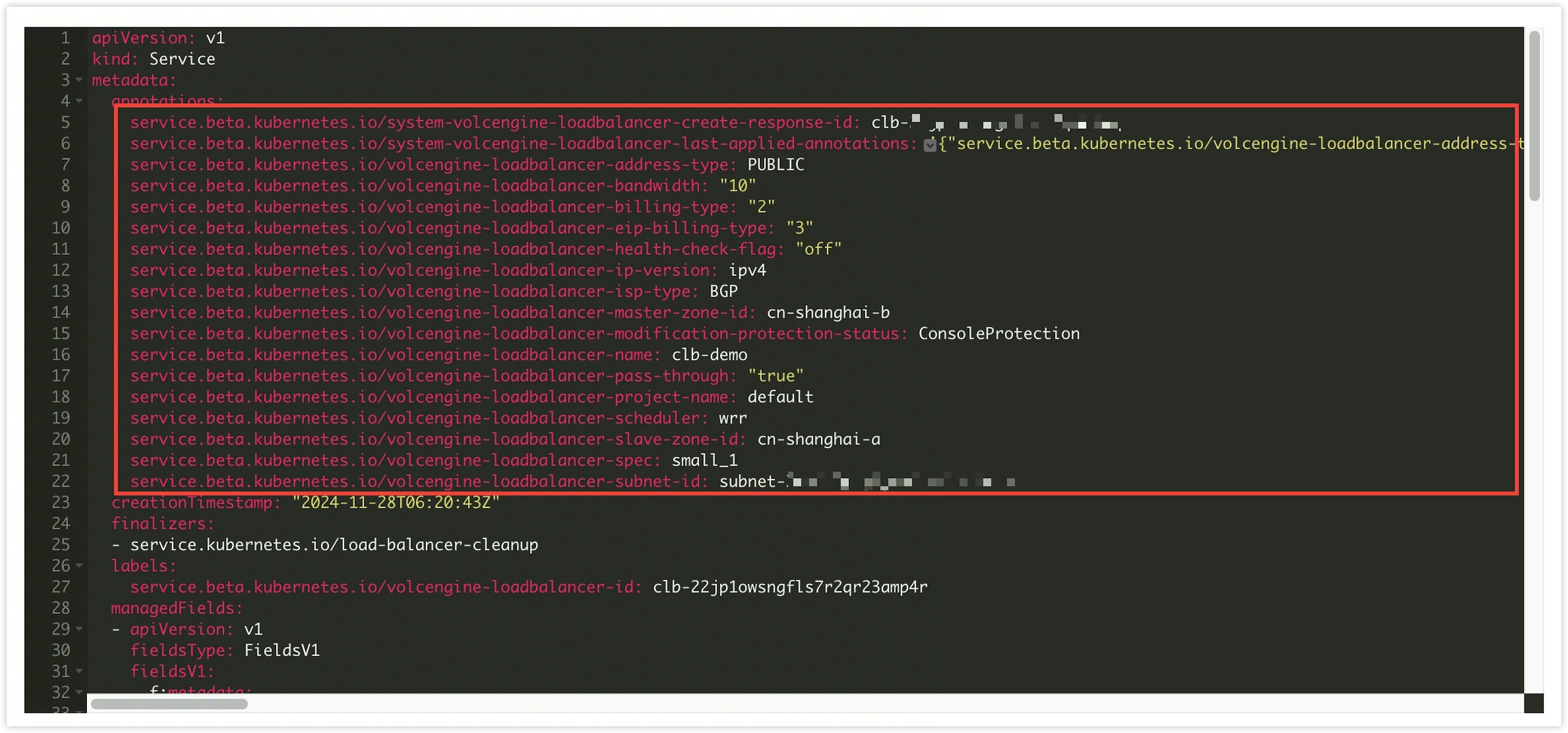
tip
For details about the annotations involved in LoadBalancer service configurations, see Configuring LoadBalancer services using annotations.
Testing the services
To test the services, you can send requests to the public or private IP provided in the External endpoint column.
Last updated: 2026.10.15 11:15:50
All rights reserved © Beijing Volcano Engine Technology Co., Ltd2024
