Volcengine Kubernetes Engine
Volcengine Kubernetes Engine


Document

- Documentation
 Volcengine Kubernetes EngineVolcengine Kubernetes EngineUser guideHeterogeneous computingNVIDIA GPUAutomatically installing GPU drivers
 Copy page
 Download PDF
NVIDIA GPU
Automatically installing GPU drivers
Copy pageDownload PDFAutomatically installing GPU drivers
VKE provides the automatic GPU driver installation feature for NVIDIA GPU node pools. This feature supports the automatic installation of specified GPU drivers for nodes that are created through public images. This topic describes how to automatically install GPU drivers on GPU nodes.
Background
VKE provides system images with preset GPU drivers. When you create a node pool, you can directly select a preset image to install both the base image and the GPU driver for the nodes. If the system image with preset GPU drivers does not meet your business requirements, you can also select a GPU driver version by using node pool labels or the console.
Batch installation suggestions
If you need to install GPU drivers for multiple nodes in a cluster at a time, we recommend first using the automatic installation of drivers in the background feature to install drivers on a small number of nodes. Then, create a custom image based on those nodes and use the image to scale out multiple nodes at a time. This prevents repeated driver downloads on each node and significantly reduces batch scale-out time.
- Create or edit a node pool, enable the automatic installation of drivers in the background feature, and then select the target GPU driver version. For details, see the Procedure section.
- Scale out one node in the node pool to install the specified GPU driver.
- Use the ECS instance that corresponds to the node to create a custom image that includes the GPU driver. For details, see Creating custom images by using ECS.
- Use the custom image to scale out multiple nodes at a time to install the GPU driver on these nodes. In this case, you do not need to enable the automatic installation of drivers in the background feature.
warning
- If you stop or restart the instance before the GPU driver is installed, the installation will be interrupted. After a restart, the instance will not have the GPU driver installed, and the installation will not resume.
- During automatic GPU driver installation, the driver installation package will be downloaded. We recommend keeping the system volume capacity not less than 40 GB. This prevents installation failures due to insufficient disk space.
Specifying GPU drivers by using the console
When you configure a node pool in the console, you can select a base system image (such as veLinux and Ubuntu) and specify a GPU driver version. The following table describes GPU drivers and the corresponding public images and GPU instance families supported by VKE.
tip
- The driver versions supported by different instance specifications are regularly updated. The supported driver versions displayed in the console shall prevail.
- You can use the ListSupportedGpuDriverVersions API to obtain the GPU driver versions that can be installed for the specified system image.
GPU driver | Public images | GPU instance family |
580.105.08 | Ubuntu 22.04 |
|
| |
|
570.86.15 | Ubuntu 22.04 |
|
| |
|
550.144.03 | Ubuntu 22.04 |
|
| |
|
| |
|
550.127.05 | veLinux 1.0 |
|
| |
|
| |
|
535.261.03 |
|
|
| |
|
| |
|
Specifying GPU drivers by using labels
When you configure a node pool, you can select a GPU driver version by using the label vke.volcengine.com/nvidia-driver-version. The driver versions that can be selected through the label are as follows:
- 470.161.03
- 535.129.03
- 535.183.06
tip
When you add the preceding GPU driver versions by using the node pool label, take note of the following items during node configuration:
- System image: Only the following public images are supported: veLinux Standard Edition and Ubuntu.
- Instance type: Only High Performance Computing Optimized and certain GPU Accelerated instance families are supported. GPU rendering instance families that end with vws are not supported.
Usage limits
- Disclaimer: This feature cannot guarantee that all drivers are available for all GPU types. Therefore, you need to make sure that the selected GPU driver version is compatible with the GPU type and is fully tested. Otherwise, issues such as performance degradation and unknown risks may occur.
- VKE does not guarantee compatibility between the provided GPU driver versions and all GPU models. You need to verify the compatibility. For more details, see the official NVIDIA documentation.
- VKE does not guarantee compatibility between the provided GPU driver versions and business applications, which means compatibility with CUDA library versions. You need to verify the compatibility.
- VKE does not guarantee compatibility between the provided GPU driver versions and other VKE GPU components, such as monitoring components.
- Only some GPU driver versions are supported. If the supported versions do not meet the requirements of your actual usage scenarios, you can install custom GPU drivers. For more details, see Installing custom GPU drivers.
Considerations
When you specify GPU driver information during node pool configuration, driver installation is triggered only when nodes are added to the node pool and identified based on the configurations of the node pool. Common usage scenarios are as follows:
- When you create a node pool, all nodes are newly added to the pool. These nodes can be identified to trigger driver installation based on the node labels in the node pool. We recommend using this method for the custom GPU driver feature.
- New nodes added to an existing node pool are still considered newly added nodes. They can be identified by the node labels in the node pool to trigger driver installation.
- Existing nodes in a node pool are not considered newly added nodes, which cannot be identified based on the node labels in the node pool to trigger driver installation. The following solutions are for reference:
- Solution 1: Manually remove existing nodes and add them again. Make sure that the normal operations of your business are not affected.
- Solution 2: Use the node scaling feature to scale in all existing nodes and then scale out the nodes again. Make sure that the normal operations of your business are not affected.
Procedure
This topic uses creating a node pool as an example to describe how to specify GPU drivers for nodes during node pool configuration.
- Log in to the VKE console.
- In the left navigation pane, click Cluster. Click the target cluster name to go to the management page of this cluster.
- In the left navigation bar, click Node pool to go to the node pool management page.
- Click Create node pool or click Edit in the Actions column that corresponds to an existing node pool to configure the image and driver.
- Select Public images for the Operating system parameter. This topic uses veLinux 1.0 as an example.
- Select Automatically install drivers in the background, and select the GPU driver version to install from the drop-down list.
- Click Confirm.
danger
- This method only applies to the installation of driver versions 470.161.03, 535.129.03, and 535.183.06.
- Make sure that the used driver version is supported by the GPU model. Otherwise, the GPU driver cannot be installed, and node scale-out will fail.
- Log in to the VKE console.
- In the left navigation pane, click Cluster. Click the target cluster name to go to the management page of this cluster.
- In the left navigation bar, click Node pool to go to the node pool management page.
- Click Create node pool or click Edit in the Actions column that corresponds to an existing node pool. In the More configurations section, add the vke.volcengine.com/nvidia-driver-version node label to the node pool. In this topic, the label value is the GPU driver version, which is 535.183.06. For other parameter configurations of the node pool, see Creating managed node pools.
-
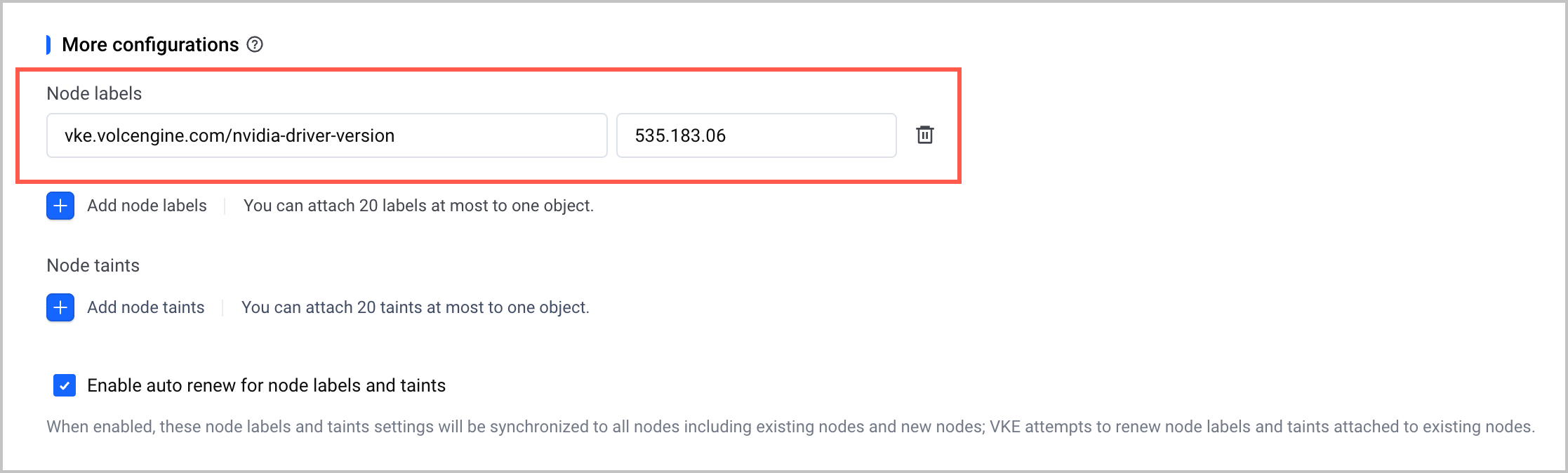
- Click Confirm.
Validate results
- Use ECS Terminal to log in to the node. For details, see ECS Terminal.
- Run the following command to view GPU-related information.
-
- The expected result is as follows: Driver Version matches the driver version number configured in the node pool. In this example, the version number is 535.183.06, which indicates that the NVIDIA driver is automatically installed.
-
Related documentation
Last updated: 2026.07.24 14:51:38
All rights reserved © Beijing Volcano Engine Technology Co., Ltd2024
