Volcengine Kubernetes Engine
Volcengine Kubernetes Engine


Document

- Documentation
 Volcengine Kubernetes EngineVolcengine Kubernetes EngineUser guideHeterogeneous computingmGPU schedulingConfiguring mGPU scheduling
 Copy page
 Download PDF
mGPU scheduling
Configuring mGPU scheduling
Copy pageDownload PDFConfiguring mGPU scheduling
This topic mainly describes how to use the mGPU feature in Volcengine Kubernetes Engine (VKE) to enable multiple containers to share a GPU.
Limits
- A pod cannot use mGPU and RDMA add-ons simultaneously.
- mGPU cannot be used together with privileged containers. Otherwise, the containers will fail to be created or deleted.
- When you use the mGPU feature, take note of the following environment requirements and usage limits on clusters and GPUs.
Project | Requirement |
Kubernetes version | The version must be v1.20.15-vke.4 or later. |
Operating system | When you create a cluster, if you specify a public image provided by VKE as the operating system, the system will automatically configure an operating system of the corresponding version. Currently supported operating systems include veLinux 1.0, veLinux 1.0 CentOS Compatible, velinux 2.0, Ubuntu 20.04, and Ubuntu 22.04. |
Kernel Version | When you create a cluster, if you specify a public image provided by VKE as the operating system, the system will automatically configure an operating system kernel of the corresponding version. Currently, kernel version 5.4 is supported. |
NVIDIA driver version | Use v470, v535, v550 or v580. The officially supported minor versions shall prevail. For more details, refer to Overview of operating system images. When you create a GPU-accelerated node pool, the system will automatically configure an NVIDIA driver of the corresponding version. |
GPU | VKE supports mainstream NVIDIA GPU types such as Turing, Volta, Ampere, Hopper, and Ada Lovelace. If you have requirements for other types of GPUs, consult official pre-sales or technical support. For node instance types supported by different types of GPUs, refer to Specifications of GPU cloud computing instances. |
Number of mGPUs (corresponding to the number of containers) | Up to 16 mGPUs can be created for one GPU. Computing performance deteriorates as the number of mGPUs increases. It is recommended that you plan the number of mGPUs that are deployed on a single GPU based on the resource size requested by containers. |
Number of containers | When you use mGPU, it is recommended that the number of containers in a single pod does not exceed 5. |
Scheduler description
mGPU must be used together with the scheduler-plugin add-on to achieve shared GPU scheduling among containers. The scheduler-plugin add-on extends the scheduling capability and policy of the native kube-scheduler, which allows you to configure Binpack or Spread policies for GPU nodes and GPU cards. For the detailed introduction to the add-on and scheduling policy configuration descriptions, refer to the scheduler-plugin section of the Installing an add-on topic.
warning
In this topic, you need to install the scheduler-plugin add-on when you create a cluster, and cannot modify the configurations of the add-on after it is configured for the first time. Therefore, when you configure the add-on during the creation of the cluster, configure the Binpack or Spread scheduling policy based on your business requirements.
If you do not modify the scheduling policy of the scheduler-plugin add-on when you create the cluster, mGPU will adopt the following default scheduling policy:
GPU node scheduling policy | GPU card scheduling policy | Scheduling mode | Application scenarios |
Spread | Binpack |
| High fault isolation performance is achieved among nodes and a small number of fragmented resources exist. |
Prerequisites
tip
If you need to use an mGPU computing power allocation policy, make sure that the version of the mgpu add-on is v0.0.3 or later. For detailed description, refer to Configuring an mGPU computing power allocation policy.
Procedure
Step 1: Create a GPU node pool
- Log in to the VKE console.
- In the left navigation bar, click Cluster. In the cluster list, click the name of the target cluster name to open the cluster management page.
- In the left navigation bar, click Node pool.
- On the Node pool page, click Create node pool to create a node pool that meets your requirements. For parameter details, see Creating node pools.
- For Instance type, select GPU Accelerated to add nodes with GPUs to the cluster.
- In the Advanced settings section, click Add new to add a GPU scheduling label to the node pool.
- Set the key to vke.node.gpu.schedule and the value to mgpu. This setting enables mGPU scheduling and GPU video memory isolation for nodes in this node pool.
warning
- For details and considerations for using the GPU scheduling label, see GPU scheduling overview.
- You can select or deselect Enable auto renew for node labels and taints to determine whether to synchronously add new labels to existing nodes in the pool. If you disable this feature, the GPU scheduling capability on existing nodes may not meet your expectations. Proceed with caution.
- Set the label key to vke.volcengine.com/mgpu-compute-policy and the label value to fixed-share, guaranteed-burst-share, or native-burst-share. This sets a computing power allocation strategy for nodes in the node pool.
tip
Step 2: Configure a workload
This topic uses the creation of a stateless workload (Deployment) as an example. For detailed steps, see Creating Deployments.
Creating through the console
- In the left navigation bar of the cluster management page, click Workload > Deployment.
- On the Deployment page, create a Deployment or update an existing Deployment. In the ResourceQuota section of the Container configuration step, configure GPU resources based on your business requirements.
-
- After configuring other parameters, click Confirm.
Creating through kubectl
warning
In mGPU use scenarios, the value of the requests field must be consistent with that of the limits field.
Use YAML to create a workload that applies mGPU scheduling:
Validating results
Viewing GPU card information
You can use the mGPU Client (mgpu-cli) to view mGPU-related information in the terminal.
- Log in to the node where the pod is located. You can log in to the node through ECS Terminal. For detailed operations, refer to the ECS Terminal section of the Managing nodes topic.
- Run the following command to view graphics card information.
-
- The system returns a response similar to the following one. You can view information about the graphics card, such as the percentage of its unassigned computing power and its scheduling policy.
-
- Metric nameMetric meaningcompute_free_weight_onlineThe percentage of unassigned computing power of the device (70% in this example).compute_load_balance_modeThe load balancing mode among containers when the containers use the device.compute_policySpecify a computing power scheduling policy. Valid values:
- 0: fixed-share
- 1: guaranteed-burst-share
- 2: native-burst-share
compute_timesliceThe percentage of the computing power time slice.device_major/dev/mgpuX is the major device number.instance_major/dev/mgpuXinstY and /dev/mgpuXctl-$(container_id) are the major device numbers.vmem_free_bytesThe remaining GPU memory capacity of the device. Unit: byte.
Viewing container-level mGPU information
- Log in to the node where the pod is located. You can log in to the node through ECS Terminal. For detailed operations, refer to the ECS Terminal section of the Managing nodes topic.
- Run the following command to view mGPU information at the container level.
-
- The system returns a response similar to the following one. You can view container-level mGPU video memory allocation details.
-
- Metric nameMetric meaningcontainer_idThe container ID.device_idThe device ID that corresponds to the instance.instance_idThe instance ID.compute_weightThe percentage of offline computing power allocated to the instance.compute_weight_native_burstThe percentage of computing power allocated to this instance under the native burst policy.compute_weight_onlineThe percentage of online computing power allocated to the instance.onlineWhether it is an online container.vmem_infoInformation about the video memory requested by a container, including free video memory, PID, and used video memory.vmem_limitThe upper limit on the video memory requested by a container.
Viewing mGPU monitoring data
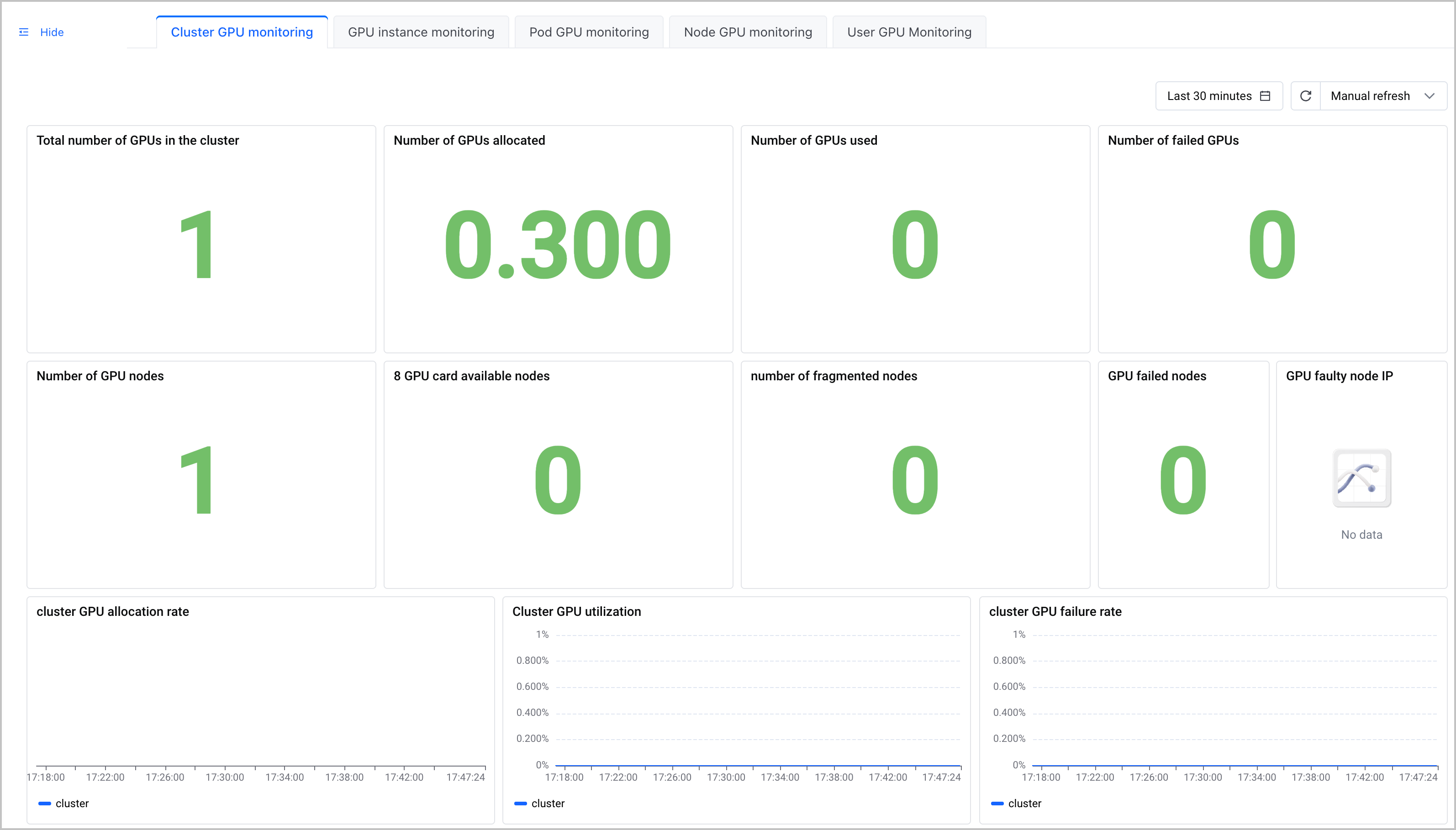
You can monitor various mGPU metrics by using cloud-native observability. For details, see AI resource observability.
Related documentation
Last updated: 2026.08.17 17:37:37
All rights reserved © Beijing Volcano Engine Technology Co., Ltd2024
