Volcengine Kubernetes Engine
Volcengine Kubernetes Engine


Document

- Documentation
 Volcengine Kubernetes EngineVolcengine Kubernetes EngineUser guideStorageFSX clientUpgrading FSX clients
 Copy page
 Download PDF
FSX client
Upgrading FSX clients
Copy pageDownload PDFUpgrading FSX clients
The FSX client (fsx-agent) supports image version upgrades through FSXSet. Multiple upgrade solutions, including rolling upgrade, canary upgrade, and rotation upgrade, are supported. This topic describes the trigger methods, applicable scenarios, and selection recommendations for each upgrade solution. This helps users select an appropriate upgrade strategy based on business continuity requirements.
Upgrade solutions
As FSX features continue to evolve, you need to upgrade the FSX client to obtain new capabilities, fix known issues, and improve operational stability. By upgrading the FSX client, you can enable the node‑side client to acquire new mounting capabilities, compatibility optimizations, and bug fixes without affecting business applications.
VKE clusters manage FSX clients across the entire lifecycle, such as creation, deletion, and upgrade, through FSXSet custom resources. We recommend selecting an appropriate client upgrade strategy based on your business requirements, release notes, and cluster status. The following table describes currently supported upgrade strategies.
Upgrade solution | Upgrade behavior | Application scenario | Features |
Rolling upgrade | After you modify the image field of FSXSet, FSXSet performs a rolling upgrade on all nodes in the target cluster. | The FSX client versions in the cluster need to be unified within a short period. |
|
Canary upgrade |
| The new version needs to be verified on a small number of nodes first. After confirming the version stability, you can expand the upgrade scope. |
|
Rotation upgrade (OnLabel) |
| The original version is stable, the cluster is large in scale, or you want to minimize impacts on workloads when FSX clients are proactively replaced. |
|
Considerations
- A hot upgrade of the FSX client may cause brief service disruption. We recommend performing the upgrade during off-peak business hours to minimize the impact.
- During a rolling upgrade, the system will create a new FSX client pod on the node. This results in the coexistence of both new and old Pods for a short period, doubling the cluster resource consumption. To prevent upgrade failure due to insufficient resources, make sure that each node in the cluster has sufficient resources for the upgrade.
tip
During the upgrade, a headroom Pod is created to pre‑occupy resources. If resources are insufficient, the upgrade will not be triggered and will not affect existing workloads.
Preparations
- In the left navigation bar of the cluster management page, go to Cluster management > Addons.
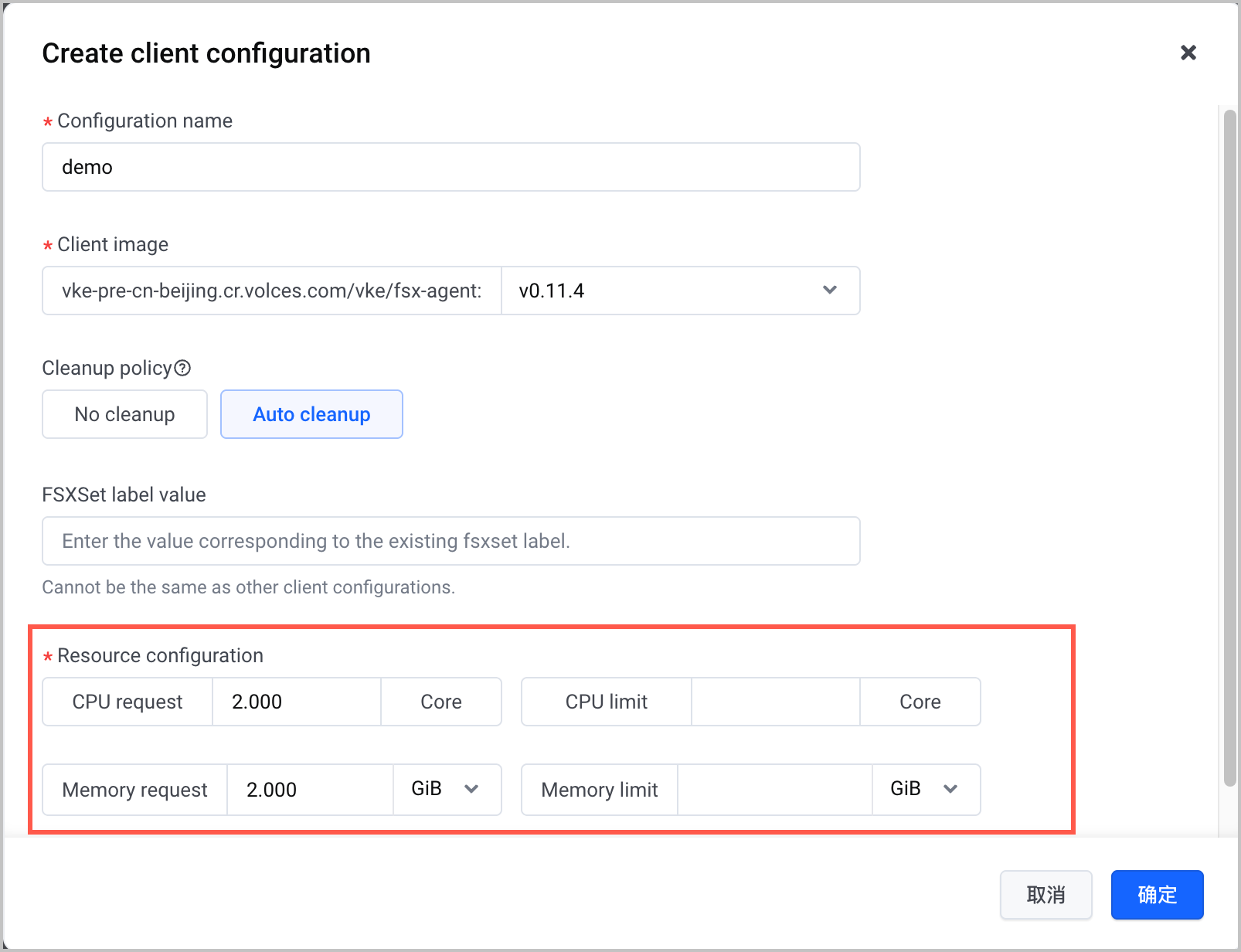
- Click the Storage tab and find the csi-fsx add-on. Move the pointer over the add-on card. In the lower-right corner of the card, click ... > Client configuration to view the resource configurations of the add-on.
- The amount of idle resources on the node must be greater than the configured value. For example, in this case, the CPU request of fsx-agent-pod is 2 cores and the memory request is 2 GiB, so the idle resources on the node must be greater than 2 CPU cores and 2 GiB of memory.
-
- In the left navigation bar of the cluster management page, click Workload > Pod.
- Select kube-system from the Namespace drop-down list.
- In the search box, enter the pod name keyword fsx-agent to perform a fuzzy search and find the FSX client pod.
- Click the IP address in the Node column of the target Pod to display the node overview. Then, click Click to view node details to go to the node details page.
- Check the current resource usage of the node and ensure the following requirements are met:
- Check the currently available CPU and memory, which must be greater than the CPU request and Memory request configured for csi-fsx.
- Check the number of allocatable pods, which must be greater than 1.
- If all of the above resources meet the corresponding requirements, you can perform the upgrade steps below. If the requirements are not met, submit a ticket or contact your account manager to obtain further technical support.
Procedure
Rolling upgrade
- Log in to the VKE console.
- In the left navigation bar, click Cluster. On the right page, click the target cluster name to open the management page of this cluster.
- In the left navigation bar, click Workload > Resource Explorer. In the resource list, click the name of the fsxset resource to go to the resource details page.
- In the resource list, find the resource to upgrade and click Edit Yaml in the Actions column.
-
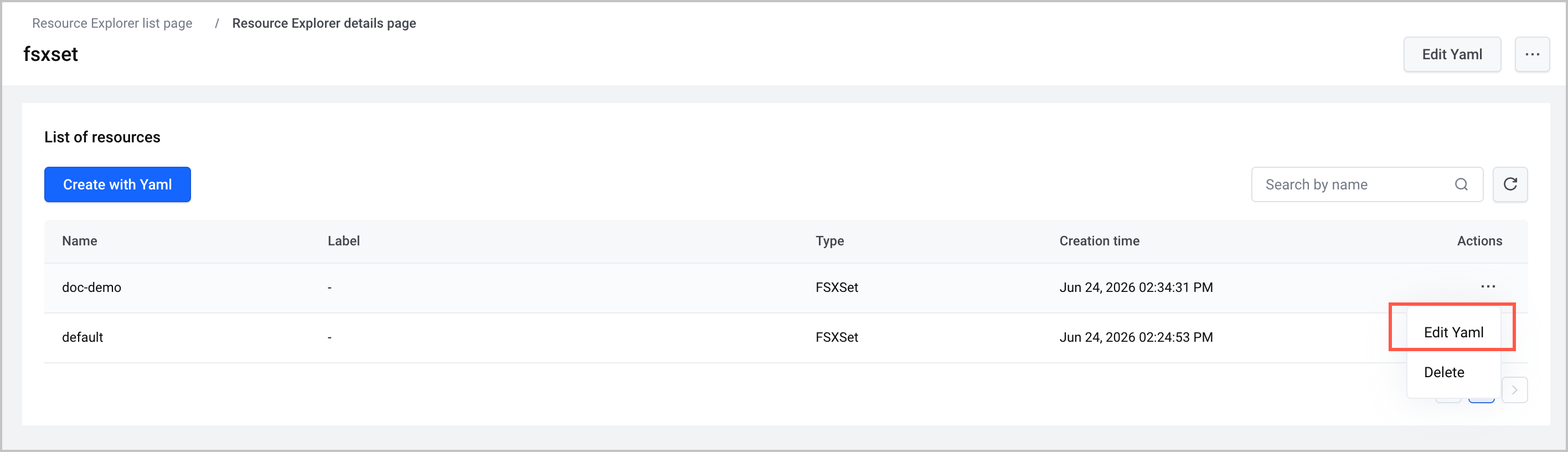
- In the YAML configuration, modify the parameterTemplate.image field under spec.template to the target image version to trigger the rolling upgrade of the FSX client.
-
tip
- Click Confirm to save the configurations. The system will start the rolling upgrade of all FSX clients in the cluster.
Canary/Rotation upgrade (OnLabel)
- Log in to the VKE console.
- In the left navigation bar, click Cluster. On the right page, click the target cluster name to open the management page of this cluster.
- In the left navigation bar, click Workload > Resource Explorer. In the resource list, click the name of the fsxset resource to go to the resource details page.
- In the resource list, find the resource to upgrade and click Edit Yaml in the Actions column.
-
- In the YAML configuration, modify the type field under spec.upgradeStrategy to OnLabel, and modify the parameterTemplate.image field under spec.template to the target image version.
-
tip
- Click Confirm to save the configurations.
- After the configuration is complete, the FSX client upgrade strategy in the cluster is as follows:
- Rotation upgrade: For newly created or rotated nodes in the cluster, the system will create new-version FSX clients based on the image field in the FSXSet configuration.
- Canary upgrade: For existing nodes, allow execution of the following command, which adds the upgrade label to target FSX clients to trigger a canary upgrade. ${agent-pod-name} is the name of the FSX client Pod to be upgraded.
-
Validate results
The FSX client is named fsx-agent-*** and located in the kube-system namespace. You can use the following command to continuously monitor the upgrade progress of the pod. During an upgrade of the FSX client, the system creates another FSX client pod and destroys the original pod.
The expected result is as follows: When the FSX client is upgraded, the cluster contains both a new FSX client and a terminated old FSX client.
After the upgrade is complete, run the following command to view FSXSet details.
The expected result is as follows: When the value of UPDATED equals the value of DESIRED, it indicates that all FSX clients are upgraded.
Last updated: 2026.08.03 10:56:39
All rights reserved © Beijing Volcano Engine Technology Co., Ltd2024
