Volcengine Kubernetes Engine
Volcengine Kubernetes Engine


Document

- Documentation
 Volcengine Kubernetes EngineVolcengine Container InstanceBest practicesBest practices for VCI troubleshooting
 Copy page
 Download PDF
Best practices
Best practices for VCI troubleshooting
Copy pageDownload PDFBest practices for VCI troubleshooting
This topic is intended for technical and operations teams deploying services on VCIs. It systematically covers best practices, from issue identification and troubleshooting to monitoring, alerting, and architecture optimization. These best practices can help your workloads run on VCIs reliably.
1. Understanding VCI
Before proceeding to best practices for VCI troubleshooting, quickly address some common VCI misconceptions. For more information about basic concepts, application scenarios, and positioning of VCI, see VCI overview.
- Misconception 1: Kubernetes knowledge is not required to use VCI.
- Fact: This is not correct. While VCI eliminates node O&M efforts, it operates within the orchestration framework of Kubernetes. You need knowledge of core Kubernetes concepts (such as Pod, Deployment, Service, and Annotation) to effectively define and manage applications. VCI only manages nodes in the data plane.
- Misconception 2: VCI applies to all applications.
- Fact: Not necessarily. VCI is a nodeless service that eliminates node O&M, so applications requiring node-related features (such as DaemonSet and NodePort) cannot run in VCIs.
- Misconception 3: VCI does not apply to scenarios featuring fixed resource consumption over a long period.
- Fact: This is not correct. Some users mistakenly believe that for long-running applications that operate stably for extended periods, with fixed resource requirements and high resource utilization, using traditional ECS node pools is more cost-effective. In fact, VCI supports the Reserved Container Instance (RCI) feature, which allows its usage costs to be aligned with those of ECS node pools. VCI not only provides extreme elasticity to handle fluctuating demands, but also meets business requirements in steady-state scenarios through yearly/monthly subscriptions.
- Misconception 4: The vci-profile configuration implements enforced scheduling.
- Fact: It is soft scheduling, not forced scheduling. vci-profile is a convenient, non-intrusive global configuration method to influence Pod scheduling preferences. Final scheduling results are jointly affected by multiple factors, including Pod annotations, cluster-level resource policies, and more. Therefore, a Pod may still not be scheduled to a VCI.
2. Locating issues: Layering and determination
A clearly layered model is critical to troubleshooting VCI issues. It helps you quickly narrow down the scope of the issue and avoid wasting time on irrelevant factors. The recommended troubleshooting sequence is "top-down, inside-out", where you start from business performance, move to the application itself, then to the VCI instance, and finally extend to the network and external dependencies.
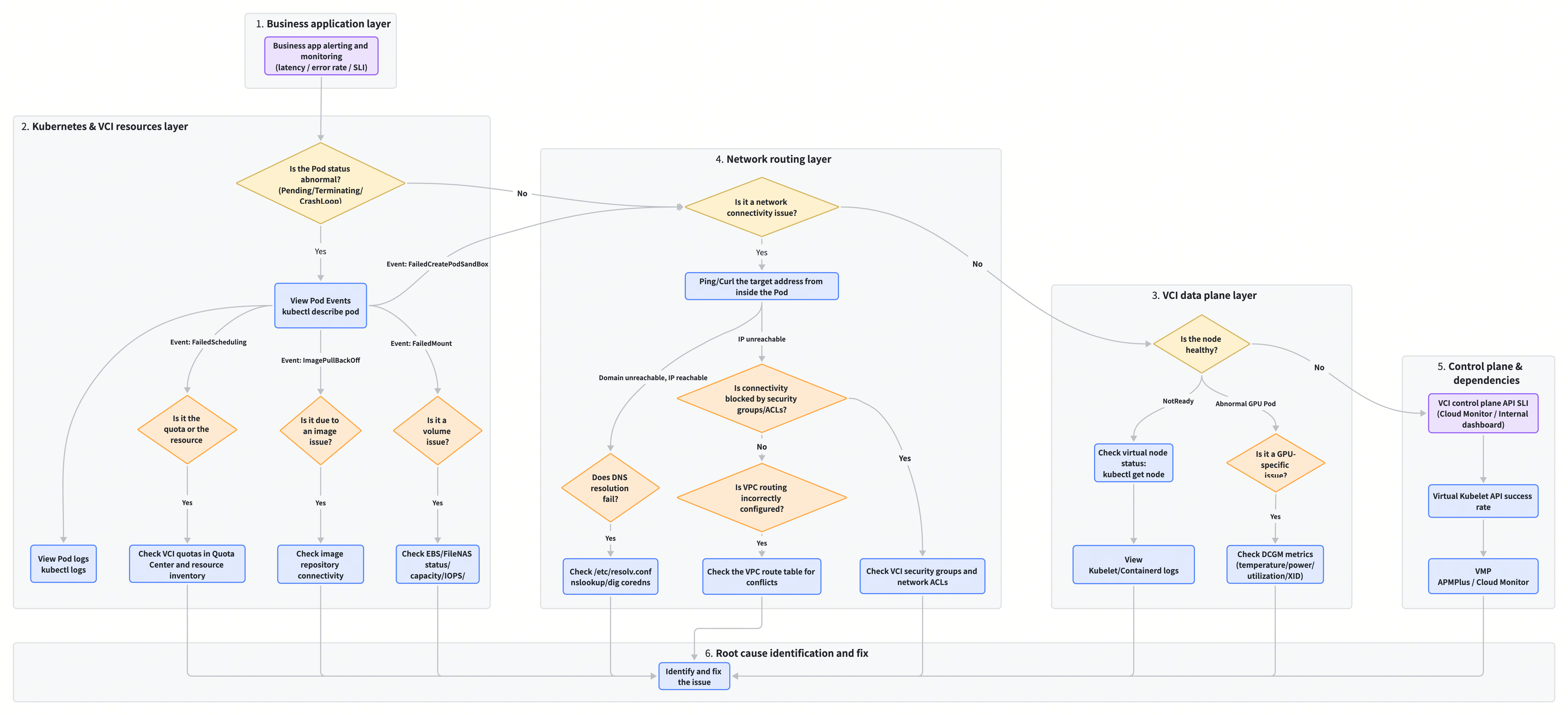
The following are the core focus points for each layer:
- Application layer
This is the layer where you should begin with the troubleshooting flow. At this layer, you focus on observability metrics of your application.
- Core questions: Are there any abnormalities observed in the application? Are there any errors recorded in application logs?
- Key metrics: Application SLI/SLO (success rate/latency), error codes, and custom monitoring metrics.
- Troubleshooting tools: APMPlus, application logging services, and custom monitoring dashboards.
- Kubernetes and VCI resource Layer
If an abnormality occurs on the business application side, immediately drill down to the Kubernetes resource layer to check the Pod lifecycle and configuration.
- Core questions: Is the Pod running normally? Is the Pod configuration valid?
- Key indicators: Pod events (using the "kubectl describe pod" command), container logs (using the "kubectl logs" command), and Pod annotations.
- Common states: Pending, Terminating, CrashLoopBackOff, ImagePullBackOff, and FailedCreate.
- VCI data plane layer
The health of a VCI significantly affects the Pods running on it.
- Core questions: Is the virtual node where the VCI instance resides healthy? Are the relevant resources sufficient?
- Key metrics: Virtual node status, kubelet/containerd health, and GPU-related metrics (DCGM).
- Troubleshooting tools: The "kubectl get node" command and Cloud Monitor.
- Network routing layer
Networking is essential for distributed systems, and VCI is no exception.
- Core questions: Is the network connected? Is DNS resolution working properly? Is traffic flow allowed by security policies?
- Key components: VPC routing, security groups, network ACLs, and CoreDNS.
- Troubleshooting tools: ping, curl, nslookup, tcpdump, and VPC/CLB console.
- Control plane and dependency service layer
When a large number of VCI instances encounter common issues, there is probably a problem with the upstream control plane or dependent services.
- Core questions: Is the VCI control plane stable? Are the dependent monitoring and storage services normal?
- Key metrics: Success rates of core VCI APIs and Virtual Kubelet interfaces.
- Troubleshooting tools: Cloud Monitor, VMP, and alerting platforms.
- Resource and quota layer
Pending states or creation failures are often related to resource availability.
- Core questions: Does the account have sufficient quotas? Is the resource inventory in the target availability zone sufficient?
- Key indicators: FailedScheduling events, Quota Center alerts, quota abnormalities (usually indicating insufficient quotas), and sold-out abnormalities (indicating resource shortages).
- Troubleshooting tools: The Quota center console and tickets for technical consultation.
3. Handling high-frequency failures: SOP
This section compiles common high-frequency issues from real-world cases and presents them in a standard operating procedure (SOP) format: "Issue phenomenon → Possible cause → Issue identification → Recommended fix."
Note: Stay calm when encountering issues. The kubectl describe pod <pod-name> command is your primary diagnostic tool, and 90% of issue clues reside in the Events section of the command output.
3.1 Abnormal Pod states
3.2 Image and storage issues
3.3 Networking and service discovery issues
4. Configure monitoring and alerting: Preventing issues before they occur
Proactive prevention is always preferable to reactive troubleshooting. Establishing a robust, comprehensive monitoring and alerting system is critical to ensuring the stability of VCI services. This section provides an actionable monitoring and alerting checklist, along with implementation suggestions.
4.1 Recommendations for monitoring and alerting subscription
The table in this subsection aggregates key metrics and events from Volcano Engine Cloud Monitor, VMP, APMPlus, and self-managed alerting platforms. It offers a reference for building a panoramic monitoring view of VCI.
Core principle for configuring alerting: Alert quality is more important than quantity. Prioritize configuring alerts that directly indicate impaired user experience or signal major risks (such as SLI decline or a large number of Pending Pods) and establish clear SOPs for such alerts. For metrics prone to excessive alert noise (for example, transient high CPU load), set higher trigger thresholds or longer durations to prevent alert fatigue.
Category | Metric/Event name | Recommended threshold/condition | Corresponding platform | Description and applicable scenario |
VCI and Pod basics | pod_cpu_usage_seconds_total (Counter) container_cpu_usage_seconds_total (Counter) | rate(...) > 85% for 5 consecutive minutes | VMP | CPU utilization of VCIs (at the Pod level) or individual containers. Persistently high levels may indicate resource bottlenecks or application logic issues. |
| pod_memory_working_set_bytes (Gauge) container_memory_working_set_bytes (Gauge) | Pod/Container Limit > 90% | VMP | Physical memory usage. When it approaches the configured Limit, the Pod faces the risk of OOMKilled. |
| container_network_receive_bytes_total (Counter) container_network_transmit_bytes_total (Counter) | An abnormal surge or drop in rate(...) | VMP | Network throughput. This metric tracks drastic traffic fluctuations, which may indicate potential attacks, business anomalies, or network issues. |
Core Kubernetes events | Event: Pod Pending | The number of Pending Pods in the same namespace is greater than 5 for 3 consecutive minutes | Self-managed alerting platforms or Cloud Monitor | Widespread Pod scheduling failures. This event indicates insufficient cluster resources or scheduler abnormalities and signals critical failures. |
| Event: Pod Terminating | Number of terminating Pods in the same namespace > 3 for 10 consecutive minutes | Self-managed alerting platforms or Cloud Monitor | Pods fail to terminate properly, which will disrupt service rollouts and scaling operations. |
| Event: Node NotReady | Virtual node status changes to NotReady | Self-managed alerting platforms or Cloud Monitor | Indicates a severe communication failure between the VCI data plane or Virtual Kubelet and the control plane. |
GPU monitoring | DCGM_FI_DEV_GPU_TEMP (Gauge) | > 85 (degrees Celsius) | VMP (DCGM Exporter) | High GPU temperature. Too high GPU temperature will trigger GPU throttling and may even cause hardware damage. |
| DCGM_FI_DEV_POWER_USAGE (Gauge) | rate(...) remains below the expected value | VMP (DCGM Exporter) | Persistently low GPU power during training jobs indicates that the GPU may not be properly utilized. |
| DCGM_FI_DEV_GPU_UTIL (Gauge) DCGM_FI_DEV_MEM_COPY_UTIL (Gauge) | avg_over_time(...) < 10% for 10 consecutive minutes | VMP (DCGM Exporter) | Persistently low GPU utilization or GPU memory bandwidth utilization indicates idle GPU resources and the need for troubleshooting application settings. |
| DCGM_FI_DEV_XID_ERRORS (Gauge) | > 0 | VMP (DCGM Exporter) | NVIDIA XID errors indicate critical GPU hardware or driver errors and require immediate attention. |
Storage and volumes | kubelet_volume_stats_used_bytes / kubelet_volume_stats_capacity_bytes | Disk usage > 90% | VMP | The capacity of the data volumes or system volume is nearly exhausted. This issue will cause data write failures and application crashes. |
| kubelet_volume_stats_inodes_used / kubelet_volume_stats_inodes | Inode usage > 90% | VMP | Inode exhaustion will prevent the creation of new files. This metric applies to scenarios where a large number of small files are stored. |
| EBS IO metrics (such as DiskReadBandwidth, DiskWriteBandwidth) | Reaching 95% of the upper IO limit for the volume specification | Cloud Monitor | Storage IO reaching its bottleneck will cause a surge in application read/write latency. |
Control plane and dependencies | Core VCI API SLIs (such as CreateContainerInstance) | Success rate < 99% for 5 consecutive minutes | Self-managed alerting platforms | Abnormalities in the core APIs of the VCI control plane. This will cause widespread disruption to Pod creation and management operations. |
| Events related to Quota Center | Quota utilization exceeds 80% | Quota Center or Cloud Monitor | VCI resource quota is nearly exhausted. You need to apply for a quota increase in advance to avoid affecting business elasticity. |
Subhealthy and faulty machines | Search for the issue keyword “InstanceReady” in the pod Condition or pod Label box. | kubectl get po -A -l "vci.vke.volcengine.com/instance-fault": "NodeNotReady" | Self-managed alerting platforms | Node downtime: A physical server failure has occurred, and instances on the node can no longer run properly. |
| Filter by fault keyword "VciOps" in the pod Condition/pod Label box. | kubectl get po -A -l "vci.vke.volcengine.com/VciOps": "PreVciNodeOffline" | Self-managed alerting platforms | Prepare sub-healthy nodes for being offline. O&M actions will be performed by VCI later. This will impact the running of the VCI. |
4.2 Recommendations for alert subscription and management
- Using built-in templates:
- VMP: Use the built-in alert templates provided by VMP for VKE to quickly create monitoring and alert rules for VCIs.
- Alert noise reduction and aggregation:
- Spike filtering: To filter out invalid alerts, configure a policy that sends an alert only after it is triggered the specified number of times within the given number of minutes.
- Alert sending throttling: Enable alert sending throttling to avoid being flooded with excessive alerts.
- Alert aggregation: Set a reasonable aggregation interval to make alert information more organized and legible.
- Alert grading and notification:
- Alert grading: Clearly define alert levels (such as P0 / Fatal, P1 / Warning, and P2 / Notice) to improve alert handling efficiency.
- Alert-to-ticket automation and SOP integration:
- Automation: Establish automated workflows for closed-loop handling of critical alerts.
- SOP integration: To help on-call response personnel quickly locate and resolve issues, attach the troubleshooting guide for the corresponding failure scenario to the alert content.
5. Preventing failures and optimizing design: Graceful VCI usage
Sound system design can eliminate a large number of failures at the source. The following are best practices that product and R&D teams should consider during the design phase.
Keep images lightweight and warmed up
- Lightweight design: Image size is a key factor that affects Pod startup speed. Follow the best practices of VCI to build a multi-stage Dockerfile. Package only the necessary runtime and binary files into the final image and avoid including non-essential content (such as compilation tools, source code, and documentation).
- Image caching: For applications requiring large-scale, rapid deployment, enable automatic or manual image caching. You can enable image caching using the annotation. Image caching allows VCI to pre-cache image data to the specified volume in the target availability zone. For details, see VCI image caching.
- Image cache warmup: New images or images not used for a long time may experience slow pulls, or failed pulls due to expired cache upon first use. Therefore, we recommend creating a small number of Pods to trigger and warm up the image cache before large-scale deployment. After the cache status changes to Ready.Ok, you can proceed with full-scale deployment.
Reasonably estimating and configuring capacity
- System volume capacity: The default system volume for VCI is 40 GiB. For scenarios using large images, image caching, or writing significant temporary files to containers, this capacity may be insufficient. In these scenarios, use the vci.vke.volcengine.com/system-storage-size annotation to specify a reasonably larger system volume capacity to avoid Pod creation failure due to FailedCreateSystemDisk. For more information, see VCI image caching.
- Unified configurations with vci-profile: We recommend using vci-profile to centrally manage VCI configurations at the namespace or cluster level, rather than specifying them individually in the YAML manifest of each workload. vci-profile ensures consistency in configuration items (such as subnets, log collection, and security context) and reduces failures caused by missing or incorrect individual configurations. For details, see Using VCI by configuring vci-profile.
Use compatible GPU driver versions
- Driver and CUDA compatibility: When creating GPU-type VCI instances, you can specify the NVIDIA driver version using the vci.vke.volcengine.com/gpu-driver-version annotation. Ensure that the CUDA Toolkit version used in your application image is compatible with the selected driver version. Version mismatches may cause GPU malfunctions or performance degradation. For specific compatibility information, see Supported GPU driver versions.
- Using the default: If you are unsure which version to choose, you can skip setting this annotation. VCI will automatically select the default driver version that best matches your GPU model. For the default driver versions, see Supported GPU driver versions.
Plan networking and governance proactively
- Clear network planning: Clear network topology planning should be established during the application design phase. Avoid using overlapping or conflicting network segments in the production environment, especially when using CEN to connect multiple VPCs. Prevent conflicts between custom routes and IP ranges for Volcano Engine public-facing services (such as 100.XX.XX.XX/11). For more information about VKE networking, see Network overview.
- Least-privilege security groups: We recommend configuring dedicated security groups for VCI. When doing so, follow the principle of least privilege to open only the protocols and ports necessary for the application. Avoid using 0.0.0.0/0 (this setting allows all traffic). For more information, see Security group settings and Cluster access rules.
- DNS governance: For high-concurrency applications or those sensitive to DNS resolution latency, we recommend enabling NodeLocal DNSCache in the cluster. This effectively reduces the request pressure on CoreDNS and improves the stability and performance of service discovery. For details, see Using NodeLocal DNSCache as a DNS caching agent.
6. Implementation checklist
Before your product or project launch or after failure troubleshooting, you can go through the following checklist to ensure that key practices are in place:
Last updated: 2026.07.24 16:18:07
All rights reserved © Beijing Volcano Engine Technology Co., Ltd2024
