Volcengine Kubernetes Engine
Volcengine Kubernetes Engine


Document

- Documentation
 Volcengine Kubernetes EngineCloud-native AIServingKitDeploying the Al inference application through HelmQwen practicesQuickly deploying Qwen3-30B-A3B-FP8 with SGLang
 Copy page
 Download PDF
Qwen practices
Quickly deploying Qwen3-30B-A3B-FP8 with SGLang
Copy pageDownload PDFQuickly deploying Qwen3-30B-A3B-FP8 with SGLang
The following content introduces how to quickly deploy a Qwen3-30B-A3B-FP8 based on SGLang in Volcengine Kubernetes Engine (VKE).
Solution introduction
This solution provides a quick method of deploying Qwen3-30B-A3B-FP8 LLM in a Kubernetes cluster that integrates a series of acceleration technologies that come with the Volcano Engine:
Qwen3: the latest Qwen LLM launched by Alibaba Cloud, which features six dense models and two Mixture-of-Experts (MoE) models. With 0.6 billion to 235 billion parameters, Qwen3 can meet diverse business requirements.
Deployment information
- Model: Qwen3-30B-A3B-FP8
- Inference engine: SGLang
- Instance specification: ecs.pni3l.11xlarge instance * 1
Supported features
- Parallel policy: TP
- Precision: FP8
- Monitoring: Volcengine Managed Service for Prometheus (VMP) and Application Performance Management Plus (APMPlus)
- Access: API Gateway (APIG)
Notes
- To ensure successful deployment, which involves a bunch of add-ons dependent on each other and a variety of configurations, you need to exactly follow the instructions in this document.
- The recommended instance specification described in the Deployment information section does not include Remote Direct Memory Access (RDMA) network interface card (NIC), which indicates that GDKV is not supported. Do not edit the values.yaml file of the application template to enable GDKV.
- To avoid violation of the Volcengine Kubernetes Engine limit, we recommend that you proceed based on this solution (or on the resources mentioned in the documents). If you need to change your solution, you can consult the Account Manager of the Volcano Engine.
- Do not use mGPU on GPU resources.
- A full deployment depends on some beta capabilities of the Volcano Engine. Contact the Account Manager of the Volcano Engine to apply for the beta trial of the following features:
-
Prerequisites
Creating a VKE cluster
The following parameters need to be configured as described in the table when creating a cluster by using the VKE. For details on other parameters, see Creating clusters. You can also use the managed cluster template for heterogeneous computing to quickly create a VKE cluster for this scenario.
Configuration item | Description |
Cluster configuration | |
Kubernetes version | Select version v1.28 or later. |
Pod networking model | Select VPC-CNI. |
Node pool configuration | |
Managed node pool | Enable Managed node pool. |
Instance type | Select the applied ecs.pni3l instance family of the GPU Accelerated type in beta. |
Number of nodes | 1 node. |
Data volume | Two ESSD data volumes with both capacity set to 1024 GiB and performance level set to the default PL0 are required. In addition, specify /data01 as the mount directory for one of the ESSD data volumes. Warning The data01 directory will be used as a dependency later and therefore cannot be modified. |
Addon configuration | |
nvidia-device-plugin | (Required) The NVIDIA device driver. It allows use of management add-ons for GPUs in containers. |
apig-controller | (Required) API Gateway controller provides the AI Gateway capability of cloud-native, which can achieve the intelligent load balancing of the inference traffic according to different policies. |
csi-ebs | (Required) It enables VKE clusters to use the standard CSI implementation for Elastic Block Storage (EBS). |
prometheus-agent | (Required) Volcengine Managed Service for Prometheus (VMP) monitoring add-on collects the monitoring metrics data of the Kubernetes cluster to VMP. |
apmplus-opentelemetry-collector | (Required) Collect OpenTelemetry data and Prometheus metrics, and send them to APMPlus. |
apmplus-server-agent | (Required) Collects service and host monitoring data and sends it to APMPlus. |
cr-credential-controller | (Recommended) It can pull Container Registry (CR) images without passwords, which simplifies deployment operations. |
keda | (Recommended) The event-driven autoscaler running on Kubernetes. It enables autoscaling of the inference service based on complex metrics. |
Procedure
Step 1: Deploy Qwen3-30B-A3B-FP8
VKE allows Qwen3-30B-A3B-FP8 model based applications to be running on the SGLang framework, which can be quickly realized by using the application template.
- In the left navigation bar of the VKE console, click Application center > Application template.
- On the Application template page, find qwen3-30b-a3b-fp8-sglang and click Deploy.
- Configure parameters for qwen3-30b-a3b-fp8-sglang on the page.
- Configuration itemDescriptionOrchestration templateApplication templateSelect the latest Chart version of qwen3-30b-a3b-fp8-sglang.Parameter configurationThe configuration method of qwen3-30b-a3b-fp8-sglang.NameCustomize the application name according to the naming requirements prompted by the interface.Deployment environmentclusterSelect the VKE cluster created in Prerequisites.NamespaceSelect a namespace under the target cluster.ProtocolRead and understand the agreement before selecting it.
- Click Deploy immediately to start.
- The applications that are already deployed can be found on the Helm page. Find qwen3-30b-a3b-fp8-sglang application by specifying target project, cluster, and namespace, then click it to view detailed information of the application.
tip
The service names that match the pattern <application name>-api-svc indicate those services will be working as the external access points of their applications, and therefore supposed to be used when configuring routing and verifying model deployment.
- View the load status of qwen3-30b-a3b-fp8-sglang applications on the Deployment page of the VKE cluster.
- On the left navigation bar of the VKE console, select Cluster, and find the target cluster and click the cluster name.
- In the left navigation bar, select Workload > Deployment, then enter the name qwen3-30b-a3b-fp8-sglang in the search box to find it and view its status.
Step 2: Configure Ingress
Configure routing for the model through APIG Ingress. APIG Ingress can function as a managed cloud-native gateway based on the Volcano Engine APIG, realizing high availability and scalability in Ingress traffic management that are required in cloud-native applications.
- On the left navigation bar on the cluster management page, select Services and Ingresses > Ingress, and click Create Ingress. Use API Gateway to expose the model service externally in the cluster. The parameters mentioned below need to be configured as described. Other parameters can be configured by referring to the Creating APIG Ingress through the console.
- Configuration itemDescriptionBasic configurationNamespaceSelect the namespace where the qwen3-30b-a3b-fp8-sglang application template is deployed to associate the service exposed for the application.Ingress configurationIngress typeSelect cloud-native API Gateway.APIG specification settingsGateway specificationsYou can select Automatically create, or select Use existing APIG instances.tipWhen you are using APIG to expose the model service in the clusters, we recommend that you configure the following parameters or features (Some parameters can only be configured in the APIG console, and cannot be configured in the VKE console):
- Instance specification: We recommend that you select 4c8g, with two availability zones to realize high availability by default.
- Bandwidth limit: This option is used to set the maximum bandwidth of the Classic Load Balancer (CLB) instance working with the APIG instance. If more bandwidth is required, you can specify a custom CLB instance on the APIG console. For details, see Adding access entrance.
- Circuit breaking: When some GPU instances malfunction, common practice is taking the faulty instances offline to eliminate failures. At the same time, it is necessary to retain the faulty instances for troubleshooting later. You can isolate the faulty instances by configuring a circuit breaking rule for the APIG instance.
- Request timeout: Timeout is not applied to API Gateway by default. We recommend that you keep the default settings. If a timeout is required, you can configure a timeout in the API Gateway console. For details, refer to Advanced routing policy.
- Observability: By default, the alerting, monitoring, and logging capabilities are disabled for APIG instances that are created via the VKE console. If needed, we recommend that you enable the logging, monitoring, and alerting capabilities of the instances in the API Gateway console.
- Instance monitoring: This feature can help you to timely detect the unexpected phenomena in the chains of the whole system at the entry gateway level. For example: When the back end is unhealthy or crashes, the API Gateway will report 503 error code and specific errors.
- Instance logs: You can view the request errors, request time consumption, and the allocation of requests in various Pods in the back end from the access logs.
Backend upstreamWe recommend that you set the Load balancing algorithm parameter to Poll. It is more applicable to the scenarios of upgrading back-ends if the back-end loads are approximately balanced.Listening configurationProtocolSelect a protocol as needed. If HTTPS is selected, you need to configure the certificate as described in the document APIG Ingress.Forwarding configurationDomain nameFill in the Ingress domain name to be exposed. The A (Address) record of this domain name needs to be configured later with the public or private IP address generated when the Ingress is successfully created.ServiceSelect the service that was named in the pattern <application name>-api-svc and associated with the application created based on qwen3-30b-a3b-fp8-sglang template, and then set the port number to 8080.
- (Optional) Configure authentication for an APIG.
- Log in to the API Gateway console.
- Create consumer: On the left navigation bar, select Consumer management, and click Create consumer.
- Generate an API-KEY: In the consumer list, click the name of the target consumer, to enter the consumer details page. In the API Key information area, click Generate API Key.
- In the pop-up dialog box, select Automatically create.
- Click Confirm to generate API Key credential information.
- Enable Key Auth add-on: in the left navigation bar, select Plugin Center > Key Auth and click Create Plugin on the page.
- Effect level: select the Routing level: and configure the instance, service, and route to which the add-on belongs.
- Authentication configuration: select the header and enter the text "Authorization" in the textbox on the right side to indicate that the API Key will be included in the Authorization header of requests.
- Consumer: Select the consumer created in Step 1.
- Other options can remain as the default.
- Obtain Ingress address.
- VIP: includes both public and private IP addresses.
- backend service: includes the backend service name and access domain name.
- Configure domain name resolution.
- To test the DNS in the local environment, you can implement a domain-to-IP resolution locally.
- To test in the production environment, you need to register the Ingress domain name with your DNS provider and add public or private IPs correspondingly.
Step 3: Enable observability configuration
There are two observability levels, i.e., basic and full-stack observability. The former one allows you to read the metrics of AI resources and inference services, and the latter offers full-chain monitoring for inference applications.
Basic observability
- In the left navigation bar of the page for a specific cluster, select Overview under the gray title Cloud native observability, then click Enable on the page to start monitoring. For more configuration details, refer to Enable observability and VKE observability.
- After turning on observability, the application metrics of SGLang will be collected into the Volcengine Managed Service for Prometheus (VMP). You can use Explore to query metrics in the VMP console. An example is as follows:
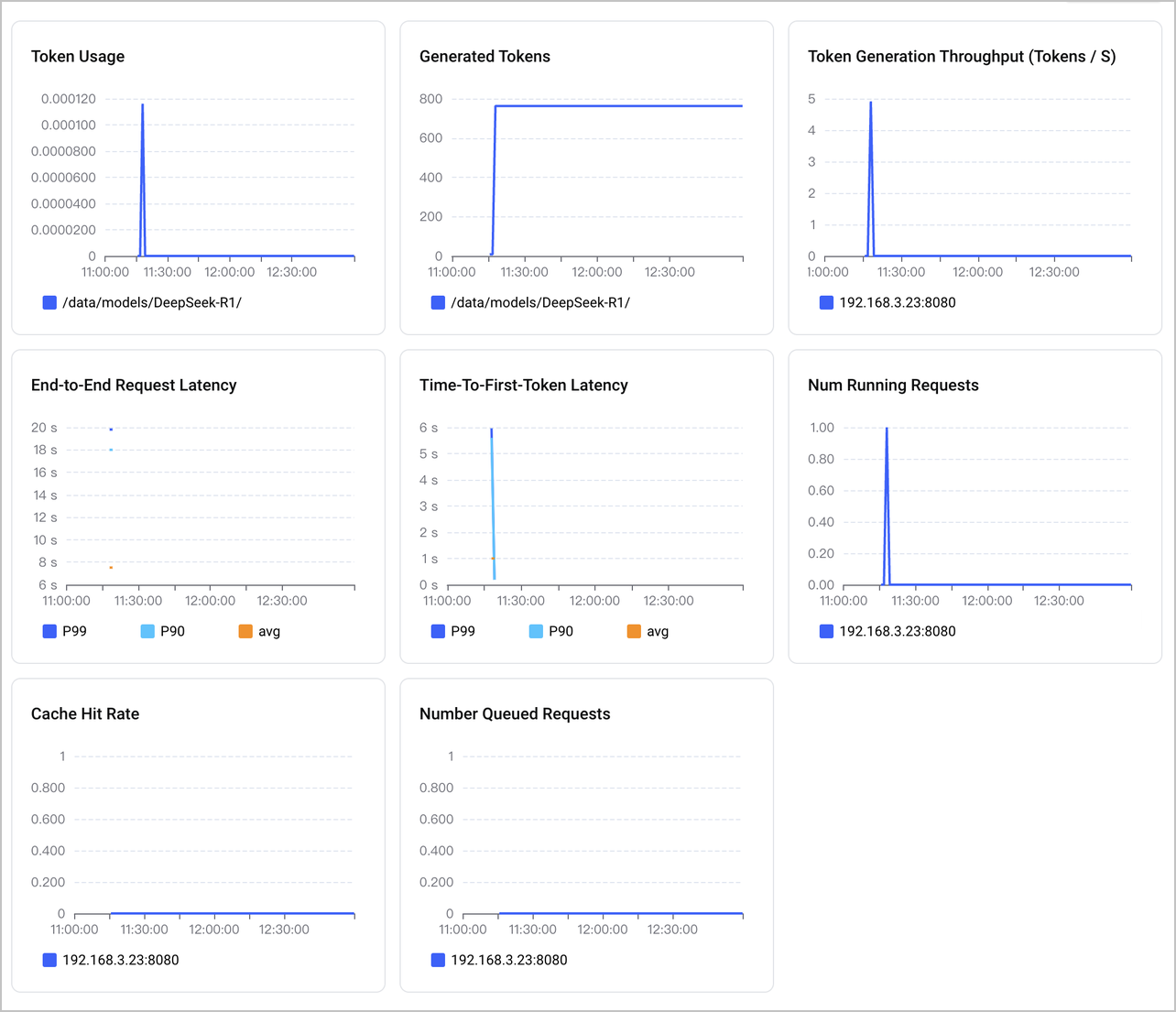
- There is a built-in VMP dashboard that allows you to view the metrics collected from SGLang-based applications. To do that, you can go to the VMP console, select Monitoring dashboard in the left navigation bar and search for SGLang to open the dashboard as shown below:
-
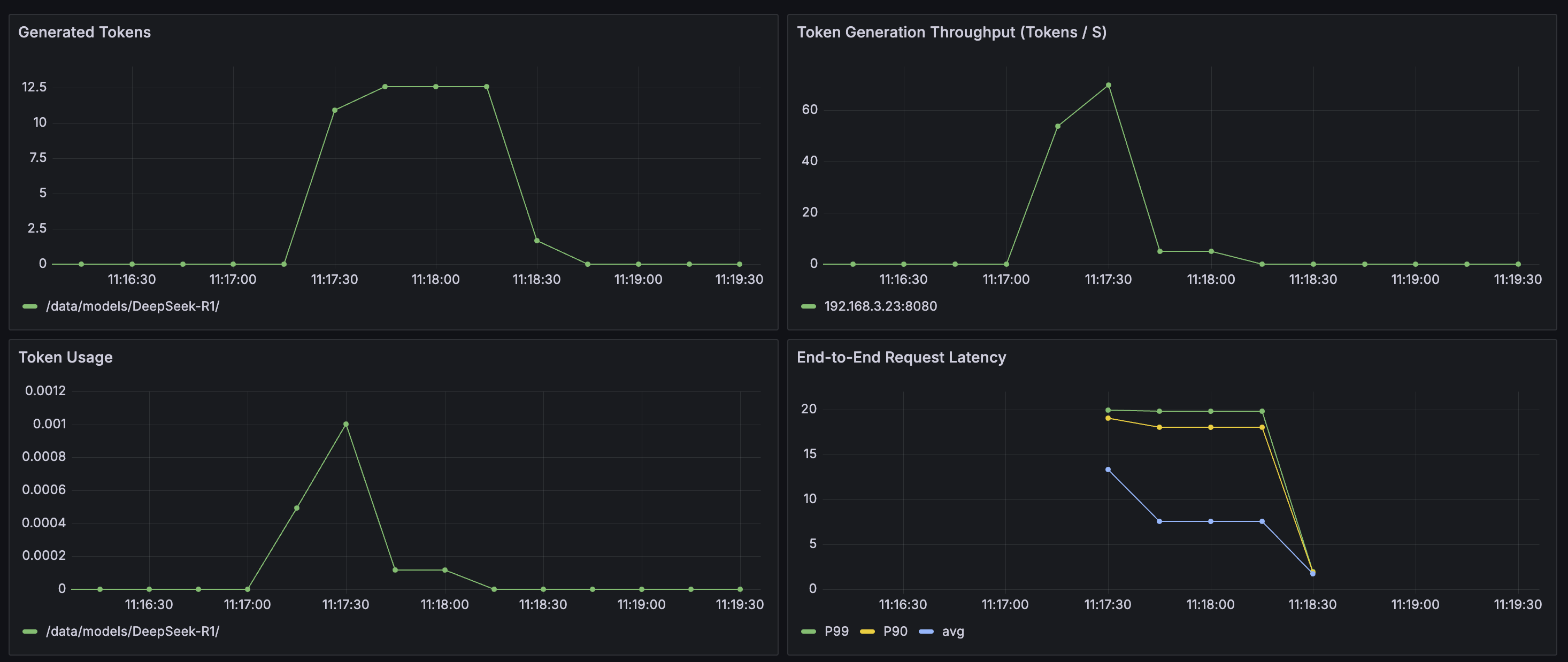
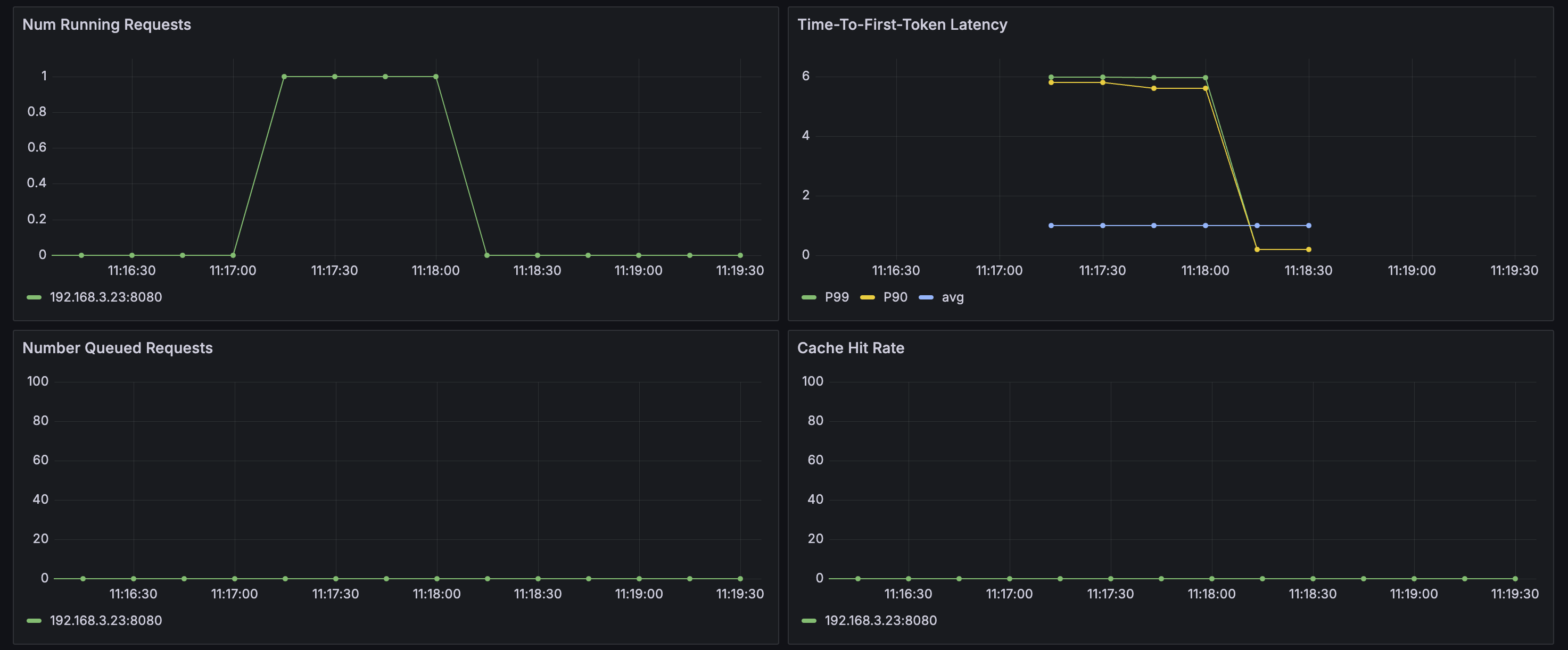
- You can also use Grafana to build a custom monitoring dashboard for SGlang-based applications. For more details, refer to Deploying Grafana in a VKE cluster and integrating Grafana with a workspace.
- Log in to the above Grafana and select to import the following dashboard JSON file:
- The effect after import is shown in the figure:
-
-
Deep observability
- Log in to the APMPlus console. In the left navigation bar, click Server-side Monitoring.
- Search for SGlang and click the service name in the results to open the monitoring dashboard page.
- View metrics.
- LLM metrics
- On tabs such as Service Overview, LLM Performance, and Token Usage, you can view the core metrics of the LLM service, including the number of LLM calls, token usage, response latency, TTFT, TPOT, QPS, and request error rate.
tip
TTFT and TPOT are effective only when LLMs are called with streaming-enabled requests.
- The example of streaming call is as follows:
-
- Runtime metrics
- On the Runtime monitoring tab, you can view runtime-related metrics, including CPU time, CPU usage, Memory usage, Number of GC objects, Number of threads, and Number of context switches.
- View link analysis.
- On the Trace analysis tab of the SGLang application, you can search for trace information based on different conditions. Click the ID of the target trace to go to the details page of the trace. View the trace information in the list.
Model verification
Method 1: Access through Service
The service, created along with the deployment of qwen3-30b-a3b-fp8-sglang application, has a name matching the pattern <application name>-api-svc. You can use the endpoint address (port 8080) corresponding to that service name to implement a test in this method. The endpoint can be called as you do with OpenAI APIs.
The sample code is as follows.
tip
- Replace ****** in the http://****** with the endpoint of your <application name>-api-svc service.
- The parameter content is what you want to type to chat with LLMs.
Alternatively, you can directly log in to the pod to perform API calls. To do that, you can go to the Helm application details page of qwen3-30b-a3b-fp8-sglang application, click the associated deployment in the section Workload, and then, in the new page, click Console in the top-right corner to open the console where commands can be executed.
Method 2: Access via APIG
When enabling the authentication feature of the APIG, you need to add an authentication token in the request.
The following example is provided for reference.
tip
- Replace the example.com in http://example.com with the domain name of the back-end services obtained in Step 2: Configure Ingress.
- Replace eyJhbGciOiJSUzI****** with the API Key generated in Step 2: Configure Ingress.
- The parameter content is what you want to type to chat with LLMs.
Last updated: 2026.07.24 15:50:47
All rights reserved © Beijing Volcano Engine Technology Co., Ltd2024
