Volcengine Kubernetes Engine
Volcengine Kubernetes Engine
Volcengine Kubernetes Engine


Document
Volcengine Kubernetes Engine
What's New
History feature release notes
Kubernetes version release notes
Containerd runtime release notes
Add-on release notes
Monitoring add-ons
Scheduling add-ons
DNS add-ons
Security add-ons
GPU add-ons
Sandbox add-on
Security announcements
Product Announcement
Historical announcements
Overview
Getting started
User guide
Clusters
Creating clusters
Connecting to clusters
Upgrading clusters
Node pool
Creating node pools
Scaling out/in node pools
Nodes
Authorization management
Image
Namespaces
Networking
Cluster network
Container Network
Service
LoadBalancer
CLB
Ingress
APIG Ingress
ALB Ingress
Customize ALB Ingress forwarding rules
Certificate and security
CLB Ingress
Nginx Ingress
Gateway API
Workloads
Creating workloads
Configure workloads
Pods
Configuration management
Image acceleration
Storage
FSX client
EBS Volumes
TOS Volumes
NAS volumes
FSX access methods
NFS access methods
EFS volumes
vePFS volumes
FSX access methods
vePFS Client access methods
NFS access methods
CloudFS volumes
Local volumes
Autoscale
Node autoscaler
Workload autoscaler
Horizontal Pod Autoscaler (HPA)
Cron Horizontal Pod Autoscaler (CronHPA)
Intelligent Horizontal Pod Autoscaler (IHPA)
Horizontal Pod Autoscaler based on event-driven (KEDA)
Add-on management
Network add-ons
Storage add-ons
Monitoring add-ons
Scheduling add-ons
DNS add-ons
GPU add-ons
Core add-ons
Sandbox add-on
Upgrading add-ons
Heterogeneous computing
NVIDIA GPU
mGPU scheduling
RDMA high-performance computing
Scheduling management
Topology-aware scheduling
QoS-aware scheduling
Observability
Log management
Basic observation
Setup & Configuration
Cluster observation
Storage observation
Other observation
Using metrics
Full stack observation
Alert management
Diagnosis and inspection
Node check and self-healing
Application center
Backup center
Stability
Large-scale cluster management
Best practices
Authorization
Clusters
Nodes and node pools
Networking
Storage
Scheduling
Observability
Solution
Security and compliance
API reference
Cluster management
NodePool management
Node management
Virtual nodes management
Add-on management
Tag management
Access policy management
Instance images management
Cloud native observability
Inspection and diagnosis
Task management
Volcengine Container Instance
Appendix
SDK reference
Development guide
Terraform
FAQs
General FAQs
Cluster FAQ
cluster management
cluster network
cluster upgrade
Node and Node pool FAQs
Authorization FAQs
Workload FAQs
Service and Ingress FAQs
Storage FAQs
Heterogeneous computing FAQs
Observability FAQs
Quota FAQs
Add-on FAQs
Cloud-native AI
ServingKit
LLM applications
ComfyUI application
Deploying the Al inference application through Helm
Deepseek practices
Qwen practices
Kimi practice
Seed practices
Best practices
DeepSeek model deployment
GLM model deployment
MiniMax model deployment
Qwen model deployment
Kimi model deployment
Volcengine Container Instance
What's new
Historical feature release notes
Product Announcement
Overview
Billing
User guide
Integrating with VCI
Virtual node
VKE cluster uses virtual nodes
Self-managed/third-party cluster uses virtual node
Creating an instance
General purpose instance
GPU-accelerated computing instance
VCI Agent Sandbox
Startup acceleration
E2B-based management
Upgrade guide
Networking
Monitoring
Scheduling
Container configuration
VCI Image Cache
Best practices
Security and compliance
FAQs
- Documentation
 Volcengine Kubernetes EngineVolcengine Kubernetes EngineUser guideObservabilityFull stack observationCapturing network packets
 Copy page
 Download PDF
Full stack observation
Capturing network packets
Copy pageDownload PDFCapturing network packets
Cloud-native observability of Volcano Engine (full-stack observability) can capture network packets on the specified workload or pod, which facilitates troubleshooting of container networks. This topic describes how to configure the network packet capture feature.
Background information
Network packet capture is an important troubleshooting method for complex container environments. If you perform network packet analysis on specified workloads or pods, the following scenario issues can be effectively resolved:
- Network troubleshooting: When network issues occur, packet capture can help identify the issues. Packets on different nodes are analyzed to troubleshoot connections or configurations.
- Security analysis: Security teams can use packet capture to monitor network traffic and identify potential security threats, such as DDoS attacks and ARP spoofing.
- Performance optimization: Network traffic is analyzed to identify performance issues, such as requests with long response times or unnecessary repeated requests. This provides optimization solutions to specific performance issues.
Prerequisites
- TOS has been activated, and a TOS bucket has been created in the same region as the target VKE cluster. For details, see Creating buckets.
- Cloud-native observability has been enabled. For details, see Enabling observability.
- Full-stack observability has been enabled. For details, see Enabling full-stack observability.
- The microscope agent in full-stack observability has been upgraded to version 1.10.0 or later.
Procedure
Step 1: Configure packet capture
- Log in to the VKE console.
- In the left navigation bar, click Cluster.
- On the cluster list page, click the target cluster.
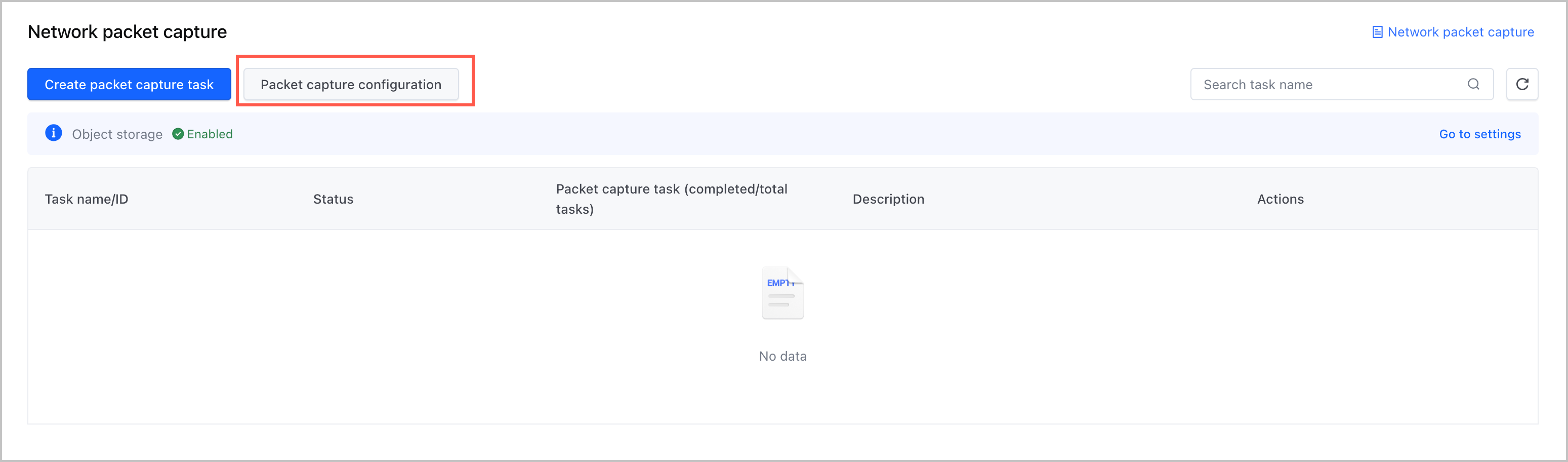
- In the left navigation bar of the cluster management page, click Monitoring center > Packet capture. On the page that appears, click Packet capture configuration to configure the TOS that corresponds to the packet capture task.
-
- Click Enable to enable the TOS configuration and specify the parameters of the TOS bucket.
-
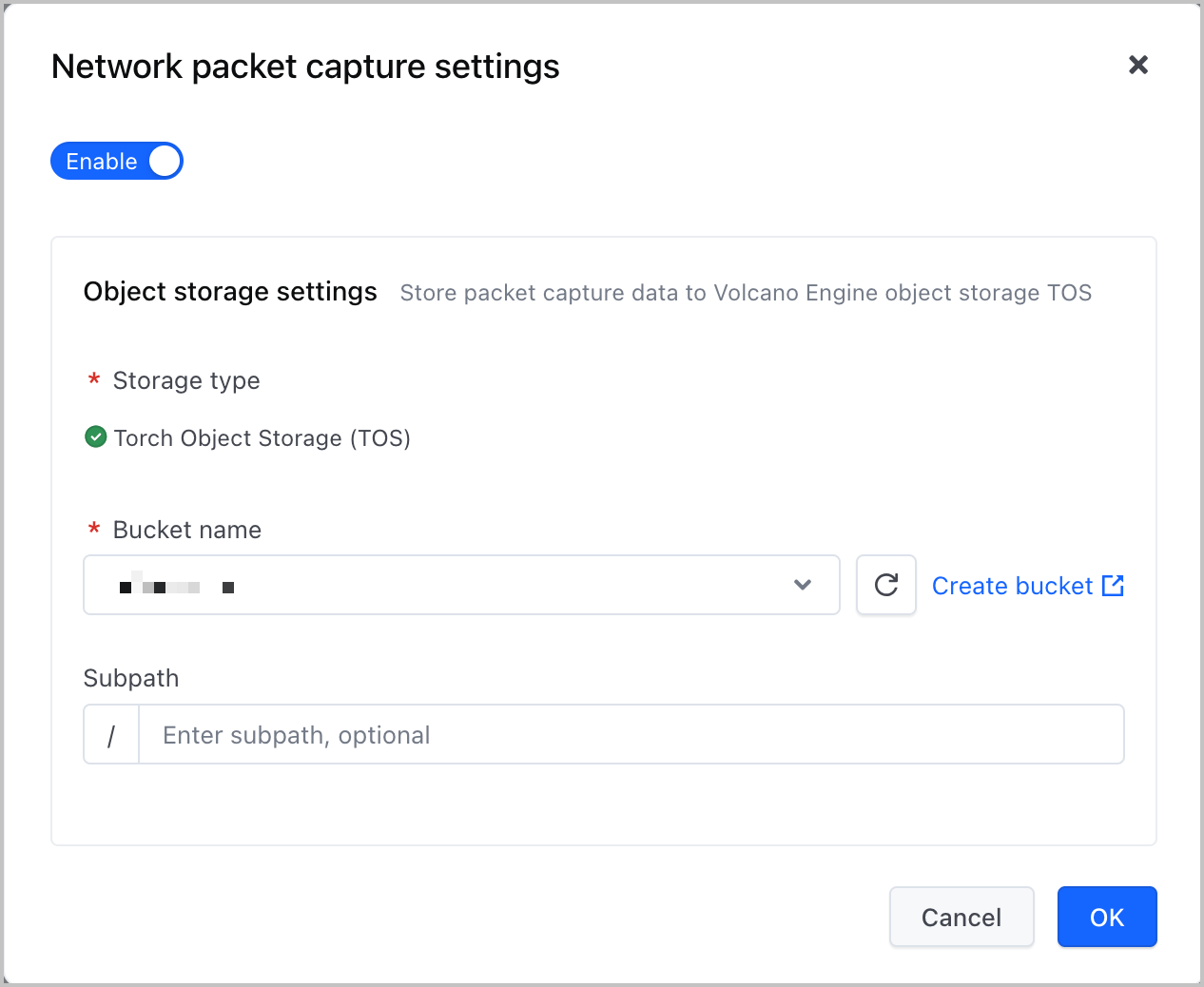
- ParametersDescriptionParametersDescriptionBucket nameSelect the created TOS bucket from the drop-down list.SubdirectorySpecify the path where the packet capture results are saved in the TOS bucket. If this parameter is not specified, the path is /.
- Click Confirm.
Step 2: Create a packet capture task
Directly creating a packet capture task
You can perform the following steps to directly configure a packet capture task on the Network packet capture page:
- In the left navigation bar of the cluster management page, click Monitoring center > Packet capture. On the page that appears, click Create packet capture task, and configure the details of the packet capture task.
- Basic information
-

- ParametersDescriptionParametersDescriptionNameThe name of the packet capture task.DescriptionYou can add a description for the packet capture task as needed. This parameter is left empty by default.
- Targets
-
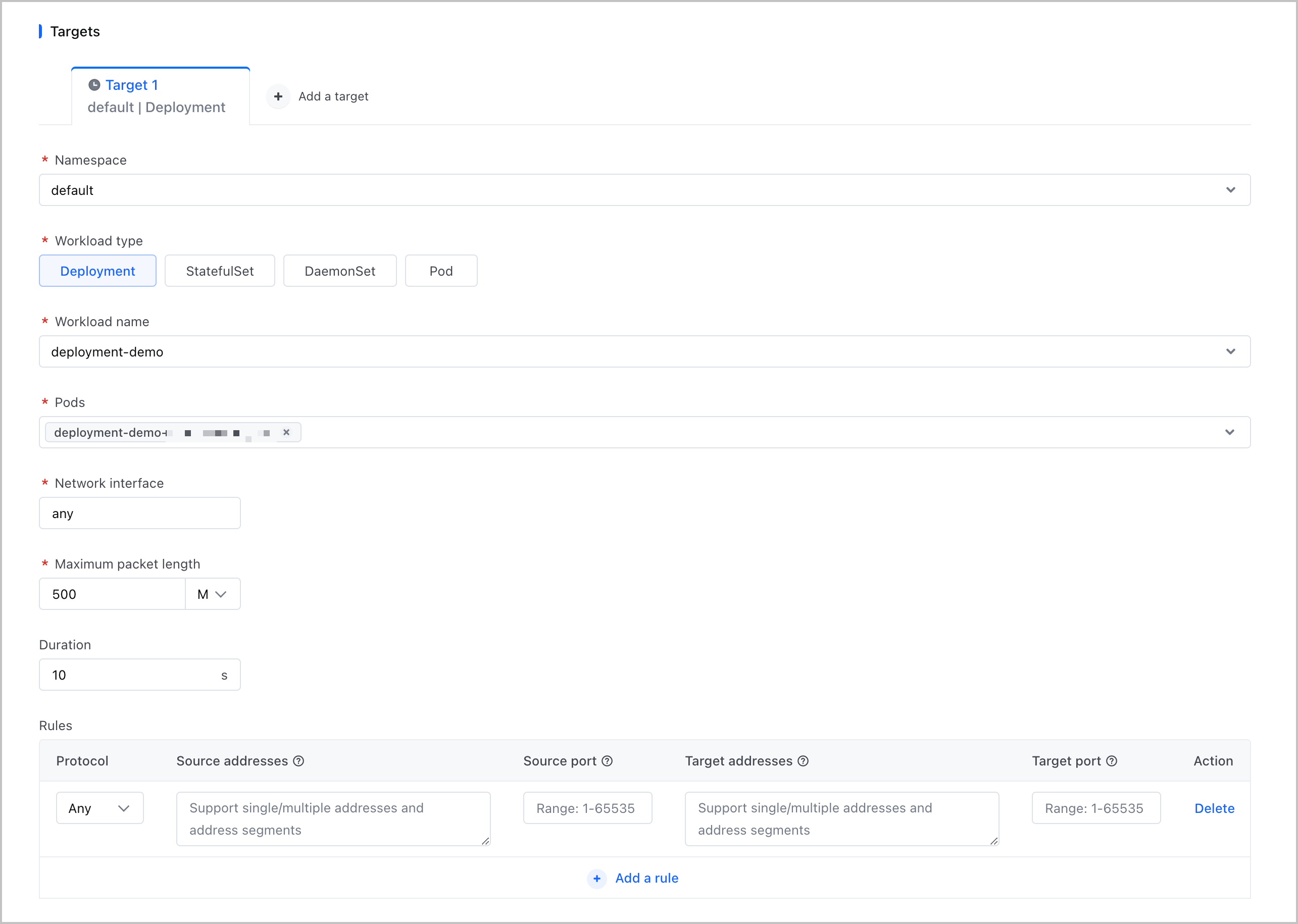
- ParametersDescriptionParametersDescriptionTargetConfigure the targets of the packet capture task. You can configure multiple packet capture targets for the same packet capture task.NamespaceSelect the namespace where the target of the packet capture task is located.Workload typeSelect the type of packet capture target. Valid values:
- Deployment
- StatefulSet
- DaemonSet
- Pod
Workload nameSelect the target workload of the packet capture task.PodsSelect the target pod of the packet capture task.Network interfaceConfigure a network interface card (NIC) for the packet capture target, such as eth0. The default value is any, which indicates all NICs.Maximum packet lengthSpecify the maximum length of the packet. The value must be an integer. Units can be KB, MB, or GB. The packet can be up to 2 GB in length.DurationSpecify the duration of the packet capture task. The value must be an integer. Unit: seconds. If you have not configured a packet capture duration, you need to manually stop the packet capture task.RulesConfigure the packet capture rules.- Protocol: Configure the packet capture protocol. Valid values: Any, TCP, UDP, and ICMP.
- Source addresses: Configure the source address for packet capture. You can configure a single IP address, such as 192.168.1.10, multiple IP addresses that need to be separated by |, such as 192.168.1.10|192.168.1.20, or a CIDR block, such as 192.168.1.0/24.
- Source port: Configure the source port number for packet capture. You can configure a single port number, such as 80. If this parameter is left empty, it indicates all ports are used, which are 1 to 65535.
- Target addresses: Configure the target address for packet capture. You can configure a single IP address, such as 192.168.1.10, multiple IP addresses that need to be separated by |, such as 192.168.1.10|192.168.1.20, or a CIDR block, such as 192.168.1.0/24.
- Target port: Configure the target port number for packet capture. You can configure a single port number, such as 80. If this parameter is left empty, it indicates all ports are used, which are 1 to 65535.
- Click Confirm to start capturing packets.
Creating tasks by using cluster topologies
You can perform the following steps to create a packet capture task by using network topologies on the Topology page:
- In the left navigation bar of the cluster management page, click Monitoring center > Cluster topology. View the topology chart of workload resources.
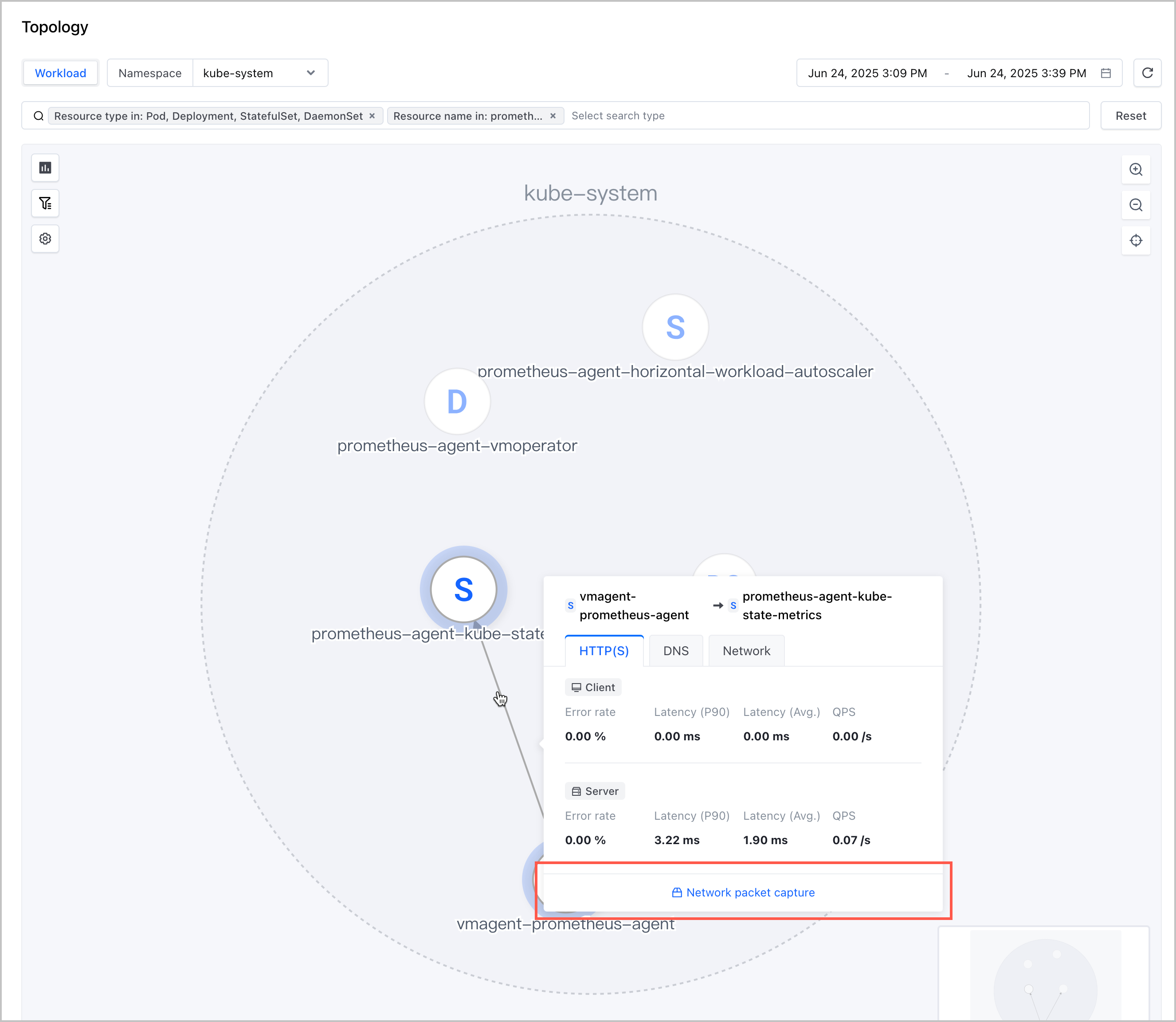
- In the topology, find the target line between two workload nodes, move the pointer over the line, and then click Network packet capture in the pop-up overview window. Then, you are redirected to the Network packet capture page and configure the packet capture task. For a specific packet capture configuration, see Directly creating packet capture tasks.
-
Validating results
After the packet capture task is configured, the system starts capturing packets based on the configurations.
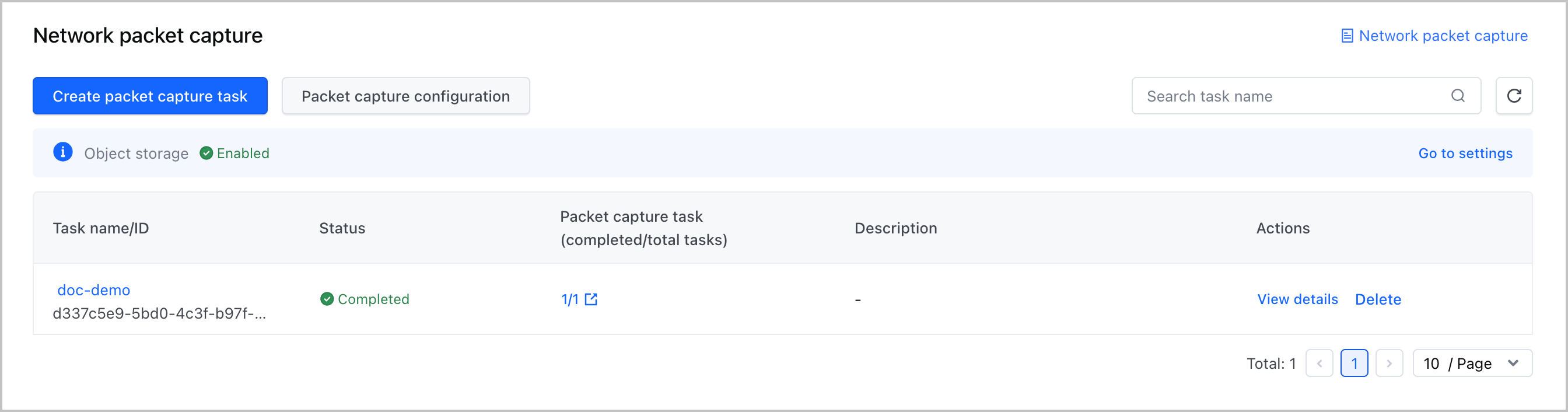
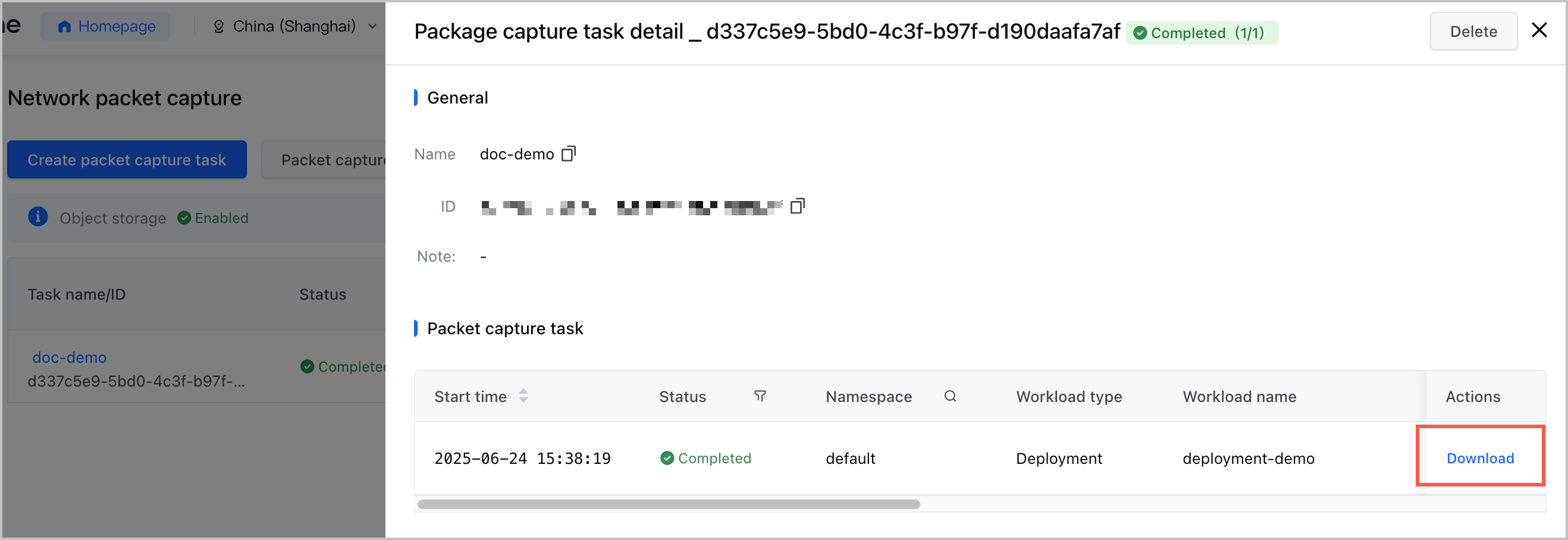
When the task state changes to Finish, it indicates that the packet capture task is complete. Click View details in the Actions column to view the details of the packet capture task. Click Download in the Actions column that corresponds to the target packet capture task to download the packet capture file in pcap format to your on-premises computer.
tip
You can use the Wireshark tool on your on-premises computer to analyze the packet capture file in pcap format.
Last updated: 2026.07.24 11:19:43
All rights reserved © Beijing Volcano Engine Technology Co., Ltd2024
