Volcengine Kubernetes Engine
Volcengine Kubernetes Engine


Document

- Documentation
 Volcengine Kubernetes EngineVolcengine Kubernetes EngineUser guideStorageEBS VolumesExpanding by using statically provisioned EBS data volumes
 Copy page
 Download PDF
EBS Volumes
Expanding by using statically provisioned EBS data volumes
Copy pageDownload PDFExpanding by using statically provisioned EBS data volumes
As your business grows and application data expands, you can increase the Elastic Block Storage (EBS) volume capacity to meet increased storage demands. This topic describes the steps of expanding EBS capacity as statically provisioned PersistentVolumes (PV).
Prerequisites
- The csi-ebs add-on has already been upgraded to the latest version.
- EBS has been used as a statically provisioned PV. For details, see Using statically provisioned EBS PV.
- Obtained the target volume ID to be expanded by using the volumeHandle value (for example, volumeHandle: vol-k10sii****) in the PV's YAML file for the pod.
- To avoid data loss caused by expansion failure, we recommend that you back up data in advance. For details, see Using EBS snapshots.
Procedure
This topic provides two volume expansion methods: expansion without application interruption and manual expansion with application interruption. You can select one that suits your scenario. The following are detailed descriptions and steps:
Method 1: Expansion without application interruption
This method does not restart the application during the storage expansion process, which ensures business continuity. However, if the I/O traffic of the file system is relatively high during expansion, there may be a risk of I/O errors in the file system.
Step 1: Expand the EBS data volume
- Log in to the Elastic Compute Service (ECS) console. In the left navigation bar, click Storage > Volumes. In the top menu bar, select the region of the target EBS volume.
- On the volume management page, find the target volume and click Extend in the Actions column. Follow the steps of the volume expansion wizard to expand the volume.
- In the Adjust capacity step, configure the New capacity field. Then, click Extend volume.
tip
The new capacity cannot be less than the current capacity.
In this example, the volume vol-k10sii**** is expanded from 100 GiB to 120 GiB.
- In the Attach to Instance step, attach the volume to the instance and click Next step.
- Click Return to the volume list to check the new capacity of the volume. This skips the Partition Disk and Create and Mount File Systems step.
Step 2: Expand the file system
- Log in to the ECS instance where the target EBS volume is located. For details, see Logging in to Linux instances.
- (Optional) Run the lsblk -f command as the root user to check whether the target EBS volume has a file system created and a mount point assigned. As shown in the figure below, the vdb has a file system and mount point. If no vdc information is displayed, it does not have a file system.

If the target EBS volume already has a file system, this step can be skipped. If the target EBS volume does not have a file system, run the following commands in sequence to create a file system for the EBS volume and mount it to a directory.
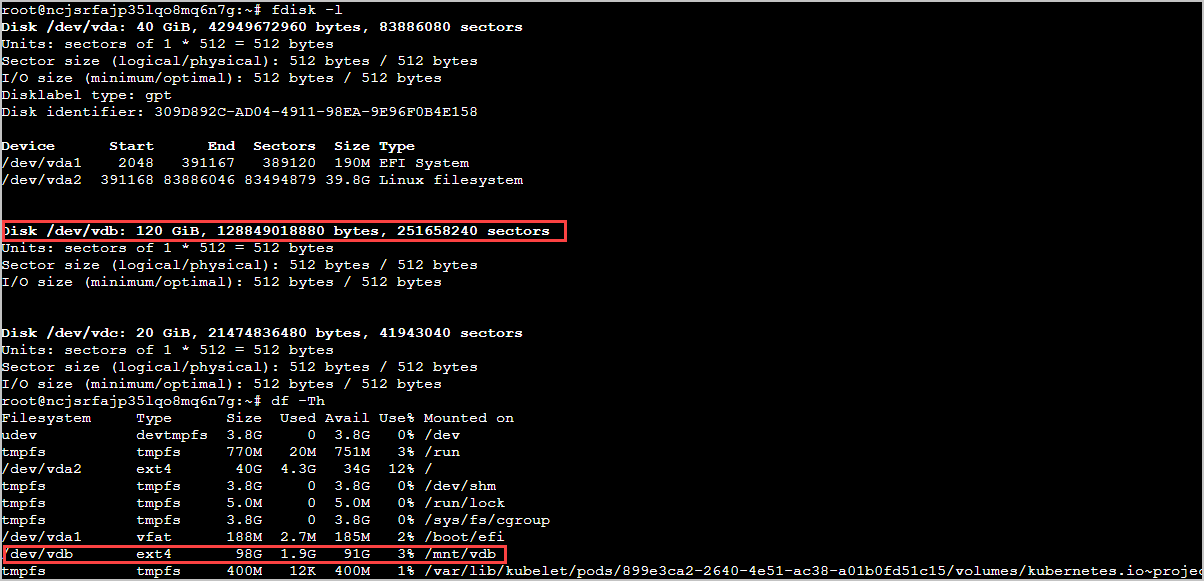
- Run the following command as the root user to view the status of the EBS volume.
As shown in the figure below, the device identifier of the EBS volume expanded to 120 GiB in Step 1 is /dev/vdb. At this time, if you run the df -Th command, the file system is still 100 GiB.
- For example, if the vdb uses the ext4 file system, run the following command to expand the file system capacity.
As shown in the figure below, the output matches expectations and no error is reported, indicating that the file system expansion was successful.

- Run the following command to view the result of the file system expansion.
As shown in the figure below, the /dev/vdb file system has been expanded to 120 GiB. Now the volume and file system are ready for use.

Method 2: Manual expansion with application interruption
This method suspends disk I/O and makes file system expansion more secure. However, your application will experience a short downtime. Therefore, evaluate whether your business can tolerate this downtime before you perform this type of expansion.
Step 1: Delete the application pod
- Suspend the application by deleting the StatefulSet or setting the number of replicas to 0. This scenario uses a MySQL application as an example. You can execute the following command to adjust the pod replica count to 0.
Expected output:
- Run the following command to check whether the pod has been deleted. No output indicates that the MySQL application has been deleted.
Step 2: Expand the EBS data volume
- Log in to the ECS console. In the left navigation bar, click Storage > Volumes. In the top menu bar, select the region of the target EBS volume.
- On the volume management page, find the target volume and click Extend in the Actions column. Follow the steps of the volume expansion wizard to expand the volume.
- In the Adjust capacity step, configure the New capacity field. Then, click Extend volume.
tip
The new capacity cannot be less than the current capacity.
In this example, the volume vol-k10sii**** is expanded from 100 GiB to 120 GiB.
- In the Attach to Instance step, attach the volume to the instance and click Next step.
- Click Return to the volume list to check the new capacity of the volume. This skips the Partition Disk and Create and Mount File Systems step.
Step 3: Expand the file system
- Log in to the ECS instance where the target EBS volume is located. For details, see Logging in to Linux instances.
- (Optional) Run the lsblk -f command as the root user to check whether the target EBS volume has a file system created and a mount point assigned. As shown in the figure below, the vdb has a file system and mount point. If no vdc information is displayed, it does not have a file system.
If the target EBS volume already has a file system, this step can be skipped. If the target EBS volume does not have a file system, run the following commands in sequence to create a file system for the EBS volume and mount it to a directory.
- Run the following command as the root user to view the status of the EBS volume.
As shown in the figure below, the device identifier of the EBS volume expanded to 120 GiB in Step 1 is /dev/vdb. At this time, if you run the df -Th command, the file system is still 100 GiB.
- For example, if the vdb uses the ext4 file system, run the following command to expand the file system capacity.
As shown in the figure below, the output matches expectations and no error is reported, indicating that the file system expansion was successful.
- Run the following command to view the result of the file system expansion.
As shown in the figure below, the /dev/vdb file system has been expanded to 120 GiB. Now the volume and file system are ready for use.
Step 4: Restart the application
- Run the following command to adjust the pod replica count to 2.
Expected output:
- Run the following command to check whether the pod has been restored. The following expected output shows that the MySQL application has been restored.
Expected output:
- Execute the following command to view the file system size. The following expected output shows that the storage capacity of the /dev/vdb file system is 120 GiB.
Expected output:
Related documentation
Last updated: 2026.07.24 10:53:31
All rights reserved © Beijing Volcano Engine Technology Co., Ltd2024
