Volcengine Kubernetes Engine
Volcengine Kubernetes Engine
Volcengine Kubernetes Engine


Document
Volcengine Kubernetes Engine
What's New
History feature release notes
Kubernetes version release notes
Containerd runtime release notes
Add-on release notes
Monitoring add-ons
Scheduling add-ons
DNS add-ons
Security add-ons
GPU add-ons
Sandbox add-on
Security announcements
Product Announcement
Historical announcements
Overview
Getting started
User guide
Clusters
Creating clusters
Connecting to clusters
Upgrading clusters
Node pool
Creating node pools
Scaling out/in node pools
Nodes
Authorization management
Image
Namespaces
Networking
Cluster network
Container Network
Service
LoadBalancer
CLB
Ingress
APIG Ingress
ALB Ingress
Customize ALB Ingress forwarding rules
Certificate and security
CLB Ingress
Nginx Ingress
Gateway API
Workloads
Creating workloads
Configure workloads
Pods
Configuration management
Image acceleration
Storage
FSX client
EBS Volumes
TOS Volumes
NAS volumes
FSX access methods
NFS access methods
EFS volumes
vePFS volumes
FSX access methods
vePFS Client access methods
NFS access methods
CloudFS volumes
Local volumes
Autoscale
Node autoscaler
Workload autoscaler
Horizontal Pod Autoscaler (HPA)
Cron Horizontal Pod Autoscaler (CronHPA)
Intelligent Horizontal Pod Autoscaler (IHPA)
Horizontal Pod Autoscaler based on event-driven (KEDA)
Add-on management
Network add-ons
Storage add-ons
Monitoring add-ons
Scheduling add-ons
DNS add-ons
GPU add-ons
Core add-ons
Sandbox add-on
Upgrading add-ons
Heterogeneous computing
NVIDIA GPU
mGPU scheduling
RDMA high-performance computing
Scheduling management
Topology-aware scheduling
QoS-aware scheduling
Observability
Log management
Basic observation
Setup & Configuration
Cluster observation
Storage observation
Other observation
Using metrics
Full stack observation
Alert management
Diagnosis and inspection
Node check and self-healing
Application center
Backup center
Stability
Large-scale cluster management
Best practices
Authorization
Clusters
Nodes and node pools
Networking
Storage
Scheduling
Observability
Solution
Security and compliance
API reference
Cluster management
NodePool management
Node management
Virtual nodes management
Add-on management
Tag management
Access policy management
Instance images management
Cloud native observability
Inspection and diagnosis
Task management
Volcengine Container Instance
Appendix
SDK reference
Development guide
Terraform
FAQs
General FAQs
Cluster FAQ
cluster management
cluster network
cluster upgrade
Node and Node pool FAQs
Authorization FAQs
Workload FAQs
Service and Ingress FAQs
Storage FAQs
Heterogeneous computing FAQs
Observability FAQs
Quota FAQs
Add-on FAQs
Cloud-native AI
ServingKit
LLM applications
ComfyUI application
Deploying the Al inference application through Helm
Deepseek practices
Qwen practices
Kimi practice
Seed practices
Best practices
DeepSeek model deployment
GLM model deployment
MiniMax model deployment
Qwen model deployment
Kimi model deployment
Volcengine Container Instance
What's new
Historical feature release notes
Product Announcement
Overview
Billing
User guide
Integrating with VCI
Virtual node
VKE cluster uses virtual nodes
Self-managed/third-party cluster uses virtual node
Creating an instance
General purpose instance
GPU-accelerated computing instance
VCI Agent Sandbox
Startup acceleration
E2B-based management
Upgrade guide
Networking
Monitoring
Scheduling
Container configuration
VCI Image Cache
Best practices
Security and compliance
FAQs
- Documentation
 Volcengine Kubernetes EngineVolcengine Kubernetes EngineUser guideAutoscaleWorkload autoscalerHorizontal Pod Autoscaler (HPA)Autoscaling based on self-managed Prometheus
 Copy page
 Download PDF
Horizontal Pod Autoscaler (HPA)
Autoscaling based on self-managed Prometheus
Copy pageDownload PDFAutoscaling based on self-managed Prometheus
When you use a self-managed Prometheus system to monitor clusters, you can deploy the open source Prometheus adapter in the clusters to connect to your self-managed Prometheus. This achieves Horizontal Pod Autoscaler (HPA) based on custom metrics. This topic describes how to deploy the open source Prometheus adapter in a cluster and achieve HPA.
Differences
You can use a self-managed Prometheus system or VMP to connect to a VKE cluster and achieve HPA based on metrics. The following table describes the main differences when different systems are connected.
Prometheus adapter add-on and open source Prometheus adapter
Item | Prometheus adapter add-on | Open source Prometheus adapter |
Item | Prometheus adapter add-on | Open source Prometheus adapter |
Stability and support | VKE provides stability guarantee and technical support. | You need to manage and maintain it yourself and seek support from the community. |
Adaptability | It can automatically adapt to VMP. | You need to set up and adapt to a Prometheus service. |
Ease of use | It is easy to use. | The features are consistent with the community edition. |
VMP and self-managed Prometheus
Item | VMP | Self-managed Prometheus |
Item | VMP | Self-managed Prometheus |
Adaptability | Highly compatible with VKE clusters. | It is managed and maintained by the user and is consistent with the community version. |
Service scope | Provides a complete managed solution from collection to observation. | - |
Access method | Supports the standard Prometheus access method. | - |
Prerequisites
- A cluster has been created and is running as expected. For detailed operations, see Creating clusters.
- The self-managed Prometheus service has been deployed, and the VKE cluster can access the service and collect metric data as expected.
- Configure the local environment (Linux/Mac):
- Install and configure the Helm tool. Make sure that Helm can be connected to the specified Helm repository.
- The kubectl tool is installed on your on-premises computer. For details, see Installing and configuring kubectl.
- The target cluster is connected through kubectl. For details, see Connecting to clusters.
Limit
- When you modify the Prometheus URL and configure authentication, invalid configurations may cause the Prometheus adapter to fail to obtain metric data, which will affect the autoscaling feature of HPA.
- When you pull an image, if the specified image architecture is inconsistent with the architecture of the Kubernetes cluster nodes, the image may not run as expected in the cluster.
- When you configure custom metrics, invalid configurations will prevent HPA from autoscaling as expected. This may cause resource waste or degraded business performance.
Procedure
Step 1: Pull a chart
- On your on-premises computer, run the following command to pull the Prometheus adapter chart locally.
helm repo add prometheus-community https://prometheus-community.github.io/helm-charts
helm repo update
helm pull prometheus-community/prometheus-adapter
- Extract the pulled chart file and access the extracted folder. The file named prometheus-adapter-4.11.0.tgz is used as an example in this topic.
tar -zxvf prometheus-adapter-4.11.0.tgz && cd prometheus-adapter
Step 2: Modify configurations
- Open the values.yaml file on your on-premises computer and change the Prometheus URL to the query address of your self-managed Prometheus system. If the port number is not required, you can delete it.
-

- If you have configured basic authentication for the self-managed Prometheus system, add the extraArguments field in values.yaml to authenticate the Prometheus adapter. Generate the token using online or offline tools with your Prometheus basic authentication credentials, then add it to the corresponding parameter.
-
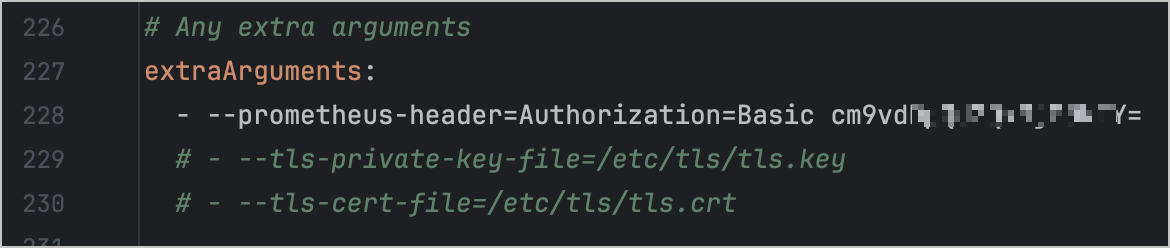
Step 3: Build an image
- Pull an image that matches the architecture of your Kubernetes cluster nodes from your on-premises computer. This topic uses the linux/amd64 architecture as an example.
docker pull --platform linux/amd64 registry.k8s.io/prometheus-adapter/prometheus-adapter:v0.12.0
- Add tags to the pulled image and specify the address of the target container registry, image name, and version number. This topic takes doc-cn-beijing.cr.volces.com/vke/prometheus-adapter-demo:v1.0 as an example.
docker tag registry.k8s.io/prometheus-adapter/prometheus-adapter:v0.12.0 doc-cn-beijing.cr.volces.com/vke/prometheus-adapter-demo:v1.0
- Push the image to the target container registry. If you use the Container Registry (CR) service of Volcano Engine, see Pushing and pulling images for more operation details.
docker push doc-cn-beijing.cr.volces.com/vke/prometheus-adapter-demo:v1.0
- Modify the image path in the values.yaml file so that it points to the pushed image address.
-
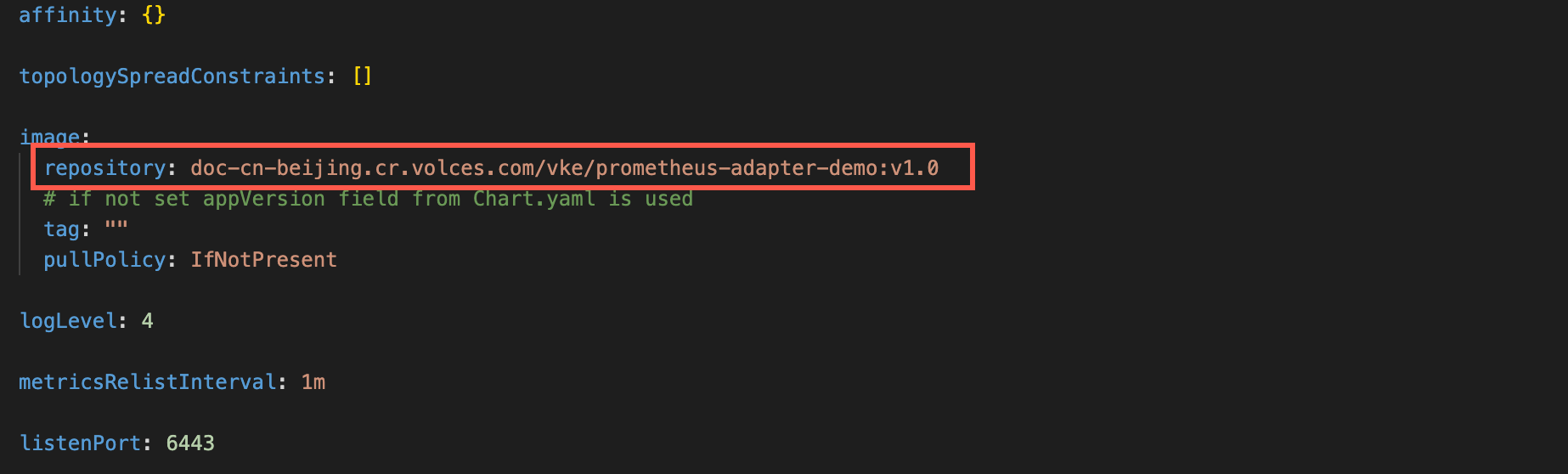
Step 4: Configure custom metrics
- In the configuration section of custom metrics in values.yaml, set default to false, which indicates that the default configuration is disabled.
-
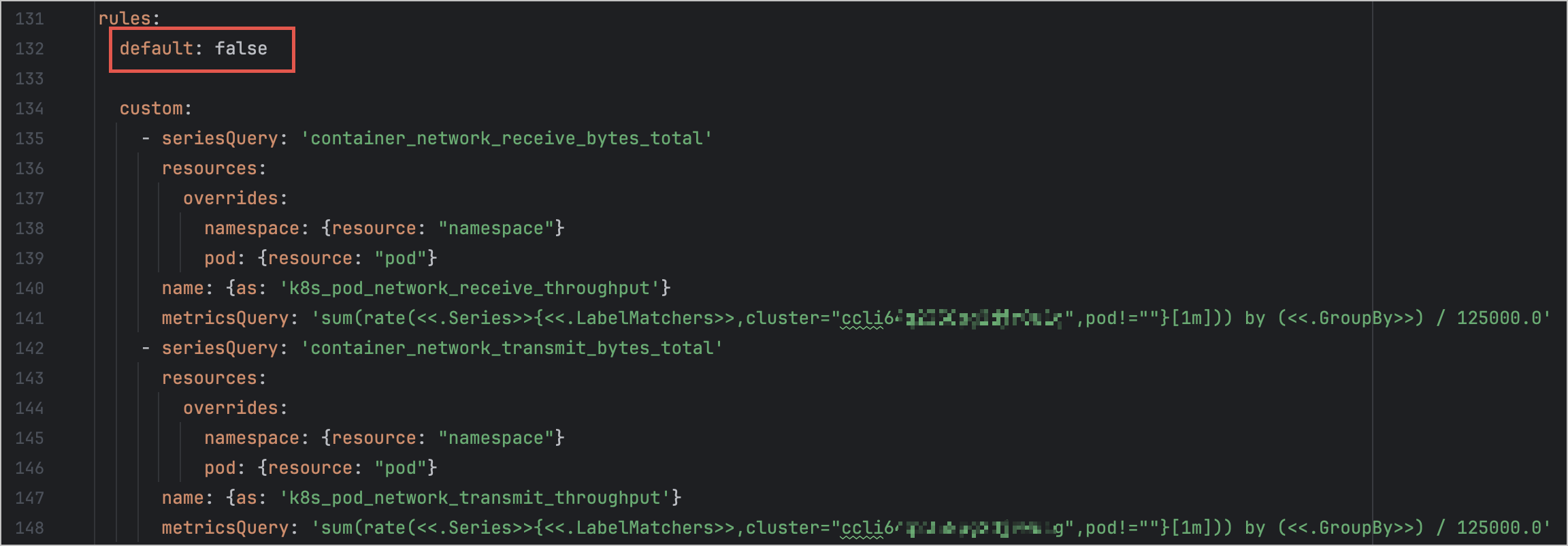
- Specify the custom field. The following sample code takes the network metrics container_network_receive_bytes_total and container_network_transmit_bytes_total as examples.
rules:
default: false
custom:
- seriesQuery: 'container_network_receive_bytes_total'
resources:
overrides:
namespace: {resource: "namespace"}
pod: {resource: "pod"}
name: {as: 'k8s_pod_network_receive_throughput'}
metricsQuery: 'sum(rate(<<.Series>>{<<.LabelMatchers>>,pod!=""}[1m])) by (<<.GroupBy>>) / 125000.0'
- seriesQuery: 'container_network_transmit_bytes_total'
resources:
overrides:
namespace: {resource: "namespace"}
pod: {resource: "pod"}
name: {as: 'k8s_pod_network_transmit_throughput'}
metricsQuery: 'sum(rate(<<.Series>>{<<.LabelMatchers>>,pod!=""}[1m])) by (<<.GroupBy>>) / 125000.0'
Step 5: Install the chart
In the prometheus-adapter folder, run the following command to install the chart. Replace prom-adapter with another name based on your business requirements.
helm install prom-adapter .
Viewing configurations
After the Prometheus-adapter is installed, log in to the cluster and check whether all related workloads are running as expected and the parameters are valid.
- Log in to VKE console.
- In the left navigation bar, click Cluster.
- On the cluster list page, click the cluster you want to configure.
- In the left navigation bar of the cluster management page, click Workload > Deployment. In the workload list, check whether all related workloads function as expected.
- In the left navigation bar of the cluster management page, click Configurations > ConfigMap to view ConfigMaps.
- In the left navigation bar of the cluster management page, click Workload > Resource Explorer. Select API Group from the Category list to view API groups.
Result validation
- Create a workload in the cluster. This topic provides an example of how to create a Deployment.
apiVersion: apps/v1
kind: Deployment
metadata:
name: workload-demo
namespace: default
spec:
replicas: 1
selector:
matchLabels:
app: workload-demo
template:
metadata:
labels:
app: workload-demo
spec:
containers:
- name: nginx
image: nginx:1.14.2
ports:
- containerPort: 80
- Create an HPA associated with the workload and configure autoscaling based on network metrics.
apiVersion: autoscaling/v2
kind: HorizontalPodAutoscaler
metadata:
name: hpa-demo
namespace: default
spec:
maxReplicas: 10
metrics:
- pods:
metric:
name: k8s_pod_network_receive_throughput
target:
averageValue: "80"
type: AverageValue
type: Pods
- pods:
metric:
name: k8s_pod_network_transmit_throughput
target:
averageValue: "80"
type: AverageValue
type: Pods
minReplicas: 1
scaleTargetRef:
apiVersion: apps/v1
kind: Deployment
name: workload-demo
- View workload details. Click the Autoscaling tab, and you can view the HPA configuration of the current workload. Achieve horizontal scaling for the workload based on the self-managed Prometheus system.
Last updated: 2026.07.24 14:51:38
All rights reserved © Beijing Volcano Engine Technology Co., Ltd2024
