Volcengine Kubernetes Engine
Volcengine Kubernetes Engine
Volcengine Kubernetes Engine


Document
Volcengine Kubernetes Engine
What's New
History feature release notes
Kubernetes version release notes
Containerd runtime release notes
Add-on release notes
Monitoring add-ons
Scheduling add-ons
DNS add-ons
Security add-ons
GPU add-ons
Sandbox add-on
Security announcements
Product Announcement
Historical announcements
Overview
Getting started
User guide
Clusters
Creating clusters
Connecting to clusters
Upgrading clusters
Node pool
Creating node pools
Scaling out/in node pools
Nodes
Authorization management
Image
Namespaces
Networking
Cluster network
Container Network
Service
LoadBalancer
CLB
Ingress
APIG Ingress
ALB Ingress
Customize ALB Ingress forwarding rules
Certificate and security
CLB Ingress
Nginx Ingress
Gateway API
Workloads
Creating workloads
Configure workloads
Pods
Configuration management
Image acceleration
Storage
FSX client
EBS Volumes
TOS Volumes
NAS volumes
FSX access methods
NFS access methods
EFS volumes
vePFS volumes
FSX access methods
vePFS Client access methods
NFS access methods
CloudFS volumes
Local volumes
Autoscale
Node autoscaler
Workload autoscaler
Horizontal Pod Autoscaler (HPA)
Cron Horizontal Pod Autoscaler (CronHPA)
Intelligent Horizontal Pod Autoscaler (IHPA)
Horizontal Pod Autoscaler based on event-driven (KEDA)
Add-on management
Network add-ons
Storage add-ons
Monitoring add-ons
Scheduling add-ons
DNS add-ons
GPU add-ons
Core add-ons
Sandbox add-on
Upgrading add-ons
Heterogeneous computing
NVIDIA GPU
mGPU scheduling
RDMA high-performance computing
Scheduling management
Topology-aware scheduling
QoS-aware scheduling
Observability
Log management
Basic observation
Setup & Configuration
Cluster observation
Storage observation
Other observation
Using metrics
Full stack observation
Alert management
Diagnosis and inspection
Node check and self-healing
Application center
Backup center
Stability
Large-scale cluster management
Best practices
Authorization
Clusters
Nodes and node pools
Networking
Storage
Scheduling
Observability
Solution
Security and compliance
API reference
Cluster management
NodePool management
Node management
Virtual nodes management
Add-on management
Tag management
Access policy management
Instance images management
Cloud native observability
Inspection and diagnosis
Task management
Volcengine Container Instance
Appendix
SDK reference
Development guide
Terraform
FAQs
General FAQs
Cluster FAQ
cluster management
cluster network
cluster upgrade
Node and Node pool FAQs
Authorization FAQs
Workload FAQs
Service and Ingress FAQs
Storage FAQs
Heterogeneous computing FAQs
Observability FAQs
Quota FAQs
Add-on FAQs
Cloud-native AI
ServingKit
LLM applications
ComfyUI application
Deploying the Al inference application through Helm
Deepseek practices
Qwen practices
Kimi practice
Seed practices
Best practices
DeepSeek model deployment
GLM model deployment
MiniMax model deployment
Qwen model deployment
Kimi model deployment
Volcengine Container Instance
What's new
Historical feature release notes
Product Announcement
Overview
Billing
User guide
Integrating with VCI
Virtual node
VKE cluster uses virtual nodes
Self-managed/third-party cluster uses virtual node
Creating an instance
General purpose instance
GPU-accelerated computing instance
VCI Agent Sandbox
Startup acceleration
E2B-based management
Upgrade guide
Networking
Monitoring
Scheduling
Container configuration
VCI Image Cache
Best practices
Security and compliance
FAQs
- Documentation
 Volcengine Kubernetes EngineVolcengine Kubernetes EngineFAQsCluster FAQcluster upgradeHow do I resolve the "conntrack full" error?
 Copy page
 Download PDF
cluster upgrade
How do I resolve the "conntrack full" error?
Copy pageDownload PDFHow do I resolve the "conntrack full" error?
Cause
The conntrack full error in kernel logs (queryable via the "dmesg" command) indicates the Linux connection tracking (Conntrack) table has reached the limit defined by conntrack_max. You need to increase the Conntrack entry limit.
Solution
- Log in to the target node where the error occurred. For detailed instructions, see ECS Terminal.
- Run the following commands to check the entry count and resource usage of each protocol in the Conntrack.
- # View table details. You can filter output with the grep pipeline to check status, or run "cat /proc/net/nf_conntrack" as an alternative.conntrack -L# View the entry count.cat /proc/sys/net/netfilter/nf_conntrack_count# View the current maximum allowed number of entries in the table.cat /proc/sys/net/netfilter/nf_conntrack_max
- If there are a large number of TCP entries, identify the corresponding applications and their network protocols. For applications using short-lived connections, we recommend refactoring them to use persistent connections.
- If there are a large number of DNS entries, we recommend using NodeLocal DNSCache in your VKE cluster to improve DNS performance and reduce Conntrack usage. For detailed instructions, see Using NodeLocal DNSCache as a DNS caching agent.
- If the actual Conntrack usage is reasonable, or you do not want to modify the workloads, you can adjust the Conntrack entry limit by configuring the maxPerCore parameter for kube-proxy. To do so, follow the steps below:
- Log in to the VKE console.
- In the left navigation bar, click Cluster.
- In the cluster list, click the name of the target cluster.
- In the left navigation pane of the cluster management page, click Configurations > ConfigMap.
- On the ConfigMap page, find the kube-proxy ConfigMap and click its name to enter the ConfigMaps details page.
- In the upper-right corner of the ConfigMaps details page, click ... > Edit Yaml.
-
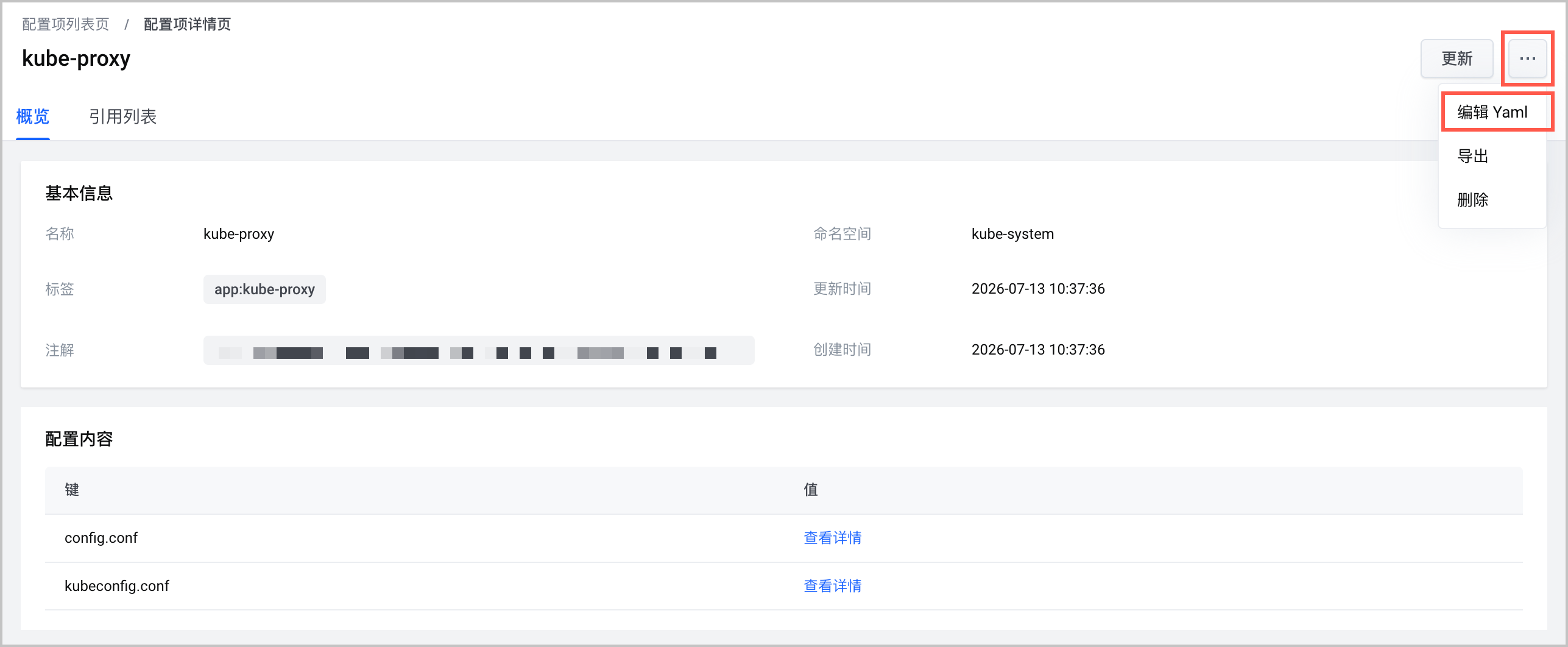
- Add the maxPerCore parameter to the YAML file and save the change.
- apiVersion: v1data:config.conf: |-apiVersion: kubeproxy.config.k8s.io/v1alpha1bindAddress: 0.0.0.0bindAddressHardFail: falseclientConnection:acceptContentTypes: ""burst: 10contentType: application/vnd.kubernetes.protobufkubeconfig: /var/lib/kube-proxy/kubeconfig.confqps: 5clusterCIDR: 172.30.112.0/21configSyncPeriod: 15m0sconntrack:maxPerCore: 32768 # The default value is 32768. You can adjust it as needed.min: 131072tcpCloseWaitTimeout: 1h0m0stcpEstablishedTimeout: 24h0m0sdetectLocalMode: ""enableProfiling: falsehealthzBindAddress: 0.0.0.0:10256hostnameOverride: ""......
Last updated: 2026.07.24 18:38:16
All rights reserved © Beijing Volcano Engine Technology Co., Ltd2024
