Volcengine Kubernetes Engine
Volcengine Kubernetes Engine


Document

- Documentation
 Volcengine Kubernetes EngineVolcengine Container InstanceGetting startedUsing VCI in the VKE console
 Copy page
 Download PDF
Getting started
Using VCI in the VKE console
Copy pageDownload PDFUsing VCI in the VKE console
This topic describes how to quickly deploy applications by using VCI in the VKE console. This helps you quickly understand and use VCI.
Background
This topic takes the quick deployment of an Nginx application in a VPC-CNI cluster as an example to introduce the procedure for using VCI. For the method of using VCI in a Flannel cluster, see Using VCI in Flannel clusters.
Step 1: Create a VKE cluster
The following content describes how to create a VPC-CNI cluster without ECS nodes by using a VKE cluster template. This helps you quickly use VCI.
- Log in to the VKE console.
- In the top navigation bar, select the region closest to your business.
- In the left navigation bar, click Cluster. On the page that appears, click Create cluster.
- In the Create cluster dialog box, click Create now in the Custom managed clusters section.
- On the Create cluster page, configure the cluster based on the on-screen prompts.
- This quick start uses the parameter settings shown in the table below. For unmentioned parameters, keep their default settings. For more information, see Creating managed clusters.
- ParameterDescriptionExampleScreenshotBasic configuration
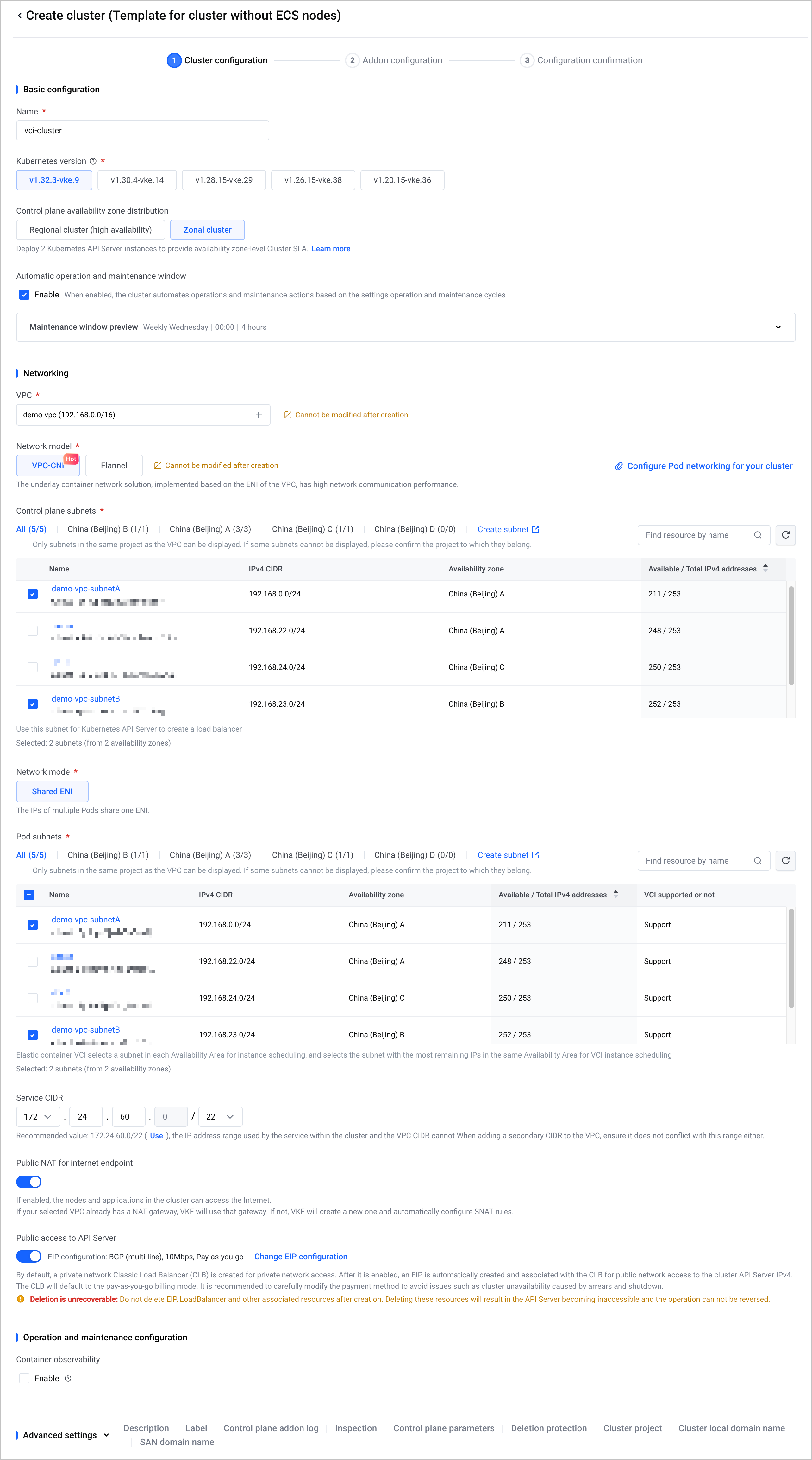 NameSpecify a name for the cluster.vci-clusterKubernetes versionSelect the version of the Kubernetes cluster to deploy.warningThe latest Kubernetes version supported by VKE may not support VCI. For details, see the detailed description of each version in Kubernetes version release notes.Select the latest Kubernetes version supported by VCI.NetworkingVPCSelect the VPC to which the cluster belongs. Select the created VPC as described in VCI preparations.demo-vpc (192.168.0.0/16)Network modelConfigure pod networking (CNI) solution for the cluster.VPC-CNIControl plane subnetsSelect subnets in the VPC.demo-vpc-subnetA and demo-vpc-subnetBPod subnetsSelect the VPC subnet used to allocate IP addresses for pods deployed in the cluster.demo-vpc-subnetA and demo-vpc-subnetBPublic NAT for internet endpointAfter this feature is enabled, use a NAT gateway to provide public access for nodes and applications within the cluster.
- If the VPC of cluster has a NAT gateway, VKE will use that gateway.
- If the VPC of cluster does not have a NAT gateway, VKE will create a NAT gateway and automatically generate SNAT rules. The newly created NAT gateway uses the Pay-by-CU billing mode. For billing details, see NAT Gateway billing.
EnableInternet access to API ServerAfter you enable Internet access to API Server, VKE automatically creates an EIP of the BGP (Multipath) type and associates it with a CLB instance. This enables the cluster to be accessed over the public network.EnableOperation and maintenance configurationContainer observabilityThis feature is enabled by default. Enabling it allows you to monitor the metrics of basic cluster resources, including nodes, kubelet, and kube-state-metrics, and control plane services, including kube-apiserver, kube-scheduler, and etcd.Close
- In the lower-right corner of the page, click Next: Node pool configuration.
- For this example, keep the default configuration, which indicates that Create later is selected for the Node pool parameter. In this way, only virtual nodes are created in the cluster, and VCI is used to deploy add-ons in the cluster.
- In the lower-right corner of the page, click Next: Addon configuration. Add-ons include all functional add-ons and necessary system add-ons supported by the cluster.
- You need to install the vci-virtual-kubelet add-on in VCI scenarios. Configure other add-ons based on your business requirements.
- Click Next: Configuration confirmation in the lower-right corner of the page. After confirming the cluster configuration information and reading the terms of service, scroll to the bottom of the page, select I have read and agree to Volcengine Kubernetes Engine Specific Terms of Service, and click Confirm in the lower-right corner of the page to create the cluster.
- It will take 15 to 20 minutes to create a cluster. You can click Cluster list to proceed with other configurations, or stay on this page to view the creation progress.
Step 2: Deploy an application
After you create a cluster, you can deploy an application by using a Deployment.
- In the left navigation bar of the VKE console, click Cluster.
- On the Cluster page, find the cluster created in Step 1 and click the cluster name.
- In the left navigation bar of the cluster management page, click Workload > Deployment.
- On the Deployment page, click Create Deployment.
- On the Create Deployment page, specify the parameters of the Deployment by following the wizard.
- This quick start uses the parameter settings shown in the table below. For unmentioned parameters, keep their default settings. For parameter details, see Creating Deployments.
- Basic Information
-
- Container configuration
-
- Advanced settings
-
- Click Confirm in the lower-right corner of the page to create the Deployment.
- On the Deployment page, click the Deployment name to go to the details page. Then, click the List of instances tab to view the running status of the Pods for the Deployment. If Running is displayed in the Status column, it indicates that the Deployment runs as expected.
Step 3: Access the application
After you deploy the application, you can access the application on the Service tab to check whether the application is deployed.
- On the Deployment details page, click the Access method tab.
- On the Access method tab, click the Service tab, and then click Create Service.
- On the Create Service page, configure service information. After you complete the configuration, click Confirm in the lower-right corner of the page.
- This quick start uses the parameter settings shown in the table below. For unmentioned parameters, keep their default settings. For detailed parameter settings, see Creating CLB services using the console.
-
- After you create the service, copy the address in the External endpoint column on the Service tab of the Access method tab.
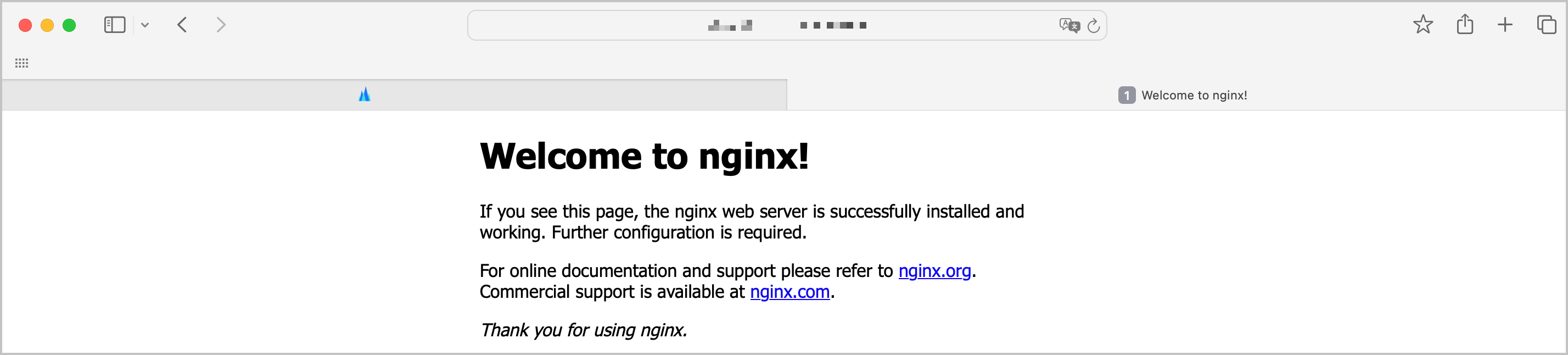
- Enter the external endpoint address in the browser address bar to go to the Nginx welcome page.
-
Step 4: (Optional) Monitor the application
After the application is deployed, you can use cloud-native observability capabilities to monitor the running status and resource usage of the application, such as CPU and memory usage, to facilitate operations and maintenance. For related descriptions, see Monitoring VCI with VMP.
Release resources
After you get started with VCI, if you do not need to use applications that are deployed through VCI, refer to the guidance in Managing workloads to delete the deployments. If you do not need to use the VKE cluster, refer to the guidance in Deleting clusters to delete the cluster and its associated resources. If you need to continue to use the VKE cluster and the applications deployed in the cluster through VCI, make sure that your Volcano Engine account balance is not zero when coupons are excluded and not less than CNY 100 when coupons are included.
If you continue to use the VKE cluster and the applications deployed in the cluster by using VCI, the following types of fees will be incurred. For detailed billing information, see Product billing.
- Cluster management fees: The fees are charged by VKE.
- VCI fees: The fees are charged by VCI.
- Basic cloud resource fees: The fees for services used in the cluster, such as NAT Gateway, Load Balancer, EIP, and EBS, and other Volcano Engine cloud services, are billed separately by the respective cloud services.
Last updated: 2026.09.24 15:22:31
All rights reserved © Beijing Volcano Engine Technology Co., Ltd2024
