Volcengine Kubernetes Engine
Volcengine Kubernetes Engine


Document

- Documentation
 Volcengine Kubernetes EngineVolcengine Container InstanceBest practicesDeploying OpenClaw by using VCI
 Copy page
 Download PDF
Best practices
Deploying OpenClaw by using VCI
Copy pageDownload PDFDeploying OpenClaw by using VCI
This topic describes how to deploy the OpenClaw service by using VCI.
warning
- Currently, the VCI service is not available to individual users. Therefore, the content of this topic applies only to Volcano Engine users who pass enterprise authentication. For information about enterprise authentication, see Real name authentication.
- This content is used to help you get started with deploying the OpenClaw service and is not recommended for direct use in production environments.
Background
OpenClaw introduction
OpenClaw (formerly known as Clawdbot and Moltbot) is a globally popular open-source AI agent execution gateway. It is not an LLM, but the orchestration layer and execution hub for LLMs. Connecting to mainstream LLMs at the upper level and digital systems and physical hardware at the lower level, it upgrades AI from passive dialogue mode to a fully closed-loop autonomous agent that follows the cycle of "Understand → Plan → Execute → Feedback". With a single natural language instruction, it can accomplish real-world tasks across multiple scenarios.
Industry requirements
The behaviors of OpenClaw, such as code generation, command execution, and browser operations, are uncertain. Combined with security risks such as prompt injection, the lack of a comprehensive security protection system can easily lead to business risks. In addition, new infrastructure requirements arise in enterprise-grade scenarios: efficient orchestration of thousands of sandbox environments and rapid creation and destruction of sandboxes. This ensures the whole network access process is controllable and compliant.
Advantages of Kubernetes and VCI
Kubernetes is the de facto standard for cloud-native application orchestration. It provides mature scalability and network capabilities. However, AI Agents introduce a new running mode. They are isolated and stateful singleton workloads, which require persistent identity, secure code execution staging areas, and life cycle management that supports suspension and rapid restoration. AI Agents are idle most of the time with occasional bursts of activity.
As a serverless and containerized computing service, VCI can be seamlessly integrated with VKE, which provides Kubernetes orchestration capabilities. VCI provides the following advantages in the OpenClaw deployment scenario:
- Multi-tenant isolated deployment: Achieves virtual machine-level strong isolation through Kata Container. When used together with network security groups, RBAC, and resource quotas, it achieves permissions, resources, and data boundary management across multiple tenants and sessions.
- Execution security protection: Provides sandboxes with the minimum permissions for system-level operations of AI Agents, such as code execution, file operations, API calls, and browser automation. It blocks the escape of attackers and unauthorized operations by using seccomp, AppArmor, read-only mount, and system call restrictions.
- Elastic task scheduling: Provides standardized image packaging and sandbox execution environments for modular skill units. Leveraging Kubernetes elastic scaling, self-healing, and on-demand start/stop capabilities, it adapts to high-concurrency and burst task scenarios.
Solution architecture introduction
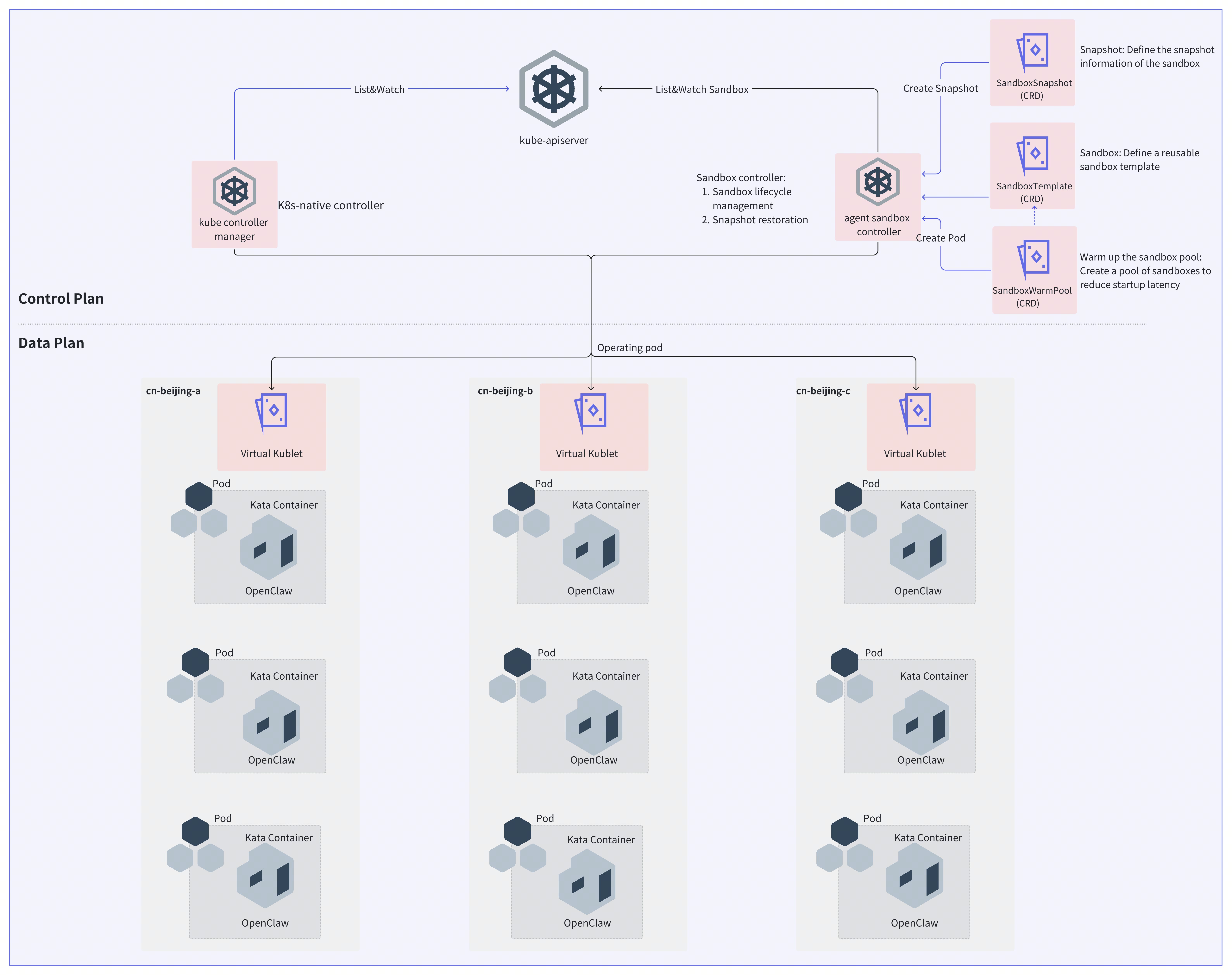
The overall architecture of OpenClaw deployed through VCI is divided into two layers: the control plane and the data plane.
- Control plane: The control plane uses kube-apiserver as its central hub and integrates two controllers that correspond to two deployment modes.
- Kubernetes native controller: Applicable to the Deployment deployment mode. The kube controller manager uses the List&Watch mechanism to monitor native resources (such as Deployment and ReplicaSet) in the kube-apiserver, and creates Pods and manages Pods throughout the entire lifecycle by following the standard Kubernetes workflow.
- Agent Sandbox controller: Applicable to the Sandbox deployment mode. The Agent Sandbox Controller uses the List&Watch mechanism to listen to the Sandbox custom resource definition (CRD) in the kube-apiserver, and is mainly used to manage Sandboxes throughout the entire lifecycle and restore snapshots.
- Data plane: The data plane is used for running and isolating workloads and provides high availability across availability zones (AZs).
Deploy OpenClaw from scratch
This section describes how to deploy the OpenClaw service by using Volcano Engine VCI. The following content introduces the preparation phase and two specific deployment methods. You can select an appropriate deployment method based on your business requirements:
- Deployment-based deployment: Suitable for stateless scenarios, or scenarios where state persistence is achieved through data volumes.
- Agent Sandbox-based deployment: Suitable for scenarios where stateful operation is required, such as personal assistants or AI Agents. This method provides advanced features, such as state persistence, warm pools, and image commit.
Preparation phase
Before starting the deployment, you need to complete all configurations in the preparation phase.
Step 1: Prepare a Kubernetes cluster
Prepare a VKE cluster to integrate and manage computing, storage, networking, and other resources for the deployment of the OpenClaw service. You can use an existing cluster or create a cluster. You can use an existing cluster or create a cluster.
To deploy the OpenClaw service by using VCI in an existing VKE cluster, make sure that the cluster meets the following conditions:
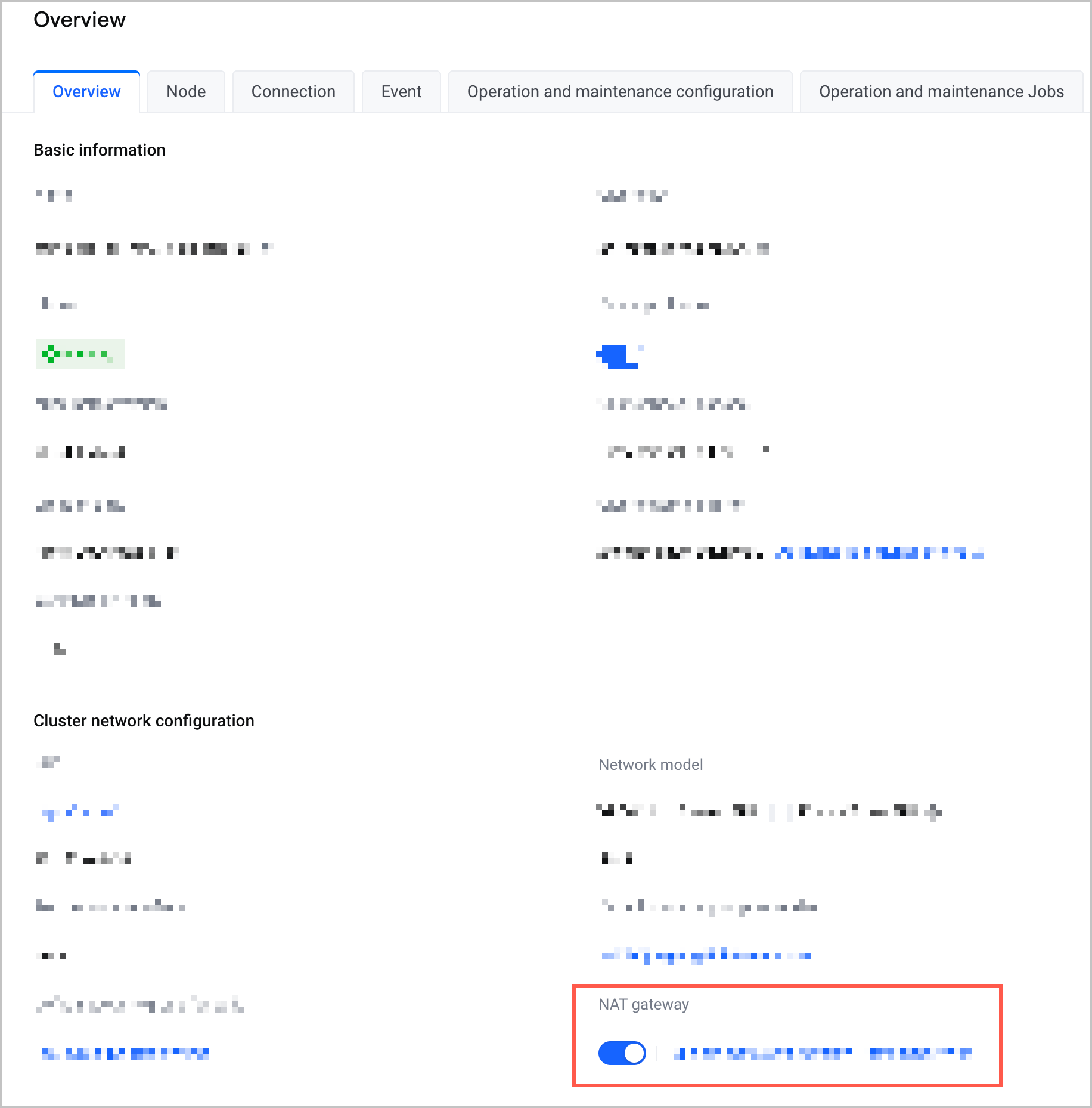
- The public access feature has been enabled, which ensures that nodes in the cluster can access the public network. You can view whether NAT gateway is available and enabled on the Overview tab of the cluster Overview page. If it is available, the public access feature is enabled. Otherwise, it is disabled, and you need to manually enable it. For detailed operations, see How do I manually enable Public NAT for Internet endpoint for a cluster?
-
- The vci-virtual-kubelet add-on has been installed in the cluster, which allows the cluster to deploy applications by using VCI. For details, see Installing add-ons.
- The csi-ebs add-on has been installed in the cluster for storage mounting. For details, see Installing add-ons.
To create a VKE cluster and deploy the OpenClaw service by using VCI, perform the following steps.
- Log in to the VKE console.
- In the top navigation bar, select the region closest to your business.
- In the left navigation bar, click Cluster. On the page that appears, click Create cluster.
- In the Create cluster dialog box, go to the Custom managed clusters section and click Create now.
- On the Create cluster page, follow the wizard to configure the cluster.
- The following table only lists the required configurations when you deploy the OpenClaw service by using VCI. For other parameters, you can specify custom values based on your business requirements, or keep the default values. For more information, see Creating managed clusters.
- Cluster configuration
-
- Add-on configuration
-
- Follow the system configuration wizard to create the cluster, and wait for the cluster status to change to Running.
Step 2: Prepare the deployment script
The following content takes downloading the official OpenClaw deployment script locally as an example. You can also use a machine that can run kubectl commands in the cloud or on an on-premises computer to prepare the deployment script.
- (Optional) Download and install the latest version of the kubectl tool from the official Kubernetes website on your on-premises computer. If the kubectl tool is already installed in your local terminal, you can skip this step.
- For details about installation, see Installing and configuring kubectl.
- In the local terminal, download the official OpenClaw deployment script.
-
- The expected response is as follows:
-
- Go to the deployment script path and check whether the download is complete.
-
- The expected response is as follows:
-
Step 3: Prepare a large model
Prepare the metadata of the large model that you plan to use, including the model name, API address, and API Key. Enter the model information in the corresponding configuration file based on the deployment method that you select, including Deployment-based or Agent Sandbox-based deployment. The following content uses the Doubao model in ModelArk as an example.
tip
When you use a self-managed OpenClaw assistant, OpenClaw allows you to directly view and edit LLM provider configurations (including API Keys) by default, which poses a risk of credential leakage. We recommend that platform providers (B-side) manage the mapping relationships among end users (C-side), VCI instances, and API Keys through an independent gateway or proxy layer. This prevents the actual API Key from being exposed to end users.
The following table describes the providers.ark parameter related to the model in the configuration file.
Step 4: Prepare images
Two images, including busybox:1.37 and ghcr.io/openclaw/openclaw:slim are used for deploying OpenClaw. Due to network restrictions in the Chinese mainland, please download these two images to your on-premises computer first, and then upload them to your internal image registry (such as CR of Volcano Engine). In this way, the images can be stably pulled during deployment.
warning
- OpenClaw is updated frequently. The OpenClaw image version used in this topic is v2026.3.12, which is for testing and reference only. We do not recommend using the version in production environments for the long term.
- After preparing images, replace the image address with the address of your internal registry in the YAML file subsequently.
Step 5: Prepare a Feishu bot
You need to create a Larkbot to interact with the OpenClaw service.
- Create an enterprise self-managed application.
- Log in to the Feishu Open Platform, and click Create Custom App.
- Configure the name, description, and icon of the application.
- Click Create to complete the operation.
- Add the bot capability.
- In the left navigation pane, click Features > Add Features.
- Click the By Feature tab, and click Add on the Bot card.
- Configure permissions.
- In the left navigation pane, click Development Configuration > Permissions & Scopes. Then, click Batch import/export scopes.
- On the Import tab, replace the original example with the following permissions, and click Next, Review New Scopes.
-
- After confirming the permissions are correct in the pop-up window, click Add.
tip
- Click Configure to set the scope of accessible data on which the permissions are granted. In this topic, set the scope to the same as the available scope of the application.
- Click Confirm.
- Obtain configuration information.
- In the left navigation pane, click Basic Info > Credentials & Basic Info.
- In the Credentials section, obtain and record the App ID and App Secret information.
tip
The obtained App ID and App Secret will be used to configure the OpenClaw service. Keep them confidential.
- Release the application.
- Click Create Version at the top of the page.
- Configure the version number, default capability, update description, and other information of the application as needed. Click here to learn more.
- Click Save at the bottom of the page to create the version.
- Click Publish in the upper-right corner of the page to release the application.
Deployment-based deployment
This deployment method applies to stateless operation scenarios or scenarios where state persistence is achieved through data volumes. After the Pod is deleted, all runtime data will be cleaned up.
Step 1: Modify the configuration file of Openclaw
- In the local terminal where the Openclaw deployment script is downloaded, execute the following command to access the manifests folder.
-
- Modify the kustomization.yaml file. VCI Pods are deployed through the system volume. They do not require additional PVC storage. Therefore, remove pvc.yaml from the resources field of the kustomization.yaml file.
-
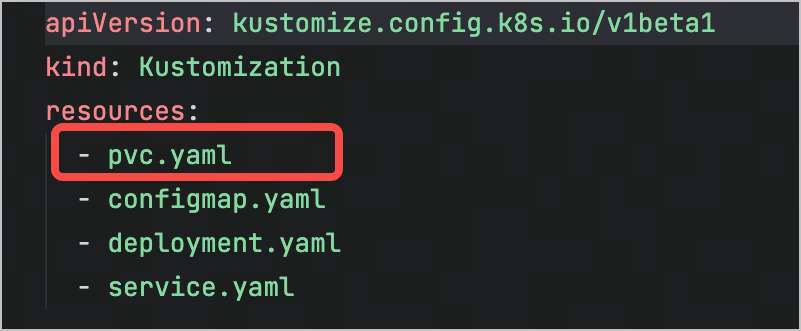
- You can use the following command to directly delete pvc.yaml from the resources field:
- macOS terminal
-
- Windows/Linux terminal
-
You can manually edit the kustomization.yaml file, delete the line that includes pvc.yaml, and save the changes.
- Modify the content of the openclaw.json field in the configmap.yaml file by mainly adding the following configurations:
- models: Configure the large models you need, such as the Doubao model.
- plugins: Enable the Feishu add-on.
- channels: Configure the information required for communication with Larkbot.
-
- After you configure the content of the openclaw.json field, the complete sample content of the configmap.yaml file is as follows:
-
Step 2: Run the workload
- Modify the deployment.yaml file to adapt it for VCI deployment. The main modifications are as follows:
- Add an annotation: Use the vke.volcengine.com/burst-to-vci: enforce annotation to forcibly schedule the Pod to VCI.
- Adjust the Init container: VCI does not support fsGroup. Therefore, to ensure that the main container runs as user 1000, you need to modify the owner of the working directory in the Init container.
- Adjust main container commands: When the main container starts, it first copies the configuration file from the path prepared by the Init container to the working directory, and then starts OpenClaw.
- The configuration of the sample deployment.yaml file is as follows:
-
- Run the deployment script command.
-
- The expected response is as follows:
-
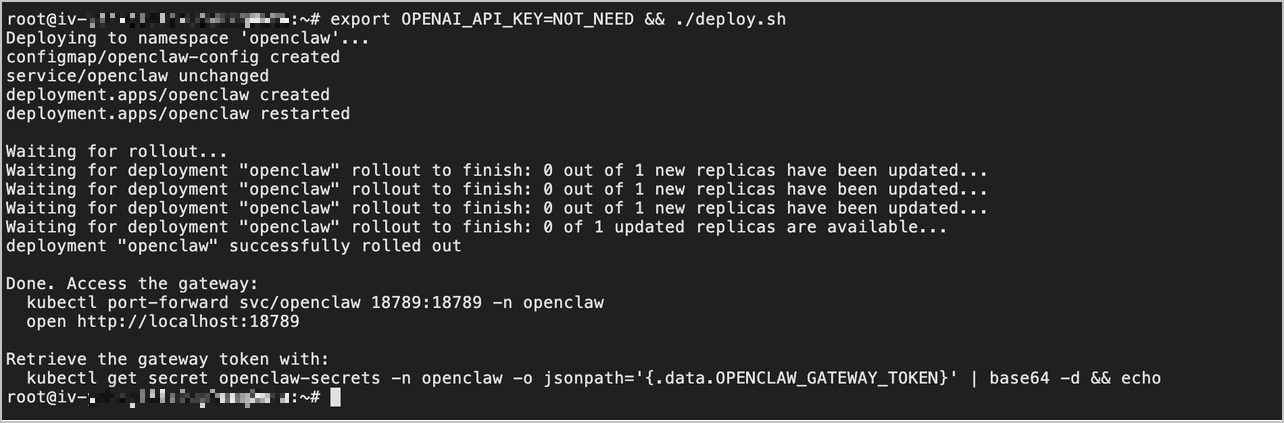
- After the command is executed, you can view the installation result under the openclaw namespace on the Workload > Deployment page of the target cluster in the VKE console.
Step 3: Configure the OpenClaw Feishu AI assistant
- Log in to the Feishu Open Platform.
- Click the Enterprise self-managed application tab, and click the Feishu open app you created.
- In the left navigation pane, click Development configuration > Event and callback.
-
- Click the Event configuration tab and click the edit icon next to Subscription method.
- Select Use persistent connection to receive event and click Save.
- In the Added events section, click Add event.
- In the Add event dialog box, click the App identity subscription tab, search for Message, and then select three events, including Receive message, Message reacted, and Message reaction cancelled. Then, click Confirm.
- (Optional) To add the bot to a chat group for use, obtain the permissions to obtain group messages. Otherwise, skip this step.
warningOpenClaw is a personal AI assistant. Using it in a chat group may pose risks, such as credential leakage. Use it with caution.- In the Added events section, click View other permissions in the Required permissions column that corresponds to the Receive message event.
- Click Obtain all messages in the group (sensitive permission).
- In the pop-up window, click Activate permission to apply for the permissions.
- Click the Callback configuration tab and click the edit icon next to Subscription method.
- Select Use persistent connection to receive callback and click Save.
- In the Add callback dialog box, click the Card tab, select Card interaction callback, and then click Confirm.
- Create a robot version and release it.
- Click Create version at the top of the page.
- Configure the version number, default capability, update description, and other information of the application as needed. Click here to learn more.
- Click Save at the bottom of the page to create the version.
- Click Confirm release in the upper-right corner of the page to release the application.
Step 4: Verify the service
- Pair with the Feishu application.
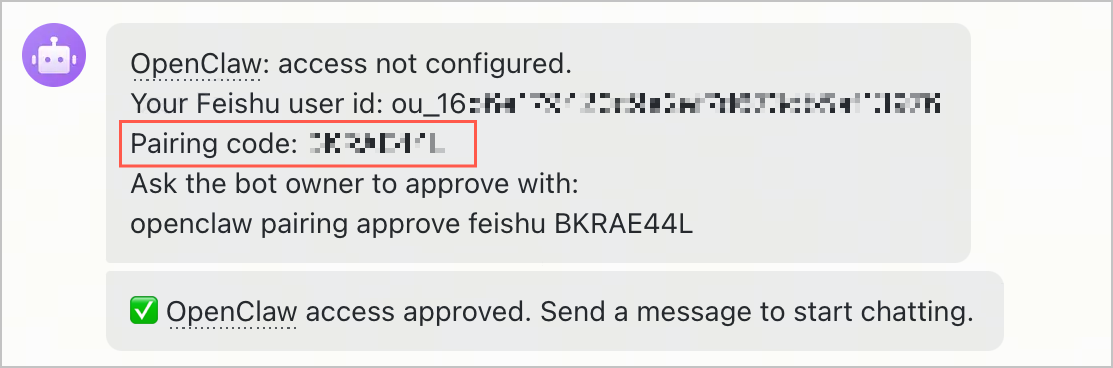
- Send a message to the bot, such as hello.
- Obtain the pairing code replied by the bot.
-
- Log in to the OpenClaw Pod created in Step 2: Run the workload.
-
- In the VKE console, go to the details page of the target cluster and click Workload > Deployment. Find the created VCI Deployment under the openclaw namespace.
- In the upper-right corner of the Deployment details page, click Console to log in to the Pod.
-

- Execute the pairing command by using the pairing code returned by the bot.
-
- The expected response is as follows:
-
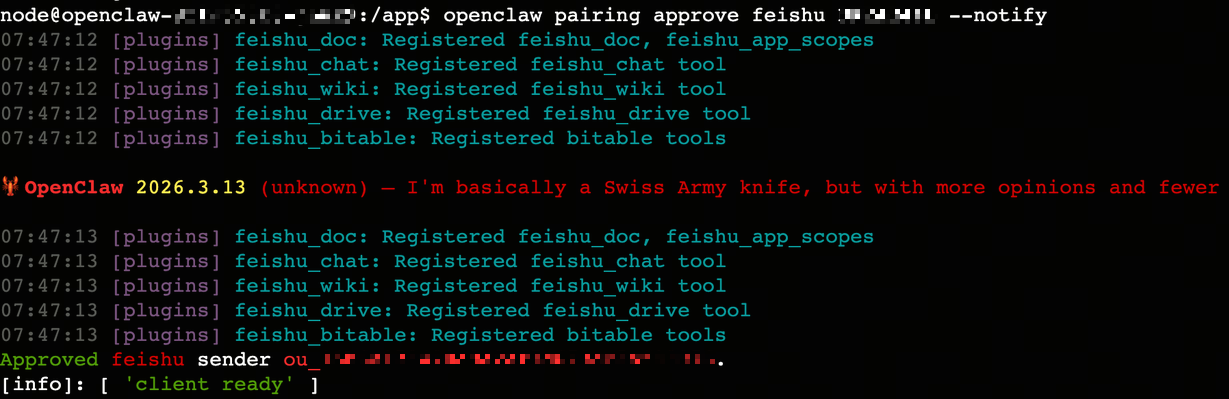
- After pairing is successful, the bot will send a confirmation message. At this point, you can start interacting with the OpenClaw assistant.
Agent Sandbox-based deployment
VCI Agent Sandbox integrates the Agent Sandbox CRD of the community with the cloud product capabilities of Volcano Engine. It is specifically designed for managing code execution environments for AI Agents, providing advanced features, such as strong isolation, state persistence, and cold start optimization. This deployment method applies to scenarios where each user or session requires an independent, stateful runtime environment.
Considerations
Take note of the Agent Sandbox-related considerations before deploying the OpenClaw service by using Agent Sandbox. For details, see Considerations for VCI Agent Sandbox.
Step 1: Install the Agent Sandbox controller
You need to install the Agent Sandbox controller in the cluster first. You can perform a custom installation. For detailed operations, see Installation guide.
Step 2: Create a sandbox
After the controller is installed, you can define and start a sandbox instance by creating a CR instance of the sandbox type.
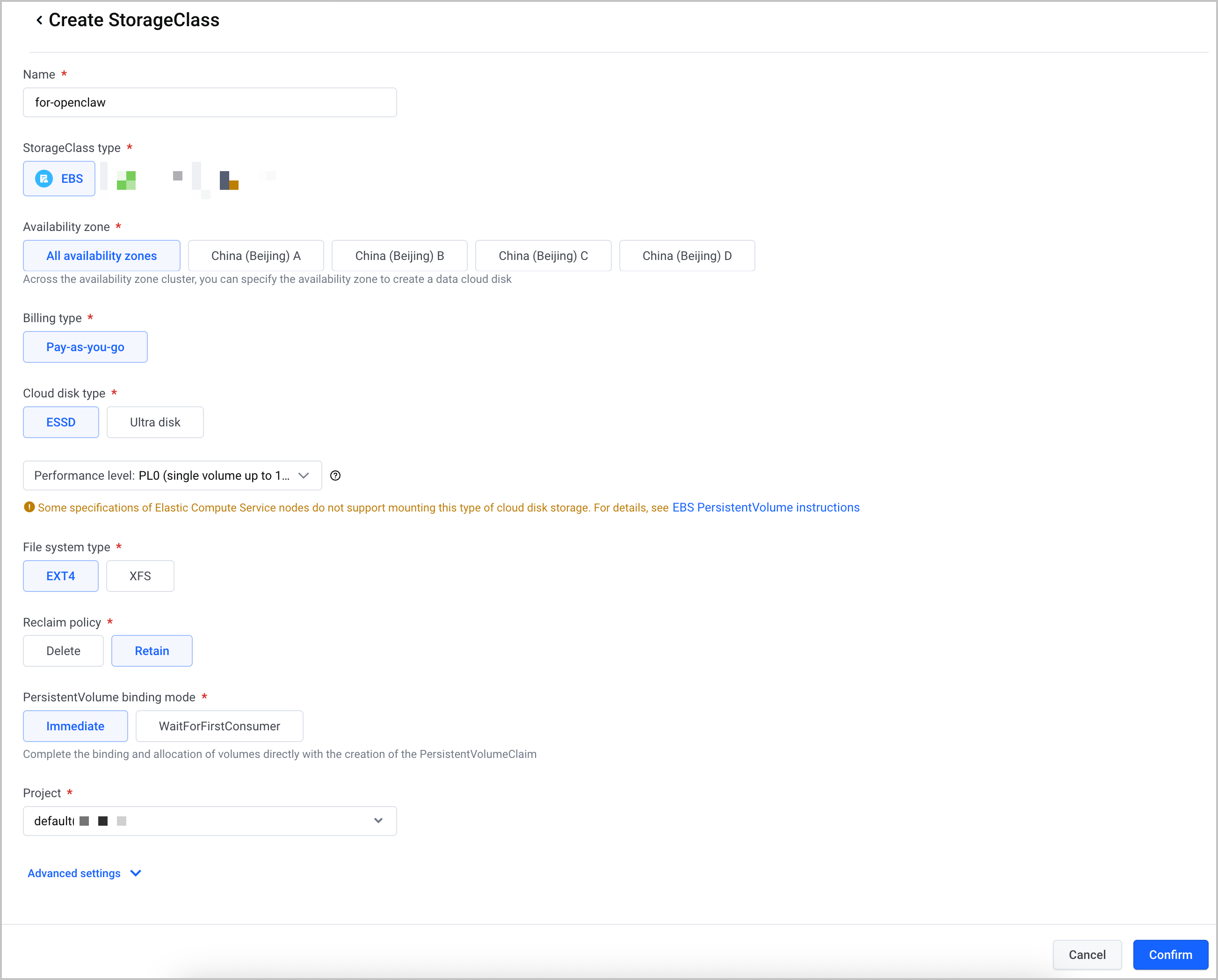
- Before creating a sandbox, create a StorageClass in the VKE cluster for dynamically creating PVCs for sandbox data volumes.
- The following figure shows how to configure a StorageClass of the EBS storage type. For the methods of creating more types of StorageClasses, see Using dynamic EBS PVs, Using dynamic FileNAS PVs, and Using dynamic vePFS PVs.
-
- Write the Sandbox YAML file.
- The content of the sample sandbox.yaml file for deploying OpenClaw is as follows. This file defines a sandbox instance, which runs as a VCI Pod and has data persistence capability.
tip
For parameters with annotations, modify the parameter values based on your business requirements.
-
- Run the following command to create the sandbox.
-
- View the result of sandbox creation.
- In the VKE console, go to the details page of the target cluster. Click Workload > Resource Explorer in the left navigation pane. Find the CRD resource named sandbox, click its name to go to the details page, and then view the sandbox details.
- In the List of resources section, find the target resource. In the Actions column, click ... > Edit Yaml to view the status.phase field in the custom resource YAML file. If the value is Running, the sandbox is created.
-
- Simulate temporary data generated during sandbox runtime.
- In the VKE console, go to the details page of the target cluster and click Workload > Pod. Find the Pod that corresponds to the sandbox created under the openclaw namespace.
- Click the Pod name to go to its details page. Click Console in the upper-right corner of the page to log in to the container of the Pod, and create the openclaw_test.md file under /app to simulate temporary data generated during sandbox runtime.
-

Step 3: Suspend and restore the sandbox
One of the core features of Agent Sandbox is the ability to suspend and restore, which saves computing resources when idle. In the OpenClaw business, you can train your OpenClaw assistant by suspending and restoring the sandbox. For more information about suspending and restoring the sandbox, see Managing sandbox lifecycles.
- Modify spec.replicas in the sandbox.yaml file to 0 to suspend the sandbox. When you suspend the sandbox, a snapshot will be automatically generated, and VCI resources will be released and stop incurring fees, but their metadata will be retained. The sample code snippet is as follows:
-
- If the status.phase of the CRD changes to Paused, it indicates that the sandbox has been suspended. The sample code snippet is as follows:
-
- After you suspend the sandbox, the generated snapshot sandboxsnapshot can be viewed on the Workload > Resource Explorer page of the target cluster in the VKE console.
- Click sandboxsnapshot to go to the Resource Explorer details page and view detailed snapshot information.
- If specific resources are displayed under the list of resources, it indicates that the snapshot has been created.
- In the list of resources, find the resource that corresponds to the snapshot. In the Actions column, click ... > Edit Yaml to view the status.phase of the snapshot CRD. If the value is Completed, it indicates that the snapshot has been created.
-
- Modify spec.replicas in the sandbox.yaml file to 1 to restore the sandbox. The snapshot generated from the last sandbox suspension will be used for restoring the sandbox. The sample code snippet is as follows:
-
- If the status.phase of the CRD changes to Running, it indicates that the sandbox has been suspended.
- In the VKE console, go to the details page of the target cluster and click Workload > Pod. Find the Pod that corresponds to the sandbox created under the openclaw namespace.
- Click the Pod name to go to its details page. Click Console in the upper-right corner of the page to log in to the container of the Pod. Access the /app directory to check whether the file created last time exists. If it exists, it indicates that the file information that corresponds to the sandbox has been restored.
-

Step 4: Verify the deployment result
Run the openclaw tui command in the local terminal to view the deployment result. The expected response is as follows. You can directly interact with the OpenClaw assistant by using the command-line tool.

tip
You can also follow the Feishu configuration method described in the Deployment-based deployment section to configure the OpenClaw assistant that is deployed through Agent Sandbox as a Larkbot.
Last updated: 2026.07.24 16:18:07
All rights reserved © Beijing Volcano Engine Technology Co., Ltd2024
