Volcengine Kubernetes Engine
Volcengine Kubernetes Engine


Document

- Documentation
 Volcengine Kubernetes EngineVolcengine Kubernetes EngineUser guideScheduling managementtask schedulingCapacity scheduling
 Copy page
 Download PDF
task scheduling
Capacity scheduling
Copy pageDownload PDFCapacity scheduling
VKE provides the capacity scheduling feature to support resource elasticity in big data and machine learning scenarios. This topic describes how to use the capacity scheduling feature.
tip
[Beta · Apply for Trial]: This feature is currently in the beta stage. Submit an application if you need to use it.
Background
In some enterprise cluster setups, a single cluster may be shared across multiple departments (or users). Native Kubernetes uses ResourceQuota to allocate fixed resources to each user, thereby isolating their resource capacities. However, this approach has a key limitation: resources cannot be elastically shared between users. For example, if one department faces resource shortages while another has idle resources in the same cluster, the resource-constrained department cannot utilize the idle resources, leading to suboptimal cluster resource utilization. This inefficiency is especially obvious in big data and machine learning workloads.
VKE implements capacity scheduling by leveraging the extension mechanism of Kubernetes Scheduling Framework and introducing ElasticQuota on the scheduling side. This enhances overall cluster resource utilization through resource sharing while guaranteeing allocated resources of each user.
Feature overview
Core capabilities of capacity scheduling
Capacity scheduling has the following capabilities:
- Elastic quota resources can be defined at different levels.
-
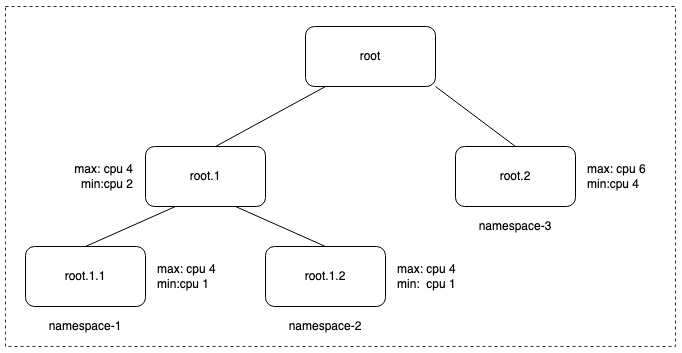
- A maximum of two levels of ElasticQuota can be set. As shown in the figure above, root.1 and root.2 are the first level, and root.1.1 and root.1.2 are the second level.
- A leaf-level ElasticQuota must be associated with a namespace. As shown in the figure, root.2, root.1.1, and root.1.2 are leaf-level ElasticQuotas, so they must be associated with custom namespaces.
- A single ElasticQuota can be associated with multiple namespaces.
- A namespace can only be associated with one leaf-level ElasticQuota.
- The hierarchical ElasticQuota relationship is represented by labels.
-
- It supports resource borrowing and reclaiming between different ElasticQuotas.
- Whether ElasticQuota resources can be borrowed is indicated by a label.
-
- By setting the maximum resource limit (Max) and minimum guaranteed resource (Min), resource borrowing and reclaiming policies between different ElasticQuotas are enforced.
- The sum of the Min values of child ElasticQuotas must be less than or equal to the Min value of the parent ElasticQuota.
- The system automatically calculates the sum of the Min values of level-1 ElasticQuotas and the guaranteed resources of the cluster. It keeps the sum of the Min values of level-1 ElasticQuotas less than or equal to the guaranteed resources of the cluster.
- It supports setting quotas for multiple resources, such as CPU, GPU, and memory.
- Resources can be fairly allocated based on ElasticQuota weights. Unused Min resources from an ElasticQuota are fairly distributed to other ElasticQuotas by weight.
Elastic quota allocation for cluster resources
The following schematic diagram illustrates the elastic quota allocation of cluster resources.
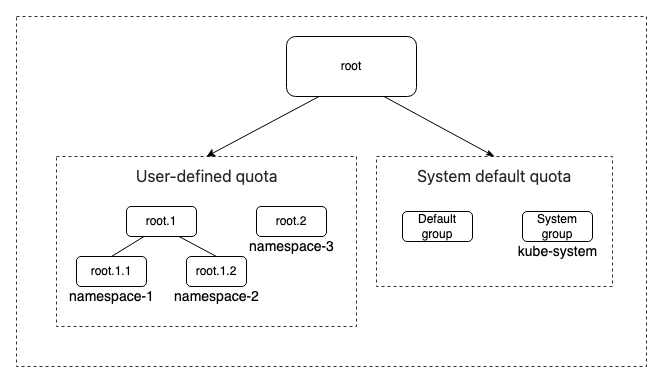
In VKE, cluster resources are divided into two parts from the perspective of ElasticQuota:
- User-defined quota:
- Users create custom ElasticQuotas by configuring level-1 and level-2 ElasticQuotas, establishing hierarchical relationships, and associating custom namespaces under leaf-level quotas (e.g., the three namespaces namespace-1, namespace-2, and namespace-3 in the above diagram).
- System default quota:
- System group: Refers to the ElasticQuota of the kube-system namespace. It is automatically calculated by the system and cannot be modified by users.
- Default group: All resources not belonging to the System group or user-defined groups are included in the Default group, and their quotas are computed by the system.
Usage limits
Currently, you can enable the capacity scheduling feature only when you create a cluster. After it is enabled, its configuration cannot be modified for the time being.
Procedure
Step 1: Create a cluster and enable capacity scheduling
This topic uses two 4-vCPU 16-GiB Elastic Compute Service (ECS) instances to demonstrate the implementation principles and usage of capacity scheduling in VKE.
- Log in to the VKE console.
- In the left navigation bar of the VKE console, click Cluster. On the page that appears, click Create cluster.
- In the Create cluster dialog box, click Create now in the Custom managed clusters section.
- On the Create cluster page, specify cluster parameters based on the on-screen prompts and your business requirements.
- Specify some parameters based on the following descriptions. For detailed configuration instructions for other parameters, see Creating managed clusters.
- In the Node pool configuration (Optional) step, select a 4-vCPU and 16-GiB Instance type from any instance family and set the Number of nodes to 2.
- In the Addon configuration step, find the scheduler-plugin card and click Configuration. In the scheduler-plugin parameter configuration dialog box, enable Capacity scheduling.
- Confirm the settings and click Confirm.
Step 2: Plan elastic quotas
To demonstrate ElasticQuota planning, this example creates four ElasticQuotas (root.1, root.2, root.1.1, and root.1.2) and associates them with three namespaces (namespace-1, namespace-2, and namespace-3).
- Connect to the cluster via kubectl. For details, see Connecting to a cluster.
- Run the following command to create the three namespaces.
-
- Run the command to create YAML files for defining the four ElasticQuotas.
Warning
The ElasticQuotas must be created within the kube-system namespace, and leaf-level ElasticQuotas must be associated with custom namespaces.
- root.1
-
- root.2
-
- root.1.1
-
- root.1.2
-
- After creating the four ElasticQuotas, view the resource information related to capacity scheduling.
- Run the following command to view the generated quota tree (ElasticQuotaTree).
-
- The expected response is as follows:
-
- The following table describes key parameters.
- ParametersDescriptioncluster-capacity-resourceThe total ResourceQuota available to the cluster.default-quota-used-resourceThe resource quota already used by the Default group.root-children-sum-min-resourceThe sum of the Min values of level-1 ElasticQuotas.system-quota-used-resourceThe resource quota already used by the System group.guaranteed-sum-min-resourceThe guaranteed resource quota automatically calculated by the system.Warning
- The guaranteed-sum-min-resource is calculated by using the following formula: guaranteed-sum-min-resource = cluster-capacity-resource - system-quota-used-resource - default-quota-used-resource.
- After capacity scheduling is enabled for a cluster, you can view the Quota tree to obtain the values of the above parameters.
- The value of root-children-sum-min-resource must be less than or equal to the value of guaranteed-sum-min-resource. The cluster can guarantee the resource quota only after you define the Min value of the ElasticQuota.
- View the YAML content of the four ElasticQuotas: root.1, root.2, root.1.1, and root.1.2. The system will automatically add capacity scheduling-related annotations to ElasticQuotas.
- The following YAML example is for the root.1 resource.
-
Step 3: Deploy an application
In this example, an NGINX Deployment is deployed to verify from the CPU perspective whether capacity scheduling is functioning normally.
tip
You can upload the NGINX image to Volcano Engine Container Registry in advance by following the instructions in Pushing and pulling images.
- Create a Deployment named nginx-in-ns1 under the namespace-1 namespace.
- In this example, some parameters need to be configured according to the following description. For information on how to configure other parameters, see Creating Deployments.
- In the Basic information step, for Namespace, select the created namespace-1, and set Number of instances to 2.
- In the Container configuration step, go to the ResourceQuota section and set CPU request to 2 cores, and CPU limit to 2 cores.
- After nginx-in-ns1 is created successfully, click the workload name to enter the details page, then click the List of instances tab to view the status of the pod instances.
- Because resources on the node are sufficient, the status of both pod instances is Running.
- Create a Deployment named nginx-in-ns3 in the namespace-3 namespace.
- In this example, some parameters need to be configured according to the following description. For information on how to configure other parameters, see Creating Deployments.
- In the Basic information step, for Namespace, select the created namespace-3, and set Number of instances to 4.
- In the Container configuration step, go to the ResourceQuota section and set CPU request to 1 core, and CPU limit to 1 core.
- After nginx-in-ns3 is created successfully, click the workload name to enter the details page, then click the List of instances tab to view the status of the pod instances.
- Because the previously created nginx-in-ns1 used cluster resources, insufficient resources remain. Therefore, only two out of the four pod instances are in the Running state, while the other two are in the Pending state.
- After two or three minutes, the resource usage of pod instances in the namespaces associated with the four ElasticQuotas will change. This is because capacity scheduling is enabled for the cluster, and the four ElasticQuotas are defined.
- nginx-in-ns1 starts evicting pod instances to release borrowed resources.
- nginx-in-ns3 acquires the resources released from nginx-in-ns1 and is able to successfully run the four pod instances.
Last updated: 2026.07.24 14:51:38
All rights reserved © Beijing Volcano Engine Technology Co., Ltd2024
