Volcengine Kubernetes Engine
Volcengine Kubernetes Engine


Document

- Documentation
 Volcengine Kubernetes EngineVolcengine Kubernetes EngineUser guideScheduling managementContainer image-aware scheduling
 Copy page
 Download PDF
Scheduling management
Container image-aware scheduling
Copy pageDownload PDFContainer image-aware scheduling
This topic describes how to use the container image-aware scheduling capability provided by VKE to prioritize scheduling Pods to nodes with image caches, thereby reducing container cold-startup latency, accelerating autoscaling, and reducing pressure on image registries and network bandwidth.
Feature overview
Container image-aware scheduling is a VKE policy that schedules Pods based on nodes' image cache status. During scheduling, the scheduler references cached image information on each node, prioritizing scheduling Pods to nodes with existing image caches. This avoids prolonged cold startups caused by repeatedly pulling large images across nodes.
Compared with the Kubernetes-native ImageLocality plugin, container image-aware scheduling provides the following enhancements.
Usage limits
Take note of the following limitations and considerations when using this feature:
- Container image-aware scheduling is currently supported only in clusters that run the following Kubernetes versions. If the cluster version does not meet the requirements, upgrade the cluster. For details, see Upgrading clusters:
- Kubernetes v1.30: v1.30.4-vke.18 and later
- Kubernetes v1.32: v1.32.3-vke.15 and later
- Kubernetes v1.34: v1.34.6-vke.11 and later
- Kubernetes v1.36: v1.36.1-vke.3 and later
- Other later Kubernetes versions released by VKE
- This feature depends on the katalyst add-on v0.5.13-vke.16 or later. You must configure the image-aware scheduling toggle in the ConfigMap for the add-on. For details about the add-on, see katalyst.
- We recommend that clusters with this feature enabled have no more than 2,000 nodes with no more than 100 images on each node.
Prerequisites
- The cluster is in the Running state and has multiple available nodes. This topic uses a cluster with four nodes as an example. To add nodes to a cluster, see Adding nodes.
- The katalyst add-on v0.5.13-vke.16 or later is installed. If the add-on version does not meet the requirements, upgrade the add-on. For detailed operations, see Upgrading add-ons.
- (Optional) To improve the hit rate during scheduling, you can warm up the target image and distribute the image to the corresponding nodes in advance.
Procedure
Step 1: Add a label to a node
Add a label that enables katalyst-based resource management to nodes.
- Log in to the VKE console.
- In the left navigation pane, click Cluster. On the page that appears, click the name of the target cluster.
- On the cluster management page, add a label to the node where the pod is located by following the steps below.
- tipWe recommend using this labeling method, as it allows labels to be added to nodes within the node pool.
- In the left navigation pane, click Nodes > Node pool.
- On the Node pool page, find the target node pool and click Edit in the Actions column.
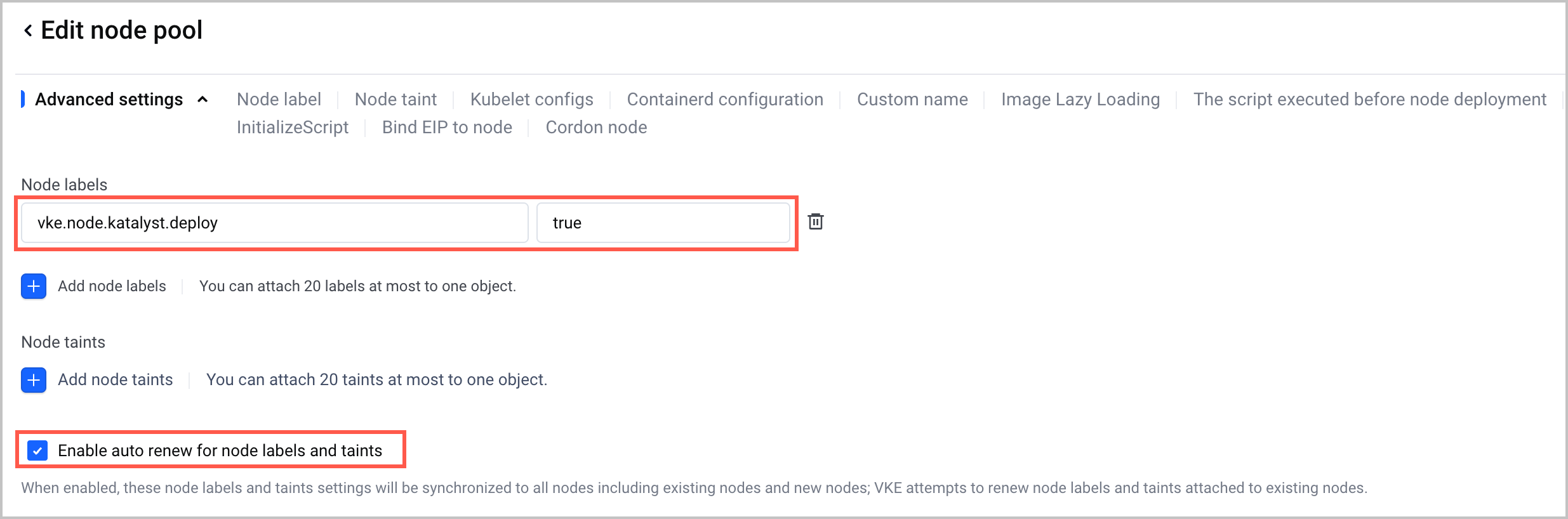
- On the Edit node pool page, specify the Node labels parameter and select Enable auto renew for node labels and taints in the Advanced configurations section in the Node pool configuration step.
- Label key: vke.node.katalyst.deploy
- Label value: true
-
- Update the configurations of the node pool based on the console wizard.
- In the left navigation pane, click Nodes > Node.
- On the Node page, find the target node and click ... > Label management in the Actions column.
- On the Node details page, click Add new on the Label tab, add the following label to the node, and then click Confirm.
- Label key: vke.node.katalyst.deploy
- Label value: true
Step 2: Enable image-aware scheduling
After the katalyst add-on is installed, the system automatically generates a ConfigMap. The image-aware scheduling toggle is off by default in this ConfigMap. You need to edit the ConfigMap to enable this feature.
- In the left navigation pane of the cluster management page, click Configurations > ConfigMap.
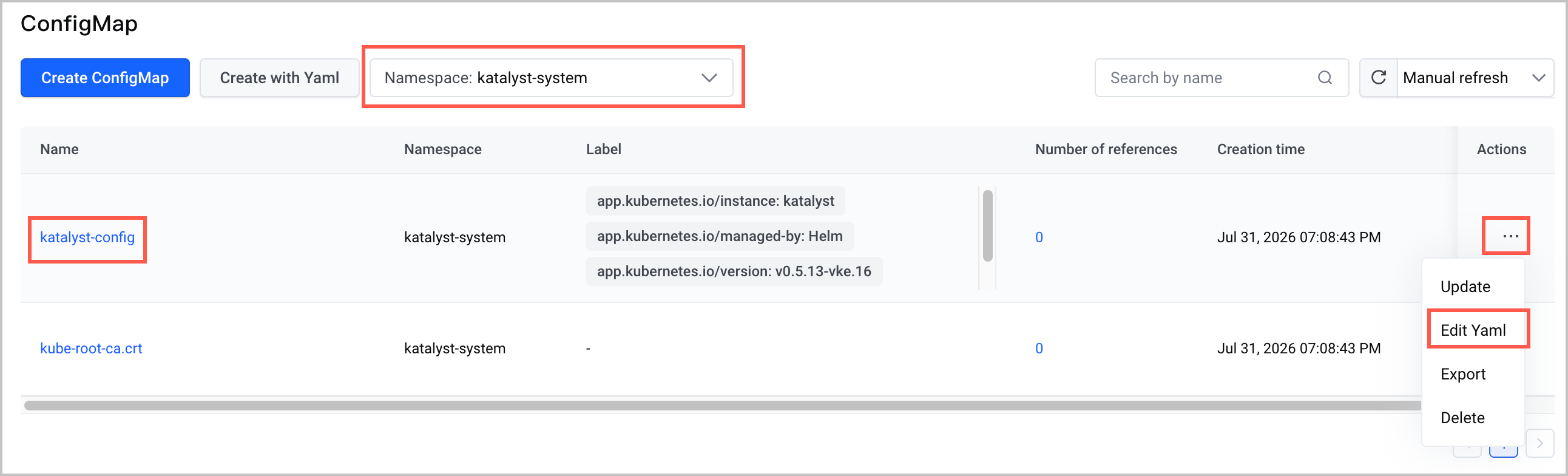
- On the ConfigMap page, select the katalyst-system namespace, find the katalyst-config ConfigMap, and in the Actions column, click ... > Edit Yaml.
-
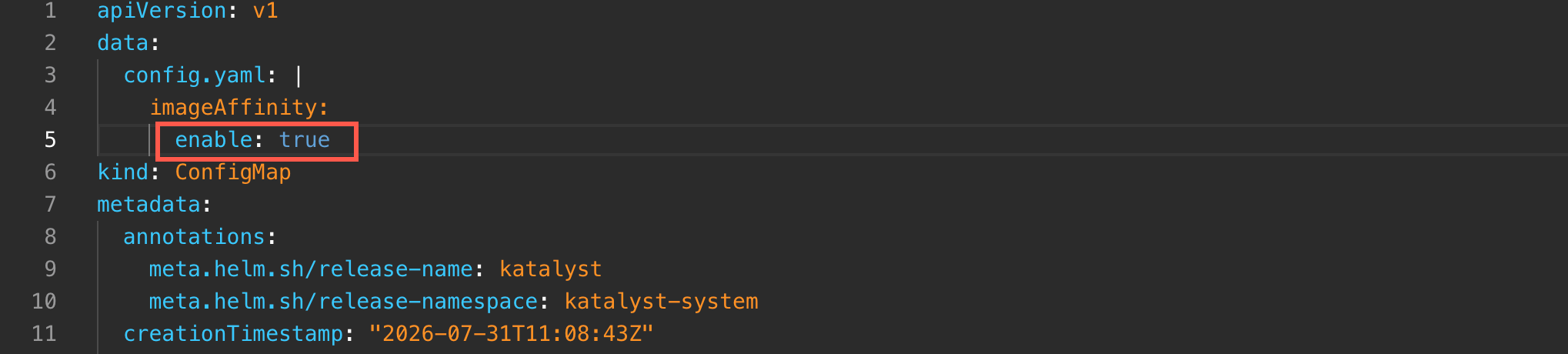
- Set the imageAffinity.enable field in the ConfigMap YAML to true. After you save the changes to the YAML file, image-aware scheduling takes effect automatically, without requiring a katalyst restart.
-
Step 3: Query node image information
After completing the above steps, node image information is recorded in the Kubernetes NodeImageCache CRD.
- Use kubectl to connect to the cluster. For details, see Connecting to a cluster.
- Run the following command to query the NodeImageCache for nodes in the cluster.
- Replace <node-name> with your node name.
-
- The expected query result is as follows. You can view the comments in the NodeImageCache object to get node image information.
-
Examples
This topic demonstrates the effect of image-aware scheduling by pulling the required images on a managed cluster with four nodes.
Step 1: Prepare a container image and warm it up
- Prepare the required container image. VKE supports images in Volcano Engine Container Registry (CR) and third-party image registries. To upload an image to CR, see Pushing and pulling images.
- You can prepare an image yourself or use the test image provided in this topic: vke-cn-beijing.cr.volces.com/vke/nginx:latest.
- Log in to the node using ECS Terminal and run the crictl command to download the prepared image to one node in advance for image warm-up. The other three nodes do not pull this image.
-
- The image pulling status for the four nodes used in this example is as follows:
- Node IP192.168.174.132192.168.174.133192.168.174.134192.168.174.135Whether the target image was pulledNoYesNoNo
Step 2: Create a workload
The following content uses Deployment creation as an example. For more workload operations, see Workloads.
- Connect to the cluster via kubectl. For details, see Connecting to a cluster.
- Create a YAML file for the Deployment. The following nginx-deployment-scn-test.yaml file serves as an example:
tip
For a more intuitive demonstration, the number of replicas in the example Deployment is set to 10, and no instance dispersal policy is configured. In production environments, configure a strict instance dispersal policy and prepare image caches across multiple nodes to prevent all instances from being scheduled to the same node. For online services requiring high availability, we recommend disabling the container image-aware scheduling feature.
-
- Run the following command to create the Deployment.
-
Step 3: Validate results
The following example assumes that image-aware scheduling is not enabled, that is, the imageAffinity.enable field in the katalyst-config ConfigMap is set to false.
- Log in to the VKE console.
- In the left navigation pane, click Cluster. Find the target cluster and click its name.
- In the left navigation bar of the cluster management page, click Workload > Deployment.
- On the Deployment page, find the Deployment created in Step 2 and click its name.
- On the Deployment details page, click the List of instances tab to view pod scheduling to nodes.
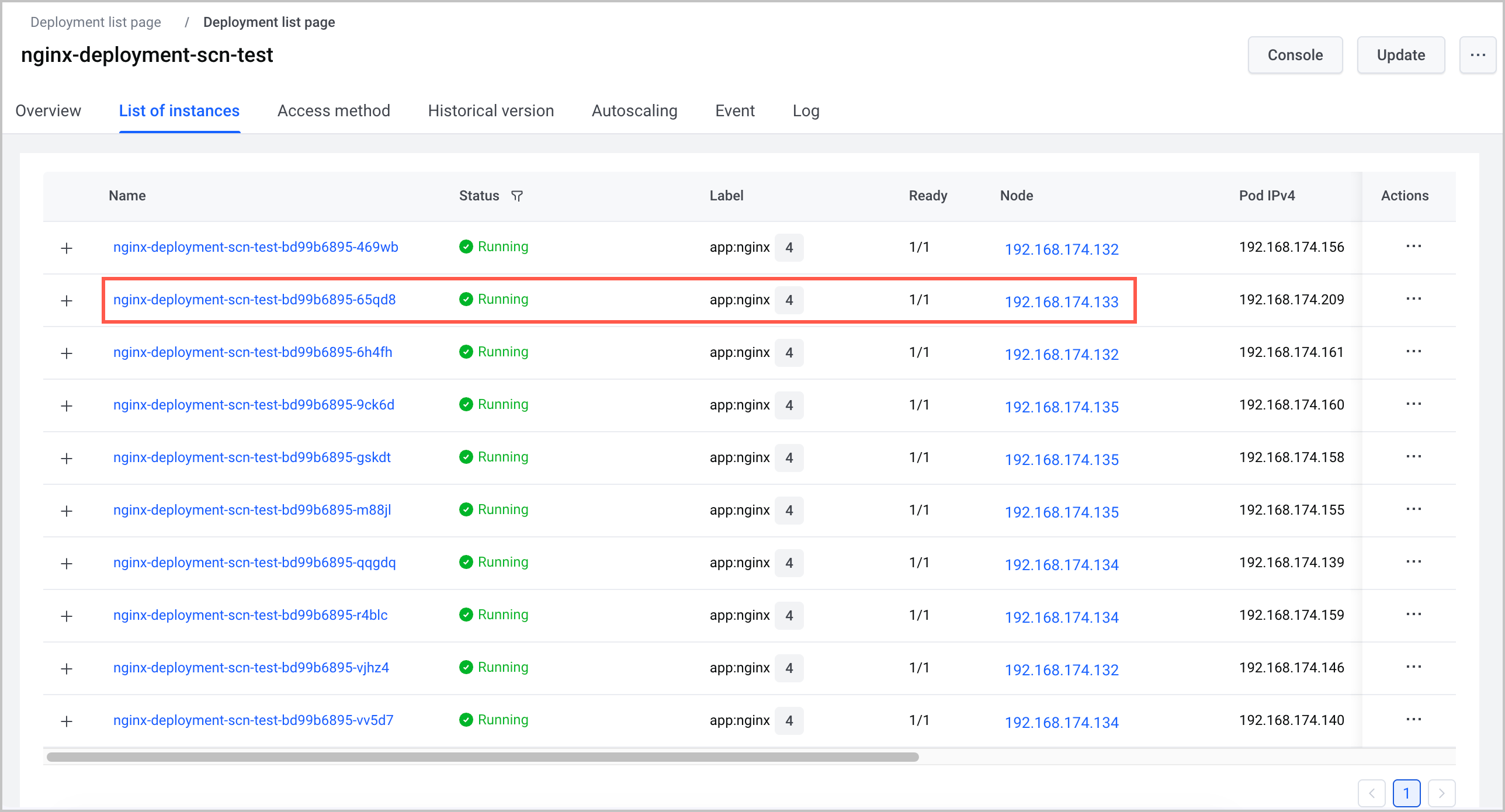
- The expected result is as shown in the figure below: Only one pod is scheduled to the node with a warmed-up image (192.168.174.133), and the image cache hit rate is 10%.
-
- Log in to the VKE console.
- In the left navigation pane, click Cluster. Find the target cluster and click its name.
- In the left navigation bar of the cluster management page, click Workload > Deployment.
- On the Deployment page, find the Deployment created in Step 2, and in the corresponding Actions column, click ... > Edit Yaml to reduce the replica count in the Deployment to 0.
- Log in to the three nodes, respectively, using ECS Terminal. Run the following command to delete the image cache on the nodes and retain the image cache on only one node (in this example, the image cache on the 192.168.174.133 node is retained).
-
- On the Configurations > ConfigMap page, find the katalyst-config ConfigMap, set the imageAffinity.enable field value in its YAML to true to enable image-aware scheduling. For detailed instructions, see Procedure - Step 2 above.
- Query the node image information to ensure that all four nodes have NodeImageCache objects, and that the NodeImageCache object on the 192.168.174.133 node contains the target image. For detailed instructions, see Procedure - Step 3.
- On the Workload > Deployment page, find the target Deployment, and in the corresponding Actions column, click ... > Edit Yaml to adjust the replica count in the Deployment back to 10.
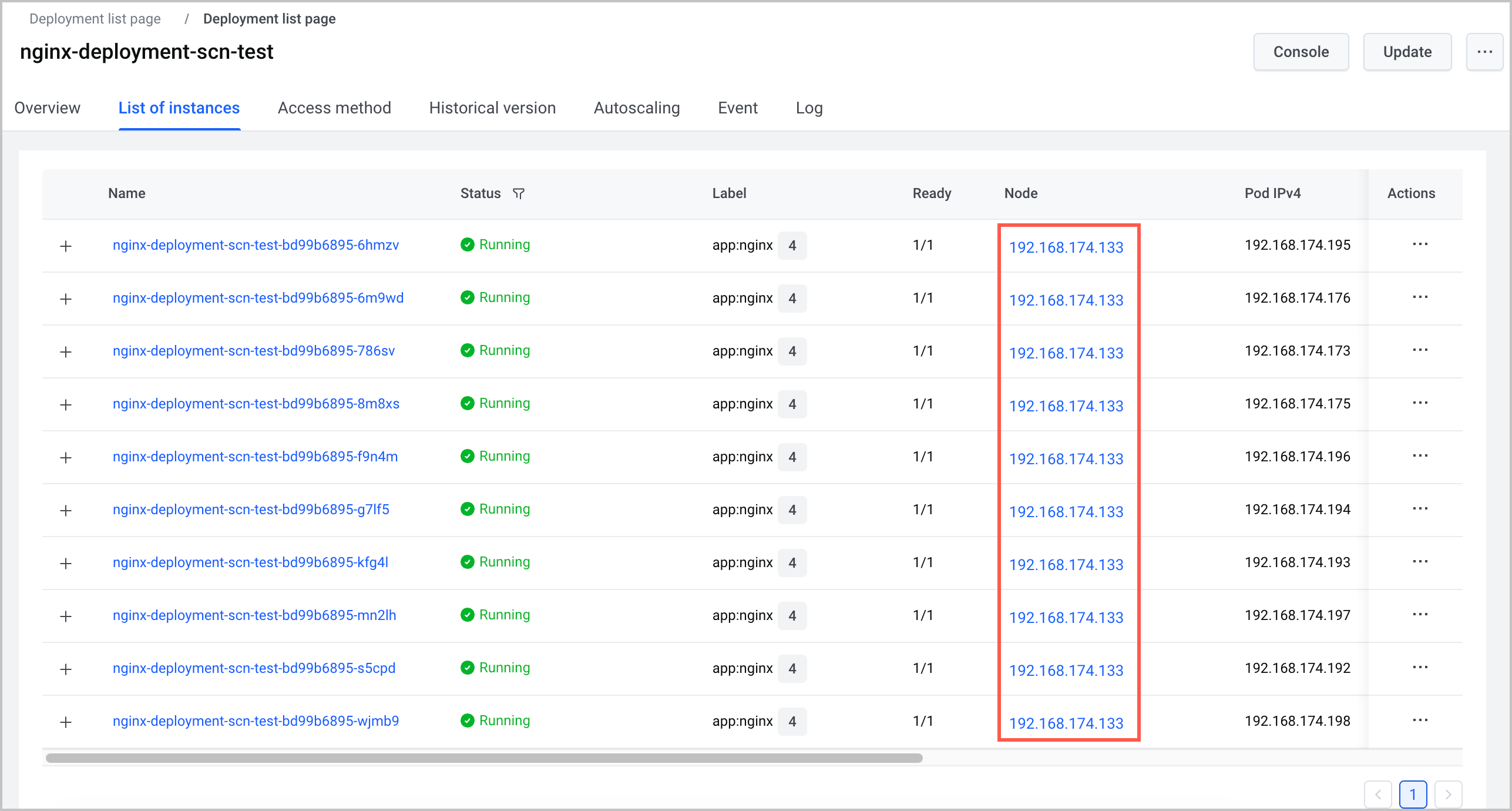
- After adjusting the replica count in the Deployment, click the Deployment name to go to the Deployment details page. Then, click the List of instances tab to view information about scheduling Pods to nodes.
- The expected result is as shown below: All 10 pods are scheduled to the node with a warmed-up image (192.168.174.133), and the image cache hit rate is 100%.
-
Last updated: 2026.08.20 16:56:07
All rights reserved © Beijing Volcano Engine Technology Co., Ltd2024
