Volcengine Kubernetes Engine
Volcengine Kubernetes Engine


Document

- Documentation
 Volcengine Kubernetes EngineVolcengine Kubernetes EngineUser guideScheduling managementQoS-aware schedulingCPU QoS
 Copy page
 Download PDF
QoS-aware scheduling
CPU QoS
Copy pageDownload PDFCPU QoS
VKE provides the CPU QoS (Quality of Service) feature based on the katalyst add-on. After CPU QoS is enabled, you can classify Pods into different QoS levels by workload type and prioritize high-priority workloads through CPU core binding (CPUSet), dynamic pool adjustment, CPU scheduling priority, and pressure eviction policies.
Background information
In a Kubernetes cluster, latency-sensitive online workloads and offline or batch workloads are usually colocated on the same node to improve CPU utilization. Even with CPU requests and limits configured, the two workload types still compete for CPU resources. When offline jobs become busy, they interfere with online workloads, increasing response latency and degrading service quality.
VKE provides CPU QoS based on the katalyst add-on to solve this problem. It marks online workloads as high priority and offline workloads as low priority, and uses the scheduling priority provided by the Linux kernel's CPU Idle capability to guarantee CPU scheduling for applications of different priorities. In hybrid deployment scenarios, this improves node utilization while prioritizing the service quality of high-priority workloads.
Feature introduction
Applicable scenarios
CPU QoS applies to online-offline hybrid deployment scenarios where workloads of different priorities are deployed on the same node, for example, deploying online services together with offline computing and batch jobs to improve overall CPU utilization of the node.
CPU QoS provides the following benefits after it is enabled:
- When low-priority jobs use more CPU resources: The kernel's CPU Idle capability ensures that only the CPU resources idle in high-priority workloads are allocated to low-priority jobs, which prevents interference with running high-priority jobs.
- When high-priority jobs use more CPU resources: High-priority workloads can preempt CPU resources from low-priority in a timely manner, which guarantees their response speed and performance. When high-priority workloads cause the overall CPU load to become too high, Pod eviction is triggered automatically based on the configured eviction policy to ensure overall workload stability.
CPU QoS levels
CPU QoS divides node CPU resources into different resource pools based on CPUSet and runs Pods of different types in the corresponding resource pools. The following table describes the CPU QoS levels supported by VKE.
Notes on CPU core sharing between online and offline workloads
VKE provides the Overlap capability for online-offline hybrid deployment scenarios to improve overall CPU utilization on nodes. The following table describes the capability in detail.
Limits
- This feature is only supported for Pods deployed on Elastic Compute Service (ECS). Pods deployed on Elastic Container Instance (VCI) are not supported.
- Enabling CPU Idle depends on the following kernel features:
- veLinux 1.0 images are supported, with kernel version 5.4.250-9-velinux1u2-amd64 (veLinux 1.0) or 5.4.250-9.2.ve1.x86_64 (veLinux 1.0 CentOS-compatible version).
- All veLinux 2.0 images, or Ubuntu 22.04 and later versions, are supported.
- We recommend against using In-Place Pod Resize together with the Overlap capability, because the cpu.weight and cpu.shares values of Pods may fail to update.
Prerequisites
- The cluster is in the Running state and has available ECS nodes. For details, see Adding nodes and Adding existing nodes.
- The katalyst add-on version v0.5.13-vke.19 or later has been installed in the cluster, with QoS-Aware Scheduling selected on the add-on configuration page and the CPU QoS capability enabled. For details, see katalyst.
Procedure
Step 1: Add a label to a node
After configuring the node label, you can use the CPU QoS capability of the katalyst add-on to manage the corresponding node.
- Log in to the VKE console.
- In the left navigation pane, click Cluster. On the page that appears, click the name of the target cluster.
- On the cluster management page, add labels to nodes as follows.
- tipWe recommend using this labeling method, as it allows labels to be added to nodes within the node pool.
- In the left navigation pane, click Nodes > Node pool.
- On the Node pool page, find the target node pool and click Edit in the Actions column.
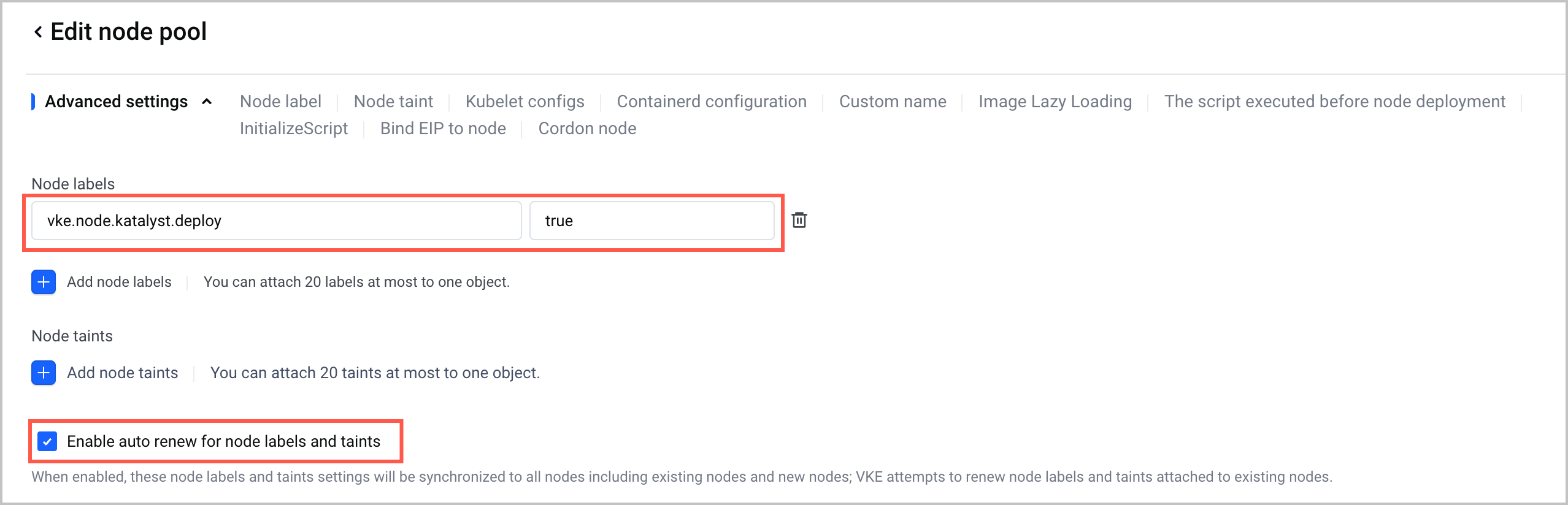
- On the Edit node pool page, specify the Node labels parameter and select Enable auto renew for node labels and taints in the Advanced configurations section in the Node pool configuration step.
- Label key: vke.node.katalyst.deploy
- Label value: true
-
- Update the configurations of the node pool based on the console wizard.
- In the left navigation pane, click Nodes > Node.
- On the Node page, find the target node and click ... > Label management in the Actions column.
- On the Node details page, click Add new on the Label tab, add the following label to the node, and then click Confirm.
- Label key: vke.node.katalyst.deploy
- Label value: true
Step 2: (Optional) Enable Overlap
shared_cores and reclaimed_cores Pods share CPU cores
- Create or edit an AdminQoSConfiguration object. The following YAML file katalyst-config.yaml serves as an example.
tip
- If an AdminQoSConfiguration object already exists in the cluster (for example, it was created when you configured Pod CPU Burst), you do not need to create another one. Edit the CPU core sharing settings in the existing AdminQoSConfiguration YAML instead.
- Make sure the node kernel and OS image meet the kernel version requirements for CPU Idle described in the "Limits" section.
-
- Create a KatalystCustomConfig (KCC) object. KCC provides resource management and hot reloading for AdminQoSConfiguration.
-
Step 3: Create a workload
Declare the QoS type of the workload through a Pod annotation. The following table describes the annotations.
The following content uses Deployment creation as an example. For more workload operations, see Workloads.
- Connect to the cluster via kubectl. For details, see Connecting to a cluster.
- Create a YAML file for the Deployment. The following YAML file cpu-qos-demo.yaml serves as an example.
- The following code is a sample YAML for a Deployment at the shared_cores level.The following code is a sample YAML for a Deployment at the reclaimed_cores level.The following code is a sample YAML for a Deployment at the dedicated_cores level.The following code is a sample YAML for a Deployment at the system_cores level.
- For some QoS levels, you can add the following extended settings to the Pod annotations.
-
- Run the following command to create the Deployment.
-
- (Optional) Configure CPU reservation for system_cores
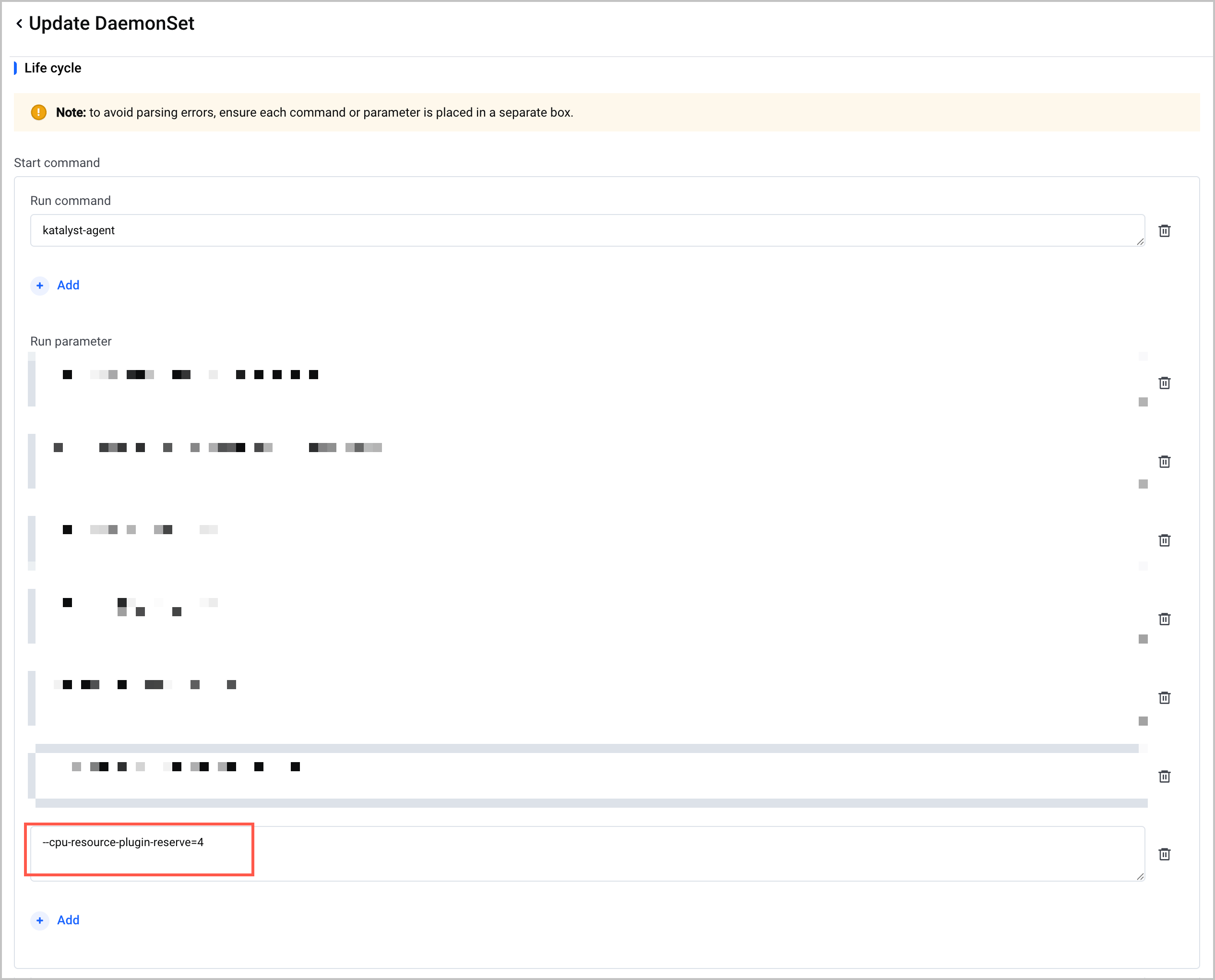
- If you need to run critical system components such as log collectors and monitoring agents at the system_cores level, reserve CPU cores for these system components through the katalyst-agent startup parameter --cpu-resource-plugin-reserve. Without the reservation, system_cores Pods have no cores available.
- Log in to the VKE console.
- In the left navigation pane, click Cluster. On the page that appears, click the name of the target cluster.
- In the left navigation bar of the cluster management page, click Workload > DaemonSet.
- In the katalyst-system namespace, find katalyst-agent and click Update in the Actions column.
- In the Container configuration step, go to the Run parameter section in Start command to add a startup parameter --cpu-resource-plugin-reserve to specify the number of CPU cores to reserve.
tip
- We recommend setting the number of reserved cores based on the actual usage of system components on the node. An excessively small value restricts system components, while an excessively large value takes resources away from workloads.
- This parameter takes effect only for newly scheduled Pods. Pods that are already running are not rebound to cores automatically.
-
- After you complete the configuration as instructed by the wizard, save the changes and wait until the katalyst-agent pod restarts.
Step 4: Configure the pressure eviction policy
To prioritize the stability of high-priority workloads when a node or node pool is under pressure, explicitly enable the eviction policy through AdminQoSConfiguration.
tip
In the sample YAML below, commented-out parameters are optional. Apply them as needed by referring to the comments. We recommend keeping the default values for parameters without comments.
- Create or edit an AdminQoSConfiguration object. The following YAML file katalyst-config.yaml serves as an example.
tip
- If an AdminQoSConfiguration object already exists in the cluster, you do not need to create another one. Edit the CPU QoS settings in the existing AdminQoSConfiguration YAML instead.
- Multiple eviction policies are provided below, and all of them can be added to the same AdminQoSConfiguration YAML file.
- The example below shows a minimal system-wide CPU pressure eviction configuration.To enable shared pool CPU utilization eviction, add the following settings to the same AQC.To enable eviction based on the reclaimed pool's suppression ratio, add the following settings to the same object.tipThe reclaimed pool's suppression ratio equals the sum of requests from reclaimed_cores pods divided by the number of available CPU cores in the reclaimed pool.For reclaimed_cores Pods, you can also declare a separate suppression tolerance threshold using the annotation katalyst.kubewharf.io/cpu_enhancement. The following code shows the YAML content of a sample Pod.
- (Optional) Create a KatalystCustomConfig (KCC) object. KCC provides resource management and hot reloading for AdminQoSConfiguration.
tip
If the KCC object was created in Step 2, skip this step. If the KCC object was not created in Step 2, you need to create one here.
-
Validate results
Verify the Pod QoS annotation
- Obtain the name of the Pod that belongs to the Deployment.
-
- Confirm that the annotation on the target workload is correctly applied.
-
- The expected result is dedicated_cores, shared_cores, reclaimed_cores, or system_cores, which indicates that the annotation is correctly applied.
Verify that the CPUSet resource pool settings take effect
- Run the following command to obtain the Pod's UID.
-
- Run the following command to view the container ID of the Pod.
-
- Log in to the node where the Pod resides. For the login method, see ECS Terminal.
- View the value of cpuset.cpus in the container cgroup directory.
-
- After CPU QoS takes effect, the CPUSet resource pool settings take effect differently for Pods of different QoS levels:
- The CPUSet of each dedicated_cores Pod consists of dedicated cores.
- The CPUSet of all shared_cores and reclaimed_cores Pods depends on whether Overlap is enabled:
- Overlap is disabled: shared_cores and reclaimed_cores use separate, non-overlapping CPUSet resource pools, and neither pool includes the CPU resources dedicated to dedicated_cores.
- Overlap is enabled: The Pods of shared_cores and reclaimed_cores use the same (overlapping) CPUSet resource pool, which does not include the CPU resources dedicated to dedicated_cores. Compare the cpuset.cpus values of a shared_cores Pod and a reclaimed_cores Pod on the same node. The two values should be the same.
Verify that CPU Idle takes effect
tip
If only the Overlap capability is enabled, verify that CPU Idle takes effect as follows.
- Log in to the node where the Pod resides. For the login method, see ECS Terminal.
- View the value of cpuset.cpus in the container cgroup directory.
-
- After Overlap is enabled, the cpu.idle value differs by Pod QoS level:
- reclaimed_cores pods: The value should be 1.
- dedicated_cores pods: The value should be 0.
- shared_cores pods: The value should be 0.
- system_cores pods: The value should be 0.
Monitoring metrics
The following table describes the CPU QoS metrics. To monitor this feature, enable observability, configure container service observability, and select the CPU QoS-related metrics of the katalyst add-on listed in the following table. After you enable metric observability, you can view the metrics in the preset dashboard.
tip
Enabling the following metrics incurs VMP fees. For detailed billing information, see Product billing.
To observe how CPU QoS performs, we recommend focusing on the following metrics:
Related documentation
Last updated: 2026.10.26 14:46:03
All rights reserved © Beijing Volcano Engine Technology Co., Ltd2024
