Volcengine Kubernetes Engine
Volcengine Kubernetes Engine


Document

- Documentation
 Volcengine Kubernetes EngineVolcengine Kubernetes EngineUser guideClustersManaging clusterEnabling API Server private domain access for existing clusters
 Copy page
 Download PDF
Managing cluster
Enabling API Server private domain access for existing clusters
Copy pageDownload PDFEnabling API Server private domain access for existing clusters
This topic describes how to enable API Server private domain access for existing VKE-managed clusters created before May 15, 2025, and adjust configurations for existing components and nodes accordingly.
Background
For VKE-managed clusters created on or after May 15, 2026, access to the control plane (API Server) by node-side components will be gradually migrated from CLB VIP access to internal domain-based access to enhance cluster control-plane performance and stability. For details, see Product announcement.
You can also choose to manually enable API Server private domain access for existing clusters created before this date. If you enable this access method, node-side components (such as kubelet, kube-proxy, and vpc-cni) will switch API Server access from the CLB VIP approach to the direct access mode, where the private domain name is dynamically resolved to the API Server ENI. This improves the performance and stability of node-side components' access to the API Server.
Usage instructions
- API Server private domain access applies only to VKE-managed clusters.
- The following clusters have API Server private domain access enabled by default:
- VKE-managed clusters created on or after May 15, 2026.
- You can check whether a cluster has API Server private domain access enabled by calling the ListClusters API. If the KubernetesConfig.AdvancedConfig.InternalDnsEnabled parameter in the response is true, private domain access is enabled.
Pre-checks
Before you begin, be sure to complete the following checks. Otherwise, nodes will fail to connect to the API Server.
- Check security group configurations.
- When the direct connection mode is enabled, traffic is directly sent to the ENI of the API Server. Therefore, ensure that the security group rules associated with the ENI allow direct connections.
- Confirm that security groups for the nodes and ENIs allow outbound traffic on port 6443.
- Check DNS resolution configurations.
- API Server domain name resolution relies on the default private DNS servers (100.96.0.2 and 100.96.0.3) within the VPC.
- Default DNS configuration: If nodes use the default DNS configuration, no additional operation is required.
- Custom DNS configuration: If you have configured a custom DNS server on nodes or containers, ensure the DNS server forwards requests for *.ivolces.com or API Server domain names to the VPC's default private DNS servers for resolution. For detailed steps, see Getting started with PrivateZone.
Procedure
Step 1: Enable API Server private domain resolution
- Call the UpdateClusterConfig API to create an internal network resolution record within the VPC of the cluster.
- The following is an example of the request body:
-
- During the update process, the API Server will restart automatically. You can check the status in the Cluster jobs module of the cluster management page in the VKE console.
- After the job is complete, call the ListClusters API and check the response for the value of the KubernetesConfig.AdvancedConfig.InternalDnsEnabled parameter. If the value is true, the configuration has taken effect.
Step 2: Verify the effectiveness of the private domain name
Before modifying the configuration of existing nodes, first verify that domain name resolution takes effect for new resources by creating new nodes or Pods.
- Add a new node to the cluster. The kubelet on the new node automatically uses the private domain name. For node scale-out details, see Adding nodes.
- After the node is ready, log in to the node via the ECS Terminal and run the following command to check whether the server address in the kubelet configuration file is the private domain name.
-
After private domain access is enabled, newly created VCI Pods communicate with the API Server via the private domain name by default.
Add a VCI Pod to the cluster and confirm that the VCI Pod can enter the Ready state normally. For details, see Creating VCIs.
Step 3: Recreate Pods for key components in the existing cluster to apply the new configuration
In the Flannel cluster, recreate the existing kube-proxy Pods to apply the new configuration.
warning
To ensure business stability, delete Pods in batches in the test or development environment first and verify that the Pods are recreated before deleting Pods in the production environment.
After the API Server domain name takes effect, VKE automatically switches the kube-proxy connection configuration from the IP address to this domain name. You need to recreate its existing Pods to load the new configuration.
- Log in to the VKE console.
- On the Cluster page, click the name of the target Flannel cluster.
- In the left navigation pane of the cluster management page, click Configurations > ConfigMap.
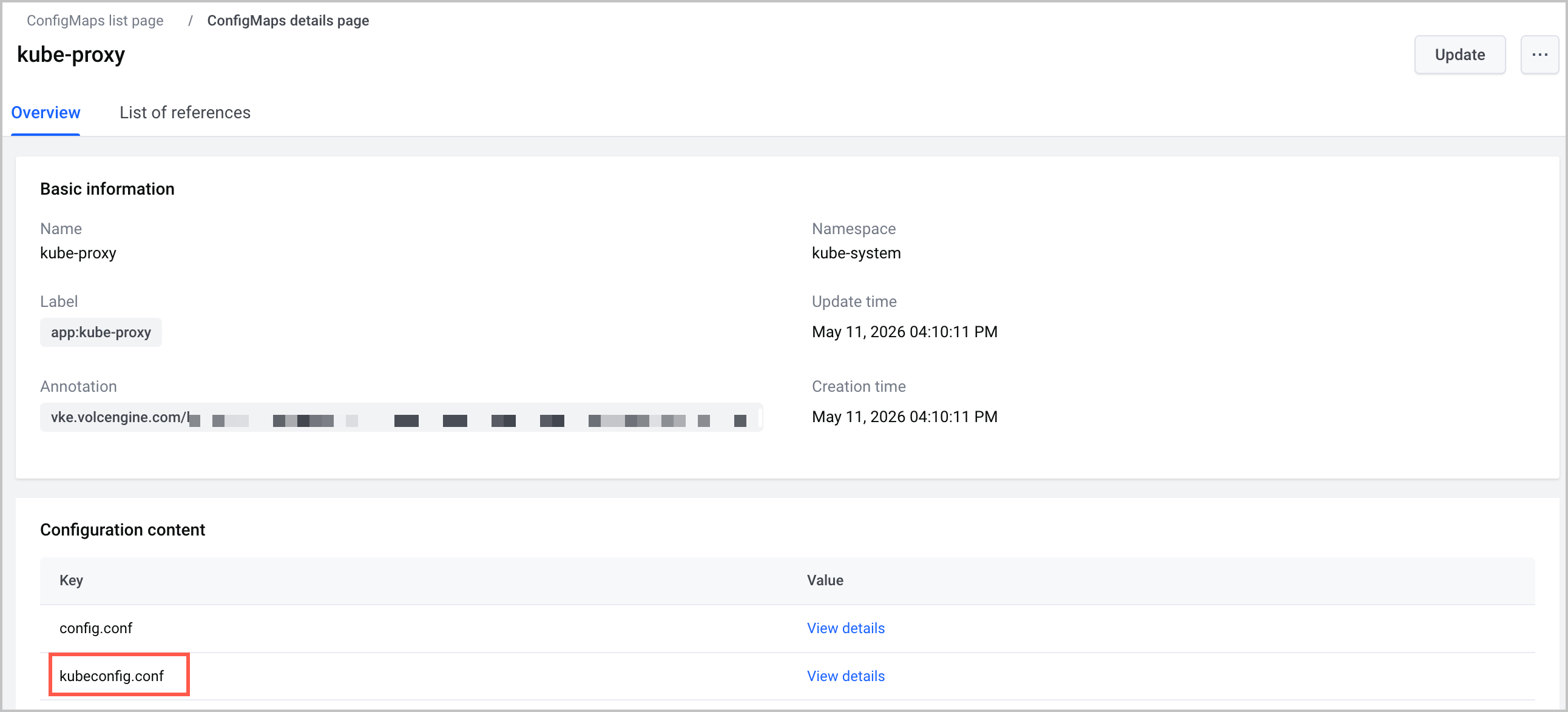
- Select the kube-system namespace and check whether kubeconfig.conf in the kube-proxy configuration is effective.
-
- Delete the Pods in the kube-proxy DaemonSet to recreate them and load the new configuration.
- Method 1Delete existing kube-proxy Pods manually through the console. The Pods will be recreated and load the new configuration.
- In the left navigation pane, click Workload > DaemonSet.
- Select the kube-system namespace, find the kube-proxy DaemonSet, and click the name of the DaemonSet.
- On the List of instances page of the kube-proxy details page, delete the Pods one by one to recreate them and load the new configuration.
Method 2Alternatively, perform a rolling update on the kube-proxy DaemonSet via kubectl to apply the new configuration to all kube-proxy Pods.- Connect to the target cluster using kubectl. For details, see Connecting to clusters via kubectl.
- Run the following command to perform a rolling update on the kube-proxy DaemonSet.
-
- Run the following command to view the result of the rolling update.
-
- The expected response is as follows:
-
In the VPC-CNI cluster, update vpc-cni to ensure the new configuration takes effect for existing components.
warning
To ensure business stability, we recommend performing this operation during off-peak hours.
- Log in to the VKE console.
- On the Cluster page, click the name of the target VPC-CNI cluster.
- In the left navigation pane of the cluster management page, click Addons. Find vpc-cni and click Configuration.
- In the vpc-cni Parameter configuration dialog box, update the parameters as needed or keep the current configuration, then click Confirm to trigger a configuration update.
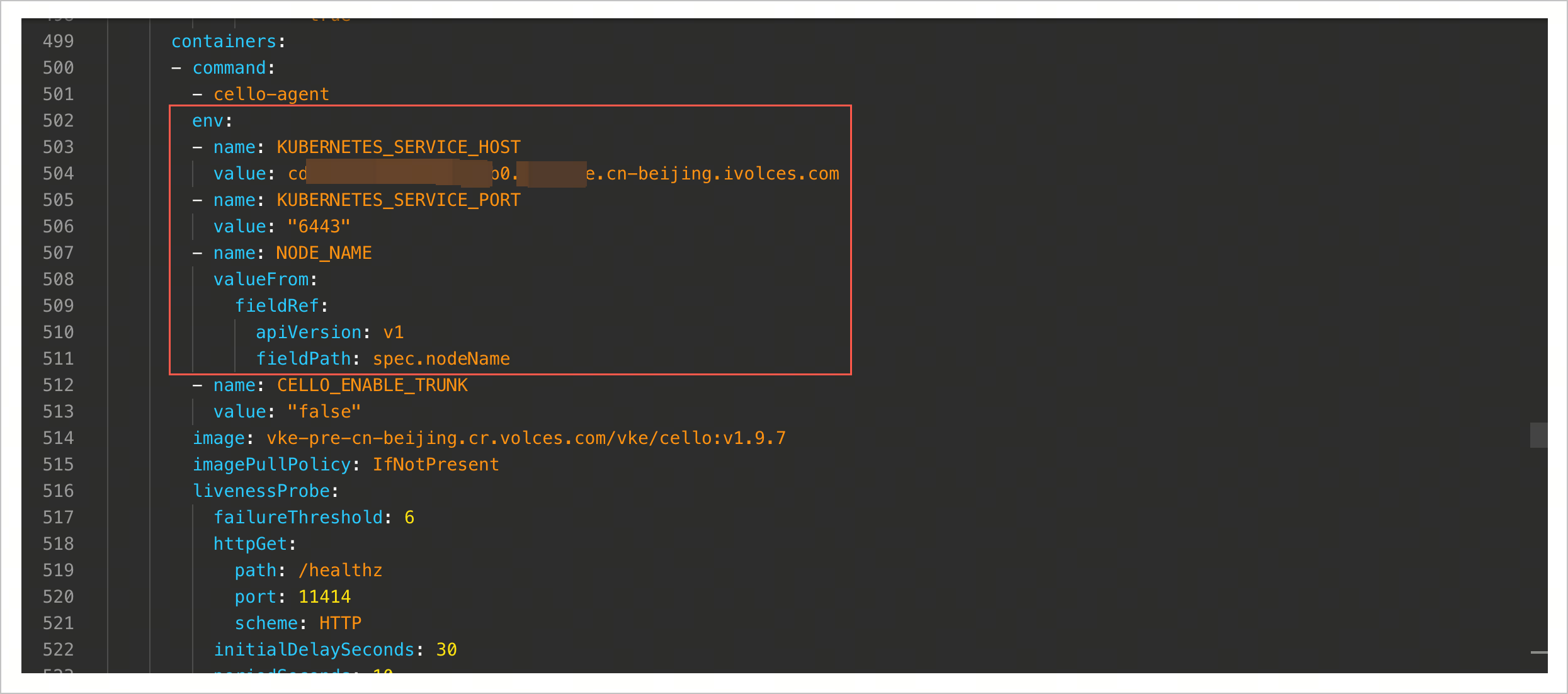
- In the left navigation pane, click Workload > DaemonSet. Locate the cello DaemonSet in the kube-system namespace, and in the right Actions column, click ... > Edit Yaml to check whether the domain name exists in the cello environment variables.
-
- Confirm that the rolling update of the cello DaemonSet is completed.
-
- The expected response is as follows:
-
Step 4: Modify the kubelet configurations of existing nodes
Update the kubelet configurations of existing nodes and restart the service to complete the switch to private domain-based access. To ensure cluster stability, this section covers two procedures: single-node verification and batch O&M.
- Perform single-node verification.
- Log in to an existing node using the ECS Terminal, run the following command to switch the API Server address from its IP to its domain name, and then restart kubelet.
-
- The following table describes the variables in the command:
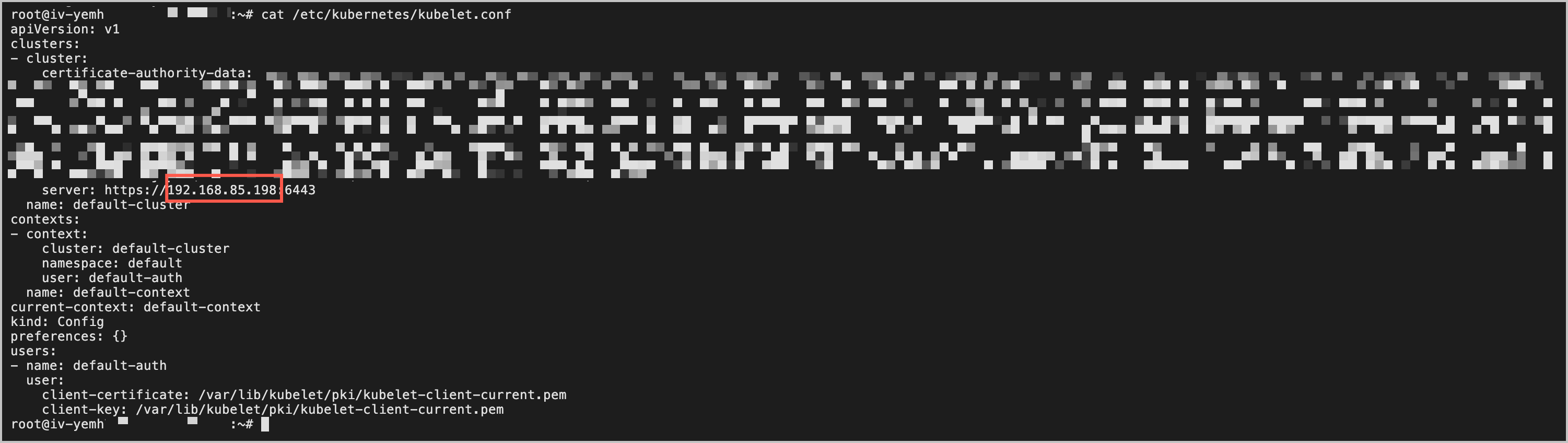
- VariableDescription{clb-ip}The CLB IP address specified in the /etc/kubernetes/kubelet.conf configuration of the node.Run the cat /etc/kubernetes/kubelet.conf command on the node to view the CLB IP address in the server parameter.
 {cluster-id}Cluster ID. You can obtain it on the Overview page of the cluster.{region-id}
- The complete example is as follows:
-
- In the VKE console, go to Nodes > Node to verify that the node is in the Running state.
- After single-node verification is successful, use the Cloud Assistant feature in the ECS console to operate on the remaining existing nodes in batches.
- You need to create a job on the Cloud Assistant page. Configure some parameters as described in the following table. For other steps and parameters, see Creating jobs.
-
- Wait for the job to complete. After confirming that the node status is normal, repeat this operation until all existing nodes have been updated.
Last updated: 2026.07.23 11:53:59
All rights reserved © Beijing Volcano Engine Technology Co., Ltd2024
