Volcengine Kubernetes Engine
Volcengine Kubernetes Engine


Document

- Documentation
 Volcengine Kubernetes EngineVolcengine Kubernetes EngineUser guideStorageLocal volumesUsing LVM-managed local volumes as ephemeral volumes
 Copy page
 Download PDF
Local volumes
Using LVM-managed local volumes as ephemeral volumes
Copy pageDownload PDFUsing LVM-managed local volumes as ephemeral volumes
Volcengine Kubernetes Engine (VKE) supports local storage through the Container Storage Interface (CSI). This topic describes how to use local storage volumes managed by Local Volume Manager (LVM) as ephemeral volumes.
Description
[Beta · Apply for trial] The csi-local add-on for local storage and storage-aware scheduling are currently in the beta stage. To use them, submit an application.
Usage limits
- Use ESSD data volumes to mount to the container and image directories /var/lib/containerd and /var/lib/kubelet. Avoid mounting local disks to the container or image directory, as this mounting type is not applicable to local storage scenarios.
- The three add-ons required in this scenario must be installed or uninstalled in the order described in the following content. If this order is not followed, scheduling will malfunction.
- The Kubernetes version of the cluster must meet the following requirements:
- Kubernetes v1.24: v1.24.15-vke.34 and later
- Kubernetes v1.26: v1.26.10-vke.22 and later
- Kubernetes v1.28: v1.28.3-vke.16 and later
- Kubernetes v1.30: v1.30.4-vke.13 and later
- Kubernetes v1.32: v1.32.3-vke.8 and later
- Kubernetes v1.34: v1.34.1-vke.2 and later
- Local storage does not offer highly available volumes and is only applicable to temporary data storage or applications that internally implement high availability.
- LVM-managed local storage volumes do not support cross-node data migration and are not applicable to high availability scenarios.
Prerequisites
- A cluster that uses a compliant Kubernetes version has been created. For details, see Creating clusters.
- The kubectl tool has been installed in the local environment. For details, see Installing and setting up kubectl.
Procedure
Step 1: Install and configure add-ons
To use local storage, you need to install and set up the following add-ons in the order described below.
danger
- The csi-local add-on depends on the snapshot-controller add-on. Before installing the csi-local add-on, confirm that the snapshot-controller add-on is installed.
- The csi-local add-on must be used with the storage-aware scheduling feature of the scheduler-plugin add-on. Before enabling the storage-aware scheduling feature, ensure that both the snapshot-controller and csi-local add-ons are installed.
- Before you uninstall the csi-local add-on, disable the storage-aware scheduling feature in the scheduler-plugin add-on to avoid affecting scheduling capabilities.
- Log in to the VKE console.
- In the left navigation bar, click Cluster. On the page that appears, click the name of the cluster that you need to configure.
- On the cluster management page, click Addons in the left navigation bar.
- Click the Storage tab, move the pointer over the snapshot-controller add-on card, and then click Deploy to install the snapshot-controller add-on. Then, install the csi-local add-on in the same way.
- Click the Scheduling tab, move the pointer over the scheduler-plugin add-on card, and then click Configuration. In the configuration dialog box, select Local storage for the Storage-aware scheduling parameter.
-
Step 2: Configure node pools that use local disks
Configure a node pool that uses a local disk. The following content describes the key configurations involved in this scenario. Specify other parameters based on your business requirements. For details, see Creating node pools and Creating managed node pools.
- Specify the instance type. Select an ECS instance type that supports local disks. For details, see Local disks.
- Configure a data volume.
- Specify container and image directories. Use ESSD data volumes to mount to the container and image directories /var/lib/containerd and /var/lib/kubelet.
Warning
Do not mount local disks to the container or image directory, as this mounting type is not applicable to local storage scenarios.
- Click Add data volume to configure other data volumes by using local disks. Local data volumes support SSD and HDD types. Different ECS types support different data volume types. You can select a local data volume type based on your business requirements.
- Specify custom node labels, which are used to filter nodes during local disk initialization, such as csi-local: "i4ag".
- Configure the InitializeScript to install lvm2 on the node. The installation command is apt-get install -y lvm2.
Step 3: Initialize local disks
After the csi-local add-on is installed, local storage-related CRDs will be automatically created, including
- NodeLocalStorageInitConfig: Initialize the NodeLocalStorage resources for each node. If NodeLocalStorageInitConfig exists when the csi-local add-on creates NodeLocalStorage resources, the configurations in NodeLocalStorageInitConfig will be populated into the spec of the created NodeLocalStorage resources.
- NodeLocalStorage: Report storage device information for each node. You can edit the Spec field of the NodeLocalStorage resource as needed.
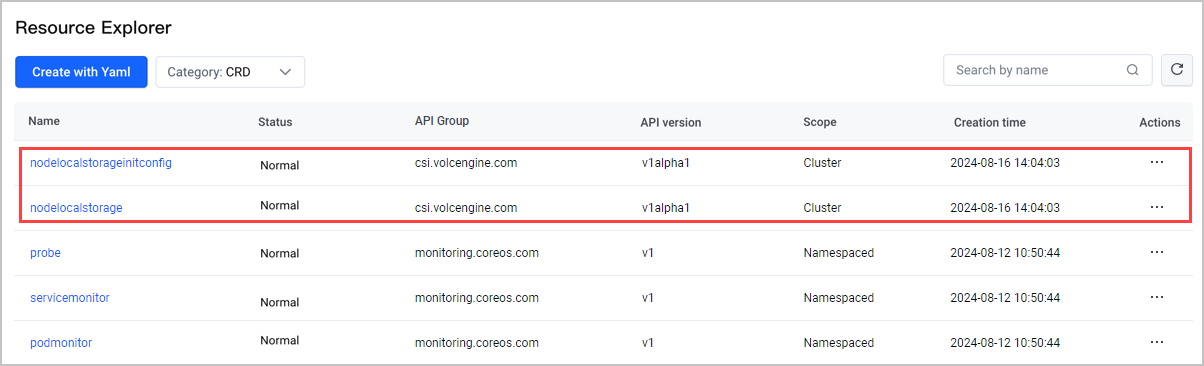
This scenario uses an ecs.i4ag.12xlarge instance with a 3.5 TB SSD /dev/nvme0n1 and csi-local: "i4ag" as the node label.
- In the left navigation bar, click Workload > Resource Explorer. On the page that appears, click Create with Yaml. On the Create with Yaml page, configure the CR to initialize the local disk.
- Select Custom from the Type drop-down list.
- Enter the following sample YAML configurations in the Yaml code editor.
-
- Wait for about one minute, and then run the following command to view the NodeLocalStorage configuration for the corresponding node. 192.168.2.6 is the IP address of the node.
-
- The expected result is as follows: You can query VG information, which indicates that the local disk has been initialized.
-
Step 4: Use LVM-managed volumes as ephemeral volumes
This example uses Deployment creation to demonstrate how to use LVM-managed volumes as ephemeral volumes.
- Create a YAML file for the Deployment. The code of the sample file deployment-demo.yaml is as follows:
-
- Run the following command to create the workload.
-
Result validation
Volume mounting
After the workload is created, log in to the node and view the details of local storage on the node.
- Use ECS Terminal to log in to the node. For details, see ECS Terminal.
- Run the following command to view the block device information on the node.
-
- The expected result is as follows: You can see the initialized local storage block.
-
- Run the following command to view the logical volume (LV) on the node.
-
- The expected result is as follows: The LV has been created and mounted.
-
PV reclaim
- Delete the workload. After the pod has been deleted,
- run the lsblk and lvs commands again. You can find that the LV has been reclaimed.
-
Last updated: 2026.07.24 10:53:32
All rights reserved © Beijing Volcano Engine Technology Co., Ltd2024
