Volcengine Kubernetes Engine
Volcengine Kubernetes Engine
Volcengine Kubernetes Engine


Document
Volcengine Kubernetes Engine
What's New
History feature release notes
Kubernetes version release notes
Containerd runtime release notes
Add-on release notes
Monitoring add-ons
Scheduling add-ons
DNS add-ons
Security add-ons
GPU add-ons
Sandbox add-on
Security announcements
Product Announcement
Historical announcements
Overview
Getting started
User guide
Clusters
Creating clusters
Connecting to clusters
Upgrading clusters
Node pool
Creating node pools
Scaling out/in node pools
Nodes
Authorization management
Image
Namespaces
Networking
Cluster network
Container Network
Service
LoadBalancer
CLB
Ingress
APIG Ingress
ALB Ingress
Customize ALB Ingress forwarding rules
Certificate and security
CLB Ingress
Nginx Ingress
Gateway API
Workloads
Creating workloads
Configure workloads
Pods
Configuration management
Image acceleration
Storage
FSX client
EBS Volumes
TOS Volumes
NAS volumes
FSX access methods
NFS access methods
EFS volumes
vePFS volumes
FSX access methods
vePFS Client access methods
NFS access methods
CloudFS volumes
Local volumes
Autoscale
Node autoscaler
Workload autoscaler
Horizontal Pod Autoscaler (HPA)
Cron Horizontal Pod Autoscaler (CronHPA)
Intelligent Horizontal Pod Autoscaler (IHPA)
Horizontal Pod Autoscaler based on event-driven (KEDA)
Add-on management
Network add-ons
Storage add-ons
Monitoring add-ons
Scheduling add-ons
DNS add-ons
GPU add-ons
Core add-ons
Sandbox add-on
Upgrading add-ons
Heterogeneous computing
NVIDIA GPU
mGPU scheduling
RDMA high-performance computing
Scheduling management
Topology-aware scheduling
QoS-aware scheduling
Observability
Log management
Basic observation
Setup & Configuration
Cluster observation
Storage observation
Other observation
Using metrics
Full stack observation
Alert management
Diagnosis and inspection
Node check and self-healing
Application center
Backup center
Stability
Large-scale cluster management
Best practices
Authorization
Clusters
Nodes and node pools
Networking
Storage
Scheduling
Observability
Solution
Security and compliance
API reference
Cluster management
NodePool management
Node management
Virtual nodes management
Add-on management
Tag management
Access policy management
Instance images management
Cloud native observability
Inspection and diagnosis
Task management
Volcengine Container Instance
Appendix
SDK reference
Development guide
Terraform
FAQs
General FAQs
Cluster FAQ
cluster management
cluster network
cluster upgrade
Node and Node pool FAQs
Authorization FAQs
Workload FAQs
Service and Ingress FAQs
Storage FAQs
Heterogeneous computing FAQs
Observability FAQs
Quota FAQs
Add-on FAQs
Cloud-native AI
ServingKit
LLM applications
ComfyUI application
Deploying the Al inference application through Helm
Deepseek practices
Qwen practices
Kimi practice
Seed practices
Best practices
DeepSeek model deployment
GLM model deployment
MiniMax model deployment
Qwen model deployment
Kimi model deployment
Volcengine Container Instance
What's new
Historical feature release notes
Product Announcement
Overview
Billing
User guide
Integrating with VCI
Virtual node
VKE cluster uses virtual nodes
Self-managed/third-party cluster uses virtual node
Creating an instance
General purpose instance
GPU-accelerated computing instance
VCI Agent Sandbox
Startup acceleration
E2B-based management
Upgrade guide
Networking
Monitoring
Scheduling
Container configuration
VCI Image Cache
Best practices
Security and compliance
FAQs
- Documentation
 Volcengine Kubernetes EngineVolcengine Kubernetes EngineUser guideAdd-on managementGPU add-onsmgpu
 Copy page
 Download PDF
GPU add-ons
mgpu
Copy pageDownload PDFmgpu
The mgpu add-on implements GPU resource sharing. This topic describes the functionality, core resources, and installation and upgrade instructions of this add-on.
Add-on overview
The mgpu (multi-container GPU) add-on is a GPU sharing solution provided by VKE. It leverages kernel virtualization technology to isolate the computing power and video memory of GPUs. This enables multiple containers to share the same physical GPU card while ensuring performance and isolation.
After the mgpu add-on is installed in the cluster, the system will create the following Kubernetes resources in the kube-system namespace.
Resource name | Resource type | Resource description |
Resource name | Resource type | Resource description |
ek8s-gpu-agent | DaemonSet | The core workload of the add-on. It collects and reports node-level GPU resources (GPU memory and computing power) and enforces hard isolation and partitioning of shared GPU resources at the underlying layer. |
ek8s-gpu-exporter | DaemonSet | The mGPU metric collector. It collects various operational mGPU metrics in real time, such as GPU memory utilization and compute utilization. |
tip
The preceding table only lists the main resources of the add-on, as well as resources that may be used when the add-on or the corresponding feature is configured. This helps you understand the main components of this add-on. Other resources, such as ConfigMap and Secret, related to the add-on are not described here. You should refer to the actual resources in the cluster.
Add-on versions
For information about the historical release records of the add-on, as well as new features and optimization descriptions for each version, see Add-on release records.
Install the add-on
- Log in to the VKE console.
- In the left navigation pane, click Cluster. Click the target cluster name to go to the management page of this cluster.
- In the left navigation pane, click Addons. On the page that appears, click the GPU tab.
- Move the pointer over the add-on card, click Deploy, and configure the add-on parameters.
- ParameterDescriptionParameterDescriptionDeploy addonsSpecify whether to install the resource monitoring add-on mgpu-exporter to enable containers to share GPUs. The add-on is installed by default.tipWe recommend that you use the default value. If you do not install the mgpu-exporter, you cannot leverage cloud-native observability to monitor mGPU-related metrics.Collection intervalConfigure the metric collection interval for the mgpu-exporter. You can set the metric collection interval based on your timeliness requirement.Health checkSelect enable pod liveness probe to enable health checks. If it is enabled, the add-on will automatically trigger restarts and restore resource reporting after a resource reporting exception is detected.Health Check TimeoutConfigure the health check timeout period. The system declares the health check failed if no response is received within this duration.
- Click Confirm to finish configuration.
Upgrading add-ons
New versions of the add-on are released at irregular intervals to provide new features or fix known issues. When the add-on card displays that a new version is available, we recommend upgrading the add-on promptly. To ensure a smooth service transition, perform the upgrade during off-peak hours whenever possible. For upgrade procedures and considerations, see Upgrading add-ons.
warning
If the add-on card still displays Upgradable after the update, you can upgrade it again to a higher version. Ensure the last upgrade is completed successfully if you choose to keep upgrading. The following methods can be used to validate the upgrade.
Check add-on status
After the add-on installation/upgrade is complete, confirm whether the add-on is working normally by using the console or the command-line tool kubectl.
Use the console
Use the kubectl CLI
- In the left navigation pane of the cluster management page, click Addons. Then, click the GPU tab.
- On the vpc-cni add-on card, click -> in the upper-right corner to view the add-on deployment details.
- Check whether all Pods in the DaemonSet ek8s-gpu-agent in the kube-system namespace are running and whether the value of the Updated field equals the total number of Pods. If all Pods are in the Running state and all Pods are updated, the upgrade is successful.
-
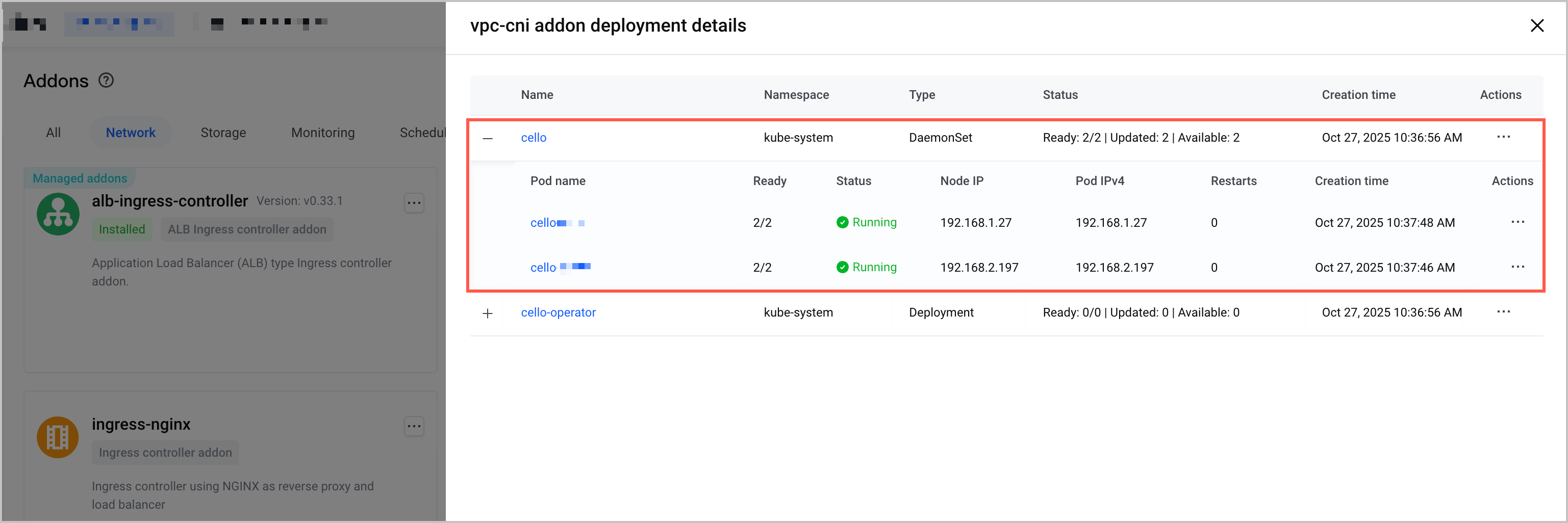
- In the kube-system namespace, check whether the Updated field on the details page of the ek8s-gpu-exporter Deployment equals the total number of Pods. If all Pods are updated, the upgrade is successful.
- Run the following command to check whether the DaemonSet ek8s-gpu-agent in the kube-system namespace is in the READY state and whether the value of UP-TO-DATE equals the total number of Pods.
- kubectl get daemonset ek8s-gpu-agent -n kube-system
- If all Pods are in the READY status and the value of UP-TO-DATE equals the total number of Pods, the upgrade is successful.
-

- Run the following command to check whether the value of UP-TO-DATE for the DaemonSet ek8s-gpu-exporter in the kube-system namespace equals the total number of Pods.
- kubectl get deployment ek8s-gpu-exporter -n kube-system
- If the value of UP-TO-DATE equals the total number of Pods, the upgrade is successful.
-
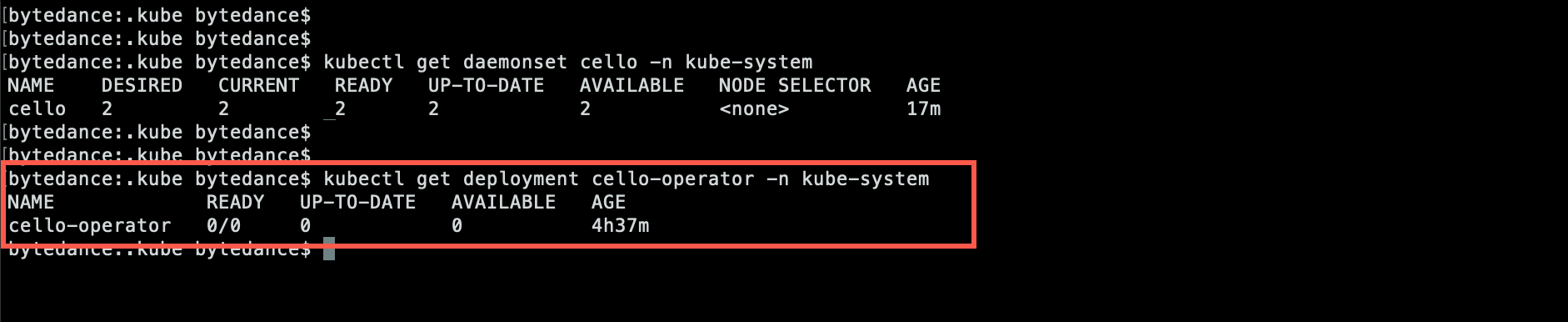
Monitoring and alerting
Add-on observability
The stability and performance of the mgpu add-on directly affect its proper functioning and overall effectiveness. We recommend enabling add-on observability in your cluster to monitor add-on health in real time. For details, see AI resource observability.
Configuring alerts
VKE provides comprehensive cluster monitoring and alerting capabilities based on VMP. You can quickly create alert rule groups by using system preset templates or configure custom alert rules by using PromQL statements based on your business requirements. You can also export preset templates in YAML format, adjust the rules, and save them as custom alert templates for reuse across multiple clusters. For details, see the following topics:
Preset alert templates are provided by the system based on common O&M scenarios. They are applicable to building an alert system for the first time or quickly supplementing basic monitoring items. This helps you promptly detect insufficient resources or abnormal operation of add-ons. For details about the alert rules in preset alert templates, see Preset alert templates.
Related documentation
Last updated: 2026.09.03 10:38:29
All rights reserved © Beijing Volcano Engine Technology Co., Ltd2024
