Volcengine Kubernetes Engine
Volcengine Kubernetes Engine


Document

- Documentation
 Volcengine Kubernetes EngineVolcengine Kubernetes EngineUser guideImageCreating a custom image based on ECS
 Copy page
 Download PDF
Image
Creating a custom image based on ECS
Copy pageDownload PDFCreating a custom image based on ECS
In the cloud-native era, the growing diversity of business scenarios demands advanced capabilities from container platforms, including the ability to provision cluster nodes by using custom images and swiftly deploy nodes with identical configurations. This topic describes how to quickly create a custom image from an Elastic Compute Service (ECS) instance.
Prerequisites
- The snapshot feature has been enabled. For details, see Snapshots.
- The resources required to create an ECS instance, such as a Virtual Private Cloud (VPC) and instance specification, have been made available.
- The link to a target GPU driver has already been obtained for use in this example. You can get a target driver link from NVIDIA.
- Other items to be included in the custom image (such as a container image and custom application) have been made ready.
Usage limits
- Disclaimer: Custom images are non-standard environments for which Volcano Engine does not provide official support or ongoing maintenance. For detailed disclaimer statements regarding custom images, see Disclaimers.
- Currently, this solution is applicable only to General-purpose and GPU Accelerated instances. To create a custom image based on a High Performance Computing Optimized ECS instance, please submit a ticket.
- When you create a custom image for a GPU Accelerated instance, ensure the selected public base image strictly matches the instance specification to prevent compatibility issues, such as networking anomalies.
- Do not modify /etc/fstab.
- You can create a custom image only by using base images (kernel 5.4 is recommended) provided by Volcengine Kubernetes Engine (VKE). For a list of available base images, see Overview of operating system images.
- We recommend that you use a new node as the base for custom image creation. This prevents node initialization issues caused by residual data from prior node usage.
- If you are adding existing nodes, verify that the available capacity of the system volume exceeds the image volume capacity. To avoid failures in adding an existing server as a cluster node, we recommend that you use a system volume that has at least 10 GiB of free space beyond the image capacity.
- To prevent node creation failures, ensure that your custom image fits within the system volume capacity of the node pool.
- To ensure that multiple NVSwitch-compatible GPUs (for example, A100 and A800) can be interconnected via NVSwitch, you can install and start the NVIDIA-Fabric Manager that matches the GPU driver version on GPU nodes. For more details, see installing the NVIDIA-Fabric Manager.
- To prevent production disruptions from modifying operating system parameters, test and verify your changes thoroughly in a test environment before applying your changes to production.
- For custom and shared images based on veLinux 2.0 or later, or Ubuntu 22.x or later, cgroupv2 is enabled by default in Kubernetes v1.30 and later. To use cgroupv1, submit a ticket.
Procedure
Step 1: Create an ECS instance
- Log in to the ECS console.
- In the left navigation bar, click Instances & Images > Instances to open the Instances page.
- Click Create instance. Follow the wizard to configure instance settings.
tip
This step describes only the key configuration items for creating an ECS instance, including the instance specification, image, Elastic IP (EIP) address, and the login method. For detailed parameter settings for creating an ECS instance, see Purchasing an instance by following the wizard.
- ParameterDescriptionInstance typeSelect an instance type that suits your business scenario. Different instance types offer varied network and storage performance levels. For details, see Instance types. In this example scenario, the GPU Accelerated ecs.g1te.xlarge specification is selected.ImageSelect an image. An image provides an operating system and essential application data for the ECS instance. Available images vary by region and instance specification. For public images available to individual regions of VKE, see Overview of operating system images.
- ParameterDescriptionEIPBy default, an EIP address is automatically allocated to the instance upon creation to allow access to the instance over the Internet. In this scenario, the default configuration is retained.
- ParameterDescriptionLogin methodsSet the type of credentials for logging in to the ECS instance. In this example, select Password, set a password for the root user, and confirm the password.tipPlease remember the password. If you forget your password, you can reset it in the ECS console.
Step 2: Configure custom image settings
After you have created the ECS instance, configure custom image settings based on your business scenario. Typical configurations include installing an NVIDIA driver, a container image, or custom applications. This scenario installs a GPU driver. You can also add your own custom settings.
tip
- Installations in this step vary based on your actual business requirements. After you complete all installations, proceed with the subsequent steps.
- The GPU driver to be installed must match the GPU model. Never directly use the GPU driver link provided in the following example. For a complete, detailed GPU driver installation example, see Installing GPU drivers.
- Log in to the NVIDIA driver download page. Select the preferred operating system and the CUDA version to get the GPU driver link.
- Log in to the ECS instance through the console or SSH tool. For details, see Logging in to a Linux instance.
- Download the GPU driver package by using the GPU driver link that you got previously. The following line is an example command:
-
- Run the following command to run the driver installer. Follow the on-screen prompts to complete the installation.
-
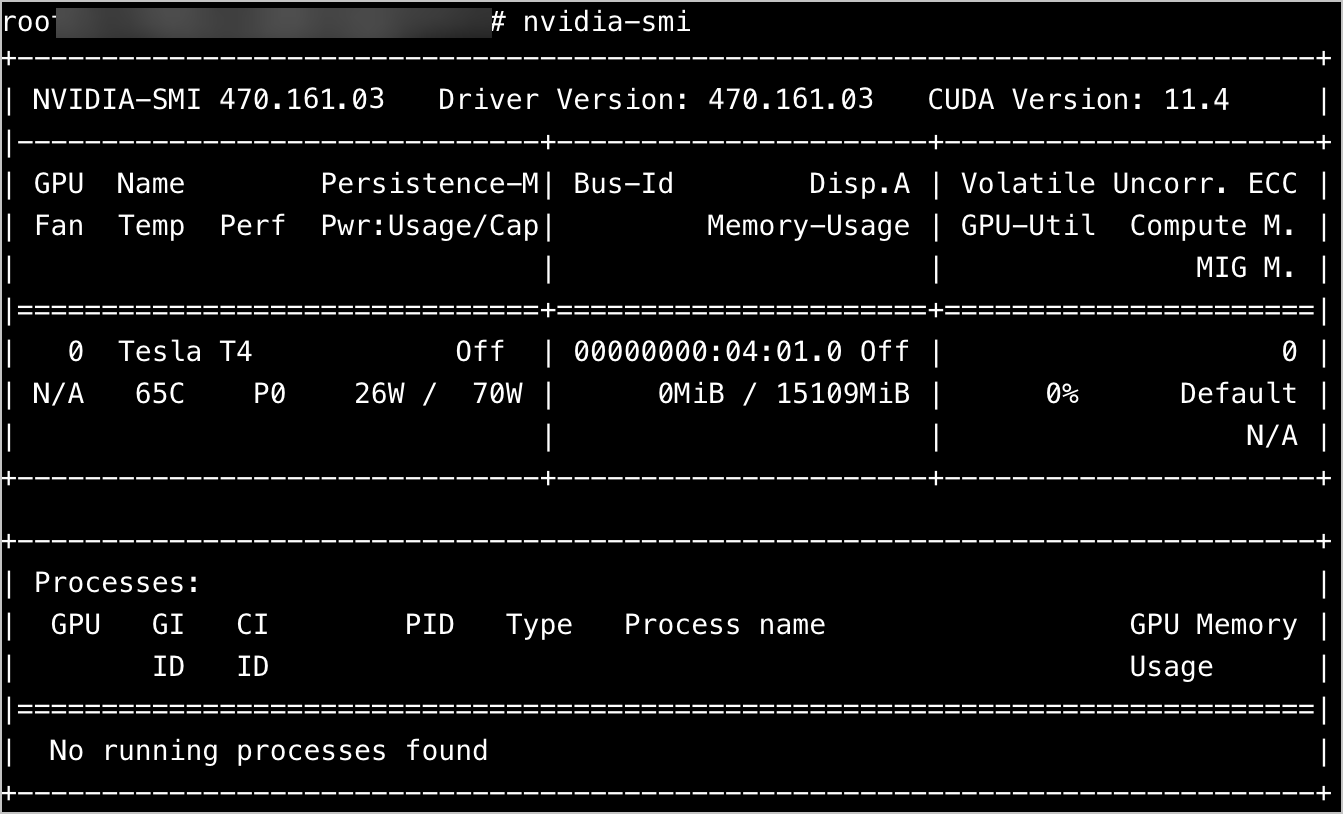
- After installation is complete, execute the following command to verify the installation. If the returned information is similar to the GPU information shown below, the driver has been installed successfully.
-
-
Step 3: Clear the Cloud-Init configuration
Execute the following command to delete the /var/lib/cloud file and clear the Cloud-Init configuration. If you do not delete the file, ECS instances created by using the custom image cannot have instance information (such as hostnames and passwords) injected.
Step 4: Check critical dependencies
VKE provides a dependency check to ensure the availability of custom images in VKE. You can run the following command to perform an environment check for key dependencies of VKE:
The expected output is as follows:
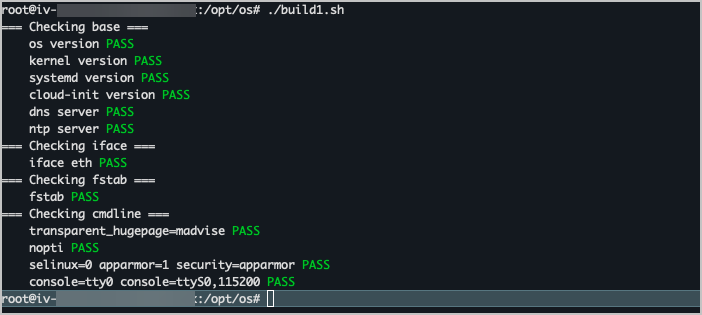
If all checks pass, proceed to export the image. If there are dependencies that fail the check, you must resolve all the issues before you can export the image.
warning
These checks may not capture all evolving business requirements. We recommend that you perform thorough validation in your test environment before production deployment.
Step 5: (Optional) Stop the instance
tip
If you create a custom image using an ESSD, you can skip this step.
Step 6: export the custom image
- Return to the ECS console.
- In the left navigation bar, click Instances & Images > Instances to open the Instances page.
- In the Actions column on the right side of the target instance, click ... > Volumes & Image > Create custom image.
- Set an image name and then click Confirm to begin exporting the custom image.
tip
Exporting a custom image takes some time. You can go back to the custom image list to view the progress.
Step 7: Add a description
To make a custom image available for reference by VKE, you need to declare the description SYS_SUPPORT_VKE.
- Log in to the ECS console.
- In the left navigation bar, click Instances & Images > Images to go to the Images page.
- Click the Custom Image tab and click the name of the target image to go to the custom image details page.
- In the Basic information section, click the Edit icon next to the Description field, enter SYS_SUPPORT_VKE in the field, and then click the check mark to save the change.
Subsequent operations
Now that you have created a custom image from an ECS instance, you can create a node pool by using the custom image. For details, see Creating node pools.
Last updated: 2026.07.07 11:32:41
All rights reserved © Beijing Volcano Engine Technology Co., Ltd2024
