Volcengine Kubernetes Engine
Volcengine Kubernetes Engine
Volcengine Kubernetes Engine


Document
Volcengine Kubernetes Engine
What's New
History feature release notes
Kubernetes version release notes
Containerd runtime release notes
Add-on release notes
Monitoring add-ons
Scheduling add-ons
DNS add-ons
Security add-ons
GPU add-ons
Sandbox add-on
Security announcements
Product Announcement
Historical announcements
Overview
Getting started
User guide
Clusters
Creating clusters
Connecting to clusters
Upgrading clusters
Node pool
Creating node pools
Scaling out/in node pools
Nodes
Authorization management
Image
Namespaces
Networking
Cluster network
Container Network
Service
LoadBalancer
CLB
Ingress
APIG Ingress
ALB Ingress
Customize ALB Ingress forwarding rules
Certificate and security
CLB Ingress
Nginx Ingress
Gateway API
Workloads
Creating workloads
Configure workloads
Pods
Configuration management
Image acceleration
Storage
FSX client
EBS Volumes
TOS Volumes
NAS volumes
FSX access methods
NFS access methods
EFS volumes
vePFS volumes
FSX access methods
vePFS Client access methods
NFS access methods
CloudFS volumes
Local volumes
Autoscale
Node autoscaler
Workload autoscaler
Horizontal Pod Autoscaler (HPA)
Cron Horizontal Pod Autoscaler (CronHPA)
Intelligent Horizontal Pod Autoscaler (IHPA)
Horizontal Pod Autoscaler based on event-driven (KEDA)
Add-on management
Network add-ons
Storage add-ons
Monitoring add-ons
Scheduling add-ons
DNS add-ons
GPU add-ons
Core add-ons
Sandbox add-on
Upgrading add-ons
Heterogeneous computing
NVIDIA GPU
mGPU scheduling
RDMA high-performance computing
Scheduling management
Topology-aware scheduling
QoS-aware scheduling
Observability
Log management
Basic observation
Setup & Configuration
Cluster observation
Storage observation
Other observation
Using metrics
Full stack observation
Alert management
Diagnosis and inspection
Node check and self-healing
Application center
Backup center
Stability
Large-scale cluster management
Best practices
Authorization
Clusters
Nodes and node pools
Networking
Storage
Scheduling
Observability
Solution
Security and compliance
API reference
Cluster management
NodePool management
Node management
Virtual nodes management
Add-on management
Tag management
Access policy management
Instance images management
Cloud native observability
Inspection and diagnosis
Task management
Volcengine Container Instance
Appendix
SDK reference
Development guide
Terraform
FAQs
General FAQs
Cluster FAQ
cluster management
cluster network
cluster upgrade
Node and Node pool FAQs
Authorization FAQs
Workload FAQs
Service and Ingress FAQs
Storage FAQs
Heterogeneous computing FAQs
Observability FAQs
Quota FAQs
Add-on FAQs
Cloud-native AI
ServingKit
LLM applications
ComfyUI application
Deploying the Al inference application through Helm
Deepseek practices
Qwen practices
Kimi practice
Seed practices
Best practices
DeepSeek model deployment
GLM model deployment
MiniMax model deployment
Qwen model deployment
Kimi model deployment
Volcengine Container Instance
What's new
Historical feature release notes
Product Announcement
Overview
Billing
User guide
Integrating with VCI
Virtual node
VKE cluster uses virtual nodes
Self-managed/third-party cluster uses virtual node
Creating an instance
General purpose instance
GPU-accelerated computing instance
VCI Agent Sandbox
Startup acceleration
E2B-based management
Upgrade guide
Networking
Monitoring
Scheduling
Container configuration
VCI Image Cache
Best practices
Security and compliance
FAQs
- Documentation
 Volcengine Kubernetes EngineVolcengine Kubernetes EngineUser guideAuthorization managementIRSA mechanismUsing IRSA in clusters
 Copy page
 Download PDF
IRSA mechanism
Using IRSA in clusters
Copy pageDownload PDFUsing IRSA in clusters
You can enable the IAM roles for service accounts (IRSA) feature for Volcengine Kubernetes Engine (VKE) clusters. With the IRSA feature, you can achieve pod-level isolation in a cluster for OpenAPI access. This enables fine-grained access permission isolation for cloud resources and reduces security risks. This topic describes how to use IRSA in a cluster.
Limits
- The IRSA feature can be enabled only for the managed clusters that already exist and cannot be enabled when a cluster is being created.
- After the IRSA feature is enabled for a cluster, it cannot be disabled. We recommend that you first use the feature in a test cluster and ensure it works as expected before using it in the production environment.
- Enabling IRSA will cause a quick restart of kube-apiserver. We recommend that you enable the feature during off-peak hours.
- The IRSA is only available in clusters running on Kubernetes v1.24 or later.
- The pod-identity-webhook add-on provided by VKE is required when IRSA-related configurations need to be automatically injected into pods in a VKE cluster.
Prerequisites
The target cluster is in the Running state.
Procedure
Step 1: Enable IRSA for the cluster
- Log in to the VKE console.
- In the left navigation bar, click Cluster. In the right part of the page, click the target cluster name to open the management page of this cluster.
- On the Overview page, click the Overview tab and switch on IRSA OIDC in the Basic information section.
-
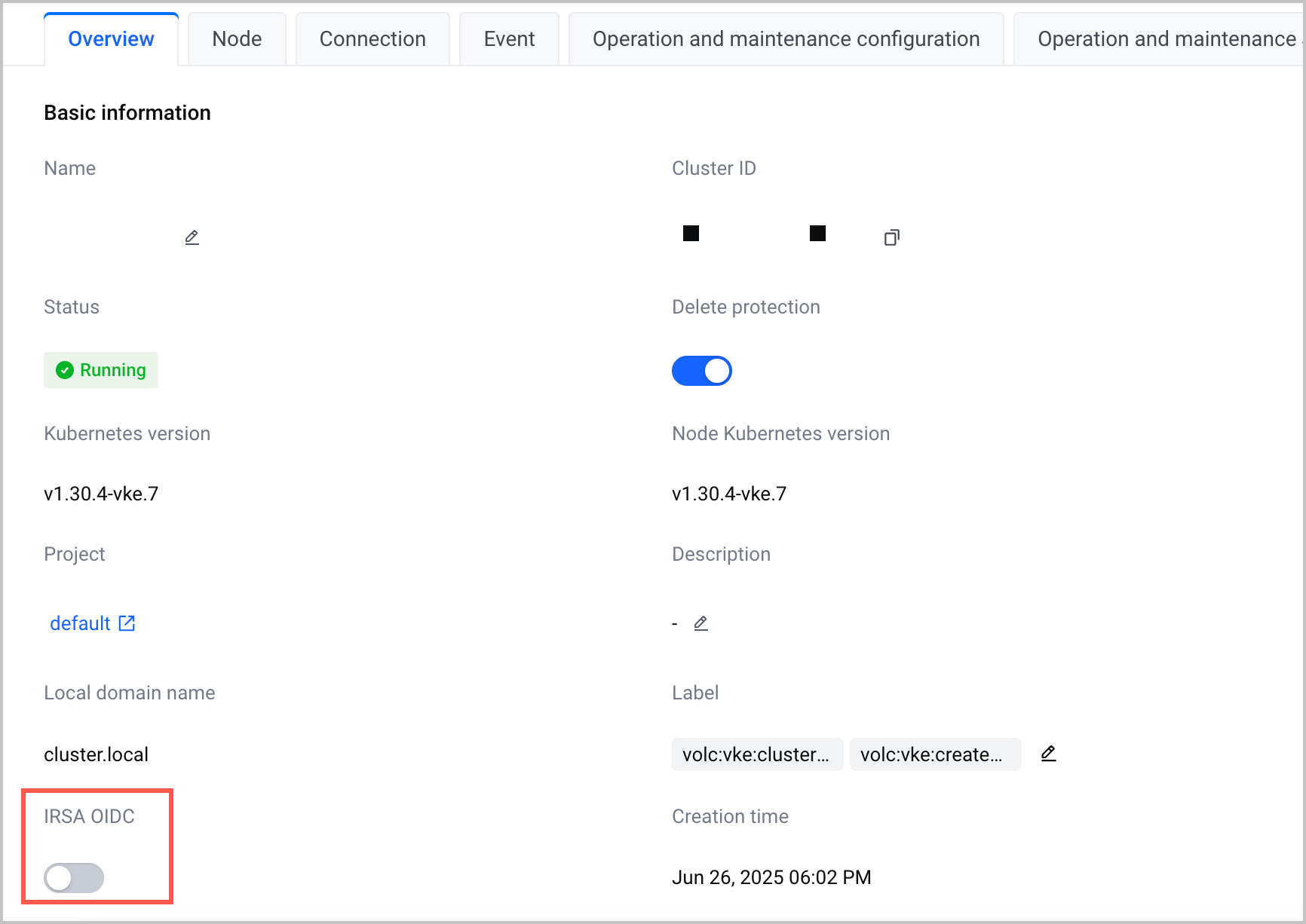
- In the confirmation message that appears, click Confirm.
- After you enable IRSA for the cluster, Provider URL and Provider TRN are displayed in the console. Check whether the identity provider name contained in the information of Provider TRN is correct.
-
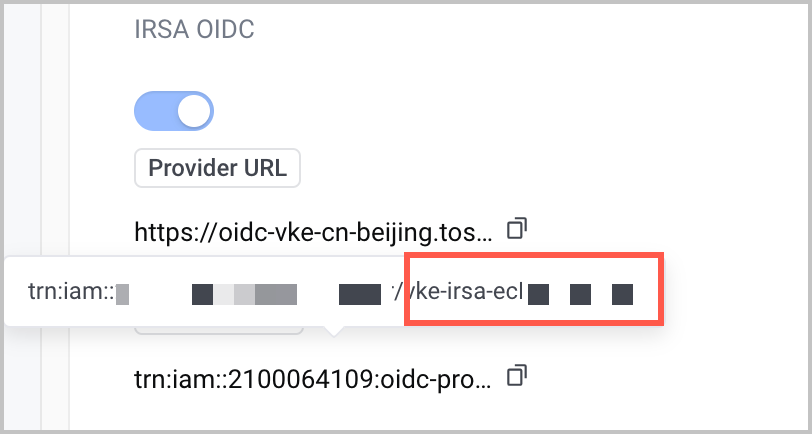
Step 2: (Optional) Install the pod-identity-webhook add-on
The pod-identity-webhook add-on is required if you want to achieve automatic injection of IRSA configurations into pods.
- In the left navigation bar of the cluster management page, click Addons.
- On the Security tab of the Addons page, click the ...icon in the upper-right corner of the pod-identity-webhook section and click Install.
Step 3: Create an IAM role that trusts the OIDC identity provider
You need to create an IAM role with the OIDC identity provider as its trusted identity in the IAM console after the IRSA is enabled.
- Log in to IAM console.
- In the left navigation bar, click Role Management. On the page that appears, click Create New Role.
- In the Create New Role panel, specify parameters based on the following parameter descriptions.
- Select trusted identity
- ParameterDescriptionParameterDescriptionSelect trust identitySelect Identity provider.Provider typeSelect OIDC.Identity providerSelect the identity provider name contained in the information of Provider TRN obtained in Step 1.
- Edit role information
- You can configure it based on the actual needs. See Role management for reference.
- Grant permissions
- You can configure it based on the actual needs. See Role management for reference.
Step 4: Edit trust relationships for the role.
Authorize a service account under the specified namespace in the VKE cluster (with IRSA enabled) to assume the created IAM role.
- On the Role Management page of the IAM console, search for the name of the role created in Step 3.
- Click the role name to go to the details page of the role.
- On the Trust relationship tab, click Edit trust policy.
- Add the following code to the Statement field:
- "Condition": {"StringLike": {"oidc:aud": "sts.volcengine.com", // The fixed value of the audience in OIDC."oidc:iss": "https://oidc-vke-cn-beijing.tos-cn-beijing.volces.com/ccog93v********", // Set the value to the provider URL displayed in the console after you enable the IRSA feature for your cluster."oidc:sub": "system:serviceaccount:oidc-ns-1:oidc-sa-1" // Required format: system:serviceaccount:{namespace}:{serviceaccount}, where {namespace} and {serviceaccount} are the namespace and service account in the Kubernetes cluster.}},
- Sample complete code:
- {"Statement": [{"Effect": "Allow","Action": ["sts:AssumeRoleWithOIDC"],"Condition": {"StringLike": {"oidc:aud": "sts.volcengine.com", // The fixed value of the audience in OIDC."oidc:iss": "https://oidc-vke-cn-beijing.tos-cn-beijing.volces.com/ccog93vv********", // Set the value to the provider URL displayed in the console after you enable the IRSA feature for your cluster."oidc:sub": "system:serviceaccount:oidc-ns-1:oidc-sa-1" // Required format: system:serviceaccount:{namespace}:{serviceaccount}, where {namespace} and {serviceaccount} are the namespace and service account in the Kubernetes cluster.}},"Principal": {"Federated": ["trn:iam::2100******:oidc-provider/vke-irsa-********"]}}]}
tip
You can add multiple Statements to the IAM trust policy.
- After you edit the trust policy, save the policy.
Step 5: Create workloads
Create workloads in the cluster and set the environment variables required for the OIDC token file in the pod to access the AssumeRoleWithOIDC API of the STS service.
The following content provides an example of how to create the namespace and service account configured in Step 4 when a pod is being created.
- Use kubectl to connect to an IRSA-enabled cluster. For details, see Connecting to clusters.
- Create YAML files for the namespace and the service account respectively. The following sample code shows the content of the sample file named demo-1.yaml.
- ---apiVersion: v1kind: Namespacemetadata:name: oidc-ns-1 # The namespace name. Set the value to the namespace configured in Step 3.labels:vke.volcengine.com/pod-identity-injection-enabled: "true" # Enable automatic injection of IRSA configurations into the pods in the current namespace.---apiVersion: v1kind: ServiceAccountmetadata:name: oidc-sa-1namespace: oidc-ns-1 # The service account name. Set the value to the service account configured in Step 3.annotations:vke.volcengine.com/role-trn: trn:iam::2100******:role/podrole1234 # The IAM role TRN assigned to the service account. The role TRN can be found on the role details page in the IAM console. If you do not configure the annotation or set the value to an invalid IAM role TRN, configurations will not be automatically injected into the pod that uses the service account.
- Run the following command to create a namespace and service account.
- kubectl apply -f demo-1.yaml
- Create a YAML file for a workload. A pod is taken as an example in this topic. The following sample code shows the content of the sample file named demo-2.yaml.
- In the case where the pod-identity-webhook add-on is installed when IRSA configurations are automatically injected into the pod:
tip
- The IRSA feature can be used without the need to modify the configurations of the business pod because the pod-identity-webhook add-on automatically injects the corresponding configurations into the pod.
- If you need to configure other environment variables, enable the extended environment variable capability. For details, see pod-identity-webhook.
- apiVersion: v1kind: Podmetadata:name: demo # The pod name.namespace: oidc-ns-1 # Set the value to the namespace configured in the previous step.spec:serviceAccountName: oidc-sa-1 # Set the value to the service account configured in the previous step.containers:- image: cr-cn-beijing.volces.com/******:latest # The address and tag of the container image. Set the value to your image address.imagePullPolicy: "Always"args:- irsa- demoname: demo # The container name.restartPolicy: OnFailure
- In the case where the pod-identity-webhook add-on is not installed and IRSA configurations need to be manually injected into the pod:
- apiVersion: v1kind: Podmetadata:name: pod-1 # The pod name.namespace: oidc-ns-1 # Set the value to the namespace configured in the previous step.spec:serviceAccountName: oidc-sa-1 # Set the value to the service account configured in the previous step.volumes: # Configure service account token volume projection for the pod. For details, see Kubernetes documentation: https://kubernetes.io/zh-cn/docs/tasks/configure-pod-container/configure-service-account/#serviceaccount-token-volume-projection.- name: irsa-oidc-token # The volume name, which needs to be consistent with the mounted volume name in the volumeMounts field.projected:defaultMode: 420sources:- serviceAccountToken:audience: sts.volcengine.com # The fixed value of the audience.expirationSeconds: 3600 # The validity period of the OIDC token. Unit: seconds.path: token containers:- env: # The environment variables required to call the AssumeRoleWithOIDC API in the pod.- name: VOLCENGINE_OIDC_ROLE_TRNvalue: <role_trn>- name: VOLCENGINE_OIDC_TOKEN_FILEvalue: /var/run/secrets/vke.volcengine.com/irsa-tokens/token # The OIDC token mount path, which needs to be consistent with the mount path in volumeMounts field.image: cr-cn-beijing.volces.com/******:latest # The address and tag of the container image. Set the value to your image address.imagePullPolicy: IfNotPresentname: c-test # The container name.volumeMounts:- name: irsa-oidc-token # The mounted volume name, which needs to be consistent with the volume name in the volumes field.readOnly: truemountPath: /var/run/secrets/vke.volcengine.com/irsa-tokens/token # The OIDC token mount path.
- Execute the following command to create the workload.
- kubectl apply -f demo-2.yaml
Validate results
After the workload is created, you can call the AssumeRoleWithOIDC API of the Security Token Service (STS) in the Pod to verify whether the Pod can use the injected OIDC token to assume the specified IAM role and obtain temporary security credentials. A script example is as follows:
#!/usr/bin/env bash
set -euo pipefail
# Required environment variables
: "${VOLCENGINE_OIDC_TOKEN_FILE:?need VOLCENGINE_OIDC_TOKEN_FILE}"
: "${VOLCENGINE_OIDC_ROLE_TRN:?need VOLCENGINE_OIDC_ROLE_TRN}"
STS_HOST="sts.cn-beijing.volcengineapi.com" # STS service endpoint domain
ACTION="AssumeRoleWithOIDC" # API action: Assume a role using an OIDC token
VERSION="2018-01-01" # STS API version number
DURATION="3600" # Validity period of the obtained STS temporary credentials. Unit: seconds. The maximum value can be adjusted based on the role configuration.
SESSION_NAME="irsa-$(hostname)-$(date +%s)" # Session name: hostname + timestamp
OIDC_TOKEN=$(cat "${VOLCENGINE_OIDC_TOKEN_FILE}") # Read the OIDC token file content to obtain the JWT token
POLICY='{"Statement":[{"Effect":"Allow","Action":["*"],"Resource":["*"]}]}' # The inline authorization policy and temporary session permissions. The example grants full permissions, and we recommend narrowing the scope of Action/Resource in a production environment.
curl -s -X POST "https://${STS_HOST}/?Action=${ACTION}&Version=${VERSION}" \
-H "Content-Type: application/x-www-form-urlencoded" \
--data-urlencode "RoleTrn=${VOLCENGINE_OIDC_ROLE_TRN}" \
--data-urlencode "OIDCToken=${OIDC_TOKEN}" \
--data-urlencode "Policy=${POLICY}" \
--data-urlencode "DurationSeconds=${DURATION}" \
--data-urlencode "RoleSessionName=${SESSION_NAME}"
The expected result is as follows: If the response contains the Result.Credentials field, including AccessKeyId, SecretAccessKey, and SessionToken, the Pod has assumed the IAM role and obtained temporary security credentials, indicating that the IRSA configuration is valid.
{
"ResponseMetadata": {
"RequestId": "202****",
"Action": "AssumeRoleWithOIDC",
"Version": "2018-01-01",
"Service": "sts",
"Region": "cn-beijing"
},
"Result": {
"Credentials": {
"CurrentTime": "2021-04-12T10:57:09+08:00\n\n",
"Expiration": "2021-04-12T11:57:09+08:00\n\n",
"AccessKeyId": "AKTPOD****",
"SecretAccessKey": "TVRN****",
"SessionToken": "STSeyW****"
},
"OIDCTokenInfo": {
"Subject": "Kryrk****",
"Issuer": "https://dev-xxxxxx.****.com",
"ClientIds": [
"49627****"
],
"ExpirationTime": "2021-10-20T04:27:09Z",
"IssuanceTime": "2021-10-20T03:27:09Z"
},
"AssumedRoleUser": {
"AssumedRoleId": "5DokU****",
"Trn": "vJ****"
}
}
}
Last updated: 2026.10.19 11:27:07
All rights reserved © Beijing Volcano Engine Technology Co., Ltd2024
