Volcengine Kubernetes Engine
Volcengine Kubernetes Engine
Volcengine Kubernetes Engine


Document
Volcengine Kubernetes Engine
What's New
History feature release notes
Kubernetes version release notes
Containerd runtime release notes
Add-on release notes
Monitoring add-ons
Scheduling add-ons
DNS add-ons
Security add-ons
GPU add-ons
Sandbox add-on
Security announcements
Product Announcement
Historical announcements
Overview
Getting started
User guide
Clusters
Creating clusters
Connecting to clusters
Upgrading clusters
Node pool
Creating node pools
Scaling out/in node pools
Nodes
Authorization management
Image
Namespaces
Networking
Cluster network
Container Network
Service
LoadBalancer
CLB
Ingress
APIG Ingress
ALB Ingress
Customize ALB Ingress forwarding rules
Certificate and security
CLB Ingress
Nginx Ingress
Gateway API
Workloads
Creating workloads
Configure workloads
Pods
Configuration management
Image acceleration
Storage
FSX client
EBS Volumes
TOS Volumes
NAS volumes
FSX access methods
NFS access methods
EFS volumes
vePFS volumes
FSX access methods
vePFS Client access methods
NFS access methods
CloudFS volumes
Local volumes
Autoscale
Node autoscaler
Workload autoscaler
Horizontal Pod Autoscaler (HPA)
Cron Horizontal Pod Autoscaler (CronHPA)
Intelligent Horizontal Pod Autoscaler (IHPA)
Horizontal Pod Autoscaler based on event-driven (KEDA)
Add-on management
Network add-ons
Storage add-ons
Monitoring add-ons
Scheduling add-ons
DNS add-ons
GPU add-ons
Core add-ons
Sandbox add-on
Upgrading add-ons
Heterogeneous computing
NVIDIA GPU
mGPU scheduling
RDMA high-performance computing
Scheduling management
Topology-aware scheduling
QoS-aware scheduling
Observability
Log management
Basic observation
Setup & Configuration
Cluster observation
Storage observation
Other observation
Using metrics
Full stack observation
Alert management
Diagnosis and inspection
Node check and self-healing
Application center
Backup center
Stability
Large-scale cluster management
Best practices
Authorization
Clusters
Nodes and node pools
Networking
Storage
Scheduling
Observability
Solution
Security and compliance
API reference
Cluster management
NodePool management
Node management
Virtual nodes management
Add-on management
Tag management
Access policy management
Instance images management
Cloud native observability
Inspection and diagnosis
Task management
Volcengine Container Instance
Appendix
SDK reference
Development guide
Terraform
FAQs
General FAQs
Cluster FAQ
cluster management
cluster network
cluster upgrade
Node and Node pool FAQs
Authorization FAQs
Workload FAQs
Service and Ingress FAQs
Storage FAQs
Heterogeneous computing FAQs
Observability FAQs
Quota FAQs
Add-on FAQs
Cloud-native AI
ServingKit
LLM applications
ComfyUI application
Deploying the Al inference application through Helm
Deepseek practices
Qwen practices
Kimi practice
Seed practices
Best practices
DeepSeek model deployment
GLM model deployment
MiniMax model deployment
Qwen model deployment
Kimi model deployment
Volcengine Container Instance
What's new
Historical feature release notes
Product Announcement
Overview
Billing
User guide
Integrating with VCI
Virtual node
VKE cluster uses virtual nodes
Self-managed/third-party cluster uses virtual node
Creating an instance
General purpose instance
GPU-accelerated computing instance
VCI Agent Sandbox
Startup acceleration
E2B-based management
Upgrade guide
Networking
Monitoring
Scheduling
Container configuration
VCI Image Cache
Best practices
Security and compliance
FAQs
- Documentation
 Volcengine Kubernetes EngineVolcengine Container InstanceUser guideVCI Agent SandboxE2B-based managementGetting started
 Copy page
 Download PDF
E2B-based management
Getting started
Copy pageDownload PDFGetting started
This topic demonstrates the complete workflow for creating an AI Agent instance and persisting data by using the Python SDK based on the minimum viable product (MVP) principle. This example workflow includes common operations, such as creating templates, creating Sandboxes, reading/writing files, running code and commands, pausing/resuming Sandboxes, and querying status.
Preparation
- Configure E2B-related parameters in the YAML file for the VCI Agent Sandbox controller.
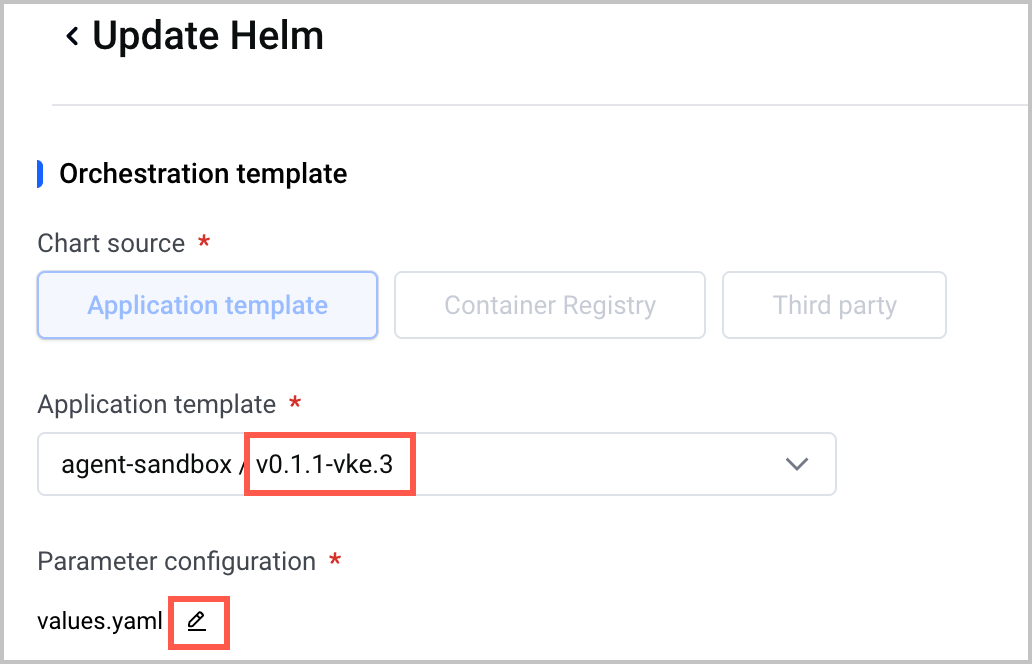
- VCI Agent Sandbox not installedVCI Agent Sandbox installedFollow the steps in the installation guide to install VCI Agent Sandbox. During the installation process, set enableE2BServer to true in the values.yaml file. Configure the remaining parameters as needed.warningWhen installing VCI Agent Sandbox, select v0.1.1-vke.3 or later for the Chart version of the agent-sandbox application template. Earlier versions do not have built-in E2B parameters.In the VKE console, go to Application center > Helm and select the target cluster and namespace where your VCI Agent Sandbox is installed. Locate the Helm application corresponding to the VCI Agent Sandbox controller and update its configuration:
- For the Chart version of the application template, select v0.1.1-vke.3 or later.
- In the YAML file, set enableE2BServer to true to enable E2B. Update other parameters according to your actual requirements.
 )
)
- Install the E2B Python SDK.
- pip install e2b-code-interpreter==2.4.1 e2b==2.10.2 anthropic python-dotenv
- Ensure that you have an available E2B API Key and configure the address and key (such as API_BASE_URL and ADMIN_API_KEY) required to access the E2B API in your environment. By default, the E2B API Key is saved in the e2b-key-store Secret in the agent-sandbox-system namespace. For details, see the installation guide. You can also obtain the API Key by calling the API via the SDK. For details, see Managing API Keys.
- Expose the E2B service externally via an ALB Ingress. For details, see Exposing the E2B service via an Ingress.
Procedure
Step 1: Create a template
A template defines Sandbox startup parameters. You can create a template in your cluster via the Kubernetes API. Alternatively, you can create a template via the VCI SDK. For details, see Managing templates.
tip
- In the sample code below, replace the image, resource, and annotation settings with your actual information. For other parameters in the code, you can keep the existing settings.
- After the template is created, obtain the template ID for use in subsequent Sandbox instance creation.
apiVersion: extensions.agents.x-k8s.io/v1alpha1
kind: SandboxTemplate
metadata:
name: code-interpreter-template
namespace: default
spec:
podTemplate:
metadata:
annotations:
agent.sandbox.io/enable-envd-injection: "true" # Inject envd into the primary container.
vci.vke.volcengine.com/enable-auto-create-imc: "true" # Enable automatic image caching.
vci.vke.volcengine.com/preferred-instance-family: vci.u1,vci.n3i # The VCI specification.
vci.volcengine.com/persistent-container: "true" # Specify whether to enable persistence for the container writable layer data. Valid values: true (enable) and false (disable).
vci.volcengine.com/tls-enable: "false" # Enable log collection to collect logs to TLS.
vci.volcengine.com/usable-disk-capacity: "40" # Specify the available space of the system volume (writable layer space).
vke.volcengine.com/burst-to-vci: enforce # Enforce VCI-based deployment.
spec:
containers:
- image: e2bdev/code-interpreter:latest # Use the executable code image provided by E2B.
name: main
resources:
limits:
cpu: "2"
memory: 4Gi
requests:
cpu: "2"
memory: 4Gi
terminationGracePeriodSeconds: 1
Step 2: Create a Sandbox
Use the Python SDK to create a Sandbox instance with the template ID obtained in the previous step.
from e2b_code_interpreter import Sandbox
sbx = Sandbox.create(
template="default--code-interpreter-template",
secure=True,
timeout=600,
metadata={"scene": "quickstart"}
)
print(f"sandbox id: {sbx.sandbox_id}")
The following table describes the parameters.
Parameter | Description |
Parameter | Description |
template | The template ID of the SandboxTemplate created in the previous step. Description
|
secure | Specifies whether to enable envd authentication:
|
timeout | The lifetime of the Sandbox. When the timeout expires, the Sandbox is automatically reclaimed.
|
metadata | Optional information that can be added to help distinguish Sandboxes during subsequent queries or O&M. The data type is Dict[str, str]. |
Step 3: Write and read files
After you create the Sandbox, read and write files in the Sandbox. The following example writes the local ./test.txt file to the Sandbox, reads it from the Sandbox, and prints the file content.
def write_and_read_file(sbx):
# Write a local file to /test.txt inside the Sandbox.
with open("./test.txt", "rb") as file:
sbx.files.write("/test.txt", file)
# Read file content from the Sandbox.
file_content = sbx.files.read("/test.txt")
print("content in sandbox:", file_content)
The following table describes the parameters.
Parameter | Description |
Parameter | Description |
files.write(path, file) | Writes a file to the Sandbox. path specifies the file path inside the Sandbox. |
files.read(path) | Reads and returns the file content from the Sandbox. |
Step 4: Run code and commands
After the file is ready, run Python code and shell commands inside the Sandbox.
def run_code_and_command(sbx):
# Run Python code.
sbx.run_code("print('hello world')")
# Run a shell command.
sbx.commands.run("echo hello")
The following table describes the parameters.
Parameter | Description |
Parameter | Description |
run_code(code: str) | Runs Python code in the Sandbox. It is suitable for scenarios such as quick calculations and data processing. |
commands.run(cmd: str) | Run command-line instructions in the Sandbox. It is suitable for invoking system tools or running scripts. |
Subsequent operations
Pause and resume Sandboxes
When you need to temporarily stop using a Sandbox or release computing power (stop billing), while retaining the current status of the data generated by the Sandbox, you can use the Sandbox pause/resume feature.
def pause_and_resume(sbx):
# Pause the Sandbox. The underlying system will asynchronously create a snapshot and reclaim the Pod.
sbx.beta_pause()
sandbox_id = sbx.sandbox_id
# When resumption is needed, call the connection method to get it automatically resumed based on the last snapshot.
sbx = Sandbox.connect(sandbox_id=sandbox_id)
return sbx
The following table describes the parameters.
Parameter | Description |
Parameter | Description |
beta_pause() | Pauses the current Sandbox. This API is asynchronous, meaning that upon successful invocation, the corresponding Pod will be immediately reclaimed while the snapshot is created in the background. |
Sandbox.connect(sandbox_id=...) | During subsequent connections to the same sandbox (identified by sandbox_id), the Sandbox data will be automatically restored using the writable layer snapshot generated during the last pause. |
View the information and list
When a Sandbox is running, you can view its status.
def print_sandbox_info(sandbox_id: str) -> None:
sbx = Sandbox.connect(sandbox_id=sandbox_id)
info = sbx.get_info()
print("sandbox_id =", info.sandbox_id)
print("template_id =", info.template_id)
print("state =", info.state)
print("started_at =", info.started_at)
print("end_at =", info.end_at)
print("metadata =", info.metadata)
The following table describes the parameters.
Parameter | Description |
Parameter | Description |
get_info() | Returns the Sandbox details, such as the associated bound template, status, start time, end time, and metadata. |
Last updated: 2026.09.21 17:08:51
All rights reserved © Beijing Volcano Engine Technology Co., Ltd2024
