Volcengine Kubernetes Engine
Volcengine Kubernetes Engine
Volcengine Kubernetes Engine


Document
Volcengine Kubernetes Engine
What's New
History feature release notes
Kubernetes version release notes
Containerd runtime release notes
Add-on release notes
Monitoring add-ons
Scheduling add-ons
DNS add-ons
Security add-ons
GPU add-ons
Sandbox add-on
Security announcements
Product Announcement
Historical announcements
Overview
Getting started
User guide
Clusters
Creating clusters
Connecting to clusters
Upgrading clusters
Node pool
Creating node pools
Scaling out/in node pools
Nodes
Authorization management
Image
Namespaces
Networking
Cluster network
Container Network
Service
LoadBalancer
CLB
Ingress
APIG Ingress
ALB Ingress
Customize ALB Ingress forwarding rules
Certificate and security
CLB Ingress
Nginx Ingress
Gateway API
Workloads
Creating workloads
Configure workloads
Pods
Configuration management
Image acceleration
Storage
FSX client
EBS Volumes
TOS Volumes
NAS volumes
FSX access methods
NFS access methods
EFS volumes
vePFS volumes
FSX access methods
vePFS Client access methods
NFS access methods
CloudFS volumes
Local volumes
Autoscale
Node autoscaler
Workload autoscaler
Horizontal Pod Autoscaler (HPA)
Cron Horizontal Pod Autoscaler (CronHPA)
Intelligent Horizontal Pod Autoscaler (IHPA)
Horizontal Pod Autoscaler based on event-driven (KEDA)
Add-on management
Network add-ons
Storage add-ons
Monitoring add-ons
Scheduling add-ons
DNS add-ons
GPU add-ons
Core add-ons
Sandbox add-on
Upgrading add-ons
Heterogeneous computing
NVIDIA GPU
mGPU scheduling
RDMA high-performance computing
Scheduling management
Topology-aware scheduling
QoS-aware scheduling
Observability
Log management
Basic observation
Setup & Configuration
Cluster observation
Storage observation
Other observation
Using metrics
Full stack observation
Alert management
Diagnosis and inspection
Node check and self-healing
Application center
Backup center
Stability
Large-scale cluster management
Best practices
Authorization
Clusters
Nodes and node pools
Networking
Storage
Scheduling
Observability
Solution
Security and compliance
API reference
Cluster management
NodePool management
Node management
Virtual nodes management
Add-on management
Tag management
Access policy management
Instance images management
Cloud native observability
Inspection and diagnosis
Task management
Volcengine Container Instance
Appendix
SDK reference
Development guide
Terraform
FAQs
General FAQs
Cluster FAQ
cluster management
cluster network
cluster upgrade
Node and Node pool FAQs
Authorization FAQs
Workload FAQs
Service and Ingress FAQs
Storage FAQs
Heterogeneous computing FAQs
Observability FAQs
Quota FAQs
Add-on FAQs
Cloud-native AI
ServingKit
LLM applications
ComfyUI application
Deploying the Al inference application through Helm
Deepseek practices
Qwen practices
Kimi practice
Seed practices
Best practices
DeepSeek model deployment
GLM model deployment
MiniMax model deployment
Qwen model deployment
Kimi model deployment
Volcengine Container Instance
What's new
Historical feature release notes
Product Announcement
Overview
Billing
User guide
Integrating with VCI
Virtual node
VKE cluster uses virtual nodes
Self-managed/third-party cluster uses virtual node
Creating an instance
General purpose instance
GPU-accelerated computing instance
VCI Agent Sandbox
Startup acceleration
E2B-based management
Upgrade guide
Networking
Monitoring
Scheduling
Container configuration
VCI Image Cache
Best practices
Security and compliance
FAQs
- Documentation
 Volcengine Kubernetes EngineVolcengine Kubernetes EngineUser guideAdd-on managementNetwork add-onsvpc-cni
 Copy page
 Download PDF
Network add-ons
vpc-cni
Copy pageDownload PDFvpc-cni
vpc-cni is a high-performance container network add-on for VKE clusters. This topic describes how to deploy and use the vpc-cni add-on in a cluster.
Add-on overview
vpc-cni is a container network add-on developed for VKE. It primarily manages elastic network interfaces (ENIs) and container IP addresses in clusters that use the VPC-CNI network model. For more details, please see Network overview.
After the add-on is installed in a cluster, the system will create the following Kubernetes resources under the kube-system namespace.
Resource name | Resource type | Resource description |
Resource name | Resource type | Resource description |
cello | DaemonSet | The network proxy on nodes. It manages secondary ENIs on nodes and allocates private IP addresses to Pods. |
cello-controller | Deployment | The add-on controller. It coordinates network resources and states globally. |
cello-config | ConfigMap | The global add-on configurations, such as VPC-CNI networks, security groups, and IP types. |
tip
- Only clusters that use the VPC-CNI network model support this add-on, and the add-on is required.
- The preceding table only lists the main resources of the add-on, as well as resources that may be used when the add-on or the corresponding feature is configured. This helps you understand the main components of this add-on. Other resources, such as ConfigMap and Secret, related to the add-on are not described here. The actual resources in the cluster shall prevail.
Add-on versions
For information about the historical release records of the add-on, as well as new features and optimization descriptions for each version, see Add-on release records.
Installing add-ons
tip
This add-on is mandatory for VPC-CNI clusters. It is automatically installed upon cluster creation. You can configure add-on parameters by following the steps below.
- Log in to the VKE console.
- In the left navigation pane, click Cluster. In the right part of the page, click the target cluster name to open the management page of this cluster.
- In the left navigation pane, click Addons. On the page that appears, click the Network tab.
- Move the pointer over the add-on card and click Configuration to configure parameters for the add-on.
- ParameterDescriptionParameterDescriptionCello resource configurationConfigure the CPU and memory resource requests and limits for the cello container based on your business requirements.cello is a container in the pod corresponding to the vpc-cni add-on. cello is used to manage auxiliary elastic network interfaces of a node and allocate private IP addresses to pods. The amount of resources required by the cello container is positively correlated to the number of pods.Cilium resource configurationConfigure the CPU and memory resource requests for the cilium container based on your business requirements.cilium is a container in the Pod for the vpc-cni add-on. This container provides Service and NetworkPolicy capabilities. The amount of resources required by the cilium container is positively correlated to the number of pods.Cello IP pooling configurationConfigure the node IP cache pool. The system caches some IP resources on the node by pre-requesting IP addresses to accelerate Pod creation.
- idle IP target: The number of idle, allocatable Pod IP addresses continuously reserved on each node. After Pods consume the idle IP addresses on the node, the add-on will request and replenish IPs to reach this value to reduce the probability of waiting for IP allocation during Pod creation.
- total IP target: The minimum threshold that triggers the add-on to submit an IP scale-out request to the VPC control plane. When the remaining number of idle IP addresses on the node drops to this value, a batch IP request action is triggered.
Istio compatibility modeSet whether to disable Socket-level Service load balancing in the container network.warning- You can specify this parameter only for the vpc-cni add-on of v1.7.5 and later. You cannot specify this parameter for existing versions. For details, see Add-on release notes.
- You can enable or disable this feature for existing clusters.
- After you enable or disable this feature, you need to manually restart the pods of the vpc-cni add-on for the changes to take effect. Business traffic will be affected during the pod restart process. We recommend performing this operation during low-traffic hours.
- You cannot enable this feature for IPv6 clusters.
NetworkPolicy[Beta - apply for trial] Specify whether to enable the NetworkPolicy feature. For details, see Using NetworkPolicy for network access control.Cilium parameter configurationConfigure the scope of pod labels recognized by cilium to reduce performance consumption in the large-scale cluster.operator configurationConfigure the cilium operator in the large-scale cluster to reduce the load on kube-apiserver.- Replicas: Specify the number of independently deployed operator instances. We recommend configuring three to five replicas. When the value is set to 0, it indicates that the operator instances are not independently deployed.
- cilium operator resource configuration: Adjust the CPU and memory resources of the cilium operator as needed based on the cluster size.
tipFor a cluster with up to 1,000 nodes and 50,000 pods, we recommend that you configure cilium operator resources as follows:- CPU request: 0.1 core. Memory request: 128 MiB.
- CPU limit: 1 core. Memory limit: 8 GiB.
When your cluster exceeds the preceding scale, we recommend that you contact your account manager or submit a ticket to evaluate the resource configuration.
- Click Confirm to finish configuration.
Upgrading add-ons
The add-on is released in new versions at irregular intervals to provide new features or fix known bugs. When the add-on card displays that a new version is available, we recommend upgrading the add-on promptly. To ensure a smooth business transition, we recommend upgrading the add-on during business off-peak hours. For upgrade procedures and considerations, see Upgrading add-ons.
warning
If the add-on card still displays Upgradable after the update, you can upgrade it again to a higher version. Ensure the last upgrade is completed successfully if you choose to keep upgrading. The following methods can be used to validate the upgrade.
Check add-on status
After the add-on installation/upgrade is complete, confirm whether the add-on is working normally by using the console or the command-line tool kubectl.
Use the console
Use the kubectl CLI
- In the left navigation bar of the Cluster management page, select Addons, then enter Network tab.
- Select the vpc-cni add-on card and click -> in the upper-right corner of the card to view the deployment details.
- Check whether the cello DaemonSet in the kube-system namespace is in the Running state and whether the Updated count equals the total number of Pods. If all Pods are in the Running state and all Pods are updated, the upgrade is successful.
-
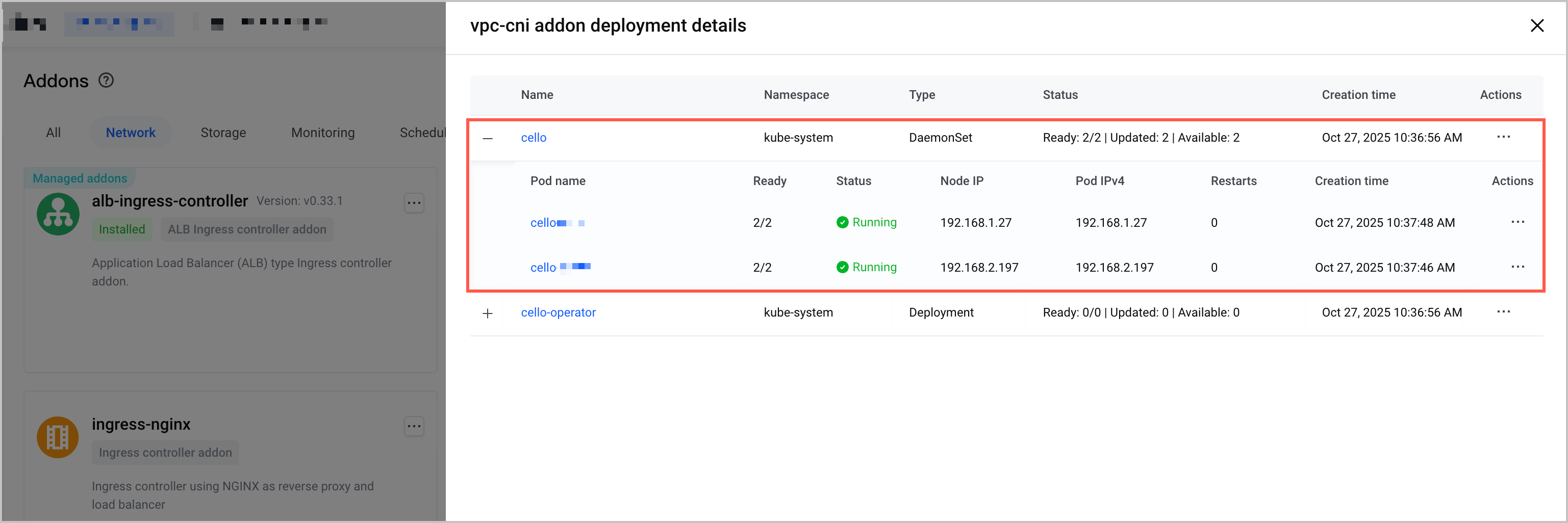
- Check whether the Updated count for the cello-operator Deployment in the kube-system namespace equals the total number of Pods. If all Pods are updated, the upgrade is successful.
- Run the following command to check whether the DaemonSet cello in the kube-system namespace is in the READY state and whether the value of UP-TO-DATE equals the total number of pods.
- kubectl get daemonset cello -n kube-system
- If all pods are in the READY status and the value of UP-TO-DATE equals the total number of pods, the upgrade is successful.
-

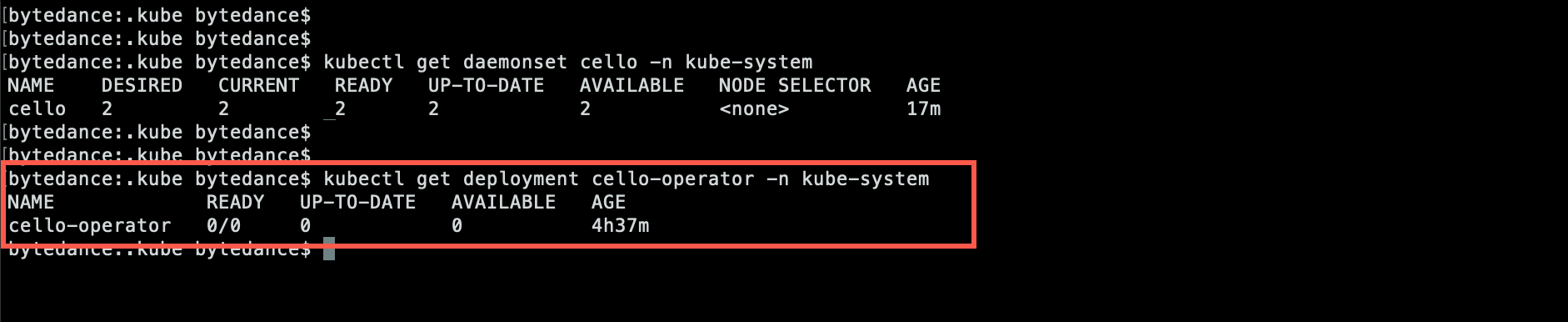
- Run the following command to check whether the UP-TO-DATE count of the cello-operator Deployment in the kube-system namespace equals the total number of Pods.
- kubectl get deployment cello-operator -n kube-system
- If the value of UP-TO-DATE equals the total number of pods, the upgrade is successful.
-
Related documentation
Last updated: 2026.10.15 20:25:31
All rights reserved © Beijing Volcano Engine Technology Co., Ltd2024
