Volcengine Kubernetes Engine
Volcengine Kubernetes Engine


Document

- Documentation
 Volcengine Kubernetes EngineVolcengine Kubernetes EngineUser guideAdd-on managementStorage add-onscsi-ebs
 Copy page
 Download PDF
Storage add-ons
csi-ebs
Copy pageDownload PDFcsi-ebs
The csi-ebs add-on is an EBS driver implemented based on the CSI specification. This topic describes how to install and upgrade the csi-ebs add-on and provides relevant considerations.
Add-on overview
csi-ebs is a core storage add-on provided by VKE for integrating and managing EBS resources in clusters. It bridges the cluster with the underlying storage service. When your workload requires persistent data storage, this add-on will automatically apply for a cloud disk, format it, and mount it to the specified Pod. This ensures that data is not lost when the Pod restarts or migrates.
As a non-managed add-on, it runs on your cluster nodes and consumes a small amount of node-level compute resources. After the add-on is installed, the following Kubernetes resources will be automatically created in the kube-system namespace.
Resource name | Resource type | Resource description |
csi-ebs-controller | Deployment | The Pod for the EBS management controller. It monitors storage requirements (PVCs/PVs) within the cluster, and automatically completes EBS resource creation, scale-out, deletion, and mounting/uninstalling by calling the API. |
csi-ebs-node | DaemonSet | The Pod for the EBS mount controller. It runs on each worker node in the cluster and is responsible for formatting the EBS volumes locally on the node and mounting them to the container directory where the Pod resides. |
tip
The preceding table only lists the main resources of the add-on, as well as resources that may be used when the add-on or the corresponding feature is configured. This helps you understand the main components of this add-on. Other resources, such as ConfigMap and Secret, related to the add-on are not described here. You should refer to the actual resources in the cluster.
Add-on versions
For information about the historical release records of the add-on, as well as new features and optimization descriptions for each version, see Add-on release records.
Install the add-on
- Log in to the VKE console.
- In the left navigation bar, click Cluster. Click the target cluster name to go to the management page of this cluster.
- In the left navigation pane, select Addons and click the Storage tab.
- Move the pointer over the add-on card, click Deploy, and configure the add-on parameters.
-
- Click Confirm to finish configuration.
Upgrading add-ons
Known issues
We recommend upgrading the add-on version promptly. Using an earlier add-on version may cause the following issues.
Upgrade risks
The upgrade of add-ons, whether successful or unsuccessful, will not affect existing applications. But the ongoing tasks will be disrupted during the add-on upgrade because the related workloads will be recreated, causing the resource status to become not ready. After the add-on is upgraded, unfinished operations are automatically retried. You only need to wait until the resource status becomes Ready, and no manual intervention is required.
The following list contains actions that may be impacted during the add-on upgrade process:
- Create PersistentVolumeClaims (dynamic volumes). Failed volume creation causes the PersistentVolumeClaim to remain unbound.
- Delete PersistentVolumeClaims (dynamic volumes). Failed PersistentVolume deletion causes the PersistentVolumeClaim to be stuck in the Terminating state
- Create workloads. A failed volume mount operation causes the workload to enter the ContainerCreating state.
- Delete workloads. A failed volume unmount operation causes the workload to enter the Terminating state.
tip
If your business application requires fast PersistentVolumeClaim binding and workload start, further evaluate the risks and upgrade the add-on during off-peak hours.
Procedure
Go to the add-on management page of the target cluster, and in the upper-right corner of the add-on card, click ... > Upgrade to upgrade to the latest version. For details, see Upgrading add-ons.
warning
- In case of an upgrade failure, follow the error messages to fix it and try to upgrade the add-on again.
- If you encounter issues during the upgrade process or want to upgrade to a specific version, contact presales support or submit a ticket to obtain technical support.
Check add-on status
After the add-on installation/upgrade is complete, confirm whether the add-on is working normally by using the console or the command-line tool kubectl.
- Log in to the VKE console.
- In the left navigation pane, click Cluster. Click the target cluster name to go to the management page of this cluster.
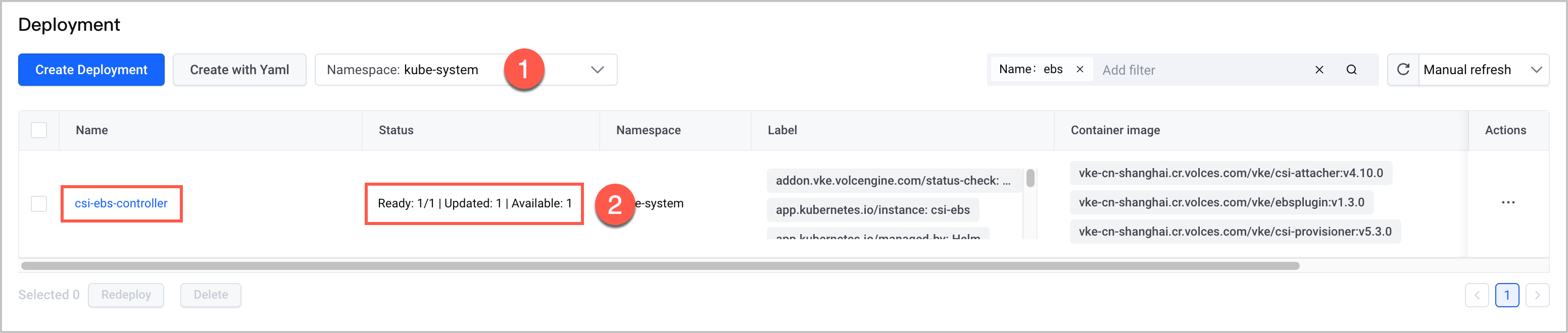
- In the left navigation pane, click Workload > Deployment. On the Deployment page, check whether the Deployment csi-ebs-controller in the kube-system namespace is in the Ready state. If all the Pods are ready, the upgrade is successful.
-
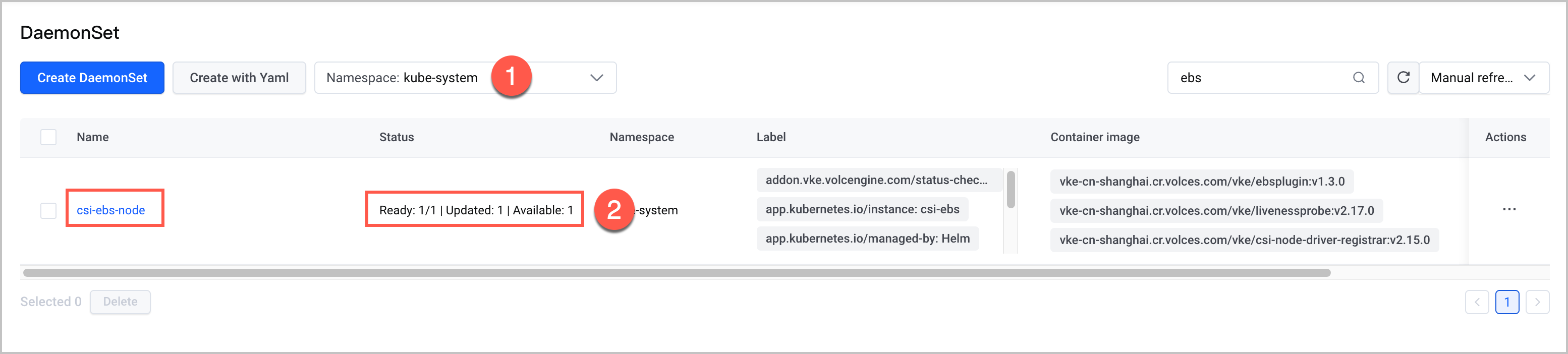
- In the left navigation pane, click Workload > DaemonSet. On the DaemonSet page, check whether the DaemonSet csi-ebs-node in the kube-system namespace is in the Ready state. If all the Pods are ready, the upgrade is successful.
-
- Connect to the target cluster using kubectl and then execute the following commands in sequence to check the add-on status.
- Run the following command to check whether the Deployment csi-ebs-controller in the kube-system namespace is in the Ready state. If all the Pods are in the Ready state, the upgrade is successful.
-
-

- Run the following command to check whether the DaemonSet csi-ebs-node in the kube-system namespace is in the Ready state. If all the Pods are in the Ready state, the upgrade is successful.
-
-

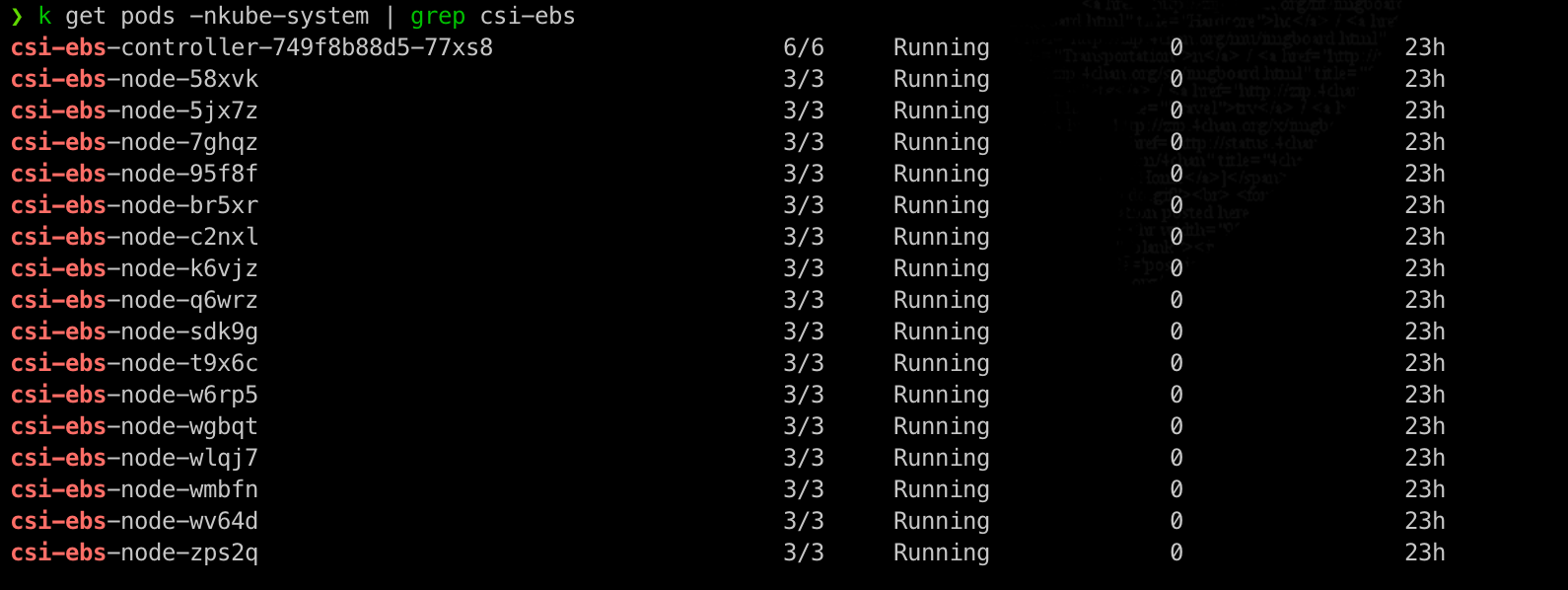
- Run the following command to check whether the Pods related to the csi-ebs add-on are running normally. If all the Pods are in the Running state, they are running as expected.
-
-
Monitoring and alerting
Add-on observability
The stability and performance of the csi-ebs add-on directly affect its proper functioning and overall effectiveness. We recommend enabling add-on observability in your cluster to monitor add-on health in real time. For details, see CSI Storage observability.
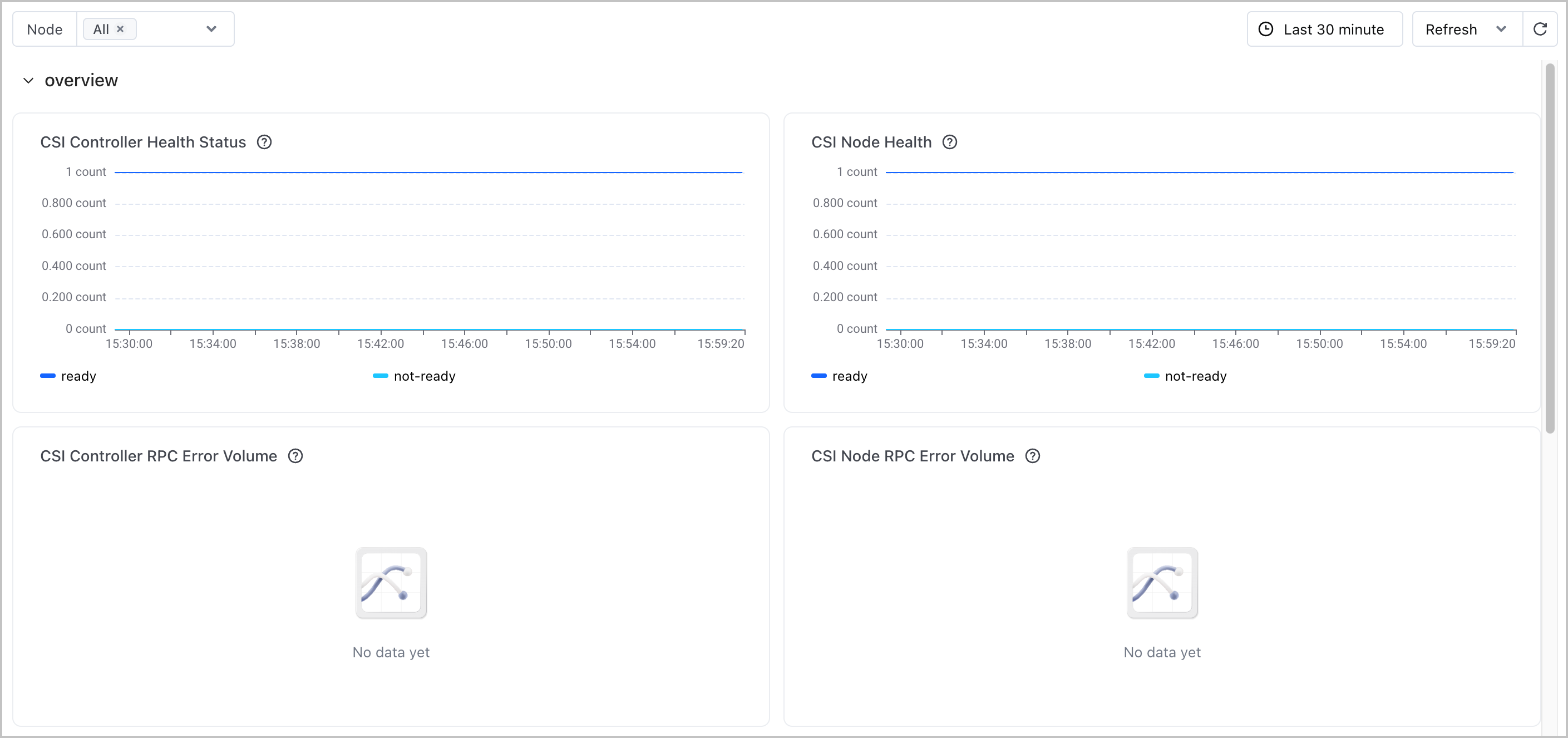
After you enable add-on observability, you can view the preset observability dashboard for the add-on in the console. This dashboard primarily displays the running status of the csi-ebs add-on and the cloud disk volume operation workflow, including Controller Pod availability, Node Pod availability, control plane operation backlog, control plane RPC call failures, node RPC call failures, cloud storage API call failures, cloud storage API latency, and node RPC latency. You can specify a custom time range for querying information and set the information refresh mode to manual refresh or automatic refresh.
- In the left navigation pane of the cluster management page, click Monitoring center > Dashboard.
- In the left dashboard list, select Storage service monitoring > EBS monitoring to view the monitoring dashboard.
-
Configuring alerts
VKE provides comprehensive cluster monitoring and alerting capabilities based on VMP. You can quickly create alert rule groups by using preset templates or configure custom alert rules by using PromQL statements based on your business requirements. You can also export preset templates in YAML format, adjust the rules, and save them as custom alert templates for reuse across multiple clusters. For details, see the following topics:
Preset alert templates are provided by the system based on common O&M scenarios. They are applicable to building an alert system for the first time or quickly supplementing basic monitoring items. This helps you promptly detect insufficient resources or abnormal operation of add-ons. For details about the alert rules in preset alert templates, see Preset alert templates.
Related documentation
Last updated: 2026.10.15 20:25:31
All rights reserved © Beijing Volcano Engine Technology Co., Ltd2024
